
Looking back, looking forward

In the past I’ve done an end of your quiz (see 2007, 2006, 2005, 2004 and 2003) but I’ve chosen not to do it this year. Instead, I’ve decided to write a brief entry summing up 2008, and what 2009 has in store for me.

2008 has been mostly a consolidation year after the big changes in 2007. Up until mid-December I was working for the university in Bradford, where I saw my contract move from casual work to a salary, my contract extended, and then subsequently finding in November that it wouldn’t be renewed. I had a couple of job interviews which unfortunately proved fruitless (and with hindsight I wouldn’t have wanted one of the jobs anyway) and I’m now currently unemployed.

Hari and I have also had a good year together. We moved in properly in summer 2007 and have been happy together – for the most part at least – in a rented house that we’re sharing. 2007 was our third year together and while we didn’t pass any other major milestones the future looks reasonably bright for the two of us.

Financially things have been a little hard, as almost everything I have earned has been spent on rent, bills, taxes and groceries leaving little left over for luxuries. Thankfully I have some savings and supporting parents so I’m not drowning in debt. This is why, as much as I’d like to buy a new computer, I’m having to hold off until I have more money left at the end of the month.

2009 is looking to be a year of change, maybe more so than 2007 was. I have already got a job interview mid-January and looking for other work as well, but as I’m not limiting myself to the Bradford area it may well mean moving; the job I have an interview for is in Scotland, for example. Hari is still at university and will be there until the end of May, so it may mean living away from her initially. We have agreed that we want to move away from Bradford – I have been here for over 6 years, she has been here for over 4 – and this would be good time to do it.

Provided I find a new job, and one that isn’t fixed-term and has a decent salary, financially we should be somewhat better off than right now, in spite of the current economic climate.

In terms of how the world will be in 2009, we’re at an interesting point in history. America has elected a (comparatively) young, intelligent, charismatic person as its next president, who is currently “talking the talk” when it comes to sorting out the problems in his country and overseas. This year will prove whether he can “walk the walk”, or whether his bark is weaker than his bite, as it where. We, once again, have unrest in the middle east, due to a minority of idiots with weapons throwing weapons at civilians (I’m talking about both sides here); we have the continuing collapse of Zimbabwe, as well as other ongoing problems in other African nations such as Somalia, Sudan and Congo; and of course there’s the world economies which may well get worse before they get better. For world affairs, it will be an interesting year.

Hope you have a good New Year celebration – I’ll be spending it with a few friends in Bradford – and see you in 2009, whatever it may bring.

Canon EOS 300D

Me and my EOS 300D

One of my Christmas presents was a “new” camera – a Canon EOS 300D. Those of you who know about cameras will know that the 300D is not exactly a new model – in fact, it was launched over 5 years ago. This specific camera was in fact my dad’s camera, but he’s since acquired a Canon EOS 450D, so his old camera was passed down to me.

It’s my first SLR camera and I’m still getting used to it, but I used a trip to the coastal town of Scarborough today to get a bit of practice. The photos will look dull because of the weather – which was dull all day.

You can see them in this Flickr set.

Merry Christmas!

Just want to wish you all a very Merry Christmas.

Presents? I got a 4th generation iPod Nano (in blue), a Canon EOS 350D digital camera (passed down from my father), a digital photo keyring, Denon in-ear headphones, socks and a veritable feast of edible treats.

How to migrate a Parallels virtual machine to VirtualBox

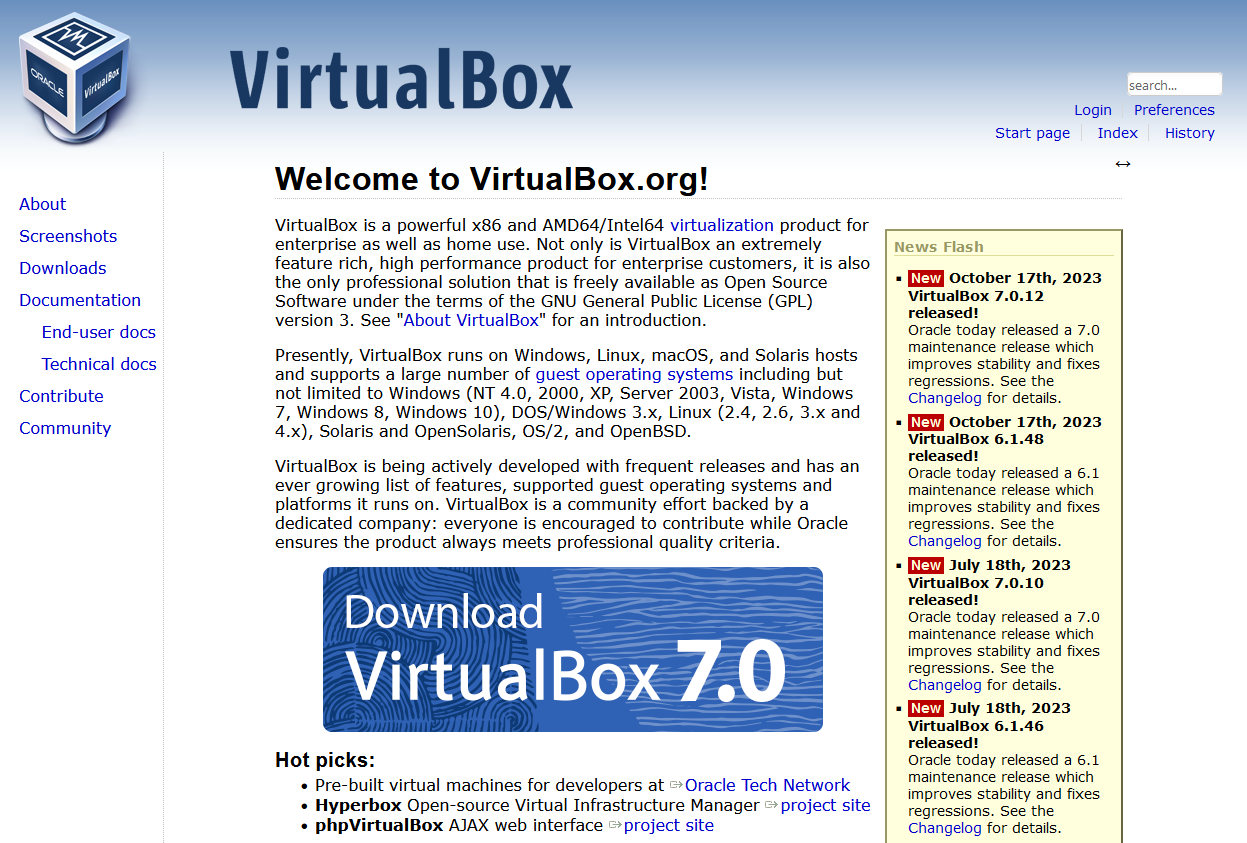
A screenshot of the web site for VirtualBox

Despite Parallels and VirtualBox both being programs which run virtual machines on Mac OS X, they both use different file formats for storing the virtual machines on disk. Though I believe Parallels will open a VirtualBox disk, VirtualBox cannot automatically import Parallels disks. But it’s not impossible…

If the guest operating system, i.e. the system that is running inside Parallels, is Windows 2000/XP/Vista, then it is possible to use a free tool from VMWare to do the conversion. Here’s a step-by-step:

1. Back up your virtual machine

Seriously. We’ll need to modify it a bit before it’s converted, so you’ll want a backup copy just in case things go wrong, or if you may use Parallels again in future.

2. Uninstall Parallels Tools

This is the modifying bit. Load your Windows virtual machine in Parallels, and uninstall Parallels Tools (the helper program that adds drivers and clipboard sharing, and other stuff). This is important as otherwise your virtual machine won’t boot in VirtualBox – and I know this from experience. You also can’t uninstall Parallels Tools unless you are running Parallels at the time.

3. Close all programs

Close as many running programs in your virtual machine as possible. We’re about to take a snapshot image of it while it is running, so any unsaved data may be lost when you boot the image in VirtualBox. That includes programs with icons in your notification area, such as virus scanners, instant messaging programs etc.

4. Install VMWare Converter

Once Parallels Tools has been uninstalled (you may need to reboot the virtual machine for this), we can begin the conversion process using a tool ironically made by VMWare. Go to the download page for the VMWare Converter in whatever web browser you use in your virtual machine (it’s a Windows program) Download it, and then install it.

Run the Converter tool, and click ‘Convert Machine’ – this should pop up a wizard which walks you through the process of setting up a new virtual machine image. You want to tell it to use a ‘Physical Computer’, and then on the next screen choose ‘This Local Machine’. Select the hard disk of the virtual machine and leave ‘Ignore page file and hibernation file’ ticked as this will just bloat the new virtual disk with unnecessary rubbish.

For the type of virtual machine, select ‘Other virtual machine’, and on the next screen, give it a name (e.g. ‘Windows Vista’). Next, you will also need to save it somewhere, and this should not be the existing hard disk of the virtual machine. You can either use your Mac’s main hard disk, mapped to drive ‘Z:’ under Parallels, a network drive or an external drive if you have it forwarded through to the virtual machine. You should be able to use the top option for the type (i.e. ‘Workstation 6.x’) but if it doesn’t work try another option. Keep ‘Allow disk to expand’ checked on the next screen. Click through until you’re ready to complete, and start the conversion.

5. Go and grab a cup of coffee

Or go out shopping. Or read a few chapters of War and Peace. Either way, the machine will take a significant amount of time to convert – mine took around 45 minutes and was only around 15 GB. Bigger disks may well take longer. It helps if you don’t have lots of other programs running on your Mac at the same time as then more of your CPU juice can be used for the conversion.

6. Shut down the machine in Parallels

Now that you’ve exported the machine, shut down Windows and close Parallels. This is mostly so that you can stay within the terms of the license agreement for Windows which won’t allow multiple instances.

7. Import the disk into VirtualBox

Open VirtualBox, choose ‘File’ and then ‘Virtual Disk Manager’. Add the disk file that you created, and click OK. Then click ‘New’ to create a new virtual machine, and select the correct operating system from the list. Try to ensure that you give the virtual machine the same settings (such as RAM size) as you did in Parallels. When asked for a hard disk, click the ‘Existing’ button and choose the disk file that you created from the list. Then click Finish.

8. Boot up in VirtualBox

Hopefully all will have gone to plan, and you will be able to boot into Windows as before. All of your files and programs should be there waiting for you.

If, however, you encounter a blue screen mentioning ‘prlfs.sys’ like I did, boot the machine but press F8 during the boot to enter Safe Mode with Command Prompt. Type in cd c:\windows\system32\drivers and then rename prlfs.sys prlfs.sys.old and then reboot – that should get you up and running.

For the inquisitive, prlfs.sys is part of Parallels Tools and this should have been removed as part of step 2, however muggins here forgot to this when he tried it himself and therefore encountered this error.

9. Install VirtualBox Guest Additions

Guest Additions are to VirtualBox what Parallels Tools are to Parallels – in other words, they make Windows sit better in the virtual machine and improve integration with the host operating system. On the main VirtualBox menu, select Devices and then ‘Install Guest Additions’ and follow the on-screen instructions. Though this is optional, it will improve the experience of using Windows in VirtualBox.

Hopefully now you’ll be up and running in VirtualBox. Feel free to post comments below and I’ll try to do what I can to answer them but I’m not the world’s greatest expert in this. I also don’t know how to do this in other versions of Windows or other operating systems.

Posts 0 – 4 Comments

Weirdly, there’s been a small increase in the number of comments on here over the past few days, despite the fact I’ve only managed one post so far this month.

Main reason for the lack of posts has been partly because I’ve been very busy, partly because I’ve had nothing interesting to write about, and partly because my life isn’t that great right now. Those of you who know me better will know the details but I don’t want to say much publicly until the situation calms down. Which it should do soon, I hope.

Me and Hari are fine, by the way.

Trying out VirtualBox 2

VirtualBox 2 is out. VirtualBox is Sun Microsystems’ entry into the Virtual Machine market, and competes against Parallels and VMWare. Unlike the others, it is free and comes in an open source flavour.

Since I have been using Parallels for some time, and VirtualBox is free, I thought I’d give it a spin on my MacBook, using Mac OS X as the host operating system. Parallels is excellent for running Windows Vista (and presumably XP), but its Linux support has been a little lacklustre and the past 2 releases have not supported Ubuntu 8.04 despite being released after Ubuntu has been released.

For version 2, quite a bit of work has gone on to make VirtualBox fit into OS X better, and it shows – though it still feels like a port, it looks very much look a native Mac application and it’s very easy to get going. Since I only have 1 Windows Vista license and I’m already running it in Parallels, I decided to try it with Ubuntu 8.04.

And it seems to work well. Plus, VirtualBox’s ‘Guest Additions’, software for the guest OS which enhances support, work for Ubuntu 8.04 – unlike Parallels Tools which only work for older Ubuntu releases. They also go further; not only do you get dynamic screen sizing (the display area adjusts depending on the virtual machine’s window size), seamless mouse pointer integration and time synchronisation – there’s also clipboard synchronisation and an attempt at desktop integration, which resembles Coherence mode in Parallels, but it works under Linux as well as Windows. However, it’s a bit buggy and I had some rendering issues while trying to use it.

Other down points? There’s no importing from other disk formats – so if you already have virtual machine set up in Parallels you can’t use it straight-away in VirtualBox (although if you can find a tool that converts the disk to the VMDK format you may have some luck). And PowerPC Mac owners are out of luck as VirtualBox is Intel-only, although running an Intel VM on a PowerPC machine would be very slow anyway.

That all being said, VirtualBox is a strong contender, and you can’t argue with free. For many, this will do everything that they demand from its commercial rivals, without costing a penny.

Knock-off Nigel

When you watch a British DVD, usually before the film starts, you’ll have to watch this:

But now on TV, we have this:

The message it’s trying to spread is that people who download films or buy counterfeit DVDs are sad, corner-cutting lowlifers – no ‘cool’ person would want to be like Nigel. While I like the less confrontational stance, I somehow doubt the effectiveness of the new ads.

Of course, the best one is the parody by the IT crowd:

More on the upgrade

As promised, here is more about the upgrade I did to my parents’ computer last weekend.

The computer will be 4 years old in October and I wanted to sort out its current shortcomings while also making it capable of running for at least another 2-3 years. The agreed budget was £100, about 6 times less than the original cost of the computer.

In the end, we went for the following internal components:

  • 2 GB of Corsair Value Select PC3200 RAM
  • 256MB XFX nVidia GeForce 6200A AGP 4x/8x graphics card
  • A no-brand USB and FireWire PCI card

The memory was the most important part of the upgrade. Originally, the machine only had 512 MB of RAM, and as such was struggling. As a matter of principle I only buy Corsair or Crucial RAM as I know it’s good quality, and on this instance I went for Corsair as it was slightly cheaper and could be shipped as part of the same order from Scan. It was still the most costly aspect of the upgrade at £39.32 (ex VAT), taking the majority of the £100 budget.

Next was the graphics card. Right now the machine has onboard VIA graphics, which can do some basic 3D but not much more (it will just about handle the original World of Warcraft with all of the effects turned off, but it’s not pretty), and it leeches system RAM rather than having its own. Furthermore, the manufacturer has not produced any new drivers for Windows Vista. So, as part of my plan to keep the machine running for a few years, allowing for a potential Vista upgrade is important. I doubt nVidia are due to disappear any time soon, so hopefully this new card will be a safe bet. It also adds DVI and S-Video output, allowing connection to a TV or a more modern TFT screen.

Finally, I added a USB and FireWire PCI card. The machine had 2 USB ports at the front and 2 at the back, but both of those at the back were full and my parents were already having to use a hub. The machine is due to be moved to a room where there is no wired socket for Ethernet, so we’ve opted to go for a USB wireless dongle (the Netgear WG111 previously mentioned), so that would be another USB port used up. As an extra PCI card was only around £5, it made sense to add 4 more ports. It also adds 2 FireWire 400 (IEEE 1394a) ports, which the computer previously lacked; whether my parents will ever use them is perhaps questionable but at least they are there, and it may add resale value to the machine.

These 3 items, plus the Netgear dongle, packing and VAT, came to £100.19, so only a bit over budget 🙂 . The difference is very noticeable – startup times are improved and general performance is much better. The machine is now almost ready for Windows Vista – the only device lacking a Vista-compatible driver is the internal modem, which isn’t in use anyway and could be removed if necessary (it’s made by SmartLink who sold their assets to Connexant in 2006, and then disappeared off the face of the earth. Their latest drivers don’t even work correctly with Windows XP SP2).

Stop… upgrade time!

My parents’ computer is in need of a mid-life upgrade. It was bought in October 2004 and, at the time, gave acceptable performance. But now it’s flagging a bit, in comparison to the latest and greatest. To save you reading the old entry, here’s the specs:

  • AMD Athlon XP 3000+
  • 512 MB RAM
  • 80 GB HD
  • DVD rewriter
  • 64MB onboard graphics
  • Plus all of the usual stuff

Three-and-a-half years on, and it looks like the main weak points are the memory and graphics. The processor is reasonably good, and I’m not inclined to replace it as the prospect quite frankly scares me, and they still have ample space on the hard drive.

512 MB RAM is low by today’s standards, and so I’m proposing an upgrade to 2 GB – the maximum the machine will hold. Upgrading the RAM on Hari’s machine, which is of a similar specification and age, made a big difference and so this would be my first choice.

The graphics are the other aspect I want to upgrade. Right now it’s a VIA onboard job, which as well as being underpowered also lacks Windows Vista drivers, so if my parents do ever upgrade (unlikely, but I wouldn’t rule it out) they would potentially run into problems. The machine does have an unused AGP port, and so a cheap graphics card would be an instant upgrade. It would also return those 64 MB of RAM that it used to the computer, although 64 MB is a drop in the ocean when you have 2 GB.

We still have Hari’s old graphics card lying around (in a static-proof sleeve), which is based on the nVidia GeForce 5200 FX chipset. This was okay for normal use on her computer but seriously impacted her WoW gaming. Now, my parents are hardly likely to be fragging noobs or levelling shadow priests any time soon, but a better card can be bought for very little money. In fact, £25 would buy you something based around the full nVidia GeForce 6200 chipset (as opposed to the budget FX range). So it’s a question of saving £25 and recycling the old card, or getting something better for a little more money.

The computer also needs equipping for Wifi, probably by virtue of a USB dongle, but at less than £10 a piece that’s not a major issue. The total budget for all of this is £100, with the RAM costing about £50 (looking at Crucial and Corsair prices). There’s ample room for a reasonable graphics card, but I’m wondering whether to bother or not.

What do you think?

Films that I own on DVD and haven’t yet watched

Here’s a list of films that I’ve bought on DVD, but, so far, I haven’t actually watched:

  • Shrek 3
  • Harry Potter and the Order of the Phoenix
  • Hellboy
  • Nacho Libre
  • Family Guy presents Blue Harvest

Of those, I haven’t even seen 3 of them at the cinema/on TV.

This is mostly a mental note to make sure that next time there’s nothing good on TV, I get around to actually watching these films – after all, I’ve paid money for them.