Olsen & Smith 1800W Smart Ceramic Heater Review

A photo of the Olsen & Smith 1800W smart ceramic heater

My latest new smart home device is this little 1800W ceramic heater from Olsen & Smith (sponsored link). It’s only around 20 centimetres tall, but is able to output a decent amount of heat quite quickly.

We bought it because our ten-year-old’s room is consistently colder than the rest of the house. I suspect it’s because the radiator in there is under-powered, and hidden away behind a cover, but it’s typically 2°C colder than our bedroom next door. So far, our mitigations against this have been extra blankets on the bed and a hot water bottle, but I decided that we needed to do more than just keep the bed warm.

Using the ceramic heater

This ceramic heater is designed to be placed on a desk, or similar – it’s not really suitable as a free-standing heater as it’s quite short. It comes with a 1.5 metre cord.

There are a series of touch buttons on the top to control the heater. It has a digital thermostat, so you can set a target temperature and have it heat up to that level. There are four heat modes: low, medium, high and eco, which determine the power output. Low drops it down to 900 watts, and high uses the full 1800 watts of power. Meanwhile, eco mode automatically adjusts the power output to maintain the target temperature. It also includes a built-in timer, allowing it to automatically switch off after up to 12 hours.

It’s very quiet – it’s stated to run at between 28 and 56 decibells. I’m partially deaf, so I’m not the best judge of how noisy something is, but I could barely hear it. It’s certainly much quieter than our air conditioning unit that we use in summer, and quieter than a typical desk fan turned up to full speed.

In terms of its effectiveness, the heater seemed to warm the room up pretty quickly, as measured by its own thermostat. I have a separate ThermoPro thermometer in the room which measured a smaller but meaningful increase in temperature, but the heater isn’t pointing towards it.

Smart features

The ceramic heater uses Tuya as its smart home platform. As regular readers will know, I’m not a fan of Tuya, but I accept that it’s simple to set up, especially if you don’t have lots of other smart devices. Indeed, on opening the Tuya app, Tuya auto-discovered my new heater and asked to configure it. The app controls are easy enough to use, and mirror the controls on the unit.

The key reason why I wanted to buy a smart ceramic heater was to be able to automate it in Home Assistant. Our ten-year-old tends to only use their bedroom for sleeping, so the heater doesn’t need to be on much. Thankfully, when I reloaded the Tuya integration in Home Assistant, it appeared as a climate device. Home Assistant’s controls are limited to setting the target temperature, and turning it on and off; the controls for setting timers and heating power aren’t exposed. But being able to turn it on and off with an automation is possible, and so I have it come on around an hour before bedtime to warm the room up, and then switch off.

A peculiarity with this ceramic heater is that you can link it with Alexa via the Tuya app, but not Google Home. Which is odd; every other Tuya device I have owned supported both. Thankfully, I could add it to Google Home via Home Assistant, so our ten-year-old can use voice control with it.

A bargain

Finally, I want to highlight that this little ceramic heater cost just £20 from Amazon. There are a few cheaper ceramic heaters, some of which simply plug straight into the wall. But they tend to have lower power output, and aren’t smart. As much as I’d rather have something with local control, a smart ceramic heater for £20 is excellent value for money.

How to: multiply two entities in Home Assistant

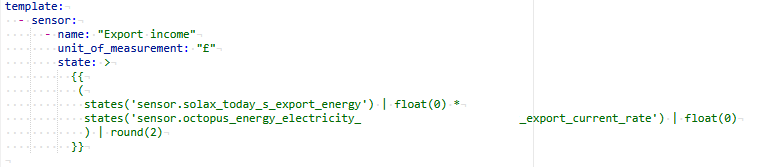
A screenshot of a YAML Template Sensor in Home Assistant that multiplies the values of two other sensors.

Suppose you have two entities in Home Assistant, and you want to multiply them together to produce a third entity that always shows the product of these two entities. Here’s how I went about it.

One of Home Assistant’s built-in integrations is Template. These Template entities derive their status from other entities in Home Assistant, and appear in the Home Assistant web interface as Helpers. You can do some fancy things with these, but all I want to do is multiply the value of one by the other.

Calculating export income

In my case, I wanted an entity that shows how much I’m earning from exporting excess energy generated by my solar panels, once our home battery is full. The amount exported is available as an entity in the SolaX Modbus integration that I use, expressed as a value in kWh. I also use the Octopus Energy integration with Home Assistant, and this has an entity showing my current export rate in £ per kWh. So, multiplying these together will show how much I should be making when I export.

This should be possible to set up as a Helper in the Home Assistant interface, but I personally found it easier to do so in YAML. Also, this is where I was able to ask ChatGPT to help write the YAML code. After tweaking its output to fit my needs, here’s what I’m using:

template:
  - sensor:
      - name: "Export income"
        unit_of_measurement: "£"
        state: >
          {{
           (
            states('sensor.solax_today_s_export_energy') | float(0) *
            states('sensor.octopus_energy_electricity_[mymeter]_export_current_rate') | float(0)
            ) | round(2)
          }}

The name is a human-readable name that I have given to the entity. The unit of measurement is optional – Home Assistant will accept just about anything you type in here, but as the amount will be currency I’ve put in the £ sign.

The ‘state’ bit is where I needed help from ChatPGT, as this isn’t really standard YAML here. We specify the first entity, and add '| float(0)'. The ‘float’ is necessary to provide a floating point number. The * character represents multiplication, and then we repeat the same notation for the second entity. Finally, we specify ‘| round(2)‘ so that the resulting entity rounds to two decimal places. Which, when dealing with an amount of money, makes sense as 0.3333 of one pence isn’t really worth knowing about.

As with any changes to Home Assistant’s YAML configuration, you’ll need to restart Home Assistant after setting this up. You’ll then have a nice new helper, in my case ‘sensor.export_income‘ to plop somewhere on your dashboard. Personally, I have it as a badge which appears once the value is higher than 0. Which, at this time of year, isn’t very often, but we did have a nice enough day a couple of weeks ago to be able to export some electricity.

An overview of other people called Neil Turner

An amalgamated screenshot of web sites about other people with the name Neil Turner

I suppose one problem with having a (relatively) common first name and surname, is that I’m not the only person called Neil Turner. If you do a Google search for ‘neil turner’, this blog is currently not the first result, although it has been in the past.

When I first joined Facebook, almost two decades ago, I was invited to two separate groups for people called ‘Neil Turner’. And I have even met someone in person called Neil Turner, albeit with a different middle name. And I get plenty of email to my Gmail address, which is derived from my name, meant for other people whose surname is Turner and who has a first name beginning with ‘N’.

So who are these other Neil Turners? Here’s a quick overview of the ones that I have found.

Neil Turner, the British author

The number one result on Google at present is a British author called Neil Turner, who writes financial thriller books after a career working at hedge funds in London and Frankfurt. Three of his books have been published so far.

Neil Turner, the Canadian author

I came across the Canadian author called Neil Turner because several people emailed me, expecting me to be him, to invite me to attend various book club meetings. Indeed, a few months ago I added a note to my contact page advising people that I am not the same person.

This Neil Turner is also an author of thrillers, focussing on the lawyer Tony Valenti. So far, there are 10 books in the Tony Valenti series.

Neil Turner, the retired Labour politician

If you go to the Neil Turner page on Wikipedia, nowadays you will see a disambiguation page which links to five other pages. However, in the past, it would have taken you straight to the former MP Neil Turner, who represented Wigan for the Labour party from 1999 to 2010. He was briefly a junior minister in Tony Blair’s latter days as Prime Minister, but announced in 2009 that he would not stand for the next election.

The Wigan constituency remains a Labour seat, with Lisa Nandy having retained it since the 2010 General Election.

Neil Turner, the photographer

Previously, Neil Turner the photographer was also a number one result on Google for ‘neil turner’. This person is based in Bournemouth and is a professional photographer who also has a blog. I suppose that makes him the opposite of me in a way, as I’m more of a blogger than a photographer, although I do neither professionally.

Neil Turner, the former rugby league player

Back to Wikipedia, and there is a former Rugby League player called Neil Turner. He played for Hull FC and Doncaster, as well as spending time as a police detective (if an unsourced statement on Wikipedia is true).

Neil Turner, the Australian politician

It seems that more than one person with my name has gone into politics as there was a politician called Neil Turner in Queensland, Australia. He served time as the Speaker of the Queensland Legislative Assembly in the mid-1990s, but he died in 2011.

Neil Turner, the Australian scientist

Another Australian namesake on Wikipedia is Dr Neil Clifford Turner, although he was born in the UK. He is an agricultural scientist who looks at how crops can adapt to dryer landscapes as a result of climate change.

Neil Turner, the retired British researcher

At the nearby University of Leeds, there’s Dr Neil A Turner, who researches cardiology and is based at the university’s medical school. He’s now retired but contributed to some published papers as recently as 2024.

Neil Turner, the British co-author

There’s a book called Toby and Sox, about an autistic boy and his therapy dog, which was authored by Vikky Turner and co-authored by her husband, Neil.

Neil Turner, the architect

There’s a Neil Turner who works for a Durham-based architecture practice called Howarth Litchfield. The company is currently involved in renovating Redcar station on the north-east coast.

Neil Turner, the footballer

There was a footballer called Neil Turner who died before I was born. He was born in Scotland, which figures as ‘Neil’ is originally a Scots-Gaelic name, and played for a number of teams in Scotland, England and later the USA.

Neil Turner, the British professor

Yet another member of academic staff with my namesake. Professor Neil Turner researches project management and supply chains at Cranfield University, and teaches on their research MSc programme in project management.

Neil Turner, the psychotherapist

If I lived in London and needed counselling, then I could make things really confusing by visiting a psychotherapist with my namesake.

There are many more people out there with the same name as me – these are just the people that came up on the first few pages of searching. What is notable is that almost all of these people are older than me; I think by the time I was born in the 1980s, the name ‘Neil’ was starting to go out of fashion. Indeed, it’s no longer in the top 100 baby names and so I can’t even track its popularity.

None of these people are especially famous. When I decided to write this, I was aware of three of them (the British politician, the British photographer and the Canadian writer) but mainly because these are people that I have been confused with in the past. I was unaware of the others until I researched this.

Also, should I ever decide to write a fiction book, I might need to write it under a pseudonym, or use my middle name. Having three published authors with the same name would get unnecessarily messy.

Mealie – self-hosted recipe manager

A screenshot of Mealie, the self-hosted recipe manager

I’ve been playing with Mealie recently. It’s a recipe manager, so you store all of the recipes that you have saved from various web sites and search them easily. You can also add your own recipes, including photos, and include a star rating.

Mealie isn’t the first recipe manager that I’ve used. Until now, I’ve used Mela as a recipe manager. Mela was developed by the same developer as Reeder, which I use for RSS feeds. Mela is really well-designed, and I’ve used it happily for three years, but it’s for Apple devices only. Whilst I use an iPhone and an iPad, I don’t use an Apple desktop anymore and Christine has an Android phone, so I’ve been looking for a cross-platform replacement.

Installing Mealie

Mealie is self-hosted. That means that it runs on a device that you own, rather than a web service, so you’ll need a spare device that’s always on to run it. A Raspberry Pi should be fine, and indeed that’s what I’m using. The other requirement is that the device runs Docker – again, I already had Docker up and running on my Raspberry Pi. If you use Home Assistant, you can install Mealie as an add-on.

There are two versions of Mealie, with different database storage systems. The easiest to set up is the one that runs on SQLite, which should be fine for a reasonable number of recipes and up to 20 users. If you’re planning to host a much bigger Mealie instance, with more users who all need to access Mealie simultaneously, then you can opt for a version which runs on PostgreSQL. This version should also offer better search, but will require more resources and may need a more powerful computer than a humble Raspberry Pi.

Adding recipes to Mealie

Once installed, and you’ve created an admin user, it’s time to add recipes. Mealie can import from a number of other recipe managers, although sadly not from Mela. So, I’ve been manually re-adding recipes as I go – I’ve made a start, but we have over 300 in Mela.

Recipes can be imported from a given URL, analysed from an image or typed in manually. You can also copy and paste the HTML of a web page if Mealie isn’t able to connect to a given URL; this is what I have done with some Mela recipes that I’ve exported as HTML.

Once the recipe has been imported, Mealie will then parse the ingredients. This allows it to build up a database of ingredients, so you can tell it what you have and it can suggest recipes from your library. It also allows you to adjust quantities in the recipe, if you want to make double or half, for example. By default, the parsing uses natural language processing (NLP) but if you have a paid OpenAI account, you can link this and have ChatGPT do the work too. I believe you can use other AI models if you wish, including self-hosted ones.

For the first few recipes, Mealie prompted me to decipher some ingredients that it didn’t understand. Although it has a ‘British English’ ingredient list, it’s not complete, and so I had to add some items. You can also added aliases for items, and over time, it got better at parsing recipes.

Phone apps

There are apps available for Mealie, but there isn’t an ‘official’ one as far as I can tell. On iOS, I’m using one called MealieSwift, which offers most features for free and the rest for a one-off £10 payment. Others are available. Once I’ve got more recipes migrated over, I’ll see about an Android app for Christine’s phone.

If you want to be able to access Mealie outside the home, then you may need to set up a reverse proxy – I use Nginx Proxy Manager for this. The Home Assistant Addon supports Ingress, so you can also access it remotely through the Home Assistant web interface if installed that way. Speaking of Home Assistant, there’s a built-in Mealie integration that you can setup once you have Mealie installed. Mealie offers a powerful API, and so you could potentially build some interesting automations with it.

Meal planning

As well as storing your recipes, you can use Mealie to plan meals, by allocating recipes to meals in a calendar. You can take that further and also use Mealie to develop a shopping list, which will include the ingredients for the recipes you have added to your meal plan. Mela does this as well, and integrates with the native calendar and reminders features on iOS and OS X. The MealieSwift app that I use doesn’t do this, but it should be possible using Mealie’s API.

GeekMagic SmallTV Pro & Home Assistant

A photo of my GeekMagic SmallTV Pro showing a Home Assistant dashboard

I recently bought a GeekMagic SmallTV Pro (sponsored link), which is a small, always-on desktop screen that runs on USB power. Out of the box, it can display the weather, a small range of photos, share prices and cryptocurrency prices. However, I’ve connected it up to Home Assistant to display a dashboard.

There are two varieties of the GeekMagic SmallTV – the ‘Ultra’ and the ‘Pro’. The ‘Ultra’ is actually the more basic model, and isn’t available to buy on Amazon. Both types are available on AliExpress, however. Inside, the ‘Ultra’ model has an older ESP8266 chip, whereas the ‘Pro’ has the newer and more powerful ESP32 chip. Both offer a roughly one inch square screen and connect using USB-C.

Setting up the GeekMagic SmallTV

Like many ESP-based devices, when you first plug the GeekMagic SmallTV in, it’ll create its own Wi-Fi access point. Connect to this on your smartphone, and it’ll pop up a captive portal where you can select your home Wi-Fi network and provide the password.

It’ll then reboot and connect to your home network, and will flash its new IP address whilst booting. You can then go to http://[IP Address]/ in your web browser to configure settings. Note that the cheaper ‘Ultra’ model doesn’t support stocks or cryptocurrency tracking.

Screenshot of the GeekMagic SmallTV dashboard editor in Home Assistant

Integration with Home Assistant: Method 1

There are two ways that you can integrate your GeekMagic SmallTV with Home Assistant. Method 1 is the method that I have used, as it’s less invasive and leaves the stock firmware intact.

Inside Home Assistant, open HACS, and add the above-linked GitHub page as a repository. You can then install the GeekMagic integration – once done, reboot, and then add your device on the Integrations panel.

How this integration works is by generating an image of several dashboard entities, which it then pushes to your device. You should notice a new ‘GeekMagic’ section on the main sidebar that allows you to open the dashboard editor – click this, and you’ll be able to create a new dashboard.

There are multiple layouts available, allowing you to display between one and nine entities. Theoretically, any entity in Home Assistant can be added. Personally, I’ve added the date and time, my solar battery status, the weather, my car’s charge status, how much energy is being generated by my solar panels, and my dishwasher’s progress through a cycle. Most of these are ‘gauge’ displays in the ‘ring’ style, so as well as showing the percentage, the ring gives a clearer visual indication of progress. This is good on such a small screen.

Once set up, the integration pushes a new image to the GeekMagic SmallTV device on a regular basis. I found that I had to remove all of the other images, and set it to change every 10 seconds, to keep the dashboard showing and updated.

Integration with Home Assistant: Method 2

If you clocked that these devices have ESP chips earlier, then it won’t surprise you that people have installed ESPHome on them. This involves replacing the stock firmware with ESPHome, which is easy to do – the web interface on the stock firmware has a firmware upload tool that should accept an ESPhome binary. I say should because I haven’t tried it personally.

If not, then the good news is that this device is easily dismantled – there are a couple of standard screws on the bottom. Inside, the printed circuit board includes GPIO pin holes for its UART interface. That may also help if you accidentally brick the device and need to replace the firmware manually.

I haven’t gone down this route as yet, as it takes more work. You would have to specify what to display on the screen in the ESPHome YAML configuration, and you’ll lose all the other functionality provided by the stock firmware. Also, be aware of various copycat devices with slightly different chips; they’ll almost certainly still run ESPHome but you may need to amend the configuration slightly.

I quite like my GeekMagic SmallTV Pro – it’s handy to be able to track key entities in Home Assistant without having to open my phone or look at the full dashboard. And it’s sufficiently low power that it can run all the time.

Flung into February

Back in February 2024, my wife Christine described the preceding January as ‘the Januariest January that ever Januaried’. And whilst January 2025 was also something of a slog, for us at least, this January hasn’t been so bad. I think it’s helped that I had a few days off work at the start, and so wasn’t back to work until the 6th. But also, we had some days out, including Hardwick Hall and the Thackray Museum.

And so to this February. Usually when I post something on the first of the month, it’s to tell you what we’re up to this month. Which, based on a glance at my calendar, is not a lot. Valentines Day is next Saturday, which means no hope of a nice but affordable meal out anywhere. Not that we’re big on Valentines Day – normally we just exchange cards. Our 2014 surprise jaunt to London was very much an exception. We may do a nice meal at home, although how romantic we can be with a ten-year-old in the house is questionable.

Speaking of the ten-year-old, they are overdue for a birthday party so we’ll be organising that this for this month. Even though their actual birthday was a few weeks ago. We haven’t done a birthday party for them since they turned seven, but turning 10 is a bigger deal.

I have a few blog posts already lined up, so there should be plenty to read about on the blog this month. We may even manage the occasional day trip, depending on the weather. We’ll see.