Fritz! Repeater 3000AX

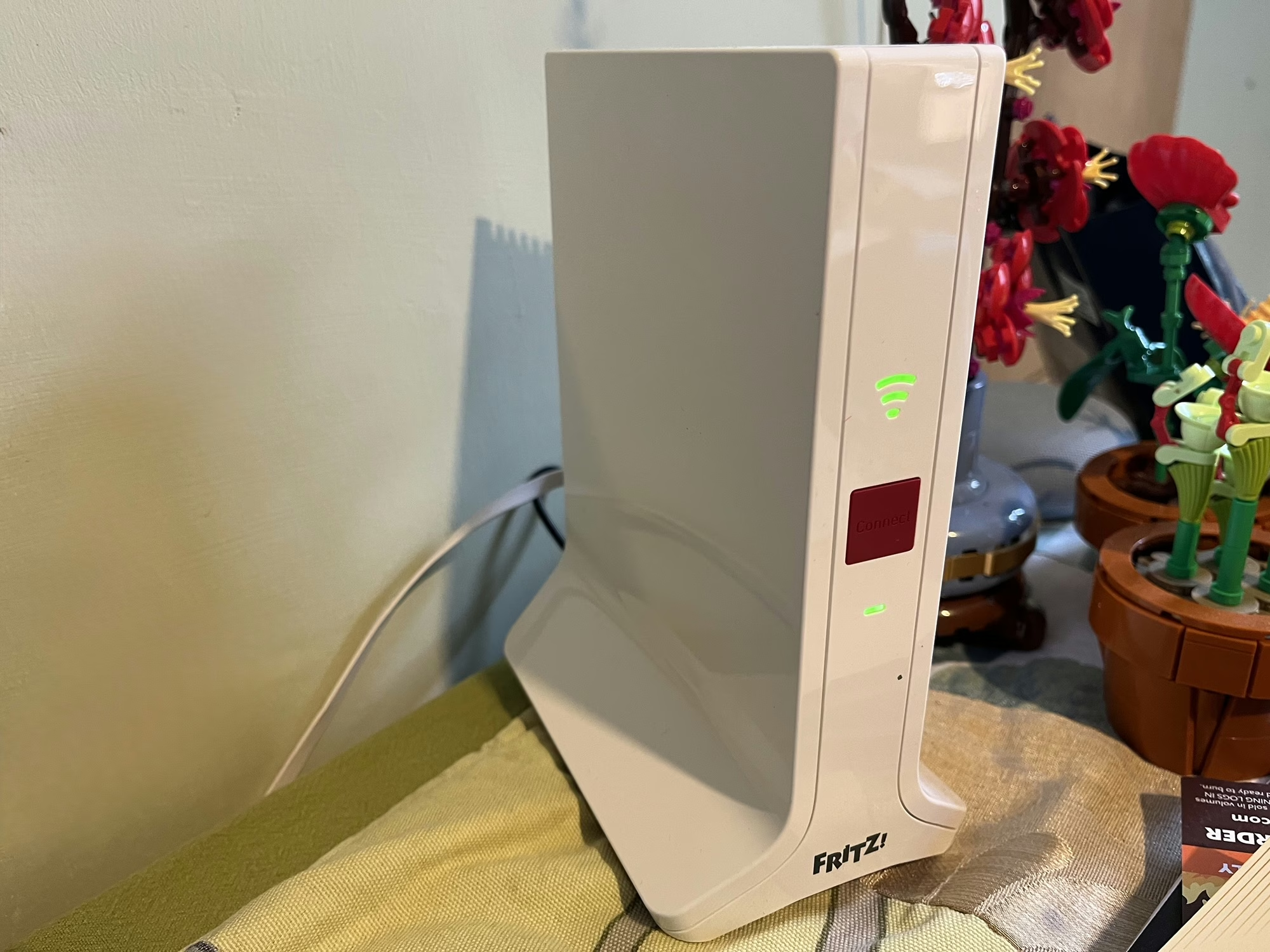
A photo of our Fritz! Repeater 3000 AX

When we signed up for Zen internet last month, we also signed up for Zen EveryRoom. This is an additional monthly charge to cover the cost of a Wi-Fi repeater device, and, as our new router is a Fritz!Box, we were sent a Fritz! Repeater 3000 AX.

Our house is actually two smaller properties that were knocked through years ago. That means it’s a long, narrow house, and whilst we have our optical network terminal and router in a relatively central position, the Wi-Fi signal doesn’t reach the whole house from the router. Initially we used a little Netgear Wi-Fi Range Extender, and then a few years ago I replaced this with a Google Nest Wi-Fi 5 mesh system. Mesh Wi-Fi works better, as all devices use the same network name (SSID) and so mobile devices can seamlessly move between your router and repeaters without needing to re-connect. It’s how most corporate Wi-Fi systems work, but consumer mesh devices aren’t as common.

Design

Like the Fritz!Box router, I’m not a massive fan of the design of the Fritz! Repeater either. Whilst it looks better, it still feels a bit like a cheap plastic box. Furthermore, unlike the router which is in our spare bedroom, this is in quite a prominent place in our dining room.

On the front, there’s a Wi-Fi Protected Setup (WPS) button, a power light, and a light to show that it’s connected to Wi-Fi. On the back, as well as the connector for the DC adaptor (a non-standard barrel plug), there are also two gigabit Ethernet sockets. I’ll come on to those later.

Setting up the Fritz! Repeater is as simple as plugging it in, and using WPS to establish the connection with your router.

Operating modes

The Fritz! Repeater can operate in different ways, depending on what other hardware you have:

  1. It can work as a simple Wi-Fi repeater with any other brand of router, or an older Fritz!Box.
  2. With a new Fritz!Box like ours, it can form a Wi-Fi Mesh.
  3. You can also use connect it to either a Fritz!Box or other router using an Ethernet cable as a LAN bridge

We’re currently using it in the third way, with our Powerline network acting as a back-haul. Therefore, there’s an Ethernet cable running from the Fritz! Repeater, via our Powerline adaptors, to the Fritz!Box upstairs. I figured this would be more reliable and stable, but it turns out that it’s actually slower. When doing speed tests, I get around 60-70 Mbps using Powerline, but the full 100 Mbps when using Wi-Fi to reach the internet. It’s odd because the Powerline connectors reckon they’re working at 400-500 Mbps. I’ll need to try running the Fritz! Repeater just on Mesh Wi-Fi to see if it’s faster, but it’ll need reconfiguring to do so; simply unplugging the Ethernet cable isn’t enough to get it to switch operating modes.

Range and performance

The range seems pretty good – there’s a reasonably strong signal even in our cellar. Certainly, between the Fritz!Box Router and the Fritz! Repeater, there are no dead zones inside the house.

Both Fritz! devices support Wi-Fi 6, aka 802.11ax, hence the ‘AX’ in their names. This should offer better speeds for those devices that support it. Neither supports Wi-Fi 6E, which offers enhanced speeds using the 6 GHz frequency band.

Compared with our previous Google Nest Wifi mesh system, the coverage seems better. Previously, we were also able to use the Google Nest Wifi Point in our dining room as a Google Assistant smart speaker, and the Fritz! Repeater unsurprisingly doesn’t support this. That’s not a major issue as we had a spare Google Nest Mini to use alongside it.

What is notable is that the Wi-Fi signal from the Fritz! Repeater seems to be strong than the Fritz!Box; devices in range of both seem to connect to the repeater more than the router. That could be to do with where the repeater is placed, but it looks like it could have larger internal antennae.

Mixing and matching Mesh Wi-Fi products

As we’ve moved from one Mesh Wi-Fi system to another, it’s worth noting that mesh products from one manufacturer aren’t compatible with those from another. In other words, we wouldn’t be able to keep our Google Nest Wifi Point, and have it mesh with our Fritz!Box. Whilst there is a standard, 802.11s, only a handful of manufacturers support it; most use a proprietary meshing protocol.

In any case, our previous Google Nest Wifi system used Wi-Fi 5, and this is a Wi-Fi 6 system.

If you have a very large home, then you can buy additional Fritz! Repeater devices to extend the signal even further; all the devices should mesh together.

You can buy a new Fritz! Repeater 3000 AX from Amazon for around £135 (sponsored link). We’re paying an extra £9 per month from Zen, for which there’s a 12 month contract and a £9 upfront charge for postage and packing.

Setting WPA mode on ESPHome

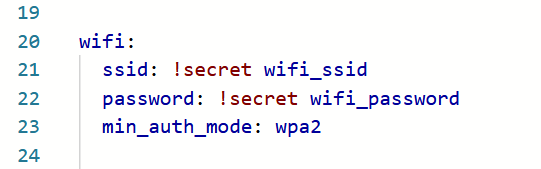
The YAML code for ESPHome to specify the WPA version

If you’ve upgraded to last month’s release of ESPHome 2025.11, you may start seeing this warning message about WPA when validating your YAML scripts, or compiling new versions:

WARNING The minimum WiFi authentication mode (wifi -> min_auth_mode) is not set. This controls the weakest encryption your device will accept when connecting to WiFi. Currently defaults to WPA (less secure), but will change to WPA2 (more secure) in 2026.6.0. WPA uses TKIP encryption which has known security vulnerabilities and should be avoided. WPA2 uses AES encryption which is significantly more secure. To silence this warning, explicitly set min_auth_mode under ‘wifi:’. If your router supports WPA2 or WPA3, set ‘min_auth_mode: WPA2’. If your router only supports WPA, set ‘min_auth_mode: WPA’.

The warning message is pretty self-explanatory, but it concerns upcoming changes to Wi-Fi Protected Access (WPA) in ESPHome that are due to be introduced in June next year.

A bit of a history of WPA

Honestly, if you’re using ESPHome, you’re probably sufficiently tech-savvy to know what WPA is, but if this blog post is less than 300 words, it’ll probably be largely ignored by search engines. So, you can skip this bit if you like.

WPA is what makes a secured Wi-Fi network secure. The ‘Wi-Fi password’ you put in when connecting to secure Wi-Fi networks is the WPA security key. It replaced Wired Equivalent Privacy, dating from the earliest days of Wi-Fi, which is so weak that you can probably crack it with a standard laptop nowadays in a few minutes. It used 64 or 128-bit RC4 keys.

There are three versions of WPA:

  • The original version, which uses 128-bit keys with TKIP
  • WPA2, which replaces TKIP with the more secure AES
  • WPA3, the newest version, which improves the security of the key exchange and mitigates against easily guessable Wi-Fi passwords

Many devices that were originally designed to only support WEP could be upgraded to support WPA through software. At the time, this was a good thing – plain vanilla WPA was (and is) more secure than WEP. But as more security research has taken place, and computers have become more powerful, WPA is now also no longer recommended. WPA2 was ratified over 20 years ago, and so there are very few devices still in use that don’t support it. WPA3, meanwhile, is still quite new, having been ratified in 2018.

ESP devices and WPA

So, to bring this back to ESP devices and ESPHome in particular. At the moment, ESPHome defaults to the following WPA versions:

  • Original, plain vanilla WPA on ESP8266 chips
  • WPA2 on ESP32 chips

Remember, ESP32 is newer than ESP8266, despite the numbers. ESPHome has long supported YAML variables, that over-ride these defaults, to specify a specific WPA version to use when compiling.

What has changed with ESPHome 2025.11 is that, where you don’t specify the WPA version, you’ll see the above error when validating or compiling ESPHome for ESP8266 devices. Remember, these default to standard WPA at present.

Next June, when ESPHome 2026.06 is due for release, support for WPA will be dropped. So, if you don’t specify the WPA version, then from around June 2026, your ESP8266 devices will start using WPA2 the next time you re-compile them. This shouldn’t cause any issues, unless your Wi-Fi router is really old and doesn’t support WPA2. To which, I would say that replacing your router should be your priority, rather than amending your ESPHome configurations.

As for WPA3, this is only supported by the newer ESP32 family of chips. That means that, from June 2026, WPA2 will be the only option for ESP8266 chips.

How you can make the WPA warning go away

If you want, you can edit your YAML configuration files for your ESPHome devices to specify the WPA version to use. In the ‘wifi:‘ block, add ‘min_auth_mode: WPA2‘ underneath the network name and key, as so:

wifi:
  ssid: !secret wifi_ssid
  password: !secret wifi_password
  min_auth_mode: WPA2

That will ensure that ESPHome always uses WPA2 on your devices, and will hide the warning. If your devices have ESP32 chips, and your router supports WPA3, you can add ‘min_auth_mode: WPA3‘ instead; this will offer better security. For more information, see the guide to the ESPHome Wi-Fi component.

Will ESPHome eventually phase out WPA2 support as well? Perhaps, but WPA3 is still pretty new – if your router is more than five years old then it may not support it. Maybe it will in another 15 years or so.

How we handled poor phone reception

A photo taken atop the Great Orme in Wales

Our holiday in Wales was good, but we didn’t always have good phone reception whilst we were there. Now, it’s a holiday, and you can argue that we probably should have had a break from phones, social media and the like. But we also need our phones for certain things – I use Google Maps for navigation, for example, and we needed apps to find out where to charge our electric car.

In North Wales, most of the population is concentrated in a relatively narrow strip of land between the hills and the north coast. Providing a mobile service is therefore more difficult and expensive – each mast is likely to cover a smaller and more sparsely populated area than in a big city. For the most part, there were few places where we had no signal whatsoever. But even when showing full bars, we couldn’t make calls or use the internet in some places.

Here’s how we handled it:

Downloading things on Wi-Fi beforehand

It’s a bit hidden, but Google Maps lets you download offline maps on a Wi-Fi connection. We had good internet where we were staying – the Conwy area has been upgraded to full fibre broadband – so we could download a map of the area. This meant that we could still use Google Maps to navigate without a mobile data connection.

Note that Google’s guide, linked above, is a little out of date. At the time of writing, you need to:

  1. Search for a place
  2. Swipe right on the lower panel where it says ‘Directions’ and ‘Start’, until you see a button that says ‘More’
  3. Tap ‘More’ and then ‘Download Offline Map’
  4. You can then pinch and zoom to select the area – a larger area will take up more storage space

There are limitations – you won’t get live traffic data if you’re using an offline map without a phone signal. However, once Google Maps is able to reconnect, it’ll update your route if needed. If you use Gmail and sign in to Google Maps with the same account, you may get push notifications ahead of upcoming trips to prompt you to download offline maps. I’d recommend it, especially if it’s somewhere you’ve not been before, or somewhere particularly remote.

The same applies for content that you want to consume whilst outside of mobile data range. If you use Spotify Premium, you can download playlists ahead of time. I make sure that I download, rather than stream, any shows on BBC Sounds that I want to listen to.

Hotspotting where possible

If there’s free Wi-Fi available somewhere that you’re visiting, use it. Most National Trust properties have free Wi-Fi in their cafés, for example.

If you have another device on a different phone network, then you could try hotspotting off that too. My phone is on 3, but my iPad has a mobile data SIM on a virtual operator which uses EE. Whilst it was a bit of a pain to have to carry my iPad around as well, it meant I could use the iPad as a Personal Hotspot for my phone and get online. You may be able to do this with a newer car, if you have a data plan on it, or a portable Wi-Fi hotspot device.

Get an eSIM on a different network

When I’ve travelled abroad, I’ve used eSIMs from Airalo rather than roaming on my existing SIM, as it’s cheaper. But you can buy UK eSIMs too. If your primary SIM has poor signal, then you could buy an eSIM on a different network that may work better. My iPhone (and I assume most new-ish Android phones) can switch between multiple SIMs on the fly, if one loses signal. If you decide to buy from Airalo, use the code NEIL6715 for some extra initial credit.

If you want to go further, try Honest Mobile’s Smart SIM. This can connect to all four UK networks (3, Vodafone, O2 and EE, although 3 and Vodafone may merge their networks soon), and costs £45 per year. However, whilst there are no data limits, it is limited to set pre-approved apps. These are mainly navigation apps like Google Maps, messaging, news, weather, banking and apps for electric car parking. There’s about 400 in total, but it excludes any social media apps, or any that involve streaming audio or video. I signed up to Honest Mobile after coming back from Wales, and I’m giving it a try for a year to see how I get on. Here’s my referral link if you want your first month free.

Honest Mobile’s Smart SIM has been heavily advertised on my Facebook feed, and so I read this post by Martin Brophy before committing.

Ultimately, what works for you will depend on how often you’re without a mobile signal, and how much you rely on your phone. I normally get a good signal on 3 in most places, but I’ll see how I get on with Honest Mobile.

Wi-fi version numbers

The Wi-fi 7 logo

In recent years, it seems like the IT industry has changed how it names the various Wi-fi standards, with a move away from their IEEE names to a simplified version numbering system. This blog post is mostly me trying to get my head around what the old and new version numbers are, and the fact that Wi-fi 7 devices are starting to come onto the market.

Wi-fi version 1 (802.11b)

The first time I used Wi-fi would have been around 2003/4, and it was with a PCMCIA card that I slotted into my Toshiba laptop. 802.11b was the first version to launch in Europe, and offered speeds of up to 11 Mbps. By current standards, that’s really slow, but I was still using 56k dial-up in my university accommodation and my parents’ ‘broadband’ internet was only 512Kbps. A wireless, multi-megabit per second connection was pretty awesome.

Wi-fi version 2 (802.11a)

This would be a good time to note that versions 1, 2 and 3 of Wi-fi have never officially carried this designation, and would explain why standard A comes after standard B. IEEE 802.11a offered faster speeds – 45Mbps – but on the 5Ghz frequency band which wasn’t yet approved for Europe. Consequently, I never knowingly used any Wi-fi devices that used the 802.11a standard.

Wi-fi version 3 (802.11g)

The IEEE numbering jumped from B to G (standards C, D, E and F exist but aren’t relevant here) and this brought the 45 Mbps speeds of version 2 on the 2.4Ghz frequency band of version 1. This also saw me buy a new PCMCIA card for the same laptop, to be able to access the faster speeds, and use WPA encrypted networks rather than the weaker WEP security standard.

Some ‘Wireless-G’ routers offered ‘MIMO’ – multiple input and multiple output – which meant multiple antennae, and faster speeds, with up to 300 Mbps claimed. However, this usually required owning both a router and a Wi-Fi dongle by the same manufacturer and so wasn’t universal.

Wi-fi version 4 (802.11n)

With approval of the 5Ghz frequency band in Europe, 802.11n devices, first launched in 2009, could use both. The higher frequency band offers more bandwidth, but at the cost of shorter range and lower compatibility, hence the need to offer both 2.4Ghz and 5Ghz. The other big improvement came with mandating MIMO for all Wi-Fi 4 certified devices. Top speeds also jumped up as high as 600Mbps. This is the first standard to officially have a version number allocated by the Wi-Fi Alliance.

Wi-fi version 5 (802.11ac)

The IEEE numbering rolled over, and started back at A again with a second letter in 2013. I guess this may have been what prompted the Wi-Fi Alliance to start using its own numbering system, although it and Wi-Fi 4 were both named retrospectively. Interesting Wi-Fi 5 only works on the 5Ghz band (like Wi-Fi 2), and devices needing the 2.4Ghz band fall back to Wi-Fi 4. Again, there’s a boost in speeds, up to almost 7Gbps.

Both my Vodafone router and Google Wi-Fi system support up to Wi-Fi 5.

Wi-Fi version 6 (802.11ax)

This was the first version to launch with its version number from the Wi-Fi Alliance. It’s a much newer standard, from as recently as 2021, and boosts speeds up to almost 10Gbps. As with Wi-Fi 4, it operates on both the 2.4Ghz and 5Ghz bands, but there’s a sub-version called Wi-Fi 6E that introduces the 6Ghz band for the first time. The only device I have that supports this is my iPhone 13 Mini.

Wi-Fi version 7 (802.11be)

The 802.11be standard hasn’t been fully ratified by the IEEE but products supporting Wi-Fi 7 are already on sale, at the time of writing (October 2024). Therefore, if you’re willing to pay a premium to get a Wi-Fi 7 certified device now, make sure it’s from a well-known manufacturer, and that you update its firmware once the standard is fully ratified. Top speeds are now up to a theoretical 23Gbps which is just mind-blowing.

Wi-Fi version 8 (802.11bn)

In 2028, the next Wi-Fi version is expected to be ratified by the IEEE. We can potentially expect speeds as high as 100Gbps, and as with Wi-Fi 6E and 7, it’ll use the 2.4, 5 and 6Ghz bands.

Hopefully if you’re an old school techie like me, this will help you work out how the branded Wi-Fi Alliance numbers correlate with the IEEE standards.

Comparing different smart home protocols

An AI-generated image of various smart devices connecting to a home

When I started acquiring smart devices for my home, my focus was on those that worked over Wifi (or Ethernet) – I wasn’t really aware of the likes of Zigbee, Z-Wave and other protocols that were out there. In particular, I avoided those that required the purchase of a hub or bridge, due to the higher upfront cost.

Now that I’m further along my smart home journey, I’m more open to considering a range of different protocols. They all have their advantages and disadvantages to consider.

Wifi (and Ethernet)

I’m grouping these together as devices that are visible to a standard home network and have their own IPv4 address. The majority of smart home devices use Wifi, as there’s usually no need to buy an additional hub or bridge. Therefore, set-up is usually easy (sometimes aided by Bluetooth), and their range is fine as long as they can pick up your home’s Wifi signal. It’s also very easy to connect these devices to cloud services.

In terms of disadvantages: Wifi primarily uses the 2.4 GHz frequency band, which is used by lots of things and so there’s a potential for interference. The ease of connecting these devices to the cloud can also be seen as a flaw; they’re more susceptible to being compromised by bad actors, and don’t offer as much privacy. Wifi is also quite power-hungry – devices that don’t plug into the mains will need their batteries changing more frequently.

Bluetooth

As mentioned, Bluetooth is often used with Wifi to initially provision devices, but some Bluetooth-only devices can be used in a smart home. For example, there’s my Bluetooth thermometers, which connect to Home Assistant. Compared to Wifi, power requirements are much lower and so Bluetooth is good for battery-powered devices. They’re also more private, as they can’t easily be connected to from the wider internet.

However, Bluetooth has quite a limited range – it’s designed to be a ‘personal’ area network and won’t reach across large houses. You can use a Bluetooth Proxy in Home Assistant to extend the range, and whilst these devices are cheap, you’ll need to be comfortable flashing custom firmware and will usually need to plug them in as they bridge to Wifi. Like Wifi, it uses the 2.4 GHz band and so interference is possible – especially with the lower signal strength. Bluetooth connections also tend to be between two paired devices.

Zigbee

Zigbee is a mesh protocol, and it’s used by a number of smart home brands such as Philips Hue and Ikea Tradfri, as well as UK smart meters. This means that all devices on the same network talk to each other, and so a network with lots of devices could theoretically be quite strong. Like Bluetooth, there’s additional privacy as these devices aren’t connected directly to the internet like with Wifi. It’s also more energy efficient than Wifi, so battery-powered Zigbee devices will last longer between charges.

The key disadvantage of Zigbee is that you need a bridge to link it to your home network. Manufacturers like the aforementioned Philips and Ikea will sell you a hub that does this, although you can also buy USB dongles. Therefore, there’s a higher initial cost as you have to buy a hub as well as your devices. And it’s another 2.4 GHz protocol, so could have the same interference issues as Bluetooth and Wifi.

Whilst Home Assistant has good Zigbee support, both natively and through the Zigbee2MQTT system, if you don’t have a separate hub then getting these devices into Google Home can be a very involved process. Alexa is a little easier thanks to the Emulated Hue integration.

Thread

Thread is based on the same 802.16 standard as Zigbee, but differs in a couple of ways. Firstly, devices on a Thread network have an IPv6 address. Secondly, Thread is a simpler protocol that focuses just on being a mesh network with Matter taking over the device APIs. The benefit of integrating with Matter is that, unlike Zigbee, you may not need a separate bridge for Thread devices. A number of smart speakers from Google, Amazon Alexa and Apple can also act as Thread Border Routers, so it’s possible that you’ll already have the infrastructure in place in your home for Thread devices. Like Zigbee, Thread is a mesh network, and by using Thread Border Routers, the devices have a degree of separation from the wider internet that should improve privacy and security.

The downside is that Thread is still pretty new, and so there aren’t many Thread devices out there yet. You may also find that each device that incorporates a Thread Border Router creates a separate Thread mesh network. Home Assistant can be configured to join a preferred network, but it can be a bit of a faff. Ideally, they should all make one big, strong mesh network across your home, but we’re not there yet. And, once again, we’re dealing with a 2.4 GHz protocol here.

Z-Wave

Z-Wave sets itself apart from the aforementioned protocols by being on the lower 800-900 MHz frequency range. These lower frequencies have a longer range, and so are more suited to larger homes, but also avoid the interference of the 2.4 GHz band. Like Zigbee, it’s a mesh network, and should have similar privacy and security benefits by not being connected directly to the internet.

This also means that Z-Wave has the same disadvantage as Zigbee in that you’ll need a bridge to expose these devices to your home network. Furthermore, Z-Wave devices tend to be more expensive, so the upfront cost is usually higher than other protocols mentioned here.

RF and Infrared

I’m including these for the sake of completeness, but they’re not ‘smart home protocols’ in the same way as the above. It’s possible to connect the likes of Home Assistant to bridge devices that can communicate over Wifi and 433 MHz RF or Infrared. These will typically be doorbells or remote controls for devices that don’t connect using any of the above. But setting them up can be trial and error, and involves detecting and interpreting codes to trigger automations.

If you’re building a smart home system, then a bridge may be useful to bring existing devices in that don’t support standard smart home protocols. But if you’re looking to buy new devices, stick with the ones above.

Sonoff Wi-Fi RF Bridge review

A photo of a Sonoff Wifi RF bridge

I’ve been thinking about my doorbell, and knowing when someone rings it. Obviously it chimes when I’m at home, but I was hoping that with this Sonoff Wi-Fi RF Bridge, I can get notifications on my phone and a log of when people call when I’m out.

We don’t have a smart doorbell, like Ring for example. Ours is a Koopower Wireless Doorbell that I was sent to review six years ago. The Koopower doorbell doesn’t need a battery – the act of pressing the button generates sufficient power to send a RF signal to the receivers.

What I was hoping with this Sonoff RF bridge is that it could also listen out for doorbell pushes, and send me a notification. I could also integrate it into Home Assistant, which could handle logging. As you can probably tell from how I have written this blog post so far, I haven’t been able to achieve this.

Setting up

The Sonoff RF bridge is pretty small – about 2 inches (5 cm) square. In the box is the bridge, a quick start guide and, erm, well, that’s it. You need to provide your own micro-USB cable and a power source capable of 5 volts and 1 amp – so most phone chargers, or even many batteries. The bridge just has two LEDs – a blue one indicating the Wi-Fi status, and a red one the RF status. The only other thing of note on the bridge is a hole for poking a paper-clip in to reset it – there’s no other buttons.

Once you have hooked it up to a suitable power source, you can use the eWeLink app to set it up. This allows you to connect the bridge to your home Wi-Fi network, and pair RF devices.

Pairing devices

In the eWeLink app, you put the RF bridge into pairing mode, and then have 60 seconds to perform an action on your RF device. When it detects a signal, it’ll save the codes transmitted using RF, and will give you a button in the app. By pressing that button in the app, the RF bridge will mimic the action on your remote. So, you can ‘teach’ your bridge to turn an air conditioning unit on and off, rather than using its remote.

The fun comes when you link your RF bridge to a smart home ecosystem, like Google Assistant, Amazon Alexa or Home Assistant. Your bridge will appear as a device, and so you can use your voice to control appliances that are not ‘smart’ and are not on your home network.

That’s the theory anyway

As I write this, I haven’t been able to get my RF bridge to detect my doorbell, even though they both use the same 433.9 MHz frequency band. Even with the doorbell receivers switched off, and me holding the RF bridge next to the doorbell (did I mention you could run it from a battery?), it doesn’t detect a signal.

Now, to be fair, there’s no mention of compatibility with wireless doorbells in Sonoff’s marketing. Indeed, pairing RF devices can be hit-and-miss; you won’t, for example, be able to use an RF bridge to unlock your car, as the codes are changed each time you lock and unlock your car. Trust me, this is a good thing; otherwise, devices like these could be used to break into people’s cars.

If you have RF remotes, then this should work; it should also work with RF window opening detectors, alarms and curtain controls. Note, however, most remote controls use infrared, rather than RF – if your remote requires you to point it directly at the device, then it’s probably infrared, not RF.

RF bridge Home Assistant integration

I mentioned that you can get the Sonoff RF Bridge to appear in Home Assistant. There isn’t an official integration, but there are several ways you can achieve this:

  1. Flash it with custom firmware from ESPHome or Tasmota
  2. A custom integration available in HACS
  3. An addon which uses Home Assistant’s API

My initial searches only led me to option 1, and I didn’t fancy taking apart my brand new device to install custom firmware on it. Thankfully, there’s a Sonoff integration in HACS which allows you to log into your eWeLink account, and seems to work well. The addon is something I only found whilst writing this blog post, and it looks like this is actually the official way of integrating eWeLink with Home Assistant as it’s in the same GitHub account. You can use a Docker image instead if you’re running Home Assistant Container.

The alternatives

It’s possible that I have a dud unit, and so I have ordered a different model from AliExpress which uses Tuya. At the time of writing, this cost less than £1, which is clearly some kind of introductory offer as it’s normally £17. This Tuya model also supports infrared, and the 315 MHz RF band. I’ll let you know how I get on with it, when it arrives in a few days.

There’s also the option of building your own. The main components inside the bridge are a standard ESP8285 chip for Wifi and Bluetooth, and a EFM8BB1 chip for RF. You can therefore buy these yourself, solder them onto a board, and use the ESPHome or Tasmota firmware to achieve the same thing. I’m not yet that far down the home automation rabbit hole to build my own devices, but you could consider it.

Switching to a new ISP

Last month, we switched to Vodafone as our new Internet Service Provider (ISP) at home.

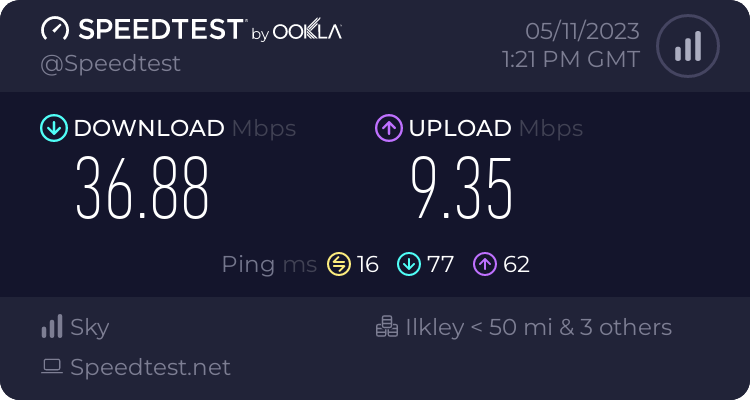
We’ve been with Now Broadband (Sky’s budget brand) since autumn 2018, who, at the time, could offer us faster speeds for less money. And they’ve been pretty good; when I was working at home full-time during lockdown, I rarely had any issues. Our bandwidth was sufficient for me to participate in online meetings whilst our (then) four-year-old watched Netflix in another room. Our typical download speeds were in the 35-40 Mbps:

Speedtest.neet results from the 5th November 2023, showing 36.88 Mbps download and 9.35 Mbps upload on our old ISP, Now Broadband

But then Now raised their prices by £9 per month. They probably told us that they would do this, but I have no recollection of being informed in advance.

Finding a new ISP

Meanwhile, Vodafone could offer faster speeds and a new router, for £2 less than Now before the price rise. So, we would be getting a better service, and paying £11 less per month for it than if we stayed with Now.

We used the MoneySavingExpert broadband comparison tool, which showed that Vodafone was the cheapest big name that didn’t have a poor customer service rating. Shell Energy were cheaper, but their customer service isn’t great and they’ve just been taken over by Octopus Energy who don’t currently offer broadband.

I signed up using Quidco (referral link) and should get £82.50 cashback in late spring, so factoring that in, what a savings.

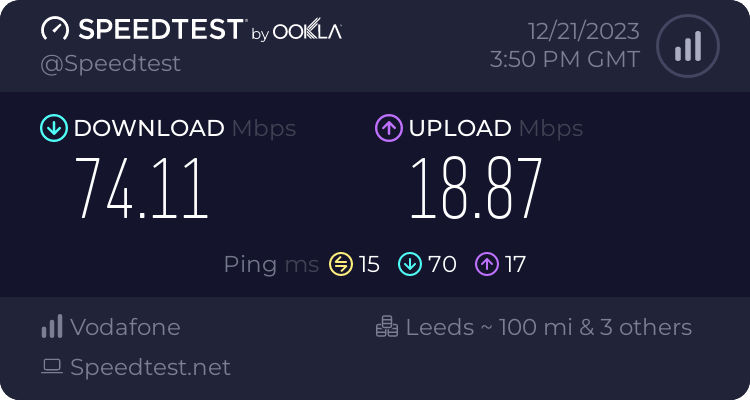
The switchover took a couple of hours, and seemed to happen early in the morning, so by 7am we were already online with Vodafone. And the speeds are much better – around 75 Mbps download and 19 Mbps upload, so almost twice as fast. Considering that this is over DSL, I’m impressed with how fast it is.

Speedtest.neet results from the 21st December 2023, showing 74.11 Mbps download and 18.87 Mbps upload on our new ISP, Vodafone Broadband

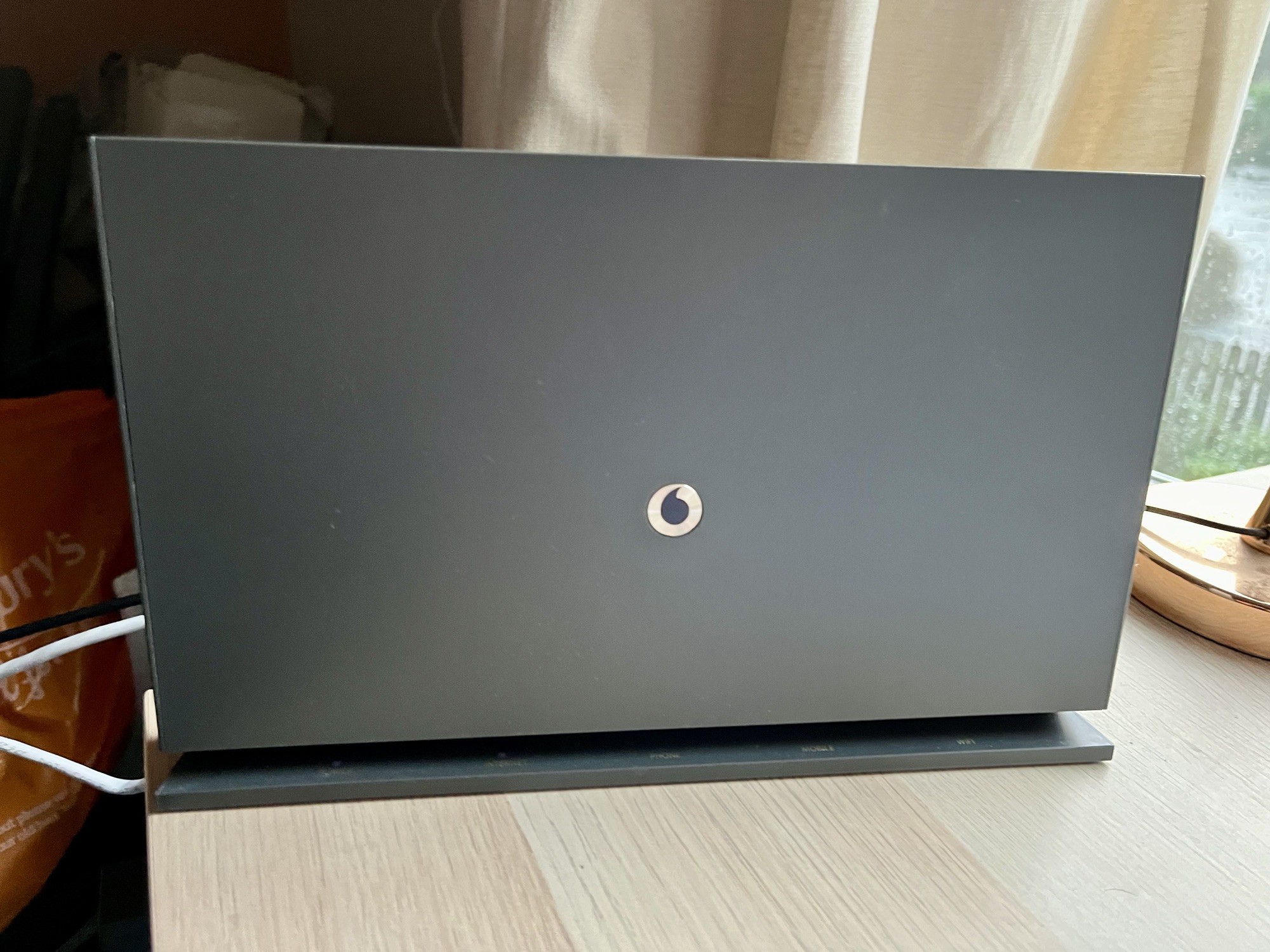
The new Vodafone broadband hub is also better than the basic Now broadband router that we had previously. It has four 1 Gbps Ethernet sockets for a start, compared to just two on the Now router; this means I no longer need a separate Ethernet switch. It also looks nicer; it’s free-standing but has mounting holes on the back for screws.

Digital Voice Line

The hub also supports Digital Voice Line, where your phone calls are made over the internet, rather than PSTN. Openreach intend to switch off the analogue phone network in two years time, so switching now is timely. This means that our landline phone plugs into the hub, rather than the micro-filter attached to the master phone socket. That being said, since the switchover, our phone hasn’t actually worked. The fact that it took me several days to realise shows how much we use our landline, but I’ll need to get on to Vodafone to have them look into it.

As with all changes to a new ISP, over the first few weeks there was a little instability with the connection. But it’s settled down now and works well. The other issue I had early on was with connecting to my Raspberry Pi externally, as port forwarding didn’t seem to work properly. This was a bit of a gut punch, considering how much effort it took me to get Home Assistant working with HTTPS, but it seems to be sorted now.

If it’s been a while since you switched your ISP, I would recommend that you do a quick check to see if you can get a better deal elsewhere. Broadband providers make a lot of money from people who just let their contracts auto-renew. Even if you’re happy with your current ISP, you could try haggling with them to see if they can offer you a cheaper package.

How to: fix incorrect date and time on an Amazon Kindle Fire

Today, a colleague of mine asked for help with connecting her Amazon Kindle Fire (sponsored link) to the university Wi-Fi network (which is linked to eduroam). Whilst I’m not an IT employee, I offered to help.

eduroam, for those who aren’t aware, allows staff and students at universities to access Wi-Fi at any other participating university. This includes almost all UK colleges and universities, and many others across the world. To do this, it uses WPA-Enterprise, with authentication using a username and password, rather than a Wi-Fi key like you would get on a home Wi-Fi network.

The problem was that the Kindle Fire couldn’t connect, despite the username and password being correct. And then I noticed that the time was wrong.

Problem 1: wrong date and time

The underlying cryptography behind WPA-Enterprise, and most other secure internet systems, is reliant on accurate clocks. For whatever reason, this Kindle Fire thought that it was about 3am in September 2010. Consequently, it couldn’t establish a secure connection.

So, I went to change the date and time.

Problem 2: you can’t manually change the date and time on a Kindle Fire

There’s no option to manually change the date and time on the Kindle Fire (although this may have existed on older devices). If you try to change the time, you get an error, telling you that your device will get the correct time from Amazon automatically. At best, you can change the time zone if this is incorrect, but this was no help when the clock was out by almost 8 years.

Problem 3: The Kindle Fire cannot automatically update the date and time without an internet connection

So now we’re at an impasse. We can’t get on the internet because the time is wrong, but Amazon has locked down the ability to change the date and time, and we can’t get the correct time from the internet because we can’t connect to the internet. ARGH.

Solution: use a second device as a Wi-Fi hotspot

Fortunately, I managed to solve this by using my iPhone as a personal hotspot. As this doesn’t require authentication via WPA-Enterprise, the Kindle Fire was able to connect, get onto the internet, and update the time on the device to the correct time. I was then able to disconnect from the personal hotspot, and connect to eduroam without any problems.

I can understand why Amazon have locked down the date and time settings, as, if they are wrong, all your secure connections will fail. And considering that many web sites now use HTTPS all the time, this would break a lot of things. But it doesn’t account for when a Kindle Fire’s battery goes completely flat, and it resets to a default time. Which I assume is what happened in this instance.

I checked my iPhone, and Apple does let you manually override the automatic date and time that it receives when you’re online. I assume most Android devices are similar – by default, they set the time automatically but give the user the opportunity to override this if needed. Amazon’s decision, whilst understandable, is frustrating in edge cases like this one.

We need to buy a new printer

Photo of the HP Deskjet All-in-One F2140 printer

Here’s a photo of our current printer. It’s a HP Deskjet All-in-one F2140, and I think it dates from around 2008. Suffice to say, it predates the computer that it’s connected to, has been through several house moves and periods in storage, and even predates my relationship with Christine. You can also see how much dust is on top of it, and I’ll admit to having to shift a pile of documents stacked up on top of it to get the photo.

Okay, so we don’t use it very often. But having a printer is useful from time to time, and we use the scanner every now and then. Christine and I recently scanned all of our qualification certificates, so that we had electronic copies on hand in our shared Dropbox folder.

So why the need for a new printer? It still works, and we can still get hold of new cartridges easily.

The issue is networking.

Christine’s new laptop

Christine recently bought herself a new laptop – a very lightweight Lenovo Ideapad 320S. She’s doing a part-time university course, and her previous laptop bought in 2010 (when we first started dating) was getting too slow. It’s also big and bulky compared with what you can buy new nowadays. As she will need to print from time to time, she tasked me with setting up the printer on her laptop.

Our HP printer isn’t wireless, and so it’s connected to my Mac Mini (also dating from 2010) by a USB cable. I’ve been using Apple’s Bonjour network sharing protocol to share it across our Wifi network. For Windows, Apple offers a Bonjour Print Services utility that will discover any printers shared using Bonjour. And on Christine’s old laptop, this worked fine.

But I couldn’t get it to work on her new laptop. I think the core issue is that Apple last updated the Bonjour Print Services tool in 2010, and so it pre-dates Windows 10 by some time. Her old laptop was set up under Windows 7 and so was fine. Despite following my own printer sharing guide, and manually installing HP’s Windows 10 drivers, I could not get the Bonjour Printer Wizard to complete without failing with a permissions error (even when running as Administrator).

Whilst my Mac is generally on all of the time, it’s probably about time that we replaced it with a proper wireless printer. To get it to work with my iPhone and iPad, I’m using Printopia, which works okay but it’s a bit of a hack. Having a proper wireless printer, which works with all of our devices (Windows, Mac, iOS and Android) would be a big improvement. Especially when it comes to scanning, which we can currently only do on my very slow Mac.

A custom solution?

New wireless printers start at £30, so it wouldn’t be a big expense. In fact, it’d be about the same price as buying a new Raspberry Pi and setting up some kind of bespoke solution. Which, whilst appealing to my geeky side, would probably take a lot of the very little free time that I have nowadays. Plus, there would be the added ‘fun’ of trying to find a way of scanning documents on the Raspberry Pi, and then have them available to use on our other devices. I’m sure it’s possible, but what’s the point when you can buy an off-the-shelf product that already does this?

I could also look at buying a printer sharing hub, but again, the cost would probably be about the same as a new printer. So I might as well just buy a new printer.

We’ll have a look out for any good deals and will buy a new printer soon.

Adventures in home networking

Wires

We’ve been living in our house for approaching two years, and in all of that time we’ve been reliant on Wi-Fi for our home networking. Our phone line enters the house in a spare bedroom so that’s where our ADSL modem is (a BT Home Hub 4, although we’re no longer with BT). This isn’t too bad from a Wi-Fi signal perspective, as it’s located close to the middle of the house, but we still have some signal issues in the kitchen which is the furthest room.

For this reason, we have a Netgear Wi-Fi range extender which ensures an adequate signal in those parts of the house. Combined, the whole of the house is covered.

Limitations of Wi-Fi

The problem is that we have quite a lot of devices all using the Wi-Fi connection. There’s my Mac, Chirstine’s laptop, two smartphones, two tablets, a Roku, a Chromecast, a Blu-Ray player, our Nest thermostat and a Kindle, plus any devices that visitors bring. The Roku and Chromecast in particular are used for streaming video which requires a good connection, and I upload photos from my Mac every now and again.

Most of the equipment we have supports the IEEE 802.11n standard and so it’s reasonably quick, but some devices use the older 802.11g standard and not all are compatible with both 2.4 and 5 GHz wireless bands. Wi-Fi also has higher latency than wired solutions. And I have a Raspberry Pi and a Freesat receiver that do not support Wi-Fi at all. The Raspberry Pi currently gets a connection from an Ethernet cable linked to the Netgear extender, but the Freesat box has been isolated from the internet.

It would be great if everything supported the new 802.11ac standard. But this would require us to replace all of our devices and so isn’t likely to happen soon.

Laying Ethernet cable

The optimum home networking solution would be to lay Ethernet cable across the house, with ports in each room. That would ensure at least Gigabit connection speeds everywhere, with almost no latency.

We had most of the downstairs rewired before we moved in a couple of years ago and, with hindsight, this would have been an ideal time to install network sockets. Sadly, we didn’t, and trying to install sockets now would be very disruptive. I’d rather not have cables trailing around, or even fixed to walls, seeing as our toddler will inevitably want to play with them. Whilst I could probably do this myself, I’d rather not have to cut and crimp network cables.

Power line networking

Which leaves power line networking, also known as Homeplug. This uses your household electric circuits to carry a network connection, with adaptors that plug into your existing electrical sockets.

I was a little hesitant to try this, as our wiring is of variable quality. Obviously the downstairs wiring is good, having only been installed two years ago. But upstairs, some of the wiring is much, much older; in some cases, dating back to the 1950s. I was also worried about whether the signal would pass through our fusebox (which is thankfully quite new), as the upstairs and downstairs are on separate electrical rings.

I decided to take a punt, and ordered some well-reviewed Homeplug networking adaptors from Amazon – I’ll review them later on. At £80 for four, I felt this would be cheaper and less disruptive than installing Ethernet cable. And, so far, so good. I’m using three of the four adaptors; one of them connects in turn to an old Ethernet switch that I had, to provide connection to our Blu-Ray player, Roku and Freesat box.

My worries about the wiring seemed to be unfounded – we’re getting good speeds and much lower latency than on Wi-Fi. In particular, I can upload photos from my Mac much more quickly now than I ever could on just a wireless connection. I’m glad to have a better connection without having to tear the house apart, or replace all of my devices.