
Printer sharing with VirtualBox on a Mac

This blog post will probably be only be useful to a small niche. If you have a Mac, with a printer, and run Windows in VirtualBox, here’s what you need to do to get it to work.

Step 1: Make sure your printer is shared on the network

On your Mac, open System Preferences, choose Print & Scan, and then select your device on the list on the left. Tick ‘Share this printer on the network’.

Step 2: Check network settings for your virtual machine

In the VirtualBox manager, open your Windows virtual machine’s settings, and under Network, ensure you’re using ‘Bridged Adaptor’ rather than ‘NAT’. This will make your life much, much easier later on.

Step 3: Install and set up your printer using Bonjour

Bonjour ships on all Macs, but not on Windows, which is a shame because it makes setting up network connections much easier. Thankfully, Apple offers a cut-down version for Windows computers, so download Bonjour Print Services for Windows, and install it. This will add a ‘Bonjour Printer Wizard’ icon to your desktop.

Run the Bonjour Printer Wizard. If you’ve done the first two steps correctly, your printer should be listed. Click Next, and, if you’re lucky, Bonjour will install the correct driver and add the printer to Windows for you. Sorted. If not, then…

Step 4: Install the printer driver in Windows

Sometimes Bonjour won’t be able to identify which printer driver you need and will ask you to select it. Again, if you’re lucky, your printer will be one of those that Windows ships with, but if not, you may reach an impasse here. Some people have had luck with using a driver that is similar to their printer, but this doesn’t always work.

Instead, we’ll connect the printer directly to Windows to convince it to install the driver that way. VirtualBox lets you bridge any USB device which is plugged into your Mac, so that the virtual machine can see it. Turn your printer on, and then whilst Windows is running, click on the Devices menu in VirtualBox, select USB devices, and then choose your printer. Windows should detect that the printer is now ‘plugged in’, and so it will install the necessary drivers. Complete the installation, disconnect your printer using VirtualBox and then shut down both your virtual machine, and your Mac, to ensure that your printer is correctly picked up by your Mac on the next boot.

Start your Mac again, and then open Windows in VirtualBox, and try to run the Bonjour Printer Wizard again. Hopefully, this time you’ll be able to select your printer driver from the lists when presented (annoyingly it’s not searchable).

This still didn’t work for my printer, so I had to do one final trick. I clicked ‘Have Disk’, and then browsed to the c:\Windows\System32\DriverStore\FileRepository folder, then sorted the sub-folders by date. My printer is by HP, and one of the newly-created gobbledegook folders had ‘HP’ in the title which turned out to be my printer. I selected this, and was finally able to get the printer working, with the above test page as proof.

Why not just connect the printer directly?

In step 4, I mentioned you can simply connect your printer directly to the virtual machine, thus avoiding the dilly-dallying around with Bonjour. This works, but it’s flaky; once you’ve connected your printer to Windows, you may need to reboot your Mac before any Mac applications can print to it. Whilst setting up Bonjour is more effort initially, once it’s done, you should find it easier to work with.

If anyone’s interested, I went through all of this because I wanted to print out a coupon for a free one litre carton of grape juice and couldn’t get the Coupon Printer to work correctly on my Mac.

Windows 8 Installation Experience

A screenshot of Windows 8 being installed on a VirtualBox virtual machine running on a Mac

On Saturday, I decided to upgrade to Windows 8. I’ve been running a virtual machine with Windows Vista Business for some time, firstly in Parallels Desktop but later converted to VirtualBox. I never bothered upgrading to Windows 7 due to the lack of differences between the two; obviously 7 is a big upgrade from XP but not from Vista.

Another major factor is that, at the moment, existing Windows XP, Vista and 7 users can upgrade to Windows 8 Pro for a mere £24.99 as a digital download, or more if you need it on DVD. It’s a very good deal, but it’s only valid until early next year. And since I’d also heard that Windows 8 should run faster on the same hardware, upgrading seemed like a really good idea.

To upgrade, you should download the Upgrade Assistant which checks your current installation for compatibility and then downloads the files. You can then either proceed with the upgrade, or save an ISO file to a USB drive or DVD-ROM. I decided to proceed, but told the installer not to keep any of my documents or settings; after all, it was a virtual machine and anything important had been saved to Dropbox and was therefore available elsewhere.

This turned out to be a mistake, frankly. It installed the files, restarted a couple of times, and then froze. No animation, no CPU activity, no disk activity. So, I hard reset the virtual machine. At which point, setup decided that the installation had failed, and set about restoring Windows Vista. So, after a few hours, I was back at square one.

This time, I told the installer to save the ISO file, which I placed in a shared folder so it was accessible by my Mac as well. I then shut down the virtual machine, and created a fresh, new VM in VirtualBox with the optimal Windows 8 settings. Bear in mind that my previous VM was originally a Parallels VM, was then converted to the VMWare format, and then used with VirtualBox 2; now I’m on VirtualBox 4.2. I mounted the ISO file mounted as the CD drive, booted up, followed the instructions, and within the hour I was up and running with Windows 8. Success!

…or so I thought. Opening the ‘classic’ desktop environment saw the little icon for the Windows Action Centre pop up, telling me I needed to activate Windows – which was odd because I had entered the product key during installation. So I re-entered it, only for Windows to pop up a 0xC004F601 error, telling me that the product key was only valid for upgrades and not a clean installation like this one.

Some expletives were issued by me at this point, but thankfully Google saved my sanity as I found this blog post which explained a workaround. I had to edit the registry to change a value, re-run the activation manager and then reboot, but after this Windows activated with no problems. Phew.

Obviously I still have the old Windows Vista VM lying around but as that license is now invalid due to the upgrade I’ll be deleting it. That, and I shouldn’t need it anyway.

I’ll write more about my actual experiences of using Windows 8 when I’ve had a longer opportunity to use it. So far, it seems okay, and the ‘classic’ desktop is almost exactly the same as Windows 7. I’ll have to play with the new desktop (formally known as ‘Metro’) a little more before passing judgement.

How to migrate a Parallels virtual machine to VirtualBox

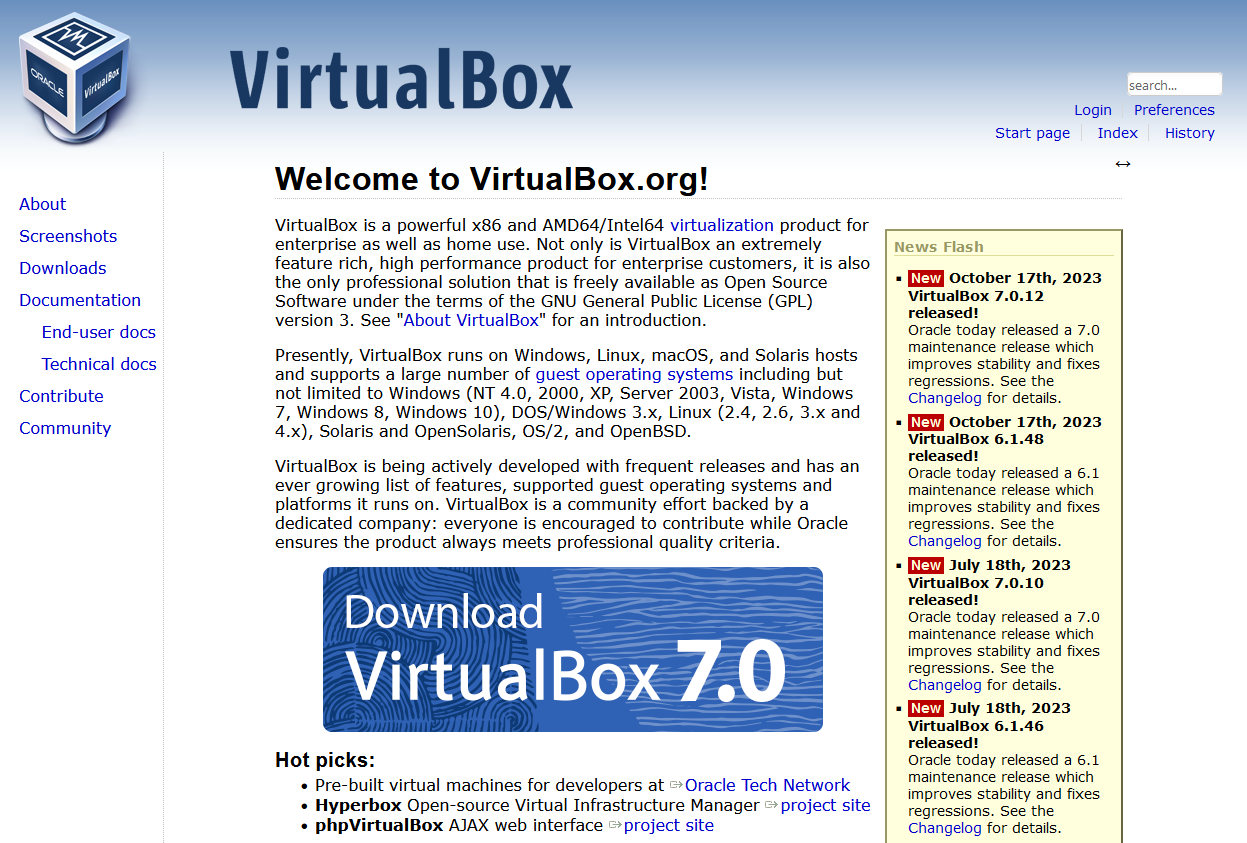
A screenshot of the web site for VirtualBox

Despite Parallels and VirtualBox both being programs which run virtual machines on Mac OS X, they both use different file formats for storing the virtual machines on disk. Though I believe Parallels will open a VirtualBox disk, VirtualBox cannot automatically import Parallels disks. But it’s not impossible…

If the guest operating system, i.e. the system that is running inside Parallels, is Windows 2000/XP/Vista, then it is possible to use a free tool from VMWare to do the conversion. Here’s a step-by-step:

1. Back up your virtual machine

Seriously. We’ll need to modify it a bit before it’s converted, so you’ll want a backup copy just in case things go wrong, or if you may use Parallels again in future.

2. Uninstall Parallels Tools

This is the modifying bit. Load your Windows virtual machine in Parallels, and uninstall Parallels Tools (the helper program that adds drivers and clipboard sharing, and other stuff). This is important as otherwise your virtual machine won’t boot in VirtualBox – and I know this from experience. You also can’t uninstall Parallels Tools unless you are running Parallels at the time.

3. Close all programs

Close as many running programs in your virtual machine as possible. We’re about to take a snapshot image of it while it is running, so any unsaved data may be lost when you boot the image in VirtualBox. That includes programs with icons in your notification area, such as virus scanners, instant messaging programs etc.

4. Install VMWare Converter

Once Parallels Tools has been uninstalled (you may need to reboot the virtual machine for this), we can begin the conversion process using a tool ironically made by VMWare. Go to the download page for the VMWare Converter in whatever web browser you use in your virtual machine (it’s a Windows program) Download it, and then install it.

Run the Converter tool, and click ‘Convert Machine’ – this should pop up a wizard which walks you through the process of setting up a new virtual machine image. You want to tell it to use a ‘Physical Computer’, and then on the next screen choose ‘This Local Machine’. Select the hard disk of the virtual machine and leave ‘Ignore page file and hibernation file’ ticked as this will just bloat the new virtual disk with unnecessary rubbish.

For the type of virtual machine, select ‘Other virtual machine’, and on the next screen, give it a name (e.g. ‘Windows Vista’). Next, you will also need to save it somewhere, and this should not be the existing hard disk of the virtual machine. You can either use your Mac’s main hard disk, mapped to drive ‘Z:’ under Parallels, a network drive or an external drive if you have it forwarded through to the virtual machine. You should be able to use the top option for the type (i.e. ‘Workstation 6.x’) but if it doesn’t work try another option. Keep ‘Allow disk to expand’ checked on the next screen. Click through until you’re ready to complete, and start the conversion.

5. Go and grab a cup of coffee

Or go out shopping. Or read a few chapters of War and Peace. Either way, the machine will take a significant amount of time to convert – mine took around 45 minutes and was only around 15 GB. Bigger disks may well take longer. It helps if you don’t have lots of other programs running on your Mac at the same time as then more of your CPU juice can be used for the conversion.

6. Shut down the machine in Parallels

Now that you’ve exported the machine, shut down Windows and close Parallels. This is mostly so that you can stay within the terms of the license agreement for Windows which won’t allow multiple instances.

7. Import the disk into VirtualBox

Open VirtualBox, choose ‘File’ and then ‘Virtual Disk Manager’. Add the disk file that you created, and click OK. Then click ‘New’ to create a new virtual machine, and select the correct operating system from the list. Try to ensure that you give the virtual machine the same settings (such as RAM size) as you did in Parallels. When asked for a hard disk, click the ‘Existing’ button and choose the disk file that you created from the list. Then click Finish.

8. Boot up in VirtualBox

Hopefully all will have gone to plan, and you will be able to boot into Windows as before. All of your files and programs should be there waiting for you.

If, however, you encounter a blue screen mentioning ‘prlfs.sys’ like I did, boot the machine but press F8 during the boot to enter Safe Mode with Command Prompt. Type in cd c:\windows\system32\drivers and then rename prlfs.sys prlfs.sys.old and then reboot – that should get you up and running.

For the inquisitive, prlfs.sys is part of Parallels Tools and this should have been removed as part of step 2, however muggins here forgot to this when he tried it himself and therefore encountered this error.

9. Install VirtualBox Guest Additions

Guest Additions are to VirtualBox what Parallels Tools are to Parallels – in other words, they make Windows sit better in the virtual machine and improve integration with the host operating system. On the main VirtualBox menu, select Devices and then ‘Install Guest Additions’ and follow the on-screen instructions. Though this is optional, it will improve the experience of using Windows in VirtualBox.

Hopefully now you’ll be up and running in VirtualBox. Feel free to post comments below and I’ll try to do what I can to answer them but I’m not the world’s greatest expert in this. I also don’t know how to do this in other versions of Windows or other operating systems.

Trying out VirtualBox 2

VirtualBox 2 is out. VirtualBox is Sun Microsystems’ entry into the Virtual Machine market, and competes against Parallels and VMWare. Unlike the others, it is free and comes in an open source flavour.

Since I have been using Parallels for some time, and VirtualBox is free, I thought I’d give it a spin on my MacBook, using Mac OS X as the host operating system. Parallels is excellent for running Windows Vista (and presumably XP), but its Linux support has been a little lacklustre and the past 2 releases have not supported Ubuntu 8.04 despite being released after Ubuntu has been released.

For version 2, quite a bit of work has gone on to make VirtualBox fit into OS X better, and it shows – though it still feels like a port, it looks very much look a native Mac application and it’s very easy to get going. Since I only have 1 Windows Vista license and I’m already running it in Parallels, I decided to try it with Ubuntu 8.04.

And it seems to work well. Plus, VirtualBox’s ‘Guest Additions’, software for the guest OS which enhances support, work for Ubuntu 8.04 – unlike Parallels Tools which only work for older Ubuntu releases. They also go further; not only do you get dynamic screen sizing (the display area adjusts depending on the virtual machine’s window size), seamless mouse pointer integration and time synchronisation – there’s also clipboard synchronisation and an attempt at desktop integration, which resembles Coherence mode in Parallels, but it works under Linux as well as Windows. However, it’s a bit buggy and I had some rendering issues while trying to use it.

Other down points? There’s no importing from other disk formats – so if you already have virtual machine set up in Parallels you can’t use it straight-away in VirtualBox (although if you can find a tool that converts the disk to the VMDK format you may have some luck). And PowerPC Mac owners are out of luck as VirtualBox is Intel-only, although running an Intel VM on a PowerPC machine would be very slow anyway.

That all being said, VirtualBox is a strong contender, and you can’t argue with free. For many, this will do everything that they demand from its commercial rivals, without costing a penny.