My new MacBook Neo

A photo of a blue Apple MacBook Neo with the lid closed

At the end of last month, my new MacBook Neo arrived. This is my first new computer since 2018, and specifically my first new Apple computer since 2010. In this (rather long) post, I’m going to go through my rationale for going back to Mac OS after 8 years on Windows, and review the computer.

My Mac origin story

I originally switched from Windows to Mac OS in 2005, with the purchase of a Mac Mini. The year before, I had bought my first Apple hardware device, an iPod Mini, and was sufficiently impressed to switch away from Windows. This first Mac Mini came with a PowerPC G4 processor, but it wasn’t long before Apple announced it would switch to Intel processors going forward.

I wrote several blog posts at the time about how I was adapting to Mac OS (which was version 10.4, or Tiger, back then). There were some hiccups – I remember it being a pain to get Mac OS to recognise a UK PC keyboard layout, for example. But, on the whole, I preferred it, and my next two computers were both Macs too. This was an Intel MacBook in 2006, and an Intel Mac Mini in 2010.

The Windows interlude

By 2018, Christine needed a new laptop for a university course that she was completing part time. Christine is more of a Windows and Android person, and at the time, our budget didn’t stretch to having a laptop each. We were paying £800 for full-time childcare, on top of our mortgage – back then, there was no government financial support for parents of under 3s, apart from tax exemption through childcare vouchers.

Christine’s previous Windows laptop was very old – I helped her buy it in 2009 in the early days of our relationship, and my Mac Mini was also not doing well. So, with there only being enough money for one laptop, we bought a cheap Lenovo Ideapad running Windows.

Back to Mac

Fast forward to today, and we’re in a better financial position. Christine bought a new laptop earlier this year, as she’s started another university course. Meanwhile I’ve also had a bit of money to put aside, so that I could have my own computer again. That Lenovo Ideapad that we bought in 2018 has had a good innings, but it can’t be upgraded to Windows 11. Microsoft has just announced another year of extended support for Windows 10, but by that point, I’d already made up my mind that I needed a new machine. And as Christine now has her own computer, I decided that the time was right to go back to Mac.

The MacBook Neo fits my needs well. Bearing in mind that I’ve managed with a budget Lenovo laptop for 8 years (seriously, it cost less than £400 new), I don’t need a powerful MacBook Pro. I just need something with reasonable performance for blogging, researching and buying things online – i.e. the tasks that I find easier on a big screen with a full keyboard, rather than on my iPhone or iPad.

Having those Apple mobile devices also made choosing an Apple computer an easier decision. Apple devices (usually) work well together, with things syncing via iCloud and features like Handoff. That’s something that I’ve missed during my Windows interlude.

I’m also not entirely happy with how Microsoft is trying to foist Copilot+ on new laptops.

An Apple MacBook Neo open showing the standard desktop and keyboard

MacBook Neo specs

It’s clear that Apple has made some compromises to make the MacBook Neo a more affordable computer. There are two models – the standard one comes with a 256 GB solid state drive (SSD), and for £100 more, there’s a premium model with a 512 GB SSD and support for Touch ID. Otherwise, the two models are identical: same processor, RAM and features. I went for the 512 GB model, partly for the extra storage, but also because Touch ID makes authorising things much easier, and I’m used to it from my iPhone and iPad.

The processor in the MacBook Neo is from Apple’s ‘A’ family, normally found in its iPhones and cheaper iPads, rather than its computers. This first generation MacBook Neo has an A18 Pro processor, which is the same as the iPhone 16 Pro and Pro Max – so not even the latest version of the A series processors. It also only comes with 8 GB of RAM, which, as the A18 Pro processor is a ‘system on a chip’, can’t be upgraded. The dash to expand data centres for AI has meant that RAM prices have rocketed, and so whilst this is disappointing, it’s not surprising in a budget model like this.

The screen is 13 inches across, with a narrow bezel meaning that overall, it’s a small device. There’s a 1080p webcam, built in microphone, and speakers on either side of the keyboard. There’s no built-in optical drive or SD card reader.

Ports and connectivity

For wireless connectivity, there’s Wi-Fi 6E and Bluetooth 5.3 – so not the latest versions of either but still fine. Unlike some of Apple’s newer devices, there’s no Thread radio for connecting directly to Matter and HomeKit devices.

Wired connectivity is another area where the MacBook Neo offers a compromise. Indeed, it’s the first home computer I’ve used since 1999 that doesn’t have a USB-A port. Instead, there are just three ports: two USB-C ports, and a 3.5mm headphone jack.

Both USB-C ports support Power Delivery (PD), so you can use either to charge using the included USB-C cable. However, it’s quite a short cable – about a metre long, and seemingly the same cable as my iPad Air that I bought in August. And, like with my iPad Air, there’s no AC adaptor, so you’ll need to provide your own USB-C PD adaptor that supports at least 45 watts, or buy one from Apple at extra cost.

A further compromise is that the two USB-C ports are not identical. The top one, closest to the screen, supports USB 3, so delivers higher speeds and can carry a DisplayPort signal for plugging in an external screen. The second one just supports USB 2, so it’s slower and can’t be used to plug in an additional external screen. This confused me at first as I plugged my docking station into the second one, and then wondered why it couldn’t see my external screen. So whilst my work laptop supports three screens, the MacBook Neo only supports two.

MacBook Neo Battery life

I’m writing this blog post on my MacBook Neo whilst on battery power, with a USB pen drive plugged in and copying several gigabytes of files off it. It’s been running for two hours, and still has 85% charge left. That’s pretty good going, and implies that it should be capable of all day battery life for mild to moderate usage. ARM processors, like those now used by Apple, are well-known for generally offering superior battery life to Intel and AMD processors. It’s also completely silent, with no fan – all the cooling is passive.

Most of the time, I use a laptop with an external screen, keyboard and mouse, but this MacBook Neo is particularly small and light and so I might use it on its own more often. It weighs just over a kilo, and is a full half kilo lighter than my previous Lenovo laptop.

Keyboard and trackpad

I like the MacBook Neo’s keyboard, which is apparently Apple’s ‘Magic Keyboard’. My normal keyboard is a mechanical USB gaming keyboard, which works fine with the MacBook Neo, but I wanted to test out its built-in keyboard. It’s good – decent-sized keys that are responsive and allow for quick and accurate typing. However, the small size of the MacBook Neo means that there’s no separate numeric keypad.

I’m less keen on the trackpad. My previous experience has been mainly with Lenovo trackpads, where a single tap anywhere on the left side registers as a left click. This multi-touch trackpad doesn’t support that by default – left clicks must be done in the bottom left, unless you enable a setting. But, it’s good for scrolling and zooming. Meanwhile, I’ll be using my Logitech mouse with it.

As for my external keyboard, which uses a standard UK PC layout, I didn’t have the same issues as I did back in 2005 with my Mac Mini. I was able to tell MacOS that it uses a PC layout, and can switch between layouts using the menu bar.

Mac OS Tahoe

The last version of MacOS that I used was version 10.11, El Capitan, so I’ve missed 9 major versions before version 26, Tahoe, which is what the MacBook Neo comes with. The changes are moderate – the Settings app looks more like the iPad version, and iTunes is now a series of separate apps like it is on iOS (something I wrote about 10 years ago). Something else that’s new is that some apps are now universal across iOS, iPad OS and MacOS, and so I’ve installed a few of these.

I deliberately didn’t opt to migrate my data from either my current Windows laptop or previous Mac Mini (which, besides, is tucked away in a drawer somewhere). However, I was given the option of migrating settings from my iPhone. This only took around 10 minutes, and meant that my iCloud account was set up and all my Wi-Fi settings copied across. After that, I could start installing my third-party apps.

MacBook Neo Pricing

I ordered my MacBook Neo three weeks ago, and so I got lucky; last week, Apple raised their prices by £100 for each model. That means the 256 GB model now costs £699, and the 512 GB model costs £799 in the UK.

As I work in education, I was able to take advantage of Apple’s lower education pricing, and so instead of £799, I paid £599 for my 512 GB model. Or rather, I will be paying that in due course – I was able to opt for interest-free credit with PayPal and will be paying £150 each month for the next four months.

At £699 for the 256 GB model, that’s a little over half the cost of the MacBook Air, the next model up after the Neo (since Apple seemingly don’t sell a plain vanilla MacBook anymore). So, for an Apple laptop, the MacBook Neo is cheap. There are, of course, cheaper Windows laptops out there; I can’t remember exactly how much Christine paid for hers but it was less. But Apple products usually attract a premium, and this MacBook Neo makes a premium product just that bit more affordable. The fact that it comes in a choice of colours also suggests that it’s aimed more at home users and students – I went for the blue one, to match my iPhone.

All of this has been written within 24 hours of me opening and unboxing my MacBook Neo, and so I’m sure I’ll have more to write about in the near future as I get used to it.

Logitech M720 Triathlon mouse review

A photo of my new Logitech M720 Triathlon wireless Bluetooth mouse

I mentioned at the start of the month that I was considering buying a new mouse, as my existing Arteck mouse was on the blink after not quite four years. I also noted “I’m sure I’ve had Logitech mice that have lasted far longer in the past” – and so, I’ve bought a Logitech mouse as its replacement.

Specifically, I’ve bought a Logitech M720 Triathlon mouse (sponsored link), thanks to an Amazon gift card from my aunt and uncle for my birthday last month. Like the Arteck mouse before it, this is a multi-device mouse – as the name Triathlon suggests, it can connect to up to three devices. It includes a mini USB dongle for RF mode, and can then connect to two additional Bluetooth devices – I’ve connected it to my iPad. I normally use the RF mode as I believe it’s more energy efficient than Bluetooth, but clearly Bluetooth mode is useful for devices that lack USB ports.

Additional buttons

As well as the standard left, right and clickable scroll wheel buttons, there are five additional buttons on the mouse:

  1. Below the scroll wheel is a toggle button which affects how fast the scroll wheel moves. If you press it down, then it’ll scroll with a tactile click through lines at a time. Release it, and it’ll scroll faster and more freely through longer documents, but with less accuracy.
  2. Above your thumb, there’s a button that defaults to navigating forwards in a web browser
  3. Next to that, unsurprisingly, is a back button
  4. Below that is the button to select which device you want to connect to.
  5. Finally, at the bottom of the mouse below your thumb, is the ‘gesture’ button

When you first plug in the USB dongle, you get a popup to install the Logi Options+ app. This allows you to customise these buttons, and update the firmware on the mouse and dongle. It’s optional, and it’s only available to install on Windows and MacOS – as far as I can tell, on Linux, buttons 2, 3 and 5 can’t be configured to do anything.

Battery

The Arteck mouse had a built-in rechargeable battery, with a USB-C port to charge it. Charging was only needed about every six months, and you could still use the mouse whilst charging.

This Logitech Triathlon mouse, by contrast, takes a single AA battery, and a single-use alkaline battery is included with the mouse when you buy it. It claims to offer two years of battery life on one battery.

Inside the battery panel is a storage hole for the USB dongle. If you have other Logitech devices, like a wireless keyboard, then one dongle will be sufficient to connect to both – indeed, it can connect to six Logitech wireless devices.

Overall, the Logitech Triathlon mouse is good. It’s slightly heavier than the Arteck mouse, but offers the additional lower thumb button and control over scrolling. I found it slightly more comfortable to use as well. Whilst I prefer the rechargeable built-in battery, I have plenty of rechargeable AA batteries to use when the provided single-use battery runs out.

Working with three screens

My home working environment showing a laptop with Windows 11, and two external screens, for a total of three screens

In a further evolution of my home working environment, I now have three screens available to me when I’m working at home. Today marks the start of my second week on a phased return to work, where I’m working a couple of hours a day at home.

Last year, I got an updated work laptop, but it took me until last week to find that it could support more than one external screen, as well as its own. It’s a relatively standard issue Lenovo Thinkpad, if you’re wondering. Whilst the laptop has one HDMI port, it can also pass video data through its USB-C port, and so I could add another screen using this and my Orico docking station (sponsored link) that I reviewed last year.

The third screen

The screen is an old square-ish 15″ Dell IPS screen. I think I picked it cheaply up at a junk shop many years ago, and I had used it with my Mac Mini, back when that still worked. I don’t know exactly how old it is, but it only has an analogue VGA connector – i.e. no DVI, DisplayPort, HDMI, Thunderbolt or USB-C. Bearing in mind that I bought a similar-sized screen in 2005 which included DVI. Of course, since it only has a VGA port, I had to buy an HDMI to VGA adaptor (sponsored link) to be able to connect it to the Orico docking station.

It’s been tucked away in our spare room for years as my previous laptop could only support one external screen. Whilst it had a single USB-C port, this couldn’t carry video data. So it’s nice to be able to use it again.

Once I’ve got some more strength in my arms, I’ll get it raised to a better height, in line with the other screens. The stand looks like it can be removed and replaced with a VESA mount, but it’s quite sturdy and so I can probably just stand it on some chunky books.

As for how it is to work with three screens? Much easier. I can have Outlook open on my laptop screen, our main web-based work IT system open on the large 24″ screen in the middle, and use the smaller 15″ screen for a remote desktop session.

And having three screens isn’t quite as extreme as some. Famously, the late Sir Terry Pratchett worked from six screens, arranged in a double row. “Why do I have six monitors?” he said. “Because I don’t have room for eight.”

Midlife iPhone overhaul

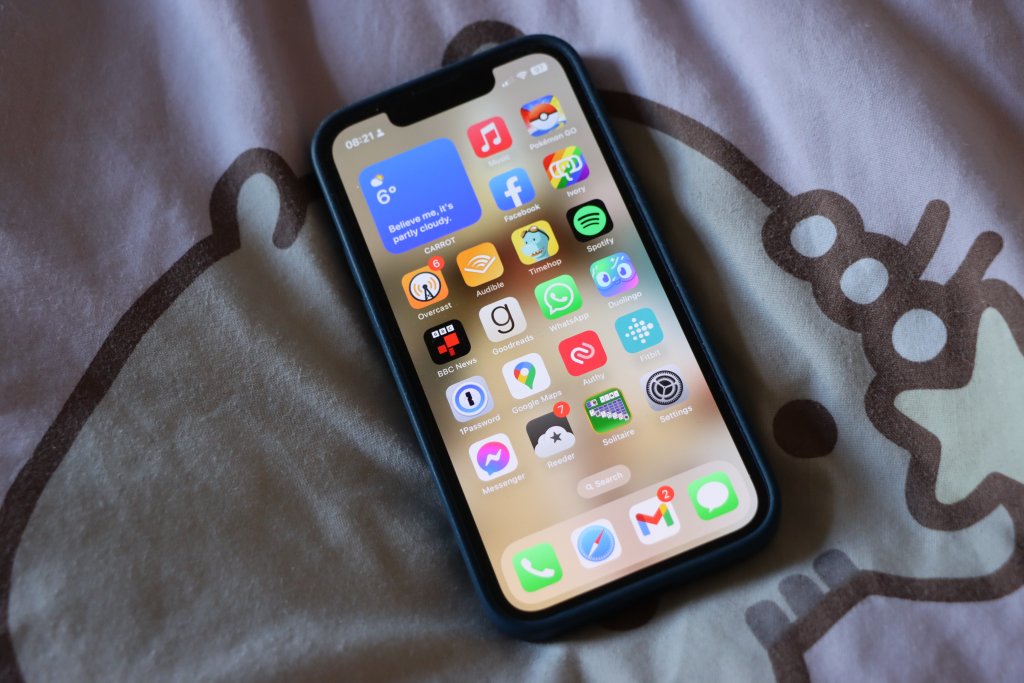
A photo of an iPhone 13 Mini with iOS 15 showing the home screen

Last month marked three years since I bought my iPhone 13 Mini. Unfortunately, it was starting to show its age a little – the battery was not holding charge very well, and the charger port was being awkward, which exacerbated the charging issue.

I quite like the size of the iPhone 13 Mini, and I’m disappointed that Apple has stopped making iPhones this small. As I write this, the smallest iPhone is the iPhone 17E, which is 15mm taller and 7mm wider, as well as weighing 30 grams more. And compared to the iPhone 17 Pro Max, my phone is 2/3rds of the weight, 30mm shorter and 12mm narrower. I resisted moving from the iPhone 5/5S form factor to the iPhone 6/7/8 partly because I felt that was too big – the iPhone 13 Mini has turned out to be an almost perfect size.

So, I have a good reason for sticking with my current iPhone. Plus, sorting out the issues with my phone would prove to be much cheaper than buying a new one.

New iPhone battery

I had previously had the battery on my iPhone 8 replaced, which helped it last for five years. So, doing the same with my current phone made sense. I was able to get a local phone repair shop to do the job in about half an hour, so that I didn’t have to be without my phone for too long. The ‘new’ battery isn’t actually brand new; it’s been recovered from another iPhone 13 Mini that had been disassembled. As such, it didn’t have its full 100% battery capacity as new from the factory. Instead, it offered 94%, which is better than the 80% that my current battery offered. 80% doesn’t sound too bad, but I was having to charge it multiple times per day – especially when we were in London. At 94%, it can do some whole days without needing a top-up charge.

As the new battery is a genuine Apple battery, the phone doesn’t complain about it. Indeed, the engineer who fitted the new battery walked me through how newer iPhones are able to authenticate genuine Apple batteries fitted outside of the factory. Once the new battery is fitted, it reboots into a cut-down version of iOS where it authenticates over Wi-Fi, and then reboots again when done.

Cleaning the charger port

The phone repair shop also cleaned out the charger port for me. I’ve tried blasting it with a can of compressed air, which helped, but it could still be awkward with some cables. Instead, the shop used tweezers to pull out stray dust that was insulating the contacts in the charger port. It now charges much better.

I wouldn’t go far as to say that my iPhone is like new again. Arguably it now acts like a one year old phone, rather than a three year old phone, but that’s a big improvement. It would be great to get this one to five years old, like its predecessor, before needing replacement. By then, maybe Apple will have started offering a smaller form factor iPhone again?

As for the cost? For the new battery, installation and charger port cleaning, I paid £60 at the local repair shop. Had I opted for a third-party, non-genuine battery, it would have been cheaper. By contrast, Apple charges £85, and I would have also had to factor in getting to the nearest Apple Store in Leeds. £60 for what I hope will be another two years of use isn’t bad.

Buying things on AliExpress

Screenshot of the AliExpress home page

I’ve been using AliExpress to buy occasional items since last summer. For those not already familiar, AliExpress is an online marketplace, where various businesses can sell products direct to consumers. The majority of the businesses on the platform are based in China, and it’s very similar to Shein and Temu in this regard. In my experience, AliExpress tends to focus more on technology, but its sellers offer a wide variety of things.

Before I continue, a disclosure. I’m a member of Amazon Associates, and so whenever you buy something from Amazon having followed a link from this blog, I get a small amount of commission. AliExpress is an Amazon competitor, and I do not get any commission from AliExpress. That being said, you can use this referral link if you want.

Shipping times

The big difference between buying from AliExpress (or Shein, or Temu) when compared with, say, Amazon, is the shipping times. The products you buy from AliExpress are usually shipped, on demand, directly from China. This means that orders to the UK typically take a week to arrive, if they’re in stock.

You do get regular shipping updates, both by email and in the AliExpress app, telling you when your items have been dispatched, arrived in your country, cleared customs and are finally out for delivery. It’s worth noting that, once in the UK, orders are generally delivered by Evri (aka Hermes). Whilst we seem to have a good local Evri courier at present, I’ve also had horror stories in the past, so bear this in mind.

Another thing to watch out for is extended delivery times. I’ve bought items where the expected delivery time has been measured in weeks rather than days, and this wasn’t obvious prior to payment.

Choice items

Many items for sale on AliExpress carry a ‘Choice’ flag. If you buy enough of these at once, then you get free delivery. What this means – I think – is that the individual sellers will send their products to a central dispatch point, where they’re collected together, put into a larger padded envelope, and sent internationally as one package.

Unlike Amazon, who mostly use cardboard for their packages, expect to receive lots of hard-to-recycle plastic packaging when your order arrives. And while we’re talking about the environment, bear in mind that your order will most likely be shipped by air, and so incurs significant carbon emissions. By contrast, products shipped by boat to a UK warehouse before sale will have incurred lower emissions on the whole.

Prices

Because you’re buying directly from sellers in China, the prices are usually lower than anywhere else. Typically, I’ve seen the same items costing 50% more on Amazon than on AliExpress. Note that some prices exclude VAT, so when you get to the checkout, don’t be surprised to see your total go up by around 20%.

Coins

Coins are the currency AliExpress uses for its loyalty scheme. Once you have an account, then performing various actions whilst using the AliExpress app (and specifically the app, not the web site) rewards you coins. This can be as simple as opening the Coins page of the app each day, or writing a review. There are also games within the app that you can play for coins.

When you buy products, you may be able to redeem some of your coins against the total cost. You probably won’t be able to pay for a whole order with coins, but it may knock a few pence off. I currently have 866 coins as I write this, which should amount to approximately £6.78.

I’m guessing the whole idea with coins is that you’re tempted into opening the app regularly, and so are tempted into buying more things.

Discount events

AliExpress has regular events where discounts are available. These are either coupons, e.g. save £5 if you spend £30, or discounts on products. Usually, there’s a discount on Choice items on the first day of the month, for example.

Helpfully, AliExpress sometimes indicates if a product will be cheaper in the near future. Usually, the difference is just a few pence, but it’s worth noting if you don’t need an item urgently. And, let’s face it, if you’re already expecting to wait a week for delivery, a few more days to save a little may be worth the wait.

The best things I’ve bought from AliExpress

I’ve reviewed a number of items that I’ve bought from AliExpress over the past year or so, but certainly not everything. Of those that I have reviewed, here’s a list:

I’ve also picked up a MagSafe power bank, that I use regularly, a colour changing Zigbee smart bulb, and a USB-C to 2.5mm audio jack adaptor. I’ve bought multiple sets of cheap Lenovo ThinkPlus wireless earbuds, so that I have a set in each bag that I use regularly and so am never without headphones. They won’t win any audiophile awards, but they’re good enough.

The best bargain was something that we bought for our nine-year-old, to help with one of their disabilities. It cost £20, versus £150 for an almost identical product from a specialist UK disability store that we also had to buy.

On one of the Home Assistant Facebook groups I’m in, another member said that he doesn’t buy anything from AliExpress that can be plugged into the mains, for safety reasons. Indeed, of the things I’ve bought, only the smart bulb, and a couple of Zigbee smart plugs, are things that can be plugged into the mains. I’ve not had any issues with any of them, but I think it’s a good rule to follow. It’s certainly possible to pick up items from AliExpress that shouldn’t be legally sold in the UK, because they’re not compliant with our safety laws. This is true of most marketplace platforms, including Amazon.

…and the things I’ve regretted

Not every purchase has been worthwhile. I reviewed this six port USB car charger in March; since then, some of the plastic has come off, and I don’t use it anymore. That’s mainly because our new car has ample built-in USB ports and so it’s no longer necessary, but I don’t know if I’d feel safe using it now either way.

There was a USB charger cable that looked like a three-tailed whip, featuring USB-C, Lightning and micro-USB ports on one end and a USB-A port on the other. It claimed to offer 100 W charging, although my understanding of how USB-A works means that’s arguably impossible. It’s certainly not met my expectations, although I still use it, and it cost barely more than £1.

I also bought a tyre pressure monitoring system, with smart dust caps – again, for our old car. The monitoring unit was solar powered, and was designed to stick to a window. The glue on the sticky pads quickly failed and so the monitoring unit regularly ran out of power.

Whilst I had regrets about all of these, collectively they add up to about £15 of wasted money.

Using an iPad as a desktop PC

An iPad connected to a docking station for use with an external screen, keyboard and mouse

If you have one of the newer iPad Air or iPad Pro models, then you can plug in an external keyboard, mouse and screen, and use it like a desktop PC. All you need is USB-C docking station with USB and HDMI ports. Indeed, I’m writing this blog post on the WordPress iOS app, but using my USB keyboard, mouse and external display.

Docking station

The docking station I’m using is this Orico model (sponsored link), which has an HDMI port, three USB-A ports (two USB 2, one USB 3) and a USB-C port. This USB-C port supports Power Delivery, and so it can be used to charge your iPad whilst it’s plugged in.

Other docking stations add Ethernet and readers for SD and TF cards, but this one doesn’t. And yes, iPad OS does support Ethernet when connected to an adaptor – I’ve tried it myself with a USB-C Ethernet adaptor that I normally use for my laptop at home.

What it’s like to use

Apple’s information page about using an external display is a bit vague. In my experience, the external screen would only show output once I had also plugged in my keyboard and mouse – it wouldn’t work with just the screen plugged in. That may be a quirk of the Orico docking station.

Rather than mirroring the display, the external screen was an extension of the iPad desktop. Apps would open on the iPad screen, and to get them to open on the external screen, I had to flick down from the top to reveal the menu bar and use the Window menu to move them across. With Stage Manager enabled, you can have multiple apps open in different windows on both screens.

I didn’t see a noticeable reduction in performance – the iPad seemed pretty capable of outputting to two screens. But it did deplete the battery faster, as I hadn’t plugged in a USB-C cable into the docking station to charge.

But why?

So why would you want to do this? Compared to my Windows laptop, which takes a minute or two to boot up, my iPad is always on and launches immediately from standby. Therefore, if I need to do something on a big screen quickly, it’s quicker to plug my iPad into a docking station than booting the laptop up.

It’s also a way of experiencing how Apple has repositioned iPad OS as being somewhere between iOS and macOS, rather than just iOS on a bigger screen. Apple wants the iPad range to be useful for actual work, rather than merely larger screens to consume content.

Finally, apologies for the photo above not actually showing the iPad with my screen, keyboard and mouse. My workspace is a mess at the moment, and I didn’t fancy tidying it up just for this blog post.

Windows 10 Extended Security Updates

Screenshot which says 'You're eligible to enrol in Extended Security Updates at no extra cost'

Microsoft is ending support for Windows 10 in just two days time. What this means is, if you’re using Windows 10 and don’t take action, you’ll no longer get security updates for your computer. And that would be bad – your computer is therefore at greater risk of viruses and malware.

Previously, when Microsoft ended support for Windows, if you were a home user then you were on your own. This time, Microsoft is offering the Extended Security Updates programme, and making it available to home users for the first time. I suppose this is because Windows 11 installs only exceeded Windows 10 as recently as June this year, and around 45% of Windows users still use Windows 10 despite it being 10 years old now. This includes us.

Upgrade or replace

Ideally, Microsoft wants you to upgrade to Windows 11. Many Windows 10 computers can be upgraded, but not all. If not, then, as far as Microsoft is concerned, you should be considering purchasing a new computer.

At home, we have a Lenovo Ideapad 320S which is approaching its eighth birthday. That’s pretty old for a laptop, and it’s been used heavily as it was my main work computer during lockdown. Theoretically, it might run Windows 11, if I backed everything up, wiped its SSD and did a fresh install. But Microsoft’s PC Health Check app won’t allow an in-place upgrade, as its processor (an Intel Core i3 in the 7000 series) doesn’t meet its minimum hardware requirements.

We will, eventually, replace this with a new laptop running Windows 11 – probably some time next year. But for now, this little survivor meets our needs – especially as, back in 2021, I upgraded its RAM from 4 gigabytes to 16 gigabytes.

Enrolling for Extended Security Updates

If you open Windows Update on a Windows 10 machine, you should see the option to enrol for Extended Security Updates. This gives you an additional year of security updates, to allow you time to either upgrade or buy a new computer. As mentioned, this is a new offering for home users; previously, only enterprise users ever had this option.

Enrolling for extended security updates may cost you, depending on your system settings. If, at the time you sign up, you’re already synchronising your PC settings, then you may be offered the extended security updates at no charge. This is what happened to us, as per the screenshot at the top of this blog post. Which was nice.

Alternatively, if you live in the European Economic Area (EEA), then you should also get the updates for free. Thanks to Brexit, us Brits unfortunately no longer live in the EEA.

If you’re not eligible for free updates, then Microsoft will charge you. If you use Microsoft Rewards, then you can redeem 1000 reward points instead of paying money. Alternatively, there’s a $30 charge, which works out at about £24 for the year.

What about Linux?

If you don’t want to buy a new PC, aren’t eligible for free updates and don’t want to pay, then I suppose the other option is to consider running some flavour of Linux on your existing PC. I wouldn’t necessarily recommend this, but if you’re really stuck for money and have the time to learn how to use a new operating system, then sure, I guess it’s an option to consider.

New new new iPad

A photo of an iPad Air 6

A couple of weeks ago, I bought myself a new iPad. I’ve gone for the 6th generation iPad Air, which has now been discontinued having been on sale for around 10 months until March this year. The fact that it’s discontinued is why I’ve bought an iPad Air, rather than a standard iPad; I ended up buying it cheaply from Costco for £360, versus around £300 for a standard iPad.

Saying goodbye to my old iPad

My previous iPad was a standard iPad 6, and I’d had it for seven years. During that time it was used almost daily, and it was starting to show its age. As well as a dented case on the back, the battery was not holding charge well and it became very picky about which Lightning cable it would actually charge from. It’s also no longer fully supported by Apple; it can only run iOS 17 which has only had minor security updates since last autumn. I expect it won’t get any updates at all soon. Still, seven years of almost daily use is pretty good going. Before that, I’d had an iPad Mini 2 for four years, and before that, a year with a second-hand original iPad which was the first one that I owned.

This new iPad Air 6 is a Wi-Fi only model, whereas my previous iPad also had cellular data. My main reason for going Wi-Fi-only was to take advantage of the cheap deal at Costco, but also I don’t use cellular data as much as I used to. Back in 2018, I was spending quite a bit of time on trains that didn’t have Wi-Fi; nowadays, I tend to only commute to work twice a week, and the trains all have Wi-Fi now. I also have a higher data allowance on my mobile plan, and so I can hotspot off my iPhone if needed.

Size, performance and connectivity

Being an iPad Air, it sits between the standard iPad, and the iPad Pro in terms of performance. It has one of Apple’s M-class processors, which you see in the iPad Pro and its Mac range, rather than the A-class processors that come in the standard iPad and on iPhones. That also means it has Apple Intelligence, Apple’s on-device AI. Not that I’ve really used Apple Intelligence much, apart from some minor photo editing. But overall, I’m very happy with the performance, compared to my previous model.

Also compared to my previous model, the 11″ iPad Air 6 that I bought is about the same size and weight. There is also a 13″ model, but this is fine for me and I’m used to the size.

Whilst the case is roughly the same size, with the narrower bezel, the screen has a much larger viewable area, and with a higher resolution. To unlock the screen, the iPad Air moves the Touch ID sensor to the lock button on top (only the iPad Pro has Face ID for unlocking). That takes a little getting used to; to unlock, you rest your finger on the button, rather than pressing it.

Apple is phasing out the Lightning connector, and all new iPads now come with a standard USB-C port, rather than Lightning. In the box, there’s a USB-C to C cable, but no AC adaptor; which is fine for me as we have several. Christine, being more of the Android persuasion, already has plenty of USB-C to C cables as well. There’s also no 3.5mm audio socket, so I’ve already picked up a USB-C to 3.5mm adaptor. Speaking of audio, there are speakers on both short sides of the iPad Air, rather than just the base.

A bargain price

Considering that the iPad Air 6 retailed for £549 when new, and a refurbished model costs £469 direct from Apple, getting mine from Costco for £360 was an absolute bargain. Before you rush off to your nearest Costco, bear in mind that mine was ‘sold as seen’, and they may have already sold out by now. Still, the money I saved was more than the cost of our annual membership. And, being a more powerful model than the one I’d planned to buy, I hope that it’ll last longer too. I don’t know if it’ll manage seven years, like my last iPad did, but 4-5 years would be good going.

No more Google Assistant on Fitbit Versa 3

A screenshot of an email from Google Fitbit. It says: You are receiving this email to let you know about an upcoming change to your Fitbit Sense and/or Versa 3. Over the next few weeks we will be progressively phasing out Google Assistant on your Fitbit device. You can learn more about this process here. This change means that Google Assistant voice control for activities will no longer be available on your Fitbit device.

In a few weeks time, Google is removing support for Google Assistant on its Fitbit Versa 3 and Sense devices. I have a Fitbit Versa 3, and so last week I received an email (screenshotted above) notifying me. Going forward, if you have a Fitbit Versa 3 or Fitbit Sense, you’ll only be able to use Amazon Alexa and not Google Assistant.

When I first heard about this, I was a little confused. After all, with Google now owning Fitbit, you would expect them to phase out support for Alexa to keep you in Google’s ecosystem. So, I did a bit of digging.

Alexa on Fitbit has always supported more features

Firstly, Google Assistant has been a poor relation of Alexa on Fitbit devices. On a Fitbit, Alexa can do most things that an Amazon Echo device can do, including controlling smart home devices. Google Assistant was more limited, to things like web searches, or launching apps on the Fitbit device to set timers or start exercises.

I’ve had my Fitbit Versa 3 for nearly three years – it was a 38th birthday present from Christine – and in that time I’ve only ever used Google Assistant. Following this announcement, I switched to Alexa, and have so far found it more capable. We don’t use any other Alexa devices at home, and so I’ve had to link up our various smart home devices to Alexa son that I can interact with them. For the most part, I’ve used Home Assistant and Homeway to achieve this.

Google is ‘upgrading’ Assistant to Gemini

You’re probably aware of Google Gemini, which is Google’s AI chat bot. Later this year, Gemini will replace the Google Assistant mobile app, as Google wants to foist its AI tools on its existing Google Assistant users. I’m not extremely comfortable with this, as I believe that current AI models are flawed and inefficient. For example, last year Gemini told people to eat one rock per day, and I’m concerned with the amount of computing power these AI models need compared to more basic natural language parsing. But I guess I don’t have a choice unless I stop using Google Assistant altogether.

Anyway, it seems that Google has decided that its older devices won’t be getting the Gemini upgrade. When you use Google Assistant on a Fitbit Versa 3, it communicates with the Google Assistant on your paired phone by Bluetooth. Presumably then, once the Google Assistant app has disappeared from app stores, it won’t be able to work. Google no longer sells the Versa 3 and Sense, and so I’m guessing they’ve made a business decision not to support the Gemini upgrade. After all, unless you’re a Fitbit Premium or Google One subscriber, you’re not making any more money for Google after having bought the device.

For now, the newer Fitbit Versa 4 and Sense 2 should still work with Google Assistant – these models are still on sale at the time of writing. However, they’re being phased out – in future, Google will only sell the Inspire and Charge Fitbit ranges. If you want a smart watch, you’ll be steered towards Google’s Pixel Watch range – but bear in mind that they’re Android-only.

As for my Fitbit Versa 3? Hopefully it’ll keep going for at least a couple more years, and I’m happy with using Alexa instead of Google Assistant for now. When it comes to replacing it, however, I’ll need to think hard about my choices. Whilst Fitbit’s smart watch range is less capable than, say, an Apple Watch, they offer much better battery life. An Apple Watch Ultra typically lasts only 36 hours, whereas the Versa 3 would do five days on a full charge when I bought it. Even now, it still manages 3-4 days, depending on use.

Does your phone have a wrist strap?

A photo of my iPhone 13 Mini with a third party case and wrist strap.

I’ve recently added a wrist strap to my phone. This is primarily on the back of Terence Eden’s advice for mobile security. As well as advising the use of a password manager, password/biometric lock and not sideloading apps from shady sources, he also mentions physical security of the handset.

In figures from April 2023, it’s estimated that 248 phones are stolen in London every day, 98% of which are never recovered. There may be a change in the law to allow police to search a property without a warrant, if they have reasonable suspicion that a stolen phone with location tracking on is there, but it’s not in force yet. And in any case, phone thieves will probably just put your phone in foil-lined box to block the signals. Previous victims have tracked their stolen phones only to find them ending up in China.

Whilst my phone “only” cost around £700, I’ll only finish paying it off next month. If you have an iPhone Pro Max with the maximum 1 terabyte of storage, you’ll have paid £1600 which is a lot of money to lose. Some Samsung Android phones also cost serious cash to buy new nowadays too.

I often have my phone out when walking around, mainly for playing Pokemon Go. All it takes is someone brazen enough to snatch it out of my hand for it likely to be gone for good. So I’ve finally decided that a wrist strap would be a good idea in the hope of preventing this.

Both the strap, and the phone case I use, are relatively cheap ones from AliExpress – collectively costing less than £5. The case has a pair of holes for threading a strap through, but you can also buy wrist straps that attach to the bottom of any phone case if yours doesn’t have holes. Somewhat annoyingly, the holes are on the left side of the phone, and I’m right-handed.

My wrist strap itself is adjustable, so you can tighten it around your wrist and reduce the risk it falling (or being pulled) out of your hand.

Whilst I was mainly motivated to reduce the risk of my phone being stolen, having a wrist strap also reduces the risk that you’ll drop your phone. As well as reducing the risk of the phone being damaged, it means you’re less likely to drop it in places where it can’t easily be retrieved. Maybe if Rebekah Vardy’s agent had a strap on her phone, she wouldn’t have ‘accidentally’ dropped it in the North Sea. Snide remarks aside, I use my phone’s camera quite a bit, so having a wrist strap makes me more confident that I’m not going to drop it into a lion enclosure at a zoo or something.

Just a quick word of caution though. If you keep your phone in a pocket, make sure you tuck the wrist strap in as well so it’s not hanging out. Otherwise, counter-intuitively, it might make your phone easier for pick-pockets to steal.

Creative Commons License
Except where otherwise noted, the content on this site is licensed under a Creative Commons Attribution-ShareAlike 4.0 International License.