Home Assistant with HTTPS and HomeKit

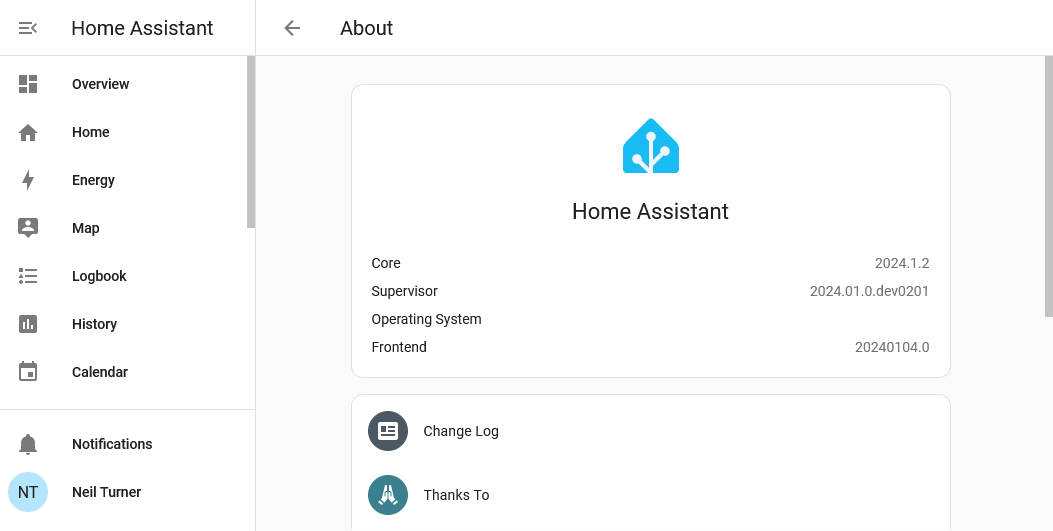
A screenshot of Home Assistant running in a web browser with HTTPS enabled and no certificate errors

Welcome to the latest chapter of getting Home Assistant working on a Raspberry Pi using Docker. Last time, I’d managed to get it working in Docker, but only over a regular HTTP connection and without HomeKit. The good news is that I’ve solved both of these problems.

Using SWAG to enable HTTPS

Firstly, I recommend reading this paragraph whilst listening to ‘Swagger Jagger’ by Cher Lloyd.

I’ve tried lots of different ways to get Home Assistant working over SSL/TLS. There’s a good reason why this is one of the key selling points of Home Assistant Cloud, as it can be difficult. Thankfully, there’s a Docker image called SWAG (Secure Web Application Gateway) that handles much of the legwork. Once you’ve installed SWAG, follow this guide, and you should find that you can access your Home Assistant setup at https://homeassistant.[yourusername].duckdns.org/ . No need to specify a port, or accept any certificate warnings.

Inside SWAG, there’s a DNS client, which will automatically renew the SSL certificates every 90 days for you, using ZeroSSL or Let’s Encrypt. There’s also nginx, which is used to set up a reverse proxy, and support for dynamic DNS services like DuckDNS.

SWAG has sample configurations for lots of different services, including calibre-web, so I have SSL access to my calibre-web image too. My only issues with it so far were last week when DuckDNS went down on Sunday morning. Most services, like Home Assistant, need to be mounted as subdomains (as above), but others (like calibre-web) can be mounted as subfolders, e.g. https://[yourusername].duckdns.org/calibre-web. This reduces the number of subdomains that you need SSL certificates for; ZeroSSL only offers 3 subdomains for a free account so it’s worth considering subfolders if you want to add more services.

If you have your own domain, then you can also add a CNAME to it to point it at your DuckDNS account, should you wish to use that rather than a [something].duckdns.org address.

Getting Apple HomeKit working

Carrying on the musical theme, here’s ‘Carry Me Home’ by Gloworm, a 90s dance classic which has only recently become available on digital platforms again.

After getting my swagger jagger on and getting HTTPS working, the final issue I’ve been having with Home Assistant is the HomeKit bridge. Adding Home Assistant devices to Apple’s Home app is something that normally works out of the box if you install Home Assistant OS, but takes more work if you use Docker.

The instructions which helped me where these on the Home Assistant forums. You’re going to need to install another Docker image containing avahi; there are several but this one worked for me. It’s bang up to date, unlike the most common Docker image which is, um, 8 years out of date and also only works on x86 machines. Which isn’t much help for my arm64-based Raspberry Pi 4.

Once you’ve installed avahi, added the relevant lines to configuration.yaml in Home Assistant and restarted it, HomeKit should work. To get started, add the HomeKit integration to Home Assistant – you may want to specify which devices will show if you don’t want all of them. Then, use your iPhone or iPad to scan the QR code in your Home Assistant notification panel, and add the bridge. If all goes well, it should immediately tell you that it’s an unsigned device, but will then let you set up each device in turn.

If it just sits there for several minutes and then gives up, you’ll need to do some more digging. Don’t worry, this happened to me too. I suggest downloading the Discovery app, which shows all of the mDNS devices broadcasting on your network. If you can’t see ‘_hap._tcp’ in the list, then there’s a problem. In my case, this turned out to be because my Raspberry Pi wasn’t connected to the same wifi network. It’s plugged in to my ADSL router with a network cable, but we use Google Wifi which results in a ‘double NAT’ situation. Connecting the Raspberry Pi to both wired and wireless connections seemed to fix the issue.

Indeed, as a side effect Home Assistant managed to autodiscover some additional devices on my network, which was nice.

Home Assistant Core in Docker? Done it, mate

All in all, I’ve successfully managed to get Home Assistant to where I want it to be – self-updating in Docker, secure remote access, and a HomeKit bridge so that I can ask Siri to manage my devices. I’m looking forward to being able to turn my heating on whilst driving, for example.

It’s been a challenge, requiring a lot of skimming through the Home Assistant forums and various StackExchange discussions. Ideally, I would have a spare computer to run Home Assistant OS, which would have taken some of the leg work out of this, but I’m happy with the setup. Finding SWAG and getting it to work was a moment of joy, after all the setbacks I’d had before.

Using Portainer to manage Docker

Screenshot of the Portainer web interface

So you may have noticed that I have a thing going on with Docker at present. I’ve set up Home Assistant in Docker, and more recently also set up calibre-web with Docker. Between these, and other Docker images, it’s quite a lot to manage – especially on a headless remote device. Thankfully, Portainer is a web-based solution to managing multiple Docker containers.

There’s a free community edition which offers sufficient features to manage one Docker system, which I’m using. If you need to manage multiple systems, there’s a Business Edition available that you need to pay for, but home users should get by with the Community Edition. Although you will see lots of greyed out options which are only available in the Business Edition – something anyone who uses a freemium WordPress plugin will recognise.

The installation instructions are detailed, and there are a number of steps that you’ll need to follow using the command line. Once everything’s set up, you’ll be able to open a web browser and see all of your Docker containers, and their status.

Portainer lets you start, stop and restart containers from the web interface, and delete any containers no longer needed. The feature that I’ve found most useful is the ‘Duplicate/Edit’ function, which allows you to easily duplicate a container, and optionally replace the original container with a new one with updated variables. This is great for people like me who invariably make a mistake when setting up a Docker Compose file. Logs are also made easily accessible, which helped me when troubleshooting a container that was starting but then wasn’t accessible through a web browser.

You can also run new containers in Portainer; whilst this is easier than typing out commands, Docker Compose works better for me as you can just copy and paste them.

If you’ve got a few Docker images up and running, I would recommend Portainer as an easier way of managing them. It’s much nicer than having to type out commands in a ssh session, and is a friendlier way of working with Docker for less experienced users, like myself.

Managing e-books with Calibre-web

Screenshot of the calibre-web interface

If, like me, you’ve picked up a number of e-books over the years, you may use Calibre as your e-book manager. It’s a desktop application with an optional web interface, but it has its drawbacks. The user interface is clunky, and it tries to cram lots of advanced features in – even the latest version 7 is overwhelming for new users. So, if you can forego the desktop application, there’s an alternative called calibre-web that does the same thing in a web browser, and with a much nicer interface.

Once installed, you can migrate your existing metadata.db from Calibre and the e-book folders, and calibre-web will pick up where you left off. I particularly like the ability to download metadata from sources such as Google Books, to get more complete data about each book besides its author and title. There’s a built-in e-reader, or you can use an app that supports OPDS – I used Aldiko.

By far the easiest way to install it is using Docker. There’s a good image on DockerHub; it’s maintained by a third-party but recommended by calibre-web’s developers. Once installed, it doesn’t require much additional configuration.

By default, calibre-web doesn’t allow uploads, but you can amend this in the Admin settings. The settings toggle s rather buried away, and it took me some time to find. But once uploads are enabled, it allows you to completely replace the desktop Calibre app if you want to. You can also set up multiple user accounts, if you want to share your calibre-web server with others.

I have calibre-web installed on the same Raspberry Pi as my Plex and Home Assistant servers. Indeed, calibre-web essentially offers a kind-of Plex for e-books, seeing as Plex doesn’t offer this itself. Unfortunately, most of my e-books were purchased through Amazon, and so only accessible through their Kindle apps and devices. But for the handful of books that I’ve picked up through the likes of Unbound and Humble Bundle, it’s helpful to have them in one place.

Comment Spam strikes back

An illustration of a robot turning web pages into canned meat product. Generated using Bing AI Image Generator

So now that I’m blogging again, it’s the return of comment spam on my blog posts.

Comment spam has always been a problem with blogs – ever since blogs first allowed comments, spam has followed. Despite the advert of the rel=”nofollow” link attribute, automated bots still crawl web sites and submit comments with links in the hope that this will boost the rankings in search engines.

In the early days of blogging, blogs often appeared high in Google’s search engine results – by their very nature, they featured lots of links, were updated frequently, and the blogging tools of the time often produced simple HTML which was easily parsed by crawlers. So it was only natural that those wanting to manipulate search engine rankings would try to take advantage of this.

I’ve always used Akismet for spam protection, even before I switched to WordPress, and it does a pretty good job. Even then, I currently have all comments set to be manually approved by me, and last week a few got through Akismet that I had to manually junk.

Humans, or AI?

These five interested me because they were more than just the usual generic platitudes about this being a ‘great post’ and ‘taught me so much about this topic’. They were all questions about the topic of the blog post in question, with unique names. However, as they all came through together, and had the same link in them, it was clear that they were spam – advertising a university in Indonesia, as it happens.

Had it not been for the prominent spam link and the fact they all came in together, I may have not picked up on them being spam. Either they were actually written by a human, or someone is harnessing an AI to write comment spam posts now. If it’s the latter, then I wonder how much that’s costing. As many will know already, AI requires a huge amount of processing power and whilst some services are offering free and low cost tools, I can’t see this lasting much longer as the costs add up. But it could also just be someone being paid using services like Amazon Mechanical Turk, even though such tasks are almost certainly against their terms of service.

I think I’m a little frustrated that comment spam is still a problem even after a few years’ break from blogging. But then email spam is a problem that we still haven’t got a fix for, despite tools like SPF, DKIM and DMARC. I’m guessing people still do it because, in some small way, it does work?

Asking your friends a question every day

An illustration of a question mark appearing from a wizard's hat. Generated by Bing AI Image Generator

A couple of years ago, I asked my Facebook friends a question – what animal do you think our child wants as a pet? And as an incentive, whoever guessed correctly could nominate a charity to receive a £5 donation. The post got around 60 comments before the correct answer – a parrot – was guessed, and the £5 went to the Bradford Metropolitan Food Bank.

We didn’t buy our child a parrot as a pet – they’re expensive to buy and insure, and can out-live their humans – but it gave me an idea.

So for the whole of 2022, I asked a new, unique question to my Facebook friends. I wrote most of these in an Excel spreadsheet over the course of Christmas 2021, and then added to it over the year. Questions were usually posted in the morning, and all got at least one comment – but some many more.

I have around 300 friends on Facebook and so I tried to come up with questions that were inclusive, or hypothetical, so as not to exclude people. For example, not all my friends drive, so asking lots of questions about cars would exclude people. I also wanted to avoid any questions that could be triggering for people, so most were framed around positive experiences.

I suppose I was taking a leaf out of Richard Herring’s book – I suppose literally because he has published several Emergency Questions books – but it’s something I enjoyed doing. It also meant that I found out some more facts about my friends and got to know some of them better. It also reminded me of the really early days of blogging with writing prompts like the Friday Five.

This year, I’ve asked the same questions, but included my answers in the posts, as I didn’t usually get a chance to answer my own questions in 2022. This has also required some re-ordering of questions, as some related to events like Easter which were on different days this year.

And for 2024? Well, I’m slowly working on some brand new questions, although I’m only up to March so far. And I keep thinking of great ideas for questions, only to find that I’ve already asked them before.

Maybe I’ll publish them as a page on here someday.

Bringing back the archives

An illustration of a phoenix rising from the ashes, with a web page. Generated by the Bing AI Image Creator

Last month, I wrote about how I had found peace with myself regarding losing over a decade’s worth of blog posts.

Well, I’ve already sort-of changed my mind. I have already brought back some old posts which, until now, were only accessible on the Web Archive Wayback Machine.

This doesn’t mean that all of my old posts will be reinstated – if anything, I’ll be bringing back 1-2% of them at most. My criteria are:

  • Posts which, despite being offline for about 5 years, are still linked to. I’m using the Redirection WordPress plugin to track 404 errors, which you can group by URL to see the most commonly not-found pages.
  • Posts that still offer useful advice, or information that is otherwise not easily accessible on other web sites.
  • Posts that mark important events in my life.

So, here’s a selection of what I’ve brought back already, in chronological order:

  • Media Player Classic (January 2004). A review of a now-defunct lightweight alternative media player for Windows. VLC is probably a better option nowadays.
  • Apple Lossless Encoder (May 2004). A blog post about Apple’s then-new music format which preserves full audio quality when ripping CDs in iTunes, and how it compares to other formats like FLAC and Monkey’s Audio.
  • Knock-off Nigel (August 2008). An anti-piracy advert for TV.
  • How to migrate a Parallels virtual machine to VirtualBox (November 2008). A how-to guide for switching from Parallels Desktop to VirtualBox, which I imagine is still useful for some people.
  • Fixing high memory usage caused by mds (February 2013). A how-to guide for fixing an issue with MacOS. I don’t use a Mac anymore but hopefully this is still useful to someone.
  • Baby update (November 2015). This was actually a draft version of a post that must have somehow survived in Firefox’s local storage, so I re-published it.
  • How to: fix wrong location on iPhone (January 2017). Another how-to guide that fixed an issue I was having at the time with my iPhone’s location randomly jumping around.

There’s more to come, as and when I find time to restore them. I’m also using Google Search Console to find pages that it’s expecting to work, but that result in a 404 error.

I wear glasses now

A photo of me, taken in July 2021, wearing glasses

There’s a few life developments that have happened in the years since I stopped blogging regularly, and one of those was in July 2021 – I started wearing glasses.

I hadn’t noticed that my vision was deteriorating, but it was picked up at a routine eye test. I had a suspicion that the optometrist had found I needed glasses as he tweaked the lenses, and suddenly the last couple of lines on the eye chart got much more clear. Oh well, I managed 37 years without needing to wear them.

I’m fortunate that I can just wear one pair of glasses for both near and distance vision, so I don’t need to take them on and off for different tasks, or wear bi-focals. And they make a difference – as someone who uses screens all day at work, my eyes aren’t as tired at the end of the day as they were before.

Of course, July 2021 was around the time when we still needed to wear facemasks on public transport, so I got the lovely experience of my glasses steaming up.

You may also notice that I’m overdue for my next eye test, so I promise that I’ll book another one soon. I’ve contemplated getting contact lenses next time, but it depends how much my glasses cost. And I don’t mind wearing glasses too much.

Running Home Assistant in Docker and Snap

A screenshot of the Home Assistant installation instructions for Docker

So, as I mentioned a couple of weeks ago, I’ve set up Home Assistant (HA) to control the various smart devices that we have around the home. At the time, I just used a snap package, but now I’ve migrated to using Docker, and here’s why.

Firstly, there are some disadvantages of installing Home Assistant using a snap package. Namely:

  1. The snap package isn’t an official release by the Home Assistant project, and is instead built by a third party.
  2. This means that, at time of writing, it’s a couple of releases behind the latest official release.
  3. It also means that it’s not a formally supported way of running Home Assistant, and there are fewer resources out there to help you if you’re stuck.
  4. I had issues updating previously installed custom components from HACS

Meanwhile, there’s an official Home Assistant Docker image that is updated at the same time as new releases, and it’s mentioned in the installation guide.

So, on the whole, Docker is better for running HA than Snap. But I wanted to run HA on my Raspberry Pi 4 which has Ubuntu Core on it, and that only offers Snap. But wait… you can install Docker on Snap, and the Docker Snap package is one maintained by Canonical so it’s regularly updated.

You can see where this is going. What if I install Docker using Snap, and then install Home Assistant into Docker? Well, that’s what I did, and I’m pleased to inform you that it works.

Docker on Snap, step-by-step

If you want to try this yourself, here’s the steps that I followed. However, please be aware that you can’t migrate a Home Assistant setup from Snap to Docker. Whilst HA does offer a backup tool, the option to restore a backup is only available on Home Assistant Operating System, and it seems that manually copying the files across won’t work either. So, if you currently use Snap, you’ll have to set up HA again from scratch afterwards. You’ll also, at the very least, need to run snap stop home-assistant-snap before you start.

  1. Install Docker. You can do this by logging into your machine using SSH and typing in snap install docker.
  2. Enable networking. There’s probably a better way of doing this, but for me, just running chmod 777 /var/run/docker.sock worked.
  3. Install Home Assistant. You’ll need to enter quite a long shell command, which is:
    docker run -d \
    --name homeassistant \
    --privileged \
    --restart=unless-stopped \
    -e TZ=MY_TIME_ZONE \
    -v /PATH_TO_YOUR_CONFIG:/config \
    --network=host \
    ghcr.io/home-assistant/home-assistant:stable

    The two variables in bold will need changing. For ‘MY_TIME_ZONE‘ you’ll need to type in your time zone, which in my case is ‘Europe/London‘, and for ‘PATH_TO_YOUR_CONFIG‘ is a folder where you want your configuration files. I suggest /home/[username]/homeassistant .
  4. Grab a drink, as the installation will take a few minutes, and then open http://[your IP address]:8123 in a web browser. If it’s worked, then you’ll be presented with HA’s onboarding screen.

Again, if you had the HA snap package installed, then if everything’s working with Docker, you’ll need to uninstall any related HA packages (like HACS, toolbox and configurator) and then the home-assistant-snap itself. And then you’ll need to set up all of your devices again. The good news is that, if you decide to move your HA installation to a new machine, you can just migrate the Docker image in future.

Wouldn’t it be better just running Docker?

Okay, so you may be wondering why I’ve set up HA this way. After all, it would probably be easier just to install Raspberry Pi OS Lite and put Docker on that, without using Snap. Well, there’s a method to my madness:

  • I like running Ubuntu Core because it’s so minimalist. It comes with the bare minimum of software installed, which means that there’s less risk of your system being compromised if a software vulnerability is found and exploited.
  • I already have Plex running quite happily in Snap, and didn’t want to have to migrate that as well.

In other words, this was the easiest way of running HA in Docker with my current setup. And I’m happy with it – I’m running the latest version of HA and it seems to work better.

There are a couple of additional steps that I still need to complete, which are:

  • Enabling SSL/TLS for remote access
  • Enabling mDNS broadcasts for Apple HomeKit integration

I’m working on these. Home Assistant Cloud is the easiest way of setting up secure access and I’m considering it. It’s a paid-for service, but it does financially support HA’s development, and seems to much easier than the alternatives. As for mDNS, I’m still working on this, and I imagine there’ll be things I need to tweak in both Docker and Snap to get it to work.

New theme, who dis?

Screenshots of the old and new themes for the blog, side by side

I’ve deployed a new theme on the blog. If you’re reading this in your feed reader, firstly, go you, because so few people do nowadays, but also, please click through and have a look.

The theme I’m using is GeneratePress, with mostly default settings. This replaces one of the default WordPress themes that I was using before.

Why the change? Mainly page bloat; whilst the default WordPress themes are very extensible, the output code includes shedloads of extra JavaScript, CSS and style tags which result in web pages which are bigger than they should be. Whilst I’m at no risk of exceeding the data transfer limits offered by my hosting company, it does affect the speed of the site, and not everyone has unlimited mobile data or a fast connection.

I learnt HTML at a time when it was the done thing to hand-code pages – indeed, back when I used Blogger and later Movable Type as my blogging tools, for the most part I used themes that I had written all myself. JavaScript was used very sparingly, and the HTML and CSS code was nice, clean and simple. So seeing the code soup that was being outputted by the default themes was off-putting.

I also think about this blog post by Terence Eden, ‘the unreasonable effectiveness of simple HTML‘, where he gives an example of someone applying for housing benefit on a PlayStation Portable (PSP). This is presumably because it’s the only portable device with a web browser that she can use. But because the HTML on gov.uk is so clean and lightweight, the old, under-powered web browser on the PSP is still able to render it, and she’s able to get the information that she needs. A big, flashy web site oozing with various JavaScript frameworks, loads of tracking scripts and adverts everywhere just isn’t going to work on such an old device.

And then I saw this toot today:

I can't help but notice the new Apple laptops rate "Video Playback 22 hours, Web Browsing 15 hours" under battery life.

Congratulations web developers everywhere, it's now more computationally intense to render a webpage than video playback!

— Brad L. :verified: (@reyjrar) 2023-11-05T04:41:28.299Z

Web pages are getting so full of cruft, that they require more processing power than video playback.

So, that’s why I’m going with a lightweight theme. It makes the web site much more accessible to more people. GeneratePress seems to output lighter code that displays fast, and it offers a good balance between extensibility and speed. It won’t be for everyone, but it seems to work well for me.

Ghost Signs

You know those old painted adverts you sometimes see on the side of buildings? York, where I grew up, has a famous one for Bile Beans, due to its prominent location, but there’s also one in Halifax too.

Historic England is building a list of these, with photos and GPS locations, and you can contribute. I’ve added one near where I live in Sowerby Bridge – it’s seen better days, but perhaps in Historic England have a list, then there may be money and resources to restore some of these.

Ianvisits mentioned this last week, and it’s encouraging to have seen the list grow in the days since. It’s not just painted adverts like this that are welcome – signs for old and defunct shops can be added too.