Apple AirPods Pro as hearing aids

Screenshot from Apple showing the AirPods Pro hearing aid features

I don’t tend to follow Apple’s new product announcements very closely anymore, but yesterday’s announcement that Apple AirPods Pro 2 will be able to act as medical-grade hearing aids interested me.

I’ve been a hearing aid user for almost two years. My hearing aids are really basic, standard issue NHS over-the-ear models. They work, and are loaded with an audio profile that amplifies the frequencies where I need the most assistance, but they’re basic. There’s no Bluetooth, and I have to take them out to use a headset. They don’t even have rechargeable batteries – my local NHS hospital has to send me packs of little button batteries every few months.

Hearing aid costs

Whilst I get them free on the NHS, were I to lose one, I would need to pay £75 for a replacement (so £150 for a pair). And that’s pretty cheap as far as hearing aids go. For context, basic hearing aids from Specsavers start at £499 a pair if bought privately. Top-of-the-range hearing aids cost closer to £3000 a pair. I guess the high prices are partly to do with the cost of being certified as medical devices and limited number of customers.

With this in mind, the £230 cost of a pair of rechargeable AirPods Pro 2 is fantastic value for money for hearing aids. Especially as they will work well with an iPhone and support Bluetooth – which is something that would otherwise cost four times as much. And, it’s a lot more accessible – it took me several months following my hearing test to get a referral via my GP to audiology, whereas these will be available to buy on the high street without any gatekeepers.

Replacing regular hearing aids

Before we get too excited, Apple’s press release notes that the hearing aid functionality will be for mild to moderate hearing loss only. That includes me at the moderate end of the hearing loss spectrum, but for people with significant or profound hearing loss, regular hearing aids will still be necessary. There will be a ‘hearing test’ feature included in iOS 18 to tune the hearing aid functionality of the AirPods Pro. However, I doubt it’ll be as accurate as an audiogram that has been produced by a qualified audiologist in a sound-proof room using professional equipment.

I also think that others will find it confusing if you’re talking to them whilst wearing AirPods. Most hearing aids are designed to be relatively discreet – the visible bits of mine are clear plastic with the electronics hidden behind my ear. Whereas it’s pretty obvious that someone is wearing AirPods.

But on the whole, I think this is a massive game changer for people with hearing loss. Having hearing aids so easily and cheaply available could help so many people. I might have to consider getting myself a pair.

How I stopped Teams from glitching

Ever since we started using the ‘new’ Microsoft Teams, my home computer would glitch whenever joining a meeting where I wanted my webcam on. By ‘glitch’, I mean both screens going black – usually just for a couple of seconds, but sometimes longer. It may also be triggered by someone sharing their screen during a meeting – meaning I could hear them, but not speak.

Finding new graphics drivers

The simple solution to this was to update my graphics drivers. At home, I use a relatively basic Lenovo laptop bought in 2018. In 2021, I upgraded the RAM from 4 GB to 16 GB, which has helped to keep it going despite its age. Its processor is too old for Windows 11, but Windows 10 still works fine for me.

When I opened Device Manager to check my graphics drivers, they hadn’t been updated since 2018. Over the past few years, more and more applications have been updated to take advantage of GPU hardware acceleration – as I write this, Firefox, Outlook, Excel, Teams and Spotify are all using my GPU. That was less of an issue in 2018, but is now.

Windows Update wouldn’t offer any new drivers, and nor would Lenovo Vantage, the tool that shipped with the computer for vendor software updates. And on Lenovo’s web site, the latest software downloads were the same driver that I already had.

As the laptop uses Intel built-in graphics drivers, I instead went to Intel’s web site to download them. Sure enough, Intel had drivers updated as recently as May this year. So I downloaded them, ran the installer, and got an error, saying ‘Your system has a driver that is locked to manufacturer specification.’

Bah. This means that Intel only wants me to download drivers from Lenovo, but Lenovo are not offering updated drivers.

Getting around the manufacturer specification lock

The good news is that you can get around this, and I found the solution thanks to this Reddit thread. You tell Windows to use a generic driver, and then install Intel’s updated drivers as an alternative.

Here are the step-by-step instructions:

  1. Do a complete back-up. We’re playing with drivers here, and the wrong driver can render your computer unbootable. Make sure you have a full system backup that can be restored in case something goes terribly wrong.
  2. Open Device Manager, find your graphics device, right-click, and choose ‘Update Driver’.
  3. Select the second option, ‘Browse my computer for drivers’.
  4. On the next screen, select ‘Let me pick from a list of available drivers on my computer’
  5. You should have a driver called ‘Microsoft Basic Display Adaptor’. Select this, and click Next.
  6. Your screen will flash, and you may find that any external screens will stop working. When it’s done, restart your computer.
  7. Now, try to install the Intel drivers again that you have downloaded from the Intel web site. If all goes well, these new drivers will be installed instead.
  8. If not, repeat the above steps as far as step 3. Find the Intel driver download, and open it in a tool like 7-Zip to access the files inside, and extract them to a folder.
  9. Instead of following step 4, select the folder that you extracted the files to, and Windows should detect the drivers and install these for you.
  10. You can then check your driver version in Device Manager to verify that the latest version has been installed.

This resolved the issues for me, and now Teams works fine.

The fact that computer manufacturers can stop you from easily installing driver updates is unfair, in my opinion. Sure, the computer I’m using is old, but it still works pretty well. We have a massive problem globally with electronic waste, and we shouldn’t be making functioning computers obsolete through software.

Using an SSD with a Raspberry Pi

A photo of a USB Solid State Drive (SSD) which looks like a standard USB flash drive

One of the Raspberry Pi’s big selling points is that you can install the operating system on an easily swappable SD card. But long term, a solid state drive (SSD) is probably better, and I’ve recently switched to one.

SD card limitations

The Raspberry Pi’s use of SD cards for storage does make sense. They can be easily swapped out, if you want to use different operating systems or load different configurations. And it means that they can be shipped without built-in storage, which keeps the cost down. Indeed, the Raspberry Pi Zero was given away free with a magazine when it launched in 2015.

But SD cards were mainly designed for storing images and videos from cameras, and not for running operating systems. SD cards do fail after a certain number of read and write cycles, and running an operating system on one is going to result in a lot of reading and writing. So whilst an SD card in a camera may last several years, in a Raspberry Pi, it could be a matter of months. This is especially true if you run software like Home Assistant.

And seeing as I do run Home Assistant on my Raspberry Pi, alongside a host of other server software, I decided that I would migrate everything to an SSD before something bad happened.

Choosing an SSD

I went for this basic 128 GB SSD by LQH Tech (sponsored link). It cost me less than £20 (well, actually it was bought with birthday money). It looks like a standard USB flash drive, but it houses an SSD instead. The two are different, and you should get both better performance and a longer life span out of an SSD compared to a flash drive or SD card. It simply plugs into one of the Raspberry Pi’s blue USB 3 ports.

There are other options. You can buy a HAT (Hardware Attached on Top) device which lets you connect a standard SSD inside a larger case, or a USB to SATA cable to connect a SATA SSD to one of your USB ports.

The LQH Tech SSD that I went for seems to work fine, although it does get quite hot when in use. Even so, it offers a noticeable performance improvement to Home Assistant.

Migrating from an SD card to an SSD

If you’re currently running Raspberry Pi OS on your SD card, then you could try the rpi-clone tool to copy the contents to an SSD. Then, once it’s done, all you should need to do is shut down your Raspberry Pi, take out the SD card and then turn it on again. If it’s worked, then your Raspberry Pi should happily boot from the SSD.

I run Debian on my Raspberry Pi. Now, rpi-clone may or may not work on Debian (Raspberry Pi OS is forked from Debian after all), and so I tried it. It didn’t work – the Raspberry Pi would not boot from the SSD.

Instead, I set the SSD up with a fresh Debian install (it helps that we’re a household with two Raspberry Pi computers), installed Home Assistant Supervised and then restored a backup from the installation on the SD card. Apart from requiring some minor configuration tweaks, mainly due to my existing external USB hard drive now being called ‘sdb’ rather than ‘sda’, this worked fine.

I made this migration a few weeks ago and haven’t had any issues. The SSD being rather warm is a concern, but it doesn’t seem to affect performance which is way better than on an SD card. And hopefully it’ll have a longer life too.

Raspberry Pi cooling fan and case

A photo of my Raspberry Pi in its new case with a cooling fan

We finally had some nice, warm weather a couple of weeks ago. Which was nice for being outside, but not so nice for my poor little Raspberry Pi, which couldn’t keep cool. So, I’ve upgraded it with this cooling fan and case from The Pi Hut.

Until now, I’ve been using the standard, official Raspberry Pi case. Which does the job of keeping dust out off the main board and protecting it, but not much else. As it’s plastic, it doesn’t do a good job of heat dissipation.

This was a problem last week, as my Raspberry Pi was getting so hot that it was shutting itself down to prevent damage. The impact of this was that my phone couldn’t access the internet, as I use AdGuard Home as the DNS server.

Cooling options

When it comes to cooling down a computer, there are three ways of doing it. Most use all three:

  • Ventilation – letting air flow through the computer
  • Active cooling – using a fan (or water cooling system) to move hot air away
  • Heat dissipation – using heat sinks to help get heat away from components like the processor

The Raspberry Pi has an ARM processor which is a RISC (Reduced Instruction Set Computer) type, and these tend to run cooler than CISC (Complete Instruction Set Computer) processors like those from AMD and Intel. This is why just about every smartphone uses ARM processors, as otherwise they would probably need fans too. Let’s just say Intel’s attempts at putting x86 processors into smartphones didn’t go well.

If you’re not doing anything too taxing with your Raspberry Pi, then the lack of cooling in the official case probably isn’t going to cause you issues. Indeed, I’d only had occasional issues until the recent warm weather. In addition to Home Assistant and AdGuard, my Raspberry Pi also runs Plex, MariaDB, Nextcloud, Calibre-Web, a Matter server and Nginx Proxy Manager, and it manages all these okay normally.

Cooling case

I ordered the new case from The Pi Hut on a Friday, and it arrived through my letterbox within 24 hours. It’s only £10 and includes a fan, which plugs into your Raspberry Pi’s GPIO (General Purpose Input and Output) ports for power. It comes in a tiny package, because there’s some assembly involved; essentially, you get four acrylic plates, the fan, and lots of screws. Each acrylic plate has been laser cut, and peeling off the protective film and popping out the tabs is quite satisfying.

You’ll need a screwdriver; I have one from the iFixit Essential Electronics Toolkit which seems to be the same one used in the assembly guide. Preparing the plates actually takes longer than the assembly – there’s not many screws and it all slots together.

Up and running with the cooling fan

Once assembled, I re-connected all the cables and booted my Raspberry Pi up. And then had to unscrew the top and re-connect the cooling fan wires as I’d put them in backwards. But after that, the fan whirred into action and I could feel a slight breeze coming out.

The fan is whisper quiet; whilst my hearing isn’t the best, I couldn’t hear it at all. It’s also worth noting that I run my Raspberry Pi on Debian, and not the official Raspberry Pi OS, and yet the fan still works. In other words, there’s no special drivers or scripts to install to get it to work.

If heat is still a problem, then there’s still plenty of space inside the case to add heat sinks, and again, The Pi Hut has you covered. In the meantime, I’ll see how I get on with this new case.

Water cooling?

I mentioned liquid cooling, which is more effective than a cooling fan, and sometimes used for high performance gaming computers. Of course, someone has done this for their Raspberry Pi, and the video is embedded above. The cooling system is huge compared to the Raspberry Pi board, which suggests that just because you can, doesn’t mean you should.

25 years of Rollercoaster Tycoon

A photo of The Big One, a rollercoaster at Blackpool Pleasure Beach

Last week, the game Rollercoaster Tycoon turned 25 years old. There’s a good retrospective from The Guardian, including interviews with two people who played the game in their youth and who now design rollercoasters, and the game’s designer, Chris Sawyer. Whilst its graphics felt dated even in 1999, it was well-received at the time and was a game that allowed plenty of flexibility with each scenario.

I have fond memories of playing Rollercoaster Tycoon – indeed, I spent much of the summer of 1999 playing through the various scenarios. And of course, I ended up buying both expansions, which added additional scenarios and new rides.

Rollercoaster Tycoon was the second of Chris Sawyer’s games that I played extensively. I also spent many hours playing Transport Tycoon, which was released in 1994 and came on floppy disks. It’s notable that Sawyer wrote most of the code for his games in Assembly, which meant that the games were light on system resources but also hard to port to other platforms.

More recently, I’ve played the open source clone, OpenTTD, which works on modern computers. And there’s OpenRCT2, which is an open source re-implementation of Rollercoaster Tycoon 2, although it uses the original data files.

Of course, realising that Rollercoaster Tycoon is now 25 years old is another sign that I’m getting old.

Silencing unknown callers

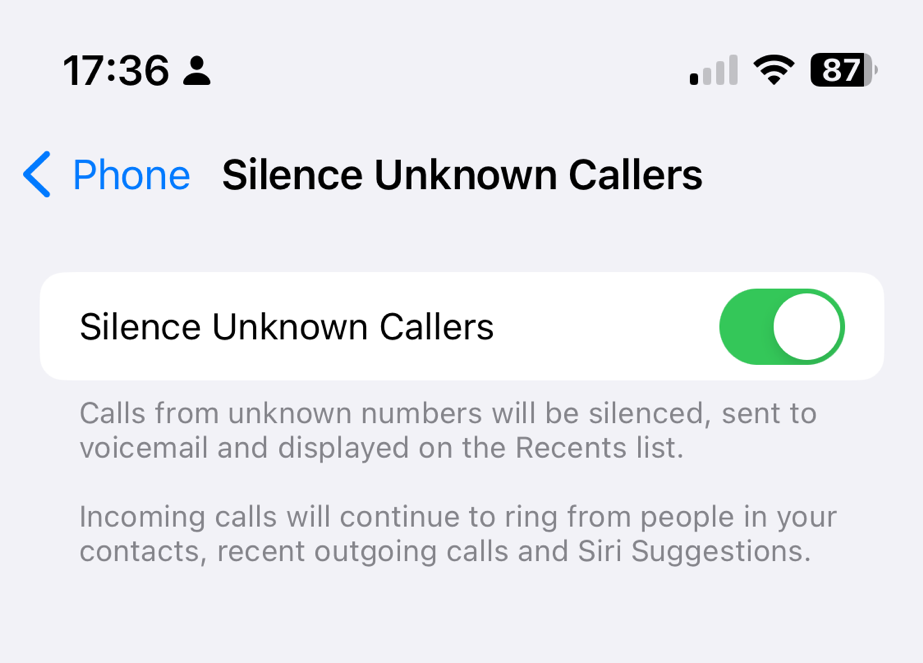
Screenshot of the iOS option to silence unknown callers
My recent calls list, showing lots of missed calls from numbers not in my contacts

Over recent weeks, I’ve been plagued by calls from numbers not in my contacts. Sometimes, as per the screenshot, I’ll get three calls from three different UK mobile numbers within seconds of each other. So, I’ve enabled Silence unknown callers on my iPhone.

I made a mistake by answering the first call, and it turned out to be some kind of cryptocurrency scam. However, it wasn’t just a random dial; they had my name and email address as well as my phone number. This suggests that they’ve hoovered up my personal data from a previous breach – possibly the Patreon breach of 2015, but there have been many others.

Since then, I’ve been getting three or four calls at a time, usually twice per day. It’s a different number every time, so whilst I may have not been fully convinced it was a scam when I answered the first time, I am convinced now. I’ve tried to hide the numbers in the screenshot because the numbers have almost certainly been faked and probably belong to innocent people. It also suggests to me a deliberate effort to get around call blocking apps like Truecaller, for which I have a premium subscription.

What this means is, if people call me, my phone will only ring if the number is in my contacts, if I’ve called it recently, or it’s a ‘Siri suggestion’. The latter could include numbers in recent text messages and emails, for example.

If you want to enable this yourself, open Settings on your iPhone, go to Phone and then scroll down to ‘Silence Unknown Callers’.

I’ll keep this on until the random calls stop. At the time of writing, they’ve slowed down but haven’t stopped completely. Maybe they’ll get the hint in time.

Is there a Zigbee network in your house?

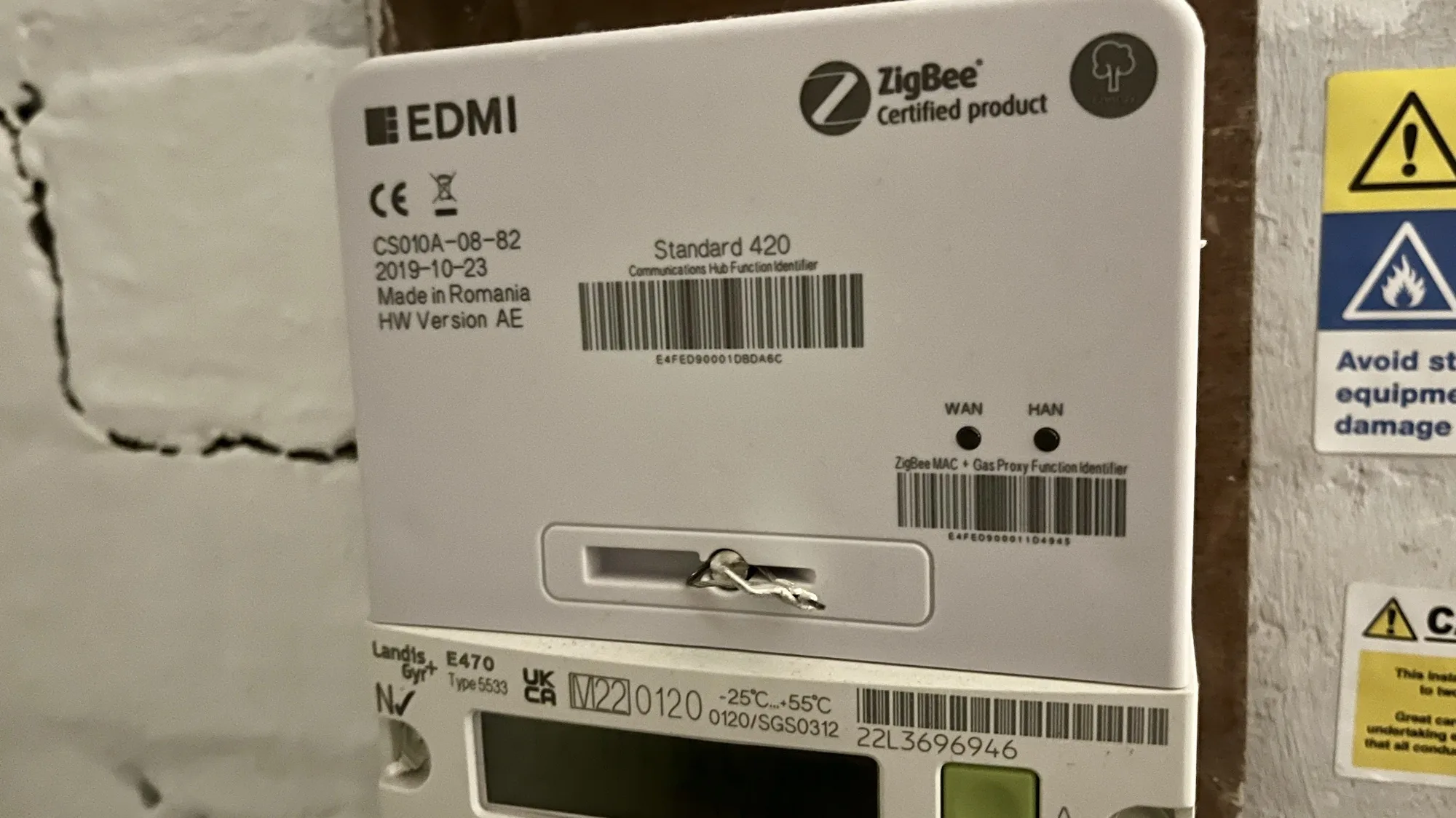
A photo of our Smart Meter which states it is Zigbee certified

If you’re in the UK, and have a smart meter, then your home probably has a Zigbee network that you may not know about.

What is Zigbee?

Zigbee is a wireless mesh networking protocol, that is commonly used for smart devices. If you have smart lightbulbs, such as the Ikea Trådfri or Philips HUE range (sponsored link), then Zigbee is what these devices use to communicate with their hub.

Zigbee isn’t the same as Wifi. Wifi devices belong to the 802.11 family of IEEE standards, whereas Zigbee is in the 802.15 family . There’s a difference at the hardware level, so a device that supports Wifi can’t use Zigbee unless it has a specialised chipset. However, there is commonality between the two; like Wifi, Zigbee uses IP addresses, and operates on the 2.4 GHz band.

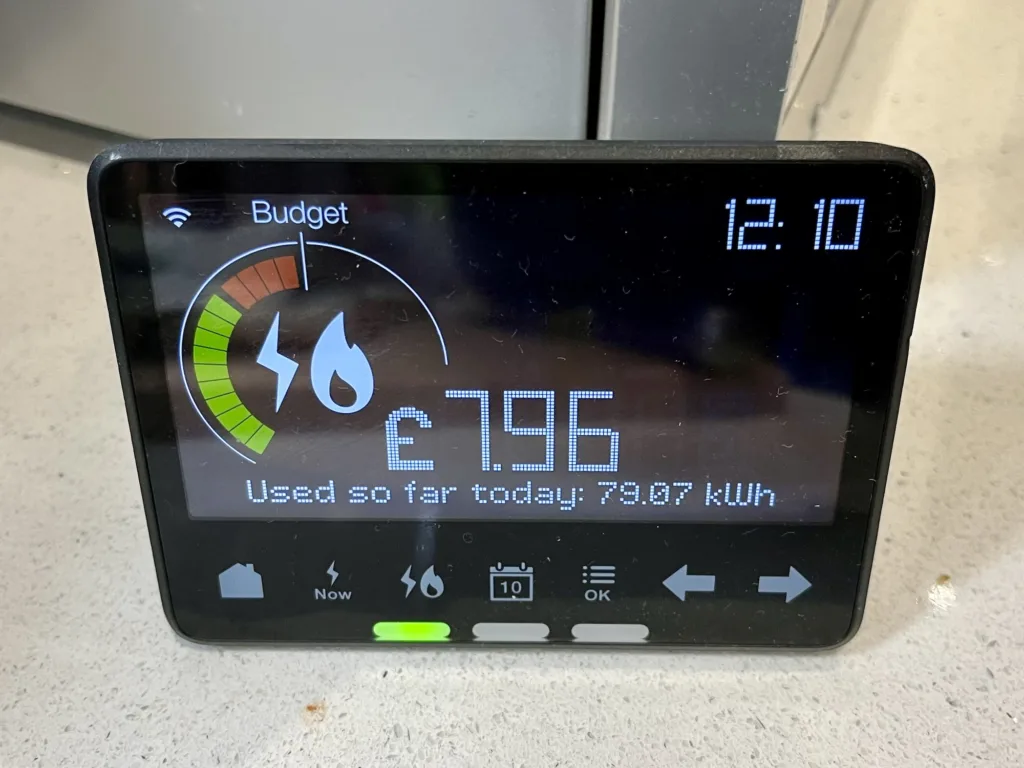
Our In Home Display, which shows our usage from our smart meters and connects using Zigbee

If you have smart meters for your electricity and gas, then these will use Zigbee to communicate with your IHD (In Home Display). This is the small device that shows your current and daily usage.

Can you access this Zigbee network?

No. Even if you have a device with Home Assistant and a Zigbee dongle, it won’t be able to see the Zigbee network that your meters and IHD use. I suspect this is because your electricity meter has its own SIM card, to access the internet to send your readings. If you could access this Zigbee network, then it may use your electricity meter’s internet connection and not your own.

Update (January 2025): Depending on where you live, your smart meter may not actually have a SIM card. If you live in Wales, or central and southern England, then it will have a SIM card and will send your data using 2G or 3G internet services on O2’s network. However, if you live in Scotland or the north of England, as in north of the M62 corridor, then your smart meter will send data on the 400MHz band. This offers lower bandwidth, but higher range, and more likely to penetrate the insides of houses in remote areas. We have the latter type of smart meter, as we live just north of the house in the middle of the M62.

There are, however, some devices that will bridge between this Zigbee network and your own Wifi network at home. Some newer IHD devices offer this, and if you’re an Octopus Energy customer, you can join the waiting list for the Octopus Home Mini. I joined the waiting list a few months ago, but I haven’t heard anything yet. Meanwhile, you can also buy a Glow CAD (Consumer Access Device) for £65, which can connect to Home Assistant. Alas, it’s out of stock at the time of writing.

Another option for Octopus Energy customers is this Home Assistant addon, which brings in your usage data. However, it updates half hourly unless you already have an Octopus Home Mini.

Other ‘secret’ networks in your home

In our home, we also have a couple of Thread networks. Thread is related to Zigbee in that it’s also in the 802.15 family, and is arguably a successor. Nest developed it to enable their smart thermostats to talk wirelessly to the heat link that connects to your boiler, so this makes one network. Newer Nest thermostats can act as a Thread Border Router and so other devices using Matter can connect to it, but we have an older model.

We also have a pair of Google Nest Wifi devices (a hub and a point) which use Thread to communicate with each other. Google has updated these to offer a Thread Border Router, and so I’ve been able to access this with Home Assistant, ready for when we have some Matter compatible devices. So at least I can access one of the three non-wifi networks in my home.

Further reading

Whilst researching this, I came across this Hacking Your Smart Meter (Part 1) article, although there doesn’t appear to be a part 2. Instead, the author, Terence Eden, uses an API from his energy company as above.

The Smart Meter Home Area Network is also a really useful article, on what is quite a well balanced web site about the various pros and cons of having a smart meter. Because we export excess energy from our solar panels, we need to have a smart meter to be paid back for what we export.

One mouse to rule them all

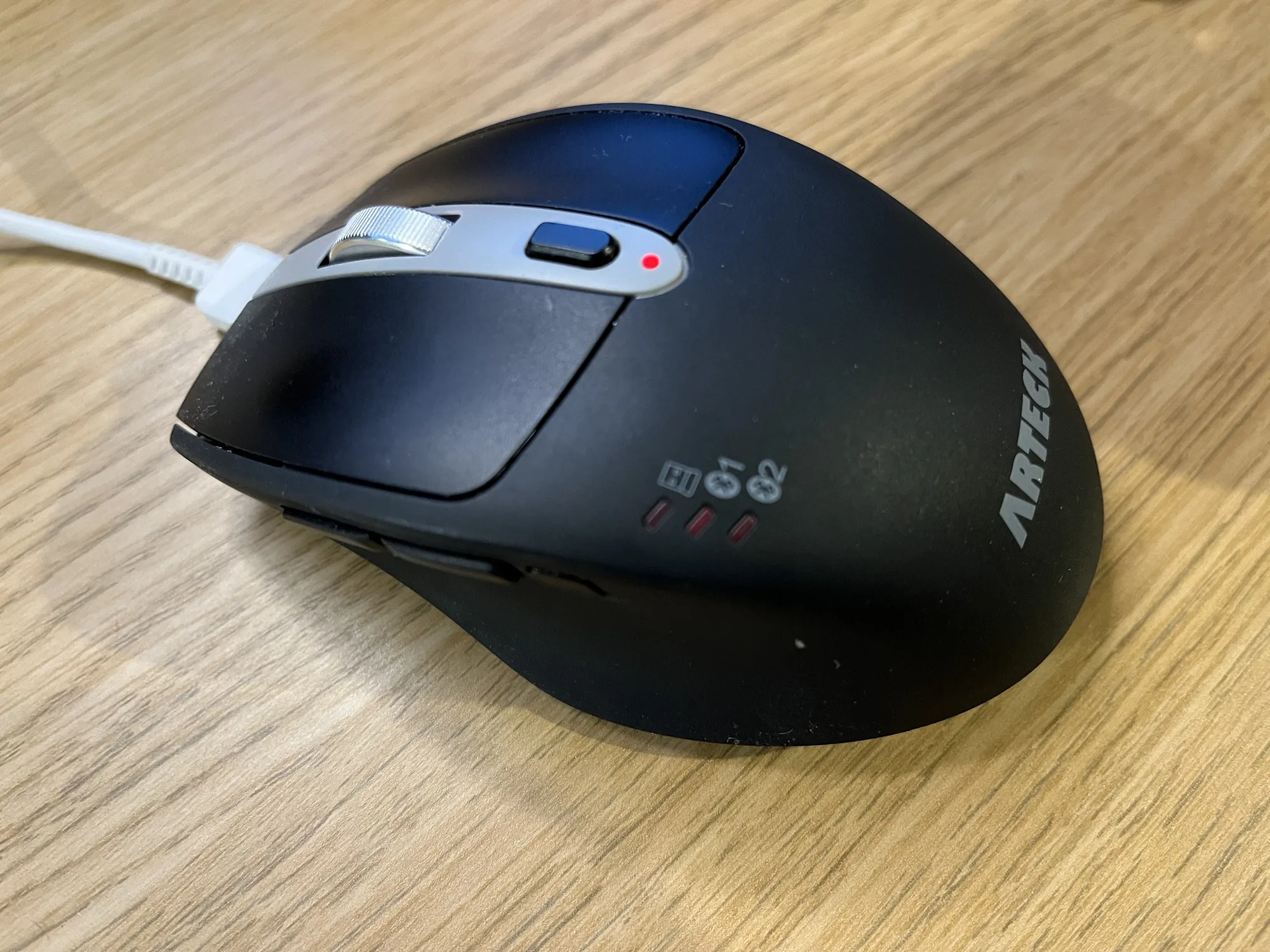
A photo of the Arteck multi device Bluetooth wireless mouse

Back in September 2002, I bought this multi-device Bluetooth mouse from Amazon (sponsored link). As a multi-device mouse, it can be used to control three separate devices.

I bought it so that I could use it both with my desktop, and my iPad – because yes, you can use a mouse with an iPad. It supports two Bluetooth devices, and can connect to a third using an RF USB dongle. I use the dongle with my desktop, as RF uses less power. Switching devices is as simple as pressing a button on the side.

As a mouse, it works quite well – clicking is quiet, and I’ve been using it for almost 18 months with no complaints. It’s a comfortable size too – not as big as some mice, but larger than some laptop mice. However, this model is designed for people who are right handed; I had a look for left-handed multi-device mice on Amazon but couldn’t find any.

The battery life is also really good – I recharge it about every three months. It has a built-in battery which charges using a USB-C cable, and this plugs in at the top so that you can still use it whilst charging. This makes it better than Apple’s Magic Mouse, which has its Lightning connector on the bottom and so can’t be used while charging. The USB-C port is just for charging though; it won’t turn your mouse into a wired mouse. There is also a small slide-out compartment to store the USB RF dongle if you’re not using it.

As well as the device switch button on the left side, there are two additional buttons which, by default, act as back and forward buttons in a web browser.

Whilst I’m sure there are other multi-device mice out there, this suits my needs and has worked well for me. It’s reasonably priced at around £19, at time of writing.

SoundPrint – an app for finding quiet spaces

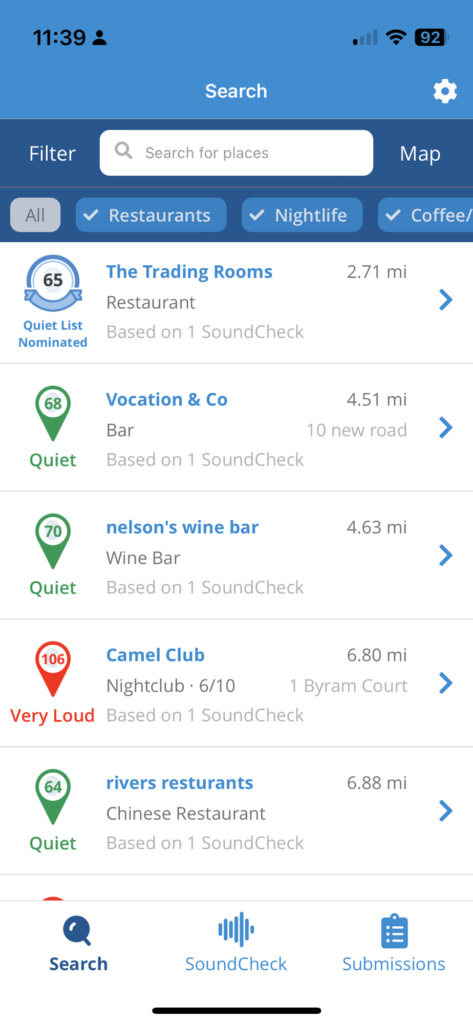
Screenshot of the SoundPrint app

Today I want to share with you an app called SoundPrint, which is an app for finding quiet spaces to eat and socialise.

You can install the app on your phone (iPhone and Android), and it’ll pop up a list of places nearby where other SoundPrint users have done a brief sound test. The venue database is from Foursquare, a site where I’m a superuser and still an active user of its Swarm app.

Incidentally, Swarm came in very useful when writing my review of 2023 and 2023, quantified, as I could see exactly where I had been all year.

Using the SoundPrint app

You don’t have to register an account if you’re just browsing to find a venue. However, if you want to contribute your own sound checks, then you can register an account. A sound check is as simple as holding your phone up for 15 seconds to measure the noise levels, and then telling SoundPrint where you are. You can also specifically recommend places for SoundPrint’s ‘Quiet List’ if they are particularly quiet, and submit noise complaints for very loud venues. SoundPrint will try to reach out to such venues with suggestions for how they can become quieter.

Venues are categorised as ‘quiet’, ‘medium’, ‘loud’ and ‘very loud’ with the number representing the decibels (dB) recorded by user’s sound checks. It’s worth noting that the repeated or prolonged exposure to noise above 85 dB can lead to hearing loss.

I found out about SoundPrint from Samantha Baines’ excellent book ‘Living With Hearing Loss and Deafness’ (sponsored link). I saw it whilst out Christmas shopping and subsequently borrowed from our local library. I’m partially deaf and wear hearing aids, and this book has lots of helpful tips, both for deaf people and their friends and family.

That being said, SoundPrint isn’t just for people who have hearing loss. If you are autistic, then you may benefit if you find noisy places overwhelming. I can see my wife using this app as well, as though she has good hearing, she struggles in noisy environments.

Mounting a USB hard drive on startup on Ubuntu Core

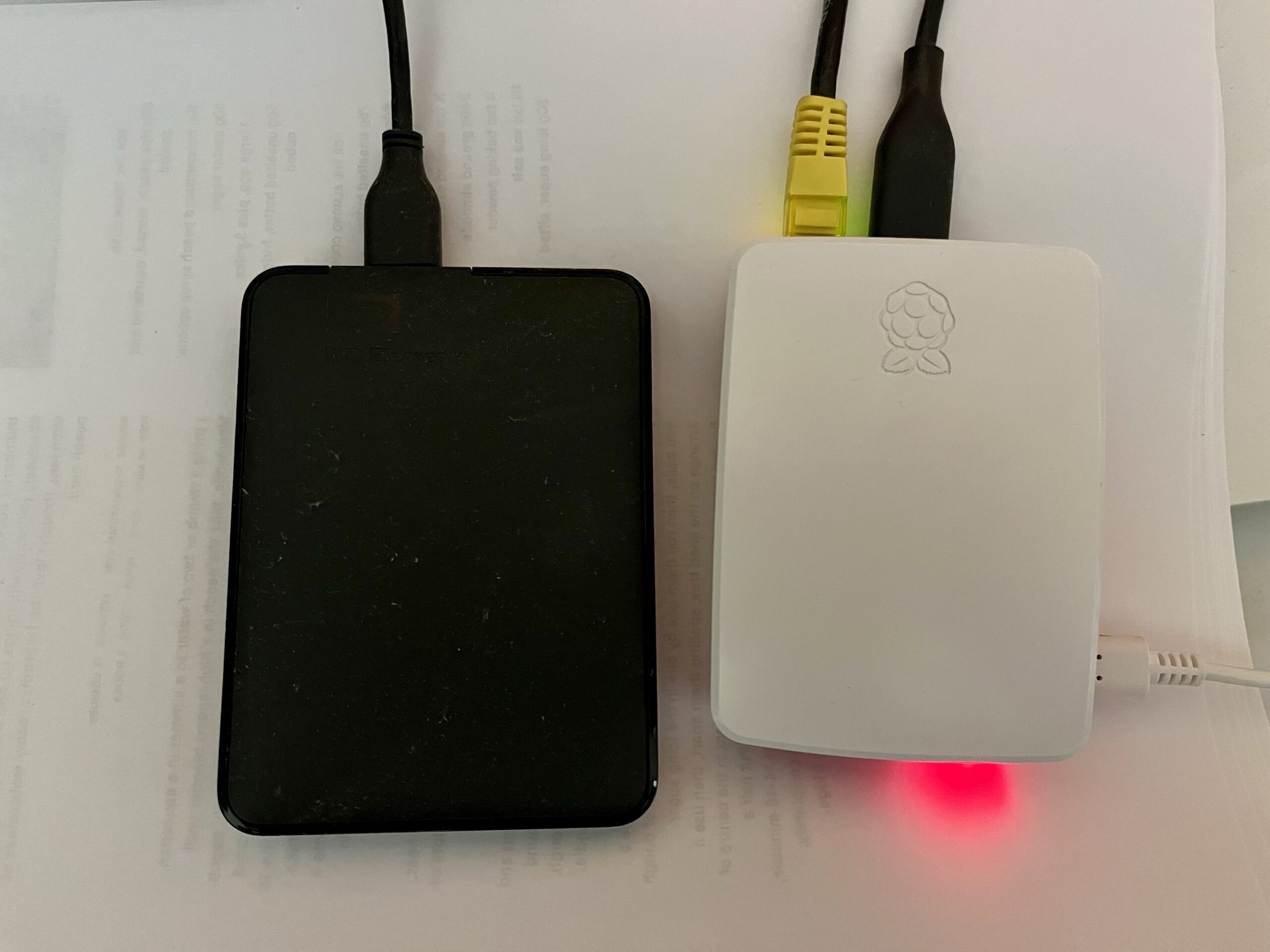
A photo of a Raspberry Pi 4 connected to a USB external hard drive

As you’ll be aware from my regular posts about it, I have a Raspberry Pi 4 running Ubuntu Core, which acts as a server for Home Assistant, Plex and Calibre-Web. Here’s how I’ve set it up to mount an external USB hard drive on boot up.

As it’s a Raspberry Pi, the operating system and binaries set on a microSD card, which in this case is a mere 16 GB. Whilst the me of 20 years ago would have been astounded at the concept of something so tiny holding so much data, 16 GB isn’t much nowadays. So, I have a 1 TB external USB hard drive for storing the media files for Plex and Calibre-Web.

Ubuntu Core doesn’t automatically mount USB storage devices on startup unless you tell it to, and the instructions for doing so are different when compared with a regular Linux distro.

There’s no fstab

Most Linux distros, including regular Ubuntu, include fstab for managing file systems and mounting devices. But Ubuntu Core is designed to be a lightweight distro to act as firmware for Internet of Things devices, and so it doesn’t include many tools that are common in other Linux distros. fstab is one such tool which is missing.

You can, of course, just mount a USB drive manually with the following:

sudo mkdir /media/data
sudo mount /dev/sda1 /media/data

But this won’t persist when the computer restarts. After a bit of searching, I found a solution on StackExchange; it’s for Ubuntu Core 16, but works on 22 as well.

How to tell systemd to mount your USB hard drive

It should go without saying that you should back up your system before doing any of this. If you make a mistake and systemd stops working, your device could become unbootable.

Firstly, you’ll need to run sudo blkid to list all of the file systems that Ubuntu Core can see. Find the one that starts with ‘/dev/sda1’ and make a note of the long hexadecimal string that comes after UUID – it’ll probably look something like ‘2435ba65-f000-234244ac’. Copy and save this, as this identifies your USB hard drive.

Next, you’ll need to create a text file. Ubuntu Core only seems to offer the Vi text editor, which I haven’t bothered to learn to use properly. My favoured text editor is nano, but it’s not available on Ubuntu Core. Therefore, my recommendation is to create a file on another device and FTP it across. The file should be called media-data.mount; it’s really important the file name matches the intended mount point. For example, if you’re instead planning to mount the USB hard drive to /mnt/files, this text file would need to be called mnt-files.mount.

Here’s the template for the file:

[Unit]
Description=Mount unit for data

[Mount]
What=/dev/disk/by-uuid/[Your UUID]
Where=/media/data
Type=ext4

[Install]
WantedBy=multi-user.target

You’ll need to paste in the UUID for your USB hard drive where it says ‘[Your UUID]’. You’ll also need to match the file system type; I have my external USB hard drive formatted as ext4 for maximum compatibility with Linux, but yours may use ExFAT or NTFS.

This file needs to be saved to /etc/systemd/system/media-data.mount . You can either use vi to create and save this file directly or FTP it across and copy it over.

There are three further commands to run in turn:

sudo systemctl daemon-reload
sudo systemctl start media-data.mount
sudo systemctl enable media-data.mount

If you’ve done this correctly, then the next time you restart your device, your USB hard drive should mount automatically. If not, then you should receive some surprisingly helpful error messages explaining what you’ve done wrong.

There’s another guide at Wimpy’s World which has some additional detail and helped me get this working.