Using Portainer to manage Docker

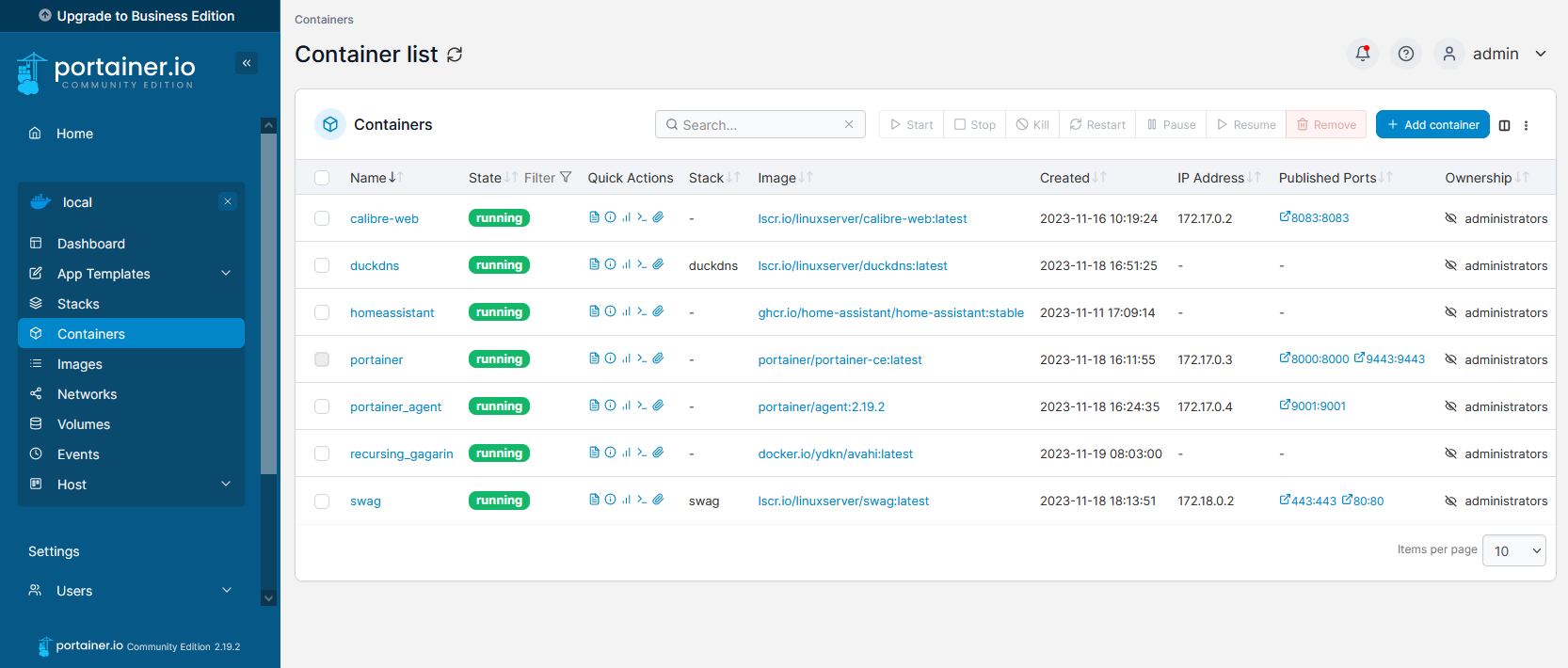
Screenshot of the Portainer web interface

So you may have noticed that I have a thing going on with Docker at present. I’ve set up Home Assistant in Docker, and more recently also set up calibre-web with Docker. Between these, and other Docker images, it’s quite a lot to manage – especially on a headless remote device. Thankfully, Portainer is a web-based solution to managing multiple Docker containers.

There’s a free community edition which offers sufficient features to manage one Docker system, which I’m using. If you need to manage multiple systems, there’s a Business Edition available that you need to pay for, but home users should get by with the Community Edition. Although you will see lots of greyed out options which are only available in the Business Edition – something anyone who uses a freemium WordPress plugin will recognise.

The installation instructions are detailed, and there are a number of steps that you’ll need to follow using the command line. Once everything’s set up, you’ll be able to open a web browser and see all of your Docker containers, and their status.

Portainer lets you start, stop and restart containers from the web interface, and delete any containers no longer needed. The feature that I’ve found most useful is the ‘Duplicate/Edit’ function, which allows you to easily duplicate a container, and optionally replace the original container with a new one with updated variables. This is great for people like me who invariably make a mistake when setting up a Docker Compose file. Logs are also made easily accessible, which helped me when troubleshooting a container that was starting but then wasn’t accessible through a web browser.

You can also run new containers in Portainer; whilst this is easier than typing out commands, Docker Compose works better for me as you can just copy and paste them.

If you’ve got a few Docker images up and running, I would recommend Portainer as an easier way of managing them. It’s much nicer than having to type out commands in a ssh session, and is a friendlier way of working with Docker for less experienced users, like myself.

Managing e-books with Calibre-web

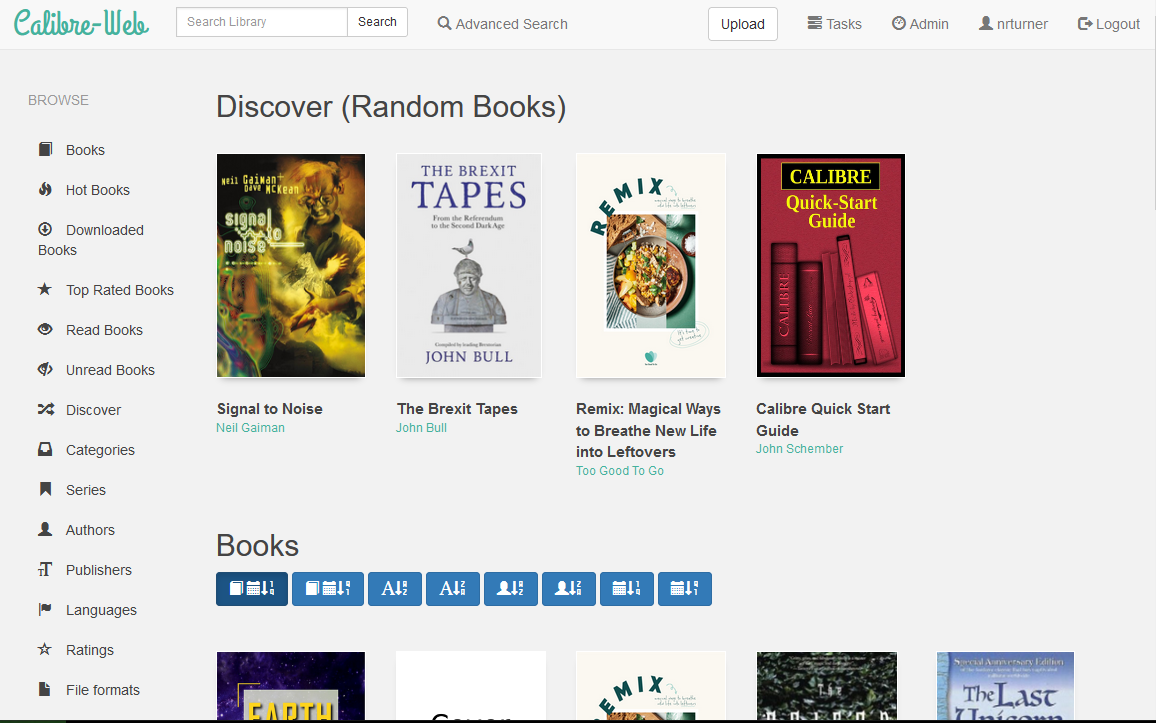
Screenshot of the calibre-web interface

If, like me, you’ve picked up a number of e-books over the years, you may use Calibre as your e-book manager. It’s a desktop application with an optional web interface, but it has its drawbacks. The user interface is clunky, and it tries to cram lots of advanced features in – even the latest version 7 is overwhelming for new users. So, if you can forego the desktop application, there’s an alternative called calibre-web that does the same thing in a web browser, and with a much nicer interface.

Once installed, you can migrate your existing metadata.db from Calibre and the e-book folders, and calibre-web will pick up where you left off. I particularly like the ability to download metadata from sources such as Google Books, to get more complete data about each book besides its author and title. There’s a built-in e-reader, or you can use an app that supports OPDS – I used Aldiko.

By far the easiest way to install it is using Docker. There’s a good image on DockerHub; it’s maintained by a third-party but recommended by calibre-web’s developers. Once installed, it doesn’t require much additional configuration.

By default, calibre-web doesn’t allow uploads, but you can amend this in the Admin settings. The settings toggle s rather buried away, and it took me some time to find. But once uploads are enabled, it allows you to completely replace the desktop Calibre app if you want to. You can also set up multiple user accounts, if you want to share your calibre-web server with others.

I have calibre-web installed on the same Raspberry Pi as my Plex and Home Assistant servers. Indeed, calibre-web essentially offers a kind-of Plex for e-books, seeing as Plex doesn’t offer this itself. Unfortunately, most of my e-books were purchased through Amazon, and so only accessible through their Kindle apps and devices. But for the handful of books that I’ve picked up through the likes of Unbound and Humble Bundle, it’s helpful to have them in one place.

New new new new new iPhone

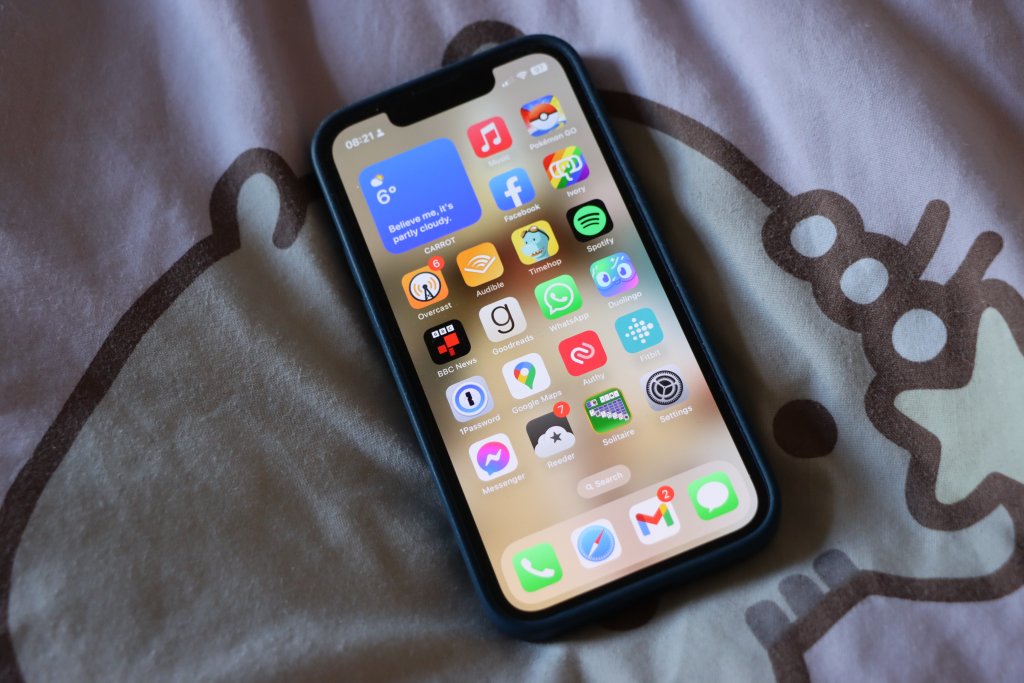
A photo of an iPhone 13 Mini with iOS 15 showing the home screen

Last week, I bought myself a new iPhone 13 Mini. This is the fifth iPhone model I’ve owned:

As you can see, with each model I’ve kept it a little longer than the previous one. Before my first iPhone, I would generally keep a phone handset for 18-24 months at a time, and indeed that was the case with my first iPhone – it was on its last legs by the time I traded it in. Its replacement, the iPhone 5 laster a little longer but I had issues charging it after a while. The iPhone 5s laster slightly longer again, but in the hot summer of 2018 its battery started expanding and the back was coming away from the phone body, so I decided it was high time for a replacement.

I was hoping to get my iPhone 8 to make it to five years, and in late 2021 I even had the battery replaced to give it some extra life. Alas, this new battery was also starting to wear out – I would have to recharge my phone more than once a day to get through.

Whilst I could have had yet another new battery fitted, I suspect that Apple won’t support such an old model much longer with new iOS updates, and they were offering up to two years 0% finance on new models. I’m not eligible to upgrade with my current phone network, as I’m on a 2 year fixed SIM-only contract, so buying the new phone direct from Apple on 0% finance seemed like the best option.

Apple conveniently provides a Compare iPhone models tool, and so I was able to decide between the various models on offer to work out which was best for me. As you may note from the above, my purchases of the 5s and 8 were at times when physically larger models were available, but I’ve generally preferred the smaller iPhone models. That pretty much ruled out buying an iPhone 14, as there’s ‘mini’ version available – and it was also £200 more than the iPhone 13 Mini.

Apple also offers its iPhone SE range, and the current third generation is essentially an iPhone 8 body with iPhone 13 internals. However, that means a smaller screen, and Touch ID rather than Face ID, as well as a more basic camera, slower 5G, less water resistance and no support for MagSafe, when compared with the iPhone 13 Mini.

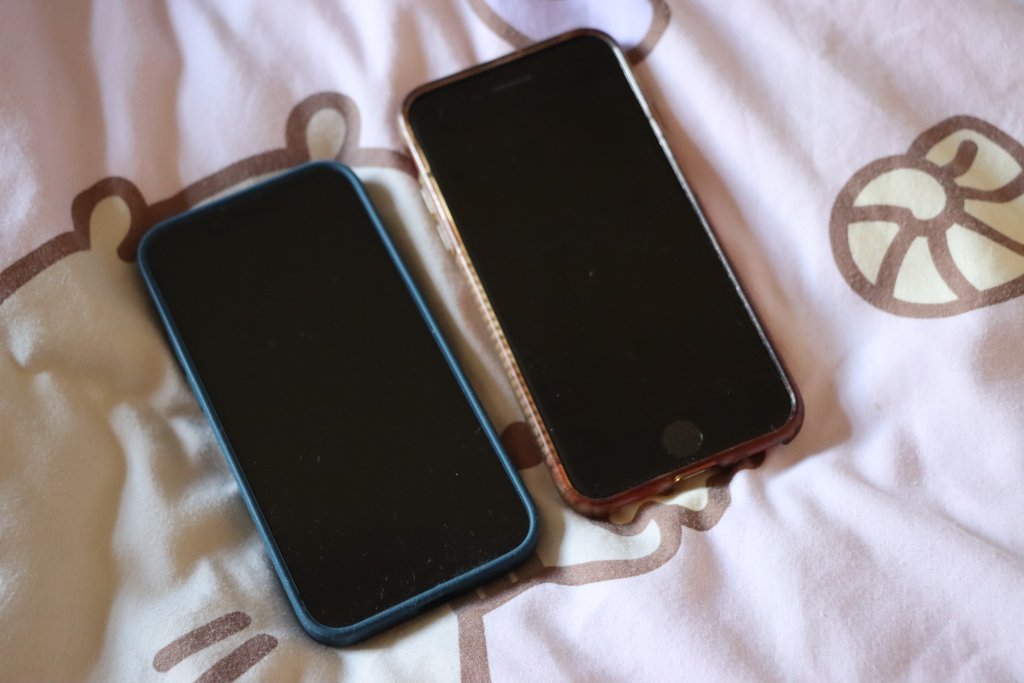
A photo of an iPhone 13 Mini (left) next to an iPhone 8 (right)

The iPhone 13 Mini is also slightly smaller and lighter (albeit by a mere four grammes) than the iPhone SE. Despite this, the screen is bigger, as the bezel is smaller – it doesn’t need to accommodate the home button for Touch ID.

As for the iPhone 14, as well as it being too large for my liking and more expensive, it’s not much of an upgrade. Again, there’s an even better camera, the ability to make SOS calls via satellite, crash detection and slightly better battery life, but the processor is the same as the 13 Mini and SE; the only benefit is one extra GPU core.

Having had the new phone for a week, I’ve appreciated the extra speed, and the convenience of Face ID which seems to work well, even when I’m wearing glasses. The transfer process from old phone to new also went pretty well and I was mostly up and running on the new phone in a couple of hours – some of which was spent installing iOS 16.4. The new camera is also great and I’ve taken a couple of photos with the ultra-wide aperture lens (giving a fish-eye appearance).

Hopefully I’ll be able to keep this new phone going for the full five years. Whilst it’s always nice to have the latest and greatest device, I also appreciate the cost savings of not upgrading regularly. If everyone held onto their phones for several years, I’m sure there would be wider environmental benefits.

Adventures in setting up Homebridge for HomeKit

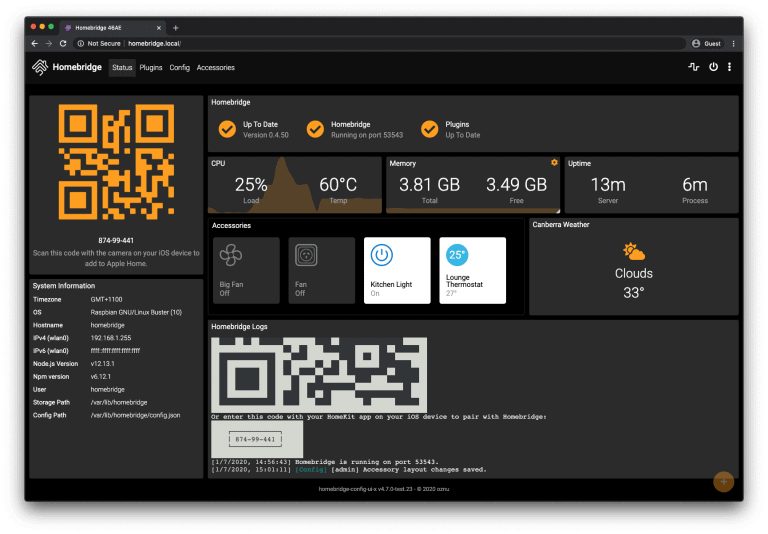
A screenshot of the Homebridge dashboard

A recent project of mine has been to get Homebridge up and running. It’s a server-based program that acts as a bridge between smart devices in the home, and Apple’s Home app on iOS.

One thing, I don’t know why

HomeKit, the technology underpinning Home, is famously limited; whilst most smart devices support Amazon’s Alexa and Google Assistant, very few support HomeKit. Indeed, out of the various smart speakers, plug sockets, dishwasher, thermostat, smoke alarm and TV that we have in our house, it’s only the TV that natively supports HomeKit.

Whilst just about everything else (except the smoke alarm) supports Google Assistant, and the Google Home app, it would be helpful to be able to use these devices with Siri. For example, when I’m driving, I want to be able to use the Hey Siri command to turn the heating on, so that we don’t come home to a cold house.

I tried so hard, and got so far

There’s a few ways to run Homebridge. If you have money to spare, then by far the easiest way is to buy a HOOBS box. HOOBS stands for ‘Homebridge Out of Box System‘, and you’ll get a plug-in device with a customised version of Homebridge that is simple to set up. You can also buy HOOBS on an SD card, that can be slotted into your own Raspberry Pi. Or, you can just download the HOOBS SD card image for a donation of £10.

I have two Raspberry Pis – a RPi 400 which is our seven-year-old’s computer, and a RPi 4 which is my Plex server. The latter runs Plex under Ubuntu Core, a minimal version of Ubuntu Linux which doesn’t include a graphical user interface, or even the Aptitude package manager. Instead, apps can be installed using Snap packages, which enforces greater sandboxing and security. There is a Snap package for Homebridge, but I couldn’t actually get it to work; once installed, I couldn’t open the browser page as instructed.

So, I’ve installed it using Apt on our child’s Raspberry Pi 400, and followed the proper instructions.

There’s only one thing you should know

When you first start Homebridge, it won’t do much initially. To get it talking to your devices, you’ll need to install the appropriate plugins, which you can do through the web UI. I suggest going with the plugins that have been ‘verified’ first, as you’ll probably find that there’s more than one plugin for some of the more popular services like Nest. Whilst installing plugins is relatively easy, configuring them can be difficult:

  • The Nest plugin, for example, has you logging into your Google Nest account in Chrome’s Incognito mode, whilst having Developer Tools open. You then have to copy and paste various data from the HTTP headers.
  • I have a series of smart plug sockets which use the Tuya Smart Life platform, but I had them registered under a different app which Homebridge can’t connect to. I had to de-register them and then set them up again on the official Tuya app.
  • Despite following the instructions, I couldn’t get my Bosch smart dishwasher to connect

Setting up Homebridge is therefore something best reserved for people who are comfortable using the Linux command line and with at least an intermediate understanding of how devices work. However, it does mean that I now have these devices in HomeKit as planned.

Homebridge even supports my Solar Inverter, although in a rather odd way. It appears as 12(!) separate accessories in the Home app, seeing as HomeKit doesn’t ‘know’ what a solar panel is. You can also make the Google Home app talk to Homebridge – again, this is the only way that I can make my Solax system work with Google.

But in the end, it doesn’t even Matter

Those of you who follow news in the smart devices/Internet of Things space will be aware of Matter, a new unified smart device standard with the support of Amazon, Apple, Google and Samsung. Matter will hopefully do away with the separate ecosystems that each company offers, and any Matter approved device should work with any other. However, the final Matter specification was only agreed last year, and I’m not expecting many of my existing devices to be updated to support it. At best, my Google Nest Mini devices will be updated soon, and my thermostat may be updated. For others, I would probably have to replace them with Matter-enabled devices in due course. Therefore, Homebridge offers me the flexibility that Matter will hopefully bring as an interim solution.

How to: fix incorrect date and time on an Amazon Kindle Fire

Today, a colleague of mine asked for help with connecting her Amazon Kindle Fire (sponsored link) to the university Wi-Fi network (which is linked to eduroam). Whilst I’m not an IT employee, I offered to help.

eduroam, for those who aren’t aware, allows staff and students at universities to access Wi-Fi at any other participating university. This includes almost all UK colleges and universities, and many others across the world. To do this, it uses WPA-Enterprise, with authentication using a username and password, rather than a Wi-Fi key like you would get on a home Wi-Fi network.

The problem was that the Kindle Fire couldn’t connect, despite the username and password being correct. And then I noticed that the time was wrong.

Problem 1: wrong date and time

The underlying cryptography behind WPA-Enterprise, and most other secure internet systems, is reliant on accurate clocks. For whatever reason, this Kindle Fire thought that it was about 3am in September 2010. Consequently, it couldn’t establish a secure connection.

So, I went to change the date and time.

Problem 2: you can’t manually change the date and time on a Kindle Fire

There’s no option to manually change the date and time on the Kindle Fire (although this may have existed on older devices). If you try to change the time, you get an error, telling you that your device will get the correct time from Amazon automatically. At best, you can change the time zone if this is incorrect, but this was no help when the clock was out by almost 8 years.

Problem 3: The Kindle Fire cannot automatically update the date and time without an internet connection

So now we’re at an impasse. We can’t get on the internet because the time is wrong, but Amazon has locked down the ability to change the date and time, and we can’t get the correct time from the internet because we can’t connect to the internet. ARGH.

Solution: use a second device as a Wi-Fi hotspot

Fortunately, I managed to solve this by using my iPhone as a personal hotspot. As this doesn’t require authentication via WPA-Enterprise, the Kindle Fire was able to connect, get onto the internet, and update the time on the device to the correct time. I was then able to disconnect from the personal hotspot, and connect to eduroam without any problems.

I can understand why Amazon have locked down the date and time settings, as, if they are wrong, all your secure connections will fail. And considering that many web sites now use HTTPS all the time, this would break a lot of things. But it doesn’t account for when a Kindle Fire’s battery goes completely flat, and it resets to a default time. Which I assume is what happened in this instance.

I checked my iPhone, and Apple does let you manually override the automatic date and time that it receives when you’re online. I assume most Android devices are similar – by default, they set the time automatically but give the user the opportunity to override this if needed. Amazon’s decision, whilst understandable, is frustrating in edge cases like this one.

New new new new iPhone

A photo of an iPhone 8

As I mentioned on Monday’s update/apology, I recently upgraded to an iPhone 8. It’s a 64 GB Product(RED) model; whilst the front looks like the space grey model, it’s got a red back, and includes a donation to (RED). (RED) is a non-profit that raises money for HIV/AIDS charities, and there’s no extra cost to consumers over the price of an equivalent iPhone in one of the other colours.

I had planned to wait until the autumn to upgrade, either to buy one of the new iPhone models or get an older model at a cheaper price. But I was essentially forced to upgrade early. My previous iPhone was a 5S, and the battery had started expanding to push the front cover away from the case. An expanding battery is a very bad thing; it means it’s at risk of exploding.

In the interim, I tried using my old iPhone 5, which I still had as a backup phone. However, Apple has dropped support for the iPhone 5 and so it can only run iOS 11. Furthermore, many apps won’t run because it lacks a 64-bit processor which the 5S and all subsequent models have. Pokémon Go is one such example; with other apps, only older versions run.

Jumping from the 5S, which is 2013-era technology (although I bought mine in 2015) to the 8, which was released last year, is a big leap. The 8 is much faster. I’m also warming to the larger screen; in 2015 I decided to buy a 5S rather than a 6 because I wasn’t keen on the bigger surface area. But the bigger screen is great for apps like Google Maps.

The lack of a headphone port isn’t an issue; I switched to Bluetooth audio a couple of years ago. In a similar vein, I had been using a wireless charger case for my 5S and already have wireless charging stands at home and at work. The battery life of the 8 seems better than the 5S had even when new. And whilst I take most of my photos on my Canon DSLR camera, I’m impressed with the camera on the 8. Live photos is a fun gimmick but it’s nice when taking photos of our two-year-old as it captures some of their mannerisms. Finally, I’ve noticed that I tend to have a better signal on this phone compared to previous models; I’m guessing it supports additional frequencies, or newer versions of the mobile standards.

Upgrading to the iPhone 8 has meant taking on a rather more expensive contract. I’m now limited to 4 GB of data per month; my previous contract had unlimited data, although in reality, I never hit 4 GB in a month anyway. I’m still with 3, who I’ve been with for almost 8 years now.

As for the iPhone X, as much as it looks impressive, right now it’s unaffordable for me. I imagine that whatever phone I get next, will be a descendent of the X. Hopefully, that won’t be for another three years at least, provided this new iPhone 8 lasts as long as my 5S did.

New new iPad

A photo of a new 6th generation iPad alongside a green case with an embroidered puffin on it

As alluded to last week, I planned to buy a new iPad with monetary contributions received for my birthday. I ordered it online on Saturday (for the 5% education discount), and picked it up at the Apple Store in Leeds on Monday.

I’ve gone for the most expensive of the standard iPad models. It’s the 6th generation iPad, with 128 GB of storage and cellular capability.

Why not just Wi-Fi?

My previous iPads (a second-hand first generation iPad and then an iPad Mini 2) were both Wi-Fi only models. I’ve been using my iPad Mini more and more on the train to and from work, and the trains I catch are not (yet) fitted with Wi-Fi. Even when Wi-Fi is available, sometimes there’s a cost, sometimes it can be quite slow, and it can take a while to get connected. So I decided to pay a bit more, and have an iPad that has internet access everywhere.

For the SIM card, I’ve got a pay-as-you-go SIM from Three. It cost £60 upfront, and comes with 24 GB of data, valid for two years. Assuming I use around one gigabyte of data per month, that’s effectively £2.50 per month, which is cheaper than a lot of contracts. The data runs out once I’ve used all 24 GB, or after two years, whichever happens soonest.

The puffin case

An iPad Mini 2 next to a case with a wildlife pattern on it

As this is a standard sized iPad, I had to buy a new case for it. Christine made me a lovely case for my iPad Mini (pictured above), but it’s too small for my new iPad. And she doesn’t have time to make me a new one, what with working full-time, being a part-time student and a mum.

Also, that photo shows how badly smashed the screen on my iPad Mini is.

I still wanted something unique, so I went onto Etsy, and ordered this beautiful case (top photo) from The Canny Squirrel. It’s hand made from genuine Harris Tweed, and is big enough for an iPad with some space to spare. Which will be handy when I eventually buy a new Bluetooth keyboard.

Plenty of storage

Ideally, I would have liked to buy a 64 GB iPad, but Apple doesn’t offer the 6th generation iPad in that size. I’ve struggled with a 16 GB iPad Mini for four years, and felt that a 32 GB iPad would also be quite limiting, so in the end I decided just to buy the one with the largest storage capacity. At least then I can load it up with plenty of e-books, music, videos etc. whilst on Wi-Fi so that I’m not going over my data allowance.

What is the new iPad like?

Honestly, not massively different. I’m appreciating having Touch ID on it as well as my phone, rather than having to type out passwords. And it’s definitely faster. But as I set it up with an iCloud backup from my old iPad, it’s been basically business as usual. Though I will say that the setup process has improved – being able to transfer essential settings across from my iPhone was great and worked really well.

My old iPad Mini 2 lasted me four years of essentially daily usage, and I’m hoping to get at least the same from this one.

We need to buy a new printer

Photo of the HP Deskjet All-in-One F2140 printer

Here’s a photo of our current printer. It’s a HP Deskjet All-in-one F2140, and I think it dates from around 2008. Suffice to say, it predates the computer that it’s connected to, has been through several house moves and periods in storage, and even predates my relationship with Christine. You can also see how much dust is on top of it, and I’ll admit to having to shift a pile of documents stacked up on top of it to get the photo.

Okay, so we don’t use it very often. But having a printer is useful from time to time, and we use the scanner every now and then. Christine and I recently scanned all of our qualification certificates, so that we had electronic copies on hand in our shared Dropbox folder.

So why the need for a new printer? It still works, and we can still get hold of new cartridges easily.

The issue is networking.

Christine’s new laptop

Christine recently bought herself a new laptop – a very lightweight Lenovo Ideapad 320S. She’s doing a part-time university course, and her previous laptop bought in 2010 (when we first started dating) was getting too slow. It’s also big and bulky compared with what you can buy new nowadays. As she will need to print from time to time, she tasked me with setting up the printer on her laptop.

Our HP printer isn’t wireless, and so it’s connected to my Mac Mini (also dating from 2010) by a USB cable. I’ve been using Apple’s Bonjour network sharing protocol to share it across our Wifi network. For Windows, Apple offers a Bonjour Print Services utility that will discover any printers shared using Bonjour. And on Christine’s old laptop, this worked fine.

But I couldn’t get it to work on her new laptop. I think the core issue is that Apple last updated the Bonjour Print Services tool in 2010, and so it pre-dates Windows 10 by some time. Her old laptop was set up under Windows 7 and so was fine. Despite following my own printer sharing guide, and manually installing HP’s Windows 10 drivers, I could not get the Bonjour Printer Wizard to complete without failing with a permissions error (even when running as Administrator).

Whilst my Mac is generally on all of the time, it’s probably about time that we replaced it with a proper wireless printer. To get it to work with my iPhone and iPad, I’m using Printopia, which works okay but it’s a bit of a hack. Having a proper wireless printer, which works with all of our devices (Windows, Mac, iOS and Android) would be a big improvement. Especially when it comes to scanning, which we can currently only do on my very slow Mac.

A custom solution?

New wireless printers start at £30, so it wouldn’t be a big expense. In fact, it’d be about the same price as buying a new Raspberry Pi and setting up some kind of bespoke solution. Which, whilst appealing to my geeky side, would probably take a lot of the very little free time that I have nowadays. Plus, there would be the added ‘fun’ of trying to find a way of scanning documents on the Raspberry Pi, and then have them available to use on our other devices. I’m sure it’s possible, but what’s the point when you can buy an off-the-shelf product that already does this?

I could also look at buying a printer sharing hub, but again, the cost would probably be about the same as a new printer. So I might as well just buy a new printer.

We’ll have a look out for any good deals and will buy a new printer soon.

Nest Protect Review

A photo of the Nest Protect smart smoke alarm and carbon monoxide detector

Back in January, we bought a Nest Protect smoke and carbon monoxide alarm (Amazon link). Like other Nest products, it’s a smart, ‘internet of things’ device, so it does a bit more than your regular cheap alarm.

For me, its two best features are:

  • Push notifications to your phone when the batteries need changing, rather than random chirping at 2am
  • Being able to cancel an alarm if you’re accidentally burnt your sausages but have the situation under control

Set-up is easy; it’s done through the Nest mobile app before you attach the alarm to the wall or ceilling. We went for the battery-operated model, but you can also buy a mains-connected device if you have the relevant wiring in place.

The Next Protect has a small motion sensor (like the Nest Learning Thermostat). If it’s in a dark room and detects motion, it’ll briefly illuminate with a white light. The light will also glow red, yellow or green depending on whether it has detected any issues.

There’s also a small speaker and a microphone. As well as an alarm tone, the Nest Protect will talk to you to tell you that it has detected smoke or carbon monoxide. The microphone is for self-testing; periodically, the Nest Protect will have a ‘drill’ to ensure that it’s working correctly.

Nest products work together, and as we have a Nest Learning Thermostat, the Nest Protect will tell the thermostat to turn off our central heating boiler if it detects carbon monoxide.

Before buying the Nest Protect, I considered the Roost smart battery. Roost works with your existing smoke alarm, but adds some of the smart features. Unfortunately, as it’s slightly larger than a standard 9-volt battery, it doesn’t work with all smoke alarms.

The other factor that convinced me to buy the Nest Protect was an offer that was running at the time: free delivery and a free Google Home Mini. I’ll be reviewing the latter in another blog post.

Contemplating Apple’s updated iPad range

Yesterday, Apple quietly updated its iPad and iPhone product range. The iPhone 7 and 7 Plus are now available in red, supporting Product (RED), and the budget iPhone SE is available with more built-in storage.

As for Apple’s tablets, there’s a new iPad Air, but with the ‘Air’ moniker dropped. It’s now just known as the iPad, but uses the same form factor as the iPad Air. Externally it looks the same, but the chip has been bumped up from an A8X to an A9, which brings better performance. It’s available with either 32 or 128 gigabytes of storage, and the cheapest model is £339. This is a significant price cut from the £379 iPad Air 2 that it replaces.

The iPad Mini remains at version 4, and, interestingly, is now only available with 128 gigabytes of storage. Consequently, the cheapest iPad Mini is £419, which is only £10 cheaper than the new 128 GB iPad; back in 2014, the difference was £80 between the equivalent 16 GB models. I suspect that Apple plans to stop selling small form-factor tablets in the near future, which would be a shame as I think it’s a nice size.

Replacing my iPad

My current tablet is a 16 GB iPad Mini 2, which was a present for my 30th birthday in 2014. I use it daily, both at home and at work. At home, it’s effectively my primary computer. I use it far more than my Mac, which, being a desktop, is fixed in one place. Being able to use it anywhere in the house is a major advantage when looking after a small child.

At work, it’s useful in meetings as I don’t need to print off reams of documents beforehand. I also find it handy at events, for checking information whilst away from my desk. And it provides entertainment whilst travelling; I can read Pocket articles or magazines whilst commuting to work.

However, its screen is badly cracked. The screen has already been repaired once, for which I paid about £40 to a shop in Bradford. The workmanship wasn’t great and the home button sticks sometimes. In any case, I broke the screen again literally only a few weeks later. A decent repair job on the screen is likely to cost around £100, or around a third of the cost of a new iPad.

Advantages and disadvantages

There would be several advantages of buying a new, standard-sized iPad:

  • Larger screen, which would suit me as I read a number of digital magazines.
  • Touch ID.
  • Being able to use two apps in split-screen mode (my iPad Mini 2 only supports slide-over).
  • Faster processor.
  • More storage, as I often run out of space with only 16 GB.
  • Being eligible for continued iOS updates, as I suspect Apple may drop support for the iPad Mini 2 after iOS 11.

And some disadvantages:

  • I like the smaller size and lighter weight of the iPad Mini.
  • A new case would be needed – Christine hand-made my current one, but I doubt she will have time to make a new one for me.
  • I would also need a new Bluetooth keyboard, although as Lizzie likes playing with my current one I’m sure she would like to keep it as a toy.

Although the large crack on my iPad’s screen is unsightly, I’m seriously considering holding out with it, until I can afford to buy a new model. Right now, money is tight, and I can’t really justify paying for repairs to my existing model, or for buying a new one.

I could, of course, consider an Android tablet, which may be cheaper. But I’m worried that I would then have the additional expense of buying replacement apps again and getting used to an unfamiliar operating system. The current best Android tablets cost around the same as an iPad, and a cheaper model may not be any better than what I already have.

I’ll revisit this in the summer, when I’ll hopefully have some more money. By then, we will hopefully know more about iOS 11, and which devices it will support. That could sway my decision further.