New new iPad

A photo of a new 6th generation iPad alongside a green case with an embroidered puffin on it

As alluded to last week, I planned to buy a new iPad with monetary contributions received for my birthday. I ordered it online on Saturday (for the 5% education discount), and picked it up at the Apple Store in Leeds on Monday.

I’ve gone for the most expensive of the standard iPad models. It’s the 6th generation iPad, with 128 GB of storage and cellular capability.

Why not just Wi-Fi?

My previous iPads (a second-hand first generation iPad and then an iPad Mini 2) were both Wi-Fi only models. I’ve been using my iPad Mini more and more on the train to and from work, and the trains I catch are not (yet) fitted with Wi-Fi. Even when Wi-Fi is available, sometimes there’s a cost, sometimes it can be quite slow, and it can take a while to get connected. So I decided to pay a bit more, and have an iPad that has internet access everywhere.

For the SIM card, I’ve got a pay-as-you-go SIM from Three. It cost £60 upfront, and comes with 24 GB of data, valid for two years. Assuming I use around one gigabyte of data per month, that’s effectively £2.50 per month, which is cheaper than a lot of contracts. The data runs out once I’ve used all 24 GB, or after two years, whichever happens soonest.

The puffin case

An iPad Mini 2 next to a case with a wildlife pattern on it

As this is a standard sized iPad, I had to buy a new case for it. Christine made me a lovely case for my iPad Mini (pictured above), but it’s too small for my new iPad. And she doesn’t have time to make me a new one, what with working full-time, being a part-time student and a mum.

Also, that photo shows how badly smashed the screen on my iPad Mini is.

I still wanted something unique, so I went onto Etsy, and ordered this beautiful case (top photo) from The Canny Squirrel. It’s hand made from genuine Harris Tweed, and is big enough for an iPad with some space to spare. Which will be handy when I eventually buy a new Bluetooth keyboard.

Plenty of storage

Ideally, I would have liked to buy a 64 GB iPad, but Apple doesn’t offer the 6th generation iPad in that size. I’ve struggled with a 16 GB iPad Mini for four years, and felt that a 32 GB iPad would also be quite limiting, so in the end I decided just to buy the one with the largest storage capacity. At least then I can load it up with plenty of e-books, music, videos etc. whilst on Wi-Fi so that I’m not going over my data allowance.

What is the new iPad like?

Honestly, not massively different. I’m appreciating having Touch ID on it as well as my phone, rather than having to type out passwords. And it’s definitely faster. But as I set it up with an iCloud backup from my old iPad, it’s been basically business as usual. Though I will say that the setup process has improved – being able to transfer essential settings across from my iPhone was great and worked really well.

My old iPad Mini 2 lasted me four years of essentially daily usage, and I’m hoping to get at least the same from this one.

We need to buy a new printer

Photo of the HP Deskjet All-in-One F2140 printer

Here’s a photo of our current printer. It’s a HP Deskjet All-in-one F2140, and I think it dates from around 2008. Suffice to say, it predates the computer that it’s connected to, has been through several house moves and periods in storage, and even predates my relationship with Christine. You can also see how much dust is on top of it, and I’ll admit to having to shift a pile of documents stacked up on top of it to get the photo.

Okay, so we don’t use it very often. But having a printer is useful from time to time, and we use the scanner every now and then. Christine and I recently scanned all of our qualification certificates, so that we had electronic copies on hand in our shared Dropbox folder.

So why the need for a new printer? It still works, and we can still get hold of new cartridges easily.

The issue is networking.

Christine’s new laptop

Christine recently bought herself a new laptop – a very lightweight Lenovo Ideapad 320S. She’s doing a part-time university course, and her previous laptop bought in 2010 (when we first started dating) was getting too slow. It’s also big and bulky compared with what you can buy new nowadays. As she will need to print from time to time, she tasked me with setting up the printer on her laptop.

Our HP printer isn’t wireless, and so it’s connected to my Mac Mini (also dating from 2010) by a USB cable. I’ve been using Apple’s Bonjour network sharing protocol to share it across our Wifi network. For Windows, Apple offers a Bonjour Print Services utility that will discover any printers shared using Bonjour. And on Christine’s old laptop, this worked fine.

But I couldn’t get it to work on her new laptop. I think the core issue is that Apple last updated the Bonjour Print Services tool in 2010, and so it pre-dates Windows 10 by some time. Her old laptop was set up under Windows 7 and so was fine. Despite following my own printer sharing guide, and manually installing HP’s Windows 10 drivers, I could not get the Bonjour Printer Wizard to complete without failing with a permissions error (even when running as Administrator).

Whilst my Mac is generally on all of the time, it’s probably about time that we replaced it with a proper wireless printer. To get it to work with my iPhone and iPad, I’m using Printopia, which works okay but it’s a bit of a hack. Having a proper wireless printer, which works with all of our devices (Windows, Mac, iOS and Android) would be a big improvement. Especially when it comes to scanning, which we can currently only do on my very slow Mac.

A custom solution?

New wireless printers start at £30, so it wouldn’t be a big expense. In fact, it’d be about the same price as buying a new Raspberry Pi and setting up some kind of bespoke solution. Which, whilst appealing to my geeky side, would probably take a lot of the very little free time that I have nowadays. Plus, there would be the added ‘fun’ of trying to find a way of scanning documents on the Raspberry Pi, and then have them available to use on our other devices. I’m sure it’s possible, but what’s the point when you can buy an off-the-shelf product that already does this?

I could also look at buying a printer sharing hub, but again, the cost would probably be about the same as a new printer. So I might as well just buy a new printer.

We’ll have a look out for any good deals and will buy a new printer soon.

Nest Protect Review

A photo of the Nest Protect smart smoke alarm and carbon monoxide detector

Back in January, we bought a Nest Protect smoke and carbon monoxide alarm (Amazon link). Like other Nest products, it’s a smart, ‘internet of things’ device, so it does a bit more than your regular cheap alarm.

For me, its two best features are:

  • Push notifications to your phone when the batteries need changing, rather than random chirping at 2am
  • Being able to cancel an alarm if you’re accidentally burnt your sausages but have the situation under control

Set-up is easy; it’s done through the Nest mobile app before you attach the alarm to the wall or ceilling. We went for the battery-operated model, but you can also buy a mains-connected device if you have the relevant wiring in place.

The Next Protect has a small motion sensor (like the Nest Learning Thermostat). If it’s in a dark room and detects motion, it’ll briefly illuminate with a white light. The light will also glow red, yellow or green depending on whether it has detected any issues.

There’s also a small speaker and a microphone. As well as an alarm tone, the Nest Protect will talk to you to tell you that it has detected smoke or carbon monoxide. The microphone is for self-testing; periodically, the Nest Protect will have a ‘drill’ to ensure that it’s working correctly.

Nest products work together, and as we have a Nest Learning Thermostat, the Nest Protect will tell the thermostat to turn off our central heating boiler if it detects carbon monoxide.

Before buying the Nest Protect, I considered the Roost smart battery. Roost works with your existing smoke alarm, but adds some of the smart features. Unfortunately, as it’s slightly larger than a standard 9-volt battery, it doesn’t work with all smoke alarms.

The other factor that convinced me to buy the Nest Protect was an offer that was running at the time: free delivery and a free Google Home Mini. I’ll be reviewing the latter in another blog post.

Contemplating Apple’s updated iPad range

Yesterday, Apple quietly updated its iPad and iPhone product range. The iPhone 7 and 7 Plus are now available in red, supporting Product (RED), and the budget iPhone SE is available with more built-in storage.

As for Apple’s tablets, there’s a new iPad Air, but with the ‘Air’ moniker dropped. It’s now just known as the iPad, but uses the same form factor as the iPad Air. Externally it looks the same, but the chip has been bumped up from an A8X to an A9, which brings better performance. It’s available with either 32 or 128 gigabytes of storage, and the cheapest model is £339. This is a significant price cut from the £379 iPad Air 2 that it replaces.

The iPad Mini remains at version 4, and, interestingly, is now only available with 128 gigabytes of storage. Consequently, the cheapest iPad Mini is £419, which is only £10 cheaper than the new 128 GB iPad; back in 2014, the difference was £80 between the equivalent 16 GB models. I suspect that Apple plans to stop selling small form-factor tablets in the near future, which would be a shame as I think it’s a nice size.

Replacing my iPad

My current tablet is a 16 GB iPad Mini 2, which was a present for my 30th birthday in 2014. I use it daily, both at home and at work. At home, it’s effectively my primary computer. I use it far more than my Mac, which, being a desktop, is fixed in one place. Being able to use it anywhere in the house is a major advantage when looking after a small child.

At work, it’s useful in meetings as I don’t need to print off reams of documents beforehand. I also find it handy at events, for checking information whilst away from my desk. And it provides entertainment whilst travelling; I can read Pocket articles or magazines whilst commuting to work.

However, its screen is badly cracked. The screen has already been repaired once, for which I paid about £40 to a shop in Bradford. The workmanship wasn’t great and the home button sticks sometimes. In any case, I broke the screen again literally only a few weeks later. A decent repair job on the screen is likely to cost around £100, or around a third of the cost of a new iPad.

Advantages and disadvantages

There would be several advantages of buying a new, standard-sized iPad:

  • Larger screen, which would suit me as I read a number of digital magazines.
  • Touch ID.
  • Being able to use two apps in split-screen mode (my iPad Mini 2 only supports slide-over).
  • Faster processor.
  • More storage, as I often run out of space with only 16 GB.
  • Being eligible for continued iOS updates, as I suspect Apple may drop support for the iPad Mini 2 after iOS 11.

And some disadvantages:

  • I like the smaller size and lighter weight of the iPad Mini.
  • A new case would be needed – Christine hand-made my current one, but I doubt she will have time to make a new one for me.
  • I would also need a new Bluetooth keyboard, although as Lizzie likes playing with my current one I’m sure she would like to keep it as a toy.

Although the large crack on my iPad’s screen is unsightly, I’m seriously considering holding out with it, until I can afford to buy a new model. Right now, money is tight, and I can’t really justify paying for repairs to my existing model, or for buying a new one.

I could, of course, consider an Android tablet, which may be cheaper. But I’m worried that I would then have the additional expense of buying replacement apps again and getting used to an unfamiliar operating system. The current best Android tablets cost around the same as an iPad, and a cheaper model may not be any better than what I already have.

I’ll revisit this in the summer, when I’ll hopefully have some more money. By then, we will hopefully know more about iOS 11, and which devices it will support. That could sway my decision further.

How to: fix wrong location on iPhone

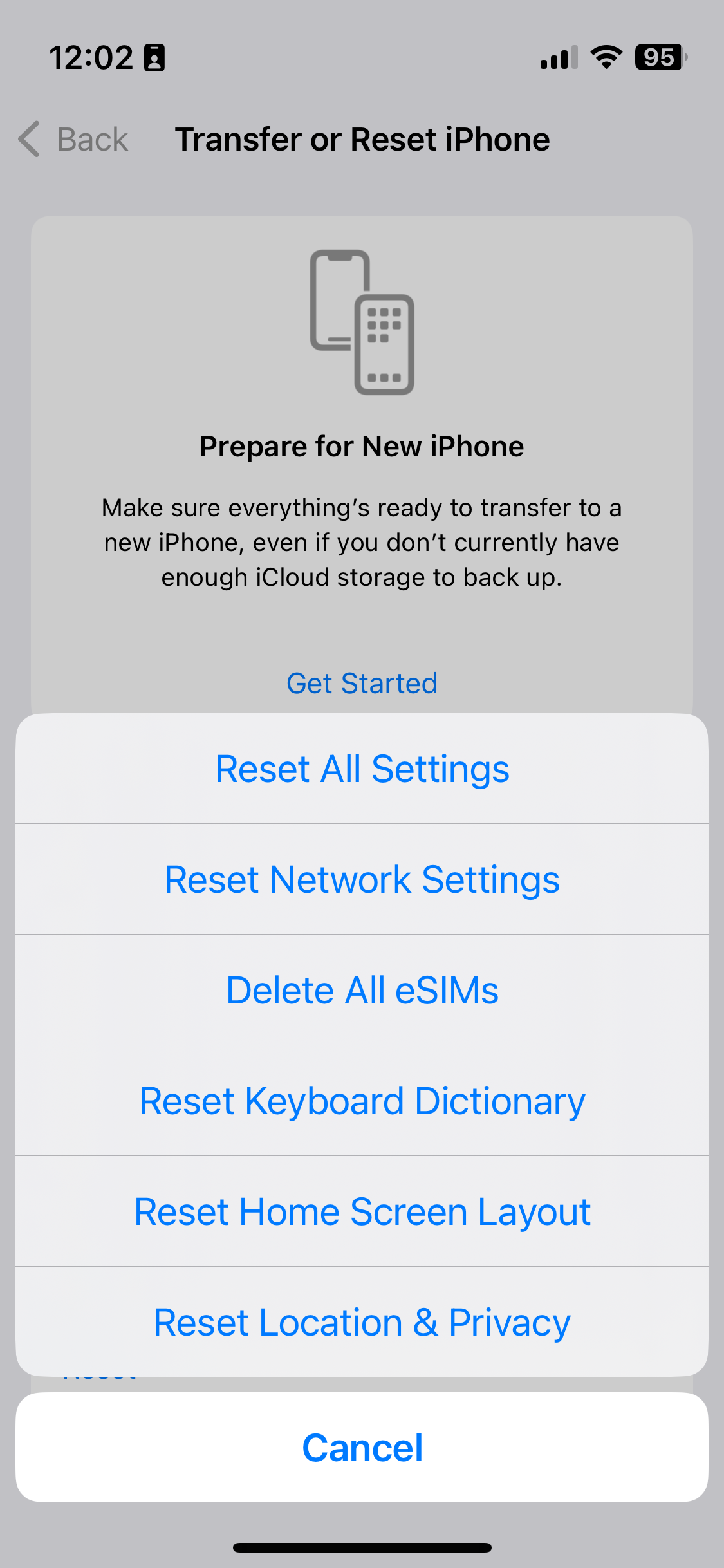
A screenshot showing how to reset settings on iOS 16

Over the Christmas break, my iPhone would randomly decide that I was in my office. I’d have an app open that used my location, but instead of showing me where I actually was, it’d suggest that I was in Bradford. Which isn’t so useful when, in reality, you’re at home, or in York.

It caused particular problems when using Google Maps for directions, as it’d randomly jump to Bradford and then back again. Swarm was basically unusable. And it completely broke the ‘Track Exercise’ function of the Fitbit app. I had to actually uninstall and reinstall the Fitbit app a couple of times because it wouldn’t let me stop the exercise. This was even after restarting the app.

Turning Wifi off helped. Apple’s iPhones, and indeed many other devices, use the SSIDs of available Wifi networks to approximate your location. This is done by querying a web service, which means that you can still get an approximate location even when indoors, and out of view of GPS satellites. But turning off Wifi was hardly a long term solution.

How to actually fix the location problem

A bit of Googling uncovered this article about fixing your location. It offers several solutions, depending on whether the issue affects just one application, or all. In my case, it was all applications, and the solution that worked was the fifth on the list. This involves resetting your phone’s location and privacy settings.

To do this, open Settings, and choose General. Then, scroll right down to the bottom and choose Reset, then select ‘Reset Location & Privacy’ – on iOS 10.2, this is the last option. Your device will ask you for your unlock password – pop this in, confirm, and hopefully your device will get the location correct from now on.

There is a drawback to doing this, however. You’ll have noted that this resets both your location and privacy settings. This means that any apps that you have granted access to your contacts, photos, calendars, camera, microphone, media library and so on will need to request them again. Although, oddly, apps will retain their location permissions, along with any permissions regarding background app refresh, notifications or mobile data access.

Despite these issues, it was a relief to fix the problem.

This blog post was updated in November 2023 with an updated screenshot, but the instructions are broadly the same.

Pokémon Go

A screenshot of Pokemon Go on iOS

It probably won’t surprise you that I’ve spent quite a bit of the last week playing Pokémon Go. I downloaded it within hours of its official UK release; the screenshot shows how far I’ve got, and overall, I’m level 11. This is mostly through capturing Pokémon on the way to and from work, and on my lunch break.

Christine has been playing it a little longer. She has an Android phone, and so she was able to sideload the APK file from a third-party web site prior to its official release on the Google Play Store. She’s therefore slightly ahead of me, and has had the benefit of being on maternity leave to have more time to catch Pokémon.

I’m enjoying it, although it is further exacerbating my iPhone’s battery issues. As I write this, Pokémon Go has used 51% of my battery over the past 24 hours. Even before last week, I was struggling to get through a full day on one charge. To be fair, I use multiple Bluetooth devices with my phone, and use it on a train journey with frequent tunnels. So my iPhone’s battery was already getting a strong workout even before I started playing. But, notice how my phone was already down to 61% before 9am in the screenshot.

I haven’t added any Pokémon to gyms yet, and have only played a couple of battles. I’m waiting until I’ve collected more, and had the chance to upgrade or evolve them. Many of the nearby gyms have Pokémon with combat power over 1000 already, and my best is under 800.

It’s been fascinating to see how much of a phenomenon Pokémon Go has become. It’s already outperforming many other social apps, including Twitter and Tinder, in terms of how long people use it. And the news has been full of stories, both good and bad, about the game and its players. I never played Ingress, its spiritual predecessor, but I had friends who did. It seems that Niantic, its developer, has found the perfect balance between Ingress’ gameplay, and the popularity of the Pokémon franchise.

I don’t know how long I’ll keep playing. At the moment I’m still discovering new Pokémon and enjoying levelling them up – even if I’m sick of always finding Drowzees everywhere. Maybe the game will become less fun or stale after a while, but at the moment I like it.

How Apple can make iTunes great again

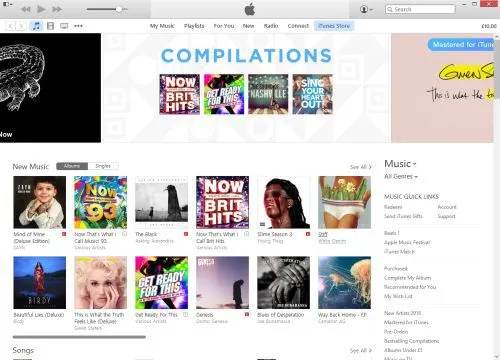
A screenshot of iTunes on Windows 10

iTunes. It’s the software that many of us use begrudgingly for listening to music, purchasing content, syncing with our devices and watching videos. Mac users get it as part of OS X, whether they want it or not, but Windows users need to download it, to be able to synchronise their music libraries with their various iDevices.

Apple is known for its great hardware design (with just a few exceptions), and people like me are very loyal to our iPhones due to its (in my opinion) superior user interface. So why did iTunes, one of Apple’s most-used desktop computer programs, become so hated by its users? Why would writer and Guardian journalist Charlie Brooker describe it as ‘…a hideous binary turd that transforms the sparkling world of music and entertainment into a stark, unintuitive spreadsheet’?

To find out how iTunes came to be the bloated mess that it now is, we need to look back into its history.

A brief history of iTunes

iTunes has not always been called iTunes. Way back in the late 1990s, it was called ‘SoundJam’, and was written by an independent third-party developer for the original Mac OS System 9. Apple later bought out the developers, releasing iTunes 1.0 in 2001, which built on SoundJam’s features and added the ability to burn CDs with tracks from the user’s library. Fundamentally, the basic music management features of iTunes are largely unchanged in 15 years.

iTunes 2.0 was the first release for Mac OS X, and the first to support Apple’s brand new music player, the iPod. This took iTunes from being an application that simply managed music on your computer and your CDs, to your iPod as well.

Version 4.0 and 4.1 were big steps forward for iTunes. Version 4.0 brought the iTunes Music Store (later just the iTunes Store when it expanded to other content), and 4.1 brought iTunes to Windows for the first time. Adding the iTunes Store added another layer of complexity to an application that already did quite a lot of different things.

As Apple improved its iPod range, iTunes had to keep up. So the 2004 launch of the iPod Photo, with a colour screen for showing photos, saw photo syncing added to iTunes 4.7, and the launch of the fifth generation iPod Classic in 2005 meant that iTunes would gain support for video playback. By now, it was possible to use what was originally a program for managing music, to manage your movie and TV show libraries as well. Podcast support arrived in version 4.9.

2007 brought the first iPhone. Up until 2011’s release of iOS 5, iOS devices relied on iTunes for various tasks like software updates and backups, and so all of this had to be handled in the app as well. Ultimately, this led to a major redesign of the iTunes interface in 2012 (version 11), but it retained its underlying code and all of its numerous existing features. And iTunes 12 saw Apple Music, its new streaming service, bolted on to iTunes.

So what is iTunes now?

We know what iTunes was, when it first came out 15 years ago: a music library management program that let you play music, and import and export tracks to CDs. Its feature set has since ballooned into:

  • an all-encompassing media and app store
  • music and video player
  • podcast manager
  • internet radio player
  • streaming music service
  • CD ripper and burner
  • mobile device sync and backup tool
  • online music storage manager

All of these are rolled into one, monolithic app, which is supposed to run on both OS X and Windows. Whilst Apple controls OS X and iTunes’ integration with it, the Windows version has developed a reputation for being slow and a pain to update. iTunes for Windows actually includes a number of helper utilities (Apple Mobile Device Support, Bonjour, Apple Software Update and others) and I’ve lost count of the times when I’ve tried to update iTunes on Windows to find that the installation failed. Sometimes, you just have to uninstall and reinstall everything, which is time-consuming and far from ideal for a piece of software that is updated on a near bi-monthly basis. I wouldn’t be surprised if many Windows users still have old versions, due to updating issues.

What can Apple do to make iTunes better?

In my view, Apple needs to take a look at what it has done on iOS. There’s no monolithic, all-encompassing ‘iTunes’ app — instead, its individual functions have been broken down into multiple apps. Here’s how iOS does it:

  • Music — this handles the music you own (in your iTunes library) and Apple Music.
  • Videos — playback of videos in your iTunes library is handled by a separate app.
  • Podcasts — again, podcasts have their own app. This was baked in to the Music app in earlier versions of iOS, but was later spun-out and it now comes as standard.
  • iTunes Store — the store is a separate app; once you buy something, playback is handled by the Music or Videos apps.
  • App Store — apps for iOS devices are bought separately from audio and video content.
  • Settings — handling your settings is done in the main iOS Settings app.

So I suggest that Apple splits iTunes on the desktop into the following:

  • iTunes Music — a music player that takes iTunes back to its roots. It’ll handle all aspects of playing music — whether this is from your own library, a CD, Apple Music or internet radio. CD burning can go in here too.
  • iTunes Video — this could replace Apple’s QuickTime player, which hasn’t seen much development in recent years. It can handle the playback of video content from your library — whether that’s films, TV shows, or home movies imported from iMovie.
  • iTunes Podcasts — a separate podcast manager, like on iOS.
  • iTunes Store — like on iOS, the store app is kept separate. When an item has downloaded, a single click would allow users to open the content in either the music or video player, where applicable, or in a third-party player if Apple wants to play nice.
  • Apple Sync Settings — on a Mac, this could be an additional preference pane in System Preferences. On Windows, I would have previously suggested a new Control Panel applet, but I gather such things have been phased out in Windows 10 and so this would have to be a separate app. This would handle the synchronisation of data between your computer and Apple device (a modern-day reincarnation of iSync), so you can choose what is copied across and handle backups and software updates.

A simple onboarding splash screen could help users find out where things have moved to when they upgrade.

What else needs to change?

Splitting iTunes up into several component apps will hopefully make it faster (less code to load into memory) and easier to use (less features to cram into a single interface). I also hope that doing this would improve the Windows version, which has never been as slick as its Mac counterpart.

But one other thing that Apple needs to change is the incessant prompts for your AppleID password. Some of these make sense — unless you turn it off, you’ll be prompted every time you buy something, and that’s fine. But sometimes I get asked for my password for no discernible reason. This came to a head last week when my AppleID was locked due to ‘suspicious activity’ on my account — which was me renaming my iPhone to ‘Phoney McPhoneface’ — yeah, I know. This led to at least four prompts to enter my (18 character) password on my phone, and iTunes asked for it twice. In all of these situations, I entered the password correctly, so why all the prompts?

I’m sure there are many more ways that Apple can improve iTunes. The change I’ve suggested here is a major one, and would probably be the biggest shake-up since its launch in the 1990s. But I honestly think that it would make a major difference to iTunes’ many millions of users around the world.

This post was originally posted on Medium.

Big data and data analytics Seminar

A photo of the interior of the Glazier's Hall

On Thursday, I was lucky enough to be invited to attend Big data and data analytics: commercial opportunities, privacy and effectiveness, one of several seminars offered by the Westminster eForum. It took place at the Glazier’s Hall, on London’s south bank next to London Bridge.

The four hour session, split into two halves, was chaired by two members of the House of Lords, Lord Inglewood and Lord Witty, and the speakers represented various users of big data in the UK. These included the ABPI, whose members carry out research and development into new medications, Dunnhumby, who worked with Tesco to launch the original Clubcard in the 1990s, academics and industry partners.

The talks given by the speakers were interesting, and focussed more on policy and high-level overviews, rather than technical details. For example, whilst Hadoop was passively mentioned on some slides, there wasn’t much about deployment and how it works. But there was some discussion about database design, as companies move away from traditional relational databases to big data capturing solutions.

Privacy implications came up several times as well, an irony not lost on one of the speakers who noted that the event coincided with Data Privacy Day. In particular, there was a focus on how to design systems with privacy in mind, but also that the UK’s and Europe’s more restrictive privacy laws may be part of the reason why the world’s biggest data users – GAFA (Google, Apple, Facebook & Amazon) – are all based in the US.

I came into the seminar essentially wearing two hats. My main reason for attending was as a blogger (or ‘freelance writer’ according to the attendance list), but data analysis is also one of my roles at work. However, we’re not yet at the stage where we’re using ‘big data’ – most of our data is all within standard relational databases and I can’t see that changing any time soon.

As always, such events also offer a chance to network and it was good to speak with some of the other attendees. As you’d expect from a more high-level seminar, this was an event for people with suits and ties, and not t-shirts and hoodies. Many were from government departments, regulators and other public sector bodies, as well as large organisations such as the BBC and Arqiva.

I came away with plenty of notes, and some action points to perhaps bring up at work. Channel 4’s Viewer Promise video was mentioned as great example of best practice for explaining their privacy policy – far better than pages and pages of legalese. Maybe universities could do something similar to explain the student contract at enrolment.

This day was made possible by Dell, but all thoughts are my own.

New post on Medium: Bluetooth on iOS

I’ve written another post on Medium. It’s just a short two-minute read, but covers an issue I’ve been experiencing in iOS as I’ve amassed more Bluetooth devices: how on earth do you work out which one is which when they’re all called things like ‘SE50’ and ‘MM256’?

I’ve chosen to post it on Medium in the hope that it might get exposed to a slightly larger audience than usual. I think my previous piece on Medium got a little more exposure than it would have done normally – it didn’t exactly ‘go viral’ but I get the impression that more people saw it than if I had just posted it here on my blog.

If you enjoy my Medium pieces, then please ‘recommend’ them.

Here’s why friendly names are needed for Bluetooth devices on iOS

How many Bluetooth devices have you paired with your iPhone or iPad? Go on, have a look.

Okay, now go through each device and tell me what each one is. Because, if your list is anything like mine, you’ll struggle to identify each device from its name.

For reference, I’ve included a screenshot of the nine devices that are paired to my iPhone. In that list, there are:

  • Three Bluetooth speakers
  • One set of Bluetooth headphones
  • A Bluetooth camera remote
  • My iPad
  • A Bluetooth keyboard
  • My Fitbit
  • My car radio

The iPad is obvious, as is my car stereo and the keyboard. My Fitbit appears as ‘Charge’ as it’s a Fitbit Charge, and the camera remote is called ‘AB SHUTTER 3′ – close. For the remaining devices, without knowing the model numbers, or a process of trial-and-error, deducing which is which presents a challenge.

My iPad lets me change the name that appears to other devices, as do most phones or computers. But a cheap off-brand Bluetooth speaker doesn’t, especially as there’s no visual interface. Sure, you could probably re-program the device if you took it apart and hacked the firmware on the Bluetooth controller, but that’s beyond the capability of your average user.

It would be nice if users could assign a friendly name to these devices. ‘Waterproof speaker in shower’ is more meaningful to me than ‘MM526′. ‘MY CAR’ is all well and good but what if I had two cars?

It wouldn’t need a major change to the user interface of iOS. There’s already an ‘i’ icon next to each entry on the list – presently, this goes to a mostly blank screen with just a ‘Forget this device’ button. An extra field to add/edit a friendly name for the device is all that would be necessary. Doing so would improve the usability of Bluetooth on iOS significantly.

With the Emoji keyboard enabled, it would even be possible to add a pictogram to each friendly name. Instead of ‘MY CAR’, I could have ‘🚘 My BMW’, for example.

I understand that users with jailbroken devices can already do what I’m proposing. But jailbreaking isn’t an option for many, and so I’m hoping that someone at Apple will consider adding it for all users.

With iOS 9 now out, Apple must be planning for iOS 10 – this would be a really helpful little feature to include. I’m no programmer, but I can’t see it being too difficult, and it would be a small win for usability. How about it, Apple?

This post originally appeared on Medium.

Creative Commons License
Except where otherwise noted, the content on this site is licensed under a Creative Commons Attribution-ShareAlike 4.0 International License.