
Shiny new iPad

iPad Mini with Retina Display

As I mentioned on Sunday, my birthday present from my parents was a shiny new iPad Mini with Retina Display. We bought it from the Apple Store in Trinity Leeds, since we were going to Leeds for a birthday meal anyway.

This is to replace my old iPad, a first generation model. Although I’ve only had it for a year, it’s now over three years old and no longer supported by Apple. It won’t even run iOS 6, never mind iOS 7. Many apps either won’t install at all, or can only run as an older version. Plus, it’s rather slow and some apps, including Apple’s own like Safari, crash a lot. Whilst the larger screen means it’s better to use than my iPhone for some things, for others it was slow and frustrating – I’d avoid browsing sites like Buzzfeed or Lifehacker because of the risk of crashing it.

Choosing an iPad

I’d narrowed the choice down to the iPad Air or the iPad Mini with Retina Display. I ruled out the older models – the iPad with Retina Display and the iPad Mini (without Retina Display) – because they came with older processors which are much more likely to be deprecated by Apple within a few years. I didn’t want to be in the same situation again with my iPad in a couple of years’ time.

The two models are basically identical inside – same processor, battery life and features. The only difference is the size of the screen (the resolution is the same), the weight and the price. At £80 cheaper, we decided to go for the iPad Mini.

Personal setup

When you buy a product at the Apple Store, a ‘Personal Setup’ service is offered to get you up and running with the device. As we had some time to spare, I decided to take them up on the offer. This turned out to be a good thing. Because myself, and the member of staff who sold me the iPad, learned the hard way what happens when you try to restore an iCloud backup from an iPad 1 running iOS 5, to an iPad Mini running iOS 7. Suffice to say, it got stuck in a soft reboot loop and was completely unusable.

To their credit, the staff at the store were really good about it, and took responsibility for the problem. I should have been advised that this wouldn’t work. Instead, I should set the new iPad up as a new device, rather than using a backup from an iOS 5 device as a starting point. So the iPad Mini, now essentially bricked, will be sent back to Apple, and I was given another iPad Mini to take away. I decided not to go through the Personal Setup this time, instead waiting to get home so that I could do it at my own pace. It’s working fine, as shown in the above photo.

I’m glad that the reboot problem happened in the Apple Store and not at home, as I’m not even sure that I’d have been able to force a factory reset on the device. But perhaps Apple should have coded this into the iPad setup program, and displayed a warning that restoring a backup from such an old device to a new one is a bad idea.

Anyway, my new iPad Mini is great. It’s so much lighter than my old one, and the screen is only a bit smaller. It’s not quite so good for reading magazines, as the text is a bit small, but at least when I zoom in the text doesn’t become so pixelated as it did on my old iPad. And apps like Facebook, YouTube and 1Password are actually usable now, and others, like Pocket, are much, much faster.
My favourite add-ons for Thunderbird

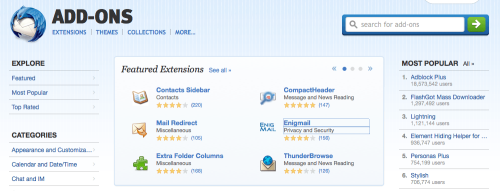
A screenshot of the Thunderbird add-ons web page

It’s been some time since I used Mozilla Thunderbird at home – I switched to Sparrow, then Apple’s own Mail app, before settling on Airmail last year. But at work, where I deal with a high volume of email, I prefer to use Thunderbird, instead of the provided Outlook 2010. There are a few add-ons which help me get stuff done, and so here is my list:

Lightning

Unlike Outlook, Lotus Notes or Evolution, Thunderbird doesn’t ship with a calendar. Lightning is an official Mozilla extension which adds a reasonably good calendar pane. Calendars can be local, subscribed .ics files on the internet, or there’s basic CalDAV support as well, and it works well with multiple calendars. A ‘Today’ panel shows up in your email pane so you can quickly glance at upcoming appointments.

Once you have Lightning installed, there are some other calendar extensions you can add. Some people use the Provider for Google Calendar extension – I don’t, as nowadays Google Calendar supports CalDAV so there’s no need for it. If you need access to Exchange calendars, then there’s also a Provider for Exchange extension too, although as we’re not (yet) on an Exchange system at work I haven’t yet tried this.

There’s also ThunderBirthDay, which shows the birthdays of your contacts as a calendar.

Google Contacts

If you use Gmail and its online address book to synchronise your contacts between devices, then Google Contacts will put these contacts in Thunderbird’s address book. It doesn’t require much setup – if you’ve already set up a Gmail account in Thunderbird then it’ll use those settings.

This is probably of most interest to Windows and Linux users. On Mac OS X, Thunderbird can read (and write, I think) to the global OS X Address Book, which can be synchronised with Google Contacts and therefore this extension isn’t needed. In the past, I used the Zindus extension for this purpose but it’s no longer under development.

Mail Redirect

This is a feature that older email clients like Eudora had, which allowed you to redirect a message to someone else, leaving the message intact. Mail Redirect adds this is a function in Thunderbird.

It’s different to forwarding, where you quote the original message or send it as an attachment – with Redirect, the email appears in the new recipient’s inbox in almost exactly the same way as it did in yours. That way, if the new recipient replies, the reply goes to the sender and not to you.

Thunderbird Conversations

If you like the way that Gmail groups email conversations together in the reading pane, then Thunderbird Conversations is for you. It replaces the standard reading pane, showing any replies, and messages that you have sent – even if they’re in a different folder. You can also use it to compose quick replies from the reading pane rather than opening a new window.

LookOut

Although this extension apparently no longer works, LookOut should improve compatibility with emails sent from Microsoft Outlook – especially older versions. Sometimes, attachments get encapsulated in a ‘winmail.dat’ file, which Thunderbird doesn’t understand. LookOut will make these attachments available to download as regular files. Hopefully someone will come along and fix it, but there hasn’t been an update since 2011 so I’m guessing this extension has been abandoned.

Smiley Fixer

Another add-on that will make working alongside Outlook-using colleagues a bit easier. If you’ve ever received emails with a capital letter ‘J’ at the end of a sentence, then this is Microsoft Outlook converting a smiley :) into a character from the Wingdings font. Thunderbird doesn’t really understand this and just displays ‘J’, which is where Smiley Fixer comes in. It will also correct a few other symbols, such as arrows, but you may still see the occasional odd letter in people’s signatures.

Enigmail

If you use GnuPG to encrypt messages, then you’ll probably have the Enigmail extension installed. Though it originally was a pain to set up, nowadays it seems to work quite well without a lot of technical knowledge. It includes a listing of all of the keys in your keychain, and you can ask it to obtain public keys for everyone in your address book should you wish.

Dropbox for Filelink

Some time ago a feature called ‘Filelink’ was added to Thunderbird, which allowed you to send links to large files, rather than including them as attachments. Whilst most people nowadays have very generous storage limits for their email, sometimes it’s best not to send large files as email attachments. Thunderbird supports Box and the soon-to-be-discontinued Ubuntu One services by default, but you can use the Dropbox for Filelink extension to add the more popular Dropbox service. Another extension will add any service which supports WebDAV which may be helpful if you’re in a corporate environment and don’t want to host files externally.

These are the extensions that I use to get the most out of Thunderbird. Although I’ve tried using Outlook 2010, I still prefer Thunderbird as it’s more flexible and can be set up how I want it.

Debating whether to ditch Dropbox Pro

A screenshot of Dropbox settings showing how much storage I am using

I’m a Dropbox Pro user. This means that I’m paying around £60 per year (or £5 per month if you will) for an extra 100 gigabytes of storage, over and above what free users get. This is mainly because I use it to keep photos in sync between my devices – and as I have a SLR camera, those images can be quite large – but also because I believe in paying for services that I rely on.

But lately, two things have happened.

One, I signed up for Office 365, which gave me an additional 20 gigabytes of storage in Microsoft’s rival cloud storage service OneDrive. Coupled with the 28 gigabytes that I have free, that means I have almost 50 gigabytes available that I’m also partly paying for anyway. As I was able to purchase the Office 365 University package, that means that I paid less than £60 for four years, and also get access to Microsoft Office and some Skype minutes thrown in. So, using OneDrive would still give me plenty of space, at a significantly reduced cost.

The other thing that happened was a recent appointment to Dropbox’s board, in the form of Dr Condoleeza Rice, the former US secretary of state under George W Bush’s presidency. During her time in office, she authorised widespread wiretapping, which is a bit of an issue when it comes to privacy and cloud storage. Plus there are all of the uncomfortable things that surround the War on Terror that happened during that time. Whilst I’m pleased that Dropbox has a woman – and a woman of colour at that – on its board, this appointment makes me feel a little uneasy, in the same way as Brendan Eich’s brief presidency of the Mozilla Corporation.

With these two factors in mind, I decided to explore OneDrive a little more, and see if I could really replace Dropbox with Microsoft’s cheaper alternative. Last year, this would have been a non-starter, as I was still using Windows XP at work which SkyDrive (as OneDrive was called at the time) would not run on. But whilst OneDrive supports fewer platforms than Dropbox, it does support the ones I use – Windows 7, Windows 8, Mac OS X and iOS.

However, its Mac client isn’t as good as Dropbox’s client, and this is the first reason why (spoiler alert!) I’m not going to ditch Dropbox. Sure, it does the same basic job of synchronising the content of a folder to the cloud, but without any status icons on each file informing you of its state. So whereas Dropbox shows you which files have been successfully uploaded, and which are still pending, with OneDrive you’re in the dark.

Dropbox’s other useful feature is photo importing. Now OneDrive is happy to import the contents of my phone automatically – as is Dropbox, and indeed Google+ and most recently Flickr in its version 3.0 update released yesterday. But on the desktop? Not so much. With Dropbox, I can put the SD card from my SLR camera into my Mac, and have it automatically import the new photos, which saves me the effort of doing it manually.

There’s also the issue of third-party app integration. OneDrive does have an open API and integration with sites like IFTTT, but not to the same extent as Dropbox. For example, I use Dropbox to keep my 1Password keychain in sync between my devices. If I didn’t use Dropbox, then I’d either have to use iCloud (which wouldn’t work on Windows) or over a local Wifi connection (no use at work). I suppose I could switch to using another service like LastPass instead, but I’ve already paid for the individual 1Password apps and like using them.

I also use Dropbox for collaboration – Christine and I had a shared wedding folder for planning our wedding, which was really helpful. OneDrive does this as well but I’d also have to convert Christine over as well.

So really, I can’t use OneDrive as a drop-in replacement for Dropbox. I could cancel my pro subscription for Dropbox, and drop back to being a free user for those services that need it. But then OneDrive makes it more difficult to upload photos and that’s the main reason why I pay for extra space in Dropbox. And I’d have to run both the Dropbox and OneDrive clients simultaneously and remember which one has which documents in it.

As much as Dropbox is the more expensive option, for me, it’s the better service.

The big post-Heartbleed password change

Screenshot of the Heartbleed web site

Following last week’s revelations about the Heartbleed bug, I spent quite a bit of time over the weekend changing passwords. Not all of them – I’ve been using this list of affected sites from Mashable – but quite a lot.

At the same time I’ve also taken the opportunity to audit other passwords from non-affected sites. I use 1Password as my password manager, on OS X, Windows and iOS, and it has a ‘Password Audit’ feature that shows weak, old and duplicated passwords. Ashamedly, I had quite a few of all three.

As a reminder, the generally accepted guidelines for strong passwords are as follows:

  1. As long as possible
  2. Using a mixture of lower and uppercase letters, numbers and special characters
  3. Are unique
  4. Avoiding any words that could appear in a dictionary

Using a password manager is therefore a very good idea, as they can usually generate strong passwords that meet those criteria, and offer to remember them for you. I tend to go for 24 character passwords like ‘3&yjGJNrE)Up2no8W:iNduYg’, to give an example of one that 1Password has just given me, and there’s no way that I could memorise that. The only passwords I have committed to memory are my 1Password Master Password, for obvious reasons, and my logins for Google, iTunes and Facebook. Whilst they satisfy the first three criteria above, they do use actual words – albeit with numbers and symbols replacing some of the letters – because these are the ones I use the most frequently. They’re still ‘strong’ according to most password meters.

Having said all of that, your passwords also have to fit within the constraints set by the web sites with which you have accounts. Whilst most of the sites I’ve been using have no problem with 24 character passwords, and are happy to accept symbols, not all of them are. Quite a few would only take passwords up to 16 characters, and others won’t accept special characters – or both. In which case, I had to make do with weaker passwords, but at least they’ll be unique.

There are, however, two web sites that were significantly worse than others. hmvdigital doesn’t let users change their password, unless you contact customer services. The worst offender, however is the Intercontinental Hotels Group, who owns the Holiday Inn and Crowne Plaza chains. If you’re in their IHG Rewards scheme – I am, and I have gold membership – then your password is a 4 digit numeric PIN. So there are only 10,000 possible password combinations, which could be cracked within minutes by an average home desktop computer. In 2014, this is horrifying, and for this reason, if you use IHG’s hotels, please don’t store your credit card details with them.

On the other hand, it’s been enlightening seeing which sites have removed my accounts for inactivity. For example, dabs.com have deleted my account, presumably because my last purchase from there was circa 2005. And other sites simply don’t exist anymore.

Stem my bleeding heart

Screenshot of the Heartbleed web site

If you read tech news on the internet, then you will have almost certainly come across the Heartbleed bug. As well as being probably the first programming bug to have a logo and brand name, it’s also very serious. It affects, or affected, a significant number of web sites and web services – pretty much anything that used SSL or TLS and the OpenSSL library. This will include many sites using the open source Apache and nginx web servers, which between them account for a majority of web sites.

The Heartbleed bug was in the ‘heartbeat’ component of OpenSSL, and first appeared in a code commit made at around 11pm on New Years Eve 2011 – make of that what you will. The first stable release of OpenSSL with the bug came in March 2012, and it was only fixed relatively recently. It’s therefore estimated that 17% of the world’s web sites may be affected.

If you administer a server that uses OpenSSL, then you’ll need to make sure that you update to the latest version which fixes the bug. But you may also need to revoke your SSL certificates and acquire new ones, and, if you suspect any foul play, do a full security audit. You can check your server using this tool – I’ve verified that this site was never affected.

If you’re just a regular user of the internet, then you may notice that some web sites will have forcibly logged you out. Some may also require you to change your password, and possibly re-connect any third party apps linked to your account. IFTTT emailed me to suggest changing my password, and Pocket has advised its users to do the same. Ironically, so has the web site Should I Change My Password which notifies of data breaches. If you are not already, I would suggest using a password manager such as 1Password, RoboForm, Keypass or LastPass. LastPass users can also find out if any sites they use have been affected by Heartbleed.

Some security experts have suggested that users change all of their passwords, although only once the web sites have implemented their fixes. This may not be necessary and PayPal has said they were not affected by Heartbleed. However, if you’re not using strong, unique passwords for every web site then now may be a good time to do so, regardless of whether sites have been affected or not, and the aforementioned password managers will help you in that regard. A lot of sites will now accept passwords that are more than 20 characters long, with special characters, which should be very, very difficult to crack.

Office 365 University

A copy of Microsoft 365 University in my cart on the Microsoft Store

Over the weekend I bought a copy of Microsoft Office for the first time. In the past, I’ve managed with either what’s been pre-loaded on new computers, or, since I got my own computer, OpenOffice or its variants.

But now Microsoft offers Office 365 University. For £60, you get to use Microsoft Office on two computers, and an unlimited number of mobile devices, for four years. The catch being that you need to be a full-time student, or a member of staff at university. Thankfully, the latter is true in my case.

These two computers can either be Windows or Mac machines: Windows users get Office 2013, Mac users get the slightly older Office 2011. They can be in any combination, so one Mac and one PC, two Macs, or two Windows PCs. Although all users of compatible iPhone, Android and Windows Phone handsets can install the free Office Mobile app, Office 365 users can also use the new suite of iPad apps and be able to create and edit documents (non-subscribers can only view documents). Unfortunately, as my old iPad 1 isn’t capable of running iOS 7, this isn’t a feature I can yet take advantage of.

Other benefits of the Office 365 subscription include 60 minutes of free calls to regular phone numbers on Skype each month, valid in around 60 countries, and an additional 20 GB of storage space on Microsoft’s OneDrive cloud storage service. As an early adopter of this service I already had 25 GB, plus a 3 GB bonus gained by enabling photo sync in the iOS app, so I have 48 GB of space now.

I’ve got Office 2011 up and running on my Mac, which in this edition includes Word, PowerPoint, Excel and Outlook, with OneNote as a separate free download (previously reviewed by me here). Although be aware that the first thing you will probably have to do after downloading the almost 1 GB install package, is then download another 100 MB or so of software updates. This is Microsoft software after all!

For the most part, Office 2011 for Mac can do anything that Office 2010 for Windows can do, with a couple of exceptions – no ActiveX controls (so no embeddable YouTube videos in presentations), and no support for the OpenDocument file formats. This means that you’ll probably still want to keep either OpenOffice or LibreOffice around if you have documents in these formats. I was a little surprised at the ugliness and clutteredness of the user interface, when compared with Office 2010 and indeed the new OneNote for Mac. Whilst it uses the new ‘ribbon’ interface introduced with Office 2007, it’s not as well designed as its Windows counterparts. Hopefully this will improve as and when a new version of Office for Mac is released.

As for why I’ve bought Office 365 when I already have LibreOffice installed? The main reasons are speed and file compatibility. LibreOffice is still quite big and slow, when compared with the Word, Excel and PowerPoint apps on my Mac. And file compatibility with Microsoft’s own formats isn’t quite there, even after all of these years. It’s not helped by there being several forks of what was originally OpenOffice.org in parallel development – there’s now Apache OpenOffice, LibreOffice and the Mac-only NeoOffice.

In terms of the additional perks, I don’t think I will get to use the extra Skype minutes, bearing in mind that I never use the inclusive minutes in my mobile contract either. Whilst I wasn’t planning to use the extra OneDrive space, since I’m mostly a Dropbox user, I may need to think this through. Right now I’m paying £60/year for Dropbox Pro, but only using around 15 GB – theoretically I could switch over to OneDrive and still have ample space whilst saving myself some money. I’ll need to ponder this.

If you are a student or a university staff member, I would therefore recommend Office 365 University to you. It’s £60 on the Microsoft store, although Quidco users should be able to claim 15% cashback, making it about £52. On the other hand, it’s £52.56 on Amazon, which is probably a better option.

Upgrading to Windows 8.1

Screenshot of the start screen in Windows 8.1

Yesterday I upgraded to Windows 8.1. I run Windows in a virtual machine on my Mac using VirtualBox, and I upgraded it from Vista almost exactly a year ago. The process was reasonably smooth, in comparison to last year’s debacle, but it wasn’t without some minor incidents.

Getting started

First of all, I wasn’t quite sure how one would go about upgrading. So I opened up Internet Explorer and searched Bing, and it told me to open Windows Store, the app store for Windows 8. So I did, and… nothing. I couldn’t see anything that would suggest what to do next.

Thankfully this page came up with a possible solution. I hadn’t booted Windows 8 in a few months and so I was behind on installing fixes from Windows Update. 35 updates were presented to me; after the first run, all but 1 of these failed, so I rebooted and tried again. This time 4 installed correctly, but again, the others failed. Finally after another reboot I got the rest to install, and so I then rebooted again. This time, upon opening the Windows Store app a full-screen button for installing Windows 8.1 came up.

The first attempt at downloading the update failed, but then it got under way on the second attempt.

Installation

At this point I went to bed and left it to install overnight. I woke up to find the installer asking me to agree to the new license agreement, and to enter my details for my Microsoft Account. Then, it did a little housekeeping, and before long I was back at the Start screen, freshly upgraded. Post-upgrade, there are a couple of contextual tutorials that show you how to do things in the new ‘modern’ interface, which helps.

The verdict on Windows 8.1

I haven’t spent much time with Windows 8.1 post-upgrade but it does seem to be a minor improvement. You can do more things in the modern interface without dropping back to the Desktop – Control Panel, for example, has been largely replicated. However, I still find it harder to navigate than before, with some apps hidden away on the ‘All Apps’ menu, and it’s more difficult to find the ‘Shut Down’ button than on Windows 7. And the new interface is still over-optimised for touchscreen computers – even with an Apple Magic Mouse with sideways scrolling, it still takes longer to do things. Having to hold the mouse pointer in a small corner of the screen to then bring up menus is slow compared to clicking.

Using Windows 8.1 makes you realise why Apple keeps OS X on desktops and iOS and touchscreen devices. Having the old desktop and new modern interface in the same operating system feels like a kludge, especially when you get booted out of one into the other unexpectedly (which happens now and again). And trying to enable it for both touchscreens and mouse-controlled computers results in a compromise that disadvantages the latter, in my opinion.

I don’t think these problems are insurmountable, but let’s just say that I hope there’s a Windows 8.2 that fixes them.

Mavericks – my review

A screenshot of Finder on Mac OS X Mavericks

Following Apple’s keynote presentation on Tuesday, OS X 10.9, aka ‘Mavericks’ was released. Apple broke its long-standing tradition of charging for OS X updates by offering Mavericks for free, and on any machine capable of running Lion. Furthermore, it looks like a direct upgrade from Snow Leopard to Mavericks is possible on those machines not yet updated, which may go some way in explaining why Mavericks is over five gigabytes in size.

By making Mavericks free, Apple can now dodge questions about whether the update is value for money. I know some felt that Mountain Lion wasn’t really worth the cost, even though it was only $20 and was already the cheapest OS X update to date (barring the ancient 10.1 ‘Cheetah’ update from 10.0). That being said, my early plays with it suggest that its value is at least that of Mountain Lion, and therefore a worthwhile update.

Installing Mavericks

Having been up at 5:45am on Tuesday (for work) I decided not to attempt to install Mavericks as soon as it came out, although I did watch most of Apple’s keynote live. Instead I waited until yesterday, and gave myself things to do whilst it installed, which, from beginning the download to completing installation, took around two hours on my early 2010-vintage Mac Mini. Then there were a raft of software updates to install afterwards – iPhoto, iTunes, XCode, a Digital Camera RAW update and improvements to some of the voices for the text-to-speech feature, plus various third-party apps. This took another hour or so but was technically optional.

Up and running

Once I had Mavericks up and running, it seemed to work fine. Well, no different to Mountain Lion, anyway. My Mac still takes quite a while to boot up but that’s probably to do with various apps and utilities that I have running. I did have to fiddle with the screen settings, as for some reason Mavericks decided to set my two screens to be an extended desktop and not mirrored like I prefer – my second screen is actually the living room television. Mavericks also changed some of my Magic Mouse’s settings so that left and right swiped no longer did anything. Frustrating, but easily changed back.

Scrolling seems smoother, which is nice, and Launchpad is now quite a bit faster – especially when opening stacks. This is a relief as it’s the main way I access apps that aren’t in the Dock.

Activity Monitor

The Activity Monitor saw major changes in Mavericks, with a new tabbed interface. I like it, and it feels simpler now, even though it shows more information. A new ‘Energy’ tab shows which apps are putting the most strain on your battery, if your Mac is a laptop – mine isn’t, but it’s still interesting to see which apps are power-hungry. Predictably Firefox was using the most energy whilst I was writing this but some background processes were also quite hungry too, so I may have to re-evaluate which apps run on startup.

It also tells you whether OS X is making use of one of its new features, Compressed Memory. When you start to run out of available RAM, OS X will now compress some of the data in RAM to make more available. This does add a bit of processing overhead, but it’s still faster than using a swap file (virtual memory) on a hard disk or even a solid state drive (SSD). I noticed that since installing Mavericks, OS X attempts to use as much RAM as possible to minimise swap file usage.

Maps

I had a brief play with the new Maps app. It’s basically the same as the iOS app, which sadly means it’s full of the same crappy data. A year on and there are still big problems with missing places (such as Bradford’s Alhambra Theatre), or places that have long-since closed.

I did note that my search history from my iPhone carried over to my Mac, which is interesting. However, I’ll be sticking to Google Maps for now.

Finder

Finder now has tabs in Mavericks; I’m sure some people will be overjoyed at this but I’m not too bothered. You can at least drag documents between tabs so I suppose I may use it from time to time. I don’t think I’ll use tags though, as I never used the labels that came before.

Miscellaneous points

  • The CPU coalescing feature is quite clever, but of limited use to a desktop user like me. I’ve heard that it is effective at extending battery life, which is good – it’s always nice to have a battery that lasts longer after an update than the more usual opposite.
  • The colours seem brighter on my screen, but that may be co-incidental with me changing the screen settings.
  • I like how newly-installed or updated apps sparkle in Launchpad.
  • I’m aware that there are major problems between Mail and Gmail accounts, however, I’ve recently stopped using Mail so thankfully I haven’t experienced this first hand.
  • LinkedIn is now supported alongside Twitter and Facebook. You can post status updates from the Notification Centre, and your connections will appear in Contacts. I wonder if iOS will follow suit in a forthcoming update.
  • I’ve turned on the iCloud Keychain. To enable it you have to also tell OS X to require a password to unlock your Mac if left idle, which isn’t done in a very intuitive way.
  • Users of older versions of Parallels desktop have found out that it doesn’t work on Mavericks. The latest version does but it’s a paid-for update. Consequentially my article about converting Parallels VMs to VirtualBox has been well-visited over the past few hours.

Elsewhere

As usual, John Siracusa has written a very extensive review of Mavericks at Ars Technica, which is well worth reading as it explains how some of the new performance features work. Dave2 is mostly positive about it too, although Lifehacker’s initial review is less so.

For me personally, it seems fine. Those wanting to err on the side of caution may want to wait for the inevitable 10.9.1 update which will follow in a few weeks (especially if you use Gmail in Mail), but I feel it’s good enough to take the plunge now. And you can’t argue with the price.

My Apple predictions – how did I do?

iPhone 4, meet iPhone 5

Following yesterday’s predictions that I made, we now know what Apple will be launching later this month. Were my predictions correct?

New iPhone models

I was pretty-much bang on about the two new iPhones – the cheaper 5C and the premium 5S. There were so many leaks of information that these were expected by many, and so it was a bit of let-down when Apple were unable to surprise us. As predicted there would be a new processor, which was indeed the A7, although the M7 co-processor to manage the motion sensors was a surprise. And as expected the iPhone 5S will ship with a fingerprint scanner on the home button.

The iPhone 5C is, as expected, a cheaper plastic phone, but it’s not significantly cheaper than the iPhone 5 was. Unless Apple will be selling it more cheaply in emerging markets and then pricing it higher in the more lucrative Western markets.

Both handsets will actually come in five versions (so ten in total), with different models for different networks, due to the big variation in frequency bands for 4G LTE. Vodafone is listed in the UK, meaning that the 5S and 5C will work on its 4G network. The iPhone 5 didn’t because Vodafone and O2 will be using the frequency bands that were freed up when analogue terrestrial television broadcasts were turned off last year. Whilst O2 isn’t listed, as the original launch partner for the iPhone in the UK I expect this is an oversight and that they will offer 4G services on the new handsets, and I expect 3 will do as they will offer 4G on the existing iPhone 5 last this year.

Apple have unexpectedly returned to the case market with new cases for both models. There’s also a new docks – one for the 5 and 5S, and one for the 5C.

Retiring of the old models.

Nope. Got this wrong. The iPad 2 and iPhone 4S are still on sale, and even the iPhone 4 will be available in China. Apple did kill off one its phones though, and surprisingly it was the iPhone 5. The 5C and 5S will therefore completely replace it. Normally Apple keep at least the previous two models on sale, although the third-generation iPad with retina display was retired after 8 months so it’s not completely unheard of.

The iPod Classic gets a stay of execution

I fully expected Apple to finally give the iPod Classic the Old Yeller treatment, but it’s still on sale, surprisingly. There were no major changes to the iPod range yesterday (with one exception, see below) and my hope of a 128 GB iPod Touch didn’t become a reality.

No NFC

As expected, Apple have not added support for NFC to their phones. I agree with Apple that Bluetooth SMART has more potential than NFC.

No Apple TV changes

Sadly there are no changes coming to the Apple TV, despite my hopes. Apple needs to offer more services on the platform if it hopes to be competitive against rivals like Roku, particularly outside of the US.

And everything else

We didn’t get to see the much-rumoured smart watch yesterday. I imagine Apple are working on one but are waiting until they can offer something significantly better than the competition. Samsung released its Galaxy Gear smartwatch to very mixed reviews last week and I’ve heard quite a few people have been underwhelmed by the Pebble smartwatch. Maybe next time.

Apple made a very slight change to the iPod range; the ‘space grey’ colour was added to the existing models. Other than that, there were no changes to the iPod line-up.

After two years, the Cards app for iOS, which allowed you turn your pictures into greetings cards, was discontinued. I don’t know anyone who used this so this isn’t surprising. That being said, I don’t know anyone who uses the ‘Stocks’ app that comes with every iPhone and can’t be deleted, yet it’s still there in iOS 7.

My predictions for today’s Apple event

Invite to Apple's 10th September event

Today Apple is announcing something, at around 6pm BST. It’s probably the seventh iteration of the iPhone, and the rumours suggest that this is the case, but until Tim Cook steps up on stage this evening we won’t know for sure.

I’ve got a few predictions, mostly based on the rumours that I’ve been reading over the past few weeks. I don’t actively seek out rumours but they do appear on sites like The Unofficial Apple Weblog and Twitter from time to time. So here’s what I expect:

Two new iPhone models, including a budget model

There are credible rumours that Apple will release two new models of the iPhone today – a new iPhone 5S, and a cheaper iPhone 5C. The 5S will probably have the same form factor as the existing iPhone 5 but have some extra hardware features and a beefed-up processor – possibly the A6X as used in the fourth-generation iPad but maybe a new A7 processor. I also believe the rumours of a fingerprint scanner on the home button.

The iPhone 5C will be a cheaper and more plasticy model that will be particularly aimed at emerging markets like China, but I think it will also do well in western markets. I know there are people out there who want to buy an iPhone but can’t justify the cost, and don’t want an old model.

The iPhone 4, 4S and iPad 2 will be retired

The three year old iPhone 4 is sure to be retired but I expect the 4S to go, and the iPad 2. This will mean that all of Apple’s mobile products will use the Lightning connector, rather than the 30-pin Dock connector, and all of its phones will have the same screen size.

The iPod Classic will be retired

It’s been 4 years since the last update to the iPod Classic, which is the only remaining iPod model to include a hard disk (as opposed to flash memory). Wired thinks it’ll be dropped and I agree. I hope that a new 128 GB iPod Touch will be released, so that Apple can still cater for those who want to be able to play their entire large music collection on the go.

Neither of the new iPhones will have NFC

NFC, or near-field communication, is becoming standard on many Android and Windows phones. But I can’t see Apple adopting it. They’ll go for Bluetooth SMART instead. Because the iPhone already has Bluetooth, this shouldn’t require any new hardware, and should be better for battery life too.

According to this AppleInsider article, this will be branded as iBeacons in iOS 7, and will be available not only in Apple’s new handsets, but the existing iPhone 4S and 5 as well.

Third-party apps for the Apple TV

Okay, this is less a prediction and more of a hope. Apple has been steadily increasing the number of platform partners for the Apple TV but it’s still very US-centric. The only UK channel available at present is Sky News.

I hope that Apple opens an App Store for the Apple TV, opening the door to apps such as BBC iPlayer, 4oD, Demand 5, ITV Player, Now TV and the like. This will make the device significantly more useful.

We will find out in just over eight hours’ time what comes to pass.