How many Bluetooth devices have you paired with your iPhone or iPad? Go on, have a look.
Okay, now go through each device and tell me what each one is. Because, if your list is anything like mine, you’ll struggle to identify each device from its name.
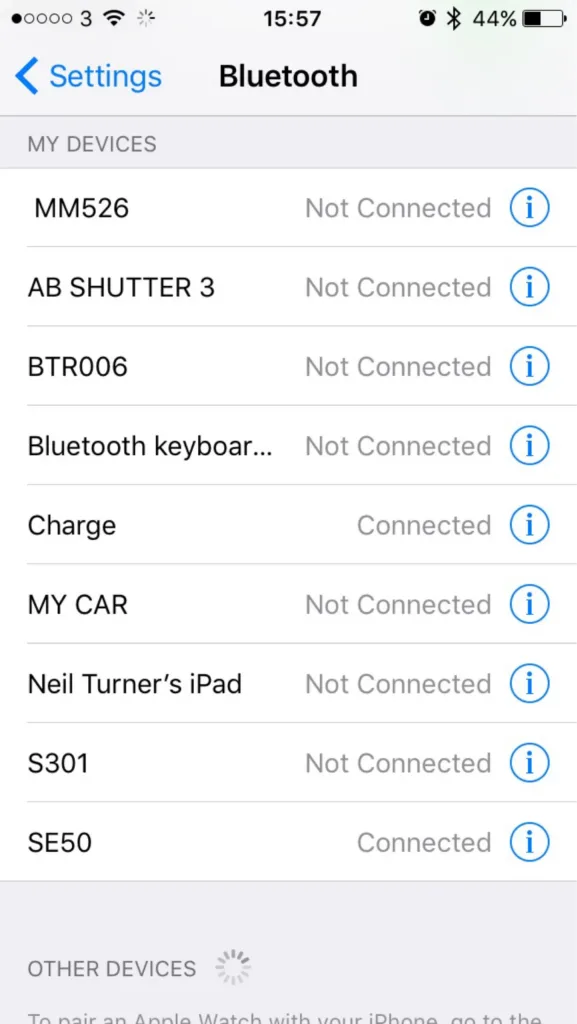
For reference, I’ve included a screenshot of the nine devices that are paired to my iPhone. In that list, there are:
Three Bluetooth speakers
One set of Bluetooth headphones
A Bluetooth camera remote
My iPad
A Bluetooth keyboard
My Fitbit
My car radio
The iPad is obvious, as is my car stereo and the keyboard. My Fitbit appears as ‘Charge’ as it’s a Fitbit Charge, and the camera remote is called ‘AB SHUTTER 3′ – close. For the remaining devices, without knowing the model numbers, or a process of trial-and-error, deducing which is which presents a challenge.
My iPad lets me change the name that appears to other devices, as do most phones or computers. But a cheap off-brand Bluetooth speaker doesn’t, especially as there’s no visual interface. Sure, you could probably re-program the device if you took it apart and hacked the firmware on the Bluetooth controller, but that’s beyond the capability of your average user.
It would be nice if users could assign a friendly name to these devices. ‘Waterproof speaker in shower’ is more meaningful to me than ‘MM526′. ‘MY CAR’ is all well and good but what if I had two cars?
It wouldn’t need a major change to the user interface of iOS. There’s already an ‘i’ icon next to each entry on the list – presently, this goes to a mostly blank screen with just a ‘Forget this device’ button. An extra field to add/edit a friendly name for the device is all that would be necessary. Doing so would improve the usability of Bluetooth on iOS significantly.
With the Emoji keyboard enabled, it would even be possible to add a pictogram to each friendly name. Instead of ‘MY CAR’, I could have ‘🚘 My BMW’, for example.
I understand that users with jailbroken devices can already do what I’m proposing. But jailbreaking isn’t an option for many, and so I’m hoping that someone at Apple will consider adding it for all users.
With iOS 9 now out, Apple must be planning for iOS 10 – this would be a really helpful little feature to include. I’m no programmer, but I can’t see it being too difficult, and it would be a small win for usability. How about it, Apple?
On Sunday last week, I packed my Mac up ready to move to our new house. 10 days on and it’s still packed up.
The main reason is that my computer desk will be in the dining room and we haven’t painted all of the walls in there yet. I’d rather not unpack my computer until the painting is done so that I don’t damage it, but it’s going to be a week or two before we’re at that stage. So, in the meantime, my computer stays in its box.
What surprised me is how well I’ve been able to manage without it. Normally my Mac is on all the time, and although I put it to sleep when I’m out, I usually use it every day before and after work. But I’ve been mostly coping fine with my iPad and iPhone instead.
95% of what I do on my Mac, I can do on my iOS devices. The main things I use a computer for are social media, reading feeds and articles, email, a bit of photo editing and playing World of Warcraft. Most of these things can be done on my iPad or iPhone as easily as they can on my computer.
Obviously I haven’t been able to play World of Warcraft in that time, and I’ve had to put off editing photos for now. Writing blog posts is possible on my iPad but it’s not as easy as on a proper computer. But I’ve been pleasantly surprised at just how replaceable my Mac has ended up being.
We also haven’t unpacked the TV for similar reasons. Watching Saturday’s episode of Doctor Who on my iPad wasn’t as great as it would’ve been on a proper TV, but it was acceptable.
Eventually we’ll have all of the painting done and we can go back to having a TV and desktop computer and be a normal household again, and I’m looking forward to it. But it’s not been nearly as disruptive as I’d expected it to be.
I wear a watch on my right hand – even though I’m right-handed. It’s not a fancy watch – it’s analogue, and as well as telling me the time it also shows the day of the month (although it’s usually wrong). It doesn’t automatically adjust for daylight savings time, or have alarms. It doesn’t even have a stopwatch, which means that I, ironically, have to use my phone as a stopwatch, rather than my watch.
But it’s simple, and in the 3-4 years I’ve had it, the battery has only had to be replaced once after running out of charge. It doesn’t need charging, updating or to be in range of another device.
Yesterday Apple finally announced pricing and a launch date for its new smart watch. Brits can expect to pay £299 for the most basic model, with more expensive models available at prices that make my inner Yorkshireman cry. It can do all sorts of things, like display text messages, make and answer phone calls, manage your calendar, display maps and monitor your fitness, and you can install third-party apps to make it do even more. It’ll even work as a watch and display the time – which is kept up to date from internet time servers.
Which sounds all rather flash. But I won’t be buying one.
Having a smartphone has changed my life – indeed, I’ll soon be facing a week where I’ll have patchy internet access and I’m already trying to work out how I’ll manage. But I don’t think I need yet another device that does the things my iPhone can do.
And the battery life is a concern – it’s estimated to last 18 hours, so I’d need to charge it up every night. A big change from my current watch that needs a new battery every few years.
I’ve yet to be convinced about the need for a smart watch, but I’ll try to retain an open mind. I’m sure Apple will sell millions regardless.
Later today I will have a brand new iPhone 5S, which I ordered on Friday. I wasn’t expecting to need a new phone so soon but sadly my current iPhone 5 is not in a good way.
The need to upgrade
I bought my iPhone 5, along with a new two-year contract, in September 2012, shortly after launch. My iPhone 4 had pretty much conked out: it kept randomly rebooting, and was getting rather slow. However, by September 2014, my iPhone 5 was still in good shape. Sure, the battery life wasn’t as good but it still worked fine. So instead I took out a new 12 month SIM-only contract with the intention of keeping my iPhone 5 until next year.
Unfortunately, more recently, my iPhone 5 has developed a fault with the Lightning port. It will only charge if I plug a cable in at a certain angle – and if the cable becomes even slightly loose, it won’t charge. Whilst I can usually get the cable in a good enough position to charge it at home, it’s almost impossible to do when out and about unless you actually hold the cable in position. And there have been several occasions when the cable has been knocked slightly and I’ve ended up starting the day with a phone on 30% battery.
It’s been like this for a while but it seems to have got worse of late. I’ve tried cleaning out the Lightning port as best I can, and I’ve used many different cables, but it still doesn’t work properly.
It may be fixable, but as the battery life isn’t great either, I decided that really, I’d be best with a new phone.
Rule-breaking
Co-incidentally, I recently received an ‘exclusive’ offer from Three, the network I’m with, to upgrade early to a new iPhone 6. Normally ending my contract now, and not when it ends in September, would incur a penalty, but Three were willing to waive these charges if I signed a new two-year contract with them. I registered my details on their ‘rulebreakers’ page and got a call back later on Thursday to discuss the deal.
The offer was for a brand new iPhone 6, in my choice of colour, at no up-front cost, with a 2-year contract that included 2 GB of data (including tethering), unlimited calls, unlimited text messages and a few other perks. The catch was that the monthly charge would be £46 per month, and it was only the 16 GB model. I’m currently paying £18 per month for a SIM-only deal so this would be a huge hike in my monthly payments – more than 2.5 times higher.
But I agreed to it – I needed a new phone, and I’d be getting Apple’s latest and greatest model. Even though I had the opportunity to home test an iPhone 6 in September, and found it rather too big for my liking.
Cutting too many corners
At first, I didn’t think the lack of storage would be an issue. My iPad Mini 2 is the 16 GB model, and whilst I don’t have much space left on it, it does just about everything that I need it for.
My iPhone 5, however, is the 64 GB model. And it turns out I was using half of the space on it. At first I thought these were things I could do without – a 2.5 GB full HD quality episode of Sherlock, for example. But after deleting the stuff I didn’t use, and then the stuff I occasionally used, and then stuff that I didn’t really want to delete but would do if I absolutely had to, I was still using over 20 GB of space. Essentially, if I wanted to get by on a 16 GB phone, I’d have to make do with not having all the apps I wanted, all my photos, or all of my music. And it’d be a compromise that I’d have to live with for the two years of the contract. A contract that would be costing me over £1000 over the two years.
The lack of storage might not have been so bad if it weren’t for the limited data allowance as well. Whilst I’ve only ever used more than 2 GB in a month once or twice, if I have less storage capacity on my phone then I’d need to store more data in the cloud, which would eat further into my data allowance. A small capacity phone and unlimited internet might have worked, as would a large capacity phone and limited internet, but not the worst of both.
Cooling off
I’m fortunate, in some respects, that I’d agreed to this over the phone, which meant that I was legally entitled to a 14-day ‘cooling off’ period, as per the Consumer Contracts Regulations. And in fairness to Three, they made me fully aware of my rights to cancel on the phone call and what to do. So on Friday I called them, and cancelled the upgrade, which was done without any fuss. After all, I’ll still have a contract with them until September. The iPhone 6 had already been dispatched at this point, so I’ll need to refuse the delivery when it comes today.
With that sorted, I ordered a new 32GB iPhone 5S direct from Apple. Whilst not as big as my current 64 GB model, I can comfortably get by with 32 GB of space – and Apple doesn’t offer larger storage on the 5S anymore. It cost £499, which I can pay off from my credit card over the next few months, and even with a bit of interest, it’ll save me around £180 over two years, assuming that I stay on an £18 per month contract. And the phone is unlocked too – whilst I’m happy with Three and don’t intend to switch networks, if I do, then I can take my phone with me.
I also prefer the size of the iPhone 5S to the 6. I’m not bothered about a bigger screen and would prefer a device that I can use with one hand, for the times when I’m standing on a train and need to hold onto a grabrail, for example. Whilst it is last year’s model, Apple tend to offer updates for 3-4 years after release, so it should be good until September 2018. And there aren’t many other improvements to the iPhone 6 that are relevant to me: I don’t have any 802.11ac wifi devices and Apple Pay hasn’t been launched here yet.
With hindsight I should have turned down the ‘rulebreaker’ deal in the first place, as soon as I heard it was a 16 GB model, but I guess desperation got the better of me. I’m fortunate that I’ve been able to cancel without penalty, and been able to find a solution that serves me better. Even if it does mean using last year’s model.
It’s almost August, so I’m within a couple of months of my initial 24 month mobile phone contract with Three coming to an end. I bought my iPhone 5, along with a new contract, in September 2012.
At the time I decided to go for a new contract because my current phone at the time, an iPhone 4, was not in a good state. It would randomly reboot around once a week, and sometimes when it came back up it would ask to be connected to iTunes, as if it hadn’t been activated. The battery life was starting to get rather poor by this point as well. Rather than spend money on a new battery and hope that it would also fix the reboot problem, I decided to take advantage of the launch of the iPhone 5 and just get a new phone. And because iPhones are so expensive when bought without a contract, I took on a new two year contract at the same time.
This time, my iPhone 5 is in a better state by comparison. Admittedly it too doesn’t have the same battery life as it did when I got it, but that is to be expected, and I have backup batteries in both my usual bags to top it up if needed (which actually isn’t that often). It’s as reliable as it was when I got it, and thanks to the improvements in iOS 7, it’s more useful now than it was two years ago. And iOS 8 will hopefully make it even better.
So, unless the rumoured iPhone 6 is amazing and has must-have features, I’ll sit it out and stick with my current model for the next twelve months. Not only will I not have the upfront cost of a new handset but a SIM-only contract will be much cheaper – around £14 per month instead of the £34 per month I’m paying now, saving me £240 over the year, or £5 per week.
Christine is in a similar position with her phone as well, so hopefully between us we’ll have the capacity to save quite a bit of money over the next year. There’s no point having the latest and greatest model if the current one works fine, and does everything I need it to. I’d rather have the extra money.
Yes, I know, that didn’t take long. But having spent a week with Microsoft OneDrive, I decided that Dropbox Pro was actually worth paying extra for after all.
I originally cancelled Dropbox Pro because I didn’t need the extra space that I was paying for, and indeed had access to enough extra space in OneDrive. So I spent most of last week moving my photos (which take up most of the space) from Dropbox to OneDrive – almost 15 GB in total. This took several days to upload, on and off.
I then decided to enable the photo backup feature in OneDrive’s iOS app. Dropbox has a similar feature, as does Google+ and Flickr – all of the photos in your camera roll are backed up. And this is one of the key reasons why I decided to go back on my original decision and re-subscribe to Dropbox Pro – OneDrive is a bit dumb. It wanted to upload every image on my iPhone again, even though they were already there, having been copied across from Dropbox.
To put this into context, this amounts to over 1000 images, plus a few videos. That’s a lot of data to duplicate. I’m lucky that both my home broadband and mobile internet services are “unlimited” but it would still take a long time and require tidying up afterwards.
This is something I mentioned a couple of years ago in the technical superiority of Dropbox. Dropbox does a lot of things to reduce the amount of bandwidth it needs, by automatically detecting duplicate files, only uploading the modified portions of files, and synchronising files on the same network directly as well as with Dropbox’s servers. And last week an update to the Dropbox desktop client enabled ‘streaming sync’, which should allow large files to upload more quickly. OneDrive is evidently a much more basic client, that doesn’t check for pre-existing files.
What’s more, when I copied all of my photos back into my Dropbox folder, there was no need to upload them all again. Dropbox keeps copies of all files deleted within the past 30 days – or, for an extra $39 a year, its packrat feature will keep any deleted files indefinitely (business customers get this as standard). So it was able to bring all 15 GB of photos back online within a few minutes, and not several days.
Of course, cloud storage is pretty much the only thing that Dropbox does as a company, so of course it has a greater focus on the quality of its product. Microsoft, Google, Amazon, Apple and most of Dropbox’s other rivals all focus primarily on other products, with cloud storage as a small sideline.
As much as I would prefer to pay less for Dropbox Pro, my experiences over the past couple of weeks have convinced me that it’s worth paying a bit more for a better service. OneDrive may now be giving me over a terabyte of storage as part of my Office 365 subscription, but I can do so much more with the 100-and-a-bit gigabytes I get with Dropbox Pro, even though it costs extra.
At the weekend, with a heavy heart, I cancelled my Dropbox Pro subscription, and reverted to a basic account.
I’ve been a Pro user, paying $99 each year, for almost the past two years. But when Dropbox emailed me to say that my Pro account was up for renewal in a couple of weeks, I didn’t feel like I could continue to pay for it. $99 is a bit less than £60, which is money that I could spend on other things.
This isn’t to say that I will no longer use Dropbox – it’s still my favourite cloud storage service, and besides, I have some shared folders that I need to keep going. But I’ve shifted all of my photos over to OneDrive, since they take up most of the space. So I’ll be using both in tandem, at least for now.
Dropbox is now one of the most expensive cloud storage services, when compared to Microsoft, Google, Amazon and the rest. I may be tempted back if its prices drop (and I noted this in the survey that I was asked to fill out when I cancelled). Also, I’m looking forward to seeing how Apple’s iCloud Drive service turns out when that launches in the autumn. Though iCloud’s extra storage tiers are also rather pricey – 100 gigabytes is £70, which is more than Dropbox, and the next smallest is 20 gigabytes which may be too small. Perhaps Apple will also drop its prices nearer the launch, as I expect more people will be upgrading.
I do feel a bit sad about downgrading my account, even though it makes financial sense. Perhaps as and when Dropbox lowers its prices, I’ll come back.
As I mentioned on Sunday, my birthday present from my parents was a shiny new iPad Mini with Retina Display. We bought it from the Apple Store in Trinity Leeds, since we were going to Leeds for a birthday meal anyway.
This is to replace my old iPad, a first generation model. Although I’ve only had it for a year, it’s now over three years old and no longer supported by Apple. It won’t even run iOS 6, never mind iOS 7. Many apps either won’t install at all, or can only run as an older version. Plus, it’s rather slow and some apps, including Apple’s own like Safari, crash a lot. Whilst the larger screen means it’s better to use than my iPhone for some things, for others it was slow and frustrating – I’d avoid browsing sites like Buzzfeed or Lifehacker because of the risk of crashing it.
Choosing an iPad
I’d narrowed the choice down to the iPad Air or the iPad Mini with Retina Display. I ruled out the older models – the iPad with Retina Display and the iPad Mini (without Retina Display) – because they came with older processors which are much more likely to be deprecated by Apple within a few years. I didn’t want to be in the same situation again with my iPad in a couple of years’ time.
The two models are basically identical inside – same processor, battery life and features. The only difference is the size of the screen (the resolution is the same), the weight and the price. At £80 cheaper, we decided to go for the iPad Mini.
Personal setup
When you buy a product at the Apple Store, a ‘Personal Setup’ service is offered to get you up and running with the device. As we had some time to spare, I decided to take them up on the offer. This turned out to be a good thing. Because myself, and the member of staff who sold me the iPad, learned the hard way what happens when you try to restore an iCloud backup from an iPad 1 running iOS 5, to an iPad Mini running iOS 7. Suffice to say, it got stuck in a soft reboot loop and was completely unusable.
To their credit, the staff at the store were really good about it, and took responsibility for the problem. I should have been advised that this wouldn’t work. Instead, I should set the new iPad up as a new device, rather than using a backup from an iOS 5 device as a starting point. So the iPad Mini, now essentially bricked, will be sent back to Apple, and I was given another iPad Mini to take away. I decided not to go through the Personal Setup this time, instead waiting to get home so that I could do it at my own pace. It’s working fine, as shown in the above photo.
I’m glad that the reboot problem happened in the Apple Store and not at home, as I’m not even sure that I’d have been able to force a factory reset on the device. But perhaps Apple should have coded this into the iPad setup program, and displayed a warning that restoring a backup from such an old device to a new one is a bad idea.
Anyway, my new iPad Mini is great. It’s so much lighter than my old one, and the screen is only a bit smaller. It’s not quite so good for reading magazines, as the text is a bit small, but at least when I zoom in the text doesn’t become so pixelated as it did on my old iPad. And apps like Facebook, YouTube and 1Password are actually usable now, and others, like Pocket, are much, much faster.
It’s been some time since I used Mozilla Thunderbird at home – I switched to Sparrow, then Apple’s own Mail app, before settling on Airmail last year. But at work, where I deal with a high volume of email, I prefer to use Thunderbird, instead of the provided Outlook 2010. There are a few add-ons which help me get stuff done, and so here is my list:
Lightning
Unlike Outlook, Lotus Notes or Evolution, Thunderbird doesn’t ship with a calendar. Lightning is an official Mozilla extension which adds a reasonably good calendar pane. Calendars can be local, subscribed .ics files on the internet, or there’s basic CalDAV support as well, and it works well with multiple calendars. A ‘Today’ panel shows up in your email pane so you can quickly glance at upcoming appointments.
Once you have Lightning installed, there are some other calendar extensions you can add. Some people use the Provider for Google Calendar extension – I don’t, as nowadays Google Calendar supports CalDAV so there’s no need for it. If you need access to Exchange calendars, then there’s also a Provider for Exchange extension too, although as we’re not (yet) on an Exchange system at work I haven’t yet tried this.
There’s also ThunderBirthDay, which shows the birthdays of your contacts as a calendar.
Google Contacts
If you use Gmail and its online address book to synchronise your contacts between devices, then Google Contacts will put these contacts in Thunderbird’s address book. It doesn’t require much setup – if you’ve already set up a Gmail account in Thunderbird then it’ll use those settings.
This is probably of most interest to Windows and Linux users. On Mac OS X, Thunderbird can read (and write, I think) to the global OS X Address Book, which can be synchronised with Google Contacts and therefore this extension isn’t needed. In the past, I used the Zindus extension for this purpose but it’s no longer under development.
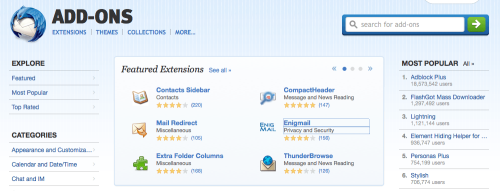
Mail Redirect
This is a feature that older email clients like Eudora had, which allowed you to redirect a message to someone else, leaving the message intact. Mail Redirect adds this is a function in Thunderbird.
It’s different to forwarding, where you quote the original message or send it as an attachment – with Redirect, the email appears in the new recipient’s inbox in almost exactly the same way as it did in yours. That way, if the new recipient replies, the reply goes to the sender and not to you.
Thunderbird Conversations
If you like the way that Gmail groups email conversations together in the reading pane, then Thunderbird Conversations is for you. It replaces the standard reading pane, showing any replies, and messages that you have sent – even if they’re in a different folder. You can also use it to compose quick replies from the reading pane rather than opening a new window.
LookOut
Although this extension apparently no longer works, LookOut should improve compatibility with emails sent from Microsoft Outlook – especially older versions. Sometimes, attachments get encapsulated in a ‘winmail.dat’ file, which Thunderbird doesn’t understand. LookOut will make these attachments available to download as regular files. Hopefully someone will come along and fix it, but there hasn’t been an update since 2011 so I’m guessing this extension has been abandoned.
Smiley Fixer
Another add-on that will make working alongside Outlook-using colleagues a bit easier. If you’ve ever received emails with a capital letter ‘J’ at the end of a sentence, then this is Microsoft Outlook converting a smiley into a character from the Wingdings font. Thunderbird doesn’t really understand this and just displays ‘J’, which is where Smiley Fixer comes in. It will also correct a few other symbols, such as arrows, but you may still see the occasional odd letter in people’s signatures.
Enigmail
If you use GnuPG to encrypt messages, then you’ll probably have the Enigmail extension installed. Though it originally was a pain to set up, nowadays it seems to work quite well without a lot of technical knowledge. It includes a listing of all of the keys in your keychain, and you can ask it to obtain public keys for everyone in your address book should you wish.
Dropbox for Filelink
Some time ago a feature called ‘Filelink’ was added to Thunderbird, which allowed you to send links to large files, rather than including them as attachments. Whilst most people nowadays have very generous storage limits for their email, sometimes it’s best not to send large files as email attachments. Thunderbird supports Box and the soon-to-be-discontinued Ubuntu One services by default, but you can use the Dropbox for Filelink extension to add the more popular Dropbox service. Another extension will add any service which supports WebDAV which may be helpful if you’re in a corporate environment and don’t want to host files externally.
These are the extensions that I use to get the most out of Thunderbird. Although I’ve tried using Outlook 2010, I still prefer Thunderbird as it’s more flexible and can be set up how I want it.
I’m a Dropbox Pro user. This means that I’m paying around £60 per year (or £5 per month if you will) for an extra 100 gigabytes of storage, over and above what free users get. This is mainly because I use it to keep photos in sync between my devices – and as I have a SLR camera, those images can be quite large – but also because I believe in paying for services that I rely on.
But lately, two things have happened.
One, I signed up for Office 365, which gave me an additional 20 gigabytes of storage in Microsoft’s rival cloud storage service OneDrive. Coupled with the 28 gigabytes that I have free, that means I have almost 50 gigabytes available that I’m also partly paying for anyway. As I was able to purchase the Office 365 University package, that means that I paid less than £60 for four years, and also get access to Microsoft Office and some Skype minutes thrown in. So, using OneDrive would still give me plenty of space, at a significantly reduced cost.
The other thing that happened was a recent appointment to Dropbox’s board, in the form of Dr Condoleeza Rice, the former US secretary of state under George W Bush’s presidency. During her time in office, she authorised widespread wiretapping, which is a bit of an issue when it comes to privacy and cloud storage. Plus there are all of the uncomfortable things that surround the War on Terror that happened during that time. Whilst I’m pleased that Dropbox has a woman – and a woman of colour at that – on its board, this appointment makes me feel a little uneasy, in the same way as Brendan Eich’s brief presidency of the Mozilla Corporation.
With these two factors in mind, I decided to explore OneDrive a little more, and see if I could really replace Dropbox with Microsoft’s cheaper alternative. Last year, this would have been a non-starter, as I was still using Windows XP at work which SkyDrive (as OneDrive was called at the time) would not run on. But whilst OneDrive supports fewer platforms than Dropbox, it does support the ones I use – Windows 7, Windows 8, Mac OS X and iOS.
However, its Mac client isn’t as good as Dropbox’s client, and this is the first reason why (spoiler alert!) I’m not going to ditch Dropbox. Sure, it does the same basic job of synchronising the content of a folder to the cloud, but without any status icons on each file informing you of its state. So whereas Dropbox shows you which files have been successfully uploaded, and which are still pending, with OneDrive you’re in the dark.
Dropbox’s other useful feature is photo importing. Now OneDrive is happy to import the contents of my phone automatically – as is Dropbox, and indeed Google+ and most recently Flickr in its version 3.0 update released yesterday. But on the desktop? Not so much. With Dropbox, I can put the SD card from my SLR camera into my Mac, and have it automatically import the new photos, which saves me the effort of doing it manually.
There’s also the issue of third-party app integration. OneDrive does have an open API and integration with sites like IFTTT, but not to the same extent as Dropbox. For example, I use Dropbox to keep my 1Password keychain in sync between my devices. If I didn’t use Dropbox, then I’d either have to use iCloud (which wouldn’t work on Windows) or over a local Wifi connection (no use at work). I suppose I could switch to using another service like LastPass instead, but I’ve already paid for the individual 1Password apps and like using them.
I also use Dropbox for collaboration – Christine and I had a shared wedding folder for planning our wedding, which was really helpful. OneDrive does this as well but I’d also have to convert Christine over as well.
So really, I can’t use OneDrive as a drop-in replacement for Dropbox. I could cancel my pro subscription for Dropbox, and drop back to being a free user for those services that need it. But then OneDrive makes it more difficult to upload photos and that’s the main reason why I pay for extra space in Dropbox. And I’d have to run both the Dropbox and OneDrive clients simultaneously and remember which one has which documents in it.
As much as Dropbox is the more expensive option, for me, it’s the better service.


 into a character from the Wingdings font. Thunderbird doesn’t really understand this and just displays ‘J’, which is where
