How we handled poor phone reception

A photo taken atop the Great Orme in Wales

Our holiday in Wales was good, but we didn’t always have good phone reception whilst we were there. Now, it’s a holiday, and you can argue that we probably should have had a break from phones, social media and the like. But we also need our phones for certain things – I use Google Maps for navigation, for example, and we needed apps to find out where to charge our electric car.

In North Wales, most of the population is concentrated in a relatively narrow strip of land between the hills and the north coast. Providing a mobile service is therefore more difficult and expensive – each mast is likely to cover a smaller and more sparsely populated area than in a big city. For the most part, there were few places where we had no signal whatsoever. But even when showing full bars, we couldn’t make calls or use the internet in some places.

Here’s how we handled it:

Downloading things on Wi-Fi beforehand

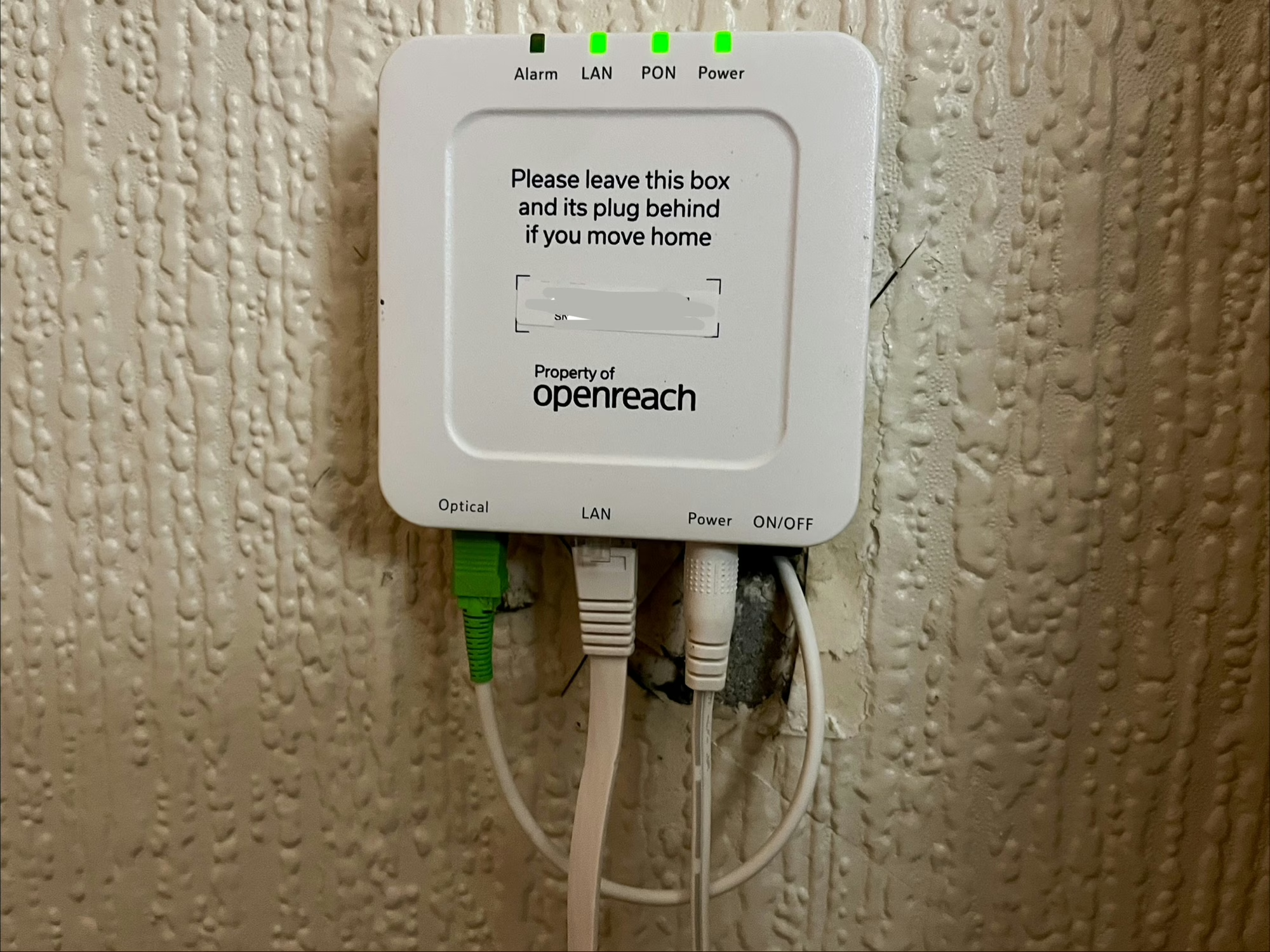
It’s a bit hidden, but Google Maps lets you download offline maps on a Wi-Fi connection. We had good internet where we were staying – the Conwy area has been upgraded to full fibre broadband – so we could download a map of the area. This meant that we could still use Google Maps to navigate without a mobile data connection.

Note that Google’s guide, linked above, is a little out of date. At the time of writing, you need to:

  1. Search for a place
  2. Swipe right on the lower panel where it says ‘Directions’ and ‘Start’, until you see a button that says ‘More’
  3. Tap ‘More’ and then ‘Download Offline Map’
  4. You can then pinch and zoom to select the area – a larger area will take up more storage space

There are limitations – you won’t get live traffic data if you’re using an offline map without a phone signal. However, once Google Maps is able to reconnect, it’ll update your route if needed. If you use Gmail and sign in to Google Maps with the same account, you may get push notifications ahead of upcoming trips to prompt you to download offline maps. I’d recommend it, especially if it’s somewhere you’ve not been before, or somewhere particularly remote.

The same applies for content that you want to consume whilst outside of mobile data range. If you use Spotify Premium, you can download playlists ahead of time. I make sure that I download, rather than stream, any shows on BBC Sounds that I want to listen to.

Hotspotting where possible

If there’s free Wi-Fi available somewhere that you’re visiting, use it. Most National Trust properties have free Wi-Fi in their cafés, for example.

If you have another device on a different phone network, then you could try hotspotting off that too. My phone is on 3, but my iPad has a mobile data SIM on a virtual operator which uses EE. Whilst it was a bit of a pain to have to carry my iPad around as well, it meant I could use the iPad as a Personal Hotspot for my phone and get online. You may be able to do this with a newer car, if you have a data plan on it, or a portable Wi-Fi hotspot device.

Get an eSIM on a different network

When I’ve travelled abroad, I’ve used eSIMs from Airalo rather than roaming on my existing SIM, as it’s cheaper. But you can buy UK eSIMs too. If your primary SIM has poor signal, then you could buy an eSIM on a different network that may work better. My iPhone (and I assume most new-ish Android phones) can switch between multiple SIMs on the fly, if one loses signal. If you decide to buy from Airalo, use the code NEIL6715 for some extra initial credit.

If you want to go further, try Honest Mobile’s Smart SIM. This can connect to all four UK networks (3, Vodafone, O2 and EE, although 3 and Vodafone may merge their networks soon), and costs £45 per year. However, whilst there are no data limits, it is limited to set pre-approved apps. These are mainly navigation apps like Google Maps, messaging, news, weather, banking and apps for electric car parking. There’s about 400 in total, but it excludes any social media apps, or any that involve streaming audio or video. I signed up to Honest Mobile after coming back from Wales, and I’m giving it a try for a year to see how I get on. Here’s my referral link if you want your first month free.

Honest Mobile’s Smart SIM has been heavily advertised on my Facebook feed, and so I read this post by Martin Brophy before committing.

Ultimately, what works for you will depend on how often you’re without a mobile signal, and how much you rely on your phone. I normally get a good signal on 3 in most places, but I’ll see how I get on with Honest Mobile.

How to disable go2rtc in Home Assistant

Home Assistant includes support for go2rtc, a streaming video application, which can be used to monitor and store footage from CCTV cameras. Since the November 2024 (2024.11) release of Home Assistant, go2rtc has been included in Home Assistant’s Default Config, which means that integration is loaded automatically on startup. If you don’t have any cameras to monitor in Home Assistant, this can mean some warnings appearing in your logs, and potentially slow Home Assistant down.

There are two ways to disable go2rtc if you don’t need it – a hard way and an easy way.

Hard way: Disable Home Assistant’s Default Config

You can tell Home Assistant not to load the Default Config. This gives you more control over which built-in integrations are loaded when you boot Home Assistant up, however, it means editing your configuration.yaml file. You’ll need to delete the ‘default_config:‘ line, and then create new entries for all the parts of the default configuration that you want to keep. This may be fine for simple installations, but for most users, this will add more complexity. I wouldn’t recommend this personally.

Easy way: Using HACS integrations

There are two HACS integrations that you need to install:

  1. Early Loader
  2. Default Config Exclude

These are not in the standard HACS repository, so you’ll need to open HACS, click on the three dots in the top right, select ‘Custom Repositories’ and then add the Github URLs in turn. You’ll need to install Early Loader first, restart Home Assistant, and then install Default Config Exclude next.

Once installed, you’ll still need to edit your configuration.yaml file, but instead you’ll only have to add a small block. Here’s mine:

default_config_exclude:
  - go2rtc
  - stream
  - cloud
  - my

What you’ll notice is that I’ve added some other integrations – stream, Home Assistant Cloud, and My Home Assistant. If you don’t have any cameras, then not only do you not need go2rtc, you probably don’t also need stream either. I don’t use Home Assistant Cloud or My Home Assistant, so I’ve disabled these too. As well as starting up a little quicker, Home Assistant also now uses slightly less RAM than before.

Home Assistant Green review

A photo of a plugged-in Home Assistant Green

Since I started using Home Assistant in October 2023, I’ve been running it on a Raspberry Pi 4, first in ‘Container’ mode and more recently in ‘Supervisor’ mode. I’ve now bought a Home Assistant Green, and I’m using this to run Home Assistant.

The Home Assistant Green is one of the two dedicated hardware platforms that come pre-installed with Home Assistant. The other, the Home Assistant Yellow, deserves its own section later on. By buying one of these devices, you’re also helping to financially support the Home Assistant project.

Why I bought a Home Assistant Green

As someone who has previously gone down the DIY route, it may seem surprising that I’ve decided to buy a Home Assistant Green. My decision came down to the following:

  • Price – the Home Assistant Green costs around £90 in the UK, which isn’t much more expensive than a bare bones Raspberry Pi 5. Once you’ve added a case, power supply and SSD to a Raspberry Pi, the Home Assistant Green is actually cheaper.
  • Cheap to run – I had considered some kind of mini PC, which would offer me more power, but with both a higher upfront cost and ongoing electricity cost. The Home Assistant Green runs on up to three watts; it comes with a 12 volt, one amp barrel plug power supply. As it’ll be on all the time, I don’t want a power-hungry device.
  • The need for a dedicated Home Assistant device. In May, it was announced that the ‘Supervised’ install method would be deprecated along with ‘Core’; only a tiny fraction of people use these methods. This dovetailed with me wanting a dedicated device for Home Assistant, rather than trying to run it on the same little Raspberry Pi as Plex and some other services. In other words, I was in the market for an additional device to run Home Assistant, and the Home Assistant Green fitted the bill. Meanwhile, my Raspberry Pi 4 can be dedicated to Plex.
  • No longer needing to worry about compatibility. According to Home Assistant Analytics, over a third of people install Home Assistant on a Raspberry Pi and so I don’t expect it to become unsupported. However, as the Home Assistant Green is the closest thing to ‘official’ hardware, I know it’ll be well-supported in future releases. As I’m coming to rely on Home Assistant more, I need it to run on a reliable platform.

What the Home Assistant Green can’t do

Coming from a Raspberry Pi, it’s worth noting what features the Home Assistant Green lacks. These include:

The Home Assistant Green does have two standard USB-A ports for you to plug in dongles and hubs, so I have my Thread and Zigbee dongles connected. Not having Wi-Fi or Bluetooth on board may reduce interference on the 2.4 GHz band, I suppose.

The box that the Home Assistant Green comes in

Home Assistant Green hardware

The Home Assistant Green is actually bigger and heavier than I expected it to be – certainly, it’s larger than a Raspberry Pi. It has a very sturdy base, which is designed to act as a heat sink – it’s passively cooled so there’s no fan noise. Inside, there’s a quad-core 1.8 GHz ARM processor, placing it between the Raspberry Pi 4 and 5 in terms of computing power. There’s 4 GB of RAM, and storage comes courtesy of a 32 GB eMMC (embedded multimedia card).

You’ll also get an AC adaptor with a variety of plugs (including a UK 3 pin plug) and an Ethernet cable.

Optionally, you can install a CR2032 battery inside. It doesn’t come with one, but if you add a CR2032 battery then the system clock will remember the time between reboots. It’s mostly only needed if you’re using it somewhere with poor or no internet access, as otherwise the clock synchronises with the internet on startup.

There’s also an HDMI port and a slot for a micro-SD card, but these are only for system recovery purposes and not for general use.

I would tell you more about how it is to use, but to be honest, it’s just like using Home Assistant on any other platform. All I had to do was restore a backup from my Raspberry Pi 4, and I was up and running.

Home Assistant Yellow

If the Home Assistant Green doesn’t meet your requirements, consider the Home Assistant Yellow. It’s more advanced and upgradeable, but also requires some assembly as it ships without a logic board. That’s provided by a Raspberry Pi Compute Module, the idea being that you can upgrade this incrementally over time without needed to buy a whole new device. It’s a nice idea, but it also adds to the cost – the base Home Assistant Yellow costs around £120 with the Compute Module adding £30-40 on top, and it arrives in kit form rather than pre-assembled. However, long term, it could be cheaper due to it being upgradeable.

There are other differences: The Home Assistant Yellow is available with Power over Ethernet (PoE), meaning that it doesn’t need a separate power supply. However, you’ll need a router or a switch which supports this. If you don’t, then you can buy a Home Assistant Yellow with an AC adaptor.

The Home Assistant Yellow also has an 802.16 radio, meaning that it can support Zigbee devices without an extra dongle. This can also be re-programmed to support Thread, but not both Thread and Zigbee at the same time. Additionally, there’s a 3.5mm audio port, and inside, there’s an expansion port for installing an SSD if you need one.

Whilst I have the technical knowledge to get a Home Assistant Yellow up and running, once you’ve factored in everything, it costs about double the price of a Home Assistant Green.

Tasmota firmware upgrade failing due to lack of storage space

A screenshot of the Tasmota firmware upgrade screen on the web interface

Once you’ve switched your ESP devices from the stock proprietary firmware to Tasmota, the good news is that future firmware upgrades to newer Tasmota versions should be straightforward. You just need to open your device’s web interface, and do an over-the-air (OTA) upgrade, or use something like TasmoAdmin to bulk-upgrade multiple devices. At least, that’s how it works in theory.

What you may find is that the update fails, due to a lack of storage space. So today, I’m going to outline four possible workarounds that you could try if your Tasmota firmware upgrades fail.

Why is there a lack of storage space?

Firstly, a bit about why this happens. You’re most likely to encounter this error with devices that use the ESP8266 chip. Some of these chips come with as little as one single megabyte of flash memory storage, and the standard build of Tasmota is 656 kilobytes (as of version 15.0.1 which is the latest at the time of writing). There simply isn’t enough space for both the current firmware and the new firmware to sit side-by-side ahead of the update process.

Now that we understand why the problem occurs, we can try some solutions.

Solution 1: gzipped binaries

As long as you’re upgrading from a version newer than Tasmota 8.2 (which came out over five years ago now), you can use the smaller gzipped binaries. This reduces the standard Tasmota 15.0.1 release binary down to 469 kilobytes.

However, on some of my devices, that was still too big – 656 plus 469 is more than 1024 kilobytes and exceeds the capacity of the 1 MB flash storage.

Solution 2: install tasmota-minimal first

There are a couple of slimmed down versions of Tasmota:

  • tasmota-lite – a cut-down version of Tasmota without many of the sensors or drivers included
  • tasmota-minimal – the bare-minimum of Tasmota which can’t do anything apart from be upgraded to the full firmware

What you can do is install the latest version of tasmota-minimal first, and then the latest standard version of Tasmota. tasmota-minimal is only 265 kilobytes, and so it’s small enough to fit alongside the standard firmware. Once installed, there’s then space for the full version to be installed.

When you do an OTA upgrade, this is the process that should happen – tasmota-minimal gets installed first, and then the full version. But if it doesn’t, you can do this manually yourself. Your device settings, such as the GPIO mappings and MQTT settings, will be retained during the process.

Solution 3: tethered firmware update

A tethered update is where you use another device, such as a PC, to update the firmware. This means physically connecting the device to the PC. It gets around the storage limitation as the firmware doesn’t need to be downloaded to the device running Tasmota first.

How easy this will be will depend on the device, and where it is. If you’re running Tasmota on a development board, such as a Wemos D1 or m5stack Atom, then you can plug in into your PC with a standard USB cable (as long as it’s a data and power cable). However, if your device is buried away somewhere inaccessible, or is a consumer device that requires disassembly and a USB to UART converter, then you may not want to do this every time a new version is released.

Solution 4: Compile Tasmota yourself

The standard builds of Tasmota cover most common use cases. However, as Tasmota is open source, you can compile it yourself. That way, you can create a smaller, customised build for your device that doesn’t include any extra functions that aren’t needed. There are tools available to do this, but this is really only for advanced users – especially as you’ll need to recompile the binaries for each release.

Solution 5: Switch to a different firmware

As I mentioned last month, Tasmota is not the only game in town. If you also use Home Assistant, then consider replacing Tasmota with ESPHome.

ESPHome has a higher learning curve, due to its use of YAML configuration files. But, once this is set up, it’s easier to compile new binaries each time a new version of ESPHome is released. And, if you’re lucky, you’ll be able to download a pre-built YAML file from the ESPHome Device Repository. Just be aware that it’s not as extensive as the Tasmota Supported Devices Repository – the ESPHome repository has details of around 600 devices compared to almost 3000 for Tasmota. I wasn’t able to find an exact match for ESPHome for my smart plugs, for example.

ESPHome has some other advantages. For example, you can edit the YAML configuration to tell Home Assistant what type of device is plugged in, say a light. That means it’ll appear in Home Assistant as a light, rather than a switch, without needing to use the Change device type of a switch helper.

As with solution four, having a smaller firmware binary will make future OTA updates easier, and these updates can be managed through Home Assistant.

TasmoAdmin: manage multiple Tasmota devices

A screenshot of the TasmoAdmin interface

Now that I have multiple Tasmota devices, I went to look for a tool to manage them collectively, and found TasmoAdmin. It’s a web-based app that can monitor the status of your Tasmota devices.

The easiest way to install it is with Docker, and it’s also available as a Home Assistant addon. You can also install it manually on an existing local web server with PHP available. Once installed, you’ll need to create a user account, and then you can start adding your devices by IP address.

Once all your devices are in there, you’ll get a nice list, with their IP address and their current version of the Tasmota firmware. You can then jump quickly into the standard Tasmota configuration for your device, but you can also configure many settings from within the TasmoAdmin interface. This includes things like the MQTT and Wi-Fi settings.

You can also use TasmoAdmin to perform bulk actions on multiple devices at once. For example, you can trigger backups or firmware updates in bulk. The ‘Start’ page in TasmoAdmin also lets you, for example, turn all of your switches on or off at once.

It’s a handy tool. Bear in mind that if you run TasmoAdmin as a Home Assistant addon, it doesn’t currently support ‘ingress’ and so you can’t open it within the Home Assistant interface. This also means that you might not be able to access the dashboard remotely. TasmoAdmin may also work with OpenBeken devices, but I haven’t tried this myself.

Tuya-Cloudcutter

A Tuya IR and RF bridge that has been flashed with new firmware using tuya-cloudconverter

Last year, I wrote about a tool called ‘tuya-convert’ which exploits a vulnerability in ESP-based Tuya devices to install custom firmware such as Tasmota. But not all Tuya devices use ESP chips, and that’s where tuya-cloudcutter comes in.

I have one such device, an ‘S11’ RF and IR bridge (pictured above) that I picked up cheaply from AliExpress last year. Instead of one of Espressif’s ESP chips, it comes with a Beken BK7231N chip. Having disassembled its case, I also didn’t find any obvious pins for the UART bus. So I was relieved to come across tuya-cloudcutter, as it doesn’t require any soldering or disassembly. tuya-cloudcutter should work with any devices that use the BK7231T and BK7231N chips.

Like tuya-convert, tuya-cloudcutter exploits a vulnerability. This was responsibly disclosed to Tuya (the bug bounty was donated to charity), and newer devices are shipped without this vulnerability. However, there’s no firmware update for my S11 device to fix the issue, which is perhaps poor from a security perspective but suits my needs right now.

Running tuya-cloudcutter on a Raspberry Pi

You’ll need to run tuya-cloudcutter on a Linux device, and a Raspberry Pi is perfect for this. Indeed, there’s a detailed tutorial to follow. You’ll need Python, Docker, Git and NetworkManager installed and enabled, and there are a couple of configuration files to edit before you start. Everything is done using a command prompt, so you could do it over SSH using a Windows machine with Putty if you wanted to.

A note: I first tried this on my nine-year-old’s Raspberry Pi 400, and it didn’t work, whereas it did on my Raspberry Pi 4. I believe it was an issue with the specific Wi-Fi adaptor in the Raspberry Pi 400.

You may find that it’s easier to have the device already set up in the Tuya or Smart Life app, as you’ll be able to find the existing firmware version. You’ll need this when running the tuya-cloudcutter tool.

Detaching and flashing

tuya-cloudcutter offers two modes:

  1. Detach – this leaves the Tuya firmware intact on the device, but detaches it from the Tuya cloud. You can then use the LocalTuya or TuyaLocal custom Home Assistant integrations from HACS to control your device, but the official Tuya and Smart Life apps won’t work anymore.
  2. Flash – this also flashes new firmware onto the device.

In terms of firmware choices, by default you get:

  • OpenBeken – a Tasmota-like firmware where you can configure the device
  • ESPHome Kickstart – a minimal version of ESPHome, which can be updated later.

You can also add your own firmware, although be careful as you may brick your device if the firmware isn’t configured correctly.

If you choose to flash new firmware, then when the tool has run correctly, you’ll see a new Wi-Fi network appear for you to connect to. The Hotspot login page should open automatically, but if not, go to http://192.168.4.1/ to proceed. You can then configure the firmware to connect to your Wi-Fi network.

Switching firmware later

For my device, I tried OpenBeken first, but found that it wasn’t able to use the RF capabilities of the device. Instead, I built an ESPHome configuration, using the tuya_rf custom component, and flashed that, using OpenBeken’s OTA firmware updater. Because once you’ve used tuya-cloudcutter to install new firmware on a device, you don’t need to use it again – you can switch from OpenBeken to ESPHome and vice versa quite easily.

Also, if you read yesterday’s post about the Sonoff RF Bridge, no, this RF bridge didn’t work with my doorbell either.

Portisch firmware on a Sonoff RF Bridge

A AZDelivery D1 development board that I've used to flash Portisch firmware on a Sonoff RF Bridge

A couple of weeks ago, I wrote about flashing Tasmota firmware onto some old Tuya smart plugs, using a USB to UART converter and some Dupont jumper cables. I also flashed Tasmota onto a Sonoff RF Bridge, which I’d bought to listen to doorbell presses. This meant that the RF Bridge would work with Home Assistant without needing a HACS integration or addon, and wouldn’t need to rely on cloud services to run.

However, inside every Sonoff RF Bridge there are two wolves chips with firmware. There’s an ESP8266 chip, which handles the Wi-Fi side of things, and an OBS38S003 chip which handles RF communication. I have the latest R2 v2.2 model; older ones have a different RF chip.

The default iTead firmware on the RF chip has been locked down to only support a limited number of RF messages. That’s fine if your device is supported, but my doorbell isn’t. So even with Tasmota installed, pressing the button my doorbell didn’t do anything as the RF firmware was programmed to ignore it.

Portisch RF fimrware

The OBS38S003 RF chip can be flashed with ‘Portisch’ firmware, which allows all RF messages to be received and decoded. However, whereas the ESP9266 chip has UART pins that don’t require any soldering to access, the OBS38S003 doesn’t support a UART bus. There are therefore two ways to get around this:

  1. Modify the board using additional soldered cables and cutting some lines on the board
  2. Using another circuit board, flashing firmware onto that, and then using the flashing board to flash the chip.

I went with option 2 – I don’t have a soldering iron to hand, and didn’t want to make a mistake and damage the board beyond repair. Instead, I bought this AZDelivery D1 NodeMCU Wi-Fi Development Board (sponsored link). There are a number of ‘D1’ boards out there – Wemos make the most well-known – but this was £7 and available from Amazon. Ironically this board also contains an ESP8266 chip.

Flashing the development board

To flash the D1 board, I needed to install two things:

  1. The Arduino IDE
  2. Python

I installed both, and then followed the instructions that came with the AZDelivery D1 board to set it up as a board in the Ardunio IDE. Next, I loaded the OnbrightFlasher into the Ardunio IDE and flashed it onto the D1 board. Make sure that use a micro-USB cable that supports both data and charging – a charging-only cable will power the device, but you won’t be able to connect to the D1.

Next, it was time to connect the D1 board to the Sonoff RF board. From here, it’s best to follow this tutorial from the ‘Erasing the MCU (RF chip) on the PCB‘ heading, with the following notes:

  • I only got a garbage response from the ‘handshake’ command until I amended the baud rate to 115200 in the Arduino IDE.
  • When it comes to running the flashScript.py script, open a command prompt first, and then run the script.
  • For the OBS38S003 firmware, there are 4 different firmware versions that you can flash. I had the most luck with the one called ‘portisch_main_OB38S003_BUCKET_SNIFFING_INCLUDED.hex‘.
  • If you haven’t already flashed Tasmota, make sure that you flash the ‘tasmota-sensors’ version rather than plain vanilla Tasmota.
  • If you have ESPHome on your Sonoff RF Bridge (see here for the YAML configuration), rather than Tasmota, you may have more luck with rcswitch_main_OB38S003.hex (I haven’t tried this myself)

Once the firmware is flashed, you can disconnect everything, put your Sonoff RF Bridge back together.

Testing the Portisch firmware

In Tasmota, open the Console and type in ‘rfraw 1‘ and press enter to enable Portisch. Then type ‘rfraw 192‘, and the device should beep. You can then type ‘rfraw 177′ and the Sonoff RF Bridge will go into ‘bucket sniffing’ mode – this will display the various codes being broadcast on the 433 MHz band. There’s more guidance on the Tasmota device page and RF commands section.

So, is my doorbell smart now?

The bad news is that, despite all this work, I haven’t been able to use the RF Bridge to capture my doorbell’s signals to turn them into actions in Home Assistant. The codes being sent by my doorbell seem to rotate, presumably so that only the receivers in my house respond and not someone else’s. And, the 433 MHz channel is also very noisy – there are lots of codes being sent by other devices like a frustrating game of Numberwang.

Basically, if I want to have a smart doorbell, I’m going to need to just buy an actual smart doorbell, aren’t I? At least I have an ESP development board to play with now.

Ditching proprietary Zigbee bridges

A photo of two dongles, both Sonoff ZBDongle E devices, labelled 'Zigbee' and 'Thread'.

For my Zigbee devices, I use Zigbee2MQTT and a Sonoff USB Zigbee dongle as my co-ordinator. As I came quite late to the Zigbee party, I didn’t pick up a proprietary Zigbee bridge, but if I had, I wouldn’t use one. Today, I’m going to go through a few reasons why.

Examples of proprietary Zigbee bridges include the Philips Hue Bridge, the Ikea Dirigera Hub and the Tuya Zigbee gateway, but there are others. Here are my reasons why it’s best to go with a more open system, like Zigbee2MQTT or Home Assistant’s Zigbee integration. I’ve previously compared the two.

A map of my Zigbee network, showing the mesh connections between devices

Having all your devices on one Zigbee network

Zigbee is a mesh network. That means that, as more devices are added, the network actually gets stronger, as each device can communicate with each other. This is especially true with mains powered Zigbee devices like smart plugs and light bulbs. Therefore, if all of your Zigbee devices are on the same network, the connection between each device should be stronger. I’ve included a diagram of my network above, and you can see the multiple mesh connections between devices.

If you have multiple Zigbee bridges – say one for your Hue lights and another for your Ikea smart plugs – you risk causing interference between networks. Furthermore, Zigbee runs on the same 2.4 GHz frequency band as Wi-Fi, Bluetooth and your microwave oven. Having everyone on one network should reduce interference.

Better device support

Some Zigbee bridges are better than others, when it comes to supporting third-party devices. For example, you might be able to add an Ikea Tradfri bulb to a Philips Hue bridge, but possibly not another kind of device. Zigbee2MQTT has, arguably, the best device support and will work with just about any Zigbee device, regardless of manufacturer. You can check the Zigbee Device Compatibility Repository to see which devices work with which platform.

My Zigbee devices are a mixture of Tuya and Ikea, and they co-exist well within Zigbee2MQTT.

Cheaper

Most proprietary Zigbee bridges cost around £60. Meanwhile you can plug a USB Zigbee dongle into a spare PC, or a low-powered Raspberry Pi device that you may already have. The USB dongles typically cost £20-30 each (my Sonoff ZBDongle-E costs £27 at Amazon at present [sponsored link]), and you’ll only need one dongle and one computer rather than multiple bridges.

Easier to troubleshoot

With both Home Assistant’s ZHA and Zigbee2MQTT, you can look at the logs to see what’s going on inside your Zigbee network. Hopefully, that’ll help with troubleshooting any devices that aren’t working the way they should. As shown above, you can also get a diagrammatic representation of your network. This lets you see how your devices connect to each other and whether there are any weak spots on your mesh.

Not reliant on cloud services

There’s a risk that your proprietary Zigbee bridges could become expensive paperweights, if their manufacturers decide they’re no longer going to support them and turn off the cloud servers. They may continue to work locally, but if their cloud servers go dark, you may find that you can’t control your devices remotely any-more. By hosting your own Zigbee bridge, you can still have remote access but on your own terms. I use Homeway for remote access to Home Assistant, but you can also set up your own reverse proxy, for example.

Proprietary bridges may offer some convenience and a nice app, But, if you’re willing to put a bit of effort in to manage your Zigbee devices yourself on one single network, I think there are more advantages of going down the route of using Zigbee2MQTT or ZHA.

Zigbee PIR motion sensor

A photo of a Zigbee PIR motion sensor

Regular readers may be relieved to know that I’m done writing about my trip to Athens, and are back to the occasional series of ‘Neil reviews cheap Zigbee devices from AliExpress’.

Earlier this month, I reviewed Zigbee window sensors, and this time I’m reviewing a Zigbee PIR motion sensor. PIR stands for ‘passive infrared’, and senses changes in infrared light to detect motion. It’s used in most motion detectors for burglar alarm systems, but you can buy sensors such as these for home automation too. In my case, I’ve fitted one to the top of our cellar stairs, to turn on a light in the cellar when motion is detected.

It’s pretty small – about an inch across – and runs on a single CR2450 battery (provided). You also get a sticky pad to attach to surfaces, and a couple of tools for opening the battery flap and for resetting and pairing it. It’s compatible with Zigbee2MQTT.

In terms of configurability, you can adjust its sensitivity, and its keep time. The keep time means that it remains in the ‘occupied’ (i.e. motion detected) state for a given number of seconds after motion was last detected. If you have a motion activated light, this prevents the light constantly flashing on and off.

As with the window sensors, you can also buy these devices from Amazon (sponsored link) if you need them quickly, but again they’re significantly more expensive than AliExpress.

To make the light turn on and off, I have automations set up in Home Assistant. I also bought a Zigbee smart light bulb for the motion sensor. Ideally I would have just bought one that switches on and off, but the cheapest one I could find is a colour changing dimmable one. Which is overkill for a cellar light, but hey, it was cheap. Indeed, the motion sensor and light bulb collectively cost less than £9.

ESP Firmware alternatives

Building on last week’s post about flashing smart plugs Tasmota, today I’m going to talk about other custom firmware that you can install on devices with an Espressif ESP chip. Tasmota is the most well-known, but whilst researching how to do the flashing, I’ve come across some others.

Tasmota

Obviously the first one I should mention is Tasmota. It seems to be the most well-used, with active development and lots of features. It’s designed to be used only on ESP32 and ESP8266 boards. Tasmota incidentally is an acronym which stands for Theo-Arends-Sonoff-MQTT-OTA and to this day Theo Arends remains the primary developer.

Recent Tasmota releases have included Matter support, albeit only on ESP32 chips which have more storage than ESP8266.

ESPurna and ESPEasy

I’ve grouped these together, as I found out about them from this blog post by HomeOps which compares them to Tasmota. ESPEasy is actually the oldest, having been around for almost 10 years, but Tasmota and ESPurna both started up around a year later. There’s an update to the blog post which also includes ESPHome, and compares them in a more quantitative way.

Notably, ESPurna only works on ESP8265 and ESP8266 chips, whereas Tasmota and ESPEasy also work on ESP32 chips, such as the one in the m5stack Atom Lite that I turned into a Bluetooth Proxy. Both ESPurna and ESPEasy use MQTT to communicate with other devices.

ESPHome

ESPHome is part of the Open Home Foundation, along with Home Assistant, and as such integrates well with Home Assistant. Unlike the other firmware tools here, ESPHome doesn’t use MQTT by default, although if you build your own firmware with ESPHome then you can add it as an optional extra. Instead, it communicates via Home Assistant’s API. This offers some advantages – it allows Home Assistant to install firmware updates for ESPHome devices. But if you were to switch from Home Assistant to another smart home platform, then you would either need to recompile the ESPHome firmware to add MQTT, or switch to one of the other firmware platforms listed here.

Another thing I’m less keen on about ESPHome is that you use a YAML configuration file to configure devices. I found Tasmota’s web-based interface much more user-friendly.

It’s worth noting that, as well as Espressif chips, ESPHome also works on RealTek RTL8710 and Beken BK7231 series chips too.

OpenMQTTGateway

OpenMQTTGateway is a more specialised firmware designed to make existing non-smart products work over MQTT. It’s best used with BLE (Bluetooth Low Energy), RD, Infrared and old fashioned Serial (RS232) devices. You can buy devices from Theengs which have the OpenMQTTGateway firmware already flashed.

As far as I can tell, OpenMQTTGateway just works on ESP32 chips.

OpenBeken

OpenBeken started out as a way of implementing a Tasmota-like experience on Beken BK7231 chips, but now supports a huge range of chips including ESP32 (but not some other Espressif chips like ESP8826) and RealTek RTL8710. It apparently works in a similar way to Tasmota, but I’ve yet to try it. I have one Tuya device with a BK7231 chip, but I haven’t yet been brave enough to try to flash it. Again, it uses MQTT to communicate with other devices.