Converting Tuya devices to Tasmota

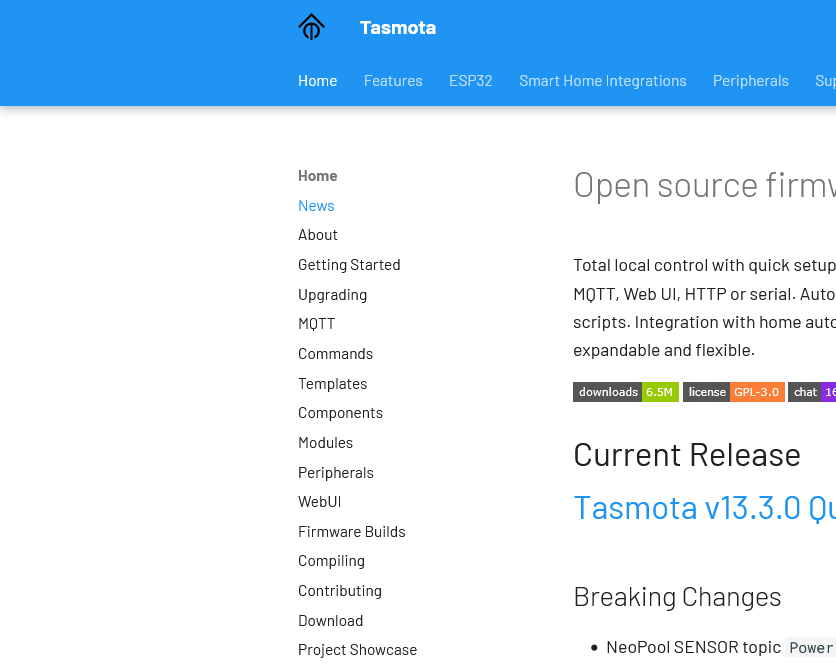
Screenshot of the Tasmota web site

I’ve mentioned that I have a few Tuya smart plug sockets around the home. It’s possible to convert these to run on open source firmware called Tasmota, to gain some additional features, and it’s something I’ve been considering.

The logic boards for many Tuya devices are from the Espressif ESP family, which can easily be flashed with different firmware. Tasmota is one such provider, as is ESPHome which is a sister project to Home Assistant.

What’s wrong with Tuya?

Tuya mostly manufacture ‘white label’ devices that are then sold under a variety of brands. Mine are branded ‘Coosa’ but I’ve seen others called ‘Hey!’ being advertised. Often, they come with their own branded app, but you can use them with Tuya’s own app as well.

I bought them a few years ago because they work well with Google Assistant and IFTTT (which I no longer use). They also work well with Home Assistant (especially since last month). They don’t work with Apple HomeKit natively but can be bridged in using Home Assistant or Homebridge. The other advantage was that you didn’t need a separate hub for them to work – they connect directly to your home Wifi network.

However, Tuya is a Chinese company. Though they claim to have servers in the EU, it could be that every time I use their switches, my request goes via China. In Home Assistant, there are a couple of custom integrations in HACS called LocalTuya and TuyaLocal that can issue commands locally on your home network. But if you use Google Assistant, the commands get sent across the web.

Local control with Tasmota

The Tasmota project offers a tool called Tuya Convert, which replaces Tuya’s official firmware and allows for local control. It mainly uses the MQTT protocol, which is openly documented and used by a variety of different Internet of Things devices. Once flashed onto your devices, they can be controlled locally and don’t need to communicate with external servers. Home Assistant has extensive MQTT support and an official Tasmota integration.

They also work well with Alexa devices, by emulating a Belkin WeMo or Philips Hue device.

This all sounds good to me, but I haven’t gone ahead and done it. Unfortunately, whilst Amazon Alexa is supported, Tasmota doesn’t easily interact with Google Assistant. And once I’ve flashed a device with Tasmota, it may be difficult or impossible to go back to the official Tuya firmware.

Of course, I can configure Home Assistant to work with Google Assistant. I haven’t yet, even though there are two ways to do it:

  1. Sign up for Home Assistant Cloud from Nabu Casa, which costs £6.50 per month
  2. Set up Google Assistant manually with Home Assistant, which is lengthy and may need to be reconfigured every 30 days.

I suppose if we used Amazon Echo devices instead of Google Home, this would be a no-brainer.

In the long run, replacing these smart plugs with ones that use Matter would be better and cheaper. My Home Assistant install is pretty-much Matter ready, with no need for an additional hub. Matter, like Zigbee, mostly works locally, and therefore doesn’t have the privacy implications of my current web-based Tuya plugs.

OpenBenches

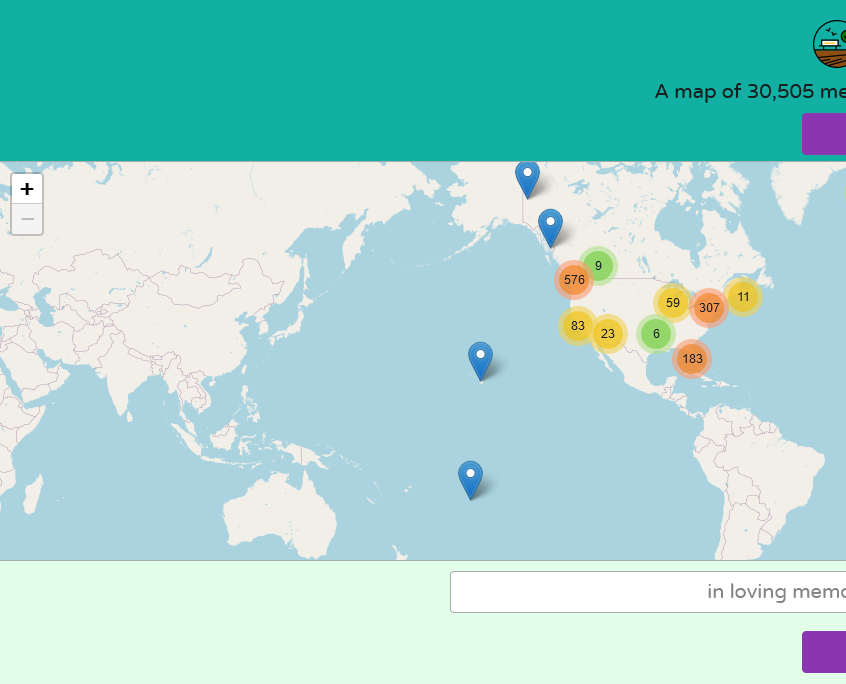
Screenshot of the OpenBenches web site

Have you ever wondered if there was a list of benches with public dedications on them? Well, I haven’t, but there is one and it’s called OpenBenches.

It’s similar to Open Plaques, which is crowd-sourced list of plaques on the sides of buildings commemorating notable people or events that happened. OpenBenches, meanwhile, is for people who may not have been notable, but were loved and missed by their friends and relatives after their passing.

Anyone can submit a bench, as long as you can upload a photo of it that is geotagged. With most photos being taken with phones these days, this isn’t much of an issue. Of course, the bench should have a dedication on it, and you’ll need to type out what the dedication says. Submissions can be made anonymously, or by logging in using an account on Twitter/X, Facebook, GitHub or WordPress.

There’s now over 30,000 benches on OpenBenches, all with a location, a photo and a copy of the text of the dedication. However, over 28,000 of them are in the UK, with few elsewhere. That may be because dedicating a bench to someone is more of a British thing, or because its developers (Terence Eden and Elizabeth Eden) are British.

There aren’t any benches listed on there in my town of Sowerby Bridge yet. I think there are some eligible benches nearby, so maybe I should take the time to go and take photos of them to add them.

CarPlay with Home Assistant

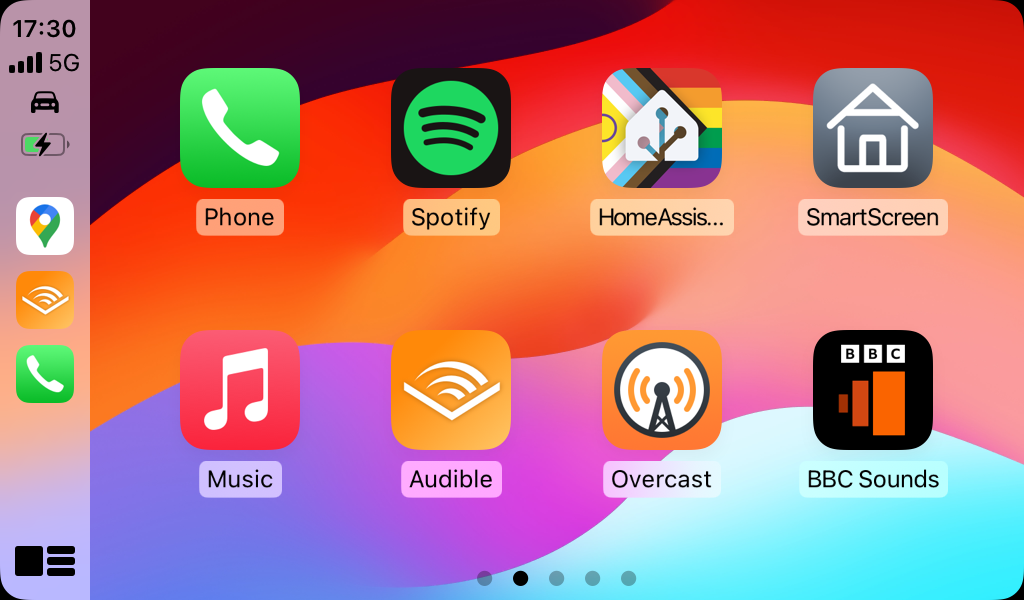
A screenshot of the CarPlay home screen showing the Home Assistant icon

There’s now a CarPlay app for the Home Assistant Companion app on iOS. This means that it’s possible to control (some) of your devices connected to Home Assistant whilst driving.

I like CarPlay, and have a standalone unit in my car. Most CarPlay apps are designed for either navigation or for listening to audio content whilst driving, but Apple has allowed some other apps more recently. For example, the RingGo parking app is now available in CarPlay; I wish the same could be said for the four other parking apps I have installed.

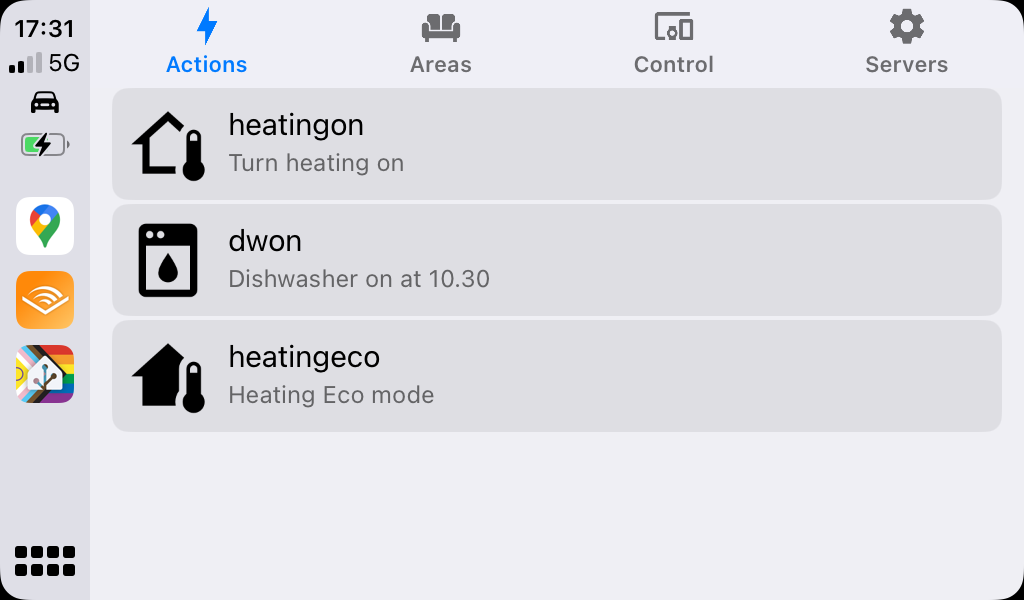
The Home Assistant app has four tabs: Actions, Areas, Control and Servers. Areas gives you the list of rooms that you have defined, and from there you can access some of your devices. Control gives you a big list of all of the devices that have a function that can be controlled whilst using CarPlay – mainly buttons and switches. Meanwhile the Servers tab is there in case you’re able to log in to more than one Home Assistant instance.

Actions are unique to the Home Assistant Companion app. They link to automations, but have a specific trigger. At the moment, I’m only really using actions to control my Nest thermostat as this is usually the only thing I want to control outside the home. Actions are also used by widgets on iOS, and by the Apple Watch integration. They’re a bit of a faff to set up at present; this video seems to be the best guide to setting them up.

It should be noted that Home Assistant also supports Android Auto, and indeed has done for longer. CarPlay support was new in January but it’s taken me until now to get it set up and remember to take some screenshots.

I’m really happy about this new feature, as being able to safely control my heating whilst driving isn’t something I’ve been able to do before. It makes the time that I’ve spent setting up and tweaking my Home Assistant server worthwhile.

Disney Minus

A screenshot of our Disney + account setting showing it cancelled.

Last week, we cancelled Disney+. Our annual subscription was due to renew, and at over £100 for the year, we could no longer justify it.

We’ve had a subscription ever since Disney+ launched in the UK, in the early days of lockdown in 2020. In fact, before then we had a subscription to DisneyLife, which was Disney’s UK-only streaming service for video and music, and used to cost £5 per month. Over time, Disney+ has got better, especially now that content from 20th Century Fox is on there.

But we just don’t watch enough of it. When we signed up to Disney+, there was only one price tier at £7.99 per month or £79 per year. Whilst that was more expensive than DisneyLife, there was more content available so it was worth it. Now there are three price tiers, and the most expensive is £10.99 per month, or £109 per year. That’s more than double what we were paying just five years ago. Whilst there is once again a £5 per month tier, it’s with adverts, and we don’t want those.

Like many kids, our eight-year-old seems to just want to watch YouTube Kids now. It’s something we’ve tried to resist for years, but apparently watching home-made videos and Minecraft walk-throughs is far more interesting than the professionally-produced content that we were paying for. We’ll keep paying for Netflix, as you can download content onto an iPad to watch offline. We tend to clip our eight-year-old’s iPad into a stand fixed to the back of the front passenger seat for long car journeys.

We’ve had Amazon Prime in the past, shared using Amazon Household with another family member, but we don’t have this now. Again, it’s getting more expensive, and we’d rather avoid the adverts. And whilst we’ve had free trials of Apple TV+ and Now TV, we’ve never paid for these beyond the trial period. We also don’t pay for a TV package, and just have Freeview and Freesat for live television.

I guess we’ll just re-subscribe to these from time-to-time when there’s something we actually want to watch.

I do find it odd comparing streaming video with streaming music. There’s a handful of music streaming services – Spotify, YouTube Music, Amazon Music, Deezer and so forth – and for the most part, they all have the same music. Yet with streaming video services, most shows are on one or two at best, and many or exclusive to one service.

AdGuard Home

A screenshot of the AdGuard Home web interface running as a Home Assistant addon

I’ve recently started using AdGuard Home as a way of blocking advertising and tracking on my iPhone and iPad, when on wifi at home. It works as a replacement DNS server, and re-routes requests to domains known for advertising and traffic to a DNS Sinkhole.

Unlike a browser-based ad blocking extension, such as uBlock Origin or Firefox Focus, by intercepting DNS requests AdGuard Home can stop tracking in all apps. That includes built-in browsers in apps, such as the Facebook app, as well as any app analytics tools. As I have an almost 6 year old 6th generation iPad that is getting rather slow, not having to load additional advertising and tracking scripts has boosted its performance and battery life.

Installing AdGuard

To run AdGuard Home, you’ll need a spare computer that can run all the time. A Raspberry Pi is ideal for this, as it’s small, low energy and can be run without a keyboard and mouse. You can also use Docker, Snap, or do as I do and run it as a Home Assistant addon. Indeed, once it’s set up, Home Assistant will detect it and offer to install an integration.

You can then adjust your router’s DNS settings, so that every device in your home uses your new AdGuard DNS server. This will block adverts and tracking across all of your devices if you want it to. I’ve chosen not to do this; whilst many tracking sites are a privacy nightmare, I also use sites like Quidco to get cashback. I use Google Chrome with no privacy features turned on when making purchases that could be eligible for cashback; this earned me over £80 when we switched our broadband supplier to Vodafone recently.

For me, just having it running on my mobile devices when at home on wifi is enough.

Whilst AdGuard offers other tools that are paid-for, AdGuard Home is free and open source.

Pi-hole

Pi-hole is similar to AdGuard, in that it is also a DNS-based ad blocker. As the name suggests, it was intended for use on Raspberry Pi computers, but can be installed on other devices. I had investigated installing this, but came across AdGuard as an easier alternative. Pi-hole is also open source, but development seems less active.

Advanced features

For the most part, once you’ve installed AdGuard Home and set it as your DNS server, you don’t need to do much else. However, you can enable DNS Encryption if you want – especially if you want to access your AdGuard server from outside the home. You can also use AdGuard Home to block adult content, or access to certain web sites, and configure this for individual devices. So, I could enable parental controls on our eight-year-old’s tablet using AdGuard without restricting my devices.

Readly and PressReader

A screenshot of the Readly app on an iPad.

When it comes to reading magazines on a computer or tablet, you may well have heard of Readly, seeing as it’s widely advertised. But there’s a competitor, PressReader, that’s also worth considering. I’ve used both, and so here’s a comparison of the two.

Fundamentally, both services let you read as many digital magazines (and some newspapers) as you like, for a flat monthly fee. Both claim to offer thousands of titles.

Readly

As mentioned, Readly is probably the best known, as it’s advertised in lots of podcasts and through other third parties. Indeed, if you fancy trying it, you may find that a two or even three month free trial is available with a bit of searching (as opposed to the standard one month free trial). Normally, it costs £9.99 per month and claims to offer over 7000 titles to read.

You can be notified of new issues, and have these automatically download when you’re on wifi for offline reading. Pages in magazines can be bookmarked, and there’s a ‘mobile view’ which reformats pages for easier reading on smaller screens. I use this a lot; though I read magazines on an iPad, it simplifies the formatting and reduces the amount of pinch zooming needed.

A screenshot of the PressReader app on an iPad. It's an alternative to Readly.

PressReader

I hadn’t heard of PressReader until a couple of months ago. It claims to offer over 8000 titles to read; many of these seem to be the same as Readly but it also includes some additional magazines like The Economist. There’s also some non-UK newspapers like the Wall Street Journal and New York Times.

Like with Readly, magazines can be downloaded for offline reading, and it’ll reformat pages too. Indeed, on the whole it does this better than Readly, although sometimes it cut articles short. It also handles light and dark mode better on iOS.

Pricing is where things get a little more complicated. There is a free tier available, with around 500 magazines available to read. The ‘premium’ subscription, with unlimited access to all of its titles, is much more expensive than Readly – £27.49 per month, with only a 7 day free trial. So, in a nutshell, PressReader is almost three times more expensive than Readly.

But it’s not quite that simple. Many local libraries offer free access to PressReader through its HotSpot system. Indeed, this is how I found out about it. In West Yorkshire, Bradford, Calderdale, Kirklees and Wakefield libraries all offer complementary access, as long as you have a library card with one of them. Sorry Leeds residents, but your council doesn’t offer this, although it is available for Leeds Beckett University students and The Leeds Library members. Some hotel chains like Marriott offer this too.

The catch is that you may need to re-authenticate with your library on a regular basis. Where I am in Calderdale, this is every 30 days but could be as little as 24 hours in some places.

So do I use Readly or PressReader?

If it wasn’t already obvious, I used Readly for quite some time. However, when I found out that PressReader was available for free, I switched last month and cancelled my Readly subscription.

I had been contemplating cancelling Readly in any case. When I first subscribed, I was regularly reading both Rail and Modern Railways, and previously had subscriptions for each. Readly was slightly more expensive per month, but offered a better reading experience. However, Modern Railways hasn’t been available from Readly since the beginning of last year, or indeed any other unlimited magazine platform.

Something to consider is that, when you cancel Readly, you’ll get a special offer to try to keep you as a customer. In my case, this was a 40% discount for three months, if I remember correctly. So if you do subscribe to Readly, maybe try cancelling it once a year to see if they offer you a discount.

Pocketmags Plus+

I thought it would also be worth mentioning Pocketmags Plus+ here as a third alternative. Pocketmags Plus+ doesn’t offer nearly as many magazines – around 600, rather than thousands – but it does have a few that aren’t available on the other platforms. There’s no free trial but the first month is 99p, and then £9.99 thereafter.

Nginx Proxy Manager

A screenshot of nginx proxy manager

I’ve recently started using Nginx Proxy Manager to act as a reverse proxy for the various web services that I have running on my Raspberry Pi. It’s a frontend to the nginx web server and makes setting up reverse proxies and SSL access really easy.

You may remember that I’ve used SWAG for this before, to enable HTTPS access to my Home Assistant installation. SWAG is find if you’re using Home Assistant Core or Container, but having switched to Home Assistant Supervised recently, I needed a new solution. Like SWAG, Nginx Proxy Manager can be run in Docker, but it’s also available as a Home Assistant addon.

The main benefit of Nginx Proxy Manager over SWAG is that it has a web-based UI, shown in the screenshot above. This makes setting up new proxy hosts really easy, as it has a nice and simple interface. Whilst SWAG includes pre-built configuration files for many services, there’s no interface available other than editing text files.

Nginx Proxy Manager will also manage SSL certificates. You can either import ones that you purchase yourself, or it will manage the process of acquiring and renewing Let’s Encrypt certificates.

As well as managing Home Assistant, I have Nginx Proxy Manager looking after Calibre-web and Nextcloud.

A brief explanation of reverse proxies

Apparently, you’re supposed to ensure that blog posts are at least 300 words nowadays, otherwise Google ignores it. So, here’s an explanation of why you should set up a reverse proxy server if you’re hosting services like Home Assistant at home:

  1. No port numbers. When you set up something like Home Assistant, you’ll end up with an address like http://192.168.0.1:8123. A reverse proxy will allow web browsers to connect on the standard web ports (80 for HTTP, 443 for HTTPS), which looks nicer and is more predictable. It also means you don’t have to forward lots of arbitrary ports on your router.
  2. SSL certificates. If you’re running a device on your home network, then ideally you only want to allow secure connections to reduce the risk of your personal data being intercepted. Self-signed SSL certificates are not ideal, as most web browsers issue dire warnings for web sites that use them. As not all web applications support SSL certificates natively, a reverse proxy can handle this for you.
  3. Web application firewall. By making all requests go via a proxy, the proxy server can filter out malicious traffic. Nginx Proxy Manager includes a ‘block common exploits’ mode, and you can also filter IP addresses. For example, you may wish to only allow access to certain IP addresses.

Installing in Home Assistant

If you’re running Home Assistant Supervised or Operating System, then you’ll need to install the Nginx Proxy Manager addon. It’s available from the Community Addons repository, which should already be available to you – you won’t need to add it separately. It’s not to be confused with the official ‘NGINX Home Assistant SSL proxy’ addon; this doesn’t include an interface and only enables a proxy for Home Assistant, and not for any other services. Indeed, if you’re already using this official addon, you’ll need to stop it from running first, as otherwise you’ll have a port conflict.

Once set up, you can access the web interface at http://[your IP]:81 . I suppose I could probably set up a reverse proxy host to get rid of the port number, but I don’t see a good reason to enable remote access to it.

One final thing to add is that the user guide for Nginx Proxy Manager isn’t great. It covers setup, but there’s very little help for configuring proxy hosts. The web interface is pretty straightforward so arguably detailed instructions aren’t necessary, but a little more help would be good.

GoblinTools

A screenshot of GoblinTools that has taken the task of 'writing a shopping list' and broken it down into easier subtasks

If you sometimes find doing things overwhelming, or need help converting some disparate thoughts into something coherent, then GoblinTools may help you. It was recommended to me by someone on Mastodon some time ago; sadly I’ve lost track of who tooted or boosted it onto my timeline because it was a while ago and I’ve been procrastinating about writing about it. Which is highly ironic for a productivity tool that is designed for neurospicy people.

GoblinTools is an AI-powered tool. The web version is free, with no ads, or you can pay a single solitary US dollar for the apps on iOS and Android. The tools it offers are:

Magic To-do

This is the first tool that appears on the home page. Type in a task, and the AI will try to break it down into smaller sub-tasks. In the screenshot, I’ve written ‘write a shopping list’, and it’s been split into 11 more simple tasks. These include ‘gather a pen and a piece of paper’, ‘checking your fridge’ and ‘asking housemates for anything they need’. The idea is that you put in a task that you know you must do, but are finding overwhelming. There’s also a slider for ‘spiciness level’ – if you are having big issues with executive function, then you can push this up further to break down tasks even more.

Formaliser and Judge

The Formaliser tool takes some text that you write, and tries to re-format it in a more formal way. For example, it can take the text ‘tell the boss to go fellate himself if he thinks I’m coming in tomorrow’, and replace it with ‘Please inform the boss that I will not be able to come in tomorrow.’. You can also make text less formal, more passionate, more sarcastic and so forth. As someone who tends to write very concise emails, the ‘more sociable’ option may be helpful for me to sound less cold.

The Judge tool is a tone analyser. Type in some text, for example from an email, and it’ll give you an interpretation of the tone. Here’s an example

Based on the given text, “No, I regret that this would not be possible,” it appears to come across as straightforward and polite. The tone seems slightly regretful or apologetic due to the use of the word “regret.” It suggests that the speaker is declining a request or denying a possibility in a respectful and considerate manner. Overall, the emotional tone is one of reservation and disappointment about the situation.

Estimator and Compiler

Estimator is a tool which offers an estimate of how long a given task will take. Although the example I offered was ‘Write a 300 word blog post whilst feeling very tired and with very little inspiration’ which it suggested 1-2 hours, which for me is overly pessimistic. This blog post took about half an hour with breaks to write.

Compiler is designed to accept an unordered brain dump and convert this into a list of tasks, which can then go into GoblinTools’ Magic To-do tool.

Chef

The Chef tool is designed to take a list of ingredients and cooking utensils that you have, and come up with a recipe that you can cook. It gave me this based on some random ingredients that I provided:

Dish: Cheesy Peanut Butter Pasta Salad
Serving Size: 2

Ingredients:

  • 200g pasta (7oz)
  • 1 cup rice, cooked (195g)
  • 4 tablespoons peanut butter
  • 1 cup cheddar cheese, grated (115g)
  • 1/4 cup sundried tomatoes, sliced (30g)
  • Salad greens (lettuce, spinach, or your choice)
  • Salt and pepper to taste

Instructions:

  1. Cook the pasta according to the package instructions until al dente. Once cooked, drain and set aside to cool.
  2. In a large mixing bowl, combine the cooked rice, peanut butter, cheddar cheese, and sundried tomatoes.
  3. Add the cooled pasta to the mixing bowl, and toss everything together until well combined.
  4. Season with salt and pepper to taste.
  5. Serve over a bed of fresh salad greens.
  6. Enjoy your Cheesy Peanut Butter Pasta Salad meal for two!

I’m not sure how edible this would be, although it looks like GolbinTools avoids the issue that a previous AI recipe generator had where it suggested making chlorine gas; adding ‘bleach’ to the ingredients resulted in a note at the end saying ‘Ensure that the bleach ingredient is excluded from any food preparation due to its toxicity.’

To me, this seems like a responsible and genuinely useful use of artificial intelligence. AI should be a benefit to society, and helping people do things better can only be a good thing. A lot of AI is misused, but I can see myself using GoblinTools at times when my executive function is at its lowest.

A basic Home Assistant automation

A screenshot of Home Assistant showing an automation to turn off a smart plug after 18 hours

One of the biggest benefits of running Home Assistant in your home is its powerful automation tools for controlling your smart devices. In this example, I have a smart plug socket which I want to run for 18 hours, and then automatically switch off. This is the smart plug that we use for our heated drying rack, and it ensures that the rack doesn’t continue heating for longer than necessary, to save energy. As I run Home Assistant on a Raspberry Pi 4, it only uses 15 watts of power, compared to the few hundred watts that the drying rack requires.

Automations in Home Assistant have become much easier in recent releases. In times gone by, you’d have to write YAML scripts to automate your devices, but now there’s a relatively straightforward interface. Generally, automations work on the principal of ‘if this, then that’ – a bit like IFTTT, but it runs in your own home.

Tuya me, to you

For my automation, I use the trigger of the smart socket being turned on. In my case, this is a Tuya wifi-enabled smart plug, which I’ve called ‘Cuthbert’. We have four Tuya plugs, all with silly names like Cuthbert, just because. Tuya are a white label manufacturer, and so the brand names on the plugs vary despite them being exactly the same. I wouldn’t necessarily recommend them, as presumably every time you turn them on and off, your request goes via Chinese-controlled servers. I would probably buy Matter-enabled plugs instead now but they work fine. Plus, the recent 2024.02 release of Home Assistant massively improves Tuya support and no longer requires you to create a developer account, which is nice.

Automation actions

Anyway, having selected the ‘When’ event, we now need to specify the ‘Then do’ actions to take. First of all, we need a time delay, otherwise as soon as the socket is turned on, Home Assistant will turn it off again. The ordering of actions is important, as I found out the hard way; I originally had the delay after the command which meant that the socket just turned off straight-away. So, we specify a delay and then the action to turn the socket off.

The third action is optional, but it just sends a notification to my phone to tell me that the automation has completed. I’m using the Home Assistant Companion app but you could use an app like Pushover, or trigger an email.

This is a really simple automation, but you can create more complex ones. I’m hoping that, at some point in the future, we’ll have some smart blinds in our kitchen, and I’ll be able to use Home Assistant’s sun integration to open and close them at sunrise and sunset.

How to join a preferred Thread network in Home Assistant

A screenshot of Home Assistant's Thread Integration showing two Open Thread Border Routers on the same network

If you use Home Assistant, and have an existing device that includes a Thread Border Router, then it should automatically add the Thread integration so that it can communicate with Matter devices. Some of Google’s Nest Hub and Nest Wifi devices include Thread, as do some of Apple’s newer Homepod devices and some of Amazon’s Echo devices. Because they broadcast their existence on your home Wifi network using mDNS, Home Assistant can detect their presence.

What Home Assistant can’t automatically do, however, is join these existing Thread networks. As this article from The Verge states, there isn’t a mechanism for sharing Thread network credentials between devices. That means that you can end up with a home that has several devices, all with the own Thread networks that don’t talk to each other, and your Home Assistant device not able to talk to any of them.

Hiding on your phone

The good news is that Home Assistant can access Thread network credentials from your phone, and this should allow you to join one of your existing Thread networks. In the above screenshot, I have my third party Thread dongle attached to the existing Nest thread network used by my Google Nest Wifi system.

The reason why I’m writing this blog post is that it’s not obvious how to enable Home Assistant to join a Thread network that it doesn’t have credentials for. Think of the Thread network credentials as being a bit like your Wifi password (or ‘pre-shared key’ to give it its official name). However, whilst you’ll usually either use whatever password is printed on your router, or a short password you set yourself, your Thread devices will come up with their own long alphanumeric key. And then, they’ll keep it a secret.

Thankfully, your phone should have this key – in Google Play Services on an Android device, and iCloud Keychain on an iOS device. And, thankfully, the Home Assistant Companion app for these platforms can access these credentials and provide them to Home Assistant, allowing you to connect to your existing Thread networks.

Matching the manufacturer to the network

But there’s a catch:

  • If you have a Google Wifi or Nest Hub device, then you’ll need an Android device to access the credentials.
  • If you have an Apple HomePod, then you’ll need an iOS device to access the credentials.

This is why I found it difficult to join the Thread network that my Google Wifi devices had created. I’m an iPhone user, and so it wasn’t able to access the credentials. They’re not available to the Google Home app on iOS, for example.

Thankfully, my wife has been a stubborn Android user for as long as I have been a stubborn iOS user. So, I just needed to ‘borrow’ her Android tablet, install the Google Home and Home Assistant Companion apps, and log in to both. Then, on the Home Assistant app, navigate to the Thread settings where an ‘Import Credentials‘ button appears. Once I tapped this, Home Assistant was able to join the Thread network created by my Google Wifi devices. Had I owned a HomePod, the process would have been similar.

One Thread network to mesh them all

Thread is a mesh network protocol, and having all devices on the same network is beneficial. Each additional device helps maintain the reach of the network. So it’s a shame that new devices just seem to set up their own networks, and don’t bother to try to join a Thread network that may already exist. Some of this is down to the Connectivity Standards Alliance, who haven’t specified a way of exchanging Thread network credentials. But it’s also worth noting that Matter and Thread are still very new standards. By comparison, Zigbee was designed in the 1990s and standardised over 20 years ago.

A few weeks ago, the Home Assistant developers hosted a livestream about ‘The State of Matter’, and there’s a useful summary here (which is good as the live stream was the best part of three hours). There’s still work to be done with supporting Thread networks in Home Assistant.