Sonoff Zigbee and Thread/Matter dongle

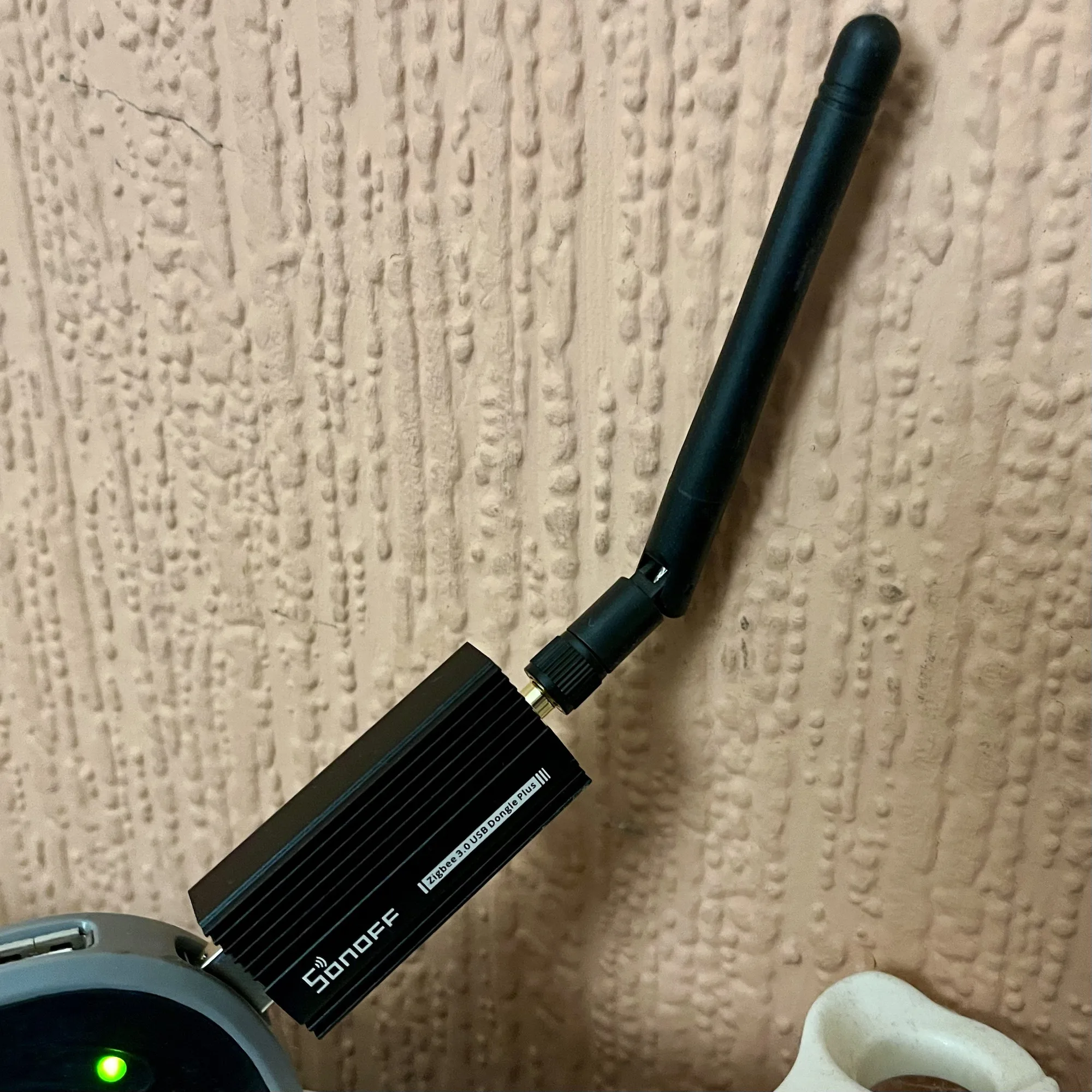
A photo of the Sonoff ZBDongle E which offers Zigbee and Thread support

If you’re a Home Assistant user, and want to connect your Zigbee and Matter devices, then one option to consider is this Sonoff ZBDongle E. I bought one a couple of weeks ago, and it seems to work fine with my Home Assistant setup.

One thing you will notice if you view its Amazon product page (sponsored link) is that there’s no mention anywhere of Thread or Matter. Out of the box, this Sonoff dongle will only work with Zigbee devices. However, if you follow this handy guide from Smart Home Scene, you can flash the dongle with custom firmware, which adds support for Thread as well. As I mentioned in my recent is there a Zigbee network in your house blog post, both Zigbee and Thread are protocols in the 802.15 family.

The firmware flasher is actually browser-based, and so there’s no need to download additional software. However, it’ll only work in Edge or Chrome, as seemingly Firefox doesn’t have away of allowing web pages to access serial ports.

Note that the guide linked above is for Home Assistant Supervised and OS. If you’re running Home Assistant as a Docker Container, then you’ll need to install this Docker Image as well. I haven’t tried it myself, as I run Home Assistant Supervised, but this seems to be the way to get it to work.

Once it’s all set up, you’ll be able to add both Zigbee and Matter devices to your Home Assistant installation.

The Sonoff dongle cost £22 when I bought it earlier this month, although at the time of writing the price has been hoicked up to £30. That makes it only £1 cheaper than the Home Assistant Skyconnect, which is the official dongle. Therefore, my recommendation of the Sonoff dongle being a cheaper option no longer applies and it’s up to you which one to buy.

Finding alternatives to Goodreads

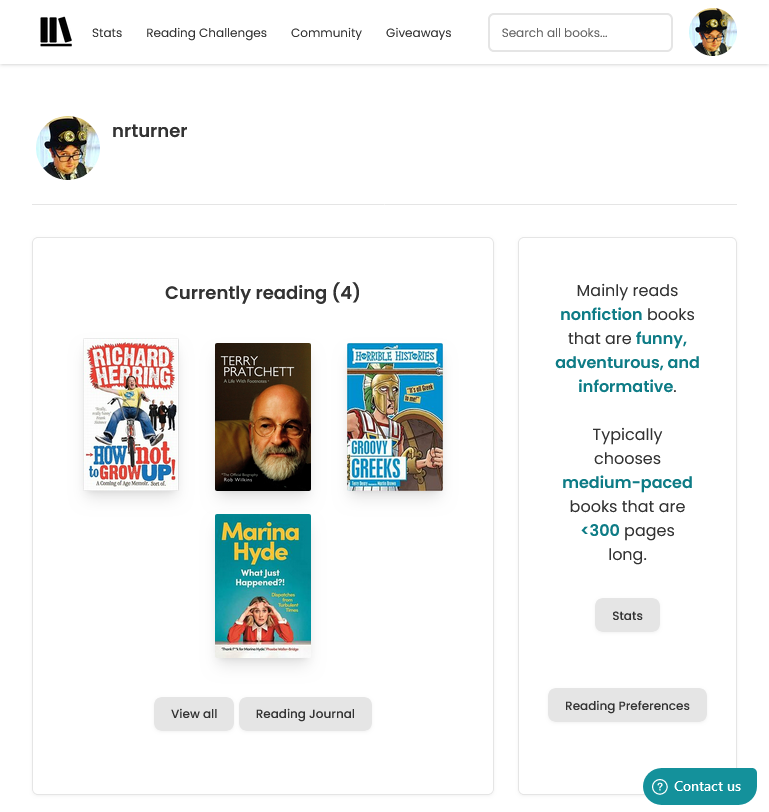
Screenshot of my profile on thestorygraph.com which is a potential alternative to Goodreads

I’m a little late to the Goodreads review scandal. Late last year, an author whose debut book was due to be published, wrote several fake reviews of books by other authors that were due out at the same time, and posted positive fake reviews of her own book. Unfortunately for her, she was found out, and dropped from her book deal.

But, as the above-linked New York Times article states, Goodreads isn’t in a good place right now. It’s been around since 2007, although I joined in 2016 and first blogged about it in 2017. This was after Amazon’s purchase of Goodreads in 2013.

In the almost eight years that I’ve used Goodreads, it has barely changed. There have been annual Readers Choice Awards, and the annual reading challenges, but other than a change to book information pages in 2021, it feels like Amazon has basically abandoned it. The iOS app gets ‘bug fixes and performance improvements’ on a regular basis, but I suspect that these are updates to downstream code libraries and not a result of actual work by Goodreads developers.

Its recommendations of new books to try have always been terrible, and it’s reliant on volunteer librarians. Which wouldn’t be an issue if Goodreads was a non-profit, but it’s owned by one of the world’s most valuable conglomerates. Giving away labour for free to such enterprises doesn’t sit well with me, even if it’s something I’ve done a lot in the past.

So, Goodreads both has a problem with fake reviews, and a lack of interest from its owner. So what are the alternatives?

The Storygraph

I tried out The StoryGraph about a year ago. You can import your reading history from Goodreads during the onboarding process, and its recommendations are much better, as its design. There are mobile apps, reading challenges, and giveaways where authors can offer limited free copies of their books, presumably to generate some reviews.

The StoryGraph does have social features like Goodreads, but there doesn’t seem to be an easy way of importing contacts from elsewhere. Quite a lot of my friends use Goodreads and I’m sure some of them use The StoryGraph too, but I don’t know how many because I can’t seem to find them. If there’s an ‘import contacts’ option in the iOS app, then I haven’t found it.

Bookwyrm

Another site that I’ve heard about, but haven’t yet signed up to, is Bookwyrm. It uses ActivityPub and is therefore part of the Fediverse, so you can follow people using Mastodon clients, for example. You can use the bookwyrm.social instance, but you can also install and host it yourself. Importing from Goodreads (and other services) is supported.

I’m aware of some friends who use Bookwyrm, so it may avoid the issue I’m having with The StoryGraph where I can’t find my existing contacts.

And there are many other Goodreads alternatives

I found this list of Goodreads alternatives, which mentions 31 (!) sites that you could consider. Bookwyrm and The StoryGraph are both listed, as is LibraryThing which actually pre-dates Goodreads.

I suppose it will come down to what my existing friends use, and getting large numbers of people to change platforms happens rarely. We’ve seen many challengers to Twitter rise and fall over the years (Andy Baio posted an excellent eulogy of Ello this week) and it’s only because X/Twitter has become utterly terrible in the past 15 months that a significant number of people have moved to the likes of Bluesky and Mastodon. And some are still left behind.

If we follow that model, then Goodreads would have to become significantly worse, before people start looking for alternatives en masse. Right now, it’s just stagnant; clearly not a priority for Amazon, but not so badly broken as to require much of an intervention. I certainly can’t see it joining Bookwyrm in the Fediverse.

How to: install Home Assistant Supervised on a Raspberry Pi

Screenshot of Home Assistant showing Supervisor installed
Important note: As of the June 2025 release of Home Assistant, the 'Supervised' installation method has been deprecated, and will be unsupported by the end of 2025. I'm keeping this guide online for those interested, but please consider installing Home Assistant Operating System or Container instead, which are the two methods that will be supported in future.

There are several ways to install Home Assistant. The easiest way (besides buying a dedicated device such as Home Assistant Yellow or Green with it pre-installed) is to use what is known as ‘Home Assistant Operating System’. This bundles Home Assistant with a system manager called Supervisor and an underlying Linux distro.

There are other methods, and I’ll probably write another blog post comparing them all later. Probably the most difficult is Home Assistant Supervised, which includes the Supervisor from Home Assistant OS (HAOS), but with a self-administered Linux operating system. I’ve got over 10 years of experience working with Debian Linux, as this blog runs on it, but it took some trial and error on my part to get working.

By setting up Linux yourself first, you gain more control over your system than is offered by HAOS. For example, whilst you can enable shell access on HAOS, it’s a limited user account with no root access. And, bizarrely, HAOS doesn’t support USB mass storage devices. So even though you can install Plex from within HAOS, if your media is on an external hard disk, you can’t grant Plex access to it.

At the weekend, I set up my Raspberry Pi 4 with Home Assistant Supervised. Here’s how I went about it.

Note: This guide was current in January 2024. The instructions below may not necessarily work on future releases of Debian and Home Assistant.

Step 1: Installing Debian 12 (Bookworm)

I strongly advise you to start with a fresh Linux installation; trying to bolt this onto an existing Linux image may break other things. Home Assistant is designed to run on Debian 12 – and not Raspberry Pi OS, although I’ve seen some forum posts from users who are using this. For this guide, I’m using Debian 12.

For the most part, you can simply follow the instructions on this guide to flash an SD card and complete the initial setup. The newer versions of the Raspberry Pi imager may ask if you want to configure Wifi and SSH access for your image; don’t bother, as this won’t work on Debian. The other thing to bare in mind with this guide is the Wifi settings, where you un-comment several lines in a configuration file if you’re not using an Ethernet connection. This is fine at this stage, but you’ll need to re-comment those lines later.

The other thing that I did in addition to this guide was type in dpkg-reconfigure tzdata and set my timezone to Europe/London rather than UTC.

You can stop following the guide at the point at which it tells you to install a graphical user interface, as this isn’t needed for Home Assistant. Of course, if you’re planning to use this device for other things and a graphical UI would help you, then follow the whole guide by all means.

Step 2: Install the necessary additional packages for Home Assistant

Here, we start following this official guide from HA. You’ll need to install various additional packages to enable the Home Assistant Supervisor to run.

Once installed, I found that I had to edit the /etc/NetworkManager/NetworkManager.conf file and change managed=false to true. This was also the point where I needed to re-comment the wifi settings. Without doing this, my Raspberry Pi wasn’t able to connect to the internet for the next step.

Step 3: Install Docker

As per the official instructions, run curl -fsSL get.docker.com | sh to install Docker. This took quite a while, so maybe go and grab some lunch.

If you’re getting an error about being unable to resolve get.docker.com, then go back to step 2.

At this point, I found it easier to continue the installation remotely over SSH, rather using the keyboard and a screen.

Step 4: Install the OS Agent

Next, you’ll need to install the latest version of the OS Agent. For a Raspberry Pi 3 or later, you’ll need the aarch64 version. I downloaded the ‘os-agent_1.6.0_linux_aarch64.deb‘ file and then uploaded this using WinSCP, but you could also download it using curl or wget. You’ll then need to run the command dpkg -i os-agent_1.6.0_linux_aarch64.deb as root.

The next command to run is gdbus introspect --system --dest io.hass.os --object-path /io/hass/os . This should give some multi-coloured code and not an error; if you get an error about the ‘gdbus’ command not being found, then you may have missed the libglib2.0-bin package in step 2.

Step 5: Install Home Assistant Supervised

Finally, we’re at the stage where we can actually install Home Assistant. Here’s the command to run:

wget -O homeassistant-supervised.deb https://github.com/home-assistant/supervised-installer/releases/latest/download/homeassistant-supervised.deb apt install ./homeassistant-supervised.deb

Once this is complete, wait a few minutes and go to http://[your IP]:8123/ and you should be greeted with the Home Assistant web UI. It may take a minute or to before you can start the onboarding process. If you’re migrating to Home Assistant Supervised, then you can also restore a backup at this stage, but be aware that such a backup can take a long time to restore.

And then you’re done. You may get some warning messages about the system being ‘unhealthy’ but these seem to disappear after a reboot, in my experience.

Things to consider

Although installing Home Assistant this way does allow it to co-exist with other software, bare the following in mind:

  • Even if you mount a USB hard disk/flash drive to your device, Home Assistant doesn’t seem to want to know about it, or let you attach it to any addons.
  • Although you need to install Docker for Supervisor to work, you’ll get errors in your Home Assistant settings if you install any other Docker images that are not managed as Home Assistant Addons. So, if you want to install any other software, do it manually, or in another container system like Snap. Or you could try Kubernetes I suppose, if you really hate yourself.

Installing Home Assistant Supervised is by far the most difficult method, but for me, it offers the best balance of overall control, and ease of use once set up. If you can find the time to set it up, then once it’s up and running, it’s easier to add new devices and configure on an ongoing basis. Whereas setting up HTTPS and HomeKit can be a challenge on Home Assistant Container, enabling these on Supervised is much more straightforward.

That being said, if you can dedicate a device to running Home Assistant on its own, then I would definitely recommend just running Home Assistant Operating System.

Simplenote

Screenshot of the web version of Simplenote

Last year, I decided to switch my go-to note-taking app to Simplenote. For years, I’ve used Evernote, which is a very powerful app that lets you capture web pages, scan documents, save voice notes and link notes to events on a calendar. Which, is great if you need those features.

I don’t. I just needed somewhere to keep track of ideas, lists and important notes. And so really Evernote was overkill for what I used – its apps are huge and it can be slow to open, especially on the web. The same applies to Microsoft’s OneNote – both it and Evernote are big, powerful apps that incorporate way more features than I need.

Simplenote, meanwhile, is just what it says it is – a simple app for taking notes. There are apps for all common platforms, and its web interface offers the same features. Furthermore, the official apps are open source, and there’s an open API, so you can use third-party apps as well. ResophNotes is a very lightweight app for Windows, for example.

You can use Markdown, so when you enable a preview mode, any headers, list items etc will show up with formatting. You can also add tick-boxes next to any list items, so that you can tick off items on a shopping list, for example.

Your notes are kept in sync across your devices, and the service is free to use.

I’ve found that I’m much happier using Simplenote, and make more notes as a result. When you’re easily distracted like I am (squirrel!), being able to keep track of important information is really useful.

Broadband speeds

Speedtest.net results from our Vodafone broadband

So last month, we switched our broadband to Vodafone, which also meant that our internet speeds increased from about 30-40 Mbps to around 70-80 Mbps (as per the above Speedtest.net result).

80 Mbps is sadly the fastest speed that we can probably get here. I live in Sowerby Bridge, a small town in the Calder Valley and our options for internet access are limited. In some respects, we’re lucky to have access to Fibre to the Cabinet (FTTC). This means that the cables providing fixed line broadband internet are fibre optic as far as a metal box a couple of streets away. But the cables from that box to our house are a series of thin, copper cables, and current VDSL2 technology means that much higher speeds are unlikely to be possible.

Over Christmas, we stayed with my parents in York. Being a bigger and more affluent city, there are more options available for broadband internet. In addition to the FTTC service provided by BT Openreach, there’s also:

  • Cable broadband from Virgin Media. These cables were laid in the 1990s by Bell CableMedia, which became Cable & Wireless, then NTL, and finally Virgin Media. Whilst they’re also an FTTC solution, the cables from the cabinet to the home include a much larger coaxial cable.
  • Full fibre broadband from Sky and TalkTalk. York’s streets and pavements were dug up again in the late 2010s to install a FTTH (Fibre to the Home) network, which takes fibre optic cables all the way into people’s homes.

My parents have had cable broadband since this became available in the early 2000s. Initially this was just 512 Kbps, but speeds have increased over the years, and this was the test result whilst I was there at Christmas:

Virgin Media broadband test result

So my parents get broadband speeds that are six times faster for downloads, and nearly three times faster for uploads. And if they wanted to, they could switch to a FTTC broadband solution that could easily double those speeds.

Here in Sowerby Bridge, our best hope for faster broadband is that CityFibre bring their FTTC network in a few years time. So far they’ve installed fibre optic cables in Pye Nest, which is the community between Halifax and Sowerby Bridge, but their web site says there are currently no plans to reach us. Virgin Media did install some cables nearby a few years ago, but they seemed to bypass our street unfortunately.

There is wireless broadband to consider, but we get a weak 4G signal as we’re in a steep valley. 5G is available up the hill in Halifax and may make it down here in future. But, for now, I think 80 Mbps on a fixed line is the best that I can expect.

Avatars

Photo of Neil Turner wearing a Steampunk inspired outfit.

Recently, I’ve started using the above image as my ‘avatar’ – the photo of me that I use online when prompted to upload a profile photo. It’s a photo of me from a recent Sci Fi Weekender, wearing a Steampunk-style top hat with goggles.

Over the years, I’ve used a variety of different avatars to represent myself, and I’ve generally kept these in one Dropbox folder. So it offers an opportunity to look back at the different images I have used, going all the way back to the days of MSN Messenger.

2003

The oldest one I can find is this one, taken in my first year of university (2003) and before I had sideburns. I probably think I looked really cool wearing sunglasses indoors. Teenagers, eh.

If you’re so inclined, you can view the full-size version on Flickr.

WeeMee

In the early 2000s, there was a site called WeeWorld that let you create a ‘WeeMee’ using a Flash applet, and this was mine. I used this as my avatar quite a lot, especially on MSN Messenger. I’ve brought the rather brief blog post I wrote at the time back from the web archive.

A South Park avatar

South Park

There was also a Flash applet on the South Park web site which allowed you to create your likeness, as if you appeared in the TV show. Again, I used this quite a bit at the time. Sadly, the image generator seems to have disappeared, and no-one uses Adobe Flash nowadays anyway.

2009

The next oldest one I can find that is actually a photo of me (and not, for example, a jar of Chicken Tonight or a hamster) was taken in May 2009, around the time of my 25th birthday. I was on a trip to Wales with the university hiking club, and this was taken outside the camping barn that we were staying in. I was also newly single.

2010

I used this photo, taken by my then-girlfriend, now-wife Christine on the beach at Morecambe, as my ‘work’ profile picture, and on LinkedIn, right up until 2010. I still wear the shirt and jacket regularly, even though Christine informs me that the jacket doesn’t really fit me any-more. I’ve had it since 1998 as it has my year 10 form number on the label.

2013

This one was taken at Leeds Central Library, which had a small Steampunk exhibition, and a dressing up box from their archives for people to try on. This was also about the time when fezzes were cool, so of course I had to have a photo.

2014

The next image that I used a lot was this one of me holding a barn owl, taken in the summer of 2014. Christine and I were visiting Blackpool Zoo, and we paid a little extra to have an owl experience. We got to fly the owls for a little bit, and, of course, pose for photos.

2020

Finally, a new work profile photo, taken in early 2020 and before the pandemic meant that we spent most of the rest of the year working at home. This was taken by a colleague at work, and we all had similar photos taken to use on our web site. Before you start searching for it, I’m afraid the page has been taken down. This is still the profile picture I use at work and on LinkedIn.

2021

And finally to the image I used most recently, before the one at the top of the page, taken in summer 2021 a few days after I started wearing glasses. This was taken in our front garden using a selfie stick. The shirt and glasses are the same in my newest ‘Steampunk’ avatar; Christine and I have a whole thing about pineapples which will make sense if you’re familiar with John Robertson‘s show The Dark Room.

2023, quantified

An AI generated image of a business woman standing in front of a series of charts with '2023' at the top

Okay, so we’re in 2024 now, but I’m taking inspiration from Diamond Geezer‘s Summing Up 2023 blog post to post some statistics on things that I’ve done during 2023.

Countries and counties visited

In 2023, I’ve visited two countries: England, obviously, and France.

Over the course of the year, I have spent at least some time in the following English counties:

  • West Yorkshire
  • North Yorkshire
  • South Yorkshire
  • Lincolnshire
  • Greater Manchester
  • Lancashire
  • Cheshire
  • Leicestershire
  • Northamptonshire
  • Norfolk
  • Hertfordshire
  • Surrey
  • Hampshire

This doesn’t include any counties that I have passed through without stopping.

Most distant points

The furthest compass points I have been to are:

  • Furthest North: RHS Harlow Carr, near Harrogate, North Yorkshire
  • Furthest South: Futuroscope, near Poitiers, France
  • Furthest East: Great Yarmouth, Norfolk
  • Furthest West: Chester Zoo, Cheshire

I think it’s fair to say that I didn’t go very far north in 2023. We will be going further north this year, but are unlikely to go as far south as we don’t have an international holiday planned.

Methods of transport used

I have driven quite a bit this year. As my car’s MOT is due each autumn, I can only estimate the mileage, but I reckon it’s around 10,000 miles over the course of the year. Quite a bit of that was in France.

Train travel has been almost exclusively to and from work – indeed, I’ve only visited four railway stations this year, and every train has been a diesel-powered train. This includes the one heritage railway that I’ve been on, which was the short remaining section of the Derwent Valley Light Railway at Murton Park, near York.

I’ve been on two trams in Manchester, and a few buses, both locally and in Leeds and York. Plus, ferries for getting to and from France. I have not been on an aeroplane since 2015.

Music listened to

My full 2023 last.fm stats are not yet available, but over the year I have scrobbled 13,194 tracks – just 254 less than in 2022. That’s an average of 36 songs per day. Assuming each song is an average of 3 minutes, that’s 39,582 minutes over the year, or 659.7 hours or around 27.5 days. In other words, I spent almost a month listening to music last year.

Whilst I don’t exclusively listen to music on Spotify, on there, pop was my top genre, following by trance, rock, pop dance and Europop this year, according to my Spotify Wrapped. My most-listened to song was ‘Shut Up and Dance’ by Walk The Moon, which I listened to 12 times. To be fair, it is a good song.

Unsurprisingly, Within Temptation was my top artist – I own six of their albums and I’ve seen them live twice.

Books read and listened to

As mentioned in my favourite things of 2023, I read 93 books this year, which adds up to over 20,000 pages according to My Goodreads Year In Books. The shortest book I read was ‘How I Proposed to my Wife: An Alien Sex Story’ by John Scalzi (sponsored link), which was 26 pages long, and the longest was ‘What Just Happened?!’ by Marina Hyde (sponsored link). The printed edition is 472 pages, although I listened to the audiobook instead which is 17 hours long. Not the longest audiobook I’ve ever listened to (that was ‘American Gods’ by Neil Gaimansponsored link), but certainly one of the longer ones. Overall, the average length of the books I read was 220 pages.

Beers and ciders consumed

I log the beers and ciders that I drink using Untappd, and this year I consumed 35 such drinks (a decrease from 58 in 2022). Of those, 13 were from Brewdog, which may have something to do with what I got for Christmas in 2021. Several of these were non-alcoholic beers and ciders.

Steps taken

I’ve had my Fitbit Versa 3 on my wrist almost all of the time this year, and have taken a total of 3,695,427 steps – an average of just over 10,000 per day. It also estimates that I have climbed 11347 floors, walked 2,717.1 km and burned 1,079,223 calories through exercise.

Time spent learning French

I started Duolingo’s French course on the 1st January 2022 (so I have a two year streak now), and in 2023, I spent 4,947 minutes learning – that’s 82 hours or an average of 13.5 minutes per day. I also learned 4657 new words in French last year. I’m aiming to complete the French course, which will probably see me well into 2025.

So that’s 2023 quantified. I’m sure I could offer more stats, like photos taken, podcasts listened to etc. if I tracked these throughout the year. As it is, I’m relying on various web services that track data for me that I can refer back to. I wonder how 2024 will compare?

Switching to a new ISP

Last month, we switched to Vodafone as our new Internet Service Provider (ISP) at home.

We’ve been with Now Broadband (Sky’s budget brand) since autumn 2018, who, at the time, could offer us faster speeds for less money. And they’ve been pretty good; when I was working at home full-time during lockdown, I rarely had any issues. Our bandwidth was sufficient for me to participate in online meetings whilst our (then) four-year-old watched Netflix in another room. Our typical download speeds were in the 35-40 Mbps:

Speedtest.neet results from the 5th November 2023, showing 36.88 Mbps download and 9.35 Mbps upload on our old ISP, Now Broadband

But then Now raised their prices by £9 per month. They probably told us that they would do this, but I have no recollection of being informed in advance.

Finding a new ISP

Meanwhile, Vodafone could offer faster speeds and a new router, for £2 less than Now before the price rise. So, we would be getting a better service, and paying £11 less per month for it than if we stayed with Now.

We used the MoneySavingExpert broadband comparison tool, which showed that Vodafone was the cheapest big name that didn’t have a poor customer service rating. Shell Energy were cheaper, but their customer service isn’t great and they’ve just been taken over by Octopus Energy who don’t currently offer broadband.

I signed up using Quidco (referral link) and should get £82.50 cashback in late spring, so factoring that in, what a savings.

The switchover took a couple of hours, and seemed to happen early in the morning, so by 7am we were already online with Vodafone. And the speeds are much better – around 75 Mbps download and 19 Mbps upload, so almost twice as fast. Considering that this is over DSL, I’m impressed with how fast it is.

Speedtest.neet results from the 21st December 2023, showing 74.11 Mbps download and 18.87 Mbps upload on our new ISP, Vodafone Broadband

The new Vodafone broadband hub is also better than the basic Now broadband router that we had previously. It has four 1 Gbps Ethernet sockets for a start, compared to just two on the Now router; this means I no longer need a separate Ethernet switch. It also looks nicer; it’s free-standing but has mounting holes on the back for screws.

Digital Voice Line

The hub also supports Digital Voice Line, where your phone calls are made over the internet, rather than PSTN. Openreach intend to switch off the analogue phone network in two years time, so switching now is timely. This means that our landline phone plugs into the hub, rather than the micro-filter attached to the master phone socket. That being said, since the switchover, our phone hasn’t actually worked. The fact that it took me several days to realise shows how much we use our landline, but I’ll need to get on to Vodafone to have them look into it.

As with all changes to a new ISP, over the first few weeks there was a little instability with the connection. But it’s settled down now and works well. The other issue I had early on was with connecting to my Raspberry Pi externally, as port forwarding didn’t seem to work properly. This was a bit of a gut punch, considering how much effort it took me to get Home Assistant working with HTTPS, but it seems to be sorted now.

If it’s been a while since you switched your ISP, I would recommend that you do a quick check to see if you can get a better deal elsewhere. Broadband providers make a lot of money from people who just let their contracts auto-renew. Even if you’re happy with your current ISP, you could try haggling with them to see if they can offer you a cheaper package.

Home Assistant with HTTPS and HomeKit

A screenshot of Home Assistant running in a web browser with HTTPS enabled and no certificate errors

Welcome to the latest chapter of getting Home Assistant working on a Raspberry Pi using Docker. Last time, I’d managed to get it working in Docker, but only over a regular HTTP connection and without HomeKit. The good news is that I’ve solved both of these problems.

Using SWAG to enable HTTPS

Firstly, I recommend reading this paragraph whilst listening to ‘Swagger Jagger’ by Cher Lloyd.

I’ve tried lots of different ways to get Home Assistant working over SSL/TLS. There’s a good reason why this is one of the key selling points of Home Assistant Cloud, as it can be difficult. Thankfully, there’s a Docker image called SWAG (Secure Web Application Gateway) that handles much of the legwork. Once you’ve installed SWAG, follow this guide, and you should find that you can access your Home Assistant setup at https://homeassistant.[yourusername].duckdns.org/ . No need to specify a port, or accept any certificate warnings.

Inside SWAG, there’s a DNS client, which will automatically renew the SSL certificates every 90 days for you, using ZeroSSL or Let’s Encrypt. There’s also nginx, which is used to set up a reverse proxy, and support for dynamic DNS services like DuckDNS.

SWAG has sample configurations for lots of different services, including calibre-web, so I have SSL access to my calibre-web image too. My only issues with it so far were last week when DuckDNS went down on Sunday morning. Most services, like Home Assistant, need to be mounted as subdomains (as above), but others (like calibre-web) can be mounted as subfolders, e.g. https://[yourusername].duckdns.org/calibre-web. This reduces the number of subdomains that you need SSL certificates for; ZeroSSL only offers 3 subdomains for a free account so it’s worth considering subfolders if you want to add more services.

If you have your own domain, then you can also add a CNAME to it to point it at your DuckDNS account, should you wish to use that rather than a [something].duckdns.org address.

Getting Apple HomeKit working

Carrying on the musical theme, here’s ‘Carry Me Home’ by Gloworm, a 90s dance classic which has only recently become available on digital platforms again.

After getting my swagger jagger on and getting HTTPS working, the final issue I’ve been having with Home Assistant is the HomeKit bridge. Adding Home Assistant devices to Apple’s Home app is something that normally works out of the box if you install Home Assistant OS, but takes more work if you use Docker.

The instructions which helped me where these on the Home Assistant forums. You’re going to need to install another Docker image containing avahi; there are several but this one worked for me. It’s bang up to date, unlike the most common Docker image which is, um, 8 years out of date and also only works on x86 machines. Which isn’t much help for my arm64-based Raspberry Pi 4.

Once you’ve installed avahi, added the relevant lines to configuration.yaml in Home Assistant and restarted it, HomeKit should work. To get started, add the HomeKit integration to Home Assistant – you may want to specify which devices will show if you don’t want all of them. Then, use your iPhone or iPad to scan the QR code in your Home Assistant notification panel, and add the bridge. If all goes well, it should immediately tell you that it’s an unsigned device, but will then let you set up each device in turn.

If it just sits there for several minutes and then gives up, you’ll need to do some more digging. Don’t worry, this happened to me too. I suggest downloading the Discovery app, which shows all of the mDNS devices broadcasting on your network. If you can’t see ‘_hap._tcp’ in the list, then there’s a problem. In my case, this turned out to be because my Raspberry Pi wasn’t connected to the same wifi network. It’s plugged in to my ADSL router with a network cable, but we use Google Wifi which results in a ‘double NAT’ situation. Connecting the Raspberry Pi to both wired and wireless connections seemed to fix the issue.

Indeed, as a side effect Home Assistant managed to autodiscover some additional devices on my network, which was nice.

Home Assistant Core in Docker? Done it, mate

All in all, I’ve successfully managed to get Home Assistant to where I want it to be – self-updating in Docker, secure remote access, and a HomeKit bridge so that I can ask Siri to manage my devices. I’m looking forward to being able to turn my heating on whilst driving, for example.

It’s been a challenge, requiring a lot of skimming through the Home Assistant forums and various StackExchange discussions. Ideally, I would have a spare computer to run Home Assistant OS, which would have taken some of the leg work out of this, but I’m happy with the setup. Finding SWAG and getting it to work was a moment of joy, after all the setbacks I’d had before.

Running Home Assistant in Docker and Snap

A screenshot of the Home Assistant installation instructions for Docker

So, as I mentioned a couple of weeks ago, I’ve set up Home Assistant (HA) to control the various smart devices that we have around the home. At the time, I just used a snap package, but now I’ve migrated to using Docker, and here’s why.

Firstly, there are some disadvantages of installing Home Assistant using a snap package. Namely:

  1. The snap package isn’t an official release by the Home Assistant project, and is instead built by a third party.
  2. This means that, at time of writing, it’s a couple of releases behind the latest official release.
  3. It also means that it’s not a formally supported way of running Home Assistant, and there are fewer resources out there to help you if you’re stuck.
  4. I had issues updating previously installed custom components from HACS

Meanwhile, there’s an official Home Assistant Docker image that is updated at the same time as new releases, and it’s mentioned in the installation guide.

So, on the whole, Docker is better for running HA than Snap. But I wanted to run HA on my Raspberry Pi 4 which has Ubuntu Core on it, and that only offers Snap. But wait… you can install Docker on Snap, and the Docker Snap package is one maintained by Canonical so it’s regularly updated.

You can see where this is going. What if I install Docker using Snap, and then install Home Assistant into Docker? Well, that’s what I did, and I’m pleased to inform you that it works.

Docker on Snap, step-by-step

If you want to try this yourself, here’s the steps that I followed. However, please be aware that you can’t migrate a Home Assistant setup from Snap to Docker. Whilst HA does offer a backup tool, the option to restore a backup is only available on Home Assistant Operating System, and it seems that manually copying the files across won’t work either. So, if you currently use Snap, you’ll have to set up HA again from scratch afterwards. You’ll also, at the very least, need to run snap stop home-assistant-snap before you start.

  1. Install Docker. You can do this by logging into your machine using SSH and typing in snap install docker.
  2. Enable networking. There’s probably a better way of doing this, but for me, just running chmod 777 /var/run/docker.sock worked.
  3. Install Home Assistant. You’ll need to enter quite a long shell command, which is:
    docker run -d \
    --name homeassistant \
    --privileged \
    --restart=unless-stopped \
    -e TZ=MY_TIME_ZONE \
    -v /PATH_TO_YOUR_CONFIG:/config \
    --network=host \
    ghcr.io/home-assistant/home-assistant:stable

    The two variables in bold will need changing. For ‘MY_TIME_ZONE‘ you’ll need to type in your time zone, which in my case is ‘Europe/London‘, and for ‘PATH_TO_YOUR_CONFIG‘ is a folder where you want your configuration files. I suggest /home/[username]/homeassistant .
  4. Grab a drink, as the installation will take a few minutes, and then open http://[your IP address]:8123 in a web browser. If it’s worked, then you’ll be presented with HA’s onboarding screen.

Again, if you had the HA snap package installed, then if everything’s working with Docker, you’ll need to uninstall any related HA packages (like HACS, toolbox and configurator) and then the home-assistant-snap itself. And then you’ll need to set up all of your devices again. The good news is that, if you decide to move your HA installation to a new machine, you can just migrate the Docker image in future.

Wouldn’t it be better just running Docker?

Okay, so you may be wondering why I’ve set up HA this way. After all, it would probably be easier just to install Raspberry Pi OS Lite and put Docker on that, without using Snap. Well, there’s a method to my madness:

  • I like running Ubuntu Core because it’s so minimalist. It comes with the bare minimum of software installed, which means that there’s less risk of your system being compromised if a software vulnerability is found and exploited.
  • I already have Plex running quite happily in Snap, and didn’t want to have to migrate that as well.

In other words, this was the easiest way of running HA in Docker with my current setup. And I’m happy with it – I’m running the latest version of HA and it seems to work better.

There are a couple of additional steps that I still need to complete, which are:

  • Enabling SSL/TLS for remote access
  • Enabling mDNS broadcasts for Apple HomeKit integration

I’m working on these. Home Assistant Cloud is the easiest way of setting up secure access and I’m considering it. It’s a paid-for service, but it does financially support HA’s development, and seems to much easier than the alternatives. As for mDNS, I’m still working on this, and I imagine there’ll be things I need to tweak in both Docker and Snap to get it to work.