Ghost Signs

You know those old painted adverts you sometimes see on the side of buildings? York, where I grew up, has a famous one for Bile Beans, due to its prominent location, but there’s also one in Halifax too.

Historic England is building a list of these, with photos and GPS locations, and you can contribute. I’ve added one near where I live in Sowerby Bridge – it’s seen better days, but perhaps in Historic England have a list, then there may be money and resources to restore some of these.

Ianvisits mentioned this last week, and it’s encouraging to have seen the list grow in the days since. It’s not just painted adverts like this that are welcome – signs for old and defunct shops can be added too.

Getting started with Home Assistant

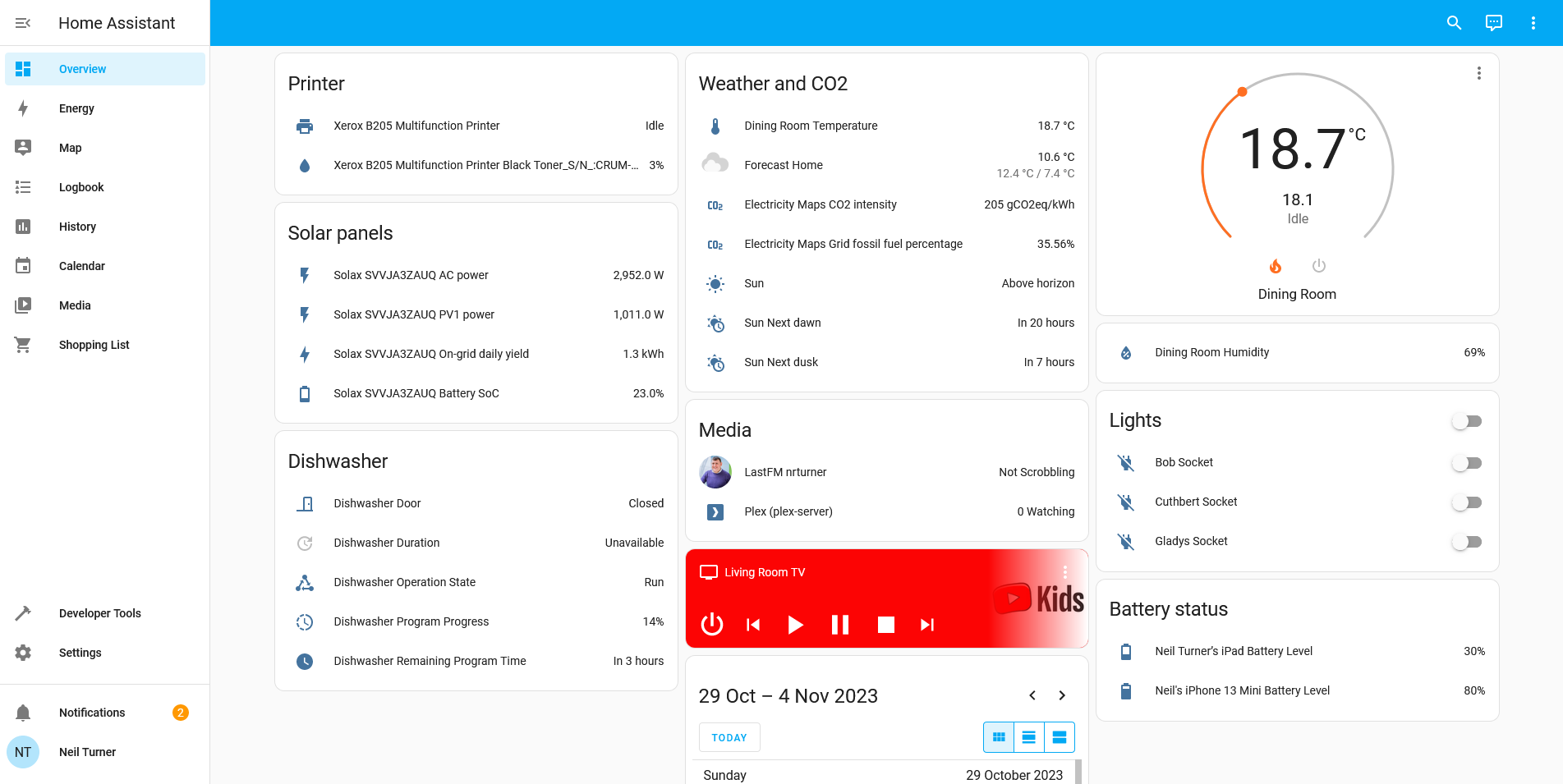
A screenshot of Home Assistant

A recent project of mine has been to set up Home Assistant, as a way of controlling the various smart devices in our home.

From bridge to assistant

You may remember, back in February, that I had dabbled with Homebridge, a more basic tool which was designed to bridge devices into Apple’s HomeKit universe which aren’t otherwise supported.

I’ve ditched Homebridge, as it didn’t really do what I wanted it to do. If you want to primarily use Apple’s Home ecosystem, but have a few devices which don’t support it, then it’s great. But that doesn’t really apply to our home – although I’m an iPhone and iPad user, I no longer have a working Mac and so I use a Windows desktop, and my wife uses Android devices. Consequently, the only device that we own which natively supports HomeKit is our LG smart TV.

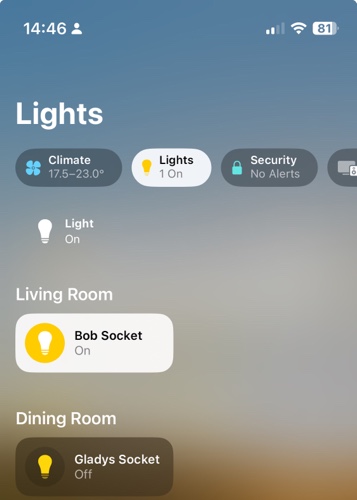
Home Assistant is essentially a replacement for Apple Home, Google Home, Samsung SmartThings and whatever Amazon’s Alexa provides. That means that it provides its own dashboard, and lots of possibilities for automations. But instead of your dashboard being hosted on a cloud server somewhere, it’s on a device in your own home.

Setting it up

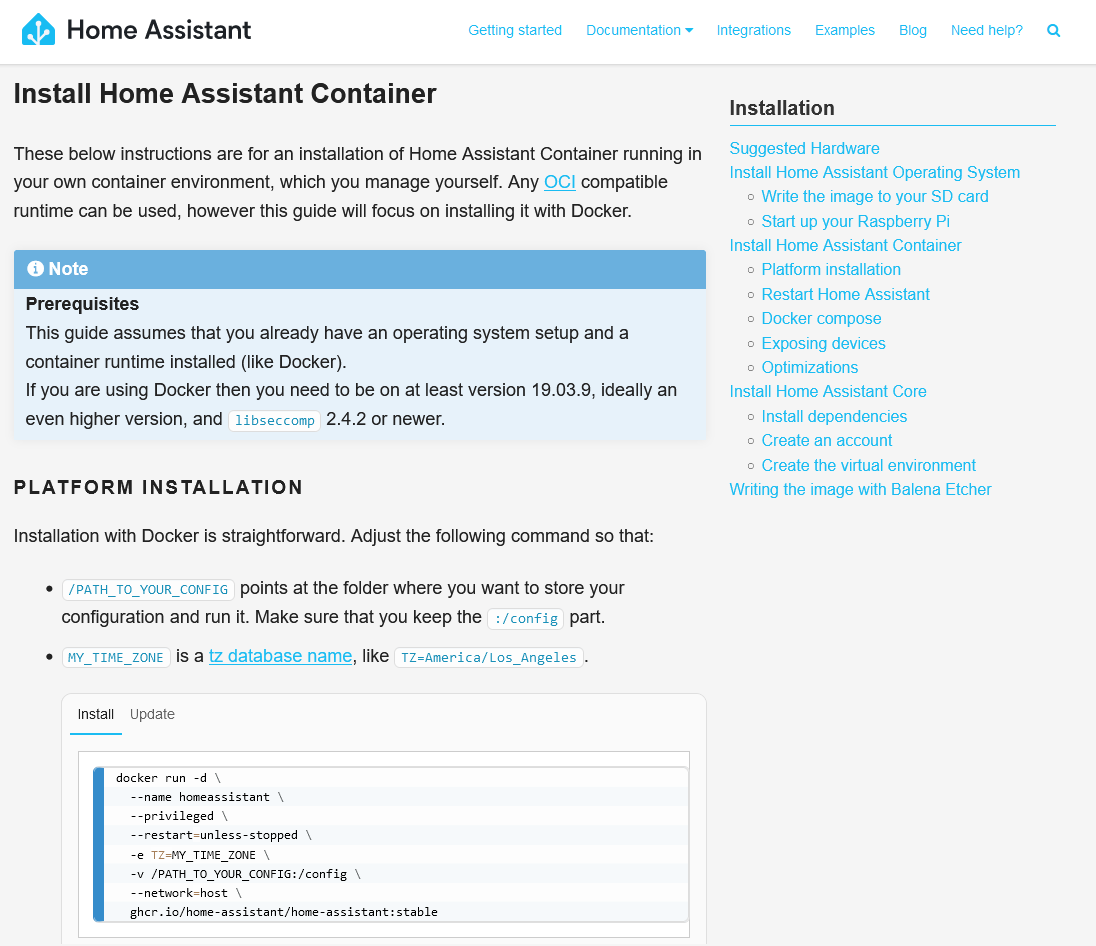
Like with Homebridge and HOOBS, you can buy a Home Assistant hub with the software pre-installed. If you already have a device, such as a spare Raspberry Pi, then you can either install HAOS (a complete operating system based around Home Assistant) or just install Home Assistant on an existing system. I chose the latter, and now I have Home Assistant sat on the same device as my Plex Server, using Ubuntu Core and the relevant Snap package.

Once set up, Home Assistant will auto-discover some devices; it immediately found both my ADSL router and my Google Wifi hub using UPnP. You can then add devices yourself. Home Assistant supports way, way more devices than its competitors, due to its hobbyist nature. For example, there’s an IPP integration which means that you can view your printer’s status, including how much ink is left. Despite it being a ‘smart device’ of sorts, Google Home won’t show this in its app. You can also bring in web services like Google Calendar and last.fm.

Some integrations are easier to set up than others though. In most cases, one of the first instructions for setting up an integration is ‘sign up for a developer account with your device manufacturer’. Whilst the instructions are usually quite clear, you’ll find yourself spending lots of time copying and pasting OAuth keys and client secrets to be able to connect your devices. In the case of my Nest Thermostat, this included paying a non-refundable $5 USD charge to access the relevant APIs.

It should also be noted that, whilst Home Assistant does offer integration with Apple HomeKit, I’ve yet to get this to work. Which is ironic as this was the reason why I previously used HomeBridge.

Remote access

Another thing which took some trial and error to get right was enabling remote access. If you want to be able to view and control your devices when you’re out of the home, then there’s a few additional steps you’ll need to complete. These include:

  • Configuring port forwarding on your router
  • Setting up a DNS server

Home Assistant recommends DuckDNS, which is pretty simple and seems to work okay, but again it’s something that requires some technical know-how.

One limitation of using Home Assistant as a Snap on Ubuntu Core is that you can’t use addons, so setting up DuckDNS meant manually editing Home Assistant’s configuration.yaml file. Indeed, some integrations require this, and so it’s worth backing up this file regularly. You can, however, install a separate snap which enables the Home Assistant Community Store (HACS), and this allows you to install additional (but less-well tested) integrations. I initially couldn’t get this to work, but managed to install it literally whilst writing this paragraph.

If you’re willing to pay, then for £6.50 per month, you can get Home Assistant Cloud. As well as providing an income for Home Assistant’s developers, it offers an easier and secure remote access solution, and integrates Google Assistant and Alexa.

Privacy matters

It should also be noted that Home Assistant has a greater focus on privacy. By hosting an IoT hub yourself, you can limit how much data your devices send to cloud servers, which may be in places like China with markedly different attitudes to privacy. Indeed, the integration with my Solax inverter (for our solar panels) connects directly to the inverter, rather than the Solax Cloud service. It’s therefore not surprising that many of the Home Assistant developer team are based in Europe.

Looking to the future, I’m hoping more of my devices will support Matter – indeed, this week, Matter 1.2 was released, adding support for devices like dishwashers. Theoretically, our existing Google Home devices can all be Matter hubs, but none of my other devices yet support it, and may never will. Home Assistant can work with Matter devices, if you buy their SkyConnect dongle, and again, it will mean that more of your device communications can be done within in your home and not using the cloud. That should be faster, and better for privacy.

Overall, I’m quite happy Home Assistant, even though it’s taken a long time to get every device added and some trial and error. I appreciate being able to see (almost) all of my devices on one dashboard, and it feels like I have more oversight and control over the smart devices in our home. I hope that, with greater Matter support, it’ll become easier for less-experienced users to use in future.

My Podcast Diet – August 2018

Matt Haughey, who has recently quit Twitter and returned to blogging more, has posted about which podcasts he listens to regularly and semi-regularly. It’s a good idea for a blog post, and so I’m going to steal it.

Podcasts that I listen to straightaway

These tend to be topical podcasts that would go stale very quickly.

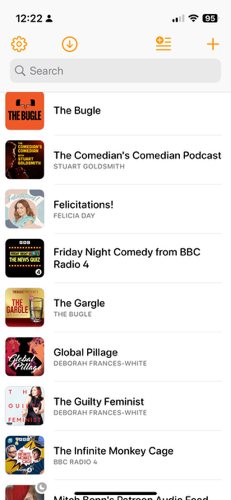
  • BBC Radio 4 Friday Night Comedy Podcast – whichever show happens to occupying the 1830 Friday comedy slot on BBC Radio 4. Normally this alternates between The News Quiz and The Now Show, but Dead Ringers pops up in summer. Weekly, every Friday, somewhat obviously.
  • The Bugle – topical satirical comedy from Andy Zaltzman and rotating guest hosts filling the gap left by John Oliver (yes, that John Oliver). Weekly, every Friday.
  • The Guilty Feminist – this was the podcast that I saw live in March 2016, which mixes discussion of issues relating to feminism and stand-up comedy. Hosted by Deborah Frances-White with a rotating guest co-host. Weekly, every Monday.
  • Standard Issue Podcast – a magazine style-show covering women’s issues, as well as interviews, women’s sport, and regular features on TV shows and Disney films. Once a month, there’s a ‘gigcast’ with celebrity chats recorded live in front of an audience. Weekly, on Wednesdays, with occasional bonus content at weekends.
  • Reasons to be Cheerful – a new podcast co-hosted by Ed Milliband and Geoff Lloyd, which focuses on a political issue each week.

Podcasts I listen to regularly

  • The Comedian’s Comedian – stand-up comedian Stuart Goldsmith interviews a fellow comic (or comedy group) about how they work. Always enlightening. Weekly, on Mondays, but seemingly on a break at the moment – probably due to the Edinburgh Festival Fringe.
  • Made of Human – stand-up comedian Sofie Hagen (formally of The Guilty Feminist) interviews people about life and how they handle it. Warm and friendly. Weekly, on Wednesdays.
  • Felicitations – Felicia Day’s relatively new podcast, about what she’s been up to, and parenting. Weekly, on Thursdays, but seemingly on a break at the moment.

Podcasts that I listen to when there’s a new season

These podcasts run as seasons and so new episodes don’t come out all year round, but I listen to them regularly when they’re on.

  • Mrs Brightside – stand-up comedian Susan Calman interviews a fellow celebrity about depression and mental health. Weekly, on Mondays. Series one has just ended, but should be back later in the year.
  • The Infinite Monkey Cage – science podcast co-hosted by Professor Brian Cox and Robin Ince, with a different topic each week. Guests are a mixture of scientists and comedians. Weekly, on Mondays, with new episodes available now.
  • Global Pillage – comedy panel show about diversity, hosted by Deborah Frances-White. Weekly, on Mondays. No new episodes at present.
  • Richard Herring’s Leicester Square Theatre Podcast (RHLSTP) – stand-up comedian Richard Herring interviews a celebrity guest in front of a live audience in London’s Leicester Square Theatre. Weekly, on Wednesdays, back in the autumn.
  • Grownupland – a podcast for millennials about adulting.
  • Newsjack – weekly comedy sketches with an open-door writing policy, so anyone can submit.

Comparing smart speakers

Yesterday, I reviewed our (relatively) new Google Home Mini. Today, I’m going to focus on why we chose to go with Google, and not an Amazon Echo or Apple Homepod.

Ecosystems

When you choose a smart speaker, I would take some time to decide which one works with the apps, services and devices that you already use. Apple’s HomePod only works with iOS devices for example; that’s fine for me, but not much use for my wife who has an Android phone. The Verge’s review seems to focus on the HomePod’s locked-in nature.

Similarly, Amazon’s Echo devices work well if you have Amazon Prime and one of its Fire TV devices, but we’re a Netflix household and have a Google Chromecast. I gather that Netflix support on Alexa isn’t that great, whereas it works well with a Google Home.

Price

We got our Google Home Mini free as part of a deal with Nest, which was probably the biggest reason for us choosing it over its rivals. As I write this, both the Amazon Echo Dot (sponsored link) and the Google Home Mini are £39, and normally sell for about £50, and even the more expensive models are under £200. Apple is selling the HomePod for £319. For that, you could buy six Google Home Minis and cover your house, and have some change left over.

Sound quality

One reason for the HomePod’s higher price is its focus on high quality sound for playing music. Arguably, it’s trying to compete more with the Sonos range of wireless speakers, some of which now include Alexa as well.

The larger and more expensive Google Home and Amazon Echo models have better speakers than the smaller ones, but I was still reasonably impressed with the little speaker in the Google Home. Audiophiles would probably be disappointed with all but the most expensive models but for most people, even the smallest and cheapest models will do.

Third party services

Amazon’s Alexa devices have a range of third-party ‘skills’ available, which massively expand its abilities and integration with other services. Google Home is somewhere in the middle; it supports a lot of internet of things devices, but not much else. That is changing but some things, like being able to order a pizza from Domino’s, are US-only for now.

As for the HomePod, it’s Apple all the way down. If you have smart devices that support HomeKit, great. But that’s a bit useless if you have a Nest thermostat, for example. It can only play music from Apple Music, and not Spotify or any other third party streaming service.

In summary

If you like good quality audio, have only Apple or HomeKit-supporting devices and money to burn, then by all means, buy a HomePod. Amazon and Google offer much better value speakers that work with a wider variety of third-party devices and services, and the choice you make will reflect what you already own.

Google Home Mini review

A photo of a Google Home Mini

Back in January, we welcomed a Google Home Mini into our house. As the name suggests, it’s the smaller version of the Google Home, which is Google’s smart assistant. It competes with Amazon’s Echo/Alexa range, and Apple’s new HomePod.

In the run up to Christmas, the Google Home Mini was significantly discounted, and being bundled with mobile phones. We got ours bundled with our Nest Protect smart smoke alarm, which I reviewed last month. We placed it in our living room, seeing as that’s where we spend most of our time awake, and because it works well with a Chromecast.

Indeed, this is probably the thing that we use it for the most. When you have a screaming toddler, it’s handy to be able to shout across the room ‘OK Google, play Paw Patrol‘ and have it come on the TV without having to find a remote and navigate menus. We recently inherited my parents’ old Sony TV which supports HDMI-CEC (Consumer Electronics Control), and so through the Google Home Mini and the Chromecast, we can turn the TV on and off using our voice, which is pretty cool.

Our Nest Thermostat is also able to communicate with the Google Home Mini, so we can use it to find out the current temperature and also change the temperature on the thermostat. This, together, is the extent of our foray into the so-called ‘internet of things’ and we haven’t yet invested in any other smart home devices. Although I’m contemplating either a smart light bulb or plug for a standing lamp in our living room.

Having support for Spotify built-in is also handy, although it works best if you have a Spotify Premium account as then you can play individual songs. This prompted me to upgrade. Sadly, although you can have multiple Google Accounts linked to one Home Mini, you can only have one Spotify account. As I found, when I opened Spotify at work, to find that Christine was already using it to listen to the Moana soundtrack.

The support for multiple Google Accounts works well; it’s able to identify whether me or Christine is talking to it. So if I ask it to add something to my calender, I know it’ll go into mine.

Support for third party services outside the Google ecosystem isn’t great. Whilst the Google Home can connect to a wide variety of smart home devices, it’s limited to playing video content from YouTube or Netflix, and music from either Spotify, Deezer, Google Play Music or Apple Music (if you have an iOS device and a valid subscription). Fortunately, there is IFTTT integration, and I was able to set up a link with my to-do list in Wunderlist, albeit in a roundabout way using IFTTT and email. But Amazon’s Alexa platform has a much wider variety of ‘skills’.

I was sceptical about whether we would actually use the Google Home, but it’s become part of our daily lives. On a morning, it’s handy to ask for a time check whilst getting ready, or for a weather update. And it works really well with our Chromecast; we’ve not really used our Roku player since we got the Google Home. I wish there was more third-party support; being able to request content from BBC iPlayer would be a great help.

I recently visited a friend who has five Google Home devices around his house – including the bathroom. I don’t think we’ll ever get to that stage, but the thought of having one in the bedroom has crossed my mind more than once. Maybe we’ll consider it the next time there’s an offer on.

TP-Link Gigabit Powerline Starter Kit review

A photo of one of the TP-Link Gigabit Powerline adaptors

Today I’m reviewing the pair of TP-Link 1000 Mbps Gigabit Powerline Starter Kits that I bought earlier this year to improve our network at home. If you haven’t already, please read yesterday’s post for some context, although I’ll summarise here too.

My aim was to improve the network speeds on some of the devices that I own, thus freeing up Wifi capacity. I went with Powerline (also known as HomePlug) because it would be less disruptive to install than Ethernet cables.

The TP-Link units were well-reviewed on Amazon, averaging 4.5 stars with over 1000 reviews at time of writing. I needed three adaptors; unfortunately I could only find them in packs of two, and so ended up buying four. At the time, this set me back £80, but they’re now down to £36 for a pack (so £72 for two).

Installing the Powerline adaptors

Setup is a doddle. Each starter pack includes two Powerline adaptors, and two standard two metre Ethernet cables. You plug one adaptor into a wall socket near your router and connect it up with an Ethernet cable, and then use the other adaptor and cable to connect to your device in another room. Ensure the adaptors are switched on at the wall, and your device should connect, just like it would if there was a direct Ethernet cable linking it to the router. Repeat this for any additional adaptors – you can use more than two in the same home.

There’s no special software to install, and unlike Wi-Fi routers, there’s no configuration either. It’s literally just ‘plug and play’.

That being said, each adaptor has a ‘Pair’ button, and it’s recommended that you press this on each adaptor in turn. This encrypts the signal between each adaptor, so if there’s any signal leakage with a neighbour, their Powerline adaptors won’t be able to connect to your network and vice versa. It’s a bit like enabling WPA on your Wi-Fi, and it doesn’t seem to have any discernible effect on performance.

Performance

Speaking of performance, the TP-Link adaptors seem to work well. The speeds and latency are certainly better than I was getting over Wifi. Internet-based tests like Ookla’s Speedtest seem to suggest that I’m able to take full advantage of my internet’s connection speed.

As I mentioned yesterday, our household electrical wiring is of variable quality and I was concerned that the older wiring would affect speeds. This doesn’t look to be the case, and the Powerline signal works across our fuse box to serve different electrical rings.

It is worth pointing out that you ‘lose’ an electrical socket when using these adaptors. This isn’t much of a problem for us; when we had the downstairs rewired, we deliberately installed far more sockets than we needed. If you are short of sockets, then you can pay extra for adaptors with a pass-through capability. They work the same but you can still plug another AC device in; however, they cost £50 for a pair, rather than £36.

Compatibility

As I was starting from scratch, I deliberately bought two pairs of adaptors from the same manufacturer. The good news is that HomePlug is an agreed standard (IEEE 1901), and these TP-Link adaptors comply with the HomePlug AV2 specification. This means that if I wanted to expand the network even further, I could theoretically use any HomePlug AV2 compliant hardware to do so – I wouldn’t necessarily need to buy TP-Link equipment again. As it is, I have a spare adaptor since I only needed three.

Conclusion

I’m really impressed with the TP-Link Powerline units. They deliver a good, fast connection, and have worked well in the couple of months that I’ve had them. Whilst it would have been nice to save a bit of money and buy a pack of three adaptors, rather than two pairs, at least I have a spare adaptor for future expansion.

If you have problems with your Wi-Fi speeds or signal strength – especially if your home is around 100 years old and built of stone, like ours – then Powerline adaptors may be a good solution for you.

Update (January 2025): this model is no longer available, but here’s a sponsored link to some newer ones on Amazon.

Adventures in home networking

Wires

We’ve been living in our house for approaching two years, and in all of that time we’ve been reliant on Wi-Fi for our home networking. Our phone line enters the house in a spare bedroom so that’s where our ADSL modem is (a BT Home Hub 4, although we’re no longer with BT). This isn’t too bad from a Wi-Fi signal perspective, as it’s located close to the middle of the house, but we still have some signal issues in the kitchen which is the furthest room.

For this reason, we have a Netgear Wi-Fi range extender which ensures an adequate signal in those parts of the house. Combined, the whole of the house is covered.

Limitations of Wi-Fi

The problem is that we have quite a lot of devices all using the Wi-Fi connection. There’s my Mac, Chirstine’s laptop, two smartphones, two tablets, a Roku, a Chromecast, a Blu-Ray player, our Nest thermostat and a Kindle, plus any devices that visitors bring. The Roku and Chromecast in particular are used for streaming video which requires a good connection, and I upload photos from my Mac every now and again.

Most of the equipment we have supports the IEEE 802.11n standard and so it’s reasonably quick, but some devices use the older 802.11g standard and not all are compatible with both 2.4 and 5 GHz wireless bands. Wi-Fi also has higher latency than wired solutions. And I have a Raspberry Pi and a Freesat receiver that do not support Wi-Fi at all. The Raspberry Pi currently gets a connection from an Ethernet cable linked to the Netgear extender, but the Freesat box has been isolated from the internet.

It would be great if everything supported the new 802.11ac standard. But this would require us to replace all of our devices and so isn’t likely to happen soon.

Laying Ethernet cable

The optimum home networking solution would be to lay Ethernet cable across the house, with ports in each room. That would ensure at least Gigabit connection speeds everywhere, with almost no latency.

We had most of the downstairs rewired before we moved in a couple of years ago and, with hindsight, this would have been an ideal time to install network sockets. Sadly, we didn’t, and trying to install sockets now would be very disruptive. I’d rather not have cables trailing around, or even fixed to walls, seeing as our toddler will inevitably want to play with them. Whilst I could probably do this myself, I’d rather not have to cut and crimp network cables.

Power line networking

Which leaves power line networking, also known as Homeplug. This uses your household electric circuits to carry a network connection, with adaptors that plug into your existing electrical sockets.

I was a little hesitant to try this, as our wiring is of variable quality. Obviously the downstairs wiring is good, having only been installed two years ago. But upstairs, some of the wiring is much, much older; in some cases, dating back to the 1950s. I was also worried about whether the signal would pass through our fusebox (which is thankfully quite new), as the upstairs and downstairs are on separate electrical rings.

I decided to take a punt, and ordered some well-reviewed Homeplug networking adaptors from Amazon – I’ll review them later on. At £80 for four, I felt this would be cheaper and less disruptive than installing Ethernet cable. And, so far, so good. I’m using three of the four adaptors; one of them connects in turn to an old Ethernet switch that I had, to provide connection to our Blu-Ray player, Roku and Freesat box.

My worries about the wiring seemed to be unfounded – we’re getting good speeds and much lower latency than on Wi-Fi. In particular, I can upload photos from my Mac much more quickly now than I ever could on just a wireless connection. I’m glad to have a better connection without having to tear the house apart, or replace all of my devices.

Google Chromecast review

A photo of a Google Chromecast

There were only a couple of presents that I specifically asked for Christmas this year, and one of these was a Google Chromecast. At £30, it’s a cheap and easy way of getting internet content onto your TV.

Roku versus Chromecast

If you’ve read my blog for a while, you’ll know that I’ve had a Roku 2 XS since summer 2014. I wanted a Chromecast to complement it, and alleviate some of the Roku’s shortcomings.

The Roku is good little device, especially as it now supports almost all streaming media services in the UK with the recent additions of Rakuten’s Wuaki.tv and Amazon Prime Instant Video. And it’s easy to use, since it comes with a remote control – unlike the Chromecast. The main issues I’ve been having are:

  • Speed – apps such as BBC iPlayer are very slow. You can press pause, and the Roku will take several seconds before it actually responds in any way. I imagine newer Roku devices (the third and fourth series) are much faster; the Roku 2 series was on its way out when I bought it in 2014. That being said, it’s still receiving software updates which is good.
  • Stability – sometimes the Roku crashes, and has to reboot. I’ve had particular problems with the YouTube app causing this.
  • Netflix – the Netflix app on the Roku (second series at least) is poor. It doesn’t support multiple user profiles per account, so whatever you watch goes on the viewing history of the main profile. And parental controls don’t work, so you can’t watch any shows on the Roku which require a parental control PIN.
  • Spotify – Roku has a Spotify app, but you need to be a Premium subscriber to use it – that means paying £10 per month. I’m on Spotify’s £5 per month ‘Unlimited’ plan, which suits me but doesn’t work with the Roku.

Where the Chromecast excels

Setting up the Chromecast is quite easy – it took around 10 minutes which included installing a software update. And installation is as simple as plugging it into a spare HDMI socket, and then connecting the USB cable to a spare socket (a mains adaptor is included if required).

To ‘cast’ something, you just need to open an app on your Android or iOS mobile device, and look for the cast icon. Whatever you’re streaming will then appear on your TV, and you use your device to control it – playing, pausing etc. And, it only casts the content that you’re streaming, so your TV won’t flash up any notifications for example. This is a big advantage over simple Bluetooth speaker systems, for example, which simply broadcast all of the sounds that your device makes.

Compared with the Roku 2, the Chromecast is very fast. Tapping the cast icon in an app registers almost straightaway on the Chromecast and the only delays seem to be caused by buffering, rather than the device itself being slow.

Netflix works as well as it would do on a mobile device, so we can watch more adult things when our one-year-old isn’t about, but also ensure that their profile doesn’t show them. And Spotify streaming via Chromecast is available to all users – even those with free accounts.

There’s also a guest mode, which lets anyone who doesn’t have your Wifi password to cast to your Chromecast – provided that they have the PIN code displayed on the home screen. The PIN changes at least once a day.

…and some pitfalls

I’ve already mentioned the lack of a remote. But this problem is exacerbated, in my view, because you have to go into the app to access the controls to play and pause. On iOS, at least, the controls don’t appear on your device’s lock screen. You can lock your device and the content will still play, but pausing when the phone rings (for example) is a bit more involved. It’d be nice if there was an iOS widget that could pause whatever is playing, but I don’t know if that’s possible.

Not all apps support Chromecast. The big one that’s missing is Amazon Prime Instant Video, although there is a relatively easy workaround. The other app that I miss is UKTV Play, which is the only way that we can watch shows on Dave, like the new series of Red Dwarf. Living in a valley prevents us from receiving Dave via Freeview, we can’t get Virgin Media, it’s not on Freesat and we’re too cheap to pay for Sky.

I was also hoping that my favourite Podcast app, Overcast, would work, but apparently not. A tweet from the developer suggests that it would not be trivial to add this in future. And you’ll need to use an app such as AllCast if you want to view photos and videos from Dropbox on your Chromecast. I had mixed results with this in my testing.

Also, none of the built-in apps on iOS support Chromecast. This isn’t surprising – Apple sells a rival device, the Apple TV, and has a rival protocol called AirPlay. AirPlay is, in my view, more basic than the Chromecast protocol. With AirPlay, your mobile device acts as an intermediary – it receives the content stream, decodes it, and then sends it via AirPlay to your Apple TV. The Chromecast, instead, streams directly from the content provider – your device merely sends some instructions. The main benefit is that it won’t drain your device’s battery.

Sadly, I also had some stability issues when using the NextUp Comedy app with the Chromecast. Like with the Roku, these caused the Chromecast to lock up and restart. However, at least my device remembered where it was, so I could pick it up again easily after a restart.

Putting Chrome into Chromecast

There’s a reason for the Chromecast having such a name, and that’s because you can cast web pages from the Google Chrome web browser on the desktop. This is how you can get the aforementioned Amazon Prime and UKTV Play onto your Chromecast, but it does mean that you’ll have to play and pause playback using your computer. Which isn’t ideal when your computer is in a different room to your TV, like it is in our house.

Overall

The Chromecast isn’t perfect and has some key pitfalls as mentioned. But it’s great value for £30, and relatively simple for a moderately tech-minded person to use.

Sending everything to Gmail

A couple of weeks ago, I decided to consolidate all of my personal email accounts into my Gmail account.

Considering that my relationship with Google soured after they killed off Google Reader (yes, I’m still bitter, three years on), this may come as a surprise. Until recently, I only used Google services for my calendar, search, maps and the advertising on this blog. I’d even stopped using Gmail, and had all messages there forwarded to my Outlook.com account. Mail sent to this domain was managed by its own IMAP server.

I’ll explain why I changed my mind in a series of sub-headings.

Gmail’s better spam protection

On my own email server, I had SpamAssassin (albeit without the Bayesian learning system which isn’t set up by default on my host), Pyzor, and the use of Spamhaus‘ blocklists. This still wasn’t enough to prevent spam getting through, and at its worst I was still getting 10-15 messages a day in my inbox. Gmail’s spam filtering is much better, despite a few false positives. For example, an email from my mother was sent to the spam folder as it was about transferring money – I’m guessing Google struggles to tell the difference between my mum and someone purporting to be a Nigerian prince. But over the past couple of weeks, I think there’s only been one spam email that has got through.

Not having to look after my own email server

The email server software offered by my host, Dovecot, is fine, but I’ve had to do things like enable DomainKeys and SPF myself. Ditto for tuning SpamAssassin and installing Pyzor. Outsourcing my email to a third party makes it easier.

I had considered using Google Apps, or Office 365, on my domain, but ran into issues. With Google Apps, you can’t use an email address already associated with a Google account, so I didn’t take that forward, and got stuck trying to enable Office 365’s DNS settings. Whereas I was just able to set up a series of email forwards to send everything to Gmail.

Notifications for important email only

If you turn on Gmail’s Priority Inbox mode, it’ll attempt to sort your email into ‘Important’ and ‘Everything else’. Crucially, that means that Gmail’s mobile apps will only notify you about important messages (if you want), rather than every new email message that isn’t spam. This cuts down the number of distracting notifications on my phone.

One (powerful) inbox to rule them all

By forwarding the email to this domain and from my Outlook.com account (reversing the previous situation), I have all of my personal email in one place. And that one place has decent mobile apps and a powerful web-based interface. By default, my host offers SquirrelMail which is very basic; I have since replaced it with RoundCube but Gmail is still easier to use.

Access to third-party services

With Gmail, I can finally use services like Unroll.me to clean up my inbox (which I’ll eventually devote a separate blog post to), and IFTTT, to name a few. There’s also Inbox by Gmail, which I’ve been trying recently and it’s a very impressive improvement to the basic email inbox. Again, I’ll have to write about it in more detail sometime.

Although I don’t pay for Gmail just yet (and nowadays I’m loathed to rely on services that I’m not paying for), there is a paid-tier of Gmail offering more storage should I require it. However, as I don’t use Google Photos, I’m nowhere near the storage limit for my Google account and so I don’t need to pay for it at present.

For those of you wondering what email address to use, please continue to send messages to neil@neilturner.me.uk. This has been my primary email address for well over a decade and I plan to keep it that way. Whilst everything gets forwarded to Gmail, I will still reply to messages using that address, and should Google decide to change Gmail for the worse in future, I’ll be able to port it somewhere else.

Netgear WN3000RP Wi-Fi Range Extender review

A photo of the Netgear WN3000RP Wifi Range Extender plugged into a wall socket

Today, I’m reviewing Netgear’s WN3000RP Wifi range extender (sponsored link) – a plug-in device to improve your home Wi-Fi network’s range.

You may be thinking, ‘wait a minute, you only reviewed a Netgear range extender a few weeks ago!‘. And you would be right. I was sent a Nighthawk EX7000 Wi-Fi range extender to review, but unfortunately I had to send it back to the PR company after I’d written the blog post.

I still needed a Wi-Fi range extender though, as my BT Home Hub 4 can’t reach the whole house. The WN3000RP model had some reasonable user reviews on Amazon, met my needs and was reasonably affordable, and so I put it on my Christmas list. Santa, or rather my Dad, obliged and so I’ve been using it since Christmas Day.

It’s a much smaller than the Nighthawk and simply plugs directly into a plug socket with no further assembly required. As it’s equipped with Wi-Fi Protected Setup (WPS), configuring it is dead simple – turn it on, press the WPS button, press the WPS button on your router, and then wait a minute or two. A new Wi-Fi network will appear with ‘_EXT’ appended to it and it’ll use the same WPA security key (password) as your router.

That’s probably all most people will need to do, but a few configuration options are available using a web-based control panel. There’s also a port for a network cable to connect a device which lacks its own Wi-Fi connection, although you’ll need to provide your own cable.

The Nighthawk I reviewed in November was a premium model with lots of additional features, such as extra network ports, a USB port for a hard driver or printer and faster connections. This is a much simpler model without the bells and whistles, but it does the basic job well. It has certainly alleviated our wifi signal issues and seems to perform as well as we need it to.

If you’re looking for a simple solution to extend your Wi-Fi router’s reach, at £27 from Amazon, you can’t go wrong with the Netgear WN3000RP. It’s a fifth of the cost of the £140 Nighthawk EX7000 (although Amazon had it for £100 before Christmas) which offers extra features and performance, at a price.