App review: Octo-Aid

A screenshot of the Octo-Aid app

If you’re an Octopus Energy customer, then you should consider downloading Octo-Aid. It’s a smartphone app that links to your Octopus Energy account, and analyses the data from your meters to give you insights.

To use it, you need to:

  • be an Octopus Energy customer
  • have a working smart meter

I downloaded Octo-Aid ages ago, but as our electric smart meter stopped working last year, I’ve had to wait until it was fixed in January to give the app a proper review. Happily, this coincided with a re-design of the app, which now looks more like a standard iOS app. Before, it looked like a rather quick port from another platform – even though it’s iOS only. For Android users, there’s a different but unrelated app called OctoTracker.

Linking your Octopus account to Octo-Aid

To access your data, you’ll need your Octopus Energy API key. You can get this here; I’d suggest saving it somewhere as you may need it for other things. For example, I use mine with the SolaX app, and for the Octopus Energy Home Assistant integration. So, I have it saved in 1Password, alongside my Octopus Energy account information.

You can only have one API key per account, and once it’s generated, Octopus won’t show you the full key again. If you don’t have it saved somewhere, you’ll need to regenerate it and then re-link any services to your account.

Once you’ve copied and pasted your API key into Octo-Aid, it’ll start downloading your data. This may take a couple of minutes if you’re running Octo-Aid for the first time, as it’ll download a lot of historical data. In future, it should open more quickly. Whilst you wait, Octo-Aid will show you a little cephalopod-themed joke.

Data analytics

So what can Octo-Aid tell you about your energy usage? Well, it can compare your usage with previous days, weeks and months, and whether you’re using more or less. It can also give you a forecast of how much you may use for the rest of the month. There’s also an estimate of your home’s ‘base load’ – how much power your always-on devices need. These are things like your fridge and freezer, or devices that have a standby mode. Because Octo-Aid has access to your tariff information, it’ll also tell you how much this is costing you.

If you have some way of exporting electricity, such as solar panels, a battery or a wind turbine, then Octo-Aid will also display this data and include it in its cost calculations.

If you’re lucky enough to have an Octopus Home Mini, then this data will be in almost real-time for your electricity meter, and on a half hour delay for gas. We don’t have one yet (I’ve signed up for the waiting list but not heard anything) and so our data for the previous day normally appears around lunchtime.

Tariff comparisons

A really useful feature of Octo-Aid is to be able to compare Octopus Energy’s tariffs, based on your actual usage data. Octopus has a wider range of more advanced tariffs than its rivals, including its Tracker and Agile tariffs where electricity costs can vary daily or half-hourly respectively. It also offers specialist electric vehicle charging tariffs that can integrate with your home charger, if you drive a supported vehicle and have a supported charger installed. In our case, our car is supported, but our charger isn’t yet.

Octo-Aid was able to tell us that we’re on the best gas and export tariffs, but that Octopus Intelligent Go would be cheaper for us for electricity. Unfortunately, this is one that requires a compatible charger, and so I’m on a waiting list for that too. With energy prices likely to shoot up soon, and the withdrawal of many fixed tariffs last month, it’s worth using Octo-Aid to see if another tariff would be cheaper.

Budgets

There’s also a budgets tab in Octo-Aid, where you can set maximum monthly spends. You can set these yourself, or let Octo-Aid suggest values for you. You can then track how your energy usage compares to the budget. There’s some nice graphs, which overlay your current usage with the previous month. As we’re in spring, and it’s (mostly) getting warmer and sunnier, we’re obviously using a bit less.

Other tools in Octo-Aid

Octo-Aid includes an electric vehicle charge planner. You’ll need to tell it your car’s charge rate and maximum battery capacity, and then it’ll tell you when it will be cheapest to charge. You can even tell Octo-Aid to pop up a reminder notification when it’s time to start charging.

We’re on a fixed tariff, and so the cost doesn’t really vary for us unless it’s really sunny. But if you’re on one of Octopus Energy’s time of use or electric vehicle tariffs, then this is potentially quite useful.

Overall, it’s a handy little app, and it’s free to download and use. If you’re not already an Octopus Energy customer, here’s my referral link to join – we’ve been with them since 2023 and they’ve been better than any other provider that we’ve used. The referral link gives you £50 off once you’ve paid your first bill by direct debit, and I’ll get the same. That being said, Octopus has almost 25% market share in the UK now (not bad for a 10 year old company) so I’d be surprised if many of you reading this aren’t already customers.

Skeets, an iOS client for Bluesky

A screenshot of the Skeets app on an iPhone

Bluesky is probably now my main social media client. However, the official app doesn’t work natively on an iPad, and so I’m also using the Skeets app to take advantage of my iPad’s bigger screen.

Okay, so the provided screenshot is from my iPhone, but I principally use it on my iPad. It seems to work well – it’s fast, even on my now rather elderly sixth generation iPad which can’t be upgraded to iOS 18. Compared with the official client, it also gives you more control over how your feeds are displayed, allowing you to hide quote posts, or only show replies with a certain minimum number of likes.

The app is free, but you can pay a subscription to unlock Skeets Pro, which adds extra features. These include draft posts, bookmarks, being able to mute words, more control over notifications and rich media in notifications. Currently it costs £2 per month or £18 per year, with a two week free trial.

Skeets is also updated regularly; usually whenever a new feature is added to the official app, it appears in Skeets within a week or two. That said, I don’t feel as polished as, for example, Ivory which is my preferred Mastodon client. Its support for threads also isn’t great – you can read them but posts tend to get duplicated.

MakeMKV review

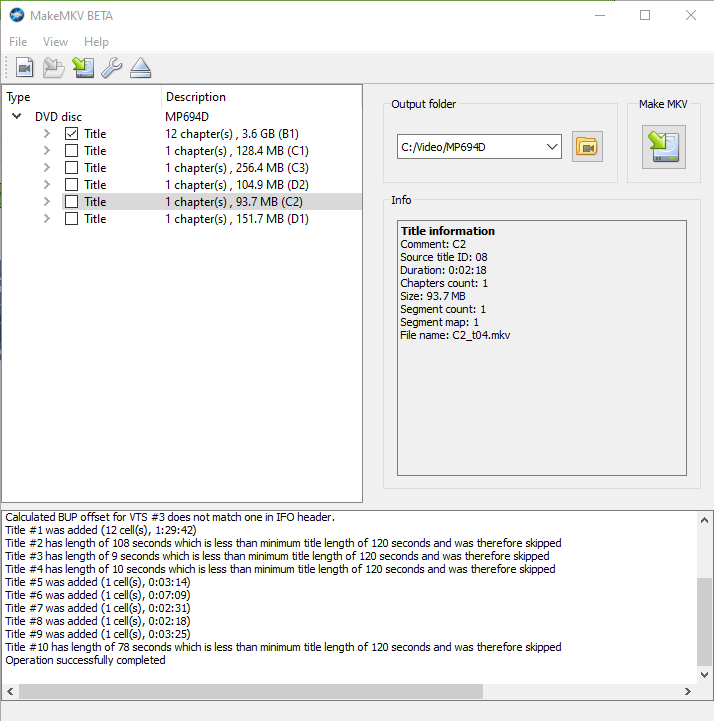
Screenshot of MakeMKV on Windows 10

If you want to make backups of your DVDs or Blu-Ray discs, or watch them on a device without an optical drive, then MakeMKV is a tool that you should consider.

MakeMKV takes the content of your DVDs, and creates a Matroska (.mkv) file that can be read by many media players, including the likes of VLC, Plex and more recent versions of Windows Media Player. Matroska is a very forgiving container format that can accommodate just about any video and audio codec, and has excellent support for subtitles.

What sets MakeMKV apart from tools such as Handbrake is that there’s minimal transcoding. That means that the MKV file will match the quality of the original source, with the same aspect ratio. Handbrake will typically transcode the video into another format and offer to up-scale the video to HD. This will probably result in a smaller file, as newer video formats are more efficient, but every time you transcode a file using a lossy compression algorithm, you lose some of the quality. It also takes longer to convert files using Handbrake because of the transcoding.

The files created by MakeMKV will include subtitles, where these are provided on the original disc, and they’re not ‘burnt in’ so can be enabled or disabled by playback devices. Chapters are also retained.

Overall, it’s easy to use, and doesn’t offer the dizzying array of options that Handbrake offers.

Currently, MakeMKV is beta software, and has been for over a decade – this may explain the rather dated-looking web site. It is shareware, albeit free to use whilst in beta. However, if a final release is ever made, expect to be asked to pay for it. If you want, you can buy it now for $60 (currently £54.25 including VAT).

Be aware that it’s currently illegal to copy DVDs in the UK, even for your own personal use.

App of the Week: Laundry Day

A screenshot of the Laundry Day app on an iPhone

When you’re a child, your parents are usually kind enough to wash your clothes for you. This means that, when you become a responsible adult and have to wash your own clothes, it can be a bit of a shock. Especially if you own clothes which can’t be shoved in a standard mixed load wash at 40°C.

Most clothes include written washing instructions on the label, but will usually also have 5 symbols on which tell you what temperature you should wash it, whether the clothes can be bleached, tumble-dried or ironed, or whether you should take them along to the dry cleaners. These symbols are essentially a de-facto international standard, which is handy if you’ve bought clothes overseas and the care label isn’t in English.

To help you decipher these symbols, there’s an iOS app called Laundry Day. Give it access to your iPhone’s camera, and then point it at the care label of the garment in question. It’ll do its best to identify the symbols, and, with a tap of the screen, it’ll explain what each symbol means in plain English.

I found that the camera struggled a bit, especially on labels where the text had faded following many washes. In most cases, it wasn’t able to correctly identify all five symbols.

A screenshot of the Laundry Day app on an iPhone

Fortunately, the first tab of the app shows you every possible symbol, so if you’re having no luck with the camera, you can manually select the symbols and still get the information in a readable format. The last tab, ‘Help & About’, also offers some general tips for working with certain types of fabric like silk and wool. There’s a checklist as well – did you empty the pockets first?

It’s a handy little app and I could see many students wanting to use it when they first go to university come September. For years, our student magazine at Bradford used to have a page about washing clothes, with an explainer for the various symbols, in the freshers week issue. I suppose this is the more modern equivalent of it. And it’s more accurate than this list.

Laundry Day is 79p, and available on the App Store for iPhone.

App of the week: Carrot Weather

A screenshot of Carrot Weather on iOS

There’s no shortage of weather apps for the iPhone – indeed, it ships with one out of the box. But Carrot Weather is probably the only app that also insults you as well.

Carrot Weather is one of a suite of five apps which are primarily focussed around productivity. There’s a to-do list app, an alarm app, a fitness app, a calorie counter app, and this weather app. What the Carrot apps have in common is a sadistic, judgemental artificial intelligence feature that rewards you for good habits, but insults you if you displease it. So if you don’t complete your tasks on time, don’t meet your fitness goals or sleep in, then Carrot gets angry, and you’ll have to work hard to make her happy again. Her AI is not too dissimilar from GLaDOS, the antagonist of the Portal games series.

Because Carrot Weather isn’t based around objectives, you don’t need to worry too much about upsetting Carrot, but she will still make wry comments about the weather.

The app defaults to showing the weather conditions based on your current location, and the home screen shows the temperature, wind speed, conditions and an overview for the next hour. If it’s raining, it’ll indicate when it’s due to stop, or vice versa. It’s possible to set various other favourite locations, if you want to see what the weather is like elsewhere.

You can also swipe left to see the conditions over the next few hours, and again for a three day summary. Swipe up, and extra detail such as air pressure, visibility, humidity and UV index are available. This information can also appear as a widget in the notification centre, and you can customise how much data is shown.

As long as the mute switch is off, Carrot Weather will also use your phone’s text-to-speech function to speak her comments to you. She will also get angry if you keep tapping on her ‘ocular sensor’, which is the glowing circle that shows the current weather conditions, so, you know, don’t do that.

As you use Carrot Weather over time, various hidden features will unlock. This includes the weather for various fictional locations, such as Mount Doom, where it’s apparently 47° Celsius. I thought it’d be a bit warmer, personally.

If you like an app that’s a bit different and has a sense of humour, then I can recommend Carrot Weather. It’s certainly more fun to use than the weather app that ships with the iPhone.

Carrot Weather costs £2.99, and is a universal app available for iPhone, iPad and Apple Watch.

The re-launched Microsoft OneNote

A screenshot of OneNote on Mac OS X

Yesterday Microsoft unwrapped the latest changes to its OneNote software. Originally introduced with Office 2003, OneNote is now a separate product, albeit one integrated with Microsoft’s OneDrive (previously SkyDrive) service.

The main changes are that the basic OneNote system is free and available without having to buy Microsoft Office, and that there’s now an API for third-party services to connect to. Existing Office 2013 and Office 365 customers get some premium features, but the basic note-keeping and synchronisation tools are available for all at no cost now. There is also a Mac OS X app for the first time, as previously Office:mac 2011 didn’t include OneNote.

The new API access means that there’s already an IFTTT channel for OneNote, and the folks at Feedly have included support in their feed reader (free for now but paid customers only from next month). A few other apps are also available in OneNote’s app directory.

I imagine most people will be interested in a comparison with Evernote, which is the main leader in cloud-based note-taking. Though I’m not able to do a full comparison, personally I’ll be sticking with Evernote. The OS X app for OneNote is big (over 400 megabytes when installed) and slow to start up. I’ve found Evernote a bit easier to manage plain text notes, although OneNote offers more flexibility with arranging items within notes. Evernote also lets you export and print notes, unlike OneNote’s free offering.

Other competitors include Google Keep and Apple’s iCloud Notes. Google Keep is Android and web-only (an unofficial iOS app exists), but supports voice memos. iCloud Notes is available on iOS, OS X and the web, but there’s no Windows app and only simple text notes are supported. Whilst I think that the new OneNote is definitely better than Google or Apple’s offerings, Evernote is still the service to beat.

App of the Week: Airmail

Screenshot of the main window for Airmail, an email client for Mac OS X

After a hiatus of several months (um, July!), it’s time for another instalment of my App of the Week. This week, I’m looking at Airmail, a new email client for Macs.

After Sparrow got bought out by Google last summer, development ceased (bar one small recent update for the iPhone version for iOS 7 compatibility). Sparrow had been my primary choice of email client, after I decided that Thunderbird was overkill for a home user. Earlier this year I changed from Sparrow to Apple’s own Mail app that is built into OS X, after following this guide to customise it.

But now I’ve moved on to Airmail. Like Sparrow, it has a clean and simple interface, support for a unified inbox, and it tries, where possible, to display pictures beside your emails. These can come from your address book, but Airmail also looks for a ‘apple-touch-icon.png’ file on the domain and will display that from time to time, hence the PayPal logo in the screenshot.

As well as supporting IMAP accounts, Airmail will also accept POP3 and even Exchange accounts. It also supports the various IMAP extensions used by Gmail. And like with Sparrow, attachments can be sent using Dropbox as well, although Airmail adds Google Drive, CloudApp and Droplr on top.

Most of all, Airmail seems very fast, light and stable. It opens quickly and doesn’t hang much. And it doesn’t slow your computer down so it’s fine to have running in the background whilst you do other things.

I really like Airmail and I’m happy to have it as my default email client on my Mac. It manages to tread the delicate balance between simplicity and depth of features very well.

Airmail is available on the Mac App Store for a mere £1.49. Bargain.

App of the Week: Quidco ClickSnap

Quidco is one of the UK’s most popular cashback sites, and one of two that I’m a member of – the other being Top CashBack. Quidco has recently launched an app called ClickSnap, which I’ve been using recently.

Until now, cashback web sites have been entirely online affairs. To qualify, you go to the cashback web site, and then click through a referral link to an online retailer and make a purchase. The cashback site then pays you the referral commission generated from that purchase, rather than keeping it for itself.

The ClickSnap app takes this offline, and into real-world bricks and mortar shops. Once you have downloaded the app to your phone and signed in to your Quidco account, it will show you a list of products that have cashback offers available. This can be filtered by store, as not every offer is available everywhere.

The clever bit happens once you have bought the products. Open the ClickSnap app, and then tap the camera button in the top right-hand corner. To prove that you have bought the products, you use your phone’s camera to take photos of the receipt, showing your purchases. The app will allow you to take multiple shots and stitch them together if it has been a particularly large shop.

Once submitted, it usually takes a couple of days for the cashback to appear in your Quidco account. So far, I’ve used it for four purchases, and received cashback for three of them. You can chase up missing cashback after 14 days if you haven’t received it, but it can never be guaranteed that you will get it. Bear this in mind if you buy something just for the potential money back.

Most of the deals in ClickSnap give you money off the product – usually 20-40 pence – but one actually gave you the full cost back as a rebate. So there’s a pack of Hartley’s Raspberry Jelly in our cupboard that effectively cost me nothing, rather than 44p. Some offers require you to buy combinations of products, such as the Coca-Cola and Walls sausages deal in the screenshot. And not all offers are available at all retailers – again, in the screenshot, one of the deals is only redeemable at Sainsbury’s and another at Asda. There is also a limit of how many times you can redeem the offer – usually three or four times.

You will also find that most of the items that are eligible for cashback are branded items. I tend to buy own-brands and usually they’re cheaper than the branded items, even after cashback.

Because of the small amounts, this is unlikely to save you big bucks, but the potential savings may add up over time. And it may make some premium brands more affordable.

ClickSnap is free, and is available on Android and iOS. A Quidco account is required to use it.

Tweetbot for Mac in Alpha testing

After not quite officially confirming its existence, Tapbots have released an alpha build of Tweetbot for Mac. I talked about Tweetbot for Mac last week and how it would be awesome, so I now have a chance to actually test it.

Firstly, don’t let the ‘alpha’ tag put you off. It’s not a finished product, and there are some bugs (the Tweet Marker support doesn’t seem to work), but in my view it’s ‘beta’ quality at worst. This is from someone who has done a lot of beta testing in my time, and who also spent part of the week battling some paid-for software that acted like a beta product – but more on that another time.

Secondly, apart from being still in the testing stage, feature-wise Tweetbot isn’t finished. There’s not yet any support for synchronising your Tweetbot settings between your Mac and your iOS device, as this requires use of iCloud and is therefore only available to apps from the Mac App Store that Apple has vetted. This will be in the final release but not in any public test versions. Tapbots also intend for it to support Notification Centre on Mountain Lion, which, as well as being another Mac App Store-only feature, is also not available to test because only a few select developers have copies of Mountain Lion at present.

It’s also worth pointing out that, whilst this alpha build is free to test, there’s no support; furthermore, the final product will cost money, as with the iPad and iPhone apps.

So, with those caveats pointed out, what it’s actually like to use?

Well, it works pretty much like any other Mac OS X Twitter client, to be honest. The main difference between the iOS app and the Mac desktop is that, whereas on iOS, tapping a tweet brings up a bar with buttons to retweet, reply and favourite, these now appear when you hover over a tweet with the mouse. But you’ll be pleased to know that the swiping gestures from the iOS app made it to the dekstop, so swiping from left to right shows the tweet details, and from right to left shows the tweet in a conversation view with its replies.

‘Streaming’ support, where new tweets are automatically loaded as they are posted, is enabled as standard. Along the left column, all of the various views are shown, like on the iPad app, so there’s easy access to your profile, lists, retweets and saved searches. And this desktop version of Tweetbot retains its formidable support for third-party services, so there’s integration with Pocket, Instapaper, Readability, Pinboard and bit.ly as a ‘read later’ service (most other apps just offer the first two and Readability if you’re lucky), plenty of third-party image hosting services (but not a custom one yet) and a choice of URL shorteners. And curiously for a desktop client, you can add a location to your tweets.

The other great thing, for me, about Tweetbot is its mute feature to hide tweets that don’t interest you, and this feature is also present on the desktop. So far, in this alpha, you can only mute specific Twitter clients, like Twittascope, RunKeeper, Waze, GetGlue or any other services which auto-tweet things that don’t really interest me, but eventually you will be able to mute specific hashtags or keywords, or put some users on mute – this is great when you follow someone who live-tweets a conference and would otherwise dominate your timeline. The mute settings will also be synchronised between clients when iCloud sync is enabled in the final release.

All in all, in my opinion Tweetbot as it is now – even in its alpha state – is still better than the official Twitter client for the Mac, and just beats out Osfoora which was my previous favourite (I reviewed it back in March). If you use Twitter on a Mac, and have Lion installed, give it a try whilst its free, and, if you like it, buy the final release when it comes out. I don’t think you’ll regret it.

Picasa vs iPhoto

A screenshot showing iPhoto on the left and Picasa on the right, on Mac OS X
iPhoto and Picasa

A few months ago I decided to stop using Google’s Picasa for editing my photos and instead switched to Apple’s iPhoto. Doing so has been an enlightening experience and although (spoiler alert!) I prefer iPhoto, I also think it’s worth mentioning why I switched but also what Picasa has going for it.

Firstly, a bit of background – I’ve been a Picasa user for quite some time (since January 2005 apparently) and used it prior to becoming a Mac user. In the early days of Mac ownership I used CrossOver to run it, before later running the Mac OS X version of it when that finally came out. I never really touched iPhoto until this year, when I bought the latest version.

I’m therefore comparing iPhoto ’11 with Picasa 3.9.

Price

Unless you have a reasonably new Mac, you probably won’t have iPhoto ’11. If you do, then it’s free; if not, it’s a £10.49 purchase from the Mac App Store. Picasa is a free download so it wins there.

Image editing

In my opinion, iPhoto wins here as it offers many more features for making adjustments to photos. Both will offer basic features for adjusting light and colour balance, and a one-click button (‘enhance’ in iPhoto, and ‘I’m Feeling Lucky’ in Picasa – it is a Google product after all) to automate this. The one-click enhancers in both were a little hit and miss – I found iPhoto sometimes over-saturates pictures whereas Picasa makes them too bright. But iPhoto excels by also offering noise reduction and better controls for lighting pictures – I was able to fix a few of my under-exposed images much more easily in iPhoto than Picasa. On the other hand, Picasa also supports Instagram-style filters should you wish to apply those.

Speed

iPhoto is slow. Like, really slow. If you like seeing the spinning beach ball, then you’re in luck because you’ll see it a lot in iPhoto – especially when you have more than a couple of other apps open at the same time. Picasa is much faster – which seems odd, since Picasa is a cross-platform app written by Google, whereas iPhoto is native to OS X and by Apple. Apple didn’t announce any updates for iLife at WWDC earlier this week but hopefully efficiency improvements are on the cards for iPhoto ’13.

Sharing

If you want to share your photos with others, both apps will let you upload them to the internet. Picasa supports its own Picasa Web Albums service, with two-way synchronisation of photos between your computer and your Web Albums account, as well as Google+ and Blogger. iPhoto supports Facebook and Flickr, and users of OS X Mountain Lion can also share pictures on Twitter. For me, support for Facebook and Flickr is far more useful than Google’s own properties, but this depends on what you use.

Incidentally Google used to offer an Export plugin for iPhoto that would allow you to export from iPhoto to Picasa Web Albums, but this is no longer in active development and has been removed from the Picasa web site. You can still download it from MacUpdate though.

Interface

Of the two, iPhoto is naturally more Mac-like, although it does use a number of non-standard user interface conventions (in comparison to other Mac apps). Picasa feels like an app brought over from Windows – which it is – and the interface is thus less visually appealing. I also found that iPhoto presented its features in a clearer and more easily accessed way – Picasa has a habit of hiding things in menus.

Slideshows

Both apps will let you create slideshows from your images. To me, iPhoto slideshows look more professional, and allow you to easily import music from iTunes to accompany it. On the other hand, Picasa will let you export your slideshow directly to YouTube; iTunes merely saves a QuickTime file and you’ll need to either upload it manually or use Apple’s iMovie, sold separately, to get it on to YouTube.

Other bits

iPhoto will let you order prints and other printed items from within the app itself, which is a nice touch – with Picasa it’s necessary to export images first, and then use a third-party service. iPhoto also lets you browse your Flickr sets and Facebook albums from within the app itself, which includes the use of the slideshow features.

Both will let you tag people in your photos, so that you can also browse by person as well as folder or event; iPhoto uses contact information from your Address Book and Facebook, whereas Picasa uses Google Contacts and Google+. When you upload these photos to Facebook or Google+ then these people will be automatically tagged if you are friends with them or have circled them.

In my experience, Picasa doesn’t see, to get much attention from Google; version 3.9 was still the most recent version as of December 2012, having been out for 9 months; iPhoto has had several minor updates in that time such as adding support for Twitter sharing. Finally, iPhoto naturally supports full-screen mode in OS X Lion and Mountain Lion, which Picasa does not as yet.

Summary

On the whole I feel iPhoto has more to offer than Picasa, but by switching from one to the other I’ve had to sacrifice some features (and speed). Consequently I imagine that there are some people for whom Picasa will clearly be the best option – but, in my case, it isn’t.

This post was revised in December 2012 to add more information about slideshows, Twitter sharing, photo tagging and Picasa updates.

Creative Commons License
Except where otherwise noted, the content on this site is licensed under a Creative Commons Attribution-ShareAlike 4.0 International License.