App of the Week: Osfoora

I’ve reviewed several Twitter clients over the past couple of years, and just over two years ago I had a look at Tweetie, which was a freemium Twitter app for Mac OS X and at the time my preferred choice of Twitter client. The developer of Tweetie later got hired by Twitter themselves and with the launch of the Mac App Store last year came an official Twitter for Mac client based on Tweetie.

Until recently this was my favoured Twitter client on my Mac, but having used Tweetbot on my iPhone for some time I felt that I wanted a more powerful desktop Twitter client too. Osfoora had just been launched, so I gave it a spin, and I have to say I’m impressed.

The interface is apparently very similar to Twitterific, a veteran Twitter client that I’ve never really used before, but it’s also very similar to the official Twitter for Mac app so users should feel quite at home with it. I’ll therefore focus on what sets it apart from the official app.

Firstly, it supports the rather useful Tweet Marker service, which lets you bookmark your position when reading through your timeline. If you read every tweet in your timeline and use multiple devices (like a PC and a smartphone), Tweet Marker allows you to read some tweets on your phone (while travelling home on a train for example), and then pick up where you left off on your PC at home. Tweetbot also supports this on the iPhone. It’s a free service but donations are requested.

Moving on, as you’ll see in the screenshot, thumbnails of images in tweets are shown inline, so that you can easily see a preview before clicking them to view them full size. This is good as sometimes you’ll click on an image that looks interesting to find that it’s actually rather boring, or worse, an announcement that you’ve lost the game (sorry). Popular image services like TwitPic, yFrog, Instagram and Twitter’s own image hosting service are supported.

When composing a new tweet, you can include the title of the current song that you’re playing in iTunes by simply clicking a button, and like with the official client typing ‘@’ allows auto-completing of Twitter handles if you want to mention someone.

In terms of more advanced features, support for Read It Later and Instapaper is included, so you can save interesting links to these services for later reading. This isn’t as useful as it is on a mobile app, but I’ve still found myself saving links for later reading. You can also ‘mute’ specific usernames, in case someone you follow starts tweeting more than usual about something that you don’t care about and want a bit of a break. Conversely, you can also have tweets from other usernames highlighted, if you feel they’re more important than other tweets on your timeline. Unlike Tweetbot, Osfoora doesn’t yet support the muting of hashtags (which is useful when TV shows like X-Factor are on) or muting of clients (to hide tweets about what TV shows people are watching, what games they are playing or where they’ve checked into on Foursquare, for example). This would be useful to me.

Like most third-party clients, you get a choice of URL shorteners, rather than using Twitter’s own, although CloudApp is currently the only other one supported – no support for bit.ly, for example. Similarly you don’t have to use Twitter’s own image hosting service if you don’t want to.

Osfoora doesn’t yet support live streaming – tweets are refreshed on a schedule. However, this can be set to every minute if you wish, and support for live streaming should come in a future update. A nice touch is that a small message briefly appears at the bottom of the timeline stating how many tweets were received at the last refresh – although Osfoora also supports Growl notifications, I find this less jarring.

Finally, there’s support for multiple Twitter accounts, although each account gets its own timeline window. You can hide them though, or just use one window and use a keyboard shortcut to cycle through them.

Osfoora is £2.99 from the Mac App Store. It’s also available on iOS, but I haven’t tested it as I’m happy with Tweetbot at the moment.

App of the Week: Tweetbot

Back in July, I reviewed TweetDeck, which at the time I felt was the best combined Twitter and Facebook client for iOS. But recently a degree of bitrot has infiltrated TweetDeck such that it now crashes regularly on devices running iOS 5, and so I’ve been on the look out for a replacement. Whilst Seesmic offers one client which supports both Twitter and Facebook (along with ping.fm), it doesn’t integrate them as well as TweetDeck did – the timelines are separate.

Since I have the official Facebook app on my iPhone anyway, I decided to try alternatives, and Tweetbot by Tapbots had been recommended. Unlike other Twitter apps it isn’t free – it costs £1.99 on the UK App Store, and there’s no trial version with adverts. But, having used it for a couple of days, it is worth the investment.

The interface is a little different to other apps, as it uses its own interface widgets, rather than following the same design principles as standard iOS apps. But, it is arranged in a logical way, and it shouldn’t take long to get used to. The main tabs – your timeline, mentions and direct messages – are where you’d expect, and there’s easy access to your favourite tweets, retweets and your profile. It also has very good support for Twitter’s lists feature which other clients tend to skip.

A single tap on a tweet produces a menu below which allows you to reply, retweet or favourite it, or open a further menu to quote, copy, email or translate it. It will also activate any links or @mentions. You can also click the ‘view detail’ button which lets you view the tweet full-screen, and click to see who has replied to, retweeted or favourited the tweet. If a link in a tweet is an image, such as on TwitPic or yFrog, TweetBot will show it full screen, and it supports a large number of services for this.

When composing tweets, you can use either Twitter’s built-in link shortener (t.co) and its own image hosting service (pic.twitter.com), or you can use one of several third-party services. Tweets can be saved as drafts and you can add a location; auto-completion of hashtags and @usernames is also supported.

What makes Tweetbot stand out is its ‘mute’ feature. You can mute users, hashtags or particular clients either indefinitely or for a short period of time. So if you don’t want to see tweets from paper.li, you can mute it across all of the people you follow, but still be able to read their other tweets. Similarly if someone is tweeting more than usual and you’re not interested, you can mute them for a few hours without unfollowing them. And you can also mute hashtags – so if you don’t care about The X-Factor you can restrict the tide of tweets from the people you follow by muting the hashtag.

Finally, unlike some other third-party Twitter clients, it supports push notifications, so that your device will alert you to any new mentions or direct messages. You can also limit push notifications of mentions to people you follow, to reduce spam.

The only real downside is that it only supports Twitter – there’s no integration of other sites like Google+ or Facebook, which is a bit of a shame. However, it does support Twitter very, very well.

I’ve been really impressed by Tweetbot. It’s quite a new client – version 1.0 was only released in April of this year – but it’s being actively improved and enhanced and deserves more attention than it gets. The price tag will put people off, but if you don’t mind spending less than £2 then you won’t be disappointed.

App of the Week: TweetDeck

This week I’m looking at TweetDeck, although specifically I’m focussing on TweetDeck for iPhone. I actually don’t like the desktop version so much – I can see why it’s used by professionals, especially those looking after Twitter and Facebook accounts for brands, but it’s overkill for me. But the iPhone app, whilst more limited in scope, is a very nice little app, and beats out the official Twitter app in my view.

(I say ‘official’ – TweetDeck was acquired by Twitter back in May so it’s arguably also an official app – but there’s a proper Twitter client for the iPhone)

Most Twitter apps work in largely the same way, and as TweetDeck isn’t much of an exception I won’t go into too much detail about the basics – I’ll focus on what sets it apart and why I use it as my main Twitter client whilst on the move. Like most Twitter clients, you get columns for your stream (people you follow), mentions, and private messages, but TweetDeck lets you add others, such as searches or hashtags. I have a fourth column which shows tweets tagged with ‘#4sqsu’, in case another Foursquare superuser has tagged something important, which is quite useful.

TweetDeck includes support for ‘proper’ retweeting of other peoples’ tweets, but also lets you use ‘classic’ retweeting where you stick ‘RT @example’ at the front of the tweet. It also supports deck.ly, a service that lets you tweet more than 140 characters, in a transparent way that doesn’t require browsing to the deck.ly site – although as most other clients don’t support it, if you use it regularly you’ll probably annoy some of your followers.

A big feature, however, is Facebook integration. Status updates (and a few other things) appear alongside tweets in your timeline stream, and you can post status updates to Facebook from within the app itself – in fact, you can post the same thing to Twitter and Facebook. This is great for people who use both services, as you can read both at the same time. There’s also basic read-only Foursquare support, which shows some of your friends’ checkins, although the feature is a bit half-baked and you can’t use it to check-in.

I really like TweetDeck and as such it’s my preferred Twitter client. It’s a free download from the App Store should you wish to use it yourself.

App of the Week: Tweetie

This is the second in a weekly look at an application I’ve been using lately and come to like. All of them will run on Mac OS X but some will be cross-platform.

It should be no secret by now that I like using Twitter. I’ve been a user for almost 3 years, sending my first tweet in late spring 2007. Twitter can be used quite well from the web but it’s real power comes from its API and the multitudes of applications which can make use of it. Tweetie is one such application – it began as an iPhone application and made the move to OS X last year.

Considering there are so many Twitter clients out there, what made me choose Tweetie? Firstly, it has a free version, which is supported by a few ads in your Twitter timeline (these are obvious and less frequent than I expected) and an occasional nag screen asking you to upgrade. Paying $19.95 removes the ads and the nag screen but doesn’t provide any extra features. It’s also built natively for OS X, unlike a number of others which use Adobe AIR – while this does allow them to run easily on Windows, OS X and Linux, in my experience AIR apps are quite slow and memory-hungry. Adobe have promised improvements to AIR so this may change.

Tweetie also supports multiple Twitter accounts – useful if you have a personal account and an account for your business, for example – although I personally don’t make use of this. The interface is very Mac-like, and it includes Growl notifications for new tweets which are useful if you want to be distracted whenever new tweets are received. It also has built-in search and you can view a Twitter user’s feed in the app by clicking their userpic. Support for URL-shortening services and TwitPic/yFrog is built-in too.

Tweetie’s use of animation makes it feel very smooth and slick, and it seems like the best-designed Twitter application I’ve used so far. It’s light enough to run at all times, and can be run just as a dock or notification icon.

It’s not perfect – it doesn’t support the new Retweet mechanism yet (so when you retweet it still posts ‘RT’ in front of a new tweet by you) and doesn’t show trending topics. There’s also no geolocation features, although this is of limited use for a desktop client.

I recently switched to Tweetie after having used EchoFon for Firefox, which I now can’t use due to bug 533535 in Firefox 3.6. But Tweetie offers much better features so I’m planning to stick with it. The Twitter client arena is very crowded but Tweetie sticks out as a very good application.

Trying out VirtualBox 2

VirtualBox 2 is out. VirtualBox is Sun Microsystems’ entry into the Virtual Machine market, and competes against Parallels and VMWare. Unlike the others, it is free and comes in an open source flavour.

Since I have been using Parallels for some time, and VirtualBox is free, I thought I’d give it a spin on my MacBook, using Mac OS X as the host operating system. Parallels is excellent for running Windows Vista (and presumably XP), but its Linux support has been a little lacklustre and the past 2 releases have not supported Ubuntu 8.04 despite being released after Ubuntu has been released.

For version 2, quite a bit of work has gone on to make VirtualBox fit into OS X better, and it shows – though it still feels like a port, it looks very much look a native Mac application and it’s very easy to get going. Since I only have 1 Windows Vista license and I’m already running it in Parallels, I decided to try it with Ubuntu 8.04.

And it seems to work well. Plus, VirtualBox’s ‘Guest Additions’, software for the guest OS which enhances support, work for Ubuntu 8.04 – unlike Parallels Tools which only work for older Ubuntu releases. They also go further; not only do you get dynamic screen sizing (the display area adjusts depending on the virtual machine’s window size), seamless mouse pointer integration and time synchronisation – there’s also clipboard synchronisation and an attempt at desktop integration, which resembles Coherence mode in Parallels, but it works under Linux as well as Windows. However, it’s a bit buggy and I had some rendering issues while trying to use it.

Other down points? There’s no importing from other disk formats – so if you already have virtual machine set up in Parallels you can’t use it straight-away in VirtualBox (although if you can find a tool that converts the disk to the VMDK format you may have some luck). And PowerPC Mac owners are out of luck as VirtualBox is Intel-only, although running an Intel VM on a PowerPC machine would be very slow anyway.

That all being said, VirtualBox is a strong contender, and you can’t argue with free. For many, this will do everything that they demand from its commercial rivals, without costing a penny.

Picasa 2 Rocks!

A screenshot showing a before and after image that has been enhanced by Picasa's 'I'm Feeling Lucky' tool

Thanks to Chris G for letting me know that Google has just released Picasa 2, a new version of their photo editing tool that they acquired last year. It’s really worth the download – it has a superb auto-adjust mode called ‘I’m Feeling Lucky’ which can instantly fix bad photos, like the one above which was taken using the flash in a very smoky environment. It’s also good for managing photos, such as categorising and tagging them. My father would really like this.

(It’s Windows-only, I’m afraid)

Media Player Classic

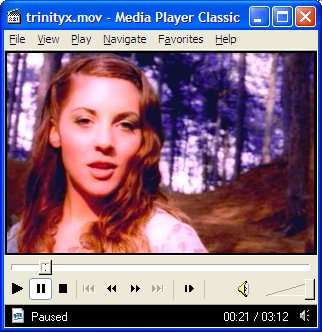
A screenshot of Media Player Classic on Windows XP

This post was originally written in 2004; I’d now recommend using MPC-HC, an improved fork of Media Player Classic.

Does this program look familiar to you? It may well do, because it’s rewrite of Windows Media Player 6, except it’s open source and released under the GNU GPL, and doesn’t have the annoyances of MS’s original. The interface is similar but a little more up-to-date and XP friendly, and comes with some more advanced features.

But probably the best thing about this player is the range of formats it supports. It’ll play just about anything you throw at it, whether it’s an MP3, an Ogg, a WMA, even a QuickTime file. And with Real Alternative (which Media Player Classic is bundled with), you can add RealMedia files to that list, negating the need for RealOne Player, which has to be enough reason to download it in itself.

You can also (probably) ditch QuickTime while you’re at it, since MPC doesn’t take an age to load, doesn’t annoy you with an ‘Upgrade to QuickTime Pro’ popup and lets you view movies in full screen. Unless you have iTunes installed in which case you’ll need to keep it.

Media Player Classic is available on its own from SourceForge but I’d recommend also installing Real Alternative and then deleting RealOne Player, since you won’t want to use it anymore. Anil found Real Alternative about the same time as me, and came to similar conclusions, so you needn’t just take my word for it.

Creative Commons License
Except where otherwise noted, the content on this site is licensed under a Creative Commons Attribution-ShareAlike 4.0 International License.