WordPress Wayback Link Fixer plugin

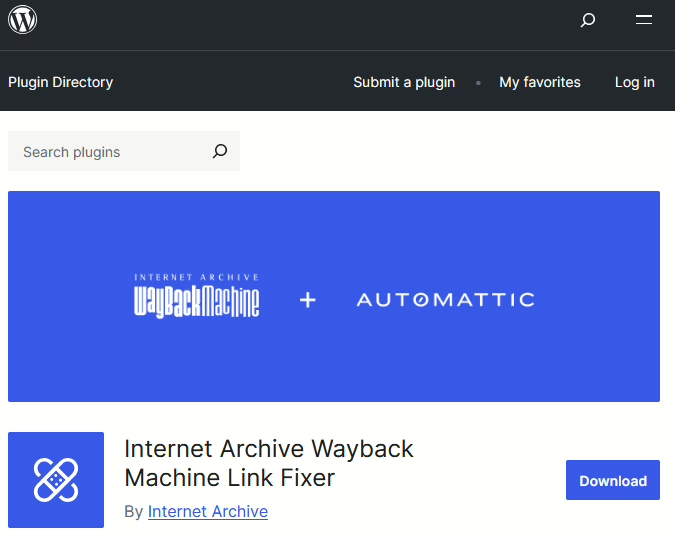
Screenshot of the Internet Archive Wayback Machine Link Fixer

Link rot is a major problem for long-established web sites that link to other sites. It’s a particular problem for blogs – the word ‘blog’ is, after all, a shortened form of ‘web log’ and the original blogs were links to interesting things the blogger writing it had found.

I’ve been blogging since 2002, and in that almost one quarter century, lots of the things I’ve linked to have gone missing. Companies close, web sites change and decide not to preserve their URLs, or are sold on to new owners. As such, many older sites are full of links that no longer point to anywhere useful.

This is where the Internet Archive Wayback Machine Link Fixer plugin for WordPress comes in. Once installed, it pro-actively scans outgoing links from your blog posts on a regular basis. If any no longer work, then, where possible, the plugin will amend that link to point a cached version of that link on the Internet Archive’s Wayback Machine. That way, people following the link will still get to see something, rather than a dead link. It’s an official plugin from the Internet Archive that has been developed with support from Automattic.

Backup to the Wayback Machine

But that’s not all! Once installed, you can opt-in to have all of your blog posts automatically backed up to the Wayback Machine. So, if your WordPress blog ever goes dark, all of your posts and pages should be available there for others to find.

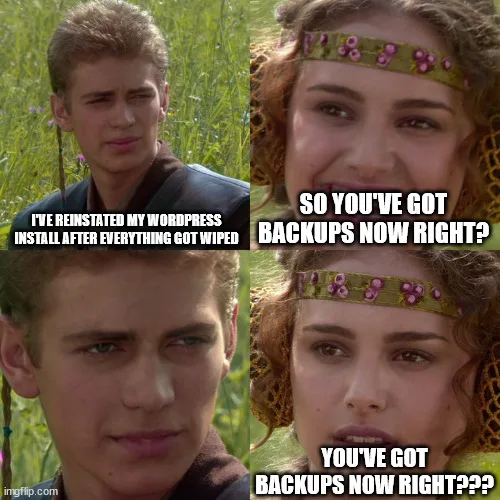
Normally, the Wayback Machine uses a crawler which usually scoops up most web pages in time. But it can miss those that may only be online for a short time, or not linked from a web site’s home page. This is a problem I’ve faced myself; I lost all my blog posts in 2018, and over the past three years I’ve been slowly reinstating old posts. Alas, some are missing from the Wayback Machine and are therefore (probably) gone forever. Whilst making sure that the Wayback Machine has copies of your blog posts is a good thing, you should also have your own backups and I now use UpdraftPlus for this.

So, if you’re a WordPress user, and care about preventing link rot and the sharing of information, go and install the plugin. Thanks to Matt for the head’s up, and maybe consider donating to the Internet Archive as well?

WordPress backups with UpdraftPlus

A meme featuring Anakin and Padme from the Star Wars films. Anakin is saying 'I've reinstated my WordPress install after everything got wiped' and Padme says 'so you've got backups now right?'

It’s a little while until World Backup Day on the 31st March, but I’ve set up UpdraftPlus to create automatic backups of my WordPress installation to my Dropbox account.

It’s a straightforward plugin to set up. You install it from the WordPress plugin directory, select your cloud storage provider, choose what you want to backup, and then run it. If it all goes well, you can then set a schedule for automated backups.

The free version offers Dropbox, Google Drive, Amazon S3 and some others, and you can also upload your backups to any FTP server, albeit over a non-secure connection. If you want to use WebDAV, SFTP, SCP, Microsoft OneDrive or UpdraftPlus’ own service, then you’ll need a premium account. At present, it’s £54 per year for up to two personal sites, which is pretty reasonable – the equivalent of a little over £4 per month.

Your backups can include everything if you want, but I’ve excluded plugins and themes from my backups. I haven’t modified the theme that I am using, and I’m not using any custom plugins – everything is from the WordPress plugin directory.

Backing up my files to Dropbox makes the most sense to me. I pay for Dropbox Pro and so have 2 terabytes of storage, of which I’m using less than 7%. Whilst VaultPress is the officially-supported solution for backups for WordPress, it’s not a free service and I’m already paying for Dropbox Pro.

The best time to set up backups is now

There isn’t a ‘best time’ to set up backups for any system apart from, well, now. So, if you haven’t got a backup solution in place, this is your reminder to sort something out. I lost all my blog posts in 2018 because I didn’t have adequate backups in place when doing a server upgrade. I would say I learned my lesson, but I’ve been blogging again for 18 months now and only set up UpdraftPlus last week.

There are many other WordPress plugins that offer backups – some free and some paid. I chose UpdraftPlus as it seemed to be the one which offered the features that I wanted, but you may find another suits you better. Just make sure that you have something in place.