AboutMy.email

Screenshot of the aboutmy.email screen

So, now that I’m sending out email newsletters, I need to be sure that people will actually receive the emails. Because email spam is still a problem after all these years, the big webmail providers have strict requirements to ensure that email reaches their user inboxes, and AboutMy.email is a really simple testing tool.

When you open the web page, you’ll be given an automatically generated unique email address. All you need to do is send an email to this address, preferably by adding it to your email list. Once the email comes through, AboutMy.email will analyse it, and let you know what you need to improve.

I had already set up DMARC, DKIM and SPF on my domain, and so, as you can see from the screenshot, it scored quite well. Other things that I’ve gained points for are my site having an IPv6 address, and using TLS for email connections.

To improve the score further, I’ve subsequently added a BIMI record, and need to look into adding unsubscribe headers from my emails. But it’s a very good start, and should reduce the chances of my emails ending up in user’s spam folders. I like how simple AboutMy.email is – you don’t need to register an account, and there’s no spam follow-ups afterwards (which would be ironic I suppose).

Sign up to my newsletter

An AI generated image of a postal worker delivering an email newsletter into a mailbox.

It seems like everyone has an email newslettter nowadays. I used to have a simple form where you could sign up for posts by email, powered by Jetpack, long ago. Seeing as it’s the in-thing again, I’ve added an email newsletter sign-up box to the sidebar (if you’re viewing on a desktop) and also below each post.

If you sign up, you’ll get a weekly email on a Monday with that week’s new blog posts. It’s automated, and so there won’t be any additional content for newsletter subscribers. Of course, there’s still the good old RSS feed which has been available for over 22 years now. And you can follow this blog on the Fediverse using Mastodon:

Neil Turner
Neil Turner
968 posts
4 followers

Not ‘a Substack’ newsletter

It seems like the word ‘substack’ has already become genericised (as per this toot from @mathowie). To be clear, whilst this is an email newsletter, I will not be touching Substack. Just in case you’re not aware, Substack hosts a lot of nazis, and doesn’t seem to be particularly bothered by this. A few of the worst offenders have subsequently been kicked off, but there are still many horrible people making money there. I actively avoid subscribing to Substack newsletters where possible, and certainly won’t pay for them. As well as self-hosting with WordPress like I do, Buttondown, Medium and Ghost are good alternatives, and many have easy import processes.

MailPoet

I don’t use Jetpack anymore, so instead I’m using the free version of MailPoet. There are lots of email plugins for WordPress, and most seem to offer full customer relations management features and detailed analytics. I don’t want that – I just want something simple where you type in your email address, confirm your subscription, and get a simple automated weekly digest.

MailPoet does have a lot of bells and whistles, even in the free version, but it is possible to just do what I want it to do. You can also manage it entirely within WordPress and don’t need to sign up to a third party service. Whilst it recommends that you use a third party email sending system, I’m sticking with my own. Unless I end up with thousands of subscribers, in which case I’ll re-consider.

Sending everything to Gmail

A couple of weeks ago, I decided to consolidate all of my personal email accounts into my Gmail account.

Considering that my relationship with Google soured after they killed off Google Reader (yes, I’m still bitter, three years on), this may come as a surprise. Until recently, I only used Google services for my calendar, search, maps and the advertising on this blog. I’d even stopped using Gmail, and had all messages there forwarded to my Outlook.com account. Mail sent to this domain was managed by its own IMAP server.

I’ll explain why I changed my mind in a series of sub-headings.

Gmail’s better spam protection

On my own email server, I had SpamAssassin (albeit without the Bayesian learning system which isn’t set up by default on my host), Pyzor, and the use of Spamhaus‘ blocklists. This still wasn’t enough to prevent spam getting through, and at its worst I was still getting 10-15 messages a day in my inbox. Gmail’s spam filtering is much better, despite a few false positives. For example, an email from my mother was sent to the spam folder as it was about transferring money – I’m guessing Google struggles to tell the difference between my mum and someone purporting to be a Nigerian prince. But over the past couple of weeks, I think there’s only been one spam email that has got through.

Not having to look after my own email server

The email server software offered by my host, Dovecot, is fine, but I’ve had to do things like enable DomainKeys and SPF myself. Ditto for tuning SpamAssassin and installing Pyzor. Outsourcing my email to a third party makes it easier.

I had considered using Google Apps, or Office 365, on my domain, but ran into issues. With Google Apps, you can’t use an email address already associated with a Google account, so I didn’t take that forward, and got stuck trying to enable Office 365’s DNS settings. Whereas I was just able to set up a series of email forwards to send everything to Gmail.

Notifications for important email only

If you turn on Gmail’s Priority Inbox mode, it’ll attempt to sort your email into ‘Important’ and ‘Everything else’. Crucially, that means that Gmail’s mobile apps will only notify you about important messages (if you want), rather than every new email message that isn’t spam. This cuts down the number of distracting notifications on my phone.

One (powerful) inbox to rule them all

By forwarding the email to this domain and from my Outlook.com account (reversing the previous situation), I have all of my personal email in one place. And that one place has decent mobile apps and a powerful web-based interface. By default, my host offers SquirrelMail which is very basic; I have since replaced it with RoundCube but Gmail is still easier to use.

Access to third-party services

With Gmail, I can finally use services like Unroll.me to clean up my inbox (which I’ll eventually devote a separate blog post to), and IFTTT, to name a few. There’s also Inbox by Gmail, which I’ve been trying recently and it’s a very impressive improvement to the basic email inbox. Again, I’ll have to write about it in more detail sometime.

Although I don’t pay for Gmail just yet (and nowadays I’m loathed to rely on services that I’m not paying for), there is a paid-tier of Gmail offering more storage should I require it. However, as I don’t use Google Photos, I’m nowhere near the storage limit for my Google account and so I don’t need to pay for it at present.

For those of you wondering what email address to use, please continue to send messages to neil@neilturner.me.uk. This has been my primary email address for well over a decade and I plan to keep it that way. Whilst everything gets forwarded to Gmail, I will still reply to messages using that address, and should Google decide to change Gmail for the worse in future, I’ll be able to port it somewhere else.

So long, Thunderbird

It’s with something of a heavy heart that I’ve had to give up using Mozilla Thunderbird for my email altogether. You may recall that I now use Airmail at home, but have been using Thunderbird at work. Sadly, Thunderbird is no longer fit for my purposes and so it’s had to go. I’m now using Outlook 2010, just like (almost) everyone else at work.

The reason for the change has been because of our move to Office 365. We’ve migrated from an old Unix system for email, and a proprietary calendar system called Meeting Maker, which also has various other nicknames not to be repeated in polite company. Meeting Maker was a separate application but the server had a CalDAV servlet which could also produce a subscribe-able internet calendar (.ics) file. And the email system was IMAP-based.

Office 365, however, primarily uses Exchange. IMAP and POP3 are provided for email, but it doesn’t support CalDAV for calendars, or CardDAV for contacts. So whilst Thunderbird would be okay for using just as an email client, I’d still have to go back to Outlook for my calendars – at which point, there’s no reason to carry on using Thunderbird.

‘But wait’, you may be saying, ‘you linked to a Provider for Exchange extension only last month!’. I did, but sadly I couldn’t get it to work, and development on it has ceased in any case. There was no way I was able to get my Office 365 calendars working in Thunderbird’s Lightning extension.

The really sad thing is that I’m not missing Thunderbird as much as I thought I would. Unsurprisingly, Outlook works much better when it’s used with an Exchange email server than a generic IMAP one, and it’s nice to be able to set out of office replies without having to go into webmail. It’s also a lot faster in my experience.

To me, Thunderbird’s problem is that it seems to be falling into a power user niche. It’s too big and complicated for basic users, or even people like me who want a relatively straightforward interface for use at home. But it also lacks enterprise features, like support for Exchange. And I’m surprised that Lightning is still an extension, rather than being offered as part of a bundle, given that Outlook comes as a complete package. It needs some love and attention, but with the Mozilla Foundation’s focus on Firefox and its Firefox OS phones, I can’t see it getting any.

My favourite add-ons for Thunderbird

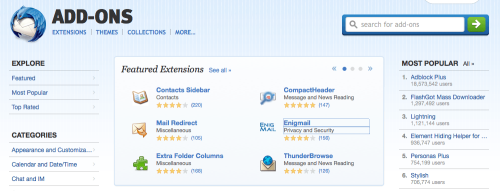
A screenshot of the Thunderbird add-ons web page

It’s been some time since I used Mozilla Thunderbird at home – I switched to Sparrow, then Apple’s own Mail app, before settling on Airmail last year. But at work, where I deal with a high volume of email, I prefer to use Thunderbird, instead of the provided Outlook 2010. There are a few add-ons which help me get stuff done, and so here is my list:

Lightning

Unlike Outlook, Lotus Notes or Evolution, Thunderbird doesn’t ship with a calendar. Lightning is an official Mozilla extension which adds a reasonably good calendar pane. Calendars can be local, subscribed .ics files on the internet, or there’s basic CalDAV support as well, and it works well with multiple calendars. A ‘Today’ panel shows up in your email pane so you can quickly glance at upcoming appointments.

Once you have Lightning installed, there are some other calendar extensions you can add. Some people use the Provider for Google Calendar extension – I don’t, as nowadays Google Calendar supports CalDAV so there’s no need for it. If you need access to Exchange calendars, then there’s also a Provider for Exchange extension too, although as we’re not (yet) on an Exchange system at work I haven’t yet tried this.

There’s also ThunderBirthDay, which shows the birthdays of your contacts as a calendar.

Google Contacts

If you use Gmail and its online address book to synchronise your contacts between devices, then Google Contacts will put these contacts in Thunderbird’s address book. It doesn’t require much setup – if you’ve already set up a Gmail account in Thunderbird then it’ll use those settings.

This is probably of most interest to Windows and Linux users. On Mac OS X, Thunderbird can read (and write, I think) to the global OS X Address Book, which can be synchronised with Google Contacts and therefore this extension isn’t needed. In the past, I used the Zindus extension for this purpose but it’s no longer under development.

Mail Redirect

This is a feature that older email clients like Eudora had, which allowed you to redirect a message to someone else, leaving the message intact. Mail Redirect adds this is a function in Thunderbird.

It’s different to forwarding, where you quote the original message or send it as an attachment – with Redirect, the email appears in the new recipient’s inbox in almost exactly the same way as it did in yours. That way, if the new recipient replies, the reply goes to the sender and not to you.

Thunderbird Conversations

If you like the way that Gmail groups email conversations together in the reading pane, then Thunderbird Conversations is for you. It replaces the standard reading pane, showing any replies, and messages that you have sent – even if they’re in a different folder. You can also use it to compose quick replies from the reading pane rather than opening a new window.

LookOut

Although this extension apparently no longer works, LookOut should improve compatibility with emails sent from Microsoft Outlook – especially older versions. Sometimes, attachments get encapsulated in a ‘winmail.dat’ file, which Thunderbird doesn’t understand. LookOut will make these attachments available to download as regular files. Hopefully someone will come along and fix it, but there hasn’t been an update since 2011 so I’m guessing this extension has been abandoned.

Smiley Fixer

Another add-on that will make working alongside Outlook-using colleagues a bit easier. If you’ve ever received emails with a capital letter ‘J’ at the end of a sentence, then this is Microsoft Outlook converting a smiley :) into a character from the Wingdings font. Thunderbird doesn’t really understand this and just displays ‘J’, which is where Smiley Fixer comes in. It will also correct a few other symbols, such as arrows, but you may still see the occasional odd letter in people’s signatures.

Enigmail

If you use GnuPG to encrypt messages, then you’ll probably have the Enigmail extension installed. Though it originally was a pain to set up, nowadays it seems to work quite well without a lot of technical knowledge. It includes a listing of all of the keys in your keychain, and you can ask it to obtain public keys for everyone in your address book should you wish.

Dropbox for Filelink

Some time ago a feature called ‘Filelink’ was added to Thunderbird, which allowed you to send links to large files, rather than including them as attachments. Whilst most people nowadays have very generous storage limits for their email, sometimes it’s best not to send large files as email attachments. Thunderbird supports Box and the soon-to-be-discontinued Ubuntu One services by default, but you can use the Dropbox for Filelink extension to add the more popular Dropbox service. Another extension will add any service which supports WebDAV which may be helpful if you’re in a corporate environment and don’t want to host files externally.

These are the extensions that I use to get the most out of Thunderbird. Although I’ve tried using Outlook 2010, I still prefer Thunderbird as it’s more flexible and can be set up how I want it.

Disconnecting from work email

iPhone 4

When I first got my iPhone in 2010, I very quickly set up my three most-used email accounts on it – my personal account at this domain, my Gmail account, and my work email account. Soon, every time I got an email on any of those accounts, no matter what time of day it was, my phone would duly ping me.

At weekends, when going through the unified inbox overview of all three, I’d duly delete the ‘calls for papers’ that various conferences send me (because they assume that anyone who works at a university is an academic) and carefully flagged up the emails that needed action for when I got back in the office on Monday. I thought I was being more productive this way, but actually, all I was doing was spreading what would be a five minute task at work throughout my weekend, when I should be relaxing.

More to the point, it was making it harder to switch off from work, and making checking my personal accounts more difficult as I had to wade through work emails to get to them.

It took until the start of 2012 before I finally decided that this was a silly way to do things. I was off work for two weeks – I’m lucky enough to work for an employer that gives everyone time off between Christmas and New Year, and I had some annual leave in early January. I was getting notifications of work emails, but it would be more than a week until I would be back in the office in order to actually do anything about them. So, I deleted my work email account off my phone.

In the time since, I have kind-of added it back. I use the now abandoned Sparrow client to access my work email on a purely ad-hoc basis, if required, but it’s kept separate from my personal email accounts (in the stock Mail app on my iPhone) and I don’t get notifications for it. So it’s there if I do need to access it – usually if I’m at work but away from the office – but I can’t be disturbed by work emails when I’m not at work.

I’m therefore pleased that, in France, there’s a new labour agreement to stop employees looking at work email after 6pm. France already has a mandatory 35 hour working week, meaning that French employees work shorter hours to improve their work-life balance. This goes further, and helps to prevent employees from doing work-related activities outside work hours.

If you are regularly checking work email when you’re not at work, I would recommend you to stop. It’ll help you disconnect from work and enjoy your free time more. And it often doesn’t save you much time at work either.

My new favourite email client

Screenshot of Apple Mail running on Mac OS X Lion

For many years I was a Mozilla Thunderbird user; I even used the beta builds back in 2003, long before its final 1.0 release. Though I still use it at work, where I deal with large volumes of email, at home it was overkill, and so I bought a copy of Sparrow which was simpler and lighter. Except last summer development of Sparrow basically stopped, thanks to Google taking over the Sparrow team.

Sparrow still works okay but with its future looking similar to that of Twitter’s official app I decided to start looking for alternatives. And I found one in a very unexpected place – already on my Mac.

When I switched to a Mac back in 2005, I carried on using Thunderbird, as back then I was still keen on its extensions and its flexibility, so I never bothered with Mail, which is the native email client available on all Macs. And in the almost 8 years since I’ve never bothered to revisit Mail, bar a couple of times out of curiosity when I’ve found it to be a bit over-complicated.

But then I found this article: Turning Mail.app Into the Best Mac Email App, linked from Lifehacker, which explains how to customise Mail to make it more effective. The article has a number of workflow suggestions which I don’t bother with, but it does also suggest how to simplify the interface to make it look, well, more like Sparrow.

It took some time; I have three personal email accounts (one on this domain, plus Gmail and Outlook.com) and Mail defaults to storing saved messages and drafts on local folders, so I had to teach Mail that I actually wanted to use the relevant IMAP folders for this. This involves opening each folder – which Mail confusingly calls ‘Mailboxes’ – and then marking it by clicking the Mailbox menu and using ‘Use this folder for’. Sparrow and Thunderbird both do this through Account Settings, and they both correctly configure Gmail automatically anyway.

Once done, though, I had a nice, clean and simple setup, with a unified inbox view of all three email accounts. Mail’s actually relatively efficient when it comes to system resources and, broadly speaking, uses about the same amount of RAM as Sparrow did.

Maybe I should have taken a fresh look at Mail sooner. It gets an update in each new version of OS X, and doesn’t cost anything extra.

How to use Google Sync without using Exchange

In a blog post on its official blog called ‘Winter cleaning‘, Google announced that it was shutting down some of its services. They are all features which have either been replaced with something (supposedly) better, or are only used by a small number of people and are therefore not worth keeping. This includes Google Sync, which allows the use of Microsoft Exchange protocols for synchronising Gmail, Google Contacts and Google Calendar.

Unfortunately, Exchange is what myself and a number of others use on the iPhone, as it’s the easiest way to synchronise mail, contacts and calendars at the same time. Now Google isn’t dropping Exchange support completely – users of Gmail and free Google Apps accounts (which recently closed to new sign-ups) can continue using it but won’t be able to set it up on new devices; paid Google Apps users will be able to carry on with no problems.

But it’s clear that Exchange support is not a priority for non-paying users like me and so it’s probably best to look at alternatives. Google is, refreshingly, pushing open standards instead – IMAP for email, CalDAV for calendars and CardDAV for contacts. Luckily for iPhone users like me, Apple supports all three, although Windows Phone users aren’t so lucky.

So, here’s how to replace your Exchange-based Google settings with IMAP, CalDAV and CardDAV:

Step 1: Remove the Exchange account

Open Settings, choose Mail, Contacts and Calendars, select your Google Account which is using Exchange, and then select Delete Account. This will remove all contacts, calendars and emails that have been synchronised so I would ensure you have backed your phone up first, just in case there are any problems.

Step 2: Set up a new Gmail account

You should now add your Gmail account in the standard way, by choosing ‘Add Account’ in Mail, Contacts and Calendars and then tapping the Gmail logo. This will set up email and calendar sync, using IMAP and CalDAV respectively, but not contacts.

Step 3: Set up a CardDAV account to synchronise contacts

Going back to the ‘Add Account’ screen, tap ‘Other’ and then ‘Add CardDAV Account’. In server, enter ‘google.com’, your Google Account username and password, and a description – I called mine ‘Google Contacts’.

Now, open the Mail, Contacts and Calender apps on your iPhone in turn to download the data again, which may take a couple of minutes. And then that’s it – you should be back to where you started.

If you find that some of your calendars are missing, open Mobile Safari and browse to https://www.google.com/calendar/syncselect – this will allow to select which calendars are synchronised over CalDAV. The changes will take effect the next time you open the Calendars app, after a few seconds.

These instructions are a bit long-winded and it would be nice if the iPhone’s Gmail support included Contacts as well (which would make step 3 unnecessary). However, considering Apple’s uneasy relationship with Google of late I can’t see this being a priority for them, especially as these features duplicate Apple’s iCloud.

First Thunderbird, now Sparrow…

The logo for the Sparrow email client in Google's colours.

I’m not having a good time with email clients. Earlier this month we learned that Thunderbird would not get any major feature updates in future (development will continue but Mozilla has reduced Thunderbird’s resources). And now Sparrow, my favoured email client on Mac OS X and on my iPhone, has been acquired by Google.

This may not sound like bad news but, alas, this is a ‘talent acquisition’ – a bit like when Facebook bought Gowalla last year. In other words, the people behind Sparrow will be working on new projects at Google, specifically on the Gmail teams, and won’t be doing any further work on Sparrow itself – this was confirmed by a Google spokesperson to Macstories. We can expect ongoing support for Sparrow, but no new features.

The Mac OS X version is reasonably complete in terms of features – in fact, it has just been updated for the new Retina displays in Apple’s latest MacBook Pro, and presumably will work with Mountain Lion without any problems. As for the iOS version, it can do almost everything that the stock email client for the iPhone can do (and more), but with the notable exception of push notifications of new email messages. This was likely to be a premium feature due to how push notifications work on iOS with background apps. Presumably, today’s announcement means that this won’t be forthcoming; similarly, a rumoured iPad app is now unlikely to be released.

Whilst I’m happy for Sparrow’s developers to be recognised for their talent, and presumably Google were able to give them an offer that they could not refuse, this potentially leaves Sparrow’s users in the lurch. Of course, there’s a limit to what you can do with what was always intended to be a simple email client – part of the reason for the slowdown of Thunderbird development – but the iOS client in particular showed a lot of promise that now won’t be realised.

The likelihood of Sparrow finding a new home in Google was slim in any case; Google doesn’t tend to do much in the way of desktop software (Chrome, Drive, Earth and Picasa are the only major exceptions) and there’s already an official Gmail app for iOS, which has been updated recently and, crucially, supports push notifications. And keeping Sparrow going at Google whilst its developers focus on other things would have been a distraction.

I hope that, instead, Sparrow offer to sell the branding rights and source code to somebody else, to keep it going. Or, better yet, make it open source, so that the community can keep it going. On iOS, the jailbreak community have already written various enhancements, such as Sparrow+.

I suppose I’ll have to investigate Apple’s own Mail app in Mountain Lion. I tried to use it recently as an alternative to Thunderbird, but in Lion it feels over-complicated and poorly designed.

Addendum: There’s an interesting post from Elezea which I also agree with.

Thunderbird on life support

Screenshot of Mozilla Thunderbird 13 on OS X

It is with a little sadness that Mozilla Thunderbird will no longer receive resources from the Mozilla Foundation. The decision has been made to focus on other products (mainly Firefox), and that there’s not much room for further innovation in desktop email clients – especially as many people now use webmail services exclusively.

I’ve been a long-time user of Thunderbird – right back to version 0.1 alpha (then called Minotaur) which I reviewed back in April 2003. It’s come on a long way since then, and is still my favourite email client on Windows – especially with the Lightning extension adding a calendar feature. A myriad of other extensions has also allowed me to customise it how I want.

That being said, in some ways it’s no longer meeting my needs. I use at work – officially we’re supposed to use Outlook but there are many people using Thunderbird instead, as its IMAP support is much better. This is fine for our email server which is Unix based, but if we ever move to a Microsoft solution then the lack of support for Exchange, even after all of these years, makes Thunderbird fall short.

I also no longer use Thunderbird at home; earlier this year, I moved to Sparrow which offers a much simpler and lighter experience. Thunderbird is great for an all-singing, all-dancing email client and great for the large volumes of mail that I get spanning different folders, but at home, I just want something basic that can stay in the background. It may have far fewer features but Sparrow suits my needs better. Thunderbird is still installed for the few times when I work from home, but I may now look into Apple’s own email client instead.

As I understand it, the next release of Thunderbird will be an ‘extended support release’, at which point it will receive fixes for major bugs and security issues, but no new features – at least, not from Mozilla themselves. It’ll still be hosted by Mozilla and, being open source, should ‘the community’ want to contribute patches to it then they will be welcome to. Postbox remains as a commercial fork of Thunderbird, although its £30 price tag is high.

It’s a shame to see Thunderbird fade into further obscurity but an understandable one. Many users just don’t need a desktop email client anymore, because they pick up their email on a mobile device or webmail. Outlook and Lotus Notes rule the corporate roost. That doesn’t leave much of a market for Thunderbird to serve.