Setting WPA mode on ESPHome

The YAML code for ESPHome to specify the WPA version

If you’ve upgraded to last month’s release of ESPHome 2025.11, you may start seeing this warning message about WPA when validating your YAML scripts, or compiling new versions:

WARNING The minimum WiFi authentication mode (wifi -> min_auth_mode) is not set. This controls the weakest encryption your device will accept when connecting to WiFi. Currently defaults to WPA (less secure), but will change to WPA2 (more secure) in 2026.6.0. WPA uses TKIP encryption which has known security vulnerabilities and should be avoided. WPA2 uses AES encryption which is significantly more secure. To silence this warning, explicitly set min_auth_mode under ‘wifi:’. If your router supports WPA2 or WPA3, set ‘min_auth_mode: WPA2’. If your router only supports WPA, set ‘min_auth_mode: WPA’.

The warning message is pretty self-explanatory, but it concerns upcoming changes to Wi-Fi Protected Access (WPA) in ESPHome that are due to be introduced in June next year.

A bit of a history of WPA

Honestly, if you’re using ESPHome, you’re probably sufficiently tech-savvy to know what WPA is, but if this blog post is less than 300 words, it’ll probably be largely ignored by search engines. So, you can skip this bit if you like.

WPA is what makes a secured Wi-Fi network secure. The ‘Wi-Fi password’ you put in when connecting to secure Wi-Fi networks is the WPA security key. It replaced Wired Equivalent Privacy, dating from the earliest days of Wi-Fi, which is so weak that you can probably crack it with a standard laptop nowadays in a few minutes. It used 64 or 128-bit RC4 keys.

There are three versions of WPA:

  • The original version, which uses 128-bit keys with TKIP
  • WPA2, which replaces TKIP with the more secure AES
  • WPA3, the newest version, which improves the security of the key exchange and mitigates against easily guessable Wi-Fi passwords

Many devices that were originally designed to only support WEP could be upgraded to support WPA through software. At the time, this was a good thing – plain vanilla WPA was (and is) more secure than WEP. But as more security research has taken place, and computers have become more powerful, WPA is now also no longer recommended. WPA2 was ratified over 20 years ago, and so there are very few devices still in use that don’t support it. WPA3, meanwhile, is still quite new, having been ratified in 2018.

ESP devices and WPA

So, to bring this back to ESP devices and ESPHome in particular. At the moment, ESPHome defaults to the following WPA versions:

  • Original, plain vanilla WPA on ESP8266 chips
  • WPA2 on ESP32 chips

Remember, ESP32 is newer than ESP8266, despite the numbers. ESPHome has long supported YAML variables, that over-ride these defaults, to specify a specific WPA version to use when compiling.

What has changed with ESPHome 2025.11 is that, where you don’t specify the WPA version, you’ll see the above error when validating or compiling ESPHome for ESP8266 devices. Remember, these default to standard WPA at present.

Next June, when ESPHome 2026.06 is due for release, support for WPA will be dropped. So, if you don’t specify the WPA version, then from around June 2026, your ESP8266 devices will start using WPA2 the next time you re-compile them. This shouldn’t cause any issues, unless your Wi-Fi router is really old and doesn’t support WPA2. To which, I would say that replacing your router should be your priority, rather than amending your ESPHome configurations.

As for WPA3, this is only supported by the newer ESP32 family of chips. That means that, from June 2026, WPA2 will be the only option for ESP8266 chips.

How you can make the WPA warning go away

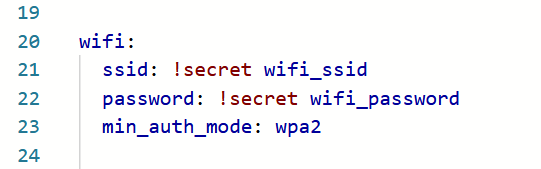
If you want, you can edit your YAML configuration files for your ESPHome devices to specify the WPA version to use. In the ‘wifi:‘ block, add ‘min_auth_mode: WPA2‘ underneath the network name and key, as so:

wifi:
  ssid: !secret wifi_ssid
  password: !secret wifi_password
  min_auth_mode: WPA2

That will ensure that ESPHome always uses WPA2 on your devices, and will hide the warning. If your devices have ESP32 chips, and your router supports WPA3, you can add ‘min_auth_mode: WPA3‘ instead; this will offer better security. For more information, see the guide to the ESPHome Wi-Fi component.

Will ESPHome eventually phase out WPA2 support as well? Perhaps, but WPA3 is still pretty new – if your router is more than five years old then it may not support it. Maybe it will in another 15 years or so.

Converting a Tasmota smart plug to ESPHome

A photo of a Coosa smart plug, originally running Tuya firmware, and a USB to UART converter. This now runs ESPHome firmware.

Back in June, I flashed some old Tuya Wi-Fi smart plugs with Tasmota firmware. I’ve now re-flashed one of them with ESPHome, an alternative firmware by the Open Home Foundation who are the same people as Home Assistant. In this blog post, I’m going to outline:

  • Why the change from Tasmota to ESPHome
  • How to build a YAML file for ESPHome
  • The flashing process

This is a longer blog post, so if you want to skip the explanations for each section of the YAML file and just want to go ahead and do this yourself, you can download my pre-made YAML file from GitHub, and then follow these instructions.

Why the change from Tasmota to ESPHome

If you’re starting out with custom firmware for your existing devices, then I would still recommend Tasmota. It’s much easier to set up, as you install it first, and then configure it. There’s also a much more extensive repository of supported devices, so you shouldn’t need to do much manual tinkering once Tasmota is installed.

ESPHome, by contrast, requires you to configure it first, and then install it. Furthermore, rather than offering a web interface for configuring your devices, instead you have to do this in a YAML file. And then you have to compile the firmware specifically for your device and upload it.

That being said, ESPHome is much more powerful. You can build automations into it that run on the device itself, rather than through, say, Home Assistant. And as each firmware binary is compiled for each device, it’s much smaller, which allows for easier updates. On some Tasmota devices, you have to install a ‘minimal’ version of the firmware before you can upgrade. By contrast, with ESPHome, your device should be able to update directly to new firmware versions.

As you would expect, ESPHome integrates better with Home Assistant. Indeed, one reason for me changing to ESPHome is that the Tasmota integration takes a while to start up and is one of those slowing Home Assistant down. Firmware updates are also offered through Home Assistant, so you don’t need something like TasmoAdmin to manage firmware updates for multiple Tasmota devices.

Building the YAML file

I’m going to go through each section of the YAML file, to explain what it does, and why it’s necessary. Some of these are specific to the plugs that I’m using, and may not transfer to other devices.

Firstly, with Tasmota still running, open the Configuration screen and choose Template. This will give you a list of the GPIO pins, and what they currently do in Tasmota. You’ll need to note these, so that you can tell ESPHome what pins to use. On mine, these were the ones in use:

  • GPIO4 – LED
  • GPIO5 – Relay
  • GPIO13 – Button

The LED is the light on the smart plug, the relay is what controls whether the power is on or not, and the button is the physical button on the smart plug that controls the relay. Whilst the relay is the most important, to preserve the device’s full functionality, we need to tell ESPHome about all of them.

The ESPHome section

Here’s the first bit of the YAML file:

esphome:
  name: $name
  friendly_name: $friendly_name

esp8266:
  board: esp01_1m

If you use the wizard in the ESPHome Device Builder, then these will have been created for you and filled out with whatever name you’ve chosen. The second block tells ESPHome that the device has an ESP8266 chip, and it’s a generic board. This was the default selection and seemed to work fine for me.

Logging, API, OTA, Wi-Fi

Next, we have the following:

# Enable logging
logger:

# Enable Home Assistant API
api:
  encryption:
    key: $key

ota:
  - platform: esphome
    password: $password

wifi:
  ssid: !secret wifi_ssid
  password: !secret wifi_password

  # Enable fallback hotspot (captive portal) in case wifi connection fails
  ap:
    ssid: "esphome-smartplug"
    password: $fallbackpassword

captive_portal:

The logger means that the device will keep logs. It’s up to you whether you keep this in, but as I was coming up with this myself, I decided it would be best to help debugging.

Because I’ll be using this smart plug with Home Assistant, we need to include the ‘api:‘ section. Again, the ESPHome device builder should have filled out an API key here.

The ‘ota:‘ section allows for ‘over the air’ updates. This means that your device can update to new versions of ESPHome without needing to be plugged in to a device, either over USB or a UART connection.

In the ‘wifi:‘ section, this includes references to the ESPHome Device Builder’s secrets file which should have your Wi-Fi network SSID and password. If the smart plug can’t connect using these details, then, as a fallback, it’ll create its own access point. This is where we also need the ‘captive_portal:‘ section, which allows the user to select a Wi-fi network if the one we’ve pre-programmed can’t be found.

Web server

Next, we have this section:

web_server:
  port: 80

This is optional, but it creates a Tasmota-like web app that you can connect to. This will allow you to press the button on the smart plug, view the logs, and upload firmware. We don’t need it, but it partially replicates the functionality of the previous Tasmota firmware, and helps with debugging.

Binary sensor

This is the section that enables the hardware button on the smart plug to work:

binary_sensor:
  - platform: gpio
    pin:
      number: GPIO13
      mode: INPUT_PULLUP
      inverted: True
    use_interrupt: True
    name: "Power Button"
    id: "smartplug_button"
    on_press:
      - switch.toggle: "smartplug_relay"
    disabled_by_default: True

We’re telling ESPHome that the button is attached to GPIO pin 13, and, when the button is pressed, to toggle the relay on or off. I’ve also added the ‘disabled_by_default: True‘ line so that it doesn’t show in Home Assistant.

Switch

Now, we need to configure the relay, and make it available to Home Assistant:

switch:
  - platform: gpio
    name: "Switch"
    id: "smartplug_relay"
    pin: GPIO5
    on_turn_on:
      - output.turn_on: led
    on_turn_off:
      - output.turn_off: led
    restore_mode: RESTORE_DEFAULT_ON

So, we’re telling Home Assistant that the relay is connected to GPIO pin 5. We’re also telling it to turn on the LED when the relay is turned on, and off again when it’s turned off. The ‘restore_mode: RESTORE_DEFAULT_ON‘ tells ESPHome what to do when the device boots up, perhaps after a power cut. I’ve set it to try to restore the status that it had before, but if it can’t, to turn the relay on.

LED

Here’s our final block, to tell ESPHome that there’s an LED

output:
  - platform: gpio
    pin: GPIO4
    inverted: true
    id: led

Again, we tell ESPHome that it’s connected to GPIO pin 4. The YAML code in the Switch section tells ESPHome when to turn the LED on or off.

So, now we have a YAML configuration file. This should be added as a new device in the ESPHome Device Builder.

The flashing process

The good news is that switching from Tasmota to ESPHome is easier than from the original Tuya firmware. You probably won’t have to get out a UART converter and cables, unless you accidentally brick your device. Instead, you just need to follow these instructions, which involve manually downloading the firmware binary, and then uploading it to Tasmota. When the device restarts, it’ll be running ESPHome instead.

Tasmota firmware upgrade failing due to lack of storage space

A screenshot of the Tasmota firmware upgrade screen on the web interface

Once you’ve switched your ESP devices from the stock proprietary firmware to Tasmota, the good news is that future firmware upgrades to newer Tasmota versions should be straightforward. You just need to open your device’s web interface, and do an over-the-air (OTA) upgrade, or use something like TasmoAdmin to bulk-upgrade multiple devices. At least, that’s how it works in theory.

What you may find is that the update fails, due to a lack of storage space. So today, I’m going to outline four possible workarounds that you could try if your Tasmota firmware upgrades fail.

Why is there a lack of storage space?

Firstly, a bit about why this happens. You’re most likely to encounter this error with devices that use the ESP8266 chip. Some of these chips come with as little as one single megabyte of flash memory storage, and the standard build of Tasmota is 656 kilobytes (as of version 15.0.1 which is the latest at the time of writing). There simply isn’t enough space for both the current firmware and the new firmware to sit side-by-side ahead of the update process.

Now that we understand why the problem occurs, we can try some solutions.

Solution 1: gzipped binaries

As long as you’re upgrading from a version newer than Tasmota 8.2 (which came out over five years ago now), you can use the smaller gzipped binaries. This reduces the standard Tasmota 15.0.1 release binary down to 469 kilobytes.

However, on some of my devices, that was still too big – 656 plus 469 is more than 1024 kilobytes and exceeds the capacity of the 1 MB flash storage.

Solution 2: install tasmota-minimal first

There are a couple of slimmed down versions of Tasmota:

  • tasmota-lite – a cut-down version of Tasmota without many of the sensors or drivers included
  • tasmota-minimal – the bare-minimum of Tasmota which can’t do anything apart from be upgraded to the full firmware

What you can do is install the latest version of tasmota-minimal first, and then the latest standard version of Tasmota. tasmota-minimal is only 265 kilobytes, and so it’s small enough to fit alongside the standard firmware. Once installed, there’s then space for the full version to be installed.

When you do an OTA upgrade, this is the process that should happen – tasmota-minimal gets installed first, and then the full version. But if it doesn’t, you can do this manually yourself. Your device settings, such as the GPIO mappings and MQTT settings, will be retained during the process.

Solution 3: tethered firmware update

A tethered update is where you use another device, such as a PC, to update the firmware. This means physically connecting the device to the PC. It gets around the storage limitation as the firmware doesn’t need to be downloaded to the device running Tasmota first.

How easy this will be will depend on the device, and where it is. If you’re running Tasmota on a development board, such as a Wemos D1 or m5stack Atom, then you can plug in into your PC with a standard USB cable (as long as it’s a data and power cable). However, if your device is buried away somewhere inaccessible, or is a consumer device that requires disassembly and a USB to UART converter, then you may not want to do this every time a new version is released.

Solution 4: Compile Tasmota yourself

The standard builds of Tasmota cover most common use cases. However, as Tasmota is open source, you can compile it yourself. That way, you can create a smaller, customised build for your device that doesn’t include any extra functions that aren’t needed. There are tools available to do this, but this is really only for advanced users – especially as you’ll need to recompile the binaries for each release.

Solution 5: Switch to a different firmware

As I mentioned last month, Tasmota is not the only game in town. If you also use Home Assistant, then consider replacing Tasmota with ESPHome.

ESPHome has a higher learning curve, due to its use of YAML configuration files. But, once this is set up, it’s easier to compile new binaries each time a new version of ESPHome is released. And, if you’re lucky, you’ll be able to download a pre-built YAML file from the ESPHome Device Repository. Just be aware that it’s not as extensive as the Tasmota Supported Devices Repository – the ESPHome repository has details of around 600 devices compared to almost 3000 for Tasmota. I wasn’t able to find an exact match for ESPHome for my smart plugs, for example.

ESPHome has some other advantages. For example, you can edit the YAML configuration to tell Home Assistant what type of device is plugged in, say a light. That means it’ll appear in Home Assistant as a light, rather than a switch, without needing to use the Change device type of a switch helper.

As with solution four, having a smaller firmware binary will make future OTA updates easier, and these updates can be managed through Home Assistant.

Tuya-Cloudcutter

A Tuya IR and RF bridge that has been flashed with new firmware using tuya-cloudconverter

Last year, I wrote about a tool called ‘tuya-convert’ which exploits a vulnerability in ESP-based Tuya devices to install custom firmware such as Tasmota. But not all Tuya devices use ESP chips, and that’s where tuya-cloudcutter comes in.

I have one such device, an ‘S11’ RF and IR bridge (pictured above) that I picked up cheaply from AliExpress last year. Instead of one of Espressif’s ESP chips, it comes with a Beken BK7231N chip. Having disassembled its case, I also didn’t find any obvious pins for the UART bus. So I was relieved to come across tuya-cloudcutter, as it doesn’t require any soldering or disassembly. tuya-cloudcutter should work with any devices that use the BK7231T and BK7231N chips.

Like tuya-convert, tuya-cloudcutter exploits a vulnerability. This was responsibly disclosed to Tuya (the bug bounty was donated to charity), and newer devices are shipped without this vulnerability. However, there’s no firmware update for my S11 device to fix the issue, which is perhaps poor from a security perspective but suits my needs right now.

Running tuya-cloudcutter on a Raspberry Pi

You’ll need to run tuya-cloudcutter on a Linux device, and a Raspberry Pi is perfect for this. Indeed, there’s a detailed tutorial to follow. You’ll need Python, Docker, Git and NetworkManager installed and enabled, and there are a couple of configuration files to edit before you start. Everything is done using a command prompt, so you could do it over SSH using a Windows machine with Putty if you wanted to.

A note: I first tried this on my nine-year-old’s Raspberry Pi 400, and it didn’t work, whereas it did on my Raspberry Pi 4. I believe it was an issue with the specific Wi-Fi adaptor in the Raspberry Pi 400.

You may find that it’s easier to have the device already set up in the Tuya or Smart Life app, as you’ll be able to find the existing firmware version. You’ll need this when running the tuya-cloudcutter tool.

Detaching and flashing

tuya-cloudcutter offers two modes:

  1. Detach – this leaves the Tuya firmware intact on the device, but detaches it from the Tuya cloud. You can then use the LocalTuya or TuyaLocal custom Home Assistant integrations from HACS to control your device, but the official Tuya and Smart Life apps won’t work anymore.
  2. Flash – this also flashes new firmware onto the device.

In terms of firmware choices, by default you get:

  • OpenBeken – a Tasmota-like firmware where you can configure the device
  • ESPHome Kickstart – a minimal version of ESPHome, which can be updated later.

You can also add your own firmware, although be careful as you may brick your device if the firmware isn’t configured correctly.

If you choose to flash new firmware, then when the tool has run correctly, you’ll see a new Wi-Fi network appear for you to connect to. The Hotspot login page should open automatically, but if not, go to http://192.168.4.1/ to proceed. You can then configure the firmware to connect to your Wi-Fi network.

Switching firmware later

For my device, I tried OpenBeken first, but found that it wasn’t able to use the RF capabilities of the device. Instead, I built an ESPHome configuration, using the tuya_rf custom component, and flashed that, using OpenBeken’s OTA firmware updater. Because once you’ve used tuya-cloudcutter to install new firmware on a device, you don’t need to use it again – you can switch from OpenBeken to ESPHome and vice versa quite easily.

Also, if you read yesterday’s post about the Sonoff RF Bridge, no, this RF bridge didn’t work with my doorbell either.

ESP Firmware alternatives

Building on last week’s post about flashing smart plugs Tasmota, today I’m going to talk about other custom firmware that you can install on devices with an Espressif ESP chip. Tasmota is the most well-known, but whilst researching how to do the flashing, I’ve come across some others.

Tasmota

Obviously the first one I should mention is Tasmota. It seems to be the most well-used, with active development and lots of features. It’s designed to be used only on ESP32 and ESP8266 boards. Tasmota incidentally is an acronym which stands for Theo-Arends-Sonoff-MQTT-OTA and to this day Theo Arends remains the primary developer.

Recent Tasmota releases have included Matter support, albeit only on ESP32 chips which have more storage than ESP8266.

ESPurna and ESPEasy

I’ve grouped these together, as I found out about them from this blog post by HomeOps which compares them to Tasmota. ESPEasy is actually the oldest, having been around for almost 10 years, but Tasmota and ESPurna both started up around a year later. There’s an update to the blog post which also includes ESPHome, and compares them in a more quantitative way.

Notably, ESPurna only works on ESP8265 and ESP8266 chips, whereas Tasmota and ESPEasy also work on ESP32 chips, such as the one in the m5stack Atom Lite that I turned into a Bluetooth Proxy. Both ESPurna and ESPEasy use MQTT to communicate with other devices.

ESPHome

ESPHome is part of the Open Home Foundation, along with Home Assistant, and as such integrates well with Home Assistant. Unlike the other firmware tools here, ESPHome doesn’t use MQTT by default, although if you build your own firmware with ESPHome then you can add it as an optional extra. Instead, it communicates via Home Assistant’s API. This offers some advantages – it allows Home Assistant to install firmware updates for ESPHome devices. But if you were to switch from Home Assistant to another smart home platform, then you would either need to recompile the ESPHome firmware to add MQTT, or switch to one of the other firmware platforms listed here.

Another thing I’m less keen on about ESPHome is that you use a YAML configuration file to configure devices. I found Tasmota’s web-based interface much more user-friendly.

It’s worth noting that, as well as Espressif chips, ESPHome also works on RealTek RTL8710 and Beken BK7231 series chips too.

OpenMQTTGateway

OpenMQTTGateway is a more specialised firmware designed to make existing non-smart products work over MQTT. It’s best used with BLE (Bluetooth Low Energy), RD, Infrared and old fashioned Serial (RS232) devices. You can buy devices from Theengs which have the OpenMQTTGateway firmware already flashed.

As far as I can tell, OpenMQTTGateway just works on ESP32 chips.

OpenBeken

OpenBeken started out as a way of implementing a Tasmota-like experience on Beken BK7231 chips, but now supports a huge range of chips including ESP32 (but not some other Espressif chips like ESP8826) and RealTek RTL8710. It apparently works in a similar way to Tasmota, but I’ve yet to try it. I have one Tuya device with a BK7231 chip, but I haven’t yet been brave enough to try to flash it. Again, it uses MQTT to communicate with other devices.

Creating a Bluetooth proxy with ESPHome

A photo of an m5stack Atom Lite which has been flashed with ESPHome firmware to act as a Bluetooth Proxy for Home Assistant

My latest Home Assistant project has been creating a Bluetooth Proxy – a device that essentially extends the range of my Raspberry Pi’s Bluetooth signal. To do this, I’ve purchased a small device with a ESP32 chip on, and flashed it with firmware from ESPHome.

Okay, so that introduction has a lot of jargon. Allow me to break it down a little.

What is a Bluetooth proxy?

Because Bluetooth connections are point-to-point, you can’t use range extenders like you can with Wifi, Zigbee and Thread networks. That means that any Bluetooth devices that you want to connect to Home Assistant need to be in range of the device that you’re running Home Assistant on. I recently moved my Raspberry Pi to a different location, which meant that it was out of range of one of my Bluetooth thermometers.

A Bluetooth proxy acts as a kind-of bridge between Bluetooth and Wi-Fi. You place the proxy device within range of the Bluetooth devices that you want to connect to Home Assistant, and connect it to your home Wi-Fi network. Once set up, Home Assistant should see your Bluetooth devices as if they were in range.

If you’re running Home Assistant Container, then a Bluetooth proxy may also be easier to set up than a USB Bluetooth dongle. Passing USB devices into a Docker image doesn’t always work well.

It’s worth noting here that Bluetooth proxies are just a Home Assistant ‘thing’. They won’t help you connect a Bluetooth speaker to, say, a smartphone that’s out of range. Also, you can’t buy a device that works as a Bluetooth proxy out of the box. Seriously, if you go onto Amazon and search for ‘Bluetooth proxy’ (sponsored link), all you will get is results for Bluetooth adaptors and development boards with ESP32 chips.

The M5Stack Atom Lite

Whilst there are lots of boards that you can buy, a good option is the M5Stack Atom Lite (also available from AliExpress, where I got mine). This is because it comes with a plastic case, and connects easily using a USB-C cable. You could buy a different board and make your own case for it, but I don’t have a lot of time right now and don’t own a 3D printer. Besides, it costs less than £10 delivered.

The device is tiny – about the size of a 50p piece, and less than a centimetre thick. Because it’s a development board, it also comes with several pins to connect to other devices, but these aren’t necessary if you’re just using it as a Bluetooth proxy. Inside, is the Espressif ESP32 chip.

There are other ESP32-based products in the M5Stack Atom range, that add (for example) a microphone or GPS chip, but again, we don’t need these for a simple Bluetooth proxy.

Installing ESPHome

ESPHome is a sister project to Home Assistant, as they’re both managed by the Open Home Foundation. It’s similar to Tasmota, which I’ve blogged about before, in that they’re both custom firmware packages that you can flash onto ESP devices. Whilst Tasmota and ESPHome can do many of the same things, if you want a Bluetooth proxy then you’ll need to use ESPHome as Tasmota doesn’t support it.

Probably the easiest way to install ESPHome is using one of the ready-made projects. These can be flashed directly from your web browser, as long as you’re using Chrome or Edge (Firefox doesn’t yet support WebSerial so won’t work). You’ll need to connect your Atom Lite to your computer using a USB-C cable that supports both data and charging. You may also need to install the USB drivers – on my Windows 10 machine, the ‘CH9102_VCP_SER_Windows’ download worked. You should then be able to install the firmware, which will take a couple of minutes. Once done, you’ll be prompted for your home Wi-Fi network name and password, and then you should be good to go. Home Assistant will hopefully detect your new Bluetooth proxy automatically.

Managing your Bluetooth proxy in ESPHome

I used ‘hopefully’ in the previous sentence, because this didn’t happen in my case. As I used Home Assistant Supervised, I was able to install the official ESPHome addon; if you use Docker, you can just run docker pull ghcr.io/esphome/esphome to install it. Once installed, the ESPHome addon/docker image should detect your Bluetooth proxy and allow you to ‘adopt’ it.

This will let you view the hostname of your Bluetooth proxy device, which will be something like ‘atom-bluetooth-proxy-wibble.local‘. You can then add the ESPHome integration to Home Assistant, specifying the hostname, and you’ll be good to go. As soon as the integration was working, Home Assistant was able to see a new Bluetooth device and allowed me to configure the integration.

Going forward, you should find that Home Assistant is able to automatically update your ESPHome devices whenever new firmware is available – this is a new feature from the 2024.07 release. But you can also use the ESPHome addon/docker image to add or change features on your device. You could, for example, allow your device to act as an iBeacon as well (I think).

One thing to bear in mind is that Bluetooth and Wi-Fi both use the same 2.4 GHz frequency band. So, if you’re comfortable building your own board with a wired Ethernet connection instead of Wi-Fi, then you may get better performance.