
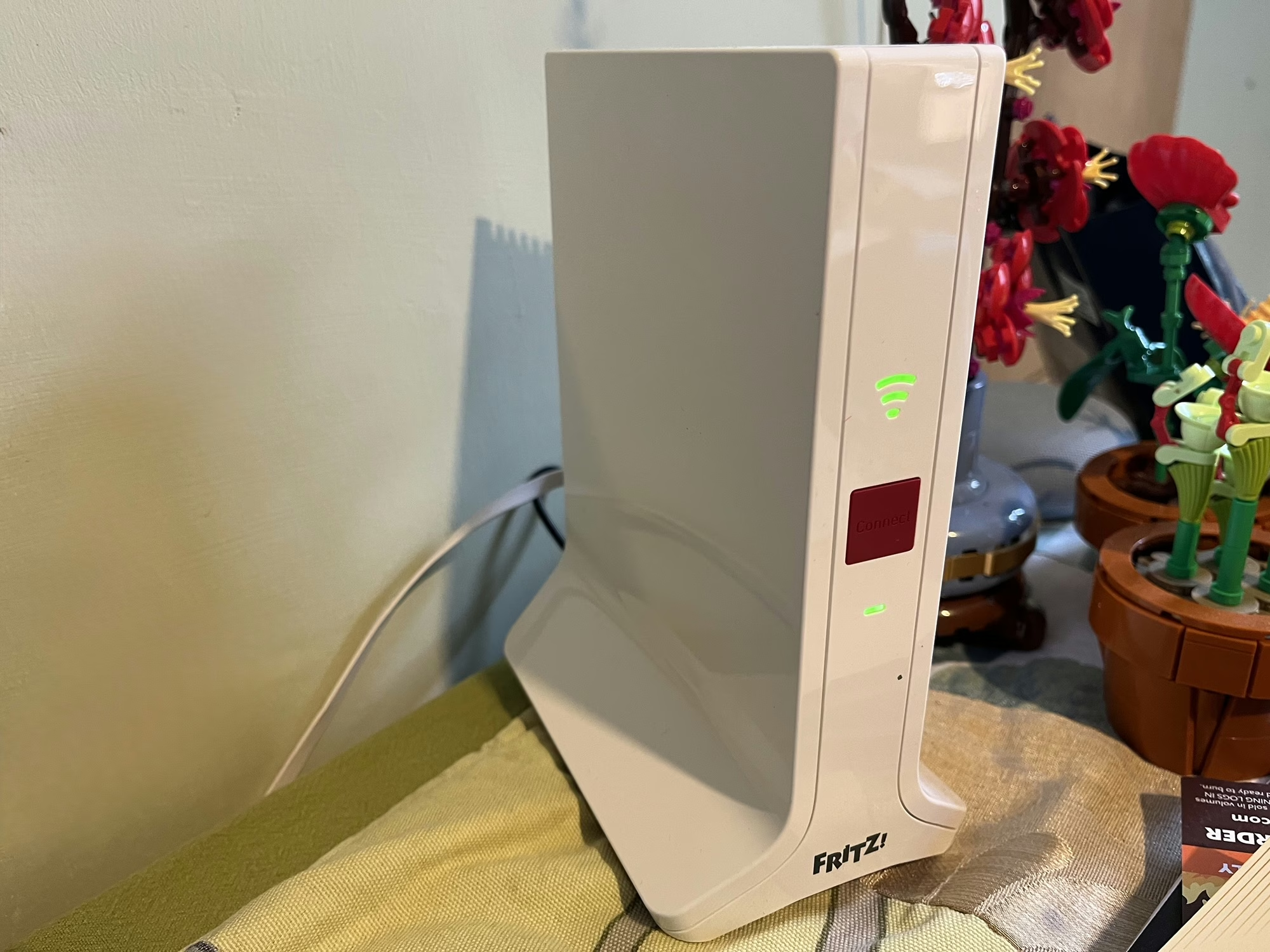
Fritz! Repeater 3000AX

A photo of our Fritz! Repeater 3000 AX

When we signed up for Zen internet last month, we also signed up for Zen EveryRoom. This is an additional monthly charge to cover the cost of a Wi-Fi repeater device, and, as our new router is a Fritz!Box, we were sent a Fritz! Repeater 3000 AX.

Our house is actually two smaller properties that were knocked through years ago. That means it’s a long, narrow house, and whilst we have our optical network terminal and router in a relatively central position, the Wi-Fi signal doesn’t reach the whole house from the router. Initially we used a little Netgear Wi-Fi Range Extender, and then a few years ago I replaced this with a Google Nest Wi-Fi 5 mesh system. Mesh Wi-Fi works better, as all devices use the same network name (SSID) and so mobile devices can seamlessly move between your router and repeaters without needing to re-connect. It’s how most corporate Wi-Fi systems work, but consumer mesh devices aren’t as common.

Design

Like the Fritz!Box router, I’m not a massive fan of the design of the Fritz! Repeater either. Whilst it looks better, it still feels a bit like a cheap plastic box. Furthermore, unlike the router which is in our spare bedroom, this is in quite a prominent place in our dining room.

On the front, there’s a Wi-Fi Protected Setup (WPS) button, a power light, and a light to show that it’s connected to Wi-Fi. On the back, as well as the connector for the DC adaptor (a non-standard barrel plug), there are also two gigabit Ethernet sockets. I’ll come on to those later.

Setting up the Fritz! Repeater is as simple as plugging it in, and using WPS to establish the connection with your router.

Operating modes

The Fritz! Repeater can operate in different ways, depending on what other hardware you have:

  1. It can work as a simple Wi-Fi repeater with any other brand of router, or an older Fritz!Box.
  2. With a new Fritz!Box like ours, it can form a Wi-Fi Mesh.
  3. You can also use connect it to either a Fritz!Box or other router using an Ethernet cable as a LAN bridge

We’re currently using it in the third way, with our Powerline network acting as a back-haul. Therefore, there’s an Ethernet cable running from the Fritz! Repeater, via our Powerline adaptors, to the Fritz!Box upstairs. I figured this would be more reliable and stable, but it turns out that it’s actually slower. When doing speed tests, I get around 60-70 Mbps using Powerline, but the full 100 Mbps when using Wi-Fi to reach the internet. It’s odd because the Powerline connectors reckon they’re working at 400-500 Mbps. I’ll need to try running the Fritz! Repeater just on Mesh Wi-Fi to see if it’s faster, but it’ll need reconfiguring to do so; simply unplugging the Ethernet cable isn’t enough to get it to switch operating modes.

Range and performance

The range seems pretty good – there’s a reasonably strong signal even in our cellar. Certainly, between the Fritz!Box Router and the Fritz! Repeater, there are no dead zones inside the house.

Both Fritz! devices support Wi-Fi 6, aka 802.11ax, hence the ‘AX’ in their names. This should offer better speeds for those devices that support it. Neither supports Wi-Fi 6E, which offers enhanced speeds using the 6 GHz frequency band.

Compared with our previous Google Nest Wifi mesh system, the coverage seems better. Previously, we were also able to use the Google Nest Wifi Point in our dining room as a Google Assistant smart speaker, and the Fritz! Repeater unsurprisingly doesn’t support this. That’s not a major issue as we had a spare Google Nest Mini to use alongside it.

What is notable is that the Wi-Fi signal from the Fritz! Repeater seems to be strong than the Fritz!Box; devices in range of both seem to connect to the repeater more than the router. That could be to do with where the repeater is placed, but it looks like it could have larger internal antennae.

Mixing and matching Mesh Wi-Fi products

As we’ve moved from one Mesh Wi-Fi system to another, it’s worth noting that mesh products from one manufacturer aren’t compatible with those from another. In other words, we wouldn’t be able to keep our Google Nest Wifi Point, and have it mesh with our Fritz!Box. Whilst there is a standard, 802.11s, only a handful of manufacturers support it; most use a proprietary meshing protocol.

In any case, our previous Google Nest Wifi system used Wi-Fi 5, and this is a Wi-Fi 6 system.

If you have a very large home, then you can buy additional Fritz! Repeater devices to extend the signal even further; all the devices should mesh together.

You can buy a new Fritz! Repeater 3000 AX from Amazon for around £135 (sponsored link). We’re paying an extra £9 per month from Zen, for which there’s a 12 month contract and a £9 upfront charge for postage and packing.
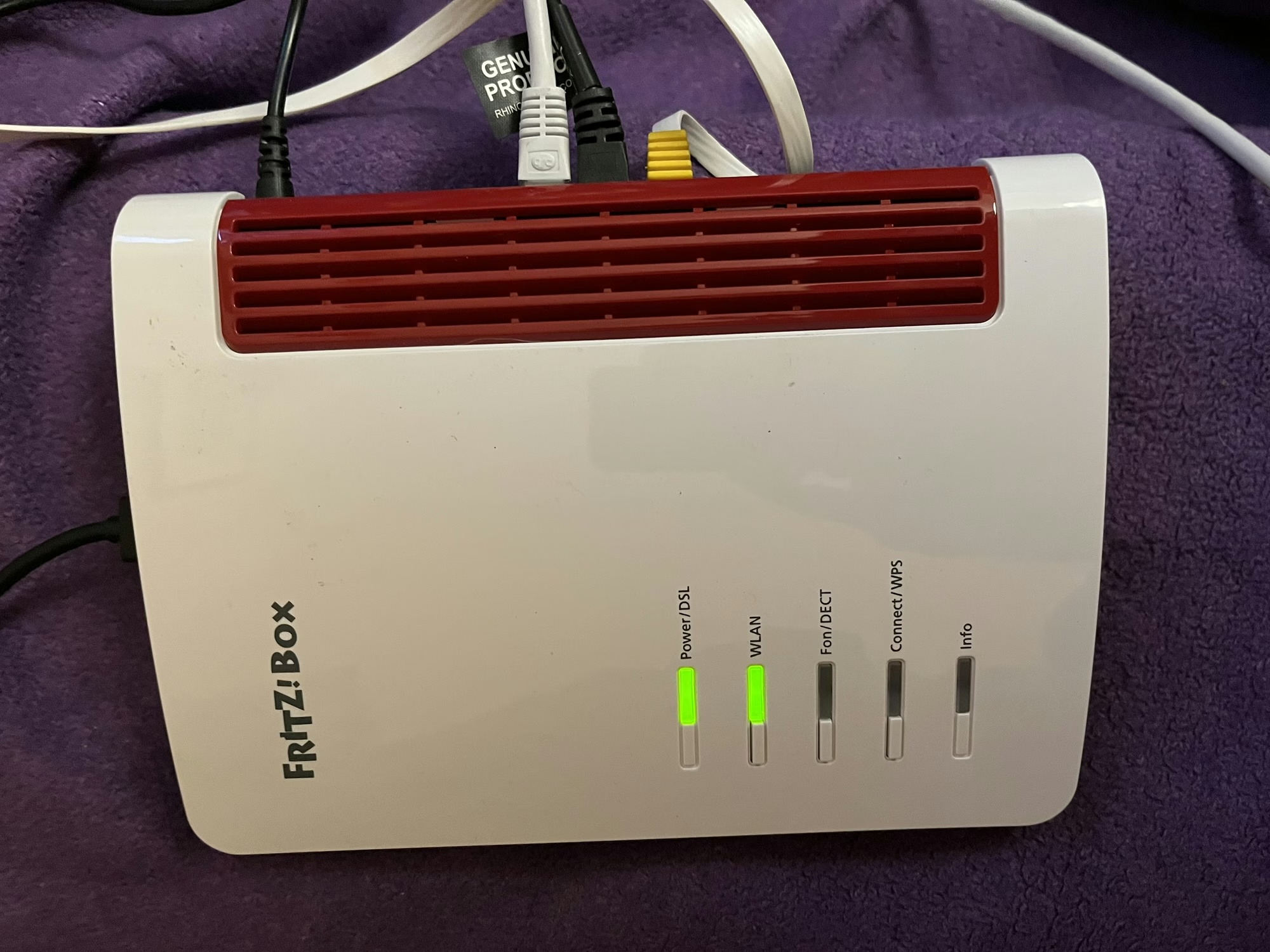
Fritz!Box 7530 AX review

A photo of the Fritz!Box 7530 AX

As is usual when you sign up to a new Internet Service Provider, we were offered a new router as well. We signed up with Zen Internet, who unlike their larger rivals, don’t offer their own branded router hardware. Instead, we’ve now got a Fritz!Box 7530 AX as our home router.

Fritz! devices are more common in mainland Europe – Fritz! is a German company – and Zen are one of the few ISPs that offer their devices in the UK. Indeed, their UK range is much smaller than the range available elsewhere in Europe, where you can also buy Fritz! branded smart plugs.

Connectivity

As for the Fritz!Box 7530 AX, the ‘AX’ indicates that it supports 802.11ax, better known as Wi-Fi 6. It’s ‘standard’ Wi-Fi 6, not the enhanced Wi-Fi 6E, so it uses the 2.4 GHz and 5 GHz bands only. Still, it’s an upgrade over our previous Google Nest Wi-Fi system which only supported Wi-Fi 5. As well as Wi-Fi, you get 4 Gigabit Ethernet ports, and a USB port which can be used for media sharing. It should be noted, however, that you’ll need to use one of these Ethernet ports to connect to the Optical Network Terminal, if you have fibre broadband.

Another difference with our previous Google Nest Wi-Fi system is that there’s no Thread support. This means I just have the one Thread border router now, which a USB dongle plugged into my Home Assistant Green. There is a newer Fritz!Boz, the 7690, which supports Wi-Fi 7 and Zigbee, but this is what Zen offered to us.

If we opted to have a Digital Voice Line, then we could plug our landline phone into the Fritz!Box, and it supports IP-based DECT phones as well.

Design

The design of the Fritz!Box is, frankly, a little dated. It feels like it’s made of quite cheap plastic, and I’m not a fan of the colour scheme. But to be fair, it lives in our spare room, so we don’t actually need to see it very much. It can be wall-mounted, if needed – there are a couple of screw hooks on the bottom.

All the ports are on one side, except for the USB port which is at the top.

What it’s like to use

All Fritz!Box devices ship with Fritz!OS, which is their custom Linux distro. There’s a web-based interface, and apps for iOS and Android. In fact, there are several apps – one for managing the device itself, and one for testing the Wi-Fi signal.

The web interface is pretty good, and gives you a lot of control over the box and your home network. Indeed, it was very good at showing a network topology, including those devices connected via my Powerline adaptors. Plus, the web address is ‘fritz.box’ which is nice and easy to remember.

It supports the creation of a separate guest network, which appears as a separate Wi-Fi network (SSID) to your own, and can be open or secured with a separate password.

Wi-Fi speeds and coverage

In the couple of weeks that we’ve had the Fritz!Box, the speed and coverage of the Wi-Fi signal has been excellent. There hasn’t been anywhere in our house where I’ve noticed any issues. How much of that is down specifically to the Fritz!Box, and how much is due to improvements in Wi-Fi 6 over Wi-Fi 5, I’m unsure. But either way, I’m happy with the connectivity that we’re getting.

Something I will pass on is a comment our Openreach engineer made; Fritz!Box devices don’t seem to like a change from being a DSL router to a router connected to a fibre ONT. Not a problem for us, as we’re already on with fibre, but something to bear in mind if you’re considering one and don’t have full fibre yet.

Home Assistant integration

When I first connected my Home Assistant Green to the Fritz!Box, it found several new devices. These included UPnP and DLNA, which come up when you connect most routers, but also two Fritz! specific integrations: Fritz! Smart Home and Fritz!Box Tools. Of these, the second is most useful, as it allows you to control whether individual devices on your network have Internet access, or whether they’re at home or away. This may result in a large number of devices appearing in your Home Assistant install, however, on those where the devices’ MAC address is available in the integration, the device will be shared and only appear once. That means that my ESPHome devices show as both ESPHome and Fritz! devices with the controls combined. It’s not perfect – my Matter devices show up twice, for example – but it allows you to track where devices like phones without having location services on.

Verdict

So, should you get a Fritz!Box? It’s certainly a very capable router with good Wi-Fi performance, and lots of settings for expert users to access. The web interface is clean and simple to use. However, the design is a bit dated, and there are some nice-to-have features that would make it better if they were included.

As I mentioned earlier, ours came with our Zen broadband package, but you can buy a Fritz!Box from Amazon if you wish (sponsored link). They’re about £145 for the 7530 AX model.

Zen also offer Eero Wi-Fi routers on their faster full fibre packages; I haven’t tested one, but they do look nicer. Eero is owned by Amazon, and is the major competitor to Google Wi-Fi.