
How to: Connect a Rolec EVO car charger to Home Assistant

Screenshot of the Monta HACS integration in Home Assistant showing a Rolec EVO charger

Back in May, ahead of buying our electric car, we had a Rolec EVO electric car charger installed outside our house. Since then, we’ve been using the standard Rolec EVO app that comes with it, but recently I’ve switched it to using the Monta app and its Home Assistant integration. Here’s how,and why I did it.

Why I needed to change to Monta

As I write this, there doesn’t appear to be a public API for Rolec’s charge point back office system. The Rolec EVO charger in particular is relatively new to the market, and so I’m not aware that anyone has found a way to integrate this with Home Assistant through other means.

However, like many chargers, the Rolec EVO charger supports OCPP. This means that you can change which back office system your charger talks to, and I’ve specifically chosen Monta because it offers a public API. And, because someone has developed a custom Home Assistant integration that can be installed from HACS.

Aside from this, the Monta Charge app is better, in my opinion – it supports Live Activities on iOS, so you can monitor your car’s charging progress on your phone’s lock screen. You can also make your charger public and allow people to pay to use it, if you wish.

Changing the OCPP provider

Part of the reason why it’s taken me until now to do this, was because I couldn’t work out how to change the OCPP provider. There’s no option to do so on the standard Rolec EVO app, and I tried setting it up using the app in the Monta integration guide, but that didn’t work either.

However, I came across a thread on the SpeakEV forums that made me aware of a third Rolec app. Confusingly, this is called ‘Rolec Connect’ (with a black icon) rather than the ‘Rolec EV Connect’ app (with a green icon) that I was using previously.

Once you’ve installed the Rolec Connect app, it’ll ask for your name and email address. This needs to be a valid email address, as you’ll be sent a link that you need to click on, but you might be able to get away with using Sharklasers.

You then choose the type of charger, and then need to place yourself within Bluetooth range of it. I apologise in advance if you’ve got this far and it turns out to be cold, dark and raining when you read this, but you can’t do this over Wi-Fi. You’ll be asked for a PIN code; mine was printed in the manual.

Once connected, on the second tab, you can change the provider. The good news is that you can simply select ‘Monta’ from the drop-down list, and continue. Leave every other field blank, but make a note of your charger’s serial number – mine was in the format of Rolec_XXX12345. You’ll need this later.

Add your Rolec EVO to Monta

Your charger should now be talking to Monta’s servers, rather than Rolec’s. Next, you’ll need to create a Monta account; I already had one, as Monta has a network of public chargers including the one we used at Portmeirion in Wales.

The guide to follow is here; I found that I had to enter the serial number manually, but hopefully it’ll read the QR code on the outside. If all goes well, the app will be able to connect to your Rolec EVO charger, and you’re done. From now on, you’ll need to use the Monta Charge app to manage your charger; the Rolec EVO app will now only work via Bluetooth as you’ve severed its internet connection to Rolec’s OCPP server.

Install the Home Assistant integration

Finally, you need to install the Monta integration from HACS. Whilst it’s not an official integration, it is linked from the Monta API documentation, and it’s regularly updated with a major new release just a few weeks ago. As with all new integrations from HACS, you’ll need to restart Home Assistant before you can add your charger.

Once you have restarted, add the Monta integration as you would any other. It’ll ask for a Client ID and Client Secret, which you can get from this page. I would leave the rest of the values as is, and that should be it. Your Rolec EVO charger now appears in Home Assistant!

This means you can use Home Assistant to start and stop charges, view the charging status, and have the energy usage appear on your Energy Dashboard. That also means you can build in automations; for example, if you’re able to access your car’s charge status, you could stop charging at, say 80%. I use the Nissan Connect integration from HACS for this.

Going fully local

The great thing about OCPP is that it’s an open standard, and so it’s supported by a range of back office suppliers with Monta being just one. Should Rolec or Monta go bust, then I can easily switch my charger to a different OCPP server and carry on using it. That’s not an unfounded fear: another EV charger manufacturer, Simpson & Partners, were in administration last year, although they seem to be running again.

If I wanted, I could self-host my own OCPP server and have everything running locally at home, with no dependencies on third-party cloud services. Again in HACS, there’s a OCPP Server for Home Assistant, and it supports the Rolec EVO charger amongst a range of others from other manufacturers. I’m not quite at that stage yet, as it would mean I would have to manage charging solely through the Home Assistant app. Although I did come across this ESPHome project for a hardware control using an m5stack Dial (looks a bit like a Nest thermostat) which could be something to consider.

A bigger project would be to build a new integration that allows communication between Home Assistant and the Rolec EVO charger via Bluetooth. That would require me learning Python, and another Bluetooth proxy, but it would at least work without needing to change the OCPP server.
PowerCalc for Home Assistant

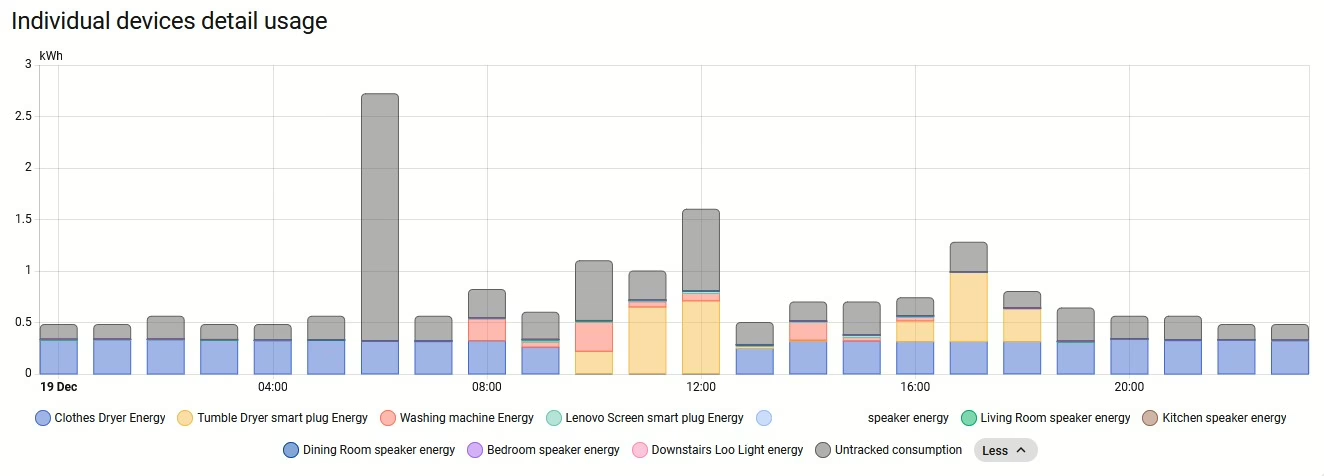
Screenshot of the energy dashboard in Home Assistant with some data provided by PowerCalc

One of the features I like about Home Assistant is its Energy dashboard. It can analyse and display various data about power and energy usage in your home – provided that you have the correct sensors available. As we have solar panels, our inverter provides lots of live data via a local API that we can use.

We also have a number of energy monitoring smart plugs that track energy usage. We have a couple of Meross plugs, and a couple of cheap Tuya Zigbee plugs. Home Assistant can then display the power usage of these devices, and so you can see where your energy is going.

But we can’t fit these onto every device. For example, devices like our oven, hub and dishwasher are all built-in, and don’t use standard 3-pin plug sockets. We could have smart relays fitted, but that would be a paid job for an electrician. So, instead, there’s a potential software solution, in the form of PowerCalc.

PowerCalc is a custom integration that you can install from HACS. Once set up, you can use PowerCalc to estimate the power usage of your devices, or use its extensive library where other users have provided this data already. Indeed, when I installed PowerCalc, it automatically added entries for our various Google Home smart speakers. Once added, these appear as additional entities attached to your existing devices, which is nice – they don’t appear as separate devices.

You can then add these entities to your energy dashboard, to see where your electricity usage goes. Here’s a Sankey graph from last week from our house; it was quite a dull day with little solar generation. There’s a lot that we can’t track, but you can see that a significant amount of our energy usage was spent drying clothes.

PowerCalc gets regular updates, with new devices being added all the time. And, of course, you can add these yourself, if you have the means to record the energy usage. The energy usage data also updates in realtime, so you could add the data to a dashboard and see how changing the brightness of a bulb affects its calculated energy usage.

How to disable go2rtc in Home Assistant

Home Assistant includes support for go2rtc, a streaming video application, which can be used to monitor and store footage from CCTV cameras. Since the November 2024 (2024.11) release of Home Assistant, go2rtc has been included in Home Assistant’s Default Config, which means that integration is loaded automatically on startup. If you don’t have any cameras to monitor in Home Assistant, this can mean some warnings appearing in your logs, and potentially slow Home Assistant down.

There are two ways to disable go2rtc if you don’t need it – a hard way and an easy way.

Hard way: Disable Home Assistant’s Default Config

You can tell Home Assistant not to load the Default Config. This gives you more control over which built-in integrations are loaded when you boot Home Assistant up, however, it means editing your configuration.yaml file. You’ll need to delete the ‘default_config:‘ line, and then create new entries for all the parts of the default configuration that you want to keep. This may be fine for simple installations, but for most users, this will add more complexity. I wouldn’t recommend this personally.

Easy way: Using HACS integrations

There are two HACS integrations that you need to install:

  1. Early Loader
  2. Default Config Exclude

These are not in the standard HACS repository, so you’ll need to open HACS, click on the three dots in the top right, select ‘Custom Repositories’ and then add the Github URLs in turn. You’ll need to install Early Loader first, restart Home Assistant, and then install Default Config Exclude next.

Once installed, you’ll still need to edit your configuration.yaml file, but instead you’ll only have to add a small block. Here’s mine:

default_config_exclude:
  - go2rtc
  - stream
  - cloud
  - my

What you’ll notice is that I’ve added some other integrations – stream, Home Assistant Cloud, and My Home Assistant. If you don’t have any cameras, then not only do you not need go2rtc, you probably don’t also need stream either. I don’t use Home Assistant Cloud or My Home Assistant, so I’ve disabled these too. As well as starting up a little quicker, Home Assistant also now uses slightly less RAM than before.

My chosen HACS integrations

Last week, I wrote about HACS, the Home Assistant Community Store, which allows many additional community-provided integrations to be installed into Home Assistant. This week, I’m going to list those that I use.

DVLA Vehicle Enquiry Service

The DVLA Vehicle Enquiry Service allows you to monitor the publicly-available data about any UK car. When you set up the integration, you input a registration number, and it’ll download the data from the DVLA’s database. This includes useful information like when the car’s MOT is due, or when the car tax expires – these can be automatically added to a calendar widget on your Home Assistant dashboard.

HASS Agent

The HASS Agent integration allows you to use HASS Agent, a Windows desktop utility for managing Home Assistant. Once set up, you can configure automations to shut down your Windows computer, receive notifications, or monitor its state.

Nest Protect

We have a Nest Protect smart smoke alarm, which isn’t supported by the built-in Nest integration in Home Assistant. Google hasn’t made a public API for it, and so to integrate it with Home Assistant, you need to use this HACS integration. This is a good example of why an integration is in HACS and not Home Assistant core; setting it up requires you to log in to your Nest account in a private window, and then use Google Chrome’s developer tools to essentially ‘steal’ the cookies so that Home Assistant can hijack the same browser session.

Google has talked about adding the Nest Protect to its Google Home app for years, meaning that the standalone Nest app can be retired. But it hasn’t happened yet. When it does, perhaps there will be a proper API, and this will be available in Home Assistant core.

Timer Bar Card

This is a new card for your dashboard, which creates a progress bar for sensors that have a countdown. I use this for our Bosch dishwasher, so that as well as showing how long it has left, it shows visually how complete the washing cycle is.

Meross LAN

We have a pair of Meross energy monitoring smart plugs, and although they support Matter, to be able to do more than just turn them on and off, I need to use the Meross LAN integration. It supports both HTTP and MQTT communication, and will work both using Meross’ cloud MQTT servers and your own local MQTT broker, if you have one. Once set up, you can use the energy monitoring sensors in Home Assistant.

Octopus Energy

We get our gas and electricity from Octopus Energy (referral link, you’ll get £50 off your first bill if you sign up), and they have an API that any customer can use. The Octopus Home Asssitant integration lets you bring your meter data into Home Assistant, and you can set up automations to opt you in automatically to any energy saving sessions. The data is updated daily, unless you have a Octopus Home Mini which can provide realtime data for electricity, and half-hourly data for gas.

As well as offering some of the best unit rates for energy export, the fact that Octopus offers an API means that just about every UK geek that I know uses them. They also seem a lot easier to deal with than other energy suppliers we’ve used in the past.

HACS – community components for Home Assistant

A screenshot of the HACS web site

Whilst Home Assistant is already the most flexible smart home platform, with hundreds of built-in integrations, HACS is an optional additional tool to add even more integrations.

HACS stands for ‘Home Assistant Community Store’, and it allows you to download and install custom components from the wider Home Assistant community. It’ll also keep them updated for you. Home Assistant has long supported so-called ‘custom components’, which allows functionality beyond the standard built-in integrations, but HACS makes finding, installing and updating these much easier.

A couple of weeks ago, version 2.0 of HACS was released. This includes a new addon for those using Home Assistant Operating System or Supervised mode, which makes it easier to install. Updates are now handled via Cloudflare for improved performance.

As well as additional integrations, HACS also allows you to install different cards for your dashboards, and different themes. For example, Mushroom is a set of replacement cards which some prefer the look of.

Compared to the built-in integrations, which are maintained by the Home Assistant project, those in HACS are maintained by the community. This means that they may not be tested as rigorously as the official integrations, and so it’s important that you have regular backups in case things go wrong. Also, expect more bugs.

As for why integrations are only in HACS and not Home Assistant itself, there are a few reasons:

  1. It’s a niche service that may only apply to one country, or is of limited wider use.
  2. It uses scraping – this is where there isn’t a publicly available API for the service and so it scrapes the contents of web pages to work. These aren’t permitted in core Home Assistant integrations.
  3. It’s still in active development and not ready to be merged into the main Home Assistant release.
  4. It duplicates the functionality of a core Home Assistant integration but does so in a different way.

I’m currently using eight custom integrations through HACS, and I’ll discuss these in a later blog post. If you’re a Home Assistant user and haven’t already checked out HACS, have a look to see if you can extend its features even further.