Comparing ESPHome and Tasmota

A photo of a Coosa smart plug, originally running Tuya firmware, and a USB to UART converter. This now runs ESPHome firmware.

If you’re looking for custom firmware for your devices with an Espressif ESP chip, then two of your options are ESPHome and Tasmota. I’ve used both – first Tasmota and later ESPHome – on some smart plugs that used to run Tuya firmware.

I’m going to share my experience with both and highlight the strengths of each. Other ESP firmwares are available, but for this I’m just going to focus on comparing ESPHome and Tasmota.

Tasmota is easier to install

If you’re new to installing custom firmware, then Tasmota is the easiest to install. This is because you first install Tasmota on the device, and then configure it using a web interface on the device after installation.

With ESPHome, the configuration is done first, using a YAML file. You then have to compile a binary and install this on the device. This can mean some trial and error with getting the configuration right.

Tasmota has more device templates

This directory has Tasmota templates for almost 3000 devices. If you can find your device there, then you can install Tasmota, copy and paste the template, and off you go. Meanwhile, the ESPHome Device Database only has 650 devices with pre-made configurations.

ESPHome may be easier to update

If you’re running Tasmota on an older ESP8266 device, then it can be a pain to update. This is because of the limited storage space on ESP8266 devices and the size of the Tasmota binaries – there isn’t enough space to store the current and new firmware side-by-side. Instead, you have to install a ‘minimal’ version of Tasmota, and then install the new full version as a two step process.

Because the ESPHome Device Builder compiles the firmware specifically for each device, it’s smaller and so can be updated over-the-air more easily.

This shouldn’t be an issue with newer ESP32 chips, as these have more storage and so updating Tasmota should be easier.

ESPHome is updated more regularly

It’s a good thing that ESPHome updates more easily, because updates are also more regular. Normally there’s a big update every other month, and smaller bugfix updates most weeks. It also has a much larger developer community.

Tasmota receives updates less often, and its development is largely led by just one lead person.

ESPHome supports more DIY devices

Whilst Tasmota is generally used to convert existing devices with ESP chips, ESPHome is more suited to DIY projects that you can make yourself. For example, you could build your own thermostat, a miniature weather station or control your blinds. With the right boards and cables, you can build and automate lots of things using ESPHome that Tasmota may not support.

ESPHome integrates better with Home Assistant

Being both projects of the Open Home Foundation, ESPHome has better integration with Home Assistant. You can run the ESPHome Device Builder as a Home Assistant add-on, and devices should show up without much additional configuration.

Tasmota works over MQTT, so you have to set up an MQTT Broker like Mosquitto in Home Assistant first, and then configure your Tasmota devices to use it. You also have to enable an option using the device’s command line to allow Home Assistant to discover the devices.

In summary

Whether you want to use Tasmota or ESPHome will depend on your use case:

  • If you’re relatively new to all this, or are replacing the firmware on an existing device, Tasmota may be best for you as it’ll be easier to install and configure.
  • If you’re a more advance user, or have built a DIY device that requires functionality not normally supported by Tasmota, then you should use ESPHome.

How to: Connect a Rolec EVO car charger to Home Assistant

Screenshot of the Monta HACS integration in Home Assistant showing a Rolec EVO charger

Back in May, ahead of buying our electric car, we had a Rolec EVO electric car charger installed outside our house. Since then, we’ve been using the standard Rolec EVO app that comes with it, but recently I’ve switched it to using the Monta app and its Home Assistant integration. Here’s how,and why I did it.

Why I needed to change to Monta

As I write this, there doesn’t appear to be a public API for Rolec’s charge point back office system. The Rolec EVO charger in particular is relatively new to the market, and so I’m not aware that anyone has found a way to integrate this with Home Assistant through other means.

However, like many chargers, the Rolec EVO charger supports OCPP. This means that you can change which back office system your charger talks to, and I’ve specifically chosen Monta because it offers a public API. And, because someone has developed a custom Home Assistant integration that can be installed from HACS.

Aside from this, the Monta Charge app is better, in my opinion – it supports Live Activities on iOS, so you can monitor your car’s charging progress on your phone’s lock screen. You can also make your charger public and allow people to pay to use it, if you wish.

Changing the OCPP provider

Part of the reason why it’s taken me until now to do this, was because I couldn’t work out how to change the OCPP provider. There’s no option to do so on the standard Rolec EVO app, and I tried setting it up using the app in the Monta integration guide, but that didn’t work either.

However, I came across a thread on the SpeakEV forums that made me aware of a third Rolec app. Confusingly, this is called ‘Rolec Connect’ (with a black icon) rather than the ‘Rolec EV Connect’ app (with a green icon) that I was using previously.

Once you’ve installed the Rolec Connect app, it’ll ask for your name and email address. This needs to be a valid email address, as you’ll be sent a link that you need to click on, but you might be able to get away with using Sharklasers.

You then choose the type of charger, and then need to place yourself within Bluetooth range of it. I apologise in advance if you’ve got this far and it turns out to be cold, dark and raining when you read this, but you can’t do this over Wi-Fi. You’ll be asked for a PIN code; mine was printed in the manual.

Once connected, on the second tab, you can change the provider. The good news is that you can simply select ‘Monta’ from the drop-down list, and continue. Leave every other field blank, but make a note of your charger’s serial number – mine was in the format of Rolec_XXX12345. You’ll need this later.

Add your Rolec EVO to Monta

Your charger should now be talking to Monta’s servers, rather than Rolec’s. Next, you’ll need to create a Monta account; I already had one, as Monta has a network of public chargers including the one we used at Portmeirion in Wales.

The guide to follow is here; I found that I had to enter the serial number manually, but hopefully it’ll read the QR code on the outside. If all goes well, the app will be able to connect to your Rolec EVO charger, and you’re done. From now on, you’ll need to use the Monta Charge app to manage your charger; the Rolec EVO app will now only work via Bluetooth as you’ve severed its internet connection to Rolec’s OCPP server.

Install the Home Assistant integration

Finally, you need to install the Monta integration from HACS. Whilst it’s not an official integration, it is linked from the Monta API documentation, and it’s regularly updated with a major new release just a few weeks ago. As with all new integrations from HACS, you’ll need to restart Home Assistant before you can add your charger.

Once you have restarted, add the Monta integration as you would any other. It’ll ask for a Client ID and Client Secret, which you can get from this page. I would leave the rest of the values as is, and that should be it. Your Rolec EVO charger now appears in Home Assistant!

This means you can use Home Assistant to start and stop charges, view the charging status, and have the energy usage appear on your Energy Dashboard. That also means you can build in automations; for example, if you’re able to access your car’s charge status, you could stop charging at, say 80%. I use the Nissan Connect integration from HACS for this.

Going fully local

The great thing about OCPP is that it’s an open standard, and so it’s supported by a range of back office suppliers with Monta being just one. Should Rolec or Monta go bust, then I can easily switch my charger to a different OCPP server and carry on using it. That’s not an unfounded fear: another EV charger manufacturer, Simpson & Partners, were in administration last year, although they seem to be running again.

If I wanted, I could self-host my own OCPP server and have everything running locally at home, with no dependencies on third-party cloud services. Again in HACS, there’s a OCPP Server for Home Assistant, and it supports the Rolec EVO charger amongst a range of others from other manufacturers. I’m not quite at that stage yet, as it would mean I would have to manage charging solely through the Home Assistant app. Although I did come across this ESPHome project for a hardware control using an m5stack Dial (looks a bit like a Nest thermostat) which could be something to consider.

A bigger project would be to build a new integration that allows communication between Home Assistant and the Rolec EVO charger via Bluetooth. That would require me learning Python, and another Bluetooth proxy, but it would at least work without needing to change the OCPP server.

PowerCalc for Home Assistant

Screenshot of the energy dashboard in Home Assistant with some data provided by PowerCalc

One of the features I like about Home Assistant is its Energy dashboard. It can analyse and display various data about power and energy usage in your home – provided that you have the correct sensors available. As we have solar panels, our inverter provides lots of live data via a local API that we can use.

We also have a number of energy monitoring smart plugs that track energy usage. We have a couple of Meross plugs, and a couple of cheap Tuya Zigbee plugs. Home Assistant can then display the power usage of these devices, and so you can see where your energy is going.

But we can’t fit these onto every device. For example, devices like our oven, hub and dishwasher are all built-in, and don’t use standard 3-pin plug sockets. We could have smart relays fitted, but that would be a paid job for an electrician. So, instead, there’s a potential software solution, in the form of PowerCalc.

PowerCalc is a custom integration that you can install from HACS. Once set up, you can use PowerCalc to estimate the power usage of your devices, or use its extensive library where other users have provided this data already. Indeed, when I installed PowerCalc, it automatically added entries for our various Google Home smart speakers. Once added, these appear as additional entities attached to your existing devices, which is nice – they don’t appear as separate devices.

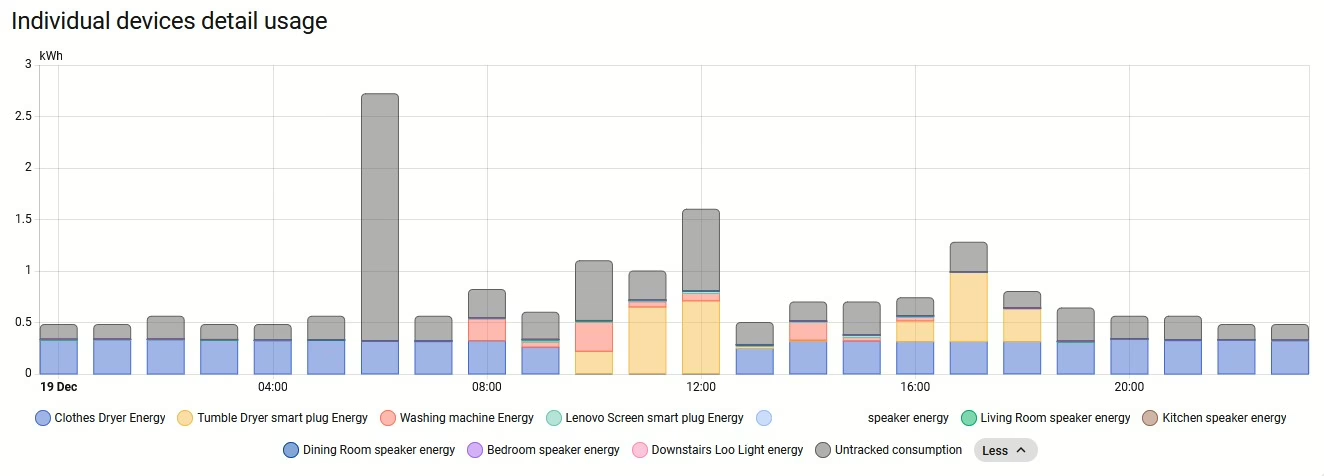
You can then add these entities to your energy dashboard, to see where your electricity usage goes. Here’s a Sankey graph from last week from our house; it was quite a dull day with little solar generation. There’s a lot that we can’t track, but you can see that a significant amount of our energy usage was spent drying clothes.

PowerCalc gets regular updates, with new devices being added all the time. And, of course, you can add these yourself, if you have the means to record the energy usage. The energy usage data also updates in realtime, so you could add the data to a dashboard and see how changing the brightness of a bulb affects its calculated energy usage.

How to disable go2rtc in Home Assistant

Home Assistant includes support for go2rtc, a streaming video application, which can be used to monitor and store footage from CCTV cameras. Since the November 2024 (2024.11) release of Home Assistant, go2rtc has been included in Home Assistant’s Default Config, which means that integration is loaded automatically on startup. If you don’t have any cameras to monitor in Home Assistant, this can mean some warnings appearing in your logs, and potentially slow Home Assistant down.

There are two ways to disable go2rtc if you don’t need it – a hard way and an easy way.

Hard way: Disable Home Assistant’s Default Config

You can tell Home Assistant not to load the Default Config. This gives you more control over which built-in integrations are loaded when you boot Home Assistant up, however, it means editing your configuration.yaml file. You’ll need to delete the ‘default_config:‘ line, and then create new entries for all the parts of the default configuration that you want to keep. This may be fine for simple installations, but for most users, this will add more complexity. I wouldn’t recommend this personally.

Easy way: Using HACS integrations

There are two HACS integrations that you need to install:

  1. Early Loader
  2. Default Config Exclude

These are not in the standard HACS repository, so you’ll need to open HACS, click on the three dots in the top right, select ‘Custom Repositories’ and then add the Github URLs in turn. You’ll need to install Early Loader first, restart Home Assistant, and then install Default Config Exclude next.

Once installed, you’ll still need to edit your configuration.yaml file, but instead you’ll only have to add a small block. Here’s mine:

default_config_exclude:
  - go2rtc
  - stream
  - cloud
  - my

What you’ll notice is that I’ve added some other integrations – stream, Home Assistant Cloud, and My Home Assistant. If you don’t have any cameras, then not only do you not need go2rtc, you probably don’t also need stream either. I don’t use Home Assistant Cloud or My Home Assistant, so I’ve disabled these too. As well as starting up a little quicker, Home Assistant also now uses slightly less RAM than before.

Home Assistant Green review

A photo of a plugged-in Home Assistant Green

Since I started using Home Assistant in October 2023, I’ve been running it on a Raspberry Pi 4, first in ‘Container’ mode and more recently in ‘Supervisor’ mode. I’ve now bought a Home Assistant Green, and I’m using this to run Home Assistant.

The Home Assistant Green is one of the two dedicated hardware platforms that come pre-installed with Home Assistant. The other, the Home Assistant Yellow, deserves its own section later on. By buying one of these devices, you’re also helping to financially support the Home Assistant project.

Why I bought a Home Assistant Green

As someone who has previously gone down the DIY route, it may seem surprising that I’ve decided to buy a Home Assistant Green. My decision came down to the following:

  • Price – the Home Assistant Green costs around £90 in the UK, which isn’t much more expensive than a bare bones Raspberry Pi 5. Once you’ve added a case, power supply and SSD to a Raspberry Pi, the Home Assistant Green is actually cheaper.
  • Cheap to run – I had considered some kind of mini PC, which would offer me more power, but with both a higher upfront cost and ongoing electricity cost. The Home Assistant Green runs on up to three watts; it comes with a 12 volt, one amp barrel plug power supply. As it’ll be on all the time, I don’t want a power-hungry device.
  • The need for a dedicated Home Assistant device. In May, it was announced that the ‘Supervised’ install method would be deprecated along with ‘Core’; only a tiny fraction of people use these methods. This dovetailed with me wanting a dedicated device for Home Assistant, rather than trying to run it on the same little Raspberry Pi as Plex and some other services. In other words, I was in the market for an additional device to run Home Assistant, and the Home Assistant Green fitted the bill. Meanwhile, my Raspberry Pi 4 can be dedicated to Plex.
  • No longer needing to worry about compatibility. According to Home Assistant Analytics, over a third of people install Home Assistant on a Raspberry Pi and so I don’t expect it to become unsupported. However, as the Home Assistant Green is the closest thing to ‘official’ hardware, I know it’ll be well-supported in future releases. As I’m coming to rely on Home Assistant more, I need it to run on a reliable platform.

What the Home Assistant Green can’t do

Coming from a Raspberry Pi, it’s worth noting what features the Home Assistant Green lacks. These include:

The Home Assistant Green does have two standard USB-A ports for you to plug in dongles and hubs, so I have my Thread and Zigbee dongles connected. Not having Wi-Fi or Bluetooth on board may reduce interference on the 2.4 GHz band, I suppose.

The box that the Home Assistant Green comes in

Home Assistant Green hardware

The Home Assistant Green is actually bigger and heavier than I expected it to be – certainly, it’s larger than a Raspberry Pi. It has a very sturdy base, which is designed to act as a heat sink – it’s passively cooled so there’s no fan noise. Inside, there’s a quad-core 1.8 GHz ARM processor, placing it between the Raspberry Pi 4 and 5 in terms of computing power. There’s 4 GB of RAM, and storage comes courtesy of a 32 GB eMMC (embedded multimedia card).

You’ll also get an AC adaptor with a variety of plugs (including a UK 3 pin plug) and an Ethernet cable.

Optionally, you can install a CR2032 battery inside. It doesn’t come with one, but if you add a CR2032 battery then the system clock will remember the time between reboots. It’s mostly only needed if you’re using it somewhere with poor or no internet access, as otherwise the clock synchronises with the internet on startup.

There’s also an HDMI port and a slot for a micro-SD card, but these are only for system recovery purposes and not for general use.

I would tell you more about how it is to use, but to be honest, it’s just like using Home Assistant on any other platform. All I had to do was restore a backup from my Raspberry Pi 4, and I was up and running.

Home Assistant Yellow

If the Home Assistant Green doesn’t meet your requirements, consider the Home Assistant Yellow. It’s more advanced and upgradeable, but also requires some assembly as it ships without a logic board. That’s provided by a Raspberry Pi Compute Module, the idea being that you can upgrade this incrementally over time without needed to buy a whole new device. It’s a nice idea, but it also adds to the cost – the base Home Assistant Yellow costs around £120 with the Compute Module adding £30-40 on top, and it arrives in kit form rather than pre-assembled. However, long term, it could be cheaper due to it being upgradeable.

There are other differences: The Home Assistant Yellow is available with Power over Ethernet (PoE), meaning that it doesn’t need a separate power supply. However, you’ll need a router or a switch which supports this. If you don’t, then you can buy a Home Assistant Yellow with an AC adaptor.

The Home Assistant Yellow also has an 802.16 radio, meaning that it can support Zigbee devices without an extra dongle. This can also be re-programmed to support Thread, but not both Thread and Zigbee at the same time. Additionally, there’s a 3.5mm audio port, and inside, there’s an expansion port for installing an SSD if you need one.

Whilst I have the technical knowledge to get a Home Assistant Yellow up and running, once you’ve factored in everything, it costs about double the price of a Home Assistant Green.

Zigbee PIR motion sensor

A photo of a Zigbee PIR motion sensor

Regular readers may be relieved to know that I’m done writing about my trip to Athens, and are back to the occasional series of ‘Neil reviews cheap Zigbee devices from AliExpress’.

Earlier this month, I reviewed Zigbee window sensors, and this time I’m reviewing a Zigbee PIR motion sensor. PIR stands for ‘passive infrared’, and senses changes in infrared light to detect motion. It’s used in most motion detectors for burglar alarm systems, but you can buy sensors such as these for home automation too. In my case, I’ve fitted one to the top of our cellar stairs, to turn on a light in the cellar when motion is detected.

It’s pretty small – about an inch across – and runs on a single CR2450 battery (provided). You also get a sticky pad to attach to surfaces, and a couple of tools for opening the battery flap and for resetting and pairing it. It’s compatible with Zigbee2MQTT.

In terms of configurability, you can adjust its sensitivity, and its keep time. The keep time means that it remains in the ‘occupied’ (i.e. motion detected) state for a given number of seconds after motion was last detected. If you have a motion activated light, this prevents the light constantly flashing on and off.

As with the window sensors, you can also buy these devices from Amazon (sponsored link) if you need them quickly, but again they’re significantly more expensive than AliExpress.

To make the light turn on and off, I have automations set up in Home Assistant. I also bought a Zigbee smart light bulb for the motion sensor. Ideally I would have just bought one that switches on and off, but the cheapest one I could find is a colour changing dimmable one. Which is overkill for a cellar light, but hey, it was cheap. Indeed, the motion sensor and light bulb collectively cost less than £9.

Which integrations are slowing down Home Assistant?

A screenshot of the Home Assistant integration startup times panel

I’m a little over 18 months into my Home Assistant journey, and now have 54 integrations set up. This includes standard integrations set up in the Home Assistant interface, some added using YAML, and custom integrations added via HACS.

When I first set Home Assistant, I went out of my way to set up as many integrations as possible, regardless of whether I needed them. Home Assistant scales quite well, but some integrations take longer to load than others. If you’ve ever logged in whilst Home Assistant is restarting to see a dashboard with many missing entities, you’ll know what I mean.

There’s a panel hidden away in Home Assistant’s Lovelace interface that tells you how long each integration takes to load. Open Settings, scroll down to System, and select Repairs. Then, click on the three vertical dots at the top right, and choose ‘Integration Startup Times’.

The list will be sorted with those taking the longest at the top. The vast majority of mine take less than a second to load, but there are some outliers. My worst offenders are:

  • Google Nest (24 seconds). Taking three seconds longer than a famous So Solid Crew song, this is the integration for my Nest Thermostat. I use this quite a bit in Home Assistant, so I’m stuck with it.
  • Wyoming Protocol (21.5 seconds). This is the bridge between Home Assistant’s Assist chat bot, and Homeway Sage. To be honest, I don’t use this, so this is an easy one to turn off. It’s an auto-discovered integration.
  • Meross LAN (21 seconds). This is a custom integration from HACS for my Meross smart plugs, and I need this for energy monitoring. Whilst the smart plugs also support Matter, the energy monitoring is only available via this integration. Theoretically, I can convince the smart plugs to use MQTT and that might negate the need for this integration, but I haven’t fully investigated it.
  • DLNA Digital Media Server (17 seconds). Another auto-discovered integration, courtesy of my router. I’m not using this, so this is another good candidate to disable.
  • Spotify (15 seconds). This allows me to control Spotify playback in Home Assistant. In reality, I don’t really use it, but it is on my dashboard.
  • Home Connect (14 seconds). This is for my smart Bosch dishwasher. I use this for a dashboard badge to see if the dishwasher is on at a glance. Our dishwasher is built-in and almost silent so this is useful.
  • Fitbit (14 seconds). Another dashboard badge to see how much charge is left in my Fitbit Versa 3.

Of these, there were two obvious candidates to remove – Wyoming and DLNA, saving a combined 30 seconds of startup time.

Ignored integrations

As they’re both integrations which are auto-discovered, I have had to tell Home Assistant to ignore them. On the Integrations Settings page, if you click the filter icon on the top right, you can then show the integrations that are ignored. I’ve added Wyoming Protocol there; it joins Philips Hue (since I’m using Bifrost) and ZHA (since I’m using Zigbee2MQTT)

How to use bindings in Zigbee

Screenshot of the Zigbee2MQTT interface showing a binding being set up

One advantage of the Zigbee smart home protocol that I didn’t mention in last summer’s comparison was Bindings. This is where you bind a function of one Zigbee device to another, allowing the first device to control the second device directly.

Zigbee, as you may be aware, is a mesh network protocol. That means that every Zigbee device will connect to every other Zigbee device in range. Now, every Zigbee network also has a Controller, which is a device that issues commands to the network. In my case, this is my Raspberry Pi running Home Assistant, with a Sonoff ZBDongle-E plugged into it.

The advantages of bindings

However, when you bind two devices together, they can issue commands directly, without needing to go via the Controller. This is useful, because it means that devices can still work, even if your Controller is offline.

For example, let’s say you have a Zigbee motion sensor in your bathroom. You can set up a binding so that, when the sensor detects motion, it’ll turn on the bathroom lights. Once the binding is saved, this will work regardless of whether your Zigbee controller is online.

The other key advantage of bindings is that they should be faster. We’re probably only talking micro-seconds here, but as commands can be sent directly from one device to another without a round-trip to the Controller, they should be a little more responsive.

If you’ve ever bought Ikea TrÃ¥dfri bulbs, these usually come with a remote that has already had a binding set up. That way, the remote will work with the bulb out of the box without an Ikea Dirigera hub (or other Zigbee controller). But both can also be paired with a Zigbee controller if you have one.

Setting up Zigbee bindings

If you use an off-the-shelf Zigbee controller like the aforementioned Ikea Dirigera hub, or a Philips Hue Bridge, then you may be able to set up bindings using these. I don’t, so I can’t advise, but bindings can be set up using Zigbee2MQTT (which I use) and Zigbee Home Automation in Home Assistant (which I don’t).

In Zigbee2MQTT, you need to select your device, and then go to the ‘Bind’ tab. It’ll then expose a list of ‘endpoints’ that can be bound. In my experience, these are just numbers, so you may need to experiment to see what, for example, ‘endpoint 242’ controls. You can then bind this to the endpoint of any other Zigbee device to control it.

It’s worth noting some key points here:

  1. Not all Zigbee devices support bindings
  2. Those that do may only allow expose limited endpoints for binding, so you won’t be able to control all aspects using bindings.

For example, I have some Zigbee colour lights (which I used in my grouping example). I can bind them to another Zigbee device to turn them on or off, but not to change the colour. That still requires communication from the Zigbee controller.

Other protocols

If you have more than one Z-Wave device, then you can set up ‘Associations‘ between devices which work in a similar way to Bindings in Zigbee. Home Assistant users can set these up using the Z-Wave JS UI addon. I’m not aware that Matter offers anything similar.

The new Areas dashboard in Home Assistant

Last week saw the release of Home Assistant 2025.4, and with it, a new type of dashboard called Areas. This is an automatic dashboard, managed by Home Assistant itself, which displays your devices sorted by room, or ‘area’. At present, it’s ‘experimental’, but I wouldn’t be surprised if it becomes the default in future.

The default dashboard in Home Assistant is also automatically managed, but if you have more than a few devices and integrations, it can quickly become overwhelming. Therefore, my default dashboard is one that I manage myself. I can decide what to show, and in what order. However, it’s taken me quite some time to build and tweak that dashboard, and at one point I had almost 30 different cards showing. I’ve reduced that somewhat, and now use badges to highlight information that I need to know, but it still represents a significant investment of my time.

The new Areas dashboard therefore sits somewhere in the middle. The first tab shows an overview of your home, with sections for each ‘area’ that you have defined in Home Assistant. Most people will make each room an area, but it’s up to you – you may define parts of a room as a distinct area, for example. Personally, I’ve gone down the room = area paradigm, but I also have areas for ‘roof’ (where the solar panels are) and ‘outside’.

Setting up your home’s areas

You can set up your home’s Areas in the Settings pane in Home Assistant. When you do so, you can also specify any entities that represent the temperature and humidity in that room. This is useful, as these entities will then show up on your Areas dashboard.

Once you have defined your areas, you’ll need to add your devices to these areas. Again, in Settings, navigate to the Devices section. You can sort your devices by Area, so you’ll be able to see which ones are not allocated. Some of these ‘devices’ will represent virtual things, like HACS integrations or web services, so you don’t necessarily need to allocate these to a room.

A screenshot of the Home Assistant interface showing the options when adding a dashboard, including the new Areas dashboard

Adding the Areas dashboard

Again in Settings, you’ll need to open the Dashboards pane. Here you’ll typically see three dashboards there already. These will include your current default dashboard, the built-in energy dashboard and the built-in Map dashboard. At the bottom right, click ‘Add Dashboard’, and choose ‘Areas (experimental)’. Give it a title and an icon, and then enable to show in your sidebar. Once done, you’ll be able to access it at any time from the side bar.

Initially, every area that you have defined will have a section and a tab along the top. If you click the Pencil icon at the top right to edit, you can re-order the areas, and also make any invisible. You may want to do this if the dashboard doesn’t show anything useful for that particular area. If you click into each area, you can also hide any devices that you don’t want to see on the dashboard. For example, in my screenshot, each programme on my Bosch dishwasher shows as an individual entity; I can therefore hide all of those apart from the dishwasher’s power status if I want to.

The areas dashboard is still experimental

We’re only a week on from this feature having been made available in Home Assistant, and so it’s still ‘experimental’. In particular, you’ll only see a handful of devices on this dashboard. In my case, this includes lights, sockets, my dishwasher, my TV, media players, and thermostats.

But it’s a lot easier to set up and manage than it would to create a new dashboard from scratch. And it’s less overwhelming than the other default managed dashboard, which shows a huge amount of data. As time goes on, I hope that the Areas dashboard is developed further and becomes the new default. It’ll make Home Assistant feel more like other smart home apps like Google Home, and make it easier for new users to manage.

Dashboard Badges in Home Assistant

A screenshot of the Home Assistant Lovelace dashboard showing several badges at the top of the home screen

One feature of Home Assistant that I’ve only recently started using is Dashboard Badges. These are small widgets that appear at the top of your dashboard, and allow you to view information at a glance. There’s a screenshot above which shows the widgets that I currently have set up.

Badges have been part of Home Assistant for a long time, but they received a major overhaul last August in version 2024.8. In the (approximately) 18 months that I’ve been using Home Assistant, I’ve been gradually adding more and more data to my dashboard, to the point where I had to scroll through several screens worth of data to see what I needed. Which isn’t ideal. Badges are a potential solution, showing basic information at the top, where it’s most accessible.

Each badge widget can usually display the state of one entity. In the screenshot above, I’ve included:

  • The temperature in our dining room, as recorded by our Nest thermostat
  • The current weather (it was, in fact, not raining when I took this screenshot)
  • The current power output of our solar panels
  • How much charge our solar battery currently has
  • The current status of our dishwasher
  • The current status of the TV in the living room
  • The current status of the sun
  • The latest version of Home Assistant

There’s a moderate amount of customisation available. For example, as well as the status of the entity, you can include its name, and this text is also customisable to save space if needed. You can also tweak the colours and the icons.

Controlling visibility of badges

One great feature that badges have in Home Assistant is controlling when they’re visible. I actually have more badges than the eight mentioned above, but they’re not showing as I don’t currently need the information offered. For example, I have a badge that displays whether an update to Home Assistant is available. But I only want to see this when an update is available – if I’m running the latest version, I want the badge to be hidden. Here’s how I configured it:

A screenshot of the Entity Badge configuration in Home Assistant

Having selected the widget, I’ve gone to the ‘Visibility’ tab, selected the entity, and told Home Assistant to only display it when the ‘State is equal to’ and ‘Update available’.

I use this on some other badges too. For example, if there’s no power coming from the solar panels, that badge disappears. Similarly, if my solar battery is at 20% or below, which is its idle state, that’s hidden too. You can also control the visibility based on which user is currently logged in, or anything really – the state of one entity can control the visibility of the badge for another.

A useful badge is one that makes use of the custom Octopus Energy integration from HACS, and will display if I haven’t used my Octopus Wheel of Fortune spins that month. Last month, I won 800 Octopoints, which was nice, and it’s helpful to have a reminder to use them.

By using badges, and setting their visibility, I’ve reduced the number of cards on my dashboard significantly. It makes the dashboard less overwhelming, and prioritises the most important information that I need to see quickly.