How to: read a not-so-smart export meter

A photo of our electricity meter showing our export reading

Somewhat annoyingly, our smart electric meter stopped being smart on the 26th March. I’m not entirely sure what happened, but since then, we’ve not had any automatic electricity readings sent to our energy supplier.

After a week, I reported the issue to Octopus, who are our energy supplier. We exchanged some emails back and forth, and tried various things, but apparently to no avail. What was weirder was that the gas meter still submits regular readings.

This web site has loads of information about smart meters, including how they work and how they communicate with your energy supplier. As well as the gas and electric meters, all homes with a smart meter have a ‘communications hub’ that sits on top of the electric meter, and it’s this that sends the data. So even though it was sat on top of our electric meter, it was only sending data from the gas meter. Weirder still is our ‘in home display’ (IHD) – the small black screen that sits away from our meters in our dining room. That was still accurately displaying data from both gas and electric meters.

With Octopus unable to fix the problem remotely, we’ll need an engineer to come out. And right now, there’s a long wait for smart meter engineer visits, as energy companies are currently prioritising those with a ‘radio teleswitch’ (RTS) meter. These older meters were used for (for example) Economy 7 tariffs, and listen for a radio signal to switch to a cheaper tariff – they’ve been around since the 1980s. Alas, the radio signal is being switched off at the end of next month, and there’s an estimated 400,000 RTS meters still in use. That doesn’t leave very long to have these replaced with smart meters.

Going back to manual readings

So whilst our gas readings are being sent automatically on a regular basis, we’re back to doing manual readings for electricity. As we have solar panels, we have to do two separate readings – an import reading, for the energy we use from the grid, and an export reading, for the energy that we sell back to the grid.

For the import readings, we can just use the IHD – press a few buttons, and it’ll give us our usage. But the IHD doesn’t display export readings. For that, we have to take a reading from the screen on the meter itself.

Our electricity meter is in our cellar, under the steps down from the kitchen. After we had our kitchen renovated, we also improved the access to the cellar, but it’s still in an awkward place. I have to move our tumble dryer out of the way, and crouch in the small space under the steps to take the reading.

It’s also not the most straightforward process. The meter itself has a small screen and two buttons, and you need to know which combination of button presses are required. Thankfully, Octopus offers this excellent guide to how to read various types of meters, and so I was able to submit both import and export readings. The next day, we were credited £116 for all the electricity we’d exported since the 26th March.

Hopefully, it won’t be too long before an engineer visits and fixes the issue for us. In the meantime, I’m also waiting to see if we can get an Octopus Home Mini, which bridges across to your home Wi-Fi network and sends data in near real-time.

How to: view and share pronouns on Bluesky

A screenshot of a skeet that I posted recently on Bluesky, which displays my pronouns (he/him) under my name. The skeet says 'Huh, accidentally pressed Alt+D whilst Spotify (desktop version) was open, and opened a hidden Chrome menu. None of the options seem to do anything, but yes, it seems like just about everything is based on Chromium nowadays.'

If you want to share your pronouns on Bluesky, and/or want to be able to see others’ pronouns, then you can use the Pronouns labeller to show these in the Bluesky app. In the screenshot above, you can see that, under my username, it shows my he/him pronouns.

Step 1: Viewing pronouns

If you want to be able to view others pronouns, go to the Pronouns labeller profile, and click the ‘Subscribe’ button. Now, you’ll be able to view the pronouns of other Bluesky users, where they’ve elected to share them, as a label attached their posts and on their profiles.

Step 2: Sharing your pronouns

So now that you can see the pronouns of other users, you can also share your own pronouns. There’s a search tool available; select the pronouns that most apply to you, and then ‘like’ the corresponding Bluesky post. For example, I liked this post because my pronouns are he/him.

Within a minute or two, those pronouns will appear as a label on your profile. You can select up to four pronouns to share.

If you make a mistake, you can ‘like’ this post, and all of your pronouns will be removed. Once this takes effect, you can then start again.

Just a note that you can’t complete this step in isolation. In other words, you must have the labeller turned on and showing the pronouns of others, before you can share yours.

It’s all opt-in

Whilst I’m a member of the LGBTQ+ community, I think it’s important to share your pronouns regardless. As well as showing that you’re an ally, it normalises the act of sharing pronouns when you introduce yourself, and makes LGBTQ+ people like myself feel more included. At work, our standard email signature template includes a pronouns section, and it’s used at all levels including senior management to set a good example.

This doesn’t mean that you can’t share your pronouns manually in your Bluesky bio. This profile labeller is opt-in, and, as yet, Bluesky doesn’t have a great way of letting users discover profile labellers. In my experience, it tends to be the early adopters of Bluesky who use the pronouns profile labeller; recent arrivals haven’t found it yet.

Some recent things I have learned about SEO

A screenshot from Google Console Search Insights congratulating me on achieving 900 clicks in 28 days, indicating that I am doing okay from SEO perspective

I’m signed up to Google Search Console (formerly known as Webmaster Tools) which gives web site owners an indication at how good they are at SEO, or search engine optimisation. And last weekend, Google emailed me to congratulate me on 900 click-throughs in 28 days. That means that about 60 people find something from this blog in a Google search, and click through to see it.

Of course, I mainly blog for myself. It’s a chronicle of things that I have done, or things I’ve found useful or want to share. But I also want people to be able to read it; as the saying goes, if a tree falls in the forest and no one is around to hear it, does it make a sound? So I feel it’s important to incorporate some degree of SEO.

As this is a WordPress blog, I use the Yoast SEO plugin (the free version). It works okay, and gives each post a traffic light symbol for SEO and readability. Readability is important to me; it discourages me from using overly long sentences, and avoiding passive voice. But the SEO suggestions are helpful too. For example, making sure that any images have relevant alt text, and that I include both internal and external links. Not every blog post needs to be optimised, but I try to optimise most of them.

Some blog posts have done better than others, and seeing as the whole idea behind this post is that I share what I’ve learned, here are some examples:

Comparing things

People will often search for ‘[thing 1] vs [thing 2]‘, which I found out when my blog post about the films Wonka and Wish did well back in January. It just so happened that I had seen both, and I could have reviewed them in separate posts. But putting them together meant that my little blog appeared on the first page of results for a while. Alas, apart from watching Butterfly Tale last month, I haven’t been to the cinema since.

I put this into practice when comparing Readly and Pressreader. My original plan was just to review Pressreader on its own, but having seen how well my Wonka and Wish post did, I tried comparing the two. That blog post is typically in the top 5 results for the search term ‘readly vs pressreader‘.

How-to guides

The most clicked-on link from Google is my guide to installing Home Assistant Supervised on a Raspberry Pi. About a third of all clicks to my blog are to that post alone. But other how-to guides score highly too, including Mounting a USB hard drive on startup on Ubuntu Core and How to join a preferred Thread network in Home Assistant. Generally, I’ve written these guides because I haven’t found a simple answer myself, and these are usually an amalgamation of advice taken from various forums or StackExhange threads.

Whilst having a dedicated SEO plugin probably helps, there are some things that you can do yourself that can help:

  • Ensure you have a machine readable site map, and point Google at it.
  • Make sure your site loads quickly; one of the reasons why I changed to GeneratePress as my theme is that it’s a lightweight theme.
  • Post regularly – Google likes sites which often post new content. I’ve found every other day to be manageable.

As I said before, the number one person that this blog is written for is me. But I also want it to be useful and for people to find it. I hope I get the balance right.

Mounting a USB hard drive on startup on Ubuntu Core

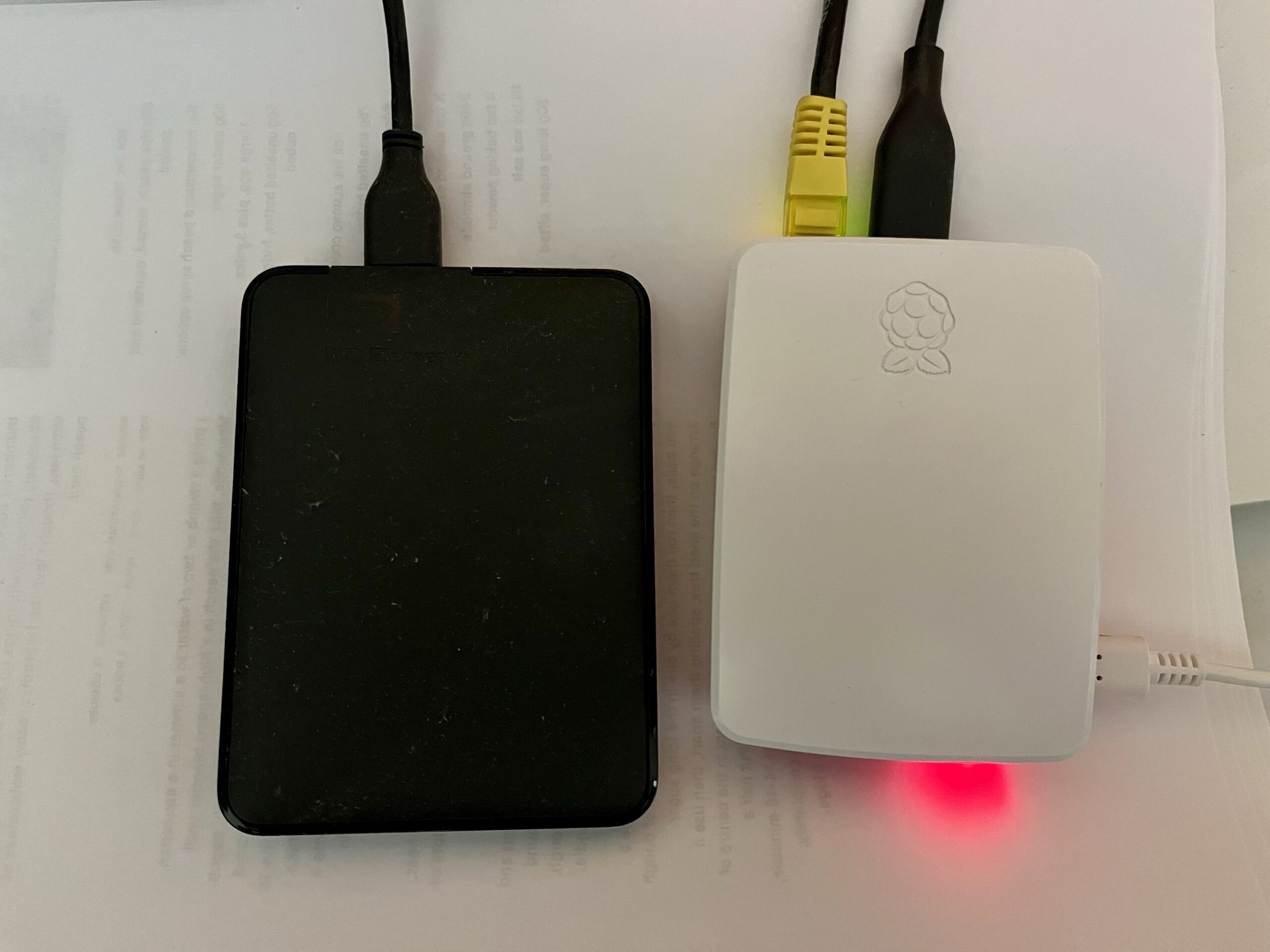
A photo of a Raspberry Pi 4 connected to a USB external hard drive

As you’ll be aware from my regular posts about it, I have a Raspberry Pi 4 running Ubuntu Core, which acts as a server for Home Assistant, Plex and Calibre-Web. Here’s how I’ve set it up to mount an external USB hard drive on boot up.

As it’s a Raspberry Pi, the operating system and binaries set on a microSD card, which in this case is a mere 16 GB. Whilst the me of 20 years ago would have been astounded at the concept of something so tiny holding so much data, 16 GB isn’t much nowadays. So, I have a 1 TB external USB hard drive for storing the media files for Plex and Calibre-Web.

Ubuntu Core doesn’t automatically mount USB storage devices on startup unless you tell it to, and the instructions for doing so are different when compared with a regular Linux distro.

There’s no fstab

Most Linux distros, including regular Ubuntu, include fstab for managing file systems and mounting devices. But Ubuntu Core is designed to be a lightweight distro to act as firmware for Internet of Things devices, and so it doesn’t include many tools that are common in other Linux distros. fstab is one such tool which is missing.

You can, of course, just mount a USB drive manually with the following:

sudo mkdir /media/data
sudo mount /dev/sda1 /media/data

But this won’t persist when the computer restarts. After a bit of searching, I found a solution on StackExchange; it’s for Ubuntu Core 16, but works on 22 as well.

How to tell systemd to mount your USB hard drive

It should go without saying that you should back up your system before doing any of this. If you make a mistake and systemd stops working, your device could become unbootable.

Firstly, you’ll need to run sudo blkid to list all of the file systems that Ubuntu Core can see. Find the one that starts with ‘/dev/sda1’ and make a note of the long hexadecimal string that comes after UUID – it’ll probably look something like ‘2435ba65-f000-234244ac’. Copy and save this, as this identifies your USB hard drive.

Next, you’ll need to create a text file. Ubuntu Core only seems to offer the Vi text editor, which I haven’t bothered to learn to use properly. My favoured text editor is nano, but it’s not available on Ubuntu Core. Therefore, my recommendation is to create a file on another device and FTP it across. The file should be called media-data.mount; it’s really important the file name matches the intended mount point. For example, if you’re instead planning to mount the USB hard drive to /mnt/files, this text file would need to be called mnt-files.mount.

Here’s the template for the file:

[Unit]
Description=Mount unit for data

[Mount]
What=/dev/disk/by-uuid/[Your UUID]
Where=/media/data
Type=ext4

[Install]
WantedBy=multi-user.target

You’ll need to paste in the UUID for your USB hard drive where it says ‘[Your UUID]’. You’ll also need to match the file system type; I have my external USB hard drive formatted as ext4 for maximum compatibility with Linux, but yours may use ExFAT or NTFS.

This file needs to be saved to /etc/systemd/system/media-data.mount . You can either use vi to create and save this file directly or FTP it across and copy it over.

There are three further commands to run in turn:

sudo systemctl daemon-reload
sudo systemctl start media-data.mount
sudo systemctl enable media-data.mount

If you’ve done this correctly, then the next time you restart your device, your USB hard drive should mount automatically. If not, then you should receive some surprisingly helpful error messages explaining what you’ve done wrong.

There’s another guide at Wimpy’s World which has some additional detail and helped me get this working.

How to: fix incorrect date and time on an Amazon Kindle Fire

Today, a colleague of mine asked for help with connecting her Amazon Kindle Fire (sponsored link) to the university Wi-Fi network (which is linked to eduroam). Whilst I’m not an IT employee, I offered to help.

eduroam, for those who aren’t aware, allows staff and students at universities to access Wi-Fi at any other participating university. This includes almost all UK colleges and universities, and many others across the world. To do this, it uses WPA-Enterprise, with authentication using a username and password, rather than a Wi-Fi key like you would get on a home Wi-Fi network.

The problem was that the Kindle Fire couldn’t connect, despite the username and password being correct. And then I noticed that the time was wrong.

Problem 1: wrong date and time

The underlying cryptography behind WPA-Enterprise, and most other secure internet systems, is reliant on accurate clocks. For whatever reason, this Kindle Fire thought that it was about 3am in September 2010. Consequently, it couldn’t establish a secure connection.

So, I went to change the date and time.

Problem 2: you can’t manually change the date and time on a Kindle Fire

There’s no option to manually change the date and time on the Kindle Fire (although this may have existed on older devices). If you try to change the time, you get an error, telling you that your device will get the correct time from Amazon automatically. At best, you can change the time zone if this is incorrect, but this was no help when the clock was out by almost 8 years.

Problem 3: The Kindle Fire cannot automatically update the date and time without an internet connection

So now we’re at an impasse. We can’t get on the internet because the time is wrong, but Amazon has locked down the ability to change the date and time, and we can’t get the correct time from the internet because we can’t connect to the internet. ARGH.

Solution: use a second device as a Wi-Fi hotspot

Fortunately, I managed to solve this by using my iPhone as a personal hotspot. As this doesn’t require authentication via WPA-Enterprise, the Kindle Fire was able to connect, get onto the internet, and update the time on the device to the correct time. I was then able to disconnect from the personal hotspot, and connect to eduroam without any problems.

I can understand why Amazon have locked down the date and time settings, as, if they are wrong, all your secure connections will fail. And considering that many web sites now use HTTPS all the time, this would break a lot of things. But it doesn’t account for when a Kindle Fire’s battery goes completely flat, and it resets to a default time. Which I assume is what happened in this instance.

I checked my iPhone, and Apple does let you manually override the automatic date and time that it receives when you’re online. I assume most Android devices are similar – by default, they set the time automatically but give the user the opportunity to override this if needed. Amazon’s decision, whilst understandable, is frustrating in edge cases like this one.

How to: fix wrong location on iPhone

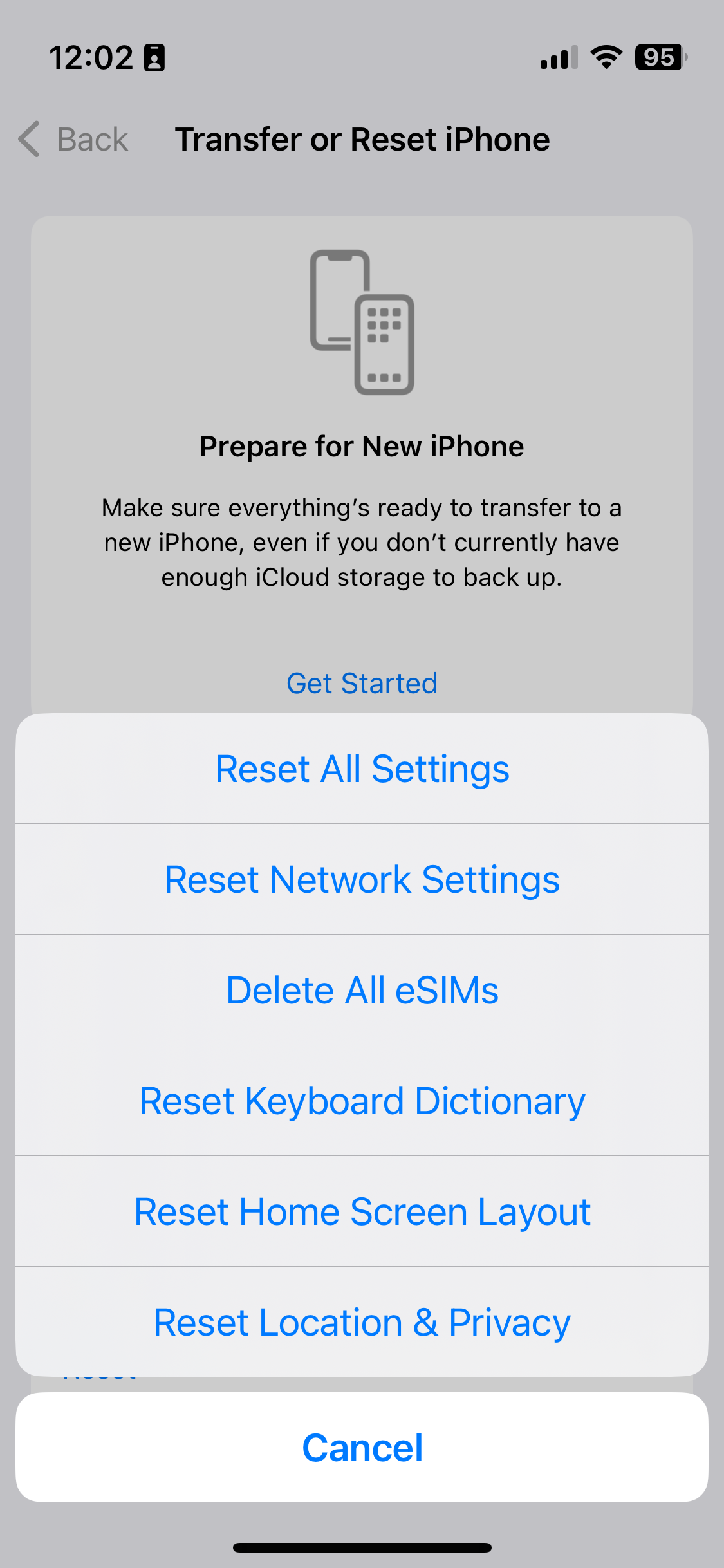
A screenshot showing how to reset settings on iOS 16

Over the Christmas break, my iPhone would randomly decide that I was in my office. I’d have an app open that used my location, but instead of showing me where I actually was, it’d suggest that I was in Bradford. Which isn’t so useful when, in reality, you’re at home, or in York.

It caused particular problems when using Google Maps for directions, as it’d randomly jump to Bradford and then back again. Swarm was basically unusable. And it completely broke the ‘Track Exercise’ function of the Fitbit app. I had to actually uninstall and reinstall the Fitbit app a couple of times because it wouldn’t let me stop the exercise. This was even after restarting the app.

Turning Wifi off helped. Apple’s iPhones, and indeed many other devices, use the SSIDs of available Wifi networks to approximate your location. This is done by querying a web service, which means that you can still get an approximate location even when indoors, and out of view of GPS satellites. But turning off Wifi was hardly a long term solution.

How to actually fix the location problem

A bit of Googling uncovered this article about fixing your location. It offers several solutions, depending on whether the issue affects just one application, or all. In my case, it was all applications, and the solution that worked was the fifth on the list. This involves resetting your phone’s location and privacy settings.

To do this, open Settings, and choose General. Then, scroll right down to the bottom and choose Reset, then select ‘Reset Location & Privacy’ – on iOS 10.2, this is the last option. Your device will ask you for your unlock password – pop this in, confirm, and hopefully your device will get the location correct from now on.

There is a drawback to doing this, however. You’ll have noted that this resets both your location and privacy settings. This means that any apps that you have granted access to your contacts, photos, calendars, camera, microphone, media library and so on will need to request them again. Although, oddly, apps will retain their location permissions, along with any permissions regarding background app refresh, notifications or mobile data access.

Despite these issues, it was a relief to fix the problem.

This blog post was updated in November 2023 with an updated screenshot, but the instructions are broadly the same.

How to: get cheaper car insurance

Alas, the car I've bought insurance for is not this Rolls Royce

Having bought a car at the weekend, I also needed to arrange car insurance. The law in Britain now requires all cars that are used on public roads to have a valid insurance policy; if you don’t, then you must park the car off-road and submit a SORN. If your car is found on a public road, parked or moving, then you can be fined. So I needed to have a policy in place before I would be able to drive the car away.

Like many things, buying car insurance can be simple and quick, but if you’re prepared to put some effort in, you can bring your premiums down significantly. I can wholeheartedly recommend the advice on MoneySavingExpert.com which gives some tips on how to reduce your premiums by tweaking the information you provide. I would advise you to read the whole article, but here are the things I tried that worked for me.

1. Trying multiple price comparison web sites

It’s hard to avoid the various price comparison web sites that advertise nowadays. Whether it’s the one with the meerkats, talking robots or annoying opera singer, these sites are well-advertised. They work by taking your details, and obtaining quotes from a range of insurers on your behalf, which are then ranked to show you the cheapest. The sites make their money from the referral fees that insurers pay when you take up a policy. Considering how much these sites advertise, they must make a lot of money from these referral fees.

It’s worth trying multiple sites, as different sites work with different insurers. I got different results from each. You can also usually get cashback if you click through to a price comparison web site from a cashback site like Quidco (referral link) or Topcashback (referral link). I got about £2 from them, just for getting a quote.

2. Go direct to insurance companies

Once I’d found the cheapest insurer – and the three comparison sites I tried all gave the same company – I also tried to get a cheaper quote by visiting their site directly. Again, going via a cashback site may net you cashback as well. Remember those referral fees? Cashback sites pay those to you.

It’s also worth checking Aviva and Direct Line, who do not advertise their policies on price comparison web sites. As it happens, both gave me unaffordable quotes that were nearly double the cheapest that I could find, but, worth a try.

3. Tweak your job description

I have a rather unique job title of ‘Student Recruitment and Data Officer’, which isn’t on the selection lists that insurers ask for. Originally I put it through as ‘Recruitment Consultant’ working in state education, but I found changing it to ‘Administrative Officer’ in the university sector lowered my premiums significantly (by about 20% in my case). As long as the title still accurately reflects your job role, you should be fine.

4. Add another driver

As Christine hasn’t passed her test yet, it was going to just be me on the car’s insurance policy. However, we found that adding another family member to the policy, as a secondary driver, reduced my quote by another 10%. To be effective, this must be someone that would realistically be likely to drive the car, and who has a good driving record with no penalty points or recent insurance claims. Adding an irresponsible or inexperienced second driver may increase premiums, but it’s worth trying.

5. Include some business use

If you think adding another driver is a bizarre way to reduce your premiums, here’s one that seemed even weirder. I will need to drive for work from time to time (I reckoned no more than 1000 miles per year) and so I included this in the policy. This means that I won’t need to arrange a hire car, so my employer also saves money too. After getting quotes with this included, I tried taking it out and stating that the car would only be for ‘leisure’ use (no commuting and no work-related activities). That actually pushed the premiums up by about 10%, so I put it back in.

Plus the things that I didn’t try

I didn’t try everything. I could have got an even cheaper policy if I had opted in to a ‘black box’ insurance policy. This involves the fitting of a recording device to your car that monitors your location and how you drive – and if you drive safely, you’ll save money. InsureTheBox is one of the better known firms that offers this (a friend works for them), but it’s available from a variety of insurers.

Sometimes, opting for third-party insurance can be cheaper, but it covers less than fully comprehensive insurance which could leave you out of pocket in the event of an accident. And, again bizarrely, sometimes comprehensive cover is cheaper than third-party because of risk factors.

And if you have another type of policy with an insurance firm (say home or travel insurance), some insurers may give you a discount if you take out more than one policy from the same firm. Our home insurance was arranged via a broker when we got our mortgage so I wasn’t able to approach them for a car insurance quote on this occasion.

In the end

As it happened, the cheapest quote I got was via Confused.com, for Diamond insurance – a company that historically only covered female drivers. Both are owned by Admiral Group, incidentally. Overall, the policy ended up being about £200/year cheaper than when I started, which isn’t bad for a couple of hours spent entering information into various web sites. Insurance for new drivers is always expensive and I’m hoping that, should I continue to drive like Captain Slow, my premiums should come down in future years.

Netflix – 8 tips to get the most from your subscription

A screenshot of the Netflix home page when logged in

We’re a few months into our Netflix subscription and on the whole we haven’t been getting as much value out of it as I expected us to, which is a shame. I had considered cancelling it, as it’s not worth paying for something that I don’t use. And whilst I’m still open to that idea if we’re still not using it much in a few months’ time, I decided to rethink how we’re using Netflix rather than going for the nuclear option straight-away.

So, here are my tips for making the most of your Netflix subscription.

1. Add lots of titles to your list

Netflix has a ‘queue’ of sorts, called My List, where you can add films and shows that you want to watch. These could be films that you haven’t seen before, or TV shows that you want to watch again, or children’s’ shows that your kids want to watch over and over again. Keeping lots of titles here will mean that you avoid the situation where you open Netflix to watch something but then can’t immediately think what you want to watch.

2. Add TV shows to your list

Netflix, despite its name, isn’t just about ‘flicks’, i.e. movies/films. There are plenty of TV shows on there, and in some cases you can watch every season. So add a few TV shows to your list as well as films – that way, if you don’t have enough spare time for a whole film, then you can watch a quick half hour TV show.

3. Install Netflix’s mobile apps to add to your list on the go…

Let’s say you’re out with your friends, and someone recommends a film or TV show to you. If you have the Netflix app on your phone, you can simply add it to your list there and then. No need to write it down or try to remember it and then forget it. And then you can watch it when you have the time to do so.

4. …or to watch things on the go

Admittedly, watching films and TV shows on a smartphone screen doesn’t make for a good experience. But if you have a generous data allowance on your mobile contract and nothing better to do, then why not pass the time with a quick TV show? Even better if you have a tablet with a larger screen. And it’s great for sick days when you can’t face getting out of bed to watch TV.

5. Watch films in bits

Netflix remembers your position when watching content, even if you break off and have to do something else. So if you don’t have time to watch a full feature-length film, just watch a bit of it. Then, pick it up again when you have some more time. The position will synchronise between the web site and apps, so you could start watching a film on your Roku or Apple TV, then watch a bit on your iPhone before finishing it off on the web site.

6. Build up your taste profile for better recommendations

One of Netflix’s big selling points is its ability to recommend films and TV shows to you that you may not have come across. As you watch content on Netflix, it learns what you like and, over time, its recommendations should improve. However, when you first get started Netflix may struggle to suggest anything sensible, so spend some time on the ‘taste profile’ tab on the web site to refine its suggestions. Or just browse around and rate any films and TV shows that you have already seen.

As Netflix’s recommendations improve, you’ll hopefully find some interesting new content to add to your list.

7. Find out when new releases are available using Netflix Notifier

Netflix Notifier is a third-party site which lets you create a watchlist of films that you want to see, but that aren’t on Netflix yet – and then emails you when they become available. I reviewed it in July when I added four films – of those, so far only Hunger Games: Catching Fire has become available to watch in the UK.

Note: since this blog was written, Netflix Notifier has closed down.

8. Use a VPN to access another country’s library

Because of the weird and wonderful world of international copyright licensing agreements, the selection of films and TV shows differs between each country that Netflix operates in. A way around this is using a VPN – a Virtual Private Network – to fool Netflix into thinking you’re based somewhere else. So a British user could use a VPN located in the US to watch shows that would be otherwise unavailable. Be aware that you’ll probably have to pay extra for a decent VPN connection. And bear in mind that film studios are pressuring Netflix to block access from VPNs – whilst it would be impossible to block every VPN, some of the more popular ones may get locked out.

How to work out whether Netflix is worth it for you

Netflix is basically an all-you-can-eat buffet, when compared to ‘a la carte’ services like Google Play and Blinkbox where you pay for each individual episode or season. To take the example of Channel 4 show Misfits, Blinkbox charges £1.89 per episode or £8.99 per series; if you watch four episodes in a month, then Netflix is cheaper as it costs £5.99 per month. Films on Blinkbox are typically around £2.50, or more for new releases.

So if you’re watching, say, two films, or four TV shows, or a film and two TV shows each month, then you’re probably getting your money’s worth. If not, and you’ve tried all of my suggestions above, then you may wish to reconsider whether a subscription service like Netflix is best for you. You may get better value from other sites where you pay for each show individually.

Fixing high memory usage caused by mds

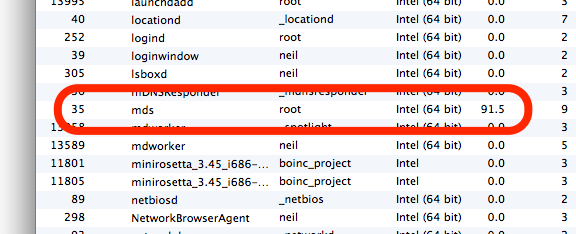
Screenshot of activity monitor on Mac OS X showing mds with high memory usafe

Recently my Mac Mini has been running very slowly, with some programs freezing for as much as several minutes. I pruned the list of items that were running on startup but this didn’t seem to make much difference.

So I opened Activity Monitor (the OS X equivalent of Task Manager) and found a process called ‘mds’ was consuming huge amounts of RAM and virtual memory. MDS is the process which builds an index of your disks for use by Spotlight, the tool that lets you search your drives, and also by Time Machine for backups. Sometimes MDS requires a fair amount of RAM, but it was using almost 2 gigabytes of virtual memory and almost a gigabyte of RAM in my case. I only have 4 gigabytes of RAM in total, and so this was causing major problems as OS X had to regularly swap data between RAM and the paging file.

I’d tried looking into this before and got nowhere. Most of the results in Google were discussions on Apple’s support forums, which were devoid of any real solutions. But eventually I found this post on iCan’t Internet which actually had a solution.

Firstly you should run Disk Utility. Repair your hard disk, and also repair the disk permissions. This may fix your problem, but it didn’t in my case so I moved on to the next step.

Open up Terminal, and type in the following command: sudo mdutil -avE . This runs a tool called ‘mdutil’, and tells it to completely rebuild Spotlight’s index. It turns out that the index on my hard disk had got corrupted somehow, and this was causing problems with the ‘mds’ process. It took a while for the command to run, but afterwards a huge amount of RAM and virtual memory became free. Unsurprisingly, my Mac ran much more happily after this.

Hopefully if you’ve have the same problem this will help. It has certainly breathed new life into my increasingly sluggish computer.

How to use Google Sync without using Exchange

In a blog post on its official blog called ‘Winter cleaning‘, Google announced that it was shutting down some of its services. They are all features which have either been replaced with something (supposedly) better, or are only used by a small number of people and are therefore not worth keeping. This includes Google Sync, which allows the use of Microsoft Exchange protocols for synchronising Gmail, Google Contacts and Google Calendar.

Unfortunately, Exchange is what myself and a number of others use on the iPhone, as it’s the easiest way to synchronise mail, contacts and calendars at the same time. Now Google isn’t dropping Exchange support completely – users of Gmail and free Google Apps accounts (which recently closed to new sign-ups) can continue using it but won’t be able to set it up on new devices; paid Google Apps users will be able to carry on with no problems.

But it’s clear that Exchange support is not a priority for non-paying users like me and so it’s probably best to look at alternatives. Google is, refreshingly, pushing open standards instead – IMAP for email, CalDAV for calendars and CardDAV for contacts. Luckily for iPhone users like me, Apple supports all three, although Windows Phone users aren’t so lucky.

So, here’s how to replace your Exchange-based Google settings with IMAP, CalDAV and CardDAV:

Step 1: Remove the Exchange account

Open Settings, choose Mail, Contacts and Calendars, select your Google Account which is using Exchange, and then select Delete Account. This will remove all contacts, calendars and emails that have been synchronised so I would ensure you have backed your phone up first, just in case there are any problems.

Step 2: Set up a new Gmail account

You should now add your Gmail account in the standard way, by choosing ‘Add Account’ in Mail, Contacts and Calendars and then tapping the Gmail logo. This will set up email and calendar sync, using IMAP and CalDAV respectively, but not contacts.

Step 3: Set up a CardDAV account to synchronise contacts

Going back to the ‘Add Account’ screen, tap ‘Other’ and then ‘Add CardDAV Account’. In server, enter ‘google.com’, your Google Account username and password, and a description – I called mine ‘Google Contacts’.

Now, open the Mail, Contacts and Calender apps on your iPhone in turn to download the data again, which may take a couple of minutes. And then that’s it – you should be back to where you started.

If you find that some of your calendars are missing, open Mobile Safari and browse to https://www.google.com/calendar/syncselect – this will allow to select which calendars are synchronised over CalDAV. The changes will take effect the next time you open the Calendars app, after a few seconds.

These instructions are a bit long-winded and it would be nice if the iPhone’s Gmail support included Contacts as well (which would make step 3 unnecessary). However, considering Apple’s uneasy relationship with Google of late I can’t see this being a priority for them, especially as these features duplicate Apple’s iCloud.