In a blog post on its official blog called ‘Winter cleaning‘, Google announced that it was shutting down some of its services. They are all features which have either been replaced with something (supposedly) better, or are only used by a small number of people and are therefore not worth keeping. This includes Google Sync, which allows the use of Microsoft Exchange protocols for synchronising Gmail, Google Contacts and Google Calendar.
Unfortunately, Exchange is what myself and a number of others use on the iPhone, as it’s the easiest way to synchronise mail, contacts and calendars at the same time. Now Google isn’t dropping Exchange support completely – users of Gmail and free Google Apps accounts (which recently closed to new sign-ups) can continue using it but won’t be able to set it up on new devices; paid Google Apps users will be able to carry on with no problems.
But it’s clear that Exchange support is not a priority for non-paying users like me and so it’s probably best to look at alternatives. Google is, refreshingly, pushing open standards instead – IMAP for email, CalDAV for calendars and CardDAV for contacts. Luckily for iPhone users like me, Apple supports all three, although Windows Phone users aren’t so lucky.
So, here’s how to replace your Exchange-based Google settings with IMAP, CalDAV and CardDAV:
Step 1: Remove the Exchange account
Open Settings, choose Mail, Contacts and Calendars, select your Google Account which is using Exchange, and then select Delete Account. This will remove all contacts, calendars and emails that have been synchronised so I would ensure you have backed your phone up first, just in case there are any problems.
Step 2: Set up a new Gmail account
You should now add your Gmail account in the standard way, by choosing ‘Add Account’ in Mail, Contacts and Calendars and then tapping the Gmail logo. This will set up email and calendar sync, using IMAP and CalDAV respectively, but not contacts.
Step 3: Set up a CardDAV account to synchronise contacts
Going back to the ‘Add Account’ screen, tap ‘Other’ and then ‘Add CardDAV Account’. In server, enter ‘google.com’, your Google Account username and password, and a description – I called mine ‘Google Contacts’.
Now, open the Mail, Contacts and Calender apps on your iPhone in turn to download the data again, which may take a couple of minutes. And then that’s it – you should be back to where you started.
If you find that some of your calendars are missing, open Mobile Safari and browse to https://www.google.com/calendar/syncselect – this will allow to select which calendars are synchronised over CalDAV. The changes will take effect the next time you open the Calendars app, after a few seconds.
These instructions are a bit long-winded and it would be nice if the iPhone’s Gmail support included Contacts as well (which would make step 3 unnecessary). However, considering Apple’s uneasy relationship with Google of late I can’t see this being a priority for them, especially as these features duplicate Apple’s iCloud.
This blog post will probably be only be useful to a small niche. If you have a Mac, with a printer, and run Windows in VirtualBox, here’s what you need to do to get it to work.
Step 1: Make sure your printer is shared on the network
On your Mac, open System Preferences, choose Print & Scan, and then select your device on the list on the left. Tick ‘Share this printer on the network’.
Step 2: Check network settings for your virtual machine
In the VirtualBox manager, open your Windows virtual machine’s settings, and under Network, ensure you’re using ‘Bridged Adaptor’ rather than ‘NAT’. This will make your life much, much easier later on.
Step 3: Install and set up your printer using Bonjour
Bonjour ships on all Macs, but not on Windows, which is a shame because it makes setting up network connections much easier. Thankfully, Apple offers a cut-down version for Windows computers, so download Bonjour Print Services for Windows, and install it. This will add a ‘Bonjour Printer Wizard’ icon to your desktop.
Run the Bonjour Printer Wizard. If you’ve done the first two steps correctly, your printer should be listed. Click Next, and, if you’re lucky, Bonjour will install the correct driver and add the printer to Windows for you. Sorted. If not, then…
Step 4: Install the printer driver in Windows
Sometimes Bonjour won’t be able to identify which printer driver you need and will ask you to select it. Again, if you’re lucky, your printer will be one of those that Windows ships with, but if not, you may reach an impasse here. Some people have had luck with using a driver that is similar to their printer, but this doesn’t always work.
Instead, we’ll connect the printer directly to Windows to convince it to install the driver that way. VirtualBox lets you bridge any USB device which is plugged into your Mac, so that the virtual machine can see it. Turn your printer on, and then whilst Windows is running, click on the Devices menu in VirtualBox, select USB devices, and then choose your printer. Windows should detect that the printer is now ‘plugged in’, and so it will install the necessary drivers. Complete the installation, disconnect your printer using VirtualBox and then shut down both your virtual machine, and your Mac, to ensure that your printer is correctly picked up by your Mac on the next boot.
Start your Mac again, and then open Windows in VirtualBox, and try to run the Bonjour Printer Wizard again. Hopefully, this time you’ll be able to select your printer driver from the lists when presented (annoyingly it’s not searchable).
This still didn’t work for my printer, so I had to do one final trick. I clicked ‘Have Disk’, and then browsed to the c:\Windows\System32\DriverStore\FileRepository folder, then sorted the sub-folders by date. My printer is by HP, and one of the newly-created gobbledegook folders had ‘HP’ in the title which turned out to be my printer. I selected this, and was finally able to get the printer working, with the above test page as proof.
Why not just connect the printer directly?
In step 4, I mentioned you can simply connect your printer directly to the virtual machine, thus avoiding the dilly-dallying around with Bonjour. This works, but it’s flaky; once you’ve connected your printer to Windows, you may need to reboot your Mac before any Mac applications can print to it. Whilst setting up Bonjour is more effort initially, once it’s done, you should find it easier to work with.
If anyone’s interested, I went through all of this because I wanted to print out a coupon for a free one litre carton of grape juice and couldn’t get the Coupon Printer to work correctly on my Mac.
Though Christine and I are not badly off financially, we’re still in a situation where we really want to save money where possible, and this includes holidays. Despite this, we went to London a few weeks ago for a long weekend, which is probably one of the most expensive cities in the world. But it doesn’t have to cost the earth and I’m going to go through some of the things we did, or could have done, to keep costs down.
1. Don’t stay in a hotel in Central London
As a general rule, the closer you are to central London, the more expensive your hotel will be. Go a little further afield and you will find some good value hotels, many of which are close to Tube stations. And you’ll probably find that the money saved by going for a cheaper hotel further out of London is more than the cost of travelling into central London on the Tube. The only disadvantage is the extra travelling time to get out there, so it’s harder to drop by your hotel room on an evening before going out, for example.
2. Consider a budget hotel
Whilst it’s nice to stay in hotel that offers everything, sometimes all you need is a bed for the night. I’ve stayed in a couple of good budget hotels – Holiday Inn Express at Royal Docks and Premier Inn at Collier’s Wood – both of which were very good value. if you don’t mind sharing a room, a hostel may be even cheaper.
3. Skip hotel meals
Budget hotels often unbundle meals from the price – this makes the headline price of the room cheaper, but means you may be paying as much as £8 per person, per day for breakfast. If you don’t need an all you can eat breakfast every day, skip it – you’ll be able to get something cheaper from a supermarket or a café. You can even save time by eating it on the Tube on your way in to London, if you’re staying in the suburbs.
4. Get an Oyster card
If you’re following my advice and staying outside central London, you’re likely to be using public transport a lot. An Oyster card will not only save you money, but will also mean you won’t need to have change for bus or Tube fares. Fares are as much as 50% cheaper with an Oyster card than without, and fares are capped at the price of a one-day travelcard, so if you do lots of journeys you won’t end up paying a fortune. Say you’re staying in a hotel near a Tube station in zone 3,and travel in and around central London a lot on one day during off-peak hours – you will not pay more than £7.30 that day, regardless of how may tube journeys you do in zones 1-3. Because it’s a top-up card, you just need to top it up at a machine each time the balance gets low (and they take cards). You can pick them up from major Tube stations for around £5, which includes £2 of credit, or order them online; unused credit doesn’t expire and you can register the card online to protect your balance in case the card is lost. It’s accepted on all Tube trains, plus all buses and mainline rail services within London zones 1-9.
5. Don’t go to restaurants on main streets
Restaurants in more prestigious locations will be more expensive. Go a little off the beaten track and you can find some nice places that don’t cost too much. TripAdvisor is your friend here, as are local guidebooks or recommendations. If necessary, stick with a chain restaurant that you know, like Pizza Hut or Nando’s – it’s your call whether you want something cheap and familiar or want to push the boat out a bit.
6. Look for special deals and vouchers
I often mention Money Saving Expert and there’s a good reason for it – the site is huge and is full of really good, impartial advice about saving money in all aspects of life, and this includes going out and holidays. You may find that some attractions will offer you two tickets for the price of one, simply by printing a voucher off their web site, or a restaurant will allow your kids to eat free, and Money Saving Expert gathers many of these in its Deals section. Also, have a look at sites like Groupon, Living Social and Keynoir for deals in London, which may include cheap accommodation, reduced price restaurant meals or cheaper entry into attractions, although be aware that they usually ask you to pay up front for a voucher so make sure you use it so you don’t waste money.
7. Visit free attractions
London is home to quite a few national collections like the Natural History Museum and the Science Museum, which are both free, enough to fill a full day and great for people of all ages, including kids. But there are also plenty of other free attractions and once again Money Saving Expert has a list of some of them. Of course, if you don’t want to spend any money you can just walk around and see the sights, eschewing the sometimes expensive open top sightseeing buses.
8. Consider buying a London Pass
If you’re spending a few days in London, and want to visit a number of attractions that charge for entry, you may wish to consider buying a London Pass. The price varies depending on how long you want it for, starting at £44 per person for a one day pass to £95 per person for a 6 day pass, which at £15.83 per day isn’t too expensive. Again, you’re paying up front, so unless you’re sure you’ll visit enough attractions for it to be worth it, don’t get it.
9. Book in advance
This applies not just to your travel and accommodation – some attractions offer a discount if you book ahead. Usually it’s only a modest 10%, but everything helps. If you’re going to London by train, remember that the cheapest tickets tend to be released around 3 months in advance, so order them at least 2 months in advance to get the best deal. Avoid sites like thetrainline, who charge a booking fee, and go directly to one of the train operators – it doesn’t necessarily have to be the one you are travelling with. See my Buying rail tickets guide for more details. Similarly some budget hotels have room sales with some very cheap rooms available if you’re quick enough to blag them.
10. Use the bus, or walk
The Tube is popular with visitors to London as it’s easy to follow, with each line having its own name and colour, and Tube stations are plentiful and located in useful places. But it’s not the only way to get around. London also has plenty of buses, and with an Oyster card, a single bus fare is only £1.30; and, like with Tube fares, they’re capped at £4 per day – this compares favourably with the Tube where a single fare in zone 1 is £1.90 with Oyster, rising to £2.90 if you’re travelling from zones 1-3. Also, because buses are above ground, they’re sometimes quicker than the Tube as you don’t need to spend as long as 5 minutes walking from the street to the platform, and they stop at more places. Use TfL’s Journey Planner to work out if there’s a bus you can catch. Alternatively, it may be quicker to walk, and there’s a handy map showing where walking between Tube stations would be quicker than actually taking the Tube (although the map is from five years ago so is a little out of date – it doesn’t include the Overground).
If you want more information, as well as the aforementioned web sites have a look at Money Saving London and London for Free for some ideas for free or cheap things to do.
OS devices, such as my iPhone 4, are pretty good at handling apps that crash – the app is closed and you’re returned to the home screen (the app may detect that it crashed when you relaunch it and ask for a bug report to be sent). But sometimes apps just freeze, or stop working correctly. They’re still running, but perhaps stuck in an infinite loop. Sadly, this has happened to me recently with apps like the official Twitter and Facebook apps.
With the advent of multitasking on the iPhone 3GS, 4 and 4-and-a-bit (the Verizon iPhone), apps don’t always close when you exit them – often they stay running in the background. So simply closing the app and then opening it again may not be enough to fix the problem.
Previously I’ve taken this further, and simply turned the whole phone on and off again. It works, but it’s a bit like using a sledgehammer to crack a nut – so I set about finding a more elegant solution. And tcgeeks has one.
If an app misbehaves, double-click the Home button. This will bring the multi-tasking bar up along the bottom of your screen. Swipe left or right until you find the naughty app. Touch and hold your finger on it, until all of the app icons start bouncing around. Each icon will now gain a red minus sign – click the minus sign, and iOS will kill the app. Press the Home screen once you’re done. You’ll then be able to launch the app fresh.
This trick can also be used to kill apps that you don’t want to run in the background – a bit like the multitude of ‘Task Killer’ apps that exist on Android. You don’t want to kill them all, as some will need to be running for push notifications for example, but any that are seldom used can probably be safely killed to free up some RAM, and potentially improve your handset’s battery life.
Deleted Bluetooth preference files from my Home and System Library folders
And none of them have worked. Looks like my MacBook’s Bluetooth controller is dead. Great.
Update: It’s working again. Apparently all I needed to do was turn the computer off (at the plug), leave it overnight and turn it on again the following morning. How bizarre.
Had a bit of a panic this morning when I let my MacBook go to sleep, and upon re-awaking the screen’s backlight would not come on. The screen itself was working, as I could see a small portion of the desktop in the middle where the Apple logo is, but the rest was un-viewable.
It’s working now, but not after trying almost every trick in the book. I’ve listed all of the methods here, mostly for my own reference in case it happens again but also for anyone having a similar problem.
Diagnostics
First of all, make sure that the rest of the computer is working. If you have an external display handy, plug that in and use Fn+F7 to activate it (you may not need to hold down the Fn key depending on your Mac’s settings). If you can see your desktop on the external display then the problem is with the display – if not, you computer may have deeper problems. If you have VNC set up, you could try this too.
1. Set your brightness
Sometimes it’s the basic things – your brightness might be set to minimum. Use Fn+F2 to turn up the brightness (you may not need to hold down the Fn key depending on your Mac’s settings).
2. Zap your PRAM
One trick to deal with minor hardware problems is to reset your PRAM and NVRAM. To do this, power down your Mac, then, turn it on and hold down Command+Option+P+R at the same time, until your Mac makes the ‘ding’ noise again. Command is the Apple key, Option may be labelled as ‘alt’ on your computer.
3. Reset your Energy Saver settings
You may need to use an external monitor or VNC for this. While you Mac is booted, open System Preferences and choose Energy Saver. Under ‘Put the displays to sleep’, set the timer to 1 minute, and then wait 1 minute for your machine to go to sleep. Wake it up, and hopefully your screen will spring back to life.
4. Take out the battery
If your Mac is a portable, turn the computer off, unplug the AC power cord, and take the battery out. Next, hold down the power button for 5 seconds, and the re-insert the battery. Then boot up again. In my case, this is what worked.
Despite Parallels and VirtualBox both being programs which run virtual machines on Mac OS X, they both use different file formats for storing the virtual machines on disk. Though I believe Parallels will open a VirtualBox disk, VirtualBox cannot automatically import Parallels disks. But it’s not impossible…
If the guest operating system, i.e. the system that is running inside Parallels, is Windows 2000/XP/Vista, then it is possible to use a free tool from VMWare to do the conversion. Here’s a step-by-step:
1. Back up your virtual machine
Seriously. We’ll need to modify it a bit before it’s converted, so you’ll want a backup copy just in case things go wrong, or if you may use Parallels again in future.
2. Uninstall Parallels Tools
This is the modifying bit. Load your Windows virtual machine in Parallels, and uninstall Parallels Tools (the helper program that adds drivers and clipboard sharing, and other stuff). This is important as otherwise your virtual machine won’t boot in VirtualBox – and I know this from experience. You also can’t uninstall Parallels Tools unless you are running Parallels at the time.
3. Close all programs
Close as many running programs in your virtual machine as possible. We’re about to take a snapshot image of it while it is running, so any unsaved data may be lost when you boot the image in VirtualBox. That includes programs with icons in your notification area, such as virus scanners, instant messaging programs etc.
4. Install VMWare Converter
Once Parallels Tools has been uninstalled (you may need to reboot the virtual machine for this), we can begin the conversion process using a tool ironically made by VMWare. Go to the download page for the VMWare Converter in whatever web browser you use in your virtual machine (it’s a Windows program) Download it, and then install it.
Run the Converter tool, and click ‘Convert Machine’ – this should pop up a wizard which walks you through the process of setting up a new virtual machine image. You want to tell it to use a ‘Physical Computer’, and then on the next screen choose ‘This Local Machine’. Select the hard disk of the virtual machine and leave ‘Ignore page file and hibernation file’ ticked as this will just bloat the new virtual disk with unnecessary rubbish.
For the type of virtual machine, select ‘Other virtual machine’, and on the next screen, give it a name (e.g. ‘Windows Vista’). Next, you will also need to save it somewhere, and this should not be the existing hard disk of the virtual machine. You can either use your Mac’s main hard disk, mapped to drive ‘Z:’ under Parallels, a network drive or an external drive if you have it forwarded through to the virtual machine. You should be able to use the top option for the type (i.e. ‘Workstation 6.x’) but if it doesn’t work try another option. Keep ‘Allow disk to expand’ checked on the next screen. Click through until you’re ready to complete, and start the conversion.
5. Go and grab a cup of coffee
Or go out shopping. Or read a few chapters of War and Peace. Either way, the machine will take a significant amount of time to convert – mine took around 45 minutes and was only around 15 GB. Bigger disks may well take longer. It helps if you don’t have lots of other programs running on your Mac at the same time as then more of your CPU juice can be used for the conversion.
6. Shut down the machine in Parallels
Now that you’ve exported the machine, shut down Windows and close Parallels. This is mostly so that you can stay within the terms of the license agreement for Windows which won’t allow multiple instances.
7. Import the disk into VirtualBox
Open VirtualBox, choose ‘File’ and then ‘Virtual Disk Manager’. Add the disk file that you created, and click OK. Then click ‘New’ to create a new virtual machine, and select the correct operating system from the list. Try to ensure that you give the virtual machine the same settings (such as RAM size) as you did in Parallels. When asked for a hard disk, click the ‘Existing’ button and choose the disk file that you created from the list. Then click Finish.
8. Boot up in VirtualBox
Hopefully all will have gone to plan, and you will be able to boot into Windows as before. All of your files and programs should be there waiting for you.
If, however, you encounter a blue screen mentioning ‘prlfs.sys’ like I did, boot the machine but press F8 during the boot to enter Safe Mode with Command Prompt. Type in cd c:\windows\system32\drivers and then rename prlfs.sys prlfs.sys.old and then reboot – that should get you up and running.
For the inquisitive, prlfs.sys is part of Parallels Tools and this should have been removed as part of step 2, however muggins here forgot to this when he tried it himself and therefore encountered this error.
9. Install VirtualBox Guest Additions
Guest Additions are to VirtualBox what Parallels Tools are to Parallels – in other words, they make Windows sit better in the virtual machine and improve integration with the host operating system. On the main VirtualBox menu, select Devices and then ‘Install Guest Additions’ and follow the on-screen instructions. Though this is optional, it will improve the experience of using Windows in VirtualBox.
Hopefully now you’ll be up and running in VirtualBox. Feel free to post comments below and I’ll try to do what I can to answer them but I’m not the world’s greatest expert in this. I also don’t know how to do this in other versions of Windows or other operating systems.
I have an iPod Mini, bought in August 2004, which has hit a spot of bother. Well, okay, I dropped it, and afterwards it kept crashing or giving me the dreaded ‘unhappy iPod’ screen (which is like the Blue Screen of Death for iPods) when playing music, especially when skipping tracks. So here’s how I fixed it:
Because my iPod was formatted in Windows (a conscious choice, see rant below), I plugged it into Hari’s computer and ran ScanDisk, and opted to do a full surface scan to fix any bad sectors.
Next, I opened iTunes on the Windows PC and did a restore on the iPod, wiping the existing firmware and files and replacing it with the most recent firmware.
Then, I reloaded my music.
And now it works fine. Quite what went wrong originally, I am unsure. However, by running ScanDisk it may have marked any damaged parts of the disk as bad. If I had more money, I would have bought a copy of SpinRite which is apparently very good at getting hard disks back into working order (or at least letting you know that your disk is fubar‘d).
I may still consider buying a new iPod eventually but I’m torn between which model to buy, so that blog post may still come. At least now it’s not so much of a priority as my current iPod now seems to work fine.
And now for my rant about iPod formatting. If you format your iPod on Windows, it will be formatted with the FAT32 file system, readable by Windows and OS X (and pretty much every other modern operating system). Format it on OS X, however, and it’ll be formatted with the HFS+ file system which only OS X can read. Since Apple now ships Boot Camp with Macs and has been promoting the ability to run Windows if needed, why not let Mac users change the file system used when formatting? If needed it can be some option hidden away in an obscure corner of iTunes where your average Joe User who has no idea what FAT32 or HFS+ are can safely ignore it. But it would be nice to have the option, rather than having to use a Windows computer.
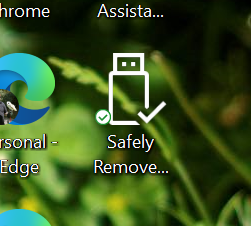
Here’s a tip I gleamed from today’s Windows Secrets newsletter. You may well be familiar with the ‘Safely Remove Hardware’ icon which appears in your notification area (or ‘system tray’ if you must) when you plug in a removable hard drive or camera (or whatever). You may also notice that the icon sometimes isn’t there – and this is a problem which my parents’ computer randomly suffers from – which means it’s difficult to safely disconnect removable devices. The answer: a desktop shortcut.
Right-click on the desktop, select ‘New’ and then ‘Shortcut’. For the item location, copy and paste the following:
Then click ‘Next’. Call the shortcut ‘Safely Remove Hardware’, and you should be done. If you want to make it look snazzier, right-click the icon, choose ‘Properties’ and then the ‘Shortcut’ tab, click on ‘Change Icon’ and in the ‘Look for icons’ box type:
%windir%\system32\HotPlug.dll
The first icon in this file matches the ‘Safely Remove Hardware’ icon so you’ll be able to recognise it more easily.
Now, if the normal notification icon doesn’t appear, all you need do is double-click your new desktop icon to safely remove any disks before unplugging them.
Update (November 2023): This was written back in April 2007, but it still seems to work in Windows 10.
Since it took me a while to find out how to do this myself, I’m going to use this opportunity to tell you how to take screenshots on a PocketPC or Windows Mobile device – in my case, Windows Mobile 2003.
First of all, you need to know that, as far as I can tell, your device does not have a screenshot capability built in. It’s not like a Windows machine where you can hit Print Screen or a Mac where you can hit Cmd+Shift+3 – you will have to install some software first. I’m sure there’s some fancy-pants shareware jobby that will do the job painlessly but in this instance we’re going to use Pocket SnapIt (link no longer available), which is available for both normal Windows Mobile/PocketPC devices and Windows Smartphone handsets. There’s also a Windows version for your PC. It’s free and open source.
Choose the relevant package – for my Dell Axim x50v, I chose the PocketPC package – and download it to your device. This may mean downloading it to the Mobile Device folder in My Computer and then using ActiveSync to send it across. Then, click on the cabinet file on your device to have it install. If you’re using Windows Mobile 2003 (and probably 5.0 also) you’ll probably get a warning saying that the application was designed for an older operating system – you can ignore this. Now, go to Programs and run the newly-added Pocket SnapIt icon.
You’ll now need to define a hotkey to trigger the taking of screenshots. I chose the ‘/’ character – to set this, click on Menu and select Options. Then click Menu again, expand Options and choose Capture Options. Now click Menu a third time and click Select Capture Button. Click OK and then select a key on the keyboard. Click OK to go back to the main screen, and then click Start.
Now, open up the program you want to take a screenshot of and press the trigger key – you should hear a noise when you do. You should then find a bitmap file in your My Documents folder call Snap001.bmp – this is your screenshot.
You can see my effort further up the page – this was a shot from Skype for PocketPC. As you can see, the capturing mostly works but it chokes on the font smoothing, so you may want to consider turning this off first. You’ll also need to change the image format to something other than bitmap if you want to post your screenshot on the internet (since bitmaps are not compressed) – PNG is probably the best format to go for. The image I posted is less than 13KB.