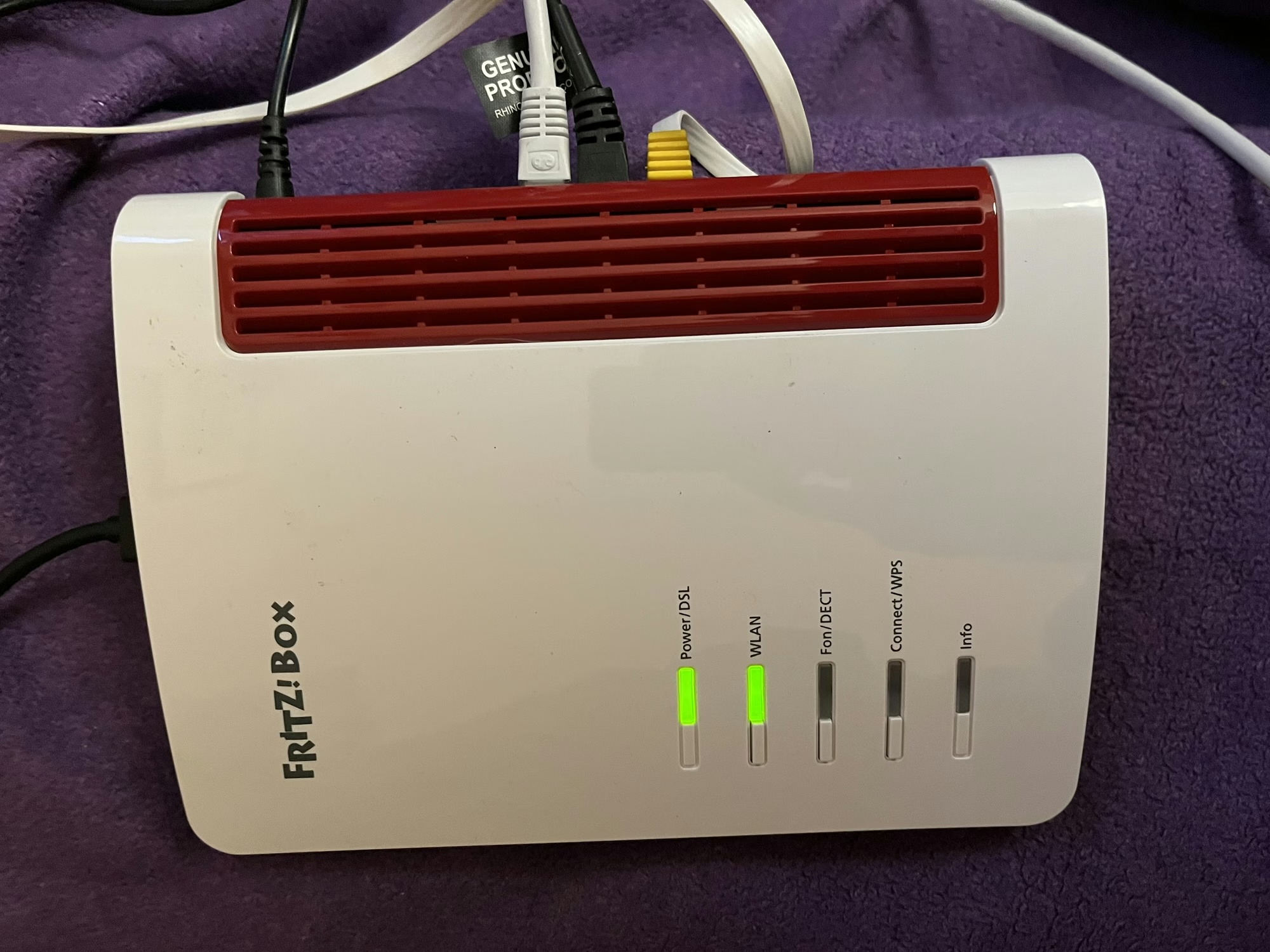
Fritz!Box 7530 AX review

A photo of the Fritz!Box 7530 AX

As is usual when you sign up to a new Internet Service Provider, we were offered a new router as well. We signed up with Zen Internet, who unlike their larger rivals, don’t offer their own branded router hardware. Instead, we’ve now got a Fritz!Box 7530 AX as our home router.

Fritz! devices are more common in mainland Europe – Fritz! is a German company – and Zen are one of the few ISPs that offer their devices in the UK. Indeed, their UK range is much smaller than the range available elsewhere in Europe, where you can also buy Fritz! branded smart plugs.

Connectivity

As for the Fritz!Box 7530 AX, the ‘AX’ indicates that it supports 802.11ax, better known as Wi-Fi 6. It’s ‘standard’ Wi-Fi 6, not the enhanced Wi-Fi 6E, so it uses the 2.4 GHz and 5 GHz bands only. Still, it’s an upgrade over our previous Google Nest Wi-Fi system which only supported Wi-Fi 5. As well as Wi-Fi, you get 4 Gigabit Ethernet ports, and a USB port which can be used for media sharing. It should be noted, however, that you’ll need to use one of these Ethernet ports to connect to the Optical Network Terminal, if you have fibre broadband.

Another difference with our previous Google Nest Wi-Fi system is that there’s no Thread support. This means I just have the one Thread border router now, which a USB dongle plugged into my Home Assistant Green. There is a newer Fritz!Boz, the 7690, which supports Wi-Fi 7 and Zigbee, but this is what Zen offered to us.

If we opted to have a Digital Voice Line, then we could plug our landline phone into the Fritz!Box, and it supports IP-based DECT phones as well.

Design

The design of the Fritz!Box is, frankly, a little dated. It feels like it’s made of quite cheap plastic, and I’m not a fan of the colour scheme. But to be fair, it lives in our spare room, so we don’t actually need to see it very much. It can be wall-mounted, if needed – there are a couple of screw hooks on the bottom.

All the ports are on one side, except for the USB port which is at the top.

What it’s like to use

All Fritz!Box devices ship with Fritz!OS, which is their custom Linux distro. There’s a web-based interface, and apps for iOS and Android. In fact, there are several apps – one for managing the device itself, and one for testing the Wi-Fi signal.

The web interface is pretty good, and gives you a lot of control over the box and your home network. Indeed, it was very good at showing a network topology, including those devices connected via my Powerline adaptors. Plus, the web address is ‘fritz.box’ which is nice and easy to remember.

It supports the creation of a separate guest network, which appears as a separate Wi-Fi network (SSID) to your own, and can be open or secured with a separate password.

Wi-Fi speeds and coverage

In the couple of weeks that we’ve had the Fritz!Box, the speed and coverage of the Wi-Fi signal has been excellent. There hasn’t been anywhere in our house where I’ve noticed any issues. How much of that is down specifically to the Fritz!Box, and how much is due to improvements in Wi-Fi 6 over Wi-Fi 5, I’m unsure. But either way, I’m happy with the connectivity that we’re getting.

Something I will pass on is a comment our Openreach engineer made; Fritz!Box devices don’t seem to like a change from being a DSL router to a router connected to a fibre ONT. Not a problem for us, as we’re already on with fibre, but something to bear in mind if you’re considering one and don’t have full fibre yet.

Home Assistant integration

When I first connected my Home Assistant Green to the Fritz!Box, it found several new devices. These included UPnP and DLNA, which come up when you connect most routers, but also two Fritz! specific integrations: Fritz! Smart Home and Fritz!Box Tools. Of these, the second is most useful, as it allows you to control whether individual devices on your network have Internet access, or whether they’re at home or away. This may result in a large number of devices appearing in your Home Assistant install, however, on those where the devices’ MAC address is available in the integration, the device will be shared and only appear once. That means that my ESPHome devices show as both ESPHome and Fritz! devices with the controls combined. It’s not perfect – my Matter devices show up twice, for example – but it allows you to track where devices like phones without having location services on.

Verdict

So, should you get a Fritz!Box? It’s certainly a very capable router with good Wi-Fi performance, and lots of settings for expert users to access. The web interface is clean and simple to use. However, the design is a bit dated, and there are some nice-to-have features that would make it better if they were included.

As I mentioned earlier, ours came with our Zen broadband package, but you can buy a Fritz!Box from Amazon if you wish (sponsored link). They’re about £145 for the 7530 AX model.

Zen also offer Eero Wi-Fi routers on their faster full fibre packages; I haven’t tested one, but they do look nicer. Eero is owned by Amazon, and is the major competitor to Google Wi-Fi.
Achieving a state of internet Zen

Screenshot of the Zen internet home page

So, following on from our full fibre (FTTP) broadband installation, we also switched to a new internet provider: Zen Internet.

Zen is one of the oldest Internet Service Providers (ISP) in the UK, having been founded 30 years ago, and in that time it has resisted being bought out by a larger rival. It remains one of the smaller players in the UK ISP market, but has a reputation for offering a better standard of service – it’s been Which magazine’s recommended provider for five years running, for example. A friend of mine who works in IT also uses them at home, and recommended them.

In the past, I’ve considered Zen, but found other companies to be cheaper. However, they now offer fibre-only packages (without a digital voice line) that are only a little more expensive than the mainstream providers, and so we’ve signed up.

Our previous provider was Vodafone. They were cheap, but the service wasn’t the best – a number of small outages here and there, but a big one in October was quite disruptive. Pre-2020, I would have put up with the occasional outage, but now that I work from home 2-3 days per week, and use video conferencing almost every day, I need a reliable home broadband service.

A screenshot of Ookla Speedtest results for our Zen home broadband connection

Broadband speeds

So, do Zen internet offer their advertised speeds? In my experience yes – eventually. Part of the reason why I’ve held off writing this for a couple of weeks is to give our internet speed time to settle. When your line is first installed, speeds can fluctuate for the first week or so.

I’ve shared a screenshot of a Ookla Speedtest result above – it shows that we’re getting about 105 Mbps download, and 20 Mbps download. Which is roughly the fastest advertised speeds that we should be getting. We were coping well with 80 Mbps before and so I didn’t see a reason to pay for much faster speeds. Zen apparently offers a 2 Gbps package, which I suppose is great if your household has four teenagers all running separate Twitch streams, but it would be overkill for us.

So far, I’ve been happy with Zen, but as we’ve only had the service a couple of weeks, it’s perhaps too early for a full review. The contract is for 18 months, so I’ll see if I’m still thinking positively with them in late spring 2027.

How we handled poor phone reception

A photo taken atop the Great Orme in Wales

Our holiday in Wales was good, but we didn’t always have good phone reception whilst we were there. Now, it’s a holiday, and you can argue that we probably should have had a break from phones, social media and the like. But we also need our phones for certain things – I use Google Maps for navigation, for example, and we needed apps to find out where to charge our electric car.

In North Wales, most of the population is concentrated in a relatively narrow strip of land between the hills and the north coast. Providing a mobile service is therefore more difficult and expensive – each mast is likely to cover a smaller and more sparsely populated area than in a big city. For the most part, there were few places where we had no signal whatsoever. But even when showing full bars, we couldn’t make calls or use the internet in some places.

Here’s how we handled it:

Downloading things on Wi-Fi beforehand

It’s a bit hidden, but Google Maps lets you download offline maps on a Wi-Fi connection. We had good internet where we were staying – the Conwy area has been upgraded to full fibre broadband – so we could download a map of the area. This meant that we could still use Google Maps to navigate without a mobile data connection.

Note that Google’s guide, linked above, is a little out of date. At the time of writing, you need to:

  1. Search for a place
  2. Swipe right on the lower panel where it says ‘Directions’ and ‘Start’, until you see a button that says ‘More’
  3. Tap ‘More’ and then ‘Download Offline Map’
  4. You can then pinch and zoom to select the area – a larger area will take up more storage space

There are limitations – you won’t get live traffic data if you’re using an offline map without a phone signal. However, once Google Maps is able to reconnect, it’ll update your route if needed. If you use Gmail and sign in to Google Maps with the same account, you may get push notifications ahead of upcoming trips to prompt you to download offline maps. I’d recommend it, especially if it’s somewhere you’ve not been before, or somewhere particularly remote.

The same applies for content that you want to consume whilst outside of mobile data range. If you use Spotify Premium, you can download playlists ahead of time. I make sure that I download, rather than stream, any shows on BBC Sounds that I want to listen to.

Hotspotting where possible

If there’s free Wi-Fi available somewhere that you’re visiting, use it. Most National Trust properties have free Wi-Fi in their cafés, for example.

If you have another device on a different phone network, then you could try hotspotting off that too. My phone is on 3, but my iPad has a mobile data SIM on a virtual operator which uses EE. Whilst it was a bit of a pain to have to carry my iPad around as well, it meant I could use the iPad as a Personal Hotspot for my phone and get online. You may be able to do this with a newer car, if you have a data plan on it, or a portable Wi-Fi hotspot device.

Get an eSIM on a different network

When I’ve travelled abroad, I’ve used eSIMs from Airalo rather than roaming on my existing SIM, as it’s cheaper. But you can buy UK eSIMs too. If your primary SIM has poor signal, then you could buy an eSIM on a different network that may work better. My iPhone (and I assume most new-ish Android phones) can switch between multiple SIMs on the fly, if one loses signal. If you decide to buy from Airalo, use the code NEIL6715 for some extra initial credit.

If you want to go further, try Honest Mobile’s Smart SIM. This can connect to all four UK networks (3, Vodafone, O2 and EE, although 3 and Vodafone may merge their networks soon), and costs £45 per year. However, whilst there are no data limits, it is limited to set pre-approved apps. These are mainly navigation apps like Google Maps, messaging, news, weather, banking and apps for electric car parking. There’s about 400 in total, but it excludes any social media apps, or any that involve streaming audio or video. I signed up to Honest Mobile after coming back from Wales, and I’m giving it a try for a year to see how I get on. Here’s my referral link if you want your first month free.

Honest Mobile’s Smart SIM has been heavily advertised on my Facebook feed, and so I read this post by Martin Brophy before committing.

Ultimately, what works for you will depend on how often you’re without a mobile signal, and how much you rely on your phone. I normally get a good signal on 3 in most places, but I’ll see how I get on with Honest Mobile.

Broadband speeds

Speedtest.net results from our Vodafone broadband

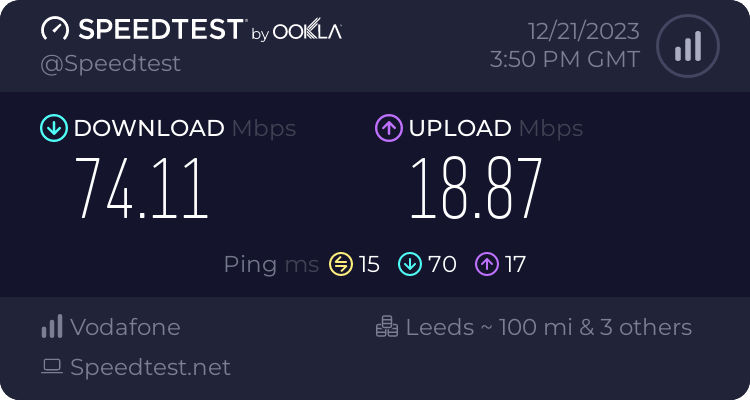
So last month, we switched our broadband to Vodafone, which also meant that our internet speeds increased from about 30-40 Mbps to around 70-80 Mbps (as per the above Speedtest.net result).

80 Mbps is sadly the fastest speed that we can probably get here. I live in Sowerby Bridge, a small town in the Calder Valley and our options for internet access are limited. In some respects, we’re lucky to have access to Fibre to the Cabinet (FTTC). This means that the cables providing fixed line broadband internet are fibre optic as far as a metal box a couple of streets away. But the cables from that box to our house are a series of thin, copper cables, and current VDSL2 technology means that much higher speeds are unlikely to be possible.

Over Christmas, we stayed with my parents in York. Being a bigger and more affluent city, there are more options available for broadband internet. In addition to the FTTC service provided by BT Openreach, there’s also:

  • Cable broadband from Virgin Media. These cables were laid in the 1990s by Bell CableMedia, which became Cable & Wireless, then NTL, and finally Virgin Media. Whilst they’re also an FTTC solution, the cables from the cabinet to the home include a much larger coaxial cable.
  • Full fibre broadband from Sky and TalkTalk. York’s streets and pavements were dug up again in the late 2010s to install a FTTH (Fibre to the Home) network, which takes fibre optic cables all the way into people’s homes.

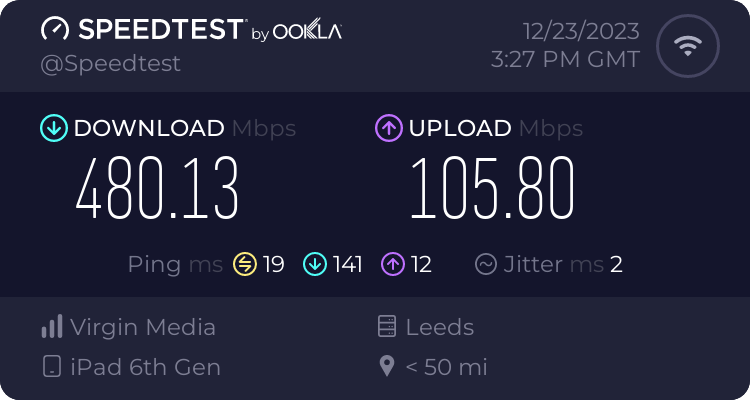
My parents have had cable broadband since this became available in the early 2000s. Initially this was just 512 Kbps, but speeds have increased over the years, and this was the test result whilst I was there at Christmas:

Virgin Media broadband test result

So my parents get broadband speeds that are six times faster for downloads, and nearly three times faster for uploads. And if they wanted to, they could switch to a FTTC broadband solution that could easily double those speeds.

Here in Sowerby Bridge, our best hope for faster broadband is that CityFibre bring their FTTC network in a few years time. So far they’ve installed fibre optic cables in Pye Nest, which is the community between Halifax and Sowerby Bridge, but their web site says there are currently no plans to reach us. Virgin Media did install some cables nearby a few years ago, but they seemed to bypass our street unfortunately.

There is wireless broadband to consider, but we get a weak 4G signal as we’re in a steep valley. 5G is available up the hill in Halifax and may make it down here in future. But, for now, I think 80 Mbps on a fixed line is the best that I can expect.

Switching to a new ISP

Last month, we switched to Vodafone as our new Internet Service Provider (ISP) at home.

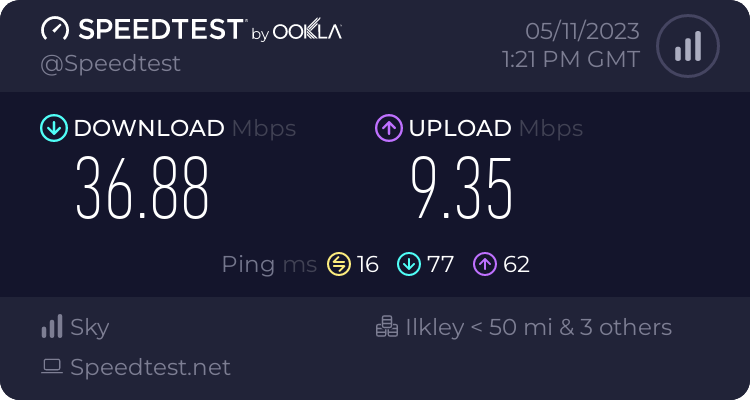
We’ve been with Now Broadband (Sky’s budget brand) since autumn 2018, who, at the time, could offer us faster speeds for less money. And they’ve been pretty good; when I was working at home full-time during lockdown, I rarely had any issues. Our bandwidth was sufficient for me to participate in online meetings whilst our (then) four-year-old watched Netflix in another room. Our typical download speeds were in the 35-40 Mbps:

Speedtest.neet results from the 5th November 2023, showing 36.88 Mbps download and 9.35 Mbps upload on our old ISP, Now Broadband

But then Now raised their prices by £9 per month. They probably told us that they would do this, but I have no recollection of being informed in advance.

Finding a new ISP

Meanwhile, Vodafone could offer faster speeds and a new router, for £2 less than Now before the price rise. So, we would be getting a better service, and paying £11 less per month for it than if we stayed with Now.

We used the MoneySavingExpert broadband comparison tool, which showed that Vodafone was the cheapest big name that didn’t have a poor customer service rating. Shell Energy were cheaper, but their customer service isn’t great and they’ve just been taken over by Octopus Energy who don’t currently offer broadband.

I signed up using Quidco (referral link) and should get £82.50 cashback in late spring, so factoring that in, what a savings.

The switchover took a couple of hours, and seemed to happen early in the morning, so by 7am we were already online with Vodafone. And the speeds are much better – around 75 Mbps download and 19 Mbps upload, so almost twice as fast. Considering that this is over DSL, I’m impressed with how fast it is.

Speedtest.neet results from the 21st December 2023, showing 74.11 Mbps download and 18.87 Mbps upload on our new ISP, Vodafone Broadband

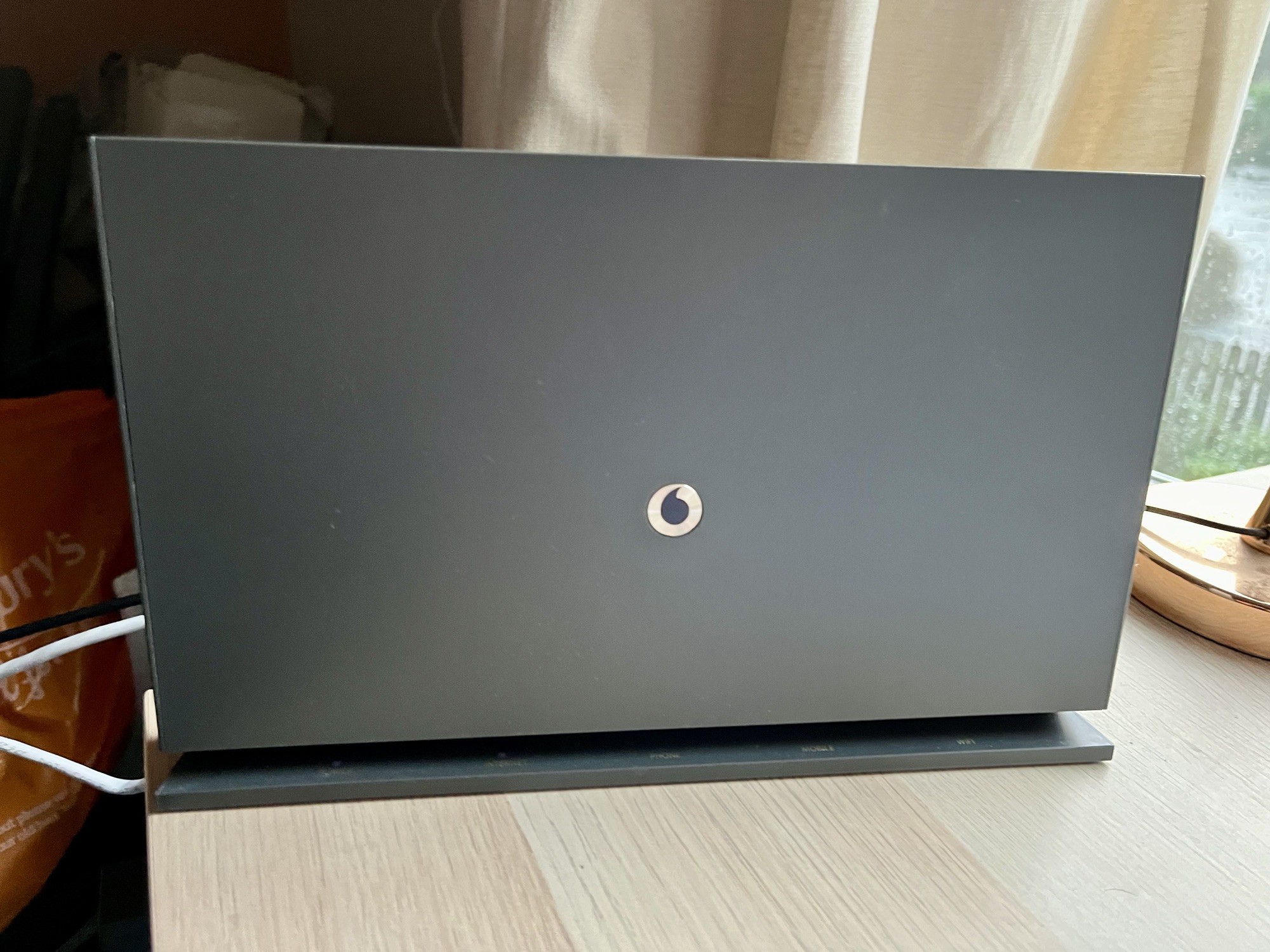
The new Vodafone broadband hub is also better than the basic Now broadband router that we had previously. It has four 1 Gbps Ethernet sockets for a start, compared to just two on the Now router; this means I no longer need a separate Ethernet switch. It also looks nicer; it’s free-standing but has mounting holes on the back for screws.

Digital Voice Line

The hub also supports Digital Voice Line, where your phone calls are made over the internet, rather than PSTN. Openreach intend to switch off the analogue phone network in two years time, so switching now is timely. This means that our landline phone plugs into the hub, rather than the micro-filter attached to the master phone socket. That being said, since the switchover, our phone hasn’t actually worked. The fact that it took me several days to realise shows how much we use our landline, but I’ll need to get on to Vodafone to have them look into it.

As with all changes to a new ISP, over the first few weeks there was a little instability with the connection. But it’s settled down now and works well. The other issue I had early on was with connecting to my Raspberry Pi externally, as port forwarding didn’t seem to work properly. This was a bit of a gut punch, considering how much effort it took me to get Home Assistant working with HTTPS, but it seems to be sorted now.

If it’s been a while since you switched your ISP, I would recommend that you do a quick check to see if you can get a better deal elsewhere. Broadband providers make a lot of money from people who just let their contracts auto-renew. Even if you’re happy with your current ISP, you could try haggling with them to see if they can offer you a cheaper package.

A letter from me to myself in 1999 about the internet

This month marks 15 years since I first used the internet at home. I thought I’d write a letter to myself, aged 14, about how things have changed since then.

Dear Neil,

Hello. This is a letter from 2014, 15 years into the future. Around about now, you will be using the internet at home for the first time, and it will be awesome. What’s more, is that as time goes on, it will get even more awesome, and the ways that you use the internet will change.

Firstly, it’ll get faster. Right now you’re using a 56k modem, and downloading a 10 MB file can take the best part of an hour. But in a couple of years time, you’ll get ‘broadband’, and that’ll increase your download speeds tenfold, to around 512 Kbps. Better yet, it’s ‘always on’, so there’s no need to dial a number and hear the modem make all of those screechy noises, and you’re not charged by the minute, so no more £40 per month phone bills for your parents to pay.

Although you will still hear the screechy modem noises in the future, I’m afraid. You’ll spend a couple of years in university halls of residence with them, and then share an office with a fax machine.

Eventually your internet connection will hit the lofty highs of 20 Mbps – yes, megabits, not kilobits. You’ll be able to use the internet to watch full TV programmes, and you won’t even need to use that ghastly RealPlayer software anymore. Oh yeah, and if you think RealPlayer is bad now then I have bad news for you, but hey, it gets worse before it gets better (i.e. you can get rid of it completely!)

The music industry eventually figures out how to sell music legally online so you won’t be using Napster for much longer. Hurrah! In fact, you don’t really buy CDs anymore. Next year, your parents will buy you a portable MP3 player – a bit like a MiniDisc player – because you’ll do well in your GCSEs. Just not necessarily in the subjects that you expect.

And soon you won’t even need a computer to use the internet. One day, you’ll buy a mobile phone, but with a big touchscreen that also has the internet – and, it works anywhere! In fact in some places it’s faster than the internet on your computer and you’ll be able to sit in a bus station and use the internet at 38 Mbps! Because you’ll still be using buses when you’re almost 30 as you still haven’t passed your driving test yet. Sorry to be the bringer of bad news.

In better news, you will eventually find someone to love, and who loves you back in equal measures. It’ll take a while, but you will get there and you will be happy.

Also, and you may find this utterly bizarre now, but you are writing this letter on Firefox, a descendent of Netscape, running on an Apple Mac. You will, in time, give up your reliance on Windows and Internet Explorer. Oh, and Apple makes your phone too. And a ‘tablet’ – a flat touchscreen device that doesn’t have a keyboard but let you use the internet and programs, and watch videos, which is pretty cool.

I’m sorry to say that all of the time you spent learning to code in BASIC turns out to be for little value. You’ll end up knowing the very basics of several languages, but nothing substantial, sadly.

So anyway, on the whole the future is pretty awesome. See you in 15 years!

Yours,

Neil

BT Home Hub 4 Review

BT Home Hub 4

I’ve got my hands on a brand new BT Home Hub 4. This is the latest update to BT’s own-brand wireless router that it provides to its broadband customers. We’ve been with BT broadband since we moved to Sowerby Bridge in November 2010, and, apart from one broken promise regarding an activation date for the flat move we’ve had no problems.

During this time we’ve had an older model – the BT Home Hub 2 (model B), which is fine – but this newer model is better. Namely it supports dual-channel Wifi, so as well as using the 2.4 GHz channel, it supports the 5 GHz channel. Devices which can use the 5 GHz channel can therefore run at faster speeds – theoretically 300 Mbps is possible.

BT Home Hub 4 unboxing

Unboxing

I’ve posted a few unboxing photos on Flickr. The most interesting thing about the box is that it is designed to fit through a letterbox – therefore, customers won’t have to wait around for a delivery or have to retrieve packages from their local sorting office a day later. It didn’t fit through our letterbox, but that’s because we live in a flat and ours is tiny – I imagine most people with a proper letterbox will be fine.

Inside the box, the Home Hub is in one compartment, and the cables and manuals are in the other. You get a Cat5e ethernet cable, a modem cable, microfilter, and a USB wifi dongle. The dongle enables dual-band Wifi on computers which may not otherwise have it, although unfortunately it’s only compatible with Windows Vista, 7 and 8. The manuals are brief, and just cover what you need to set it up and some troubleshooting.

BT Home Hub 2 (left) and BT Home Hub 4 (right)

The BT Home Hub 4

Physically the BT Home Hub 4 is quite small – it’s wide, but shorter and thinner than the BT Home Hub 2, on the left in the picture. It also looks nice, which is what you want from a device that is most likely in your front room, and carries on the good design that BT have had in its routers. It’s also very light.

The back of the router has an RJ11 socket for the modem cable, and five RJ45 sockets. One of these supports gigabit ethernet, and three others support standard 100 Mbps 100BaseTX ethernet. The fifth is a WAN socket for BT Infinity customers – unfortunately BT haven’t upgraded our exchange for fibre to the cabinet (FTTC) so we have to use standard ADSL. There’s also a USB port, for which there’s no documentation but apparently you can connect a printer or hard drive to it and it will be shared across the network. And finally, unlike our current model, the BT Home Hub 4 has an on/off switch, so there’s no need to pull the cable out.

On the top, there’s a reset button, and a button to use WPS – Wifi Protected Setup. This allows compatible devices to automatically configure themselves without needing a password, and indeed the USB wifi dongle provided also supports WPS. And there’s a holder for the card with your SSID, default wireless key and admin password, which is handy.

Once everything is plugged in, it’s time to turn it on. There’s a pleasant single light at the front, which initially glows green, then orange whilst starting up, and then blue when it’s ready to go. If there’s a problem, then some red or orange icons appear in the silver strip below. This is different to the BT Home Hub 2 where there were five icons that were illuminated all of the time.

Connecting for the first time

The first page of the setup screen for the BT Home Hub 4.

The first time a device connects, the web browser is redirected to a setup screen. By default, this happens with every new device, although thankfully a mobile-optimised version is available for smartphones. You can turn this off later so that new devices connect straightaway. The main purpose of this is to ask whether you want to install parental control software, as current UK guidelines for ISPs seemingly require.

The admin panel

BT Home Hub admin error

Logging into the admin panel for the first time gave me an error: ‘Sessions Number – no more than 100 sessions at a time are allowed. Please wait until open sessions expire.‘ Clicking ‘Retry’ or any of the options didn’t make any difference. This problem affects other BT Home Hubs, but thankfully it’s easily solved by doing the usual thing of turning it off, and then turning it back on again.

The admin panel on the BT Home Hub 4 is largely unchanged from previous models. Whilst BT have dramatically redesigned the outside, the admin panel uses the same basic design as before, but with a few more advanced settings to go with the extra features. However, the default settings are pretty good for everyone so there’s no real need to change them. OpenDNS users may be disappointed that it still isn’t possible to change the default DNS servers on the BT Home Hub 4.

Speed

BT Home Hub admin panel - speed

The device reported that it had managed to connect at a very reasonable 23.15 Mbps downstream – faster than the BT Home Hub 2 which managed around 17 Mbps. Upstream speeds are low but this is to be expected on a consumer-grade ADSL connection. We’re fortunate that we live very close to our exchange – we’re only around 200-300 metres away.

Speedtest.net results

And thankfully the actual speeds aren’t far off – here’s a link to my SpeedTest.net result. Essentially 20 Mbps, which is a notable improvement, and not far off the limits of ADSL technology. I also pinged www.google.com 20 times and the average round trip time was 23ms; the longest was 25ms so it’s pretty consistent.

As for Wifi speeds, they seem fine. We have five Wi-fi devices in our flat – my Mac Mini, iPhone 5, iPad, Christine’s Acer laptop and Samsung Galaxy S3 smartphone. My iPhone 5 and iPad both support the 5 GHz channel, but the others don’t – which in the case of the Galaxy S3 is a little odd in my opinion. We briefly tried the USB Wifi dongle on Christine’s laptop but it didn’t seem to like it – I may need to do some further investigations. My iPad still had a good signal at the furthest point away from the router in our flat, which is a distance of around 20 metres with several walls in the way.

One minor disappointment, from a geek perspective, is that the BT Home Hub 4 doesn’t appear to support IPv6, either on the home network or on the internet.

Summary

Overall I like the new unit. It’s smaller size is nice, and it looks good. Most importantly, it seems to perform well, with good speeds both on the internet and the home network. New BT Broadband customers will get the BT Home Hub 4 as standard, and existing customers can currently upgrade for £35, plus an extra £9 for the USB Wifi dongle.

My unit was given to me for free by a PR company acting on behalf of BT, in return for writing this review. However, these are my honest opinions, and I would recommend the upgrade if you need faster or more reliable Wifi speeds.