
Mavericks – my review

A screenshot of Finder on Mac OS X Mavericks

Following Apple’s keynote presentation on Tuesday, OS X 10.9, aka ‘Mavericks’ was released. Apple broke its long-standing tradition of charging for OS X updates by offering Mavericks for free, and on any machine capable of running Lion. Furthermore, it looks like a direct upgrade from Snow Leopard to Mavericks is possible on those machines not yet updated, which may go some way in explaining why Mavericks is over five gigabytes in size.

By making Mavericks free, Apple can now dodge questions about whether the update is value for money. I know some felt that Mountain Lion wasn’t really worth the cost, even though it was only $20 and was already the cheapest OS X update to date (barring the ancient 10.1 ‘Cheetah’ update from 10.0). That being said, my early plays with it suggest that its value is at least that of Mountain Lion, and therefore a worthwhile update.

Installing Mavericks

Having been up at 5:45am on Tuesday (for work) I decided not to attempt to install Mavericks as soon as it came out, although I did watch most of Apple’s keynote live. Instead I waited until yesterday, and gave myself things to do whilst it installed, which, from beginning the download to completing installation, took around two hours on my early 2010-vintage Mac Mini. Then there were a raft of software updates to install afterwards – iPhoto, iTunes, XCode, a Digital Camera RAW update and improvements to some of the voices for the text-to-speech feature, plus various third-party apps. This took another hour or so but was technically optional.

Up and running

Once I had Mavericks up and running, it seemed to work fine. Well, no different to Mountain Lion, anyway. My Mac still takes quite a while to boot up but that’s probably to do with various apps and utilities that I have running. I did have to fiddle with the screen settings, as for some reason Mavericks decided to set my two screens to be an extended desktop and not mirrored like I prefer – my second screen is actually the living room television. Mavericks also changed some of my Magic Mouse’s settings so that left and right swiped no longer did anything. Frustrating, but easily changed back.

Scrolling seems smoother, which is nice, and Launchpad is now quite a bit faster – especially when opening stacks. This is a relief as it’s the main way I access apps that aren’t in the Dock.

Activity Monitor

The Activity Monitor saw major changes in Mavericks, with a new tabbed interface. I like it, and it feels simpler now, even though it shows more information. A new ‘Energy’ tab shows which apps are putting the most strain on your battery, if your Mac is a laptop – mine isn’t, but it’s still interesting to see which apps are power-hungry. Predictably Firefox was using the most energy whilst I was writing this but some background processes were also quite hungry too, so I may have to re-evaluate which apps run on startup.

It also tells you whether OS X is making use of one of its new features, Compressed Memory. When you start to run out of available RAM, OS X will now compress some of the data in RAM to make more available. This does add a bit of processing overhead, but it’s still faster than using a swap file (virtual memory) on a hard disk or even a solid state drive (SSD). I noticed that since installing Mavericks, OS X attempts to use as much RAM as possible to minimise swap file usage.

Maps

I had a brief play with the new Maps app. It’s basically the same as the iOS app, which sadly means it’s full of the same crappy data. A year on and there are still big problems with missing places (such as Bradford’s Alhambra Theatre), or places that have long-since closed.

I did note that my search history from my iPhone carried over to my Mac, which is interesting. However, I’ll be sticking to Google Maps for now.

Finder

Finder now has tabs in Mavericks; I’m sure some people will be overjoyed at this but I’m not too bothered. You can at least drag documents between tabs so I suppose I may use it from time to time. I don’t think I’ll use tags though, as I never used the labels that came before.

Miscellaneous points

  • The CPU coalescing feature is quite clever, but of limited use to a desktop user like me. I’ve heard that it is effective at extending battery life, which is good – it’s always nice to have a battery that lasts longer after an update than the more usual opposite.
  • The colours seem brighter on my screen, but that may be co-incidental with me changing the screen settings.
  • I like how newly-installed or updated apps sparkle in Launchpad.
  • I’m aware that there are major problems between Mail and Gmail accounts, however, I’ve recently stopped using Mail so thankfully I haven’t experienced this first hand.
  • LinkedIn is now supported alongside Twitter and Facebook. You can post status updates from the Notification Centre, and your connections will appear in Contacts. I wonder if iOS will follow suit in a forthcoming update.
  • I’ve turned on the iCloud Keychain. To enable it you have to also tell OS X to require a password to unlock your Mac if left idle, which isn’t done in a very intuitive way.
  • Users of older versions of Parallels desktop have found out that it doesn’t work on Mavericks. The latest version does but it’s a paid-for update. Consequentially my article about converting Parallels VMs to VirtualBox has been well-visited over the past few hours.

Elsewhere

As usual, John Siracusa has written a very extensive review of Mavericks at Ars Technica, which is well worth reading as it explains how some of the new performance features work. Dave2 is mostly positive about it too, although Lifehacker’s initial review is less so.

For me personally, it seems fine. Those wanting to err on the side of caution may want to wait for the inevitable 10.9.1 update which will follow in a few weeks (especially if you use Gmail in Mail), but I feel it’s good enough to take the plunge now. And you can’t argue with the price.
Fixing high memory usage caused by mds

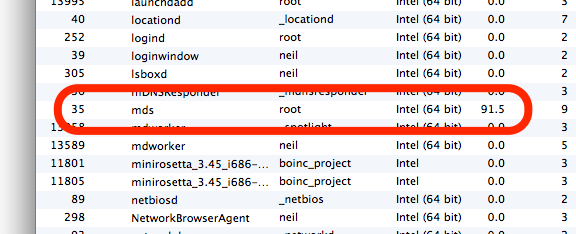
Screenshot of activity monitor on Mac OS X showing mds with high memory usafe

Recently my Mac Mini has been running very slowly, with some programs freezing for as much as several minutes. I pruned the list of items that were running on startup but this didn’t seem to make much difference.

So I opened Activity Monitor (the OS X equivalent of Task Manager) and found a process called ‘mds’ was consuming huge amounts of RAM and virtual memory. MDS is the process which builds an index of your disks for use by Spotlight, the tool that lets you search your drives, and also by Time Machine for backups. Sometimes MDS requires a fair amount of RAM, but it was using almost 2 gigabytes of virtual memory and almost a gigabyte of RAM in my case. I only have 4 gigabytes of RAM in total, and so this was causing major problems as OS X had to regularly swap data between RAM and the paging file.

I’d tried looking into this before and got nowhere. Most of the results in Google were discussions on Apple’s support forums, which were devoid of any real solutions. But eventually I found this post on iCan’t Internet which actually had a solution.

Firstly you should run Disk Utility. Repair your hard disk, and also repair the disk permissions. This may fix your problem, but it didn’t in my case so I moved on to the next step.

Open up Terminal, and type in the following command: sudo mdutil -avE . This runs a tool called ‘mdutil’, and tells it to completely rebuild Spotlight’s index. It turns out that the index on my hard disk had got corrupted somehow, and this was causing problems with the ‘mds’ process. It took a while for the command to run, but afterwards a huge amount of RAM and virtual memory became free. Unsurprisingly, my Mac ran much more happily after this.

Hopefully if you’ve have the same problem this will help. It has certainly breathed new life into my increasingly sluggish computer.

The probable abandonment of Twitter’s official OS X app

Update: Since this article was posted in October 2012, the official Twitter for Mac client has actually been updated. An April 2013 blog post from Twitter explains this.

Bird

It has now been well over a year since the official Twitter app for OS X was last updated. It launched with the Mac App Store in January 2011, and the most recent version, for Snow Leopard, was released in June 2011. Since then both Lion and now Mountain Lion have come along, and yet Twitter haven’t made any changes.

Early signs of ‘bit rot’ are setting in:

  • There’s no support for posting images using Twitter’s own image service (pic.twitter.com) – you have to use a third-party service
  • Of those third-party services, pix.im is listed but it no longer works
  • The app’s icon doesn’t use the revised Twitter logo from June
  • Promoted tweets and trending topics do not show in the timelines, as they do on the web and in the official mobile clients

It’s a shame to see the official client abandoned in this way. I used it as my main Mac desktop client for quite some time, before switching to Osfoora and then Tweetbot for Mac. And before January 2011 I used Tweetie, which was bought by Twitter and became Twitter for Mac. It’s especially concerning when Twitter has been discouraging third parties from developing ‘traditional’ timeline clients, because at present it’s the third-party clients that offer up-to-date features.

Tweetbot for Mac in Alpha testing

After not quite officially confirming its existence, Tapbots have released an alpha build of Tweetbot for Mac. I talked about Tweetbot for Mac last week and how it would be awesome, so I now have a chance to actually test it.

Firstly, don’t let the ‘alpha’ tag put you off. It’s not a finished product, and there are some bugs (the Tweet Marker support doesn’t seem to work), but in my view it’s ‘beta’ quality at worst. This is from someone who has done a lot of beta testing in my time, and who also spent part of the week battling some paid-for software that acted like a beta product – but more on that another time.

Secondly, apart from being still in the testing stage, feature-wise Tweetbot isn’t finished. There’s not yet any support for synchronising your Tweetbot settings between your Mac and your iOS device, as this requires use of iCloud and is therefore only available to apps from the Mac App Store that Apple has vetted. This will be in the final release but not in any public test versions. Tapbots also intend for it to support Notification Centre on Mountain Lion, which, as well as being another Mac App Store-only feature, is also not available to test because only a few select developers have copies of Mountain Lion at present.

It’s also worth pointing out that, whilst this alpha build is free to test, there’s no support; furthermore, the final product will cost money, as with the iPad and iPhone apps.

So, with those caveats pointed out, what it’s actually like to use?

Well, it works pretty much like any other Mac OS X Twitter client, to be honest. The main difference between the iOS app and the Mac desktop is that, whereas on iOS, tapping a tweet brings up a bar with buttons to retweet, reply and favourite, these now appear when you hover over a tweet with the mouse. But you’ll be pleased to know that the swiping gestures from the iOS app made it to the dekstop, so swiping from left to right shows the tweet details, and from right to left shows the tweet in a conversation view with its replies.

‘Streaming’ support, where new tweets are automatically loaded as they are posted, is enabled as standard. Along the left column, all of the various views are shown, like on the iPad app, so there’s easy access to your profile, lists, retweets and saved searches. And this desktop version of Tweetbot retains its formidable support for third-party services, so there’s integration with Pocket, Instapaper, Readability, Pinboard and bit.ly as a ‘read later’ service (most other apps just offer the first two and Readability if you’re lucky), plenty of third-party image hosting services (but not a custom one yet) and a choice of URL shorteners. And curiously for a desktop client, you can add a location to your tweets.

The other great thing, for me, about Tweetbot is its mute feature to hide tweets that don’t interest you, and this feature is also present on the desktop. So far, in this alpha, you can only mute specific Twitter clients, like Twittascope, RunKeeper, Waze, GetGlue or any other services which auto-tweet things that don’t really interest me, but eventually you will be able to mute specific hashtags or keywords, or put some users on mute – this is great when you follow someone who live-tweets a conference and would otherwise dominate your timeline. The mute settings will also be synchronised between clients when iCloud sync is enabled in the final release.

All in all, in my opinion Tweetbot as it is now – even in its alpha state – is still better than the official Twitter client for the Mac, and just beats out Osfoora which was my previous favourite (I reviewed it back in March). If you use Twitter on a Mac, and have Lion installed, give it a try whilst its free, and, if you like it, buy the final release when it comes out. I don’t think you’ll regret it.

Tweetbot for Mac coming soon

A screenshot of Tweetbot running on a Mac desktop

A couple of weeks ago, the above image was posted by Mark Jardine, one of the developers at Tapbots, showing off his new MacBook Pro with Retina Display. What’s notable is that it shows an OS X desktop version of Tweetbot, my favourite iOS Twitter client. This is big news, and Tapbots later confirmed to The Verge that a full mac version is under development.

To which, my response is “yay!”. I really like Tweetbot on my iPhone as it looks good, works well, and offers plenty of features. It can do everything that the official Twitter for iOS app can do, but will also let you use third party URL shorteners and image upload sites, and offers integration with services like Tweet Marker and Readability which aren’t often available in other Twitter apps. There’s also the ‘mute’ feature, which easily lets you mute certain hashtags that do not interest you, or particular clients like Waze, paper.li, Twittascope and various other services that auto-post things on your friends Twitter feeds that don’t interest you. You can also mute users, and you have the choice of muting them for a short period or indefinitely – great for when someone you follow live-tweets a conference that doesn’t interest you.

I haven’t yet found a desktop Twitter client for the Mac which does all of these things as well as Tweetbot, although Osfoora, my current client of choice, comes close. What excites me most is that Tweetbot is able to synchronise its settings using iCloud, for those that use it both on their iPhone and iPad, and so I’m looking forward to this extending to the Mac OS X app when it launches.

We don’t know much more about when Tweetbot for Mac will launch – there’s nothing about it on the Tapbots web site yet – but I imagine it’ll be after Mountain Lion gets released later this month (19th July). I’ll be almost certain to buy it, although I’ll happily keep on with Osfoora until then.

The state of MacFUSE & NTFS-3G on OS X Lion

So I’ve been running Mac OS X Lion (10.7) for a week now, and it’s mostly been fine – most programs run okay and others have had minor updates to improve compatibility. However, there’s some flakiness with MacFUSE and in particular the NTFS-3G package which allows read-write access to hard drives formatted with the NTFS file system.

(If you’re short of time, scroll down to the ‘So what are the options’ section.)

Firstly, a bit of MacFUSE history…

MacFUSE was a project to allow file system packages designed for the Linux FUSE project, which in turn allowed file systems to be loaded in ‘user space’ rather than requiring extensions to the operating system kernel, to be run on Mac OS X. This meant that FUSE did all of the kernel work, thus much simplifying the development of file systems. MacFUSE wasn’t a port of FUSE – it’s a separate project that happens to be compatible with existing FUSE file system packages. It was also developed by a Google employee in his 20% time, i.e. the time that Google allows engineers to set aside for their own projects.

Now, the latest official release of MacFUSE was version 2.0.3,2 which is 32-bit and designed for Leopard, i.e. Mac OS X 10.5. We’re now on Lion, and there hasn’t been a subsequent official release even for Snow Leopard, nevermind Lion. Version 2.0.3,2 ran okay on Snow Leopard provided you used the default 32-bit kernel, but in Lion, the kernel task is 64-bit.

Thankfully, some other developers have picked up the baton – in particular Tuxera, who offer a commercial solution for running NTFS on a Mac. It seems to work fine on Lion, even with a 64-bit kernel. Alternatively, there’s a fork called OSXFUSE, which is in beta at time of writing, although if you want to use OSXFUSE you will need to remove MacFUSE first.

NTFS support

Lion, like other versions of Mac OS X that have come before it, supports read-only access to NTFS disks when a product like MacFUSE isn’t installed. This means that you can read files from an NTFS-formatted disk, but you can’t modify or delete existing files or copy new ones to it. It’s a shame that Apple still hasn’t unveiled official read/write support for NTFS after all these years.

Currently, the only free software I’m aware of for enabling read/write access to NTFS drives is NTFS-3G. The most recent binary release is from October 2010, and whilst this does work on Lion, even with MacFUSE 2.2 you will encounter errors when mounting the disk – namely that it’s taken more than 15 seconds to do so. However, once it is mounted, it seems to work okay, although admittedly I’ve only been working with a seldom-used external drive and not a drive where I expect strong read/write performance.

If you fancy compiling code from source, or have MacPorts, you can get a newer version released in April 2011 which may or may not work better – I haven’t tried it yet.

So what are the options?

There are basically four options you can choose, if you use NTFS drives on your Mac:

  1. Don’t upgrade to Lion just yet. If everything works fine now, you may wish to stay with Snow Leopard until there’s a new binary release of NTFS-3G. Lion is still very new and there aren’t many third-party applications taking advantage of its new features as yet.
  2. Use NTFS-3G and MacFUSE 2.2 as before. In my experience it works, but you do get an error each time your disk is mounted (which could be on every boot up for some) and it is slow at mounting the disk. If you’re reliant on an NTFS drive you may not want to try this just in case things aren’t working properly and you lose data.
  3. Buy Tuxera NTFS for Mac. If you are reliant on an NTFS drive on your Mac, you may want the piece of mind of a commercial, supported product, in which case you can buy Tuxera NTFS for Mac which states that it is Lion-compatible.
  4. Use exFAT instead of NTFS. If you need the drive to be usable on both Windows and Mac, don’t need file system level encryption or compression and are willing to copy all of your data off it, reformat it, and copy the data back, then maybe you’d be better with the exFAT file system. It’s the successor to FAT32, and supports disk and file sizes of over 500 terabytes. It’s also quite well-supported – Mac OS X received support for it in the 10.6.5 update to Snow Leopard, Windows XP supports it with the KB955704 update and Service Pack 2, Windows Vista with Service Pack 1 and Windows 7 supports it out of the box. You will have issues with Linux machines, however, in which case FAT32 is also an option.

I personally have gone for the fourth option for my external drive; the Disk Utility in Lion lets you format drives as exFAT and I don’t need any of the advanced features of NTFS. But another of these options may be best for you.

Mac OS X Lion – first impressions

A screenshot of Preferences in Mac OS X Lion

I made the plunge and installed Mac OS X Lion last night. The install takes a little under an hour all in all, including 2 reboots. During the second phase, i.e. between the two reboots, you can pop open a log file viewer which shows you what it’s actually doing, of which at least 10 minutes is spent running an fsck check on your disk and then creating the recovery partition, which you can use in case your Mac won’t boot properly. (In the past, you would have used the install DVD for Mac OS X, but as Lion is a digital download you won’t have this option anymore).

Anyhow, the install went okay, so here are my first impressions:

  1. Natural Scrolling – I immediately turned off ‘natural’ scrolling, because it felt like anything but natural. I suppose I could have tried to get used to it, but I use a Windows machine at work which has a scrollwheel that works the ‘classic’ way and would rather have consistency. It’s bad enough having to cope with two different keyboard layouts. Natural scrolling is fine on touchscreen devices like the iPhone but I just don’t think it works with a mouse and separate screen.
  2. Scrollbars – I’m very much against Apple’s decision to hide scrollbars by default, and only show them once you already start scrolling – how do you know whether to scroll something if there are no scrollbars? So I’ve told Lion to always show them. On the other hand, I do like the new minimalist look of the scrollbars.
  3. New theme – Lion brings a lighter and more understated look to its windows than Snow Leopard. I like it on the whole, barring the lack of colour in some places and the very light colouring of the new title bars. I’ll probably get used to it though.
  4. Mission Control – liking this so far – really improves on Exposé, and still very quick.
  5. Launchpad – a good feature, but poorly implemented. When you install Lion, it enumerates all of the applications in your /Applications/ folder and subfolders, and then adds them all, putting the apps that came with OS X on the first page. Problem is that it includes all of your applications, including uninstallers, patches for World of Warcraft and other stuff that just doesn’t need to be there, and, as I mentioned, Apple’s own apps are on the first page regardless of whether you’ve used them or not (which in the case of iDVD, iMovie, Garageband etc., is never). What’s worse is most apps cannot be deleted from Launchpad unless you downloaded them from the Mac App Store, and for most long-term Mac users this isn’t the case. I hope an update will allow you to remove any kind of app and have more intelligent sorting, based on actual use, when Lion is installed over an existing installation – I’d consider these to be quite major bugs. As it was, I had to spend quite a bit of time moving things around to suit me, although now that I’ve done that it works well as a way of accessing programs that aren’t important enough for the Dock but still need to be within easy reach.
  6. Mac App Store – I found the App Store application to be a bit slow and unresponsive in Snow Leopard; unfortunately this hasn’t been fixed in Lion. Frequently when I click on one of the 5 tabs at the top, it does nothing but show the spinning beach ball of doom for a few seconds. Some visual feedback registering my click, and a change of the content pane to ‘Loading’ would feel much better. Also, if the App Store is now the preferred way of installing new applications, then Apple need to do more to help developers grandfather their existing users into it – i.e. if you’ve bought a program before the App Store, then you should be allowed to have a special code to switch to the App Store version without paying for it again, for example. This would be especially useful for programs like Adobe PhotoShop Elements for which I have the retail copy and don’t want to spend another £55 on the App Store version.
  7. Full screen apps – not had much chance to use this as only Apple’s own apps support it right now. Where I have used it, it seems to work okay but is a little slow due to the animations – or at least it is on my 2009-era Mac Mini. Faster animations, like with Mission Control, would have been better. Getting out of full-screen is also a little unintuitive as you have to hold your mouse at the top of the screen to show the menu bar – Apple would have been better having the close button in the same place on the window itself.
  8. Apple Mail – since this got some love in this update, I decided to give it a try and see how it stacked up to Thunderbird. I wasn’t really impressed – it’s a bit ugly now that Apple have removed all the colour from it, and the fonts didn’t seem to render very well in the mail listing pane. Although it started up quickly, I found it slow when working with multiple IMAP accounts in comparison to Thunderbird.
  9. New voices – You can now download several extra voices for the text-to-speech feature. I downloaded ‘Serena’, a British English voice that sounds like a Radio 4 newsreader. It’s a big improvement on the existing voices, sounding more natural and less robotic than ‘Alex’ which was the voice added in Leopard, although it’s not quite perfect yet. New voice packs are a 200+ MB download though.
  10. iTunes – just a note that if you installed iTunes 10.4 before installing Lion, you’ll need to do so again as Lion will revert it back to 10.3 for you, and it’ll throw back an error when you try to launch it saying that your library is for a newer version. Again, hopefully a 10.7.1 will correct this.
  11. Software issues – only major software issue I’ve encountered is with NTFS-3G, which allows read/write access to NTFS volumes using MacFUSE. MacFUSE itself needs an obscure beta version to work, but even then NTFS-3G will sometimes pop up an error when mounting an NTFS volume. However, in my limited testing it was still able to write to NTFS volumes. There’s also some niggles with Dropbox – it works okay but some smaller features are missing. A beta update is available.
  12. Bigger desktop icons – something I noticed was that icons that appear on the desktop are larger than before. I think I preferred them smaller.
  13. Performance – I haven’t noticed any real differences in performance, bar some initial sluggishness whilst Spotlight rebuilds its database which may take an hour or two after installation is complete. Previous OS X updates have brought minor speed improvements, the lack of perfomance improvements in Lion is therefore a bit of a shame.
  14. Resume, Autosave and Versions – none of the apps I use support this yet, so I haven’t tried it. However, NeoOffice will support these features in a beta version due out next month.

On the whole? I’m slightly underwhelmed as I can only see myself regularly using a few of the new features. There are also a few niggles that Apple should sort out, as well as some bizarre and unintuitive user interface changes. In Lion, Apple’s direction was to let the computer get out of the way of the user, yet the ‘bugs’ in Launchpad, natural scrolling, no scrollbars by default and my issues with full screen applications actually get in the way of the user, in my opinion. But, it’s early days, and this is a .0 release. Allegedly 10.7.2 is already available to developers so 10.7.1 must be on the way soon and will hopefully alleviate some of these issues. My advice would be to wait a bit.

Things I have done to fix the ‘Bluetooth: Not Available’ error on Mac OS X

These are all the things that I have tried to fix the ‘Bluetooth: Not Available’ error on my MacBook:

  1. Reset the System Management Controller (SMC)
  2. Reset the PRAM and NVRAM
  3. Repaired disk permissions
  4. Deleted Bluetooth preference files from my Home and System Library folders

And none of them have worked. Looks like my MacBook’s Bluetooth controller is dead. Great.

Update: It’s working again. Apparently all I needed to do was turn the computer off (at the plug), leave it overnight and turn it on again the following morning. How bizarre.

There’s no leopard like Snow Leopard…

If you’re at all interested in all things Apple you’ll know that Mac OS X 10.6, aka Snow Leopard, was released yesterday. I haven’t got my copy yet but it is on order from Amazon (sponsored link), so hopefully I’ll have my paws on it next week. I’ve only ordered the single license copy this time and not the Family Pack, as Apple have decided that my 4-year-old PowerPC Mac Mini is too decrepit to run Snow Leopard. A shame, but that’s the price of progress I suppose.

It will, however, run on my 3-year-old MacBook, as it has an Intel processor. I won’t be able to take advantage of some of the new features, such as OpenCL or H.264 hardware acceleration in QuickTime X. And the processor is 32-bit so none of the 64-bit code will be used. But it does have a dual-core processor so Grand Central Dispatch will be able to make both cores work harder, and based on various first-hand reviews I should expect faster startup and shutdown.

In terms of new features, full support for my HP DeskJet F2100 series printer is provided out of the box (partly due to a new version of CUPS) so I won’t need HP’s drivers – this includes scanning and copying support built-in to the OS. Mac OS X will also now remove printer drivers for any printers that I don’t use, freeing up a few gigabytes of space.

Support for Exchange 2007 doesn’t really affect me as I don’t use Apple Mail or Exchange for my email, nor do the iChat changes since I use Adium. The improvement to Services are welcome – until now they’ve been a useful but misaligned feature of the OS.

There are some pitfalls for early adopters, however, as some programs won’t work straight off the bat. The release of Snow Leopard was brought forward with little warning and so some programs are not yet fully compatible – there are issues with Growl, for example, and while a new version is on the way it’s not ready yet. I’ve also heard there’s problems with third-party screensavers. I’d therefore recommend you install AppFresh which is great for notifying you of available software updates for third-party programs. And obviously do a full backup of your system before you upgrade in case you have a power cut while it’s installing, or encounter some other issues.

I may or may not give my own first impressions of Snow Leopard next week, depending on how I’m feeling. Today was my first day off work in 13 days and so I haven’t really had the time or the inclination to think about things to blog about.