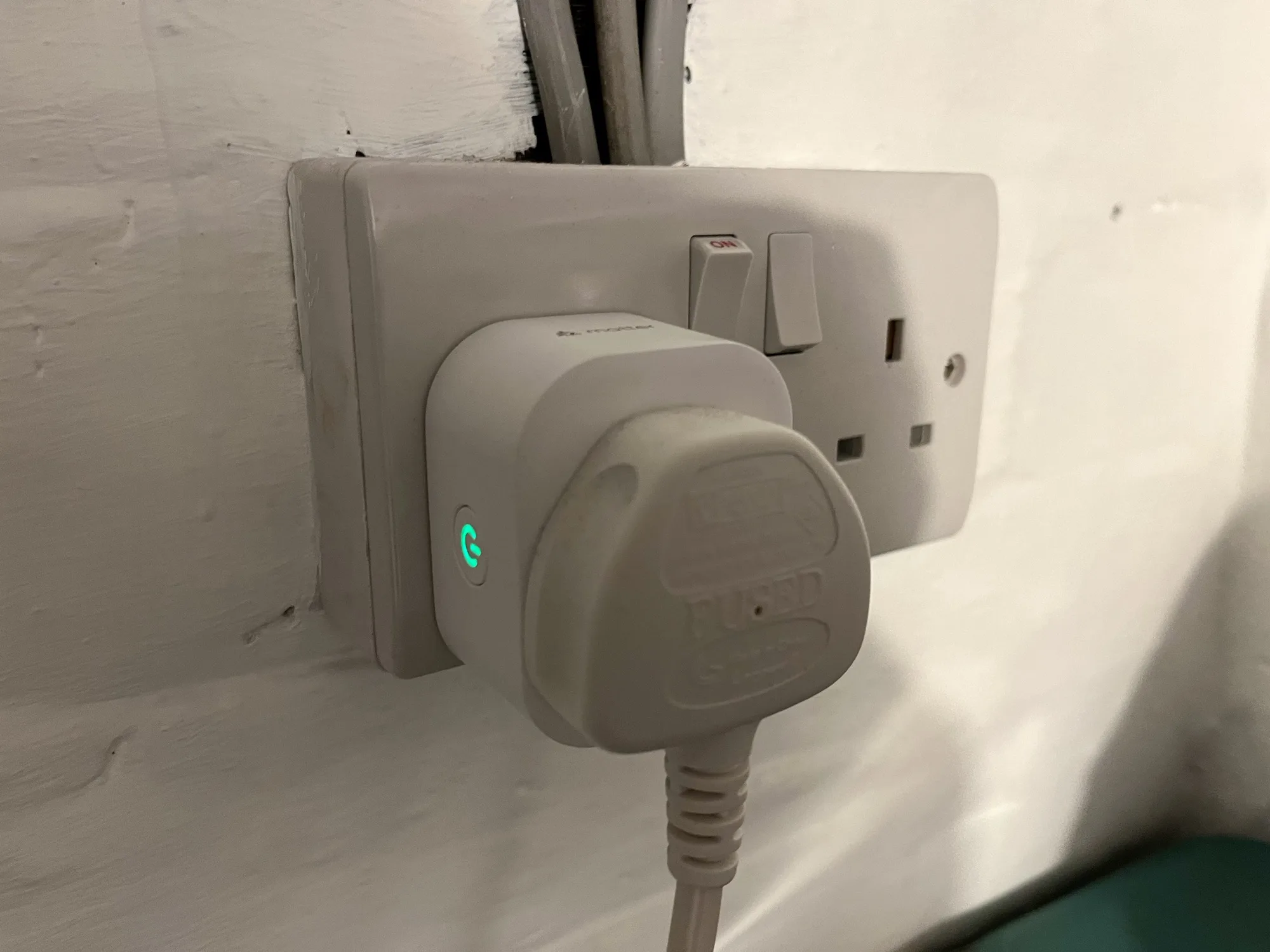
Back in April last year, I bought a pair of Meross energy monitoring smart plugs(sponsored link). I’d chosen them because they supported Matter, and so could be easily added to Home Assistant, Google Home and Apple Home all at the same time. However, I lamented that their Matter support was limited to turning them on and off; the energy monitoring data wasn’t available through Matter. That has now changed.
If you have these plugs, or are looking at buying them, here’s how to get energy monitoring over Matter into Home Assistant:
Step 1: Update the Firmware
Firstly, you’ll need to open the Meross app on your phone, and ensure that the smart plug is linked to the app. Next, you’ll need to do a firmware update – this is located on the user tab, for some reason. The firmware update should take a couple of minutes.
Step 2: Re-interview your smart plugs
Originally, the way I found out that this was working was because one of my plugs had stopped working, and needed a factory reset. I then had to remove and re-add it to Home Assistant, Google Home and Apple Home. When I re-added it to Home Assistant, that was when I found that it now supported energy monitoring over Matter, as the power, wattage, voltage and current for the smart plug now appeared in the device settings.
The good news is that you don’t need to remove and re-add the device. Instead, you can ‘re-interview’ the device. Open it up in Home Assistant’s device settings, and then click the three dots next to ‘Share device’, and then ‘Re-interview device’. Home Assistant will then attempt to find out what capabilities the device has, and should add the new entities for you.
Step 3: Uninstall the Meross LAN custom integration
The key advantage of using energy monitoring over Matter is that the data remains local to your home network. Otherwise, you’re sending and receiving data to Meross’ servers (unless you’ve managed to reconfigure them to use a local MQTT broker like Mosquitto). That also means that, if those servers go down or Meross withdraws support, you would no longer get energy monitoring data. Switching to Matter should therefore give your smart home system more resilience.
Whilst many of the smart home products I have bought recently have been Zigbee devices, I’m reasonably convinced that Matter and Thread are the future of home automation. To date, I’ve only picked up Matter smart plugs – some Meross Wi-Fi plugs and some Onvis Thread plugs – so this is the first Matter bulb that I’ve bought.
Connecting over Matter
This Nanoleaf Essentials bulb connects over Thread, rather than Wi-Fi. This is probably why there is a ‘Frequently returned item’ warning on the Amazon listing, as it won’t work well without a Thread Border Router. Thankfully, I have three – two Google Wi-Fi devices, and my Home Assistant instance with a USB dongle. Like Zigbee, Thread is a mesh network, and so these three border routers, and my two Onvis plugs have formed a relatively good Thread mesh. That’s good, because this bulb is in a room on its own some distance from any of the border routers, but it’s able to join the mesh with the Onvis plugs.
As it’s a Matter device, I was able to add it to Home Assistant, Google Home and Apple Home with no issues. Nanoleaf include the necessary QR code on the instruction manual as well as the bulb itself, which is helpful. The bulb also supports Bluetooth, partly for commissioning onto the Thread network, but it can also be controlled by Bluetooth using the Nanoleaf app if you don’t have a Thread Border Router. However, due to Bluetooth’s short range, I doubt this will be much use to many people.
Appearance and usage
The design of the bulb is a little odd. Unlike most LED bulbs, it’s not a smooth spherical surface, but a series of blocky geometric shapes. I’d prefer a smooth look, personally.
The bulb was quite responsive when using it with Google Home. It’s a colour changing and dimming model, and when it turns on and off, it fades up or down, which is a nice touch. I found controlling it with Home Assistant a little more hit and miss – sometimes, turning it on took a few seconds, but other times it was instant. I’ll need to look into why that is.
Cost
The thing that mainly drew me to this bulb is its price – literally just five of your Great British Pounds. That’s not quite as cheap as the £4.33 Zigbee bulb that I previously bought from AliExpress, but as it’s from Amazon, I didn’t have to wait a week for shipping. And as it’s a Matter bulb, it’s better supported by Google and Apple. I just wish it was a little less ugly, but at £5, you can’t really argue.
I recently bought a pair of Onvis Matter Smart Plugs(sponsored link), as my first foray into smart devices that use a Thread network rather than Wi-Fi. These were to replace my remaining Tuya smart plugs, which use Wi-Fi.
I’m going to review the Onvis smart plugs, and talk about why I’ve chosen Matter and Thread smart plugs over Wi-Fi or Zigbee.
Why not Tuya?
I bought my Tuya smart plugs several years ago, when I didn’t know so much about smart home technologies. At the time, we’d only recently got a Google Home Mini, and so I picked up a cheap smart plug which happened to support Google Assistant and IFTTT, as well as Alexa. The other advantage of Tuya devices was that they could work without buying a hub as a controller, unlike Zigbee-based devices from the likes of Philips and Ikea. Bearing in mind that the hubs often cost at least £40, it’s a lot for when you just want one plug.
I wouldn’t buy a new Tuya Wi-Fi device nowadays, for the following reasons:
Wi-Fi devices use more power than others (Zigbee and Thread). Whilst we’re talking single digit numbers of watts here, having lots of Wi-Fi smart plugs around your home adds to your home’s ‘base load’ (sometimes known as a ‘phantom load’) of always on devices.
Tuya devices rely on Tuya’s servers to work. I understand that users based in Europe use servers located in Europe, but it means that every request has to make a round trip to their servers. This makes it slower than a system where commands can be actioned locally. Now, millions of Tuya devices have been sold over the years and I doubt that those servers would ever go offline, but if they did, any Tuya devices would lose their smart abilities.
Tuya is a Chinese company, so theoretically someone in the Chinese government could be logging every time you use a Tuya device. It’s a theoretical risk, but not having that data pinging across the internet in the first place is better for privacy.
The Tuya plugs that I have are also quite big, and not very sturdy.
Getting started with Thread
To use Thread devices, you need a Thread Border Router. Thankfully, I already have two, as they’re built into my Google Nest Wifi devices. You may also already have a Thread Border Router if you have some of the newer Google Nest Hub devices, a newer AppleTV or Apple HomePod, a newer Alexa device or a Samsung SmartThings Hub.
If you use Home Assistant, you can flash a Zigbee dongle to use Thread instead. Note that the blog post mentions enabling a ‘multi-protocol’ mode that allows you to use both Zigbee and Thread on the same dongle, but this isn’t recommended. As it is, my dongle just runs Zigbee nowadays but I may get a second dongle that I can flash Thread firmware onto. That way, Home Assistant has its own Thread Border Router, and it expands the Thread mesh network. Until then, Home Assistant is able to use the existing Thread mesh network that my Google Nest Wifi devices created – see How to join a preferred Thread network in Home Assistant for more.
Commissioning the Onvis smart plugs
When you get a new Matter device, it needs to be ‘commissioned’ to add it to your home network. You need to open the app for the smart home ecosystem you want to add it to (for example, Google Home, Apple Home or Home Assistant), select to add a new Matter device, and then scan a QR code on a label on the side of the device. In the case of these Onvis smart plugs, you also need to hold down the button for around 15 seconds to put them into commissioning mode. It helps to read the manual.
One of the reasons that I use smart plugs is that they’re controlling devices in awkward places, so I commissioned this in a place where I could sit comfortably with the devices plugged in, and then moved them to where they need to be. Otherwise, I’d be spending time crouched awkwardly in a corner.
Once commissioned, the Onvis plug will show up in the smart home app of your choice, and you’re done. I’ve been using them for a couple of days, and they seem to work well.
Why Matter and Thread?
So I’ve outlined why I wouldn’t use a Tuya device, but why have I chosen a device that uses Matter and Thread?
Thread devices only work locally. Whilst voice assistants like OK Google and Alexa may still need to use the internet to interpret what you say, they don’t need to send the actual commands across the internet. As well as protecting your privacy, it’s also faster; these Onvis Thread plugs seem to respond almost instantly, rather than at least half a second with the Tuya plugs.
The majority of Tuya devices do not work with Apple Home. This isn’t a massive problem for me, as although I use an iPhone and an iPad, I’m not a big Siri user. However, Matter devices are supported.
The idle power usage of these plugs should be lower than Wi-Fi.
As Thread is a mesh network, the more devices you add, the stronger the network becomes. It can also have multiple Thread Border Routers as exit points to your LAN/Wi-Fi network, so a network with several Thread devices and Border Routers should be very resilient.
Many of Apple’s newer iPhones (iPhone 15 and later), iPads and MacBooks include Thread radios, offering even more resilience if they’re connected to your Thread mesh network when at home.
I also think Matter is the future, although it’s taking longer than I would have anticipated for Matter devices to become mainstream.
It should be noted that these Onvis smart plugs do not support energy monitoring. They simply turn a socket on and off. Obviously, you can use automations in your choice of smart home ecosystems to set timers, or trigger them to turn on and off in relation to external events.
I’m noting this because it seems to be a common issue with these relatively early Matter devices – their Matter support is basic. With the Meross smart plugs for example, the Matter support is also limited to turning them on and off again. If you want to use their energy monitoring abilities, you have to use the Meross app, or install the Meross LAN integration from HACS for Home Assistant. These don’t use Matter and instead rely on Meross’ servers to send and receive data.
Price
I recently picked up a Zigbee smart plug for around £8 (including VAT) from AliExpress, which included energy monitoring. Seeing as these Onvis smart plugs don’t support energy monitoring, you may be surprised to find that they’re £25 each, or £40 for a pair (although as I write this, there are 15% off vouchers available on Amazon). So they are on the pricey side.
Which brings to the question about why I’m not just using Zigbee. After all, Zigbee is also a mesh network, and devices work locally. As it is, I have a small Zigbee network with the smart plug and a couple of colour-changing lights for our nine-year-old’s bedroom. And they work fine with Home Assistant. But then I have to use Home Assistant to make them appear in Google Home, and allow my Google Assistant devices to talk to them. Command fulfilment can be slow, taking a few seconds, and it’s unreliable – even when the Zigbee devices are obviously working, Google sometimes complains that they’re offline.
I suppose I could buy a Zigbee hub, like a Philips Hue or Ikea Dirigera, which would probably work better. But I already have Thread Border Router devices, and I’m hoping that Matter will mature as a standard.
Is £25 per Onvis plug worth it? Well, that’s up to you – but bear in mind that they work without needing a third-party app, will work with most smart home ecosystems, seem nice and sturdy and don’t rely on third-party internet servers. Hopefully, these Onvis smart plugs will be a good, long-term investment.
It’s also worth noting that these were the only Thread smart plugs that I could find on Amazon UK.
Matter Multi-Fabrics
One last thing to mention about Matter is its ‘multi-fabric’ feature, which allows you to add devices to multiple smart home ecosystems simultaneously. Initially, I’ve added all my Matter devices to Home Assistant, which has the Python Matter Server addon. On the device settings page, there’s a ‘Share Device’ button, which, when clicked, puts your device back into commissioning mode. You then get a new QR code in the Home Assistant interface, which you can use to add it to another smart home app like Google Home. You can then repeat the whole process for any other apps, like Apple Home.
This means that I have my Onvis smart plugs added to all three smart home apps, and they can be controlled by Home Assistant, Apple Home and Google Home. What’s particularly notable is that I was still able to control the lights in Apple Home whilst my Raspberry Pi running Home Assistant was restarting after an update.
Summary
Well, this ended up being a longer blog post that I’d expected. So, in summary:
The Onvis smart plugs work well, are sturdy, respond quickly and are compatible with most smart home ecosystems
They’re a bit pricey at £25 each, and don’t support energy monitoring
You need a Thread Border Router device for them to work, but you may already have one
They’re more energy efficient than Wi-Fi sockets, and don’t rely on third-party internet servers
When I started acquiring smart devices for my home, my focus was on those that worked over Wifi (or Ethernet) – I wasn’t really aware of the likes of Zigbee, Z-Wave and other protocols that were out there. In particular, I avoided those that required the purchase of a hub or bridge, due to the higher upfront cost.
Now that I’m further along my smart home journey, I’m more open to considering a range of different protocols. They all have their advantages and disadvantages to consider.
Wifi (and Ethernet)
I’m grouping these together as devices that are visible to a standard home network and have their own IPv4 address. The majority of smart home devices use Wifi, as there’s usually no need to buy an additional hub or bridge. Therefore, set-up is usually easy (sometimes aided by Bluetooth), and their range is fine as long as they can pick up your home’s Wifi signal. It’s also very easy to connect these devices to cloud services.
In terms of disadvantages: Wifi primarily uses the 2.4 GHz frequency band, which is used by lots of things and so there’s a potential for interference. The ease of connecting these devices to the cloud can also be seen as a flaw; they’re more susceptible to being compromised by bad actors, and don’t offer as much privacy. Wifi is also quite power-hungry – devices that don’t plug into the mains will need their batteries changing more frequently.
Bluetooth
As mentioned, Bluetooth is often used with Wifi to initially provision devices, but some Bluetooth-only devices can be used in a smart home. For example, there’s my Bluetooth thermometers, which connect to Home Assistant. Compared to Wifi, power requirements are much lower and so Bluetooth is good for battery-powered devices. They’re also more private, as they can’t easily be connected to from the wider internet.
However, Bluetooth has quite a limited range – it’s designed to be a ‘personal’ area network and won’t reach across large houses. You can use a Bluetooth Proxy in Home Assistant to extend the range, and whilst these devices are cheap, you’ll need to be comfortable flashing custom firmware and will usually need to plug them in as they bridge to Wifi. Like Wifi, it uses the 2.4 GHz band and so interference is possible – especially with the lower signal strength. Bluetooth connections also tend to be between two paired devices.
Zigbee
Zigbee is a mesh protocol, and it’s used by a number of smart home brands such as Philips Hue and Ikea Tradfri, as well as UK smart meters. This means that all devices on the same network talk to each other, and so a network with lots of devices could theoretically be quite strong. Like Bluetooth, there’s additional privacy as these devices aren’t connected directly to the internet like with Wifi. It’s also more energy efficient than Wifi, so battery-powered Zigbee devices will last longer between charges.
The key disadvantage of Zigbee is that you need a bridge to link it to your home network. Manufacturers like the aforementioned Philips and Ikea will sell you a hub that does this, although you can also buy USB dongles. Therefore, there’s a higher initial cost as you have to buy a hub as well as your devices. And it’s another 2.4 GHz protocol, so could have the same interference issues as Bluetooth and Wifi.
Whilst Home Assistant has good Zigbee support, both natively and through the Zigbee2MQTT system, if you don’t have a separate hub then getting these devices into Google Home can be a very involved process. Alexa is a little easier thanks to the Emulated Hue integration.
Thread
Thread is based on the same 802.16 standard as Zigbee, but differs in a couple of ways. Firstly, devices on a Thread network have an IPv6 address. Secondly, Thread is a simpler protocol that focuses just on being a mesh network with Matter taking over the device APIs. The benefit of integrating with Matter is that, unlike Zigbee, you may not need a separate bridge for Thread devices. A number of smart speakers from Google, Amazon Alexa and Apple can also act as Thread Border Routers, so it’s possible that you’ll already have the infrastructure in place in your home for Thread devices. Like Zigbee, Thread is a mesh network, and by using Thread Border Routers, the devices have a degree of separation from the wider internet that should improve privacy and security.
The downside is that Thread is still pretty new, and so there aren’t many Thread devices out there yet. You may also find that each device that incorporates a Thread Border Router creates a separate Thread mesh network. Home Assistant can be configured to join a preferred network, but it can be a bit of a faff. Ideally, they should all make one big, strong mesh network across your home, but we’re not there yet. And, once again, we’re dealing with a 2.4 GHz protocol here.
Z-Wave
Z-Wave sets itself apart from the aforementioned protocols by being on the lower 800-900 MHz frequency range. These lower frequencies have a longer range, and so are more suited to larger homes, but also avoid the interference of the 2.4 GHz band. Like Zigbee, it’s a mesh network, and should have similar privacy and security benefits by not being connected directly to the internet.
This also means that Z-Wave has the same disadvantage as Zigbee in that you’ll need a bridge to expose these devices to your home network. Furthermore, Z-Wave devices tend to be more expensive, so the upfront cost is usually higher than other protocols mentioned here.
RF and Infrared
I’m including these for the sake of completeness, but they’re not ‘smart home protocols’ in the same way as the above. It’s possible to connect the likes of Home Assistant to bridge devices that can communicate over Wifi and 433 MHz RF or Infrared. These will typically be doorbells or remote controls for devices that don’t connect using any of the above. But setting them up can be trial and error, and involves detecting and interpreting codes to trigger automations.
If you’re building a smart home system, then a bridge may be useful to bring existing devices in that don’t support standard smart home protocols. But if you’re looking to buy new devices, stick with the ones above.
If you use Home Assistant, and have an existing device that includes a Thread Border Router, then it should automatically add the Thread integration so that it can communicate with Matter devices. Some of Google’s Nest Hub and Nest Wifi devices include Thread, as do some of Apple’s newer Homepod devices and some of Amazon’s Echo devices. Because they broadcast their existence on your home Wifi network using mDNS, Home Assistant can detect their presence.
What Home Assistant can’t automatically do, however, is join these existing Thread networks. As this article from The Verge states, there isn’t a mechanism for sharing Thread network credentials between devices. That means that you can end up with a home that has several devices, all with the own Thread networks that don’t talk to each other, and your Home Assistant device not able to talk to any of them.
Hiding on your phone
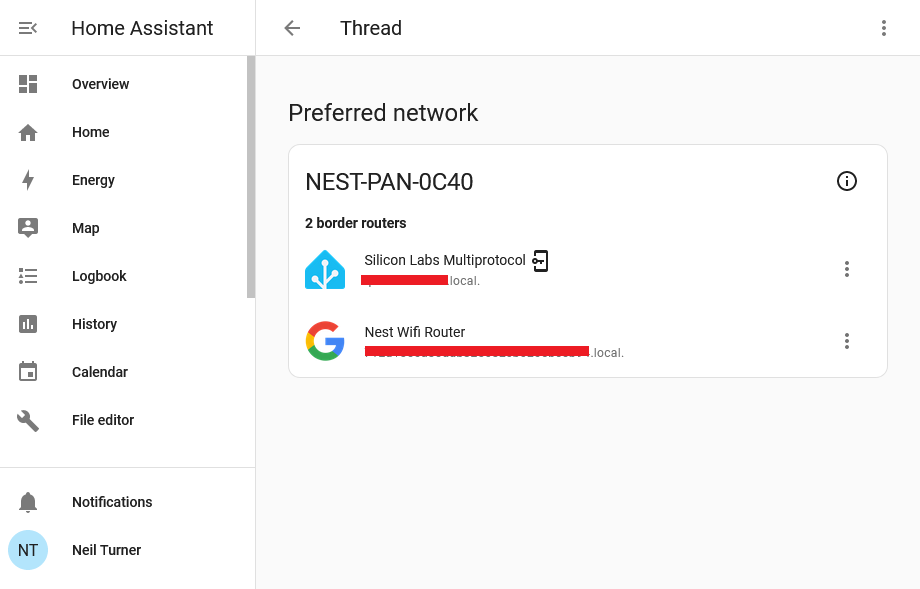
The good news is that Home Assistant can access Thread network credentials from your phone, and this should allow you to join one of your existing Thread networks. In the above screenshot, I have my third party Thread dongle attached to the existing Nest thread network used by my Google Nest Wifi system.
The reason why I’m writing this blog post is that it’s not obvious how to enable Home Assistant to join a Thread network that it doesn’t have credentials for. Think of the Thread network credentials as being a bit like your Wifi password (or ‘pre-shared key’ to give it its official name). However, whilst you’ll usually either use whatever password is printed on your router, or a short password you set yourself, your Thread devices will come up with their own long alphanumeric key. And then, they’ll keep it a secret.
Thankfully, your phone should have this key – in Google Play Services on an Android device, and iCloud Keychain on an iOS device. And, thankfully, the Home Assistant Companion app for these platforms can access these credentials and provide them to Home Assistant, allowing you to connect to your existing Thread networks.
Matching the manufacturer to the network
But there’s a catch:
If you have a Google Wifi or Nest Hub device, then you’ll need an Android device to access the credentials.
If you have an Apple HomePod, then you’ll need an iOS device to access the credentials.
This is why I found it difficult to join the Thread network that my Google Wifi devices had created. I’m an iPhone user, and so it wasn’t able to access the credentials. They’re not available to the Google Home app on iOS, for example.
Thankfully, my wife has been a stubborn Android user for as long as I have been a stubborn iOS user. So, I just needed to ‘borrow’ her Android tablet, install the Google Home and Home Assistant Companion apps, and log in to both. Then, on the Home Assistant app, navigate to the Thread settings where an ‘Import Credentials‘ button appears. Once I tapped this, Home Assistant was able to join the Thread network created by my Google Wifi devices. Had I owned a HomePod, the process would have been similar.
One Thread network to mesh them all
Thread is a mesh network protocol, and having all devices on the same network is beneficial. Each additional device helps maintain the reach of the network. So it’s a shame that new devices just seem to set up their own networks, and don’t bother to try to join a Thread network that may already exist. Some of this is down to the Connectivity Standards Alliance, who haven’t specified a way of exchanging Thread network credentials. But it’s also worth noting that Matter and Thread are still very new standards. By comparison, Zigbee was designed in the 1990s and standardised over 20 years ago.
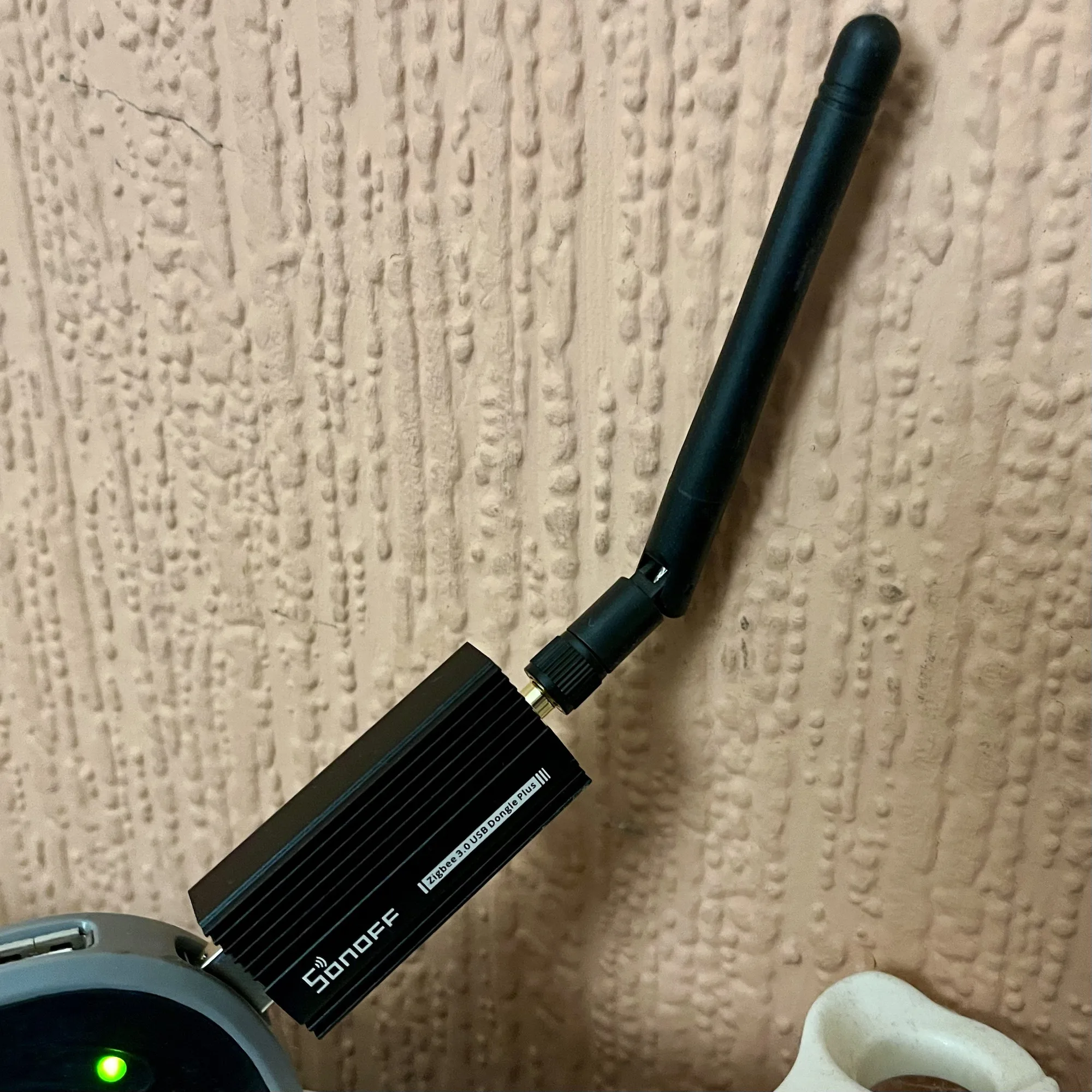
If you’re a Home Assistant user, and want to connect your Zigbee and Matter devices, then one option to consider is this Sonoff ZBDongle E. I bought one a couple of weeks ago, and it seems to work fine with my Home Assistant setup.
The firmware flasher is actually browser-based, and so there’s no need to download additional software. However, it’ll only work in Edge or Chrome, as seemingly Firefox doesn’t have away of allowing web pages to access serial ports.
Once it’s all set up, you’ll be able to add both Zigbee and Matter devices to your Home Assistant installation.
The Sonoff dongle cost £22 when I bought it earlier this month, although at the time of writing the price has been hoicked up to £30. That makes it only £1 cheaper than the Home Assistant Skyconnect, which is the official dongle. Therefore, my recommendation of the Sonoff dongle being a cheaper option no longer applies and it’s up to you which one to buy.