Delicious in Dungeon

A photo of the first book in the Delicious in Dungeon manga series.

My wife Christine recently introduced me to a new animé series on Netflix called Delicious in Dungeon. It’s based on a manga, of which we also recently picked up the first book.

If you like Dungeons & Dragons, and food, then you’ll probably like Delicious in Dungeon. It follows a small guild of explorers, who are trying to save their friend despite losing all their supplies. Hungry, they resort to eating the dungeon monsters they encounter. Early on, they meet a dwarf, who seems highly knowledgable about the best way to cook these monsters and end up eating delicious food of dubious origins.

The animé adaption of the manga is pretty good, with each dish presented like it would be on a cooking programme. In the manga books, the dishes even come with ingredients and nutritional information.

It took me a little while to get into the first episode, but I found it enjoyable and funny despite not being a big animé fan. The only animé I have watched more than a few episodes of is Pokémon, and that’s probably because I play Pokémon Go every day, and so am familiar with the species.

It’s a Netflix exclusive, and new episodes are being released weekly. There are currently 13 volumes of the manga, with a 14th due out this summer. We picked up our English translation from Travelling Man in Manchester.

Disney Minus

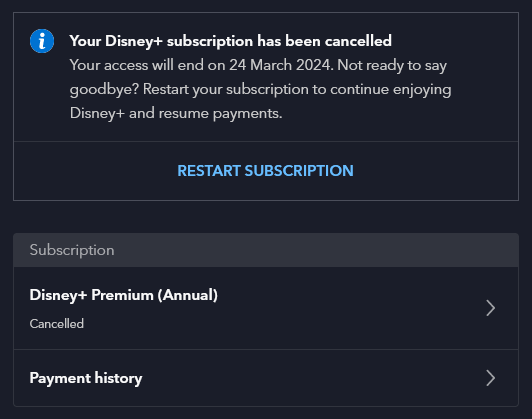
A screenshot of our Disney + account setting showing it cancelled.

Last week, we cancelled Disney+. Our annual subscription was due to renew, and at over £100 for the year, we could no longer justify it.

We’ve had a subscription ever since Disney+ launched in the UK, in the early days of lockdown in 2020. In fact, before then we had a subscription to DisneyLife, which was Disney’s UK-only streaming service for video and music, and used to cost £5 per month. Over time, Disney+ has got better, especially now that content from 20th Century Fox is on there.

But we just don’t watch enough of it. When we signed up to Disney+, there was only one price tier at £7.99 per month or £79 per year. Whilst that was more expensive than DisneyLife, there was more content available so it was worth it. Now there are three price tiers, and the most expensive is £10.99 per month, or £109 per year. That’s more than double what we were paying just five years ago. Whilst there is once again a £5 per month tier, it’s with adverts, and we don’t want those.

Like many kids, our eight-year-old seems to just want to watch YouTube Kids now. It’s something we’ve tried to resist for years, but apparently watching home-made videos and Minecraft walk-throughs is far more interesting than the professionally-produced content that we were paying for. We’ll keep paying for Netflix, as you can download content onto an iPad to watch offline. We tend to clip our eight-year-old’s iPad into a stand fixed to the back of the front passenger seat for long car journeys.

We’ve had Amazon Prime in the past, shared using Amazon Household with another family member, but we don’t have this now. Again, it’s getting more expensive, and we’d rather avoid the adverts. And whilst we’ve had free trials of Apple TV+ and Now TV, we’ve never paid for these beyond the trial period. We also don’t pay for a TV package, and just have Freeview and Freesat for live television.

I guess we’ll just re-subscribe to these from time-to-time when there’s something we actually want to watch.

I do find it odd comparing streaming video with streaming music. There’s a handful of music streaming services – Spotify, YouTube Music, Amazon Music, Deezer and so forth – and for the most part, they all have the same music. Yet with streaming video services, most shows are on one or two at best, and many or exclusive to one service.

Comparing smart speakers

Yesterday, I reviewed our (relatively) new Google Home Mini. Today, I’m going to focus on why we chose to go with Google, and not an Amazon Echo or Apple Homepod.

Ecosystems

When you choose a smart speaker, I would take some time to decide which one works with the apps, services and devices that you already use. Apple’s HomePod only works with iOS devices for example; that’s fine for me, but not much use for my wife who has an Android phone. The Verge’s review seems to focus on the HomePod’s locked-in nature.

Similarly, Amazon’s Echo devices work well if you have Amazon Prime and one of its Fire TV devices, but we’re a Netflix household and have a Google Chromecast. I gather that Netflix support on Alexa isn’t that great, whereas it works well with a Google Home.

Price

We got our Google Home Mini free as part of a deal with Nest, which was probably the biggest reason for us choosing it over its rivals. As I write this, both the Amazon Echo Dot (sponsored link) and the Google Home Mini are £39, and normally sell for about £50, and even the more expensive models are under £200. Apple is selling the HomePod for £319. For that, you could buy six Google Home Minis and cover your house, and have some change left over.

Sound quality

One reason for the HomePod’s higher price is its focus on high quality sound for playing music. Arguably, it’s trying to compete more with the Sonos range of wireless speakers, some of which now include Alexa as well.

The larger and more expensive Google Home and Amazon Echo models have better speakers than the smaller ones, but I was still reasonably impressed with the little speaker in the Google Home. Audiophiles would probably be disappointed with all but the most expensive models but for most people, even the smallest and cheapest models will do.

Third party services

Amazon’s Alexa devices have a range of third-party ‘skills’ available, which massively expand its abilities and integration with other services. Google Home is somewhere in the middle; it supports a lot of internet of things devices, but not much else. That is changing but some things, like being able to order a pizza from Domino’s, are US-only for now.

As for the HomePod, it’s Apple all the way down. If you have smart devices that support HomeKit, great. But that’s a bit useless if you have a Nest thermostat, for example. It can only play music from Apple Music, and not Spotify or any other third party streaming service.

In summary

If you like good quality audio, have only Apple or HomeKit-supporting devices and money to burn, then by all means, buy a HomePod. Amazon and Google offer much better value speakers that work with a wider variety of third-party devices and services, and the choice you make will reflect what you already own.

Netflix – 8 tips to get the most from your subscription

A screenshot of the Netflix home page when logged in

We’re a few months into our Netflix subscription and on the whole we haven’t been getting as much value out of it as I expected us to, which is a shame. I had considered cancelling it, as it’s not worth paying for something that I don’t use. And whilst I’m still open to that idea if we’re still not using it much in a few months’ time, I decided to rethink how we’re using Netflix rather than going for the nuclear option straight-away.

So, here are my tips for making the most of your Netflix subscription.

1. Add lots of titles to your list

Netflix has a ‘queue’ of sorts, called My List, where you can add films and shows that you want to watch. These could be films that you haven’t seen before, or TV shows that you want to watch again, or children’s’ shows that your kids want to watch over and over again. Keeping lots of titles here will mean that you avoid the situation where you open Netflix to watch something but then can’t immediately think what you want to watch.

2. Add TV shows to your list

Netflix, despite its name, isn’t just about ‘flicks’, i.e. movies/films. There are plenty of TV shows on there, and in some cases you can watch every season. So add a few TV shows to your list as well as films – that way, if you don’t have enough spare time for a whole film, then you can watch a quick half hour TV show.

3. Install Netflix’s mobile apps to add to your list on the go…

Let’s say you’re out with your friends, and someone recommends a film or TV show to you. If you have the Netflix app on your phone, you can simply add it to your list there and then. No need to write it down or try to remember it and then forget it. And then you can watch it when you have the time to do so.

4. …or to watch things on the go

Admittedly, watching films and TV shows on a smartphone screen doesn’t make for a good experience. But if you have a generous data allowance on your mobile contract and nothing better to do, then why not pass the time with a quick TV show? Even better if you have a tablet with a larger screen. And it’s great for sick days when you can’t face getting out of bed to watch TV.

5. Watch films in bits

Netflix remembers your position when watching content, even if you break off and have to do something else. So if you don’t have time to watch a full feature-length film, just watch a bit of it. Then, pick it up again when you have some more time. The position will synchronise between the web site and apps, so you could start watching a film on your Roku or Apple TV, then watch a bit on your iPhone before finishing it off on the web site.

6. Build up your taste profile for better recommendations

One of Netflix’s big selling points is its ability to recommend films and TV shows to you that you may not have come across. As you watch content on Netflix, it learns what you like and, over time, its recommendations should improve. However, when you first get started Netflix may struggle to suggest anything sensible, so spend some time on the ‘taste profile’ tab on the web site to refine its suggestions. Or just browse around and rate any films and TV shows that you have already seen.

As Netflix’s recommendations improve, you’ll hopefully find some interesting new content to add to your list.

7. Find out when new releases are available using Netflix Notifier

Netflix Notifier is a third-party site which lets you create a watchlist of films that you want to see, but that aren’t on Netflix yet – and then emails you when they become available. I reviewed it in July when I added four films – of those, so far only Hunger Games: Catching Fire has become available to watch in the UK.

Note: since this blog was written, Netflix Notifier has closed down.

8. Use a VPN to access another country’s library

Because of the weird and wonderful world of international copyright licensing agreements, the selection of films and TV shows differs between each country that Netflix operates in. A way around this is using a VPN – a Virtual Private Network – to fool Netflix into thinking you’re based somewhere else. So a British user could use a VPN located in the US to watch shows that would be otherwise unavailable. Be aware that you’ll probably have to pay extra for a decent VPN connection. And bear in mind that film studios are pressuring Netflix to block access from VPNs – whilst it would be impossible to block every VPN, some of the more popular ones may get locked out.

How to work out whether Netflix is worth it for you

Netflix is basically an all-you-can-eat buffet, when compared to ‘a la carte’ services like Google Play and Blinkbox where you pay for each individual episode or season. To take the example of Channel 4 show Misfits, Blinkbox charges £1.89 per episode or £8.99 per series; if you watch four episodes in a month, then Netflix is cheaper as it costs £5.99 per month. Films on Blinkbox are typically around £2.50, or more for new releases.

So if you’re watching, say, two films, or four TV shows, or a film and two TV shows each month, then you’re probably getting your money’s worth. If not, and you’ve tried all of my suggestions above, then you may wish to reconsider whether a subscription service like Netflix is best for you. You may get better value from other sites where you pay for each show individually.

Roku 2 XS Streaming Player review

A photo of the box for the Roku 2 XS Streaming Player

Last week I purchased a Roku 2 XS Streaming Player from Amazon. Normally costing around £80, Amazon are now selling them for £55, making them just £6 more expensive than the slightly newer but more limited Roku Streaming Stick (sponsored link).

When I discussed streaming media boxes last month, the streaming stick was my original first choice, but this was before the drop in price of the Roku 2 XS. Compared with the Streaming Stick, the 2 XS adds a number of extra features:

  • A USB port, for plugging in external hard disks to watch video files from.
  • A Micro-SD card slot to expand its storage space from the 256 megabytes provided as standard.
  • An Ethernet port.
  • Analogue outputs for televisions that don’t support HDMI.
  • A motion-sensitive remote for playing games, with Angry Birds included.

The latter two don’t bother me too much, but extra capacity could be useful if I end up installing lots of extra channels.

I’m really impressed with it, actually. The box is tiny and can sit comfortably in the palm of your hand – in fact, the remote control is longer than the box itself. Speaking of which, the remote is simple and doesn’t have lots of seemingly useless buttons like most of our other remotes. It doesn’t come with HDMI cable as standard, instead shipping with an analogue cable, but you can get a reasonable HDMI cable from most pound shops these days.

Setting up the Roku

Device setup is quite easy – plug it into your TV and the mains, and then the device will try to connect to the internet. If you haven’t plugged an Ethernet cable in, you’ll get to select a Wifi network, and enter the passcode. Your device will now ask you to go to a computer and set up a Roku account, and then enter a code to link your device to your account. You do need to enter either a credit card number or PayPal email address to create an account, but you won’t be charged unless you purchase an app which costs money.

Roku will offer several channels to you, and then you’re ready to go. It’s easy to navigate around, although sometimes there’s a bit of a lag between you pressing a button on the remote and the box reacting. The newer and more powerful Roku 3 should have less lag but it’s quite a bit more expensive.

Setting up your Roku with your YouTube, Facebook and Flixster (for UltraViolet) accounts is done on your computer as before, but the Netflix app requires you to enter your username and password on the device itself. You can use an on-screen keyboard, or a mobile app for iOS or Android which turns your phone into a remote control, with keyboard entry. I found that the Netflix app would not accept a password with special characters so I had to change it first.

Using the Roku

Once set up, the device is really simple to use on a day to day basis. Firstly, you don’t need to turn it off, as it effectively runs on the same power as a Raspberry Pi and can be left plugged in and switched on without drawing too much electricity. This means it doesn’t take ages to boot up when you want to watch something. Apart from the slight interface lag as mentioned before, it’s quick to navigate through, and as most of the apps are official and authorised you get a consistent experience – the iPlayer app works in a similar way to the BBC’s web site, for example.

I’ve mentioned BBC iPlayer, but ITV Player, 4oD and Demand 5 are also available, covering all four main free-to-air broadcasters in the UK. Of the paid-for streaming services, Roku supports Netflix and Sky’s Now TV, but not Tesco’s BlinkBox or Rakuten’s Wuaki TV. US users can get the Amazon Prime Instant Video channel but it hasn’t launched in the UK yet.

If you want to watch content on your own computer, such as films that you have copied from DVDs, then you can install the Plex app on your Roku, and the Plex Media Server app on your computer. The Plex app on the Roku is free for 30 days and then there is a small charge to keep using it – I paid £1.49 but I think this was a special offer.

Another nifty feature allows you to beam content from the YouTube mobile app to your Roku, in a similar way to Google’s ChromeCast stick and Apple’s AirPlay. An icon appears on your screen, which will show the video on your TV, but you retain control on the mobile device. Right now, YouTube and Netflix are the only two apps which support this although I haven’t tried Netflix myself.

On the whole I’m really impressed with the Roku. At £55 it’s only just over half the price of the Apple TV, and can do just about everything its more expensive competitor can do, and more. The interface is simple and enjoyable to use, apart from the slight lag as mentioned earlier. I would definitely recommend it.

Purchasing a video streaming box

Raspberry Pi

I’m planning to purchase a video streaming box – i.e. a thing that you plug into your TV to watch streaming video services. Now that we have Netflix I’d like to be able to watch films and TV shows on our TV, without having to run them through my Mac (which is also connected to the TV).

Things I’ve already tried

Last year I bought a Raspberry Pi, and for a while I used that to watch BBC iPlayer, but it’s not a great experience. It’s a bit slow and as I had XBian on a different SD card to everything else I had to shut it down, swap the cards and reboot it. The BBC iPlayer interface in XBMC leaves a lot to be desired, plus I’d been using a smartphone app as a remote which is a bit clunky.

Our Freesat box and Blu-Ray players also technically support BBC iPlayer, and the latter also supports YouTube, but they’re so fiddly and slow that they’re not worth using. In particular the remote control for our Toshiba Blu-Ray player is awful – it’s often unresponsive and the buttons are confusing.

Comparing video streaming boxes

A couple of weeks’ ago Pocket Lint did a good review of several boxes available in the UK. They looked at the Apple TV, Roku, Roku Streaming Stick, Sky Now TV, Google Chromecast, WDTV Play, Amazon Fire TV (not currently available in the UK), plus a couple of less-known Android-based boxes.

As much as I like Apple, the Apple TV is out of the question. It’s one of the most expensive boxes on the market, at £99, and doesn’t support many UK streaming services – iPlayer and 4oD are missing, for example. Though Apple does add new channels from time to time, there’s no schedule and no way of adding custom apps without jailbreaking. Apple really needs to consider creating an app store for the Apple TV if it’s going to be more than a niche product.

I also think that the Google Chromecast is a bit too basic. It’s useless without a smartphone or tablet, but it is cheap. And the WDTV Play, as you’d expect from a company like Western Digital, is more about playing content that you already have on your own hard disks, although Netflix is supported.

Sky’s Now TV box is by far the cheapest at £10, and is basically a re-branded Roku box, but without the ability to (easily) add other apps. Indeed, there’s no Netflix because it competes with Now TV, but it does offer the main British streaming services like iPlayer and 4oD. And Amazon’s Fire TV box is US-only at present.

Rockin’ the Roku

So that basically leaves the Roku devices. They support the largest range of streaming services, including all the big British ones. The only notable omission is Amazon Instant Video, which we don’t subscribe to. And you can easily add extra services with custom apps if needed.

The Roku 3 offers more features, such as both ethernet and wifi (and not just the latter), as well as a remote control that can be used with headphones. But it’s larger and needs its own power supply. The Roku Streaming Stick, though less powerful, can run from a USB port and can be hidden away behind your TV. It’s also significantly cheaper at £50, versus £100 for the Roku 3.

So, it looks like I’ll be buying a Roku Streaming Stick soon. In my opinion it offers the best platform support and the best value for money.

Joining Netflix

A screenshot of the Netflix home page when logged in

Christine and I decided to sign up for Netflix last week. I’d been pondering it for a while but we decided that the price (£6 per month) was worth it considering the number of TV shows on offer. Unlike in the US, Netflix in Britain is online streaming only.

We’ve previously had a DVD rental by post subscription – originally with Amazon, which then got taken over by Lovefilm, and is now back in with Amazon again. That was £3 per month but we were barely using it. We were mainly renting films, and whilst we often have a spare half hour or so for a TV show it’s harder to find time on an evening for a film lasting two hours or more.

Amazon’s takeover of Lovefilm also meant that it was a lot easier to cancel. I almost cancelled Lovefilm a couple of years ago, but whilst on the phone I got talked into taking a cheaper package. Now Amazon just let you cancel in a rather nonchalant way online. I get the impression that Amazon see the DVD rental by post part of their business as a niche that it doesn’t have much of a future when compared to streaming.

Of course, Amazon has its own Instant Video service which does the same thing as Netflix, but we decided not to sign up; Netflix is available on more devices, and you can access everything on Netflix at no extra cost. Amazon, on the other hand, charge extra for some premium content.

What we’ve watched on Netflix

So far we’ve only watched a few things – in fact, Christine has watched more than me, mainly because I was out quite a bit last week whilst she was at home, on call. We’ve started watching Heroes together, as I never watched it when it was on, and Christine’s not seen all of the episodes. Considering it was shown in 2006, it already looks dated, with big CRT monitors in the background, non-smartphones and it being filmed in standard definition. Christine has also watched Grimm, and… Foster’s Home for Imaginary Friends. Yeah. We’ll get around the watching Orange is the New Black as well at some point, as I hear it’s very good – and a Netflix exclusive.

Netflix’s library extends into the few thousands, although there are some interesting omissions. For example, the second Iron Man film is there, but not the first or the third. Such is the weird world of entertainment rights I suppose. Still, you get a lot for £6 a month, and you can dip in and out of series as you please. And there’s no DVDs to return.