Pressidium Cookie Consent plugin review

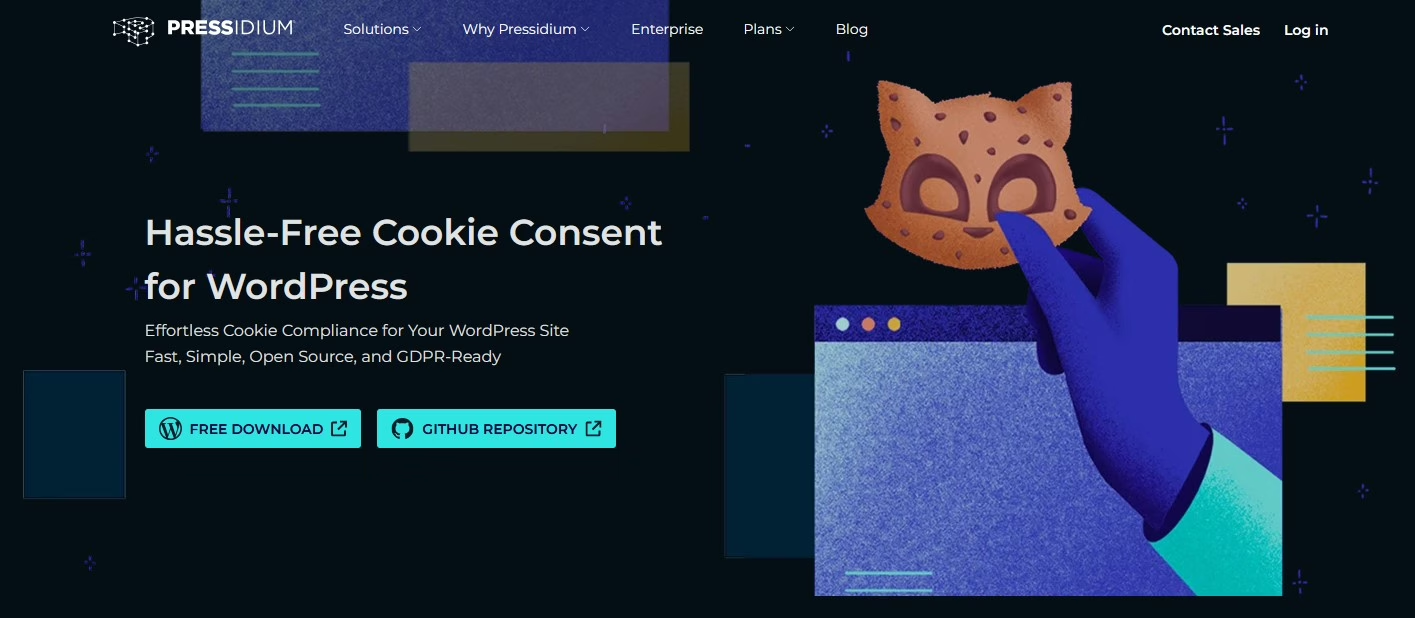
Screenshot of the home page for the Pressidium WordPress cookie consent plugin

Someone anonymously emailed me recently to advise that my cookie consent banner was not compliant with current privacy regulations, and so I’ve swapped it for the Pressidium Cookie Consent WordPress plugin.

To date, I’ve been using the cookie consent banner component of the Toolbelt plugin (my review). As much as I like Toolbelt, it’s getting a bit old and it’s been almost five years since its cookie consent module was updated. As such, it basically says that ‘this site uses cookies, deal with it’, rather than giving users a choice to opt-out.

I’m a relatively privacy conscious person, to the extent that I tend to browse the web in Firefox with Enhanced Tracking Protection enabled alongside Privacy Badger. This extends to this web site – where possible, I avoid using third-party services. Indeed, the only cookies that you should experience are session cookies whilst browsing, that are deleted when you close your web browser, and Pressidium’s own cookie to remember your consent. For analytics, I use Koko Analytics (my review), which doesn’t need to set any third-party cookies.

Setting up Pressidium Cookie Consent

I deliberately went for this cookie consent plugin because it’s lightweight, and doesn’t need to use a third party web application. I’ve previously tried the CookieYes WordPress plugin, which is much more powerful and will auto-detect cookies to add to its consent forms. But it’s a big plugin designed for big sites that use lots of third-party tracking scripts. And as mentioned, I don’t.

Once installed, Pressidium Cookie Consent is relatively easy to set up and configure. You get a moderate amount of control over how the pop-up appears, and in turn the Cookie Settings box that users can view if needed. I like that it defaults to ‘accept all’ and ‘accept necessary’ – it annoys me when sites make you go through settings to reject all cookies and have you ‘object to legitimate interests’. In terms of its appearance, you can have it appear as a box or a strip, and control the colours.

In terms of specifying the cookies that users can consent to, this is where you’ll need to spend some time browsing your site in Private Browsing with Developer Tools open. Unlike the aforementioned CookieYes plugin, there isn’t a way of automatically detecting the cookies your site uses. Cookies can fit into four categories: necessary, analytics, targeting and preferences. Unfortunately, you can’t hide these categories, even if your site doesn’t use targeting cookies, for example.

If you use Google Tag Manager, then you can integrate this – I don’t. You can also include translations of the cookie consent popup and settings, and if you have API keys for OpenAI or Google Gemini, then it can use AI to generate these for you.

Free and open source

As it runs locally on your own WordPress instance, Pressidium Cookie Consent is free with no premium tier. The source code is on GitHub under the GPL 2.0 licence, and it’s in active development with a recent release for compatibility with the latest WordPress 6.9 release. Whilst it might not be as powerful as some WordPress cookie plugins, it should at least make your site compliant with GDPR and the like.

WordPress Wayback Link Fixer plugin

Screenshot of the Internet Archive Wayback Machine Link Fixer

Link rot is a major problem for long-established web sites that link to other sites. It’s a particular problem for blogs – the word ‘blog’ is, after all, a shortened form of ‘web log’ and the original blogs were links to interesting things the blogger writing it had found.

I’ve been blogging since 2002, and in that almost one quarter century, lots of the things I’ve linked to have gone missing. Companies close, web sites change and decide not to preserve their URLs, or are sold on to new owners. As such, many older sites are full of links that no longer point to anywhere useful.

This is where the Internet Archive Wayback Machine Link Fixer plugin for WordPress comes in. Once installed, it pro-actively scans outgoing links from your blog posts on a regular basis. If any no longer work, then, where possible, the plugin will amend that link to point a cached version of that link on the Internet Archive’s Wayback Machine. That way, people following the link will still get to see something, rather than a dead link. It’s an official plugin from the Internet Archive that has been developed with support from Automattic.

Backup to the Wayback Machine

But that’s not all! Once installed, you can opt-in to have all of your blog posts automatically backed up to the Wayback Machine. So, if your WordPress blog ever goes dark, all of your posts and pages should be available there for others to find.

Normally, the Wayback Machine uses a crawler which usually scoops up most web pages in time. But it can miss those that may only be online for a short time, or not linked from a web site’s home page. This is a problem I’ve faced myself; I lost all my blog posts in 2018, and over the past three years I’ve been slowly reinstating old posts. Alas, some are missing from the Wayback Machine and are therefore (probably) gone forever. Whilst making sure that the Wayback Machine has copies of your blog posts is a good thing, you should also have your own backups and I now use UpdraftPlus for this.

So, if you’re a WordPress user, and care about preventing link rot and the sharing of information, go and install the plugin. Thanks to Matt for the head’s up, and maybe consider donating to the Internet Archive as well?

Using Toolbelt instead of Jetpack on WordPress

A screenshot of the Toolbelt plugin in the WordPress plugin directory

A couple of weeks ago, I stopped using the Jetpack plugin for WordPress, and switched to Toolbelt instead.

Jetpack is one of the most popular WordPress plugins and is developed by Automattic, so ditching it has been a big step. Here’s my thinking behind my decision.

What’s wrong with Jetpack?

Jetpack is a big plugin. This is because it does a lot of things, but it can add some big overheads to your WordPress install. Whilst more recently some features have been made available as individual plugins (such as Jetpack Security), many still use the large monolithic plugin.

It relies on services provided by WordPress.com, so there’s background web traffic going there. That can have an impact on your web site’s privacy policy, especially across international boundaries. And Automattic has been in talks with OpenAI and MidJourney about using content from WordPress.com and Tumblr to train AI models. Whilst there’s an opt-out, this really should have been opt-in. My content is licensed under Creative Commons, and I doubt these models respect licensing.

I’m also not keen on how Jetpack inserts adverts for its premium services into my WordPress install.

More disconcertingly, there’s been a recent incident of transphobia that involved a Tumblr user and Matt Mullenweg, Automattic’s CEO. It’s somewhat reminiscent of the Twitter Joke Trial, where an amusing but poorly thought out post got the user into trouble, and Matt waded in. I’ve generally been a supporter of Matt but this incident made me decidedly uneasy. I’m a member of the LGBTQ+ community and try to be a good ally to my trans friends, and I don’t want to support a company which is hostile to trans people.

What is Toolbelt?

Toolbelt is essentially a replacement for Jetpack. Like Jetpack, it offers a wide range of features in a modular way. By default, they’re all switched off, so you just need to enable the ones you want. There’s some overlap with Jetpack, but Toolbelt offers some additional features that Jetpack doesn’t have.

Toolbelt is much more lightweight; since installing it, my WordPress installation feels faster. I haven’t been able to quantify improvements, but pages should load quicker. Hopefully, WordPress will use less server resources too now. It does mean that some things look a little different, as I’m using Toolbelt’s social sharing icons and related posts, rather than those from Jetpack.

For the time being, this means new posts won’t be automatically shared to my Mastodon profile (and occasionally LinkedIn) until I install a different plugin to enable this. And I am currently still using Akismet for spam protection, although Toolbelt offers a comment spam module.

The only major caveat to Toolbelt is that it’s not currently in active development, although it says it has been tested with current versions of WordPress (at time of writing). Maybe it’ll get renewed attention.

A WordPress plugin update fix

An AI generated image of a man holding a giant plug, looking at his watch

For a little while now, I’ve had some issues with installing and updating plugins in WordPress. Trying to do either of these tasks has resulted in the process hanging for a long time, and then eventually failing. As a side effect, the Site Health screen would never load – it was just sit there for minutes at a time, but never timing out. Which was frustrating, as I was hoping that Site Health would give me some clues as to why my site wasn’t, well, healthy.

Eventually, I dug into my wp-config.php file. I’ve edited mine a bit, to add some FTP credentials and define the home page and site URL. This offers a marginal performance improvement as it reduces the number of database calls your site needs to make. With my FTP credentials was this line:

define('FS_METHOD', 'ftpext');

It turns out that I probably shouldn’t have that line there. I commented it out, as below:

/* define('FS_METHOD', 'ftpext'); */

And suddenly everything worked again. Huzzah!

According to the documentation, you probably don’t need to have this in your wp-config.php file and removing it can solve problems. Having it there forces WordPress to use a particular method for interacting with your host’s file system, but by default WordPress should choose the correct method automatically.

I’m guessing it was in there after I copied and pasted some code from somewhere else, without knowing what it did. Which is a reminder that just copying someone else’s code without understanding it is not a good idea.

WordPress in the Fediverse

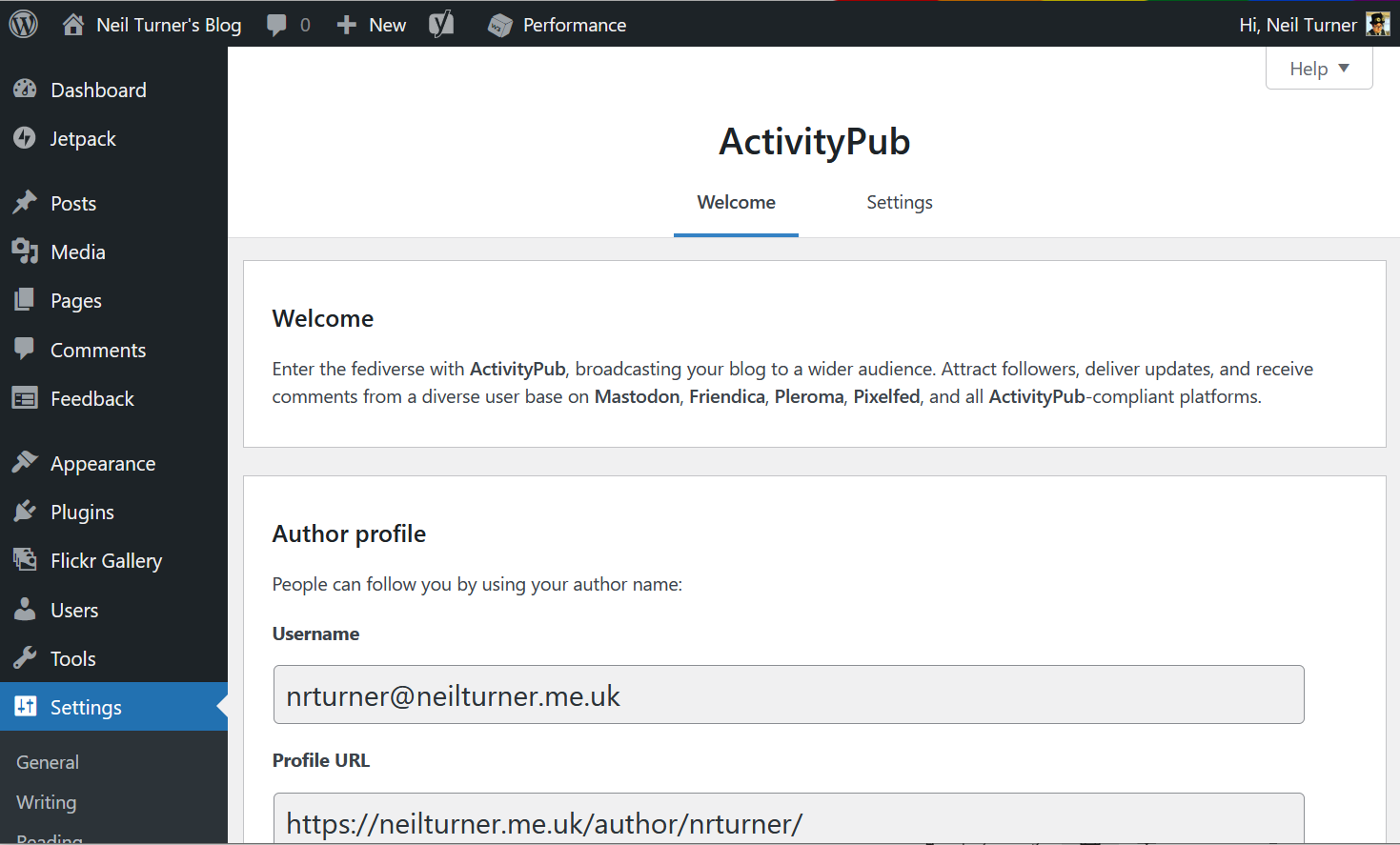
A screenshot of the settings page for the ActivityPub plugin for WordPress

If I’ve set up everything correctly, then you should be able to subscribe to this blog in your favourite Fediverse app, such as Mastodon, by following @nrturner@neilturner.me.uk .

You’ll need to install the ActivityPub plugin, and then it should just work where your fediverse username is @your-wordpress-username@your-domain.tld. If you’ve used a plugin to disable author archives, such as Yoast’s SEO plugin, you’ll need to re-enable it for this to work.

I found this guide particularly useful, as it links to Webfinger to test that you’ve set it up correctly.

(Update: since this post was written almost 12 months ago, the ActivityPub plugin has been formally adopted by Automattic and so enjoys wider support)

Using the Gutenberg editor in WordPress

Yesterday, I upgraded to the newly-released version 4.9.8 of WordPress (soooo close to 5.0!) which allows you to opt into the new Gutenberg editor (available as a plugin). Gutenberg is the single biggest change to the WordPress blog post editing screen in years, and has been in testing for some time. The scale of the changes are probably why it’s available as a plugin for now, and not yet fully bundled with WordPress itself.

Gutenberg reflects the progression of WordPress from simply a blogging system to a more general-purpose content management system that can be used for a wide variety of web sites. When you create a new blog post, you insert ‘blocks’ of content. These blocks can be paragraphs of text, pull-quotes, images, or rich media such as embedded video or image galleries. Blocks gain some additional functions that were not previously available, including drag and drop re-ordering, and the ability to save blocks as ‘reusable content’ for future repeat use.

The new content editor will be familiar with anyone who has written posts on Medium as Gutenberg works in a very similar way. It’s also worth remembering that the last time the WordPress content editor underwent a major change, few people were using tablet computers and the iPad hadn’t yet launched. Whilst the drag and drop function doesn’t seem to work on a touchscreen, the new interface does seem to work better on handheld devices.

I expect that Gutenberg will become the default editor in WordPress very soon. If you use WordPress regularly, I would advise you to opt into it, to get to grips with it. The ‘classic’ editor is still there to go back to if you find it too frustrating but Gutenberg is likely to be the future. And it’s updated regularly in response to feedback, so any issues that you do have should be ironed out in time. It’s taken me a little time to get used to, but I’ve written this and yesterday’s post in it.