Using an SSD with a Raspberry Pi

A photo of a USB Solid State Drive (SSD) which looks like a standard USB flash drive

One of the Raspberry Pi’s big selling points is that you can install the operating system on an easily swappable SD card. But long term, a solid state drive (SSD) is probably better, and I’ve recently switched to one.

SD card limitations

The Raspberry Pi’s use of SD cards for storage does make sense. They can be easily swapped out, if you want to use different operating systems or load different configurations. And it means that they can be shipped without built-in storage, which keeps the cost down. Indeed, the Raspberry Pi Zero was given away free with a magazine when it launched in 2015.

But SD cards were mainly designed for storing images and videos from cameras, and not for running operating systems. SD cards do fail after a certain number of read and write cycles, and running an operating system on one is going to result in a lot of reading and writing. So whilst an SD card in a camera may last several years, in a Raspberry Pi, it could be a matter of months. This is especially true if you run software like Home Assistant.

And seeing as I do run Home Assistant on my Raspberry Pi, alongside a host of other server software, I decided that I would migrate everything to an SSD before something bad happened.

Choosing an SSD

I went for this basic 128 GB SSD by LQH Tech (sponsored link). It cost me less than £20 (well, actually it was bought with birthday money). It looks like a standard USB flash drive, but it houses an SSD instead. The two are different, and you should get both better performance and a longer life span out of an SSD compared to a flash drive or SD card. It simply plugs into one of the Raspberry Pi’s blue USB 3 ports.

There are other options. You can buy a HAT (Hardware Attached on Top) device which lets you connect a standard SSD inside a larger case, or a USB to SATA cable to connect a SATA SSD to one of your USB ports.

The LQH Tech SSD that I went for seems to work fine, although it does get quite hot when in use. Even so, it offers a noticeable performance improvement to Home Assistant.

Migrating from an SD card to an SSD

If you’re currently running Raspberry Pi OS on your SD card, then you could try the rpi-clone tool to copy the contents to an SSD. Then, once it’s done, all you should need to do is shut down your Raspberry Pi, take out the SD card and then turn it on again. If it’s worked, then your Raspberry Pi should happily boot from the SSD.

I run Debian on my Raspberry Pi. Now, rpi-clone may or may not work on Debian (Raspberry Pi OS is forked from Debian after all), and so I tried it. It didn’t work – the Raspberry Pi would not boot from the SSD.

Instead, I set the SSD up with a fresh Debian install (it helps that we’re a household with two Raspberry Pi computers), installed Home Assistant Supervised and then restored a backup from the installation on the SD card. Apart from requiring some minor configuration tweaks, mainly due to my existing external USB hard drive now being called ‘sdb’ rather than ‘sda’, this worked fine.

I made this migration a few weeks ago and haven’t had any issues. The SSD being rather warm is a concern, but it doesn’t seem to affect performance which is way better than on an SD card. And hopefully it’ll have a longer life too.

Raspberry Pi cooling fan and case

A photo of my Raspberry Pi in its new case with a cooling fan

We finally had some nice, warm weather a couple of weeks ago. Which was nice for being outside, but not so nice for my poor little Raspberry Pi, which couldn’t keep cool. So, I’ve upgraded it with this cooling fan and case from The Pi Hut.

Until now, I’ve been using the standard, official Raspberry Pi case. Which does the job of keeping dust out off the main board and protecting it, but not much else. As it’s plastic, it doesn’t do a good job of heat dissipation.

This was a problem last week, as my Raspberry Pi was getting so hot that it was shutting itself down to prevent damage. The impact of this was that my phone couldn’t access the internet, as I use AdGuard Home as the DNS server.

Cooling options

When it comes to cooling down a computer, there are three ways of doing it. Most use all three:

  • Ventilation – letting air flow through the computer
  • Active cooling – using a fan (or water cooling system) to move hot air away
  • Heat dissipation – using heat sinks to help get heat away from components like the processor

The Raspberry Pi has an ARM processor which is a RISC (Reduced Instruction Set Computer) type, and these tend to run cooler than CISC (Complete Instruction Set Computer) processors like those from AMD and Intel. This is why just about every smartphone uses ARM processors, as otherwise they would probably need fans too. Let’s just say Intel’s attempts at putting x86 processors into smartphones didn’t go well.

If you’re not doing anything too taxing with your Raspberry Pi, then the lack of cooling in the official case probably isn’t going to cause you issues. Indeed, I’d only had occasional issues until the recent warm weather. In addition to Home Assistant and AdGuard, my Raspberry Pi also runs Plex, MariaDB, Nextcloud, Calibre-Web, a Matter server and Nginx Proxy Manager, and it manages all these okay normally.

Cooling case

I ordered the new case from The Pi Hut on a Friday, and it arrived through my letterbox within 24 hours. It’s only £10 and includes a fan, which plugs into your Raspberry Pi’s GPIO (General Purpose Input and Output) ports for power. It comes in a tiny package, because there’s some assembly involved; essentially, you get four acrylic plates, the fan, and lots of screws. Each acrylic plate has been laser cut, and peeling off the protective film and popping out the tabs is quite satisfying.

You’ll need a screwdriver; I have one from the iFixit Essential Electronics Toolkit which seems to be the same one used in the assembly guide. Preparing the plates actually takes longer than the assembly – there’s not many screws and it all slots together.

Up and running with the cooling fan

Once assembled, I re-connected all the cables and booted my Raspberry Pi up. And then had to unscrew the top and re-connect the cooling fan wires as I’d put them in backwards. But after that, the fan whirred into action and I could feel a slight breeze coming out.

The fan is whisper quiet; whilst my hearing isn’t the best, I couldn’t hear it at all. It’s also worth noting that I run my Raspberry Pi on Debian, and not the official Raspberry Pi OS, and yet the fan still works. In other words, there’s no special drivers or scripts to install to get it to work.

If heat is still a problem, then there’s still plenty of space inside the case to add heat sinks, and again, The Pi Hut has you covered. In the meantime, I’ll see how I get on with this new case.

Water cooling?

I mentioned liquid cooling, which is more effective than a cooling fan, and sometimes used for high performance gaming computers. Of course, someone has done this for their Raspberry Pi, and the video is embedded above. The cooling system is huge compared to the Raspberry Pi board, which suggests that just because you can, doesn’t mean you should.

How to: install Home Assistant Supervised on a Raspberry Pi

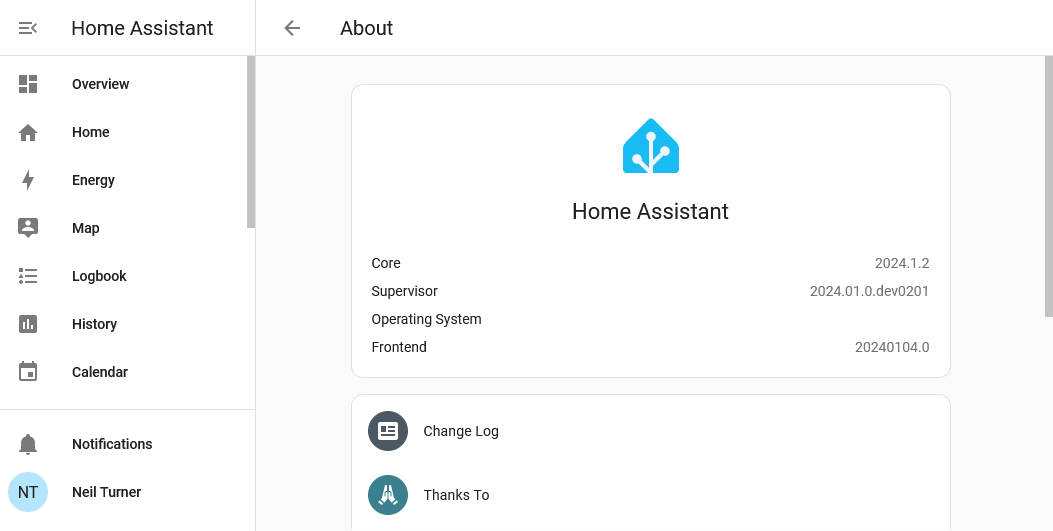
Screenshot of Home Assistant showing Supervisor installed
Important note: As of the June 2025 release of Home Assistant, the 'Supervised' installation method has been deprecated, and will be unsupported by the end of 2025. I'm keeping this guide online for those interested, but please consider installing Home Assistant Operating System or Container instead, which are the two methods that will be supported in future.

There are several ways to install Home Assistant. The easiest way (besides buying a dedicated device such as Home Assistant Yellow or Green with it pre-installed) is to use what is known as ‘Home Assistant Operating System’. This bundles Home Assistant with a system manager called Supervisor and an underlying Linux distro.

There are other methods, and I’ll probably write another blog post comparing them all later. Probably the most difficult is Home Assistant Supervised, which includes the Supervisor from Home Assistant OS (HAOS), but with a self-administered Linux operating system. I’ve got over 10 years of experience working with Debian Linux, as this blog runs on it, but it took some trial and error on my part to get working.

By setting up Linux yourself first, you gain more control over your system than is offered by HAOS. For example, whilst you can enable shell access on HAOS, it’s a limited user account with no root access. And, bizarrely, HAOS doesn’t support USB mass storage devices. So even though you can install Plex from within HAOS, if your media is on an external hard disk, you can’t grant Plex access to it.

At the weekend, I set up my Raspberry Pi 4 with Home Assistant Supervised. Here’s how I went about it.

Note: This guide was current in January 2024. The instructions below may not necessarily work on future releases of Debian and Home Assistant.

Step 1: Installing Debian 12 (Bookworm)

I strongly advise you to start with a fresh Linux installation; trying to bolt this onto an existing Linux image may break other things. Home Assistant is designed to run on Debian 12 – and not Raspberry Pi OS, although I’ve seen some forum posts from users who are using this. For this guide, I’m using Debian 12.

For the most part, you can simply follow the instructions on this guide to flash an SD card and complete the initial setup. The newer versions of the Raspberry Pi imager may ask if you want to configure Wifi and SSH access for your image; don’t bother, as this won’t work on Debian. The other thing to bare in mind with this guide is the Wifi settings, where you un-comment several lines in a configuration file if you’re not using an Ethernet connection. This is fine at this stage, but you’ll need to re-comment those lines later.

The other thing that I did in addition to this guide was type in dpkg-reconfigure tzdata and set my timezone to Europe/London rather than UTC.

You can stop following the guide at the point at which it tells you to install a graphical user interface, as this isn’t needed for Home Assistant. Of course, if you’re planning to use this device for other things and a graphical UI would help you, then follow the whole guide by all means.

Step 2: Install the necessary additional packages for Home Assistant

Here, we start following this official guide from HA. You’ll need to install various additional packages to enable the Home Assistant Supervisor to run.

Once installed, I found that I had to edit the /etc/NetworkManager/NetworkManager.conf file and change managed=false to true. This was also the point where I needed to re-comment the wifi settings. Without doing this, my Raspberry Pi wasn’t able to connect to the internet for the next step.

Step 3: Install Docker

As per the official instructions, run curl -fsSL get.docker.com | sh to install Docker. This took quite a while, so maybe go and grab some lunch.

If you’re getting an error about being unable to resolve get.docker.com, then go back to step 2.

At this point, I found it easier to continue the installation remotely over SSH, rather using the keyboard and a screen.

Step 4: Install the OS Agent

Next, you’ll need to install the latest version of the OS Agent. For a Raspberry Pi 3 or later, you’ll need the aarch64 version. I downloaded the ‘os-agent_1.6.0_linux_aarch64.deb‘ file and then uploaded this using WinSCP, but you could also download it using curl or wget. You’ll then need to run the command dpkg -i os-agent_1.6.0_linux_aarch64.deb as root.

The next command to run is gdbus introspect --system --dest io.hass.os --object-path /io/hass/os . This should give some multi-coloured code and not an error; if you get an error about the ‘gdbus’ command not being found, then you may have missed the libglib2.0-bin package in step 2.

Step 5: Install Home Assistant Supervised

Finally, we’re at the stage where we can actually install Home Assistant. Here’s the command to run:

wget -O homeassistant-supervised.deb https://github.com/home-assistant/supervised-installer/releases/latest/download/homeassistant-supervised.deb apt install ./homeassistant-supervised.deb

Once this is complete, wait a few minutes and go to http://[your IP]:8123/ and you should be greeted with the Home Assistant web UI. It may take a minute or to before you can start the onboarding process. If you’re migrating to Home Assistant Supervised, then you can also restore a backup at this stage, but be aware that such a backup can take a long time to restore.

And then you’re done. You may get some warning messages about the system being ‘unhealthy’ but these seem to disappear after a reboot, in my experience.

Things to consider

Although installing Home Assistant this way does allow it to co-exist with other software, bare the following in mind:

  • Even if you mount a USB hard disk/flash drive to your device, Home Assistant doesn’t seem to want to know about it, or let you attach it to any addons.
  • Although you need to install Docker for Supervisor to work, you’ll get errors in your Home Assistant settings if you install any other Docker images that are not managed as Home Assistant Addons. So, if you want to install any other software, do it manually, or in another container system like Snap. Or you could try Kubernetes I suppose, if you really hate yourself.

Installing Home Assistant Supervised is by far the most difficult method, but for me, it offers the best balance of overall control, and ease of use once set up. If you can find the time to set it up, then once it’s up and running, it’s easier to add new devices and configure on an ongoing basis. Whereas setting up HTTPS and HomeKit can be a challenge on Home Assistant Container, enabling these on Supervised is much more straightforward.

That being said, if you can dedicate a device to running Home Assistant on its own, then I would definitely recommend just running Home Assistant Operating System.

What I’ve done with my Raspberry Pi so far

Screenshot of Raspberry Pi running Raspbian through Screen Sharing and VNC

I’ve had my little Raspberry Pi for a couple of months now. To be honest, I haven’t used it for a great many things, other than as a BBC iPlayer client using XBian, but I have been spending a little more time in Raspbian recently to get to grips with it.

Running in headless mode

When I set up the Rasbperry Pi initially, I had it plugged into a computer monitor – my monitor thankfully has an HDMI input, and can switch between HDMI, VGA and DVI sources so I didn’t need to unplug my Mac. I also used a spare mouse, but at present I only own one keyboard which I had to keep unplugging and reconnecting with my Mac as I switched between them, which is hardly ideal.

So one of the first things I did was follow these instructions to enable VNC so that I could work with the Raspberry Pi using the Screen Sharing app on my Mac. I also used these instructions to ensure that my Mac could see it on the network, and share files. That guide also tells you how to set up VNC but I couldn’t get it to run on bootup, hence why I linked the other set of instructions as these worked for me.

Running the BOINC client

Since the Raspberry Pi is very energy efficient, I’ve decided to keep it on all the time and run SETI@Home on it, using BOINC. There are quite a few guides to this and on the whole this is the best one, although you will need to replace the URL in the wget command with the newer one for version 7 of the SETI@Home client. Although you can safely use the BOINC client that installs using Raspbian’s package manager (sudo apt-get install boinc-manager), you’ll need to download the SETI@Home client as instructed. The client that Raspbian offers through apt-get is out of date and so you won’t get any tasks to complete. I found this out the hard way.

If you use other BOINC projects, then you’ll probably find that most won’t work with the Raspberry Pi as they need to be compiled for the ARMv6 processor architecture. Rosetta@Home is one such example that I’m part of. The other big caveat is that tasks will take a very long time to complete. What a modern desktop PC could do in hours, may take up to a week of continuous computation for the Raspberry Pi to complete. But, it’ll do so using less electricity.

Getting used to Unix

This isn’t such a tangible thing, but I’ve been able to learn a lot more about Unix by having a Raspberry Pi to play with – especially when it comes to the command line. This is important as this blog runs on a Debian Linux server, and I do need to log in from time to time to do things. In particular, I’ve learned that nano is the easiest command line text editor to use and, in my opinion, is far superior to vi or vim.

I still have a lot more to learn, as and when I have free time to do so. It’s certainly been interesting, and better than working with a Linux virtual machine in VirtualBox.