
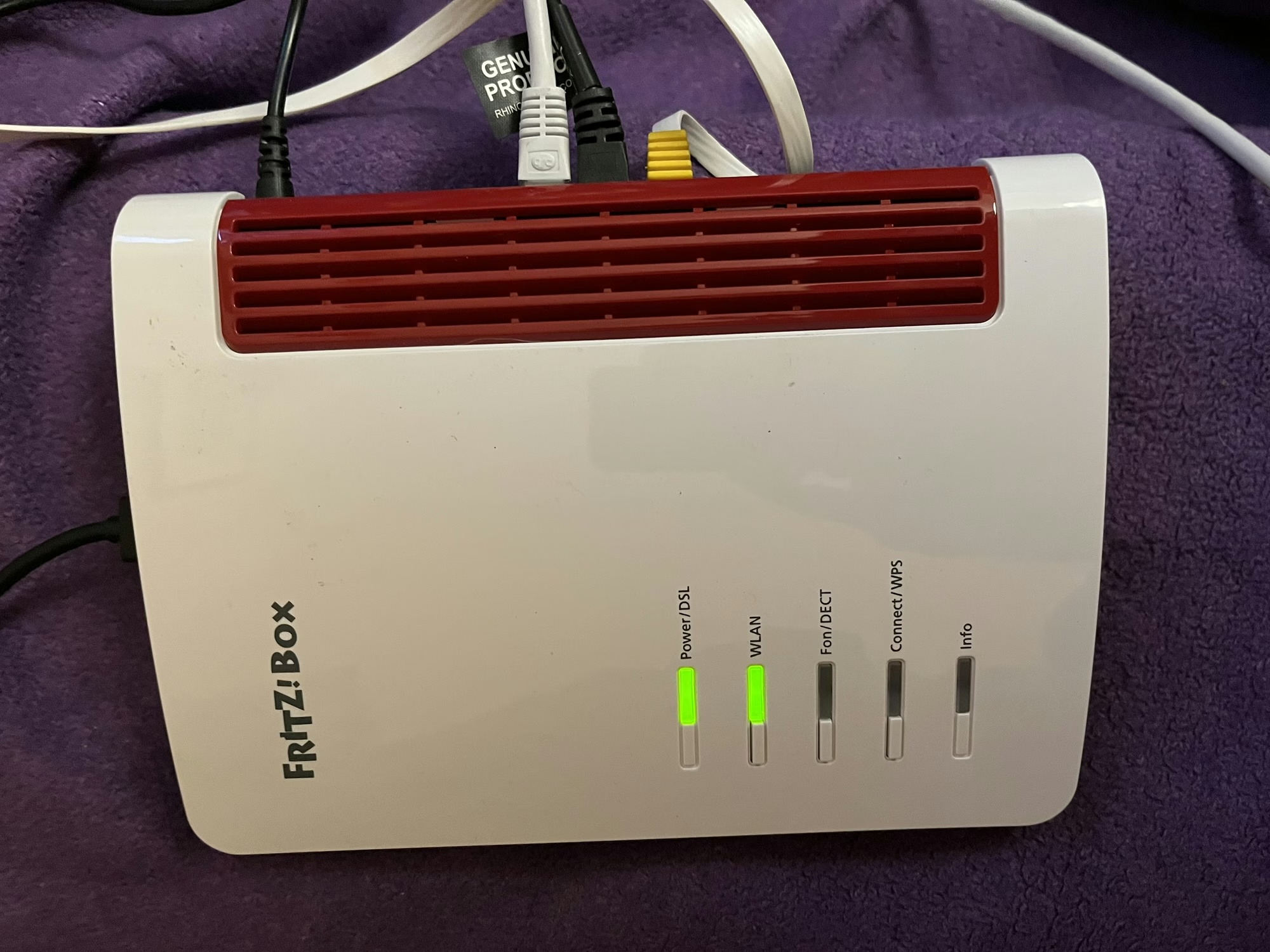
Fritz!Box 7530 AX review

A photo of the Fritz!Box 7530 AX

As is usual when you sign up to a new Internet Service Provider, we were offered a new router as well. We signed up with Zen Internet, who unlike their larger rivals, don’t offer their own branded router hardware. Instead, we’ve now got a Fritz!Box 7530 AX as our home router.

Fritz! devices are more common in mainland Europe – Fritz! is a German company – and Zen are one of the few ISPs that offer their devices in the UK. Indeed, their UK range is much smaller than the range available elsewhere in Europe, where you can also buy Fritz! branded smart plugs.

Connectivity

As for the Fritz!Box 7530 AX, the ‘AX’ indicates that it supports 802.11ax, better known as Wi-Fi 6. It’s ‘standard’ Wi-Fi 6, not the enhanced Wi-Fi 6E, so it uses the 2.4 GHz and 5 GHz bands only. Still, it’s an upgrade over our previous Google Nest Wi-Fi system which only supported Wi-Fi 5. As well as Wi-Fi, you get 4 Gigabit Ethernet ports, and a USB port which can be used for media sharing. It should be noted, however, that you’ll need to use one of these Ethernet ports to connect to the Optical Network Terminal, if you have fibre broadband.

Another difference with our previous Google Nest Wi-Fi system is that there’s no Thread support. This means I just have the one Thread border router now, which a USB dongle plugged into my Home Assistant Green. There is a newer Fritz!Boz, the 7690, which supports Wi-Fi 7 and Zigbee, but this is what Zen offered to us.

If we opted to have a Digital Voice Line, then we could plug our landline phone into the Fritz!Box, and it supports IP-based DECT phones as well.

Design

The design of the Fritz!Box is, frankly, a little dated. It feels like it’s made of quite cheap plastic, and I’m not a fan of the colour scheme. But to be fair, it lives in our spare room, so we don’t actually need to see it very much. It can be wall-mounted, if needed – there are a couple of screw hooks on the bottom.

All the ports are on one side, except for the USB port which is at the top.

What it’s like to use

All Fritz!Box devices ship with Fritz!OS, which is their custom Linux distro. There’s a web-based interface, and apps for iOS and Android. In fact, there are several apps – one for managing the device itself, and one for testing the Wi-Fi signal.

The web interface is pretty good, and gives you a lot of control over the box and your home network. Indeed, it was very good at showing a network topology, including those devices connected via my Powerline adaptors. Plus, the web address is ‘fritz.box’ which is nice and easy to remember.

It supports the creation of a separate guest network, which appears as a separate Wi-Fi network (SSID) to your own, and can be open or secured with a separate password.

Wi-Fi speeds and coverage

In the couple of weeks that we’ve had the Fritz!Box, the speed and coverage of the Wi-Fi signal has been excellent. There hasn’t been anywhere in our house where I’ve noticed any issues. How much of that is down specifically to the Fritz!Box, and how much is due to improvements in Wi-Fi 6 over Wi-Fi 5, I’m unsure. But either way, I’m happy with the connectivity that we’re getting.

Something I will pass on is a comment our Openreach engineer made; Fritz!Box devices don’t seem to like a change from being a DSL router to a router connected to a fibre ONT. Not a problem for us, as we’re already on with fibre, but something to bear in mind if you’re considering one and don’t have full fibre yet.

Home Assistant integration

When I first connected my Home Assistant Green to the Fritz!Box, it found several new devices. These included UPnP and DLNA, which come up when you connect most routers, but also two Fritz! specific integrations: Fritz! Smart Home and Fritz!Box Tools. Of these, the second is most useful, as it allows you to control whether individual devices on your network have Internet access, or whether they’re at home or away. This may result in a large number of devices appearing in your Home Assistant install, however, on those where the devices’ MAC address is available in the integration, the device will be shared and only appear once. That means that my ESPHome devices show as both ESPHome and Fritz! devices with the controls combined. It’s not perfect – my Matter devices show up twice, for example – but it allows you to track where devices like phones without having location services on.

Verdict

So, should you get a Fritz!Box? It’s certainly a very capable router with good Wi-Fi performance, and lots of settings for expert users to access. The web interface is clean and simple to use. However, the design is a bit dated, and there are some nice-to-have features that would make it better if they were included.

As I mentioned earlier, ours came with our Zen broadband package, but you can buy a Fritz!Box from Amazon if you wish (sponsored link). They’re about £145 for the 7530 AX model.

Zen also offer Eero Wi-Fi routers on their faster full fibre packages; I haven’t tested one, but they do look nicer. Eero is owned by Amazon, and is the major competitor to Google Wi-Fi.

BT Home Hub 4 Review

BT Home Hub 4

I’ve got my hands on a brand new BT Home Hub 4. This is the latest update to BT’s own-brand wireless router that it provides to its broadband customers. We’ve been with BT broadband since we moved to Sowerby Bridge in November 2010, and, apart from one broken promise regarding an activation date for the flat move we’ve had no problems.

During this time we’ve had an older model – the BT Home Hub 2 (model B), which is fine – but this newer model is better. Namely it supports dual-channel Wifi, so as well as using the 2.4 GHz channel, it supports the 5 GHz channel. Devices which can use the 5 GHz channel can therefore run at faster speeds – theoretically 300 Mbps is possible.

BT Home Hub 4 unboxing

Unboxing

I’ve posted a few unboxing photos on Flickr. The most interesting thing about the box is that it is designed to fit through a letterbox – therefore, customers won’t have to wait around for a delivery or have to retrieve packages from their local sorting office a day later. It didn’t fit through our letterbox, but that’s because we live in a flat and ours is tiny – I imagine most people with a proper letterbox will be fine.

Inside the box, the Home Hub is in one compartment, and the cables and manuals are in the other. You get a Cat5e ethernet cable, a modem cable, microfilter, and a USB wifi dongle. The dongle enables dual-band Wifi on computers which may not otherwise have it, although unfortunately it’s only compatible with Windows Vista, 7 and 8. The manuals are brief, and just cover what you need to set it up and some troubleshooting.

BT Home Hub 2 (left) and BT Home Hub 4 (right)

The BT Home Hub 4

Physically the BT Home Hub 4 is quite small – it’s wide, but shorter and thinner than the BT Home Hub 2, on the left in the picture. It also looks nice, which is what you want from a device that is most likely in your front room, and carries on the good design that BT have had in its routers. It’s also very light.

The back of the router has an RJ11 socket for the modem cable, and five RJ45 sockets. One of these supports gigabit ethernet, and three others support standard 100 Mbps 100BaseTX ethernet. The fifth is a WAN socket for BT Infinity customers – unfortunately BT haven’t upgraded our exchange for fibre to the cabinet (FTTC) so we have to use standard ADSL. There’s also a USB port, for which there’s no documentation but apparently you can connect a printer or hard drive to it and it will be shared across the network. And finally, unlike our current model, the BT Home Hub 4 has an on/off switch, so there’s no need to pull the cable out.

On the top, there’s a reset button, and a button to use WPS – Wifi Protected Setup. This allows compatible devices to automatically configure themselves without needing a password, and indeed the USB wifi dongle provided also supports WPS. And there’s a holder for the card with your SSID, default wireless key and admin password, which is handy.

Once everything is plugged in, it’s time to turn it on. There’s a pleasant single light at the front, which initially glows green, then orange whilst starting up, and then blue when it’s ready to go. If there’s a problem, then some red or orange icons appear in the silver strip below. This is different to the BT Home Hub 2 where there were five icons that were illuminated all of the time.

Connecting for the first time

The first page of the setup screen for the BT Home Hub 4.

The first time a device connects, the web browser is redirected to a setup screen. By default, this happens with every new device, although thankfully a mobile-optimised version is available for smartphones. You can turn this off later so that new devices connect straightaway. The main purpose of this is to ask whether you want to install parental control software, as current UK guidelines for ISPs seemingly require.

The admin panel

BT Home Hub admin error

Logging into the admin panel for the first time gave me an error: ‘Sessions Number – no more than 100 sessions at a time are allowed. Please wait until open sessions expire.‘ Clicking ‘Retry’ or any of the options didn’t make any difference. This problem affects other BT Home Hubs, but thankfully it’s easily solved by doing the usual thing of turning it off, and then turning it back on again.

The admin panel on the BT Home Hub 4 is largely unchanged from previous models. Whilst BT have dramatically redesigned the outside, the admin panel uses the same basic design as before, but with a few more advanced settings to go with the extra features. However, the default settings are pretty good for everyone so there’s no real need to change them. OpenDNS users may be disappointed that it still isn’t possible to change the default DNS servers on the BT Home Hub 4.

Speed

BT Home Hub admin panel - speed

The device reported that it had managed to connect at a very reasonable 23.15 Mbps downstream – faster than the BT Home Hub 2 which managed around 17 Mbps. Upstream speeds are low but this is to be expected on a consumer-grade ADSL connection. We’re fortunate that we live very close to our exchange – we’re only around 200-300 metres away.

Speedtest.net results

And thankfully the actual speeds aren’t far off – here’s a link to my SpeedTest.net result. Essentially 20 Mbps, which is a notable improvement, and not far off the limits of ADSL technology. I also pinged www.google.com 20 times and the average round trip time was 23ms; the longest was 25ms so it’s pretty consistent.

As for Wifi speeds, they seem fine. We have five Wi-fi devices in our flat – my Mac Mini, iPhone 5, iPad, Christine’s Acer laptop and Samsung Galaxy S3 smartphone. My iPhone 5 and iPad both support the 5 GHz channel, but the others don’t – which in the case of the Galaxy S3 is a little odd in my opinion. We briefly tried the USB Wifi dongle on Christine’s laptop but it didn’t seem to like it – I may need to do some further investigations. My iPad still had a good signal at the furthest point away from the router in our flat, which is a distance of around 20 metres with several walls in the way.

One minor disappointment, from a geek perspective, is that the BT Home Hub 4 doesn’t appear to support IPv6, either on the home network or on the internet.

Summary

Overall I like the new unit. It’s smaller size is nice, and it looks good. Most importantly, it seems to perform well, with good speeds both on the internet and the home network. New BT Broadband customers will get the BT Home Hub 4 as standard, and existing customers can currently upgrade for £35, plus an extra £9 for the USB Wifi dongle.

My unit was given to me for free by a PR company acting on behalf of BT, in return for writing this review. However, these are my honest opinions, and I would recommend the upgrade if you need faster or more reliable Wifi speeds.