
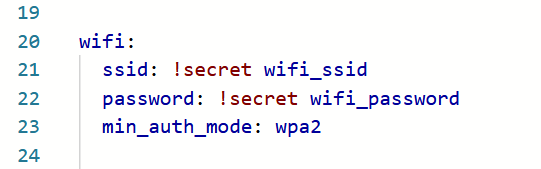
Setting WPA mode on ESPHome

The YAML code for ESPHome to specify the WPA version

If you’ve upgraded to last month’s release of ESPHome 2025.11, you may start seeing this warning message about WPA when validating your YAML scripts, or compiling new versions:

WARNING The minimum WiFi authentication mode (wifi -> min_auth_mode) is not set. This controls the weakest encryption your device will accept when connecting to WiFi. Currently defaults to WPA (less secure), but will change to WPA2 (more secure) in 2026.6.0. WPA uses TKIP encryption which has known security vulnerabilities and should be avoided. WPA2 uses AES encryption which is significantly more secure. To silence this warning, explicitly set min_auth_mode under ‘wifi:’. If your router supports WPA2 or WPA3, set ‘min_auth_mode: WPA2’. If your router only supports WPA, set ‘min_auth_mode: WPA’.

The warning message is pretty self-explanatory, but it concerns upcoming changes to Wi-Fi Protected Access (WPA) in ESPHome that are due to be introduced in June next year.

A bit of a history of WPA

Honestly, if you’re using ESPHome, you’re probably sufficiently tech-savvy to know what WPA is, but if this blog post is less than 300 words, it’ll probably be largely ignored by search engines. So, you can skip this bit if you like.

WPA is what makes a secured Wi-Fi network secure. The ‘Wi-Fi password’ you put in when connecting to secure Wi-Fi networks is the WPA security key. It replaced Wired Equivalent Privacy, dating from the earliest days of Wi-Fi, which is so weak that you can probably crack it with a standard laptop nowadays in a few minutes. It used 64 or 128-bit RC4 keys.

There are three versions of WPA:

  • The original version, which uses 128-bit keys with TKIP
  • WPA2, which replaces TKIP with the more secure AES
  • WPA3, the newest version, which improves the security of the key exchange and mitigates against easily guessable Wi-Fi passwords

Many devices that were originally designed to only support WEP could be upgraded to support WPA through software. At the time, this was a good thing – plain vanilla WPA was (and is) more secure than WEP. But as more security research has taken place, and computers have become more powerful, WPA is now also no longer recommended. WPA2 was ratified over 20 years ago, and so there are very few devices still in use that don’t support it. WPA3, meanwhile, is still quite new, having been ratified in 2018.

ESP devices and WPA

So, to bring this back to ESP devices and ESPHome in particular. At the moment, ESPHome defaults to the following WPA versions:

  • Original, plain vanilla WPA on ESP8266 chips
  • WPA2 on ESP32 chips

Remember, ESP32 is newer than ESP8266, despite the numbers. ESPHome has long supported YAML variables, that over-ride these defaults, to specify a specific WPA version to use when compiling.

What has changed with ESPHome 2025.11 is that, where you don’t specify the WPA version, you’ll see the above error when validating or compiling ESPHome for ESP8266 devices. Remember, these default to standard WPA at present.

Next June, when ESPHome 2026.06 is due for release, support for WPA will be dropped. So, if you don’t specify the WPA version, then from around June 2026, your ESP8266 devices will start using WPA2 the next time you re-compile them. This shouldn’t cause any issues, unless your Wi-Fi router is really old and doesn’t support WPA2. To which, I would say that replacing your router should be your priority, rather than amending your ESPHome configurations.

As for WPA3, this is only supported by the newer ESP32 family of chips. That means that, from June 2026, WPA2 will be the only option for ESP8266 chips.

How you can make the WPA warning go away

If you want, you can edit your YAML configuration files for your ESPHome devices to specify the WPA version to use. In the ‘wifi:‘ block, add ‘min_auth_mode: WPA2‘ underneath the network name and key, as so:

wifi:
  ssid: !secret wifi_ssid
  password: !secret wifi_password
  min_auth_mode: WPA2

That will ensure that ESPHome always uses WPA2 on your devices, and will hide the warning. If your devices have ESP32 chips, and your router supports WPA3, you can add ‘min_auth_mode: WPA3‘ instead; this will offer better security. For more information, see the guide to the ESPHome Wi-Fi component.

Will ESPHome eventually phase out WPA2 support as well? Perhaps, but WPA3 is still pretty new – if your router is more than five years old then it may not support it. Maybe it will in another 15 years or so.

Windows 10 Extended Security Updates

Screenshot which says 'You're eligible to enrol in Extended Security Updates at no extra cost'

Microsoft is ending support for Windows 10 in just two days time. What this means is, if you’re using Windows 10 and don’t take action, you’ll no longer get security updates for your computer. And that would be bad – your computer is therefore at greater risk of viruses and malware.

Previously, when Microsoft ended support for Windows, if you were a home user then you were on your own. This time, Microsoft is offering the Extended Security Updates programme, and making it available to home users for the first time. I suppose this is because Windows 11 installs only exceeded Windows 10 as recently as June this year, and around 45% of Windows users still use Windows 10 despite it being 10 years old now. This includes us.

Upgrade or replace

Ideally, Microsoft wants you to upgrade to Windows 11. Many Windows 10 computers can be upgraded, but not all. If not, then, as far as Microsoft is concerned, you should be considering purchasing a new computer.

At home, we have a Lenovo Ideapad 320S which is approaching its eighth birthday. That’s pretty old for a laptop, and it’s been used heavily as it was my main work computer during lockdown. Theoretically, it might run Windows 11, if I backed everything up, wiped its SSD and did a fresh install. But Microsoft’s PC Health Check app won’t allow an in-place upgrade, as its processor (an Intel Core i3 in the 7000 series) doesn’t meet its minimum hardware requirements.

We will, eventually, replace this with a new laptop running Windows 11 – probably some time next year. But for now, this little survivor meets our needs – especially as, back in 2021, I upgraded its RAM from 4 gigabytes to 16 gigabytes.

Enrolling for Extended Security Updates

If you open Windows Update on a Windows 10 machine, you should see the option to enrol for Extended Security Updates. This gives you an additional year of security updates, to allow you time to either upgrade or buy a new computer. As mentioned, this is a new offering for home users; previously, only enterprise users ever had this option.

Enrolling for extended security updates may cost you, depending on your system settings. If, at the time you sign up, you’re already synchronising your PC settings, then you may be offered the extended security updates at no charge. This is what happened to us, as per the screenshot at the top of this blog post. Which was nice.

Alternatively, if you live in the European Economic Area (EEA), then you should also get the updates for free. Thanks to Brexit, us Brits unfortunately no longer live in the EEA.

If you’re not eligible for free updates, then Microsoft will charge you. If you use Microsoft Rewards, then you can redeem 1000 reward points instead of paying money. Alternatively, there’s a $30 charge, which works out at about £24 for the year.

What about Linux?

If you don’t want to buy a new PC, aren’t eligible for free updates and don’t want to pay, then I suppose the other option is to consider running some flavour of Linux on your existing PC. I wouldn’t necessarily recommend this, but if you’re really stuck for money and have the time to learn how to use a new operating system, then sure, I guess it’s an option to consider.

Does your phone have a wrist strap?

A photo of my iPhone 13 Mini with a third party case and wrist strap.

I’ve recently added a wrist strap to my phone. This is primarily on the back of Terence Eden’s advice for mobile security. As well as advising the use of a password manager, password/biometric lock and not sideloading apps from shady sources, he also mentions physical security of the handset.

In figures from April 2023, it’s estimated that 248 phones are stolen in London every day, 98% of which are never recovered. There may be a change in the law to allow police to search a property without a warrant, if they have reasonable suspicion that a stolen phone with location tracking on is there, but it’s not in force yet. And in any case, phone thieves will probably just put your phone in foil-lined box to block the signals. Previous victims have tracked their stolen phones only to find them ending up in China.

Whilst my phone “only” cost around £700, I’ll only finish paying it off next month. If you have an iPhone Pro Max with the maximum 1 terabyte of storage, you’ll have paid £1600 which is a lot of money to lose. Some Samsung Android phones also cost serious cash to buy new nowadays too.

I often have my phone out when walking around, mainly for playing Pokemon Go. All it takes is someone brazen enough to snatch it out of my hand for it likely to be gone for good. So I’ve finally decided that a wrist strap would be a good idea in the hope of preventing this.

Both the strap, and the phone case I use, are relatively cheap ones from AliExpress – collectively costing less than £5. The case has a pair of holes for threading a strap through, but you can also buy wrist straps that attach to the bottom of any phone case if yours doesn’t have holes. Somewhat annoyingly, the holes are on the left side of the phone, and I’m right-handed.

My wrist strap itself is adjustable, so you can tighten it around your wrist and reduce the risk it falling (or being pulled) out of your hand.

Whilst I was mainly motivated to reduce the risk of my phone being stolen, having a wrist strap also reduces the risk that you’ll drop your phone. As well as reducing the risk of the phone being damaged, it means you’re less likely to drop it in places where it can’t easily be retrieved. Maybe if Rebekah Vardy’s agent had a strap on her phone, she wouldn’t have ‘accidentally’ dropped it in the North Sea. Snide remarks aside, I use my phone’s camera quite a bit, so having a wrist strap makes me more confident that I’m not going to drop it into a lion enclosure at a zoo or something.

Just a quick word of caution though. If you keep your phone in a pocket, make sure you tuck the wrist strap in as well so it’s not hanging out. Otherwise, counter-intuitively, it might make your phone easier for pick-pockets to steal.

SSL-secured

A screenshot of Firefox showing that the connection to neilturner.me.uk is secured with a certificate.

One of my first projects after moving to the new server was to sort out a SSL certificate. Until now, any secure connections to this site have been using a ‘self-signed’ certificate which brings up big red warnings in most web browsers. Which is fine for me as I know I can ignore the warnings, but not ideal.

However, Google is (rightly) making HTTPS sites rank slightly higher in its results pages. So having a proper SSL certificate verified by a third-party is now more important, and not just because it offers better security to your users.

Two things were holding me back from getting a certificate in the past: the need to have an extra IP address, and the cost.

Extra IP address

Traditionally, if you want a SSL certificate for a particular domain, that domain would need to have its own, unique IP address. This was something that my host offered, but only by raising a support ticket and having it added manually. On the new BigV platform, I can easily add up to four IP addresses, allocate each to a domain name and set the reverse DNS. More IP addresses are available if needed, but on a request basis – after all, there aren’t many spare IPv4 addresses left.

Cost

I also had it in my head that SSL certificates were expensive – I was expecting at least £10 per month. As I’m saving £6 per month on my new hosting package, I decided to spend some of that saved money on an SSL certificate. Richy recommended Xilo to me via Twitter, and they offer SSL certificates for £16 per year – which is much cheaper than I expected. Xilo are a Comodo re-seller.

Setting up the certificate was really simple – it took me around 10 minutes, following Bytemark’s user manual. It’s been in place for a week now and works fine. I can’t get an Extended Validation (EV) certificate which shows the green bar in web browsers, as I’m not a company – individuals have to go for the more bog standard certificates.

Right now SSL is there as an option if you want to use it, but it isn’t the default. I may change my mind and make the site HTTPS-only, but this would require me to fix every link to every embedded image over 13 years of blog posts, and I’m not sure of the effect on my server’s load. That’s a project for another time.

The big post-Heartbleed password change

Screenshot of the Heartbleed web site

Following last week’s revelations about the Heartbleed bug, I spent quite a bit of time over the weekend changing passwords. Not all of them – I’ve been using this list of affected sites from Mashable – but quite a lot.

At the same time I’ve also taken the opportunity to audit other passwords from non-affected sites. I use 1Password as my password manager, on OS X, Windows and iOS, and it has a ‘Password Audit’ feature that shows weak, old and duplicated passwords. Ashamedly, I had quite a few of all three.

As a reminder, the generally accepted guidelines for strong passwords are as follows:

  1. As long as possible
  2. Using a mixture of lower and uppercase letters, numbers and special characters
  3. Are unique
  4. Avoiding any words that could appear in a dictionary

Using a password manager is therefore a very good idea, as they can usually generate strong passwords that meet those criteria, and offer to remember them for you. I tend to go for 24 character passwords like ‘3&yjGJNrE)Up2no8W:iNduYg’, to give an example of one that 1Password has just given me, and there’s no way that I could memorise that. The only passwords I have committed to memory are my 1Password Master Password, for obvious reasons, and my logins for Google, iTunes and Facebook. Whilst they satisfy the first three criteria above, they do use actual words – albeit with numbers and symbols replacing some of the letters – because these are the ones I use the most frequently. They’re still ‘strong’ according to most password meters.

Having said all of that, your passwords also have to fit within the constraints set by the web sites with which you have accounts. Whilst most of the sites I’ve been using have no problem with 24 character passwords, and are happy to accept symbols, not all of them are. Quite a few would only take passwords up to 16 characters, and others won’t accept special characters – or both. In which case, I had to make do with weaker passwords, but at least they’ll be unique.

There are, however, two web sites that were significantly worse than others. hmvdigital doesn’t let users change their password, unless you contact customer services. The worst offender, however is the Intercontinental Hotels Group, who owns the Holiday Inn and Crowne Plaza chains. If you’re in their IHG Rewards scheme – I am, and I have gold membership – then your password is a 4 digit numeric PIN. So there are only 10,000 possible password combinations, which could be cracked within minutes by an average home desktop computer. In 2014, this is horrifying, and for this reason, if you use IHG’s hotels, please don’t store your credit card details with them.

On the other hand, it’s been enlightening seeing which sites have removed my accounts for inactivity. For example, dabs.com have deleted my account, presumably because my last purchase from there was circa 2005. And other sites simply don’t exist anymore.

Stem my bleeding heart

Screenshot of the Heartbleed web site

If you read tech news on the internet, then you will have almost certainly come across the Heartbleed bug. As well as being probably the first programming bug to have a logo and brand name, it’s also very serious. It affects, or affected, a significant number of web sites and web services – pretty much anything that used SSL or TLS and the OpenSSL library. This will include many sites using the open source Apache and nginx web servers, which between them account for a majority of web sites.

The Heartbleed bug was in the ‘heartbeat’ component of OpenSSL, and first appeared in a code commit made at around 11pm on New Years Eve 2011 – make of that what you will. The first stable release of OpenSSL with the bug came in March 2012, and it was only fixed relatively recently. It’s therefore estimated that 17% of the world’s web sites may be affected.

If you administer a server that uses OpenSSL, then you’ll need to make sure that you update to the latest version which fixes the bug. But you may also need to revoke your SSL certificates and acquire new ones, and, if you suspect any foul play, do a full security audit. You can check your server using this tool – I’ve verified that this site was never affected.

If you’re just a regular user of the internet, then you may notice that some web sites will have forcibly logged you out. Some may also require you to change your password, and possibly re-connect any third party apps linked to your account. IFTTT emailed me to suggest changing my password, and Pocket has advised its users to do the same. Ironically, so has the web site Should I Change My Password which notifies of data breaches. If you are not already, I would suggest using a password manager such as 1Password, RoboForm, Keypass or LastPass. LastPass users can also find out if any sites they use have been affected by Heartbleed.

Some security experts have suggested that users change all of their passwords, although only once the web sites have implemented their fixes. This may not be necessary and PayPal has said they were not affected by Heartbleed. However, if you’re not using strong, unique passwords for every web site then now may be a good time to do so, regardless of whether sites have been affected or not, and the aforementioned password managers will help you in that regard. A lot of sites will now accept passwords that are more than 20 characters long, with special characters, which should be very, very difficult to crack.

Unexpected plain text password in the bagging area

If you have a few spare minutes, have a read of this blog post by Troy Hunt regarding Tesco’s poor password security. Tesco, for the uninitiated, is the UK’s largest supermarket who also sells groceries online, and is presumably used by hundreds of thousands (if not millions) of British people.

Good password practice should mean that passwords are hashed, using a one-way algorithm, and ideally salted as well. Tesco claims its passwords are stored in an encrypted format, but presumably this is a symmetrical encryption method because if you forget your password, Tesco will email it to you, in plain text. Remember, email isn’t encrypted so anyone who is snooping your emails will be able to retrieve your password, and log in to your Tesco account.

What makes this worse is that Tesco doesn’t allow for particularly strong passwords, either. They have to be a maximum of 10 characters, and can only contain letters or numbers. Even worse is that passwords aren’t case sensitive, and top it off, the tesco.com web site uses very old versions of Microsoft’s IIS and ASP.Net, which are potentially more vulnerable to security attacks.

If you have a Tesco account, I’d therefore strongly suggest that you ensure the password you use is unique (this is good advice for any web site but especially applies here) and that you don’t store your credit card details with Tesco. If you don’t use Tesco anymore, then you could contact them to ask them to delete your account, citing fears about their security.

Of course, Tesco are far from being the only offenders here, and Plain Text Offenders collects various emails from web sites who will also send you your password in plain text.

2-Factor authentication on Google

Water wheel

Google has recently enabled two-factor authentication for all users with a Google Account. This means that, when you log in, you provide two pieces of secret information, rather than just a password (which would be ‘one-factor’ authentication). This second piece is a 6-digit code that is generated randomly every 30 seconds from another device.

This improves security by ensuring that, even when a third party knows your password, they still cannot log into your account without the 6-digit code (although see below). Think of it like a PIN number – a thief could steal your credit card but wouldn’t be able to get money out of an ATM without knowing the PIN number.

Some banks have started using two-factor authentication for their online banking services – as well as your username and password, you are asked to enter a code generated by a small electronic device on your keyring. Blizzard Entertainment offers a similar device for World of Warcraft and Starcraft II players, as well as a free iPhone app that does the same thing.

So Google isn’t the first to offer this – it’s actually reasonably well tried and tested. To activate it, log into your account and click the ‘Using 2-step verification’ link. Google will then walk you through setting up your account for two-factor authentication.

There are a variety of options for the second factor. There are apps for the iPhone and Android phones, but you can also receive a code by text message to a mobile phone number that you provide during the initial setup. You’ll also be asked to provide a backup system in case you lose your phone; in my case, Google will phone my work number and a computer will read a number to me.

I mentioned there’s a caveat. Two-factor authentication works great on Google’s various web sites, but falls down if you access Google services through other apps, such as IMAP for Gmail, or CalDAV for Google Calendar, which aren’t really designed with two-factor authentication in mind. As soon as you enable two-factor authentication, any attempts to access data over these protocols will see your login fail.

Thankfully, there’s a way around it, in the form of application-specific passwords. Essentially, for each method of connecting to your Google Account, you can create a separate password. Each password can then be revoked if you find someone using it without your permission, and once generated, passwords cannot be viewed again. Furthermore, the passwords can’t be used to get into your account on the Google web site (they would need your main password and verification code), so it wouldn’t be possible for a hacker to change your main password, or deactivate the two-factor system. It’s not a perfect solution, though.

I’ve turned on two-factor authentication because I have a lot of important personal data in my Google Account – all my contacts, my calendars and hosting details for this site – and wouldn’t want anyone obtaining unauthorised access. The workarounds for CalDAV and IMAP are a bit of a pain, but I feel it’s worth it for the piece of mind.

Whilst we’re on the subject of Google Account security, if you use Firefox I’d recommend installing the HTTPS Everywhere addon, which forces the use of SSL/TLS on most parts of Google. I would, however, suggest disabling the ‘Google APIs’ option in its preferences as this may break some other web sites. Still, it will help to prevent your Google Account data being caught be man-in-the-middle attacks.