Energy monitoring over Matter

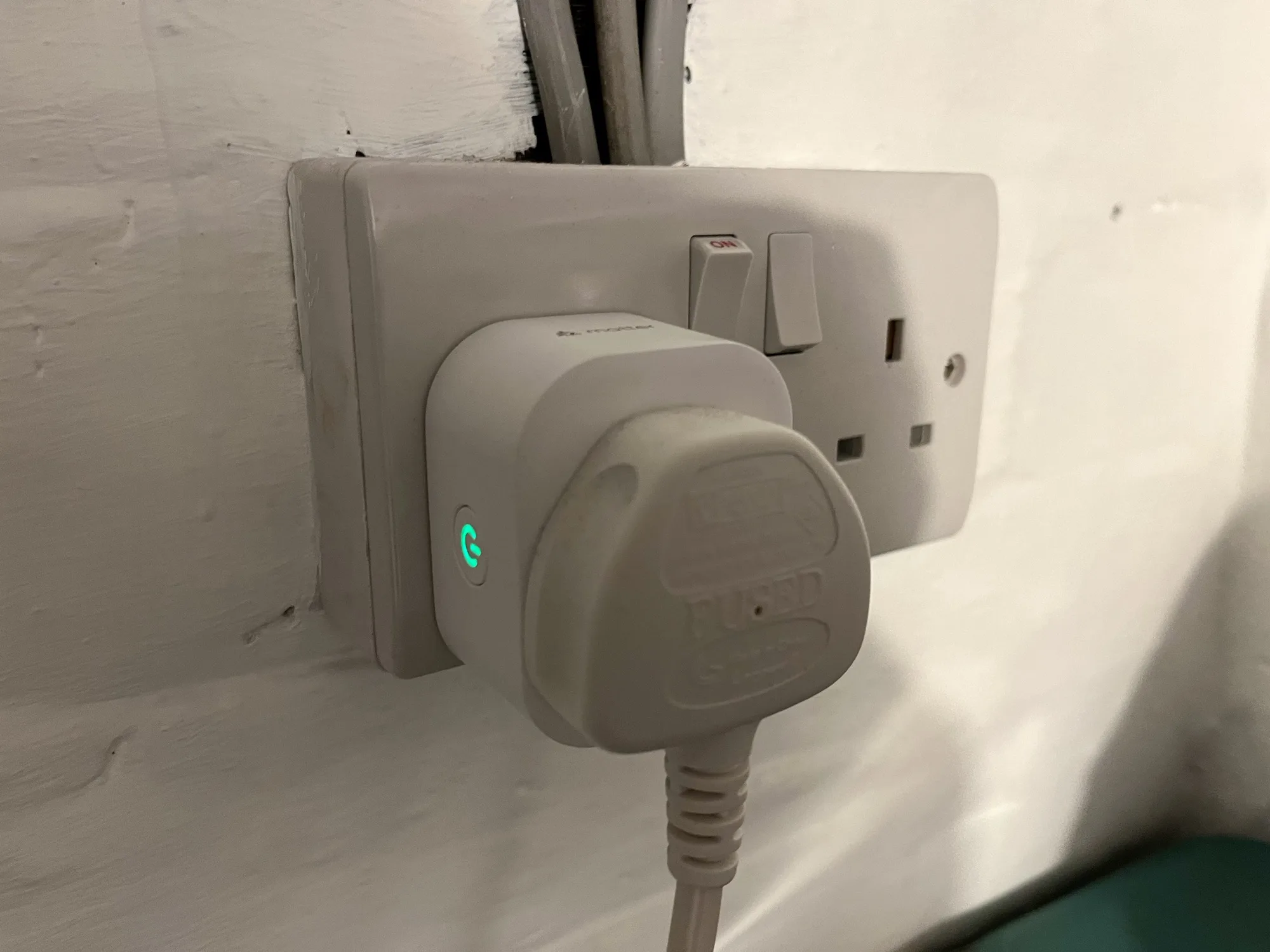
A photo of a Meross energy monitoring smart plug in a UK plug socket

Back in April last year, I bought a pair of Meross energy monitoring smart plugs (sponsored link). I’d chosen them because they supported Matter, and so could be easily added to Home Assistant, Google Home and Apple Home all at the same time. However, I lamented that their Matter support was limited to turning them on and off; the energy monitoring data wasn’t available through Matter. That has now changed.

If you have these plugs, or are looking at buying them, here’s how to get energy monitoring over Matter into Home Assistant:

Step 1: Update the Firmware

Firstly, you’ll need to open the Meross app on your phone, and ensure that the smart plug is linked to the app. Next, you’ll need to do a firmware update – this is located on the user tab, for some reason. The firmware update should take a couple of minutes.

A screenshot of the Home Assistant interface, showing the settings for the Meross energy monitoring smart plug and the 're-interview device' option.

Step 2: Re-interview your smart plugs

Originally, the way I found out that this was working was because one of my plugs had stopped working, and needed a factory reset. I then had to remove and re-add it to Home Assistant, Google Home and Apple Home. When I re-added it to Home Assistant, that was when I found that it now supported energy monitoring over Matter, as the power, wattage, voltage and current for the smart plug now appeared in the device settings.

The good news is that you don’t need to remove and re-add the device. Instead, you can ‘re-interview’ the device. Open it up in Home Assistant’s device settings, and then click the three dots next to ‘Share device’, and then ‘Re-interview device’. Home Assistant will then attempt to find out what capabilities the device has, and should add the new entities for you.

Step 3: Uninstall the Meross LAN custom integration

Now that Home Assistant can receive the energy monitoring data over Matter, you shouldn’t need the Meross LAN integration from HACS anymore. You’ll need to amend any existing automations that use the Meross LAN entities (I use this energy monitoring blueprint), and then remove the devices before uninstalling it through HACS. This was one of the integrations that was causing the biggest slowdowns in my Home Assistant, and it seems to be more responsive now that I’ve removed it.

The key advantage of using energy monitoring over Matter is that the data remains local to your home network. Otherwise, you’re sending and receiving data to Meross’ servers (unless you’ve managed to reconfigure them to use a local MQTT broker like Mosquitto). That also means that, if those servers go down or Meross withdraws support, you would no longer get energy monitoring data. Switching to Matter should therefore give your smart home system more resilience.

No more Google Nest themostats in Europe

A photo of our Nest thermostat with the heating set to 19 C

I’m a little bit late on this, as the news came out a couple of weeks ago. Google is dropping support for its oldest Nest thermostats, and will stop selling the newest models in Europe, once its stock is depleted.

This is relevant for me as we had a Nest thermostat installed nine years ago. Now, as far as I can tell, it’s not one of the models that’s being dropped. However, Google and Nest haven’t made it massively straightforward to check.

There is a ‘How to tell which Nest thermostat you have’ help page, but the information is different depending on where you are. Compare and contrast the UK and US versions:

The reason for the discrepancy, and the given reason for withdrawing the product altogether from Europe, is that:

“Heating systems in Europe are unique and have a variety of hardware and software requirements that make it challenging to build for the diverse set of homes”

However, when I’ve looked, I appear to have a third generation thermostat, but a second generation heat link. The heat link is the rounded-square white box that is wired up to your boiler. I’m hopeful, therefore, that I do indeed have a third generation thermostat. I haven’t had an email about it yet, that’s for sure.

If it does transpire that I have an older thermostat, then it’ll only work locally. That means that it’ll still control the boiler using the schedule set up on it, but users won’t be able to use either the Nest or Google Home apps to control their thermostat. And features like Home/Away assist will also stop working. In tandem with this, the old Nest app is being retired altogether, with all functionality moved to the Google Home app.

I assume that this will also apply to anything that uses Google’s APIs, so users won’t be able to use Home Assistant as a workaround, for example. The change takes place on the 25th October this year.

Compensation

As well as notifying affected users by email, Google is offering money off its newer thermostats for those who want to upgrade and keep their smart features. Of course, as Google is withdrawing its thermostats from Europe, European users are instead offered 50% off a smart thermostat from Tado, which costs €199 normally. The same kit is currently £149 from Amazon (sponsored link) but I’m guessing the discount code will only work for direct orders. Tado smart thermostats will work with Google Home, and with Home Assistant, but they’re still cloud-based like Nest’s thermostats are.

And this is the concern I have. I’ve trusted Nest, and later Google, to provide a cloud service, which they’re now taking away for some users. Whilst this (probably) doesn’t affect me now, further changes in a couple of years could mean that my thermostat becomes unsupported as well. And if Tado decides to do the same with their thermostats, users could be inconvenienced twice.

Google has been killing off a number of its smart devices recently. In March, the Google Nest Protect was discontinued (I also have one of those), and I’ve recently blogged about the removal of Google Assistant from Fitbit devices. And it’s not like Google hasn’t got form when it comes to killing off products. Killed by Google lists almost 300, and it actually hasn’t been updated in a few months. Indeed, I’m still bitter that Google Reader was killed off 12 years ago.

Finding alternatives

I think what’s worse about Google killing off its older thermostats is that they’re not so easy to replace. A thermostat needs to be professionally installed. It’s not like a phone, or a smoke alarm, or a smart speaker, where the old one can simply be unplugged and replaced. And they’re not cheap – I paid £250 for my Nest thermostat back in 2016. Even with the discounts, you would still have to find someone to install it for you.

In time, we’ll be replacing our gas boiler with a heat pump, and when that happens, I’ll look to replace to Nest thermostat with something else. It won’t be Tado, as outlined above. At the moment, I’m leaning towards Drayton Wiser. It works with both gas boilers and heat pumps, and supports smart thermostatic radiator valves. It can also work locally – indeed, the Home Assistant integration (installable via HACS) doesn’t require the cloud at all. Others who I’ve talked to in smart home communities recommend it, but I haven’t experienced it myself.

I suppose, knowing Google’s history, that I should have been more wary about relying on Google hardware for my heating.

Onvis Matter and Thread Smart Plug review

A phg

I recently bought a pair of Onvis Matter Smart Plugs (sponsored link), as my first foray into smart devices that use a Thread network rather than Wi-Fi. These were to replace my remaining Tuya smart plugs, which use Wi-Fi.

I’m going to review the Onvis smart plugs, and talk about why I’ve chosen Matter and Thread smart plugs over Wi-Fi or Zigbee.

Why not Tuya?

I bought my Tuya smart plugs several years ago, when I didn’t know so much about smart home technologies. At the time, we’d only recently got a Google Home Mini, and so I picked up a cheap smart plug which happened to support Google Assistant and IFTTT, as well as Alexa. The other advantage of Tuya devices was that they could work without buying a hub as a controller, unlike Zigbee-based devices from the likes of Philips and Ikea. Bearing in mind that the hubs often cost at least £40, it’s a lot for when you just want one plug.

I wouldn’t buy a new Tuya Wi-Fi device nowadays, for the following reasons:

  • Wi-Fi devices use more power than others (Zigbee and Thread). Whilst we’re talking single digit numbers of watts here, having lots of Wi-Fi smart plugs around your home adds to your home’s ‘base load’ (sometimes known as a ‘phantom load’) of always on devices.
  • Tuya devices rely on Tuya’s servers to work. I understand that users based in Europe use servers located in Europe, but it means that every request has to make a round trip to their servers. This makes it slower than a system where commands can be actioned locally. Now, millions of Tuya devices have been sold over the years and I doubt that those servers would ever go offline, but if they did, any Tuya devices would lose their smart abilities.
  • Tuya is a Chinese company, so theoretically someone in the Chinese government could be logging every time you use a Tuya device. It’s a theoretical risk, but not having that data pinging across the internet in the first place is better for privacy.

The Tuya plugs that I have are also quite big, and not very sturdy.

Getting started with Thread

To use Thread devices, you need a Thread Border Router. Thankfully, I already have two, as they’re built into my Google Nest Wifi devices. You may also already have a Thread Border Router if you have some of the newer Google Nest Hub devices, a newer AppleTV or Apple HomePod, a newer Alexa device or a Samsung SmartThings Hub.

If you use Home Assistant, you can flash a Zigbee dongle to use Thread instead. Note that the blog post mentions enabling a ‘multi-protocol’ mode that allows you to use both Zigbee and Thread on the same dongle, but this isn’t recommended. As it is, my dongle just runs Zigbee nowadays but I may get a second dongle that I can flash Thread firmware onto. That way, Home Assistant has its own Thread Border Router, and it expands the Thread mesh network. Until then, Home Assistant is able to use the existing Thread mesh network that my Google Nest Wifi devices created – see How to join a preferred Thread network in Home Assistant for more.

A Tuya smart plug (on the left) next to a Onvis smart plug (on the right) both plugged in to a wall socket

Commissioning the Onvis smart plugs

When you get a new Matter device, it needs to be ‘commissioned’ to add it to your home network. You need to open the app for the smart home ecosystem you want to add it to (for example, Google Home, Apple Home or Home Assistant), select to add a new Matter device, and then scan a QR code on a label on the side of the device. In the case of these Onvis smart plugs, you also need to hold down the button for around 15 seconds to put them into commissioning mode. It helps to read the manual.

One of the reasons that I use smart plugs is that they’re controlling devices in awkward places, so I commissioned this in a place where I could sit comfortably with the devices plugged in, and then moved them to where they need to be. Otherwise, I’d be spending time crouched awkwardly in a corner.

Once commissioned, the Onvis plug will show up in the smart home app of your choice, and you’re done. I’ve been using them for a couple of days, and they seem to work well.

Why Matter and Thread?

So I’ve outlined why I wouldn’t use a Tuya device, but why have I chosen a device that uses Matter and Thread?

  • Thread devices only work locally. Whilst voice assistants like OK Google and Alexa may still need to use the internet to interpret what you say, they don’t need to send the actual commands across the internet. As well as protecting your privacy, it’s also faster; these Onvis Thread plugs seem to respond almost instantly, rather than at least half a second with the Tuya plugs.
  • The majority of Tuya devices do not work with Apple Home. This isn’t a massive problem for me, as although I use an iPhone and an iPad, I’m not a big Siri user. However, Matter devices are supported.
  • The idle power usage of these plugs should be lower than Wi-Fi.
  • As Thread is a mesh network, the more devices you add, the stronger the network becomes. It can also have multiple Thread Border Routers as exit points to your LAN/Wi-Fi network, so a network with several Thread devices and Border Routers should be very resilient.
  • Many of Apple’s newer iPhones (iPhone 15 and later), iPads and MacBooks include Thread radios, offering even more resilience if they’re connected to your Thread mesh network when at home.
  • I also think Matter is the future, although it’s taking longer than I would have anticipated for Matter devices to become mainstream.

These Onvis smart plugs are not the first Matter smart plugs that I’ve bought. Last year, I bought a pair of Meross Energy Monitoring smart plugs, although these use Matter over Wi-Fi rather than Matter over Thread.

Speaking of energy monitoring

It should be noted that these Onvis smart plugs do not support energy monitoring. They simply turn a socket on and off. Obviously, you can use automations in your choice of smart home ecosystems to set timers, or trigger them to turn on and off in relation to external events.

I’m noting this because it seems to be a common issue with these relatively early Matter devices – their Matter support is basic. With the Meross smart plugs for example, the Matter support is also limited to turning them on and off again. If you want to use their energy monitoring abilities, you have to use the Meross app, or install the Meross LAN integration from HACS for Home Assistant. These don’t use Matter and instead rely on Meross’ servers to send and receive data.

Price

I recently picked up a Zigbee smart plug for around £8 (including VAT) from AliExpress, which included energy monitoring. Seeing as these Onvis smart plugs don’t support energy monitoring, you may be surprised to find that they’re £25 each, or £40 for a pair (although as I write this, there are 15% off vouchers available on Amazon). So they are on the pricey side.

Which brings to the question about why I’m not just using Zigbee. After all, Zigbee is also a mesh network, and devices work locally. As it is, I have a small Zigbee network with the smart plug and a couple of colour-changing lights for our nine-year-old’s bedroom. And they work fine with Home Assistant. But then I have to use Home Assistant to make them appear in Google Home, and allow my Google Assistant devices to talk to them. Command fulfilment can be slow, taking a few seconds, and it’s unreliable – even when the Zigbee devices are obviously working, Google sometimes complains that they’re offline.

I suppose I could buy a Zigbee hub, like a Philips Hue or Ikea Dirigera, which would probably work better. But I already have Thread Border Router devices, and I’m hoping that Matter will mature as a standard.

Is £25 per Onvis plug worth it? Well, that’s up to you – but bear in mind that they work without needing a third-party app, will work with most smart home ecosystems, seem nice and sturdy and don’t rely on third-party internet servers. Hopefully, these Onvis smart plugs will be a good, long-term investment.

It’s also worth noting that these were the only Thread smart plugs that I could find on Amazon UK.

Screenshot of one of the Onvis smart plugs in Home Assistant

Matter Multi-Fabrics

One last thing to mention about Matter is its ‘multi-fabric’ feature, which allows you to add devices to multiple smart home ecosystems simultaneously. Initially, I’ve added all my Matter devices to Home Assistant, which has the Python Matter Server addon. On the device settings page, there’s a ‘Share Device’ button, which, when clicked, puts your device back into commissioning mode. You then get a new QR code in the Home Assistant interface, which you can use to add it to another smart home app like Google Home. You can then repeat the whole process for any other apps, like Apple Home.

This means that I have my Onvis smart plugs added to all three smart home apps, and they can be controlled by Home Assistant, Apple Home and Google Home. What’s particularly notable is that I was still able to control the lights in Apple Home whilst my Raspberry Pi running Home Assistant was restarting after an update.

Summary

Well, this ended up being a longer blog post that I’d expected. So, in summary:

  • The Onvis smart plugs work well, are sturdy, respond quickly and are compatible with most smart home ecosystems
  • They’re a bit pricey at £25 each, and don’t support energy monitoring
  • You need a Thread Border Router device for them to work, but you may already have one
  • They’re more energy efficient than Wi-Fi sockets, and don’t rely on third-party internet servers

As for what I’ll do with my old Tuya smart plugs? Well, I could convert them to run Tasmota I suppose.

Adventures with a Homey Pro

A photo of the Homey Pro with ethernet adaptor

Recently, I’ve been reading about Dave2‘s adventures with his new Homey Pro, which he is using as his smart home controller. For context, Dave2 has tried to use devices certified for Apple HomeKit for years, and it’s been a struggle. Devices disappear randomly, automations fail to work, and so on.

The Homey Pro is an all-in-one smart home controller, supporting Zigbee, Matter, Z-Wave, Bluetooth, Wi-Fi (and optionally Ethernet), Infrared and RF devices, in one neat package. That’s basically every smart home protocol covered. There’s also the Homey Bridge, which is available separately to increase range, but it can also be bought separately.

Dave2 has written five blog posts about his journey: part one, part two, part three, part four and part five. If you’re considering buying a Homey Pro, I would suggest reading each one – especially if you’re moving away from Apple HomeKit.

How does the Homey Pro compare to Home Assistant?

As regular readers will know, I’ve basically gone all in on Home Assistant as a smart home controller. It works fine for me, and I like its do-it-yourself nature up to a point. Where Homey stands out is that everything is in one box, and, as far as I can tell, you don’t need to sign up for developer accounts to integrate services. That removes a large amount of friction which can be intimidating to new users. Home Assistant Cloud makes integration with Google Assistant and Alexa much easier, but it’s a paid add-on.

However, where Home Assistant stands out compared to Homey Pro is the number of integrations. Homey Pro offers a good range of apps, and has an open SDK. But there isn’t the same range as Home Assistant, and there doesn’t appear to be the equivalent of HACS to install additional integrations.

Whether Home Assistant or Homey Pro is right for you depends on how much time you have, and how much control you want. The Homey Pro will work much better out of the box, and it should be quicker and easier to get started with it. Home Assistant is definitely more complicated, even if you buy a device with the software pre-loaded, but it’s much more powerful and customisable.

One final thing to bare in mind is updates. Homey’s developers have committed to supporting the current Homey Pro model until January 2028, but that’s only three years away. They’ve also recently been acquired by LG, which may or may not be a good thing long-term. It should be noted, though, that in last month’s Home Assistant update (2024.11), LG contributed their own official ThingQ integration, so you can monitor your smart Kimchi refrigerator. Hopefully that means that Homey is in good hands.

The advantages of a smart home

An AI generated image of a house, with a giant light bulb floating above it that has a depiction of Albert Einstein

Okay, so it’s fair to say that I write a lot about Home Assistant and the smart home – I have a whole category of blog posts about it. Whilst it’s probably a sign of a mid-life crisis project, I thought I would set out the advantages of having smart devices at home, as a justification of why I spend so much time setting and configuring devices.

Delayed start

Many devices, like washing machines, dishwashers and the like, offer a delayed start facility. If you need to wash clothes, but are out at work all day, you probably want your washing machine to finish just before you get home. Otherwise, you’ll have wet clothes sat there for several hours. Similarly, we have a bread maker that we set to finish at around 4am, so that the bread is still fresh but not too hot when we need it.

I also use a delayed start on our dishwasher, so that, in winter, it runs during the middle of the day when there’s more sunlight. That allows us to make the best use of the cheap energy from our solar panels. This may also be useful for people whose electricity tariffs vary at different times, such as the Octopus Agile tariff.

Not all devices offer a delayed start feature as standard, so smart plugs can fill this role. I also use a smart plug to turn off a device that lacks a timer.

Remote control

The first smart device that we got in our house was a Nest thermostat, and this allows us to control our heating whilst outside the home. That means that we can ensure the heating is off when we’re away, saving money, but also ensure that it comes back on before we get back home.

Even when we’re at home, we have a couple of standing lamps in hard-to-reach places – smart plugs allow us to use voice control to turn these on and off.

Dashboard overview

As Home Assistant supports more devices than most other platforms, I can have a very powerful dashboard that brings in data from every smart device in the home (and some outside data too). That way, I can see at a glance whether the TV, dishwasher, washing machine and tumble dryer are on, as well as control several lights and the various Google Home speakers around the house. This is also possible in other apps like the Google Home app, but with a more limited range of devices.

Notifications

Through Home Assistant’s automations, I can create notifications for things happening in my home. For example, although our washing machine beeps loudly when done, it’s in the cellar. Combined with my hearing loss, I might not hear it when in another part of the house. So having a message pop on my phone to say that the washing is done is very helpful.

Logging

Home Assistant in particular has a useful logging feature, so it can automatically log when devices are turned on/off or change state. So if you can’t remember when a device was last used, Home Assistant can tell you.

Quick access to information

We have Google Home smart speakers in almost every room (not the bathrooms). They’re great for asking quick questions about things like the weather, without needing to look it up on a phone or computer. We also use them extensively for setting timers and alarms, and for playing music. And having them across the house means that we can use broadcast messages – again, better than shouting for someone like me who sometimes struggles to hear.

There are other advantages that I don’t have personal experience of; a colleague has a smart doorbell and smart lock, so that if someone tries to deliver a package and no-one’s home, it’s possible to remotely open a door into the porch to allow the delivery driver to leave it securely. We don’t have a smart doorbell or smart lock – or a porch for that matter. We also don’t have a garage, but having a smart garage door opener would be good if we did have one.