Converting a Tasmota smart plug to ESPHome

A photo of a Coosa smart plug, originally running Tuya firmware, and a USB to UART converter. This now runs ESPHome firmware.

Back in June, I flashed some old Tuya Wi-Fi smart plugs with Tasmota firmware. I’ve now re-flashed one of them with ESPHome, an alternative firmware by the Open Home Foundation who are the same people as Home Assistant. In this blog post, I’m going to outline:

  • Why the change from Tasmota to ESPHome
  • How to build a YAML file for ESPHome
  • The flashing process

This is a longer blog post, so if you want to skip the explanations for each section of the YAML file and just want to go ahead and do this yourself, you can download my pre-made YAML file from GitHub, and then follow these instructions.

Why the change from Tasmota to ESPHome

If you’re starting out with custom firmware for your existing devices, then I would still recommend Tasmota. It’s much easier to set up, as you install it first, and then configure it. There’s also a much more extensive repository of supported devices, so you shouldn’t need to do much manual tinkering once Tasmota is installed.

ESPHome, by contrast, requires you to configure it first, and then install it. Furthermore, rather than offering a web interface for configuring your devices, instead you have to do this in a YAML file. And then you have to compile the firmware specifically for your device and upload it.

That being said, ESPHome is much more powerful. You can build automations into it that run on the device itself, rather than through, say, Home Assistant. And as each firmware binary is compiled for each device, it’s much smaller, which allows for easier updates. On some Tasmota devices, you have to install a ‘minimal’ version of the firmware before you can upgrade. By contrast, with ESPHome, your device should be able to update directly to new firmware versions.

As you would expect, ESPHome integrates better with Home Assistant. Indeed, one reason for me changing to ESPHome is that the Tasmota integration takes a while to start up and is one of those slowing Home Assistant down. Firmware updates are also offered through Home Assistant, so you don’t need something like TasmoAdmin to manage firmware updates for multiple Tasmota devices.

Building the YAML file

I’m going to go through each section of the YAML file, to explain what it does, and why it’s necessary. Some of these are specific to the plugs that I’m using, and may not transfer to other devices.

Firstly, with Tasmota still running, open the Configuration screen and choose Template. This will give you a list of the GPIO pins, and what they currently do in Tasmota. You’ll need to note these, so that you can tell ESPHome what pins to use. On mine, these were the ones in use:

  • GPIO4 – LED
  • GPIO5 – Relay
  • GPIO13 – Button

The LED is the light on the smart plug, the relay is what controls whether the power is on or not, and the button is the physical button on the smart plug that controls the relay. Whilst the relay is the most important, to preserve the device’s full functionality, we need to tell ESPHome about all of them.

The ESPHome section

Here’s the first bit of the YAML file:

esphome:
  name: $name
  friendly_name: $friendly_name

esp8266:
  board: esp01_1m

If you use the wizard in the ESPHome Device Builder, then these will have been created for you and filled out with whatever name you’ve chosen. The second block tells ESPHome that the device has an ESP8266 chip, and it’s a generic board. This was the default selection and seemed to work fine for me.

Logging, API, OTA, Wi-Fi

Next, we have the following:

# Enable logging
logger:

# Enable Home Assistant API
api:
  encryption:
    key: $key

ota:
  - platform: esphome
    password: $password

wifi:
  ssid: !secret wifi_ssid
  password: !secret wifi_password

  # Enable fallback hotspot (captive portal) in case wifi connection fails
  ap:
    ssid: "esphome-smartplug"
    password: $fallbackpassword

captive_portal:

The logger means that the device will keep logs. It’s up to you whether you keep this in, but as I was coming up with this myself, I decided it would be best to help debugging.

Because I’ll be using this smart plug with Home Assistant, we need to include the ‘api:‘ section. Again, the ESPHome device builder should have filled out an API key here.

The ‘ota:‘ section allows for ‘over the air’ updates. This means that your device can update to new versions of ESPHome without needing to be plugged in to a device, either over USB or a UART connection.

In the ‘wifi:‘ section, this includes references to the ESPHome Device Builder’s secrets file which should have your Wi-Fi network SSID and password. If the smart plug can’t connect using these details, then, as a fallback, it’ll create its own access point. This is where we also need the ‘captive_portal:‘ section, which allows the user to select a Wi-fi network if the one we’ve pre-programmed can’t be found.

Web server

Next, we have this section:

web_server:
  port: 80

This is optional, but it creates a Tasmota-like web app that you can connect to. This will allow you to press the button on the smart plug, view the logs, and upload firmware. We don’t need it, but it partially replicates the functionality of the previous Tasmota firmware, and helps with debugging.

Binary sensor

This is the section that enables the hardware button on the smart plug to work:

binary_sensor:
  - platform: gpio
    pin:
      number: GPIO13
      mode: INPUT_PULLUP
      inverted: True
    use_interrupt: True
    name: "Power Button"
    id: "smartplug_button"
    on_press:
      - switch.toggle: "smartplug_relay"
    disabled_by_default: True

We’re telling ESPHome that the button is attached to GPIO pin 13, and, when the button is pressed, to toggle the relay on or off. I’ve also added the ‘disabled_by_default: True‘ line so that it doesn’t show in Home Assistant.

Switch

Now, we need to configure the relay, and make it available to Home Assistant:

switch:
  - platform: gpio
    name: "Switch"
    id: "smartplug_relay"
    pin: GPIO5
    on_turn_on:
      - output.turn_on: led
    on_turn_off:
      - output.turn_off: led
    restore_mode: RESTORE_DEFAULT_ON

So, we’re telling Home Assistant that the relay is connected to GPIO pin 5. We’re also telling it to turn on the LED when the relay is turned on, and off again when it’s turned off. The ‘restore_mode: RESTORE_DEFAULT_ON‘ tells ESPHome what to do when the device boots up, perhaps after a power cut. I’ve set it to try to restore the status that it had before, but if it can’t, to turn the relay on.

LED

Here’s our final block, to tell ESPHome that there’s an LED

output:
  - platform: gpio
    pin: GPIO4
    inverted: true
    id: led

Again, we tell ESPHome that it’s connected to GPIO pin 4. The YAML code in the Switch section tells ESPHome when to turn the LED on or off.

So, now we have a YAML configuration file. This should be added as a new device in the ESPHome Device Builder.

The flashing process

The good news is that switching from Tasmota to ESPHome is easier than from the original Tuya firmware. You probably won’t have to get out a UART converter and cables, unless you accidentally brick your device. Instead, you just need to follow these instructions, which involve manually downloading the firmware binary, and then uploading it to Tasmota. When the device restarts, it’ll be running ESPHome instead.
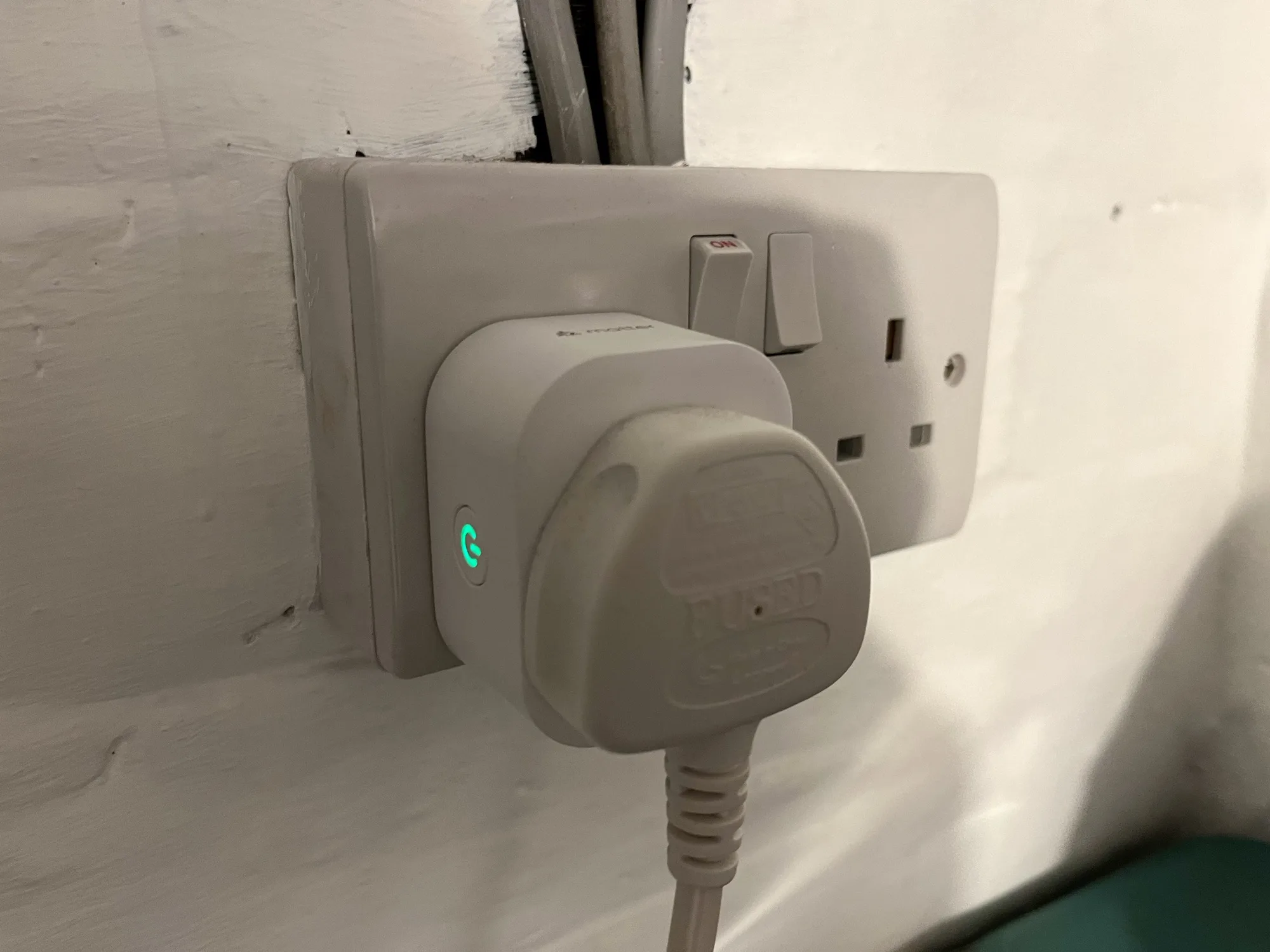
Energy monitoring over Matter

A photo of a Meross energy monitoring smart plug in a UK plug socket

Back in April last year, I bought a pair of Meross energy monitoring smart plugs (sponsored link). I’d chosen them because they supported Matter, and so could be easily added to Home Assistant, Google Home and Apple Home all at the same time. However, I lamented that their Matter support was limited to turning them on and off; the energy monitoring data wasn’t available through Matter. That has now changed.

If you have these plugs, or are looking at buying them, here’s how to get energy monitoring over Matter into Home Assistant:

Step 1: Update the Firmware

Firstly, you’ll need to open the Meross app on your phone, and ensure that the smart plug is linked to the app. Next, you’ll need to do a firmware update – this is located on the user tab, for some reason. The firmware update should take a couple of minutes.

A screenshot of the Home Assistant interface, showing the settings for the Meross energy monitoring smart plug and the 're-interview device' option.

Step 2: Re-interview your smart plugs

Originally, the way I found out that this was working was because one of my plugs had stopped working, and needed a factory reset. I then had to remove and re-add it to Home Assistant, Google Home and Apple Home. When I re-added it to Home Assistant, that was when I found that it now supported energy monitoring over Matter, as the power, wattage, voltage and current for the smart plug now appeared in the device settings.

The good news is that you don’t need to remove and re-add the device. Instead, you can ‘re-interview’ the device. Open it up in Home Assistant’s device settings, and then click the three dots next to ‘Share device’, and then ‘Re-interview device’. Home Assistant will then attempt to find out what capabilities the device has, and should add the new entities for you.

Step 3: Uninstall the Meross LAN custom integration

Now that Home Assistant can receive the energy monitoring data over Matter, you shouldn’t need the Meross LAN integration from HACS anymore. You’ll need to amend any existing automations that use the Meross LAN entities (I use this energy monitoring blueprint), and then remove the devices before uninstalling it through HACS. This was one of the integrations that was causing the biggest slowdowns in my Home Assistant, and it seems to be more responsive now that I’ve removed it.

The key advantage of using energy monitoring over Matter is that the data remains local to your home network. Otherwise, you’re sending and receiving data to Meross’ servers (unless you’ve managed to reconfigure them to use a local MQTT broker like Mosquitto). That also means that, if those servers go down or Meross withdraws support, you would no longer get energy monitoring data. Switching to Matter should therefore give your smart home system more resilience.

Flashing Tuya smart plugs with Tasmota

A photo of a Coosa smart plug, originally running Tuya firmware, and a USB to UART converter. This now runs ESPHome firmware.

Last year, I wrote about using a tool called tuya-convert to replace the firmware on my Tuya smart plugs. The firmware in question is Tasmota, which is an open source replacement firmware for devices with Espressif ESP chips. All my Tuya smart plugs have an ESP8266 chip, which can take custom firmware.

There are two ways of flashing Tasmota onto Tuya devices – an easy way, and a harder way.

There’s also a kind-of third ‘super-easy’ way, that I’ll mention towards the end.

tuya-convert – the easy way

I mentioned tuya-convert, which is a command line tool that exploits a vulnerability in older Tuya firmware to install Tasmota. You’ll need a computer such as a Raspberry Pi that has both Wi-Fi and Ethernet, and a smartphone. The tuya-convert tool then creates a hotspot that your Tuya devices can connect to when in pairing mode, and deploys the firmware wirelessly.

The key thing to emphasise here is that it only works with older firmware. Tuya patched the vulnerability in an update that came out some years ago, and indeed I’d already installed this on my smart plugs. That meant that tuya-convert could see the smart plugs, but couldn’t deploy the Tasmota firmware. So, I had to do it the hard way.

A photo of my hand holding some wires whilst flashing Tasmota onto a Tuya smart plug

Using a UART converter – the hard way

As you may have guessed from the photo above, the only way I was able to flash Tasmota onto these smart plugs was by taking one apart, and using a USB to UART converter with some jumper cables. If tuya-convert doesn’t work, then this is what you’ll need to do. You’ll need the following:

  • A USB to UART converter – I bought this one from AliExpress for the princely sum of £1.35.
  • Some Dupont Jumper cables – again, I bought these from AliExpress for £2.40. I picked up a big bag of male-male, female-female and male-female cables, but you only really need male-female cables if you want to save a few pence.
  • A computer with a USB port

I would also recommend the following:

  • Some electrical tape to hold things down
  • A USB extension cable

For the plugs that I was working with, I didn’t need a soldering iron, but some others may require it.

Disassembly and what’s inside

Firstly, it is very, very important that your smart plugs are not plugged into the mains while you do this, unless you want to burn yourself and/or your house down. We’ll be providing power via a different method, so make sure your device is not plugged in via the usual method. With my smart plugs, the positioning of the screws means it’s impossible for them to be plugged into the mains anyway.

Next, remove the screws from the plug. There were five on mine – the central one had to be removed first, and then the remaining four. Once that was done, I carefully separated the top and bottom of the housing.

The bottom part includes the high voltage AC circuitry. We’re not concerned with this and can leave it alone. What we’re interested in is the ancillary circuit board in the top part. It’s held in place by two small screws – you can remove these if you wish, but you can easily access the five pin holes that we need with the board still screwed in place.

The pin holes are as follows, with the first closest to the edge:

  • RX – data in
  • TX – data out
  • GND – ground
  • GPI00 – the pin hole that puts the smart plug into flashing mode
  • 5V – the 5 volt power input pin hole

Normally, ESP chips work at 3.3 volts, but there’s a converter chip elsewhere on the circuit board for these specific smart plug. Yours may be different, so check first to see if it’s 3.3 volts or 5 volts. The UART to USB converter that I have offers both, so we’ll use five volts for this.

Connecting the wires

Firstly, make sure your USB to UART converter is not plugged in to the computer. You’ll need to get your Dupont cables and connect them from your converter to the board. The pins on the converter should be labelled, so you need to connect them as follows:

  • From RX on the board to TXD on the converter
  • From TX on the board to RXD on the converter
  • From 5V on the board to 5V on the converter
  • From both GND and GPI00 on the board to GND on the converter

For this last one, I used three cables – two male-male cable from each of the GND and GPI00 ports on the board, and one female-male cable from the GND port on the converter – and then taped the pins at the end of the wires together. If it helps, there’s a standard wiring diagram on the Tasmota Getting Started page – although we’re connecting one additional wire (GPI00).

Getting read to flash Tasmota

Now that we’ve linked the converter to board, we can do the fun bit – flashing the device. There are several ways you can do this, of which I would recommend two:

  • Tasmotizer – this is a simple Windows program for flashing. The key advantage is that it can optionally download and backup the previous firmware, just in case you want to restore it later.
  • Tasmota Web Installer – this allows you to install Tasmota through your web browser, using WebSerial. As it stands, only desktop versions of Chrome, Edge and Opera support it, so you can’t use Firefox or Safari.

Personally, I had a better experience with the Web Installer, so this is what I used. Once you’ve opened your flashing tool, plug the USB to UART converter into your computer and then click ‘Connect’. Your browser will ask for your permission to link the web page with the COM port created by the converter, so you’ll need to grant permission.

Note: sometimes the COM port wouldn’t show for me in the browser. If this happens to you, try opening Device Manager, if using Windows, to ensure that the driver has installed correctly. If not, asking Device Manager to simply update the drivers should be enough. I had the most success if I opened the web page, connected the USB to UART converter and then clicked ‘Connect’ in that order.

If all is well, the web flasher will connect to your device, erase the existing firmware and then upload Tasmota. It’s a quick process – the binary file for Tasmota version 15 is only 655 kilobytes, so it’ll only take a couple of minutes at most.

If you get a connection error, try swapping the RX and TX cables over and then try again, and make sure that the light on the circuit board isn’t on or flashing. If the light is on, it’s a sign that you’ve not connected the GPI00 pin correctly.

Assuming that the flashing worked, you can take the jumper cables out and reassemble your device and plug it back in to the mains.

Configuring Tasmota

So, now that your device has been flashed, you need to configure Tasmota on the device. Get your phone out, and go to Wi-Fi settings. You should see a new Wi-Fi hotspot called ‘tasmota-something-something’, where the somethings are an alphanumeric string – connect to it. A hotspot login box should appear – if not, go to http://192.168.4.1/ in your phone’s web browser.

The first step is to connect Tasmota to your Wi-Fi network. Choose the network, or type it in, and provide the password. Tasmota will then connect, and, if successful, will redirect to its new IP address which it’ll display on screen. I suggest making a note of this.

You’ll now need to navigate to Tasmota’s new IP address in a web browser – you can do this on any device, not just your phone. The first thing we need to do is tell Tasmota what kind of device it has been installed on. The easiest way to do this is with a Template, and there are a huge range of templates listed here. I couldn’t find an exact match for mine, but the closest was this one, which gave me the following template code:

{"NAME":"Anoop SP15","GPIO":[0,0,0,0,56,21,0,0,0,17,0,0,0],"FLAG":0,"BASE":18}

To paste this template into Tasmota, I used this guide. From the Tasmota home screen, I clicked ‘Configuration’, then ‘Configure Other’, and pasted the whole string into the ‘Template’ field at the top. Tick the box that says ‘Activate’, and then the green Save button at the bottom. Tasmota will restart, and then you’ll find that your smart plug now works. Huzzah!

Integrating Tasmota with Home Assistant

If you want your newly Tasmotised smart plug to appear in Home Assistant, then there are a couple more steps that we need to take. Tasmota communicated with other devices using MQTT, so if you don’t already have MQTT set up in Home Assistant, you’ll need to do this. The easiest way is to install the Mosquitto addon; this will then suggest the MQTT integration for you.

Next, we need to create a user account for Tasmota to use with MQTT. In Home Assistant, open Settings, and then People. At the top, select ‘Users’, and then click the blue ‘add user’ button. Give them a username and password, and then save these details somewhere safe for the next step.

Back to Tasmota. Firstly, we need to change a setting to allow Home Assistant to automatically discover your new Tasmota device. From the Tasmota home screen, choose ‘Console’, and input the following command:

SetOption19 0

Press enter. Next, go back to the Tasmota home screen, and into ‘Configuration’ again. Select the ‘Configure MQTT’ option. In the first box, you’ll need to enter the IP address or local hostname for your Home Assistant installation. If you use Home Assistant OS, this is most likely to be ‘homeassistant.local’.

Next, we’ll need to enter the username and password for the MQTT account we created earlier. The rest of the fields can be left with their default values, unless you want to customise the name.

Back to Home Assistant. If this is your first Tasmota device, then you should receive a notification that a new Tasmota device was found, and that you need to install the Tasmota integration. Do this, and your device will now be available. If you add any further devices, these will automatically appear in the Tasmota integration once their MQTT settings have been configured.

And that’s it. You should now be able to control your devices without needing to use Tuya’s cloud services.

The super-easy way – pre-flashed Tasmota devices

If you don’t already own a suitable smart plug, but want to use Tasmota, my advice would be to buy a smart plug with Tasmota already flashed. Local Bytes sell pre-flashed Tasmota smart plugs, so you can skip the disassembly and flashing sections of this guide. Alternatively, try eBay, where these plugs can also be bought pre-flashed.

Personally, if I was in the market for a new smart plug, I would buy one that supports Zigbee or Matter. I’ve previously reviewed some Onvis Thread/Matter smart plugs, and some Meross Wi-Fi/Matter smart plugs.

That being said, I’m pleased to have been able to flash Tasmota on these smart plugs. I’m currently only using one of them, but I’ve been able to give them a new lease of life with about £5 of materials and an hour or so of my time. Indeed, the spare ones may well end up on eBay in due course for someone else to use. It’s far better than letting them become yet more e-waste.

What’s next

Last year I bought a Sonoff Wi-Fi RF Bridge, but was disappointed that it wouldn’t work the way that I expected it to. And getting it to work with Home Assistant was a bit of a pain, requiring a custom integration from HACS or an addon. I’ve already installed Tasmota on it, so it too has local control, and I’m looking at flashing the RF chip with a different custom firmware to make it more useful. That will probably require soldering and is for another future blog post, however.

Onvis Matter and Thread Smart Plug review

A phg

I recently bought a pair of Onvis Matter Smart Plugs (sponsored link), as my first foray into smart devices that use a Thread network rather than Wi-Fi. These were to replace my remaining Tuya smart plugs, which use Wi-Fi.

I’m going to review the Onvis smart plugs, and talk about why I’ve chosen Matter and Thread smart plugs over Wi-Fi or Zigbee.

Why not Tuya?

I bought my Tuya smart plugs several years ago, when I didn’t know so much about smart home technologies. At the time, we’d only recently got a Google Home Mini, and so I picked up a cheap smart plug which happened to support Google Assistant and IFTTT, as well as Alexa. The other advantage of Tuya devices was that they could work without buying a hub as a controller, unlike Zigbee-based devices from the likes of Philips and Ikea. Bearing in mind that the hubs often cost at least £40, it’s a lot for when you just want one plug.

I wouldn’t buy a new Tuya Wi-Fi device nowadays, for the following reasons:

  • Wi-Fi devices use more power than others (Zigbee and Thread). Whilst we’re talking single digit numbers of watts here, having lots of Wi-Fi smart plugs around your home adds to your home’s ‘base load’ (sometimes known as a ‘phantom load’) of always on devices.
  • Tuya devices rely on Tuya’s servers to work. I understand that users based in Europe use servers located in Europe, but it means that every request has to make a round trip to their servers. This makes it slower than a system where commands can be actioned locally. Now, millions of Tuya devices have been sold over the years and I doubt that those servers would ever go offline, but if they did, any Tuya devices would lose their smart abilities.
  • Tuya is a Chinese company, so theoretically someone in the Chinese government could be logging every time you use a Tuya device. It’s a theoretical risk, but not having that data pinging across the internet in the first place is better for privacy.

The Tuya plugs that I have are also quite big, and not very sturdy.

Getting started with Thread

To use Thread devices, you need a Thread Border Router. Thankfully, I already have two, as they’re built into my Google Nest Wifi devices. You may also already have a Thread Border Router if you have some of the newer Google Nest Hub devices, a newer AppleTV or Apple HomePod, a newer Alexa device or a Samsung SmartThings Hub.

If you use Home Assistant, you can flash a Zigbee dongle to use Thread instead. Note that the blog post mentions enabling a ‘multi-protocol’ mode that allows you to use both Zigbee and Thread on the same dongle, but this isn’t recommended. As it is, my dongle just runs Zigbee nowadays but I may get a second dongle that I can flash Thread firmware onto. That way, Home Assistant has its own Thread Border Router, and it expands the Thread mesh network. Until then, Home Assistant is able to use the existing Thread mesh network that my Google Nest Wifi devices created – see How to join a preferred Thread network in Home Assistant for more.

A Tuya smart plug (on the left) next to a Onvis smart plug (on the right) both plugged in to a wall socket

Commissioning the Onvis smart plugs

When you get a new Matter device, it needs to be ‘commissioned’ to add it to your home network. You need to open the app for the smart home ecosystem you want to add it to (for example, Google Home, Apple Home or Home Assistant), select to add a new Matter device, and then scan a QR code on a label on the side of the device. In the case of these Onvis smart plugs, you also need to hold down the button for around 15 seconds to put them into commissioning mode. It helps to read the manual.

One of the reasons that I use smart plugs is that they’re controlling devices in awkward places, so I commissioned this in a place where I could sit comfortably with the devices plugged in, and then moved them to where they need to be. Otherwise, I’d be spending time crouched awkwardly in a corner.

Once commissioned, the Onvis plug will show up in the smart home app of your choice, and you’re done. I’ve been using them for a couple of days, and they seem to work well.

Why Matter and Thread?

So I’ve outlined why I wouldn’t use a Tuya device, but why have I chosen a device that uses Matter and Thread?

  • Thread devices only work locally. Whilst voice assistants like OK Google and Alexa may still need to use the internet to interpret what you say, they don’t need to send the actual commands across the internet. As well as protecting your privacy, it’s also faster; these Onvis Thread plugs seem to respond almost instantly, rather than at least half a second with the Tuya plugs.
  • The majority of Tuya devices do not work with Apple Home. This isn’t a massive problem for me, as although I use an iPhone and an iPad, I’m not a big Siri user. However, Matter devices are supported.
  • The idle power usage of these plugs should be lower than Wi-Fi.
  • As Thread is a mesh network, the more devices you add, the stronger the network becomes. It can also have multiple Thread Border Routers as exit points to your LAN/Wi-Fi network, so a network with several Thread devices and Border Routers should be very resilient.
  • Many of Apple’s newer iPhones (iPhone 15 and later), iPads and MacBooks include Thread radios, offering even more resilience if they’re connected to your Thread mesh network when at home.
  • I also think Matter is the future, although it’s taking longer than I would have anticipated for Matter devices to become mainstream.

These Onvis smart plugs are not the first Matter smart plugs that I’ve bought. Last year, I bought a pair of Meross Energy Monitoring smart plugs, although these use Matter over Wi-Fi rather than Matter over Thread.

Speaking of energy monitoring

It should be noted that these Onvis smart plugs do not support energy monitoring. They simply turn a socket on and off. Obviously, you can use automations in your choice of smart home ecosystems to set timers, or trigger them to turn on and off in relation to external events.

I’m noting this because it seems to be a common issue with these relatively early Matter devices – their Matter support is basic. With the Meross smart plugs for example, the Matter support is also limited to turning them on and off again. If you want to use their energy monitoring abilities, you have to use the Meross app, or install the Meross LAN integration from HACS for Home Assistant. These don’t use Matter and instead rely on Meross’ servers to send and receive data.

Price

I recently picked up a Zigbee smart plug for around £8 (including VAT) from AliExpress, which included energy monitoring. Seeing as these Onvis smart plugs don’t support energy monitoring, you may be surprised to find that they’re £25 each, or £40 for a pair (although as I write this, there are 15% off vouchers available on Amazon). So they are on the pricey side.

Which brings to the question about why I’m not just using Zigbee. After all, Zigbee is also a mesh network, and devices work locally. As it is, I have a small Zigbee network with the smart plug and a couple of colour-changing lights for our nine-year-old’s bedroom. And they work fine with Home Assistant. But then I have to use Home Assistant to make them appear in Google Home, and allow my Google Assistant devices to talk to them. Command fulfilment can be slow, taking a few seconds, and it’s unreliable – even when the Zigbee devices are obviously working, Google sometimes complains that they’re offline.

I suppose I could buy a Zigbee hub, like a Philips Hue or Ikea Dirigera, which would probably work better. But I already have Thread Border Router devices, and I’m hoping that Matter will mature as a standard.

Is £25 per Onvis plug worth it? Well, that’s up to you – but bear in mind that they work without needing a third-party app, will work with most smart home ecosystems, seem nice and sturdy and don’t rely on third-party internet servers. Hopefully, these Onvis smart plugs will be a good, long-term investment.

It’s also worth noting that these were the only Thread smart plugs that I could find on Amazon UK.

Screenshot of one of the Onvis smart plugs in Home Assistant

Matter Multi-Fabrics

One last thing to mention about Matter is its ‘multi-fabric’ feature, which allows you to add devices to multiple smart home ecosystems simultaneously. Initially, I’ve added all my Matter devices to Home Assistant, which has the Python Matter Server addon. On the device settings page, there’s a ‘Share Device’ button, which, when clicked, puts your device back into commissioning mode. You then get a new QR code in the Home Assistant interface, which you can use to add it to another smart home app like Google Home. You can then repeat the whole process for any other apps, like Apple Home.

This means that I have my Onvis smart plugs added to all three smart home apps, and they can be controlled by Home Assistant, Apple Home and Google Home. What’s particularly notable is that I was still able to control the lights in Apple Home whilst my Raspberry Pi running Home Assistant was restarting after an update.

Summary

Well, this ended up being a longer blog post that I’d expected. So, in summary:

  • The Onvis smart plugs work well, are sturdy, respond quickly and are compatible with most smart home ecosystems
  • They’re a bit pricey at £25 each, and don’t support energy monitoring
  • You need a Thread Border Router device for them to work, but you may already have one
  • They’re more energy efficient than Wi-Fi sockets, and don’t rely on third-party internet servers

As for what I’ll do with my old Tuya smart plugs? Well, I could convert them to run Tasmota I suppose.

Meross energy monitoring smart plugs

A photo of a Meross energy monitoring smart plug in a UK plug socket

I’ve recently bought a pair of Meross energy monitoring smart plugs (sponsored link), and by integrating these with Home Assistant, I now get notifications when the washing machine and tumble dryer have finished.

Previously, I’ve used Tuya smart plugs. Which are fine, but these ones don’t do energy monitoring, don’t work with Apple HomeKit and I have some privacy concerns. The Meross plugs, on the other hand, do offer energy monitoring, can be used with 13 Amp devices, and also work with Matter. They’re also smaller, and feel more solidly built than the older Tuya plugs.

Matter support

These smart plugs also support Matter, the open smart home standard. This should mean that you can use them with any smart home ecosystem, whether that’s Amazon, Google, Apple HomeKit, Samsung SmartThings or Home Assistant. I was able to get them to pair with Home Assistant, but not with HomeKit. It turns out I need a device that can act as a HomeKit hub, which can be a permanently plugged-in iPad, Apple TV or Apple HomePod. It won’t just use any other Matter server on my home network. This is ironic as the Home Assistant app uses the same Matter provisioning process on iOS devices.

It’s also worth noting that Matter support is limited to turning the smart plugs on and off. I’m guessing the Matter specification doesn’t include energy monitoring as yet. Also, these smart plugs connect over 2.4 Ghz Wifi, which is worth noting if you’ve configured your Wifi network to only use 5 GHz. They don’t use Thread.

Screenshot of the hassio_appliance-status-monitor Blueprint being configured as an automation in Home Assistant

Making use of energy monitoring

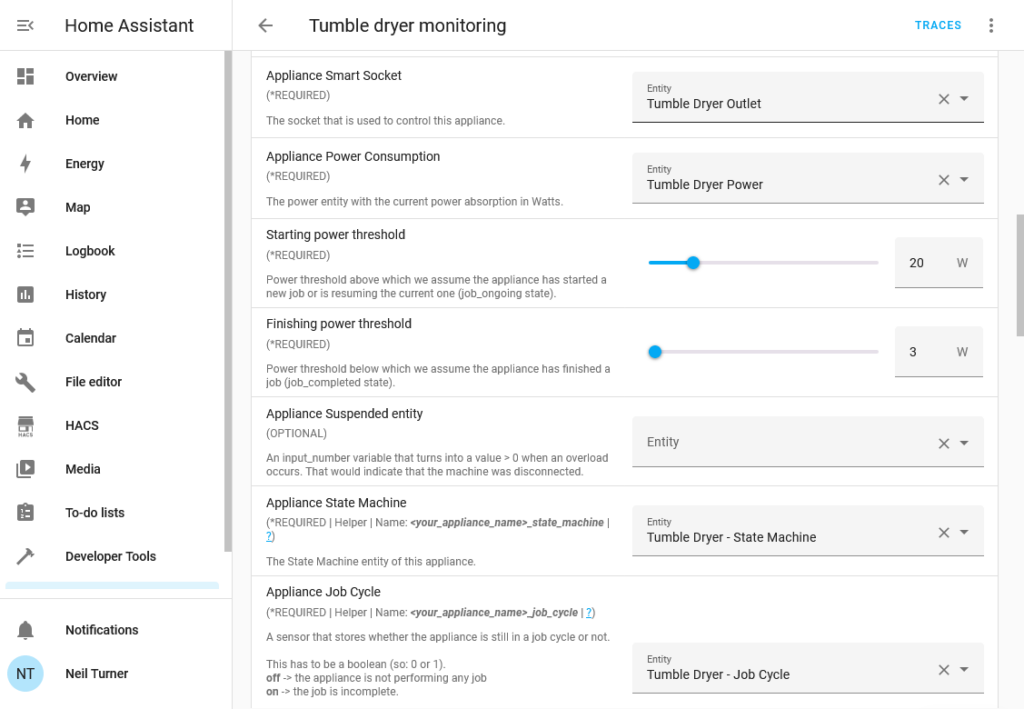
If you want to take advantage of the energy monitoring capabilities of the smart plugs, you’ll either need the official Meross app (for iOS and Android), or use Home Assistant. Whilst I have installed the Meross app, I’ve set up the automations in Home Assistant. There isn’t an official Home Assistant integration for Meross, so you’ll need to install the Meross LAN custom integration which is available through HACS.

Once you’ve set it up and added your devices, you’ll need to set up the energy monitoring automation. By far the easiest way is to use this BlueprintBlueprints are essentially templates for automations that you can download and configure. Make sure you follow the instructions, as you’ll need to create four Helpers for each smart plug, and give them specific names.

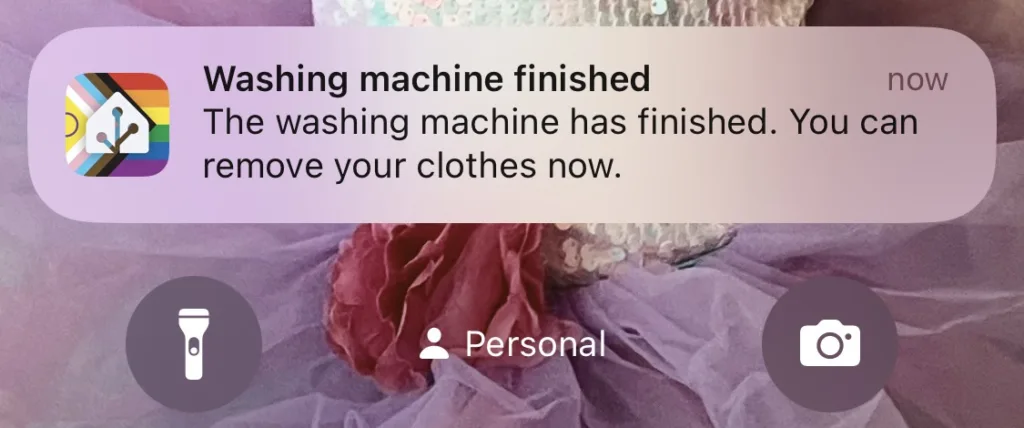
You can then define actions to take when the energy monitoring detects the appliance has started and ended. In my case, I’ve told it to send a notification to my phone when the device has finished. In the case of my tumble dryer, this includes a 15 minute delay as it uses less power towards the end (and otherwise results in notification spam). You may need to tweak the power thresholds as well. If all goes well, then you’ll get a notification like the one in the screenshot below.

A screenshot of a notification from Home Assistant stating that the washing machine has finished, triggered by the energy monitoring smart plugs

Doing this means that you can get one of the key features of a smart device, without paying a significant premium. I paid £25 for the two plugs from Amazon, whereas it would have cost at least another £100 to buy a smart tumble dryer. Our washing machine is 9 years old and I’m not even sure that smart washing machines were on the market at the time.

Converting Tuya devices to Tasmota

Screenshot of the Tasmota web site

I’ve mentioned that I have a few Tuya smart plug sockets around the home. It’s possible to convert these to run on open source firmware called Tasmota, to gain some additional features, and it’s something I’ve been considering.

The logic boards for many Tuya devices are from the Espressif ESP family, which can easily be flashed with different firmware. Tasmota is one such provider, as is ESPHome which is a sister project to Home Assistant.

What’s wrong with Tuya?

Tuya mostly manufacture ‘white label’ devices that are then sold under a variety of brands. Mine are branded ‘Coosa’ but I’ve seen others called ‘Hey!’ being advertised. Often, they come with their own branded app, but you can use them with Tuya’s own app as well.

I bought them a few years ago because they work well with Google Assistant and IFTTT (which I no longer use). They also work well with Home Assistant (especially since last month). They don’t work with Apple HomeKit natively but can be bridged in using Home Assistant or Homebridge. The other advantage was that you didn’t need a separate hub for them to work – they connect directly to your home Wifi network.

However, Tuya is a Chinese company. Though they claim to have servers in the EU, it could be that every time I use their switches, my request goes via China. In Home Assistant, there are a couple of custom integrations in HACS called LocalTuya and TuyaLocal that can issue commands locally on your home network. But if you use Google Assistant, the commands get sent across the web.

Local control with Tasmota

The Tasmota project offers a tool called Tuya Convert, which replaces Tuya’s official firmware and allows for local control. It mainly uses the MQTT protocol, which is openly documented and used by a variety of different Internet of Things devices. Once flashed onto your devices, they can be controlled locally and don’t need to communicate with external servers. Home Assistant has extensive MQTT support and an official Tasmota integration.

They also work well with Alexa devices, by emulating a Belkin WeMo or Philips Hue device.

This all sounds good to me, but I haven’t gone ahead and done it. Unfortunately, whilst Amazon Alexa is supported, Tasmota doesn’t easily interact with Google Assistant. And once I’ve flashed a device with Tasmota, it may be difficult or impossible to go back to the official Tuya firmware.

Of course, I can configure Home Assistant to work with Google Assistant. I haven’t yet, even though there are two ways to do it:

  1. Sign up for Home Assistant Cloud from Nabu Casa, which costs £6.50 per month
  2. Set up Google Assistant manually with Home Assistant, which is lengthy and may need to be reconfigured every 30 days.

I suppose if we used Amazon Echo devices instead of Google Home, this would be a no-brainer.

In the long run, replacing these smart plugs with ones that use Matter would be better and cheaper. My Home Assistant install is pretty-much Matter ready, with no need for an additional hub. Matter, like Zigbee, mostly works locally, and therefore doesn’t have the privacy implications of my current web-based Tuya plugs.

A basic Home Assistant automation

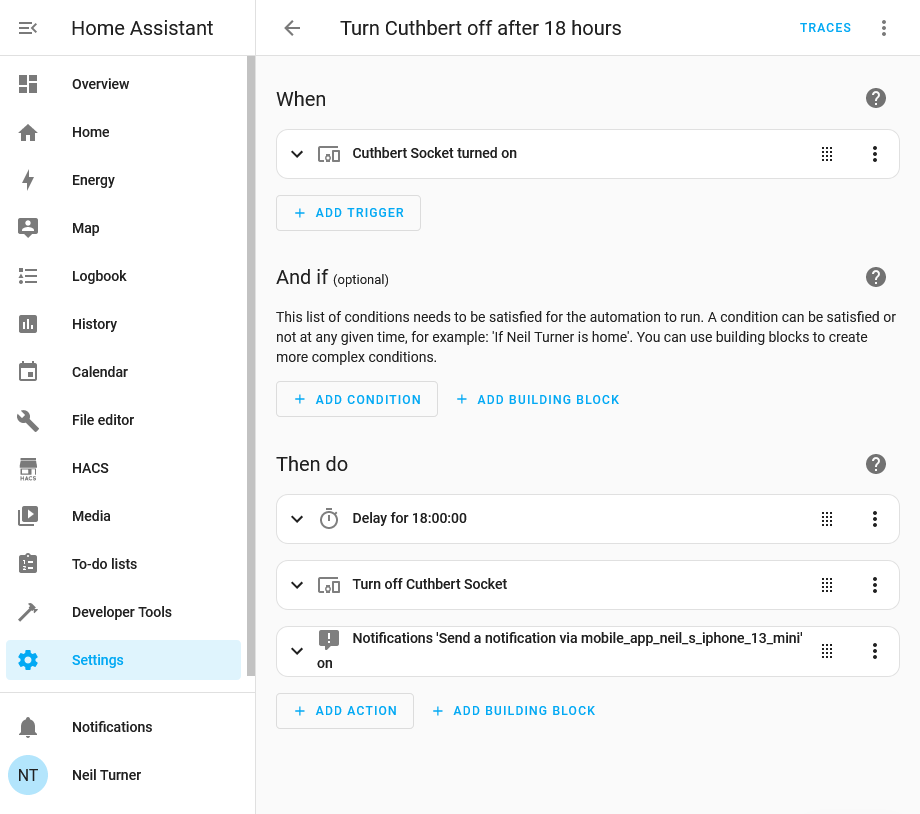
A screenshot of Home Assistant showing an automation to turn off a smart plug after 18 hours

One of the biggest benefits of running Home Assistant in your home is its powerful automation tools for controlling your smart devices. In this example, I have a smart plug socket which I want to run for 18 hours, and then automatically switch off. This is the smart plug that we use for our heated drying rack, and it ensures that the rack doesn’t continue heating for longer than necessary, to save energy. As I run Home Assistant on a Raspberry Pi 4, it only uses 15 watts of power, compared to the few hundred watts that the drying rack requires.

Automations in Home Assistant have become much easier in recent releases. In times gone by, you’d have to write YAML scripts to automate your devices, but now there’s a relatively straightforward interface. Generally, automations work on the principal of ‘if this, then that’ – a bit like IFTTT, but it runs in your own home.

Tuya me, to you

For my automation, I use the trigger of the smart socket being turned on. In my case, this is a Tuya wifi-enabled smart plug, which I’ve called ‘Cuthbert’. We have four Tuya plugs, all with silly names like Cuthbert, just because. Tuya are a white label manufacturer, and so the brand names on the plugs vary despite them being exactly the same. I wouldn’t necessarily recommend them, as presumably every time you turn them on and off, your request goes via Chinese-controlled servers. I would probably buy Matter-enabled plugs instead now but they work fine. Plus, the recent 2024.02 release of Home Assistant massively improves Tuya support and no longer requires you to create a developer account, which is nice.

Automation actions

Anyway, having selected the ‘When’ event, we now need to specify the ‘Then do’ actions to take. First of all, we need a time delay, otherwise as soon as the socket is turned on, Home Assistant will turn it off again. The ordering of actions is important, as I found out the hard way; I originally had the delay after the command which meant that the socket just turned off straight-away. So, we specify a delay and then the action to turn the socket off.

The third action is optional, but it just sends a notification to my phone to tell me that the automation has completed. I’m using the Home Assistant Companion app but you could use an app like Pushover, or trigger an email.

This is a really simple automation, but you can create more complex ones. I’m hoping that, at some point in the future, we’ll have some smart blinds in our kitchen, and I’ll be able to use Home Assistant’s sun integration to open and close them at sunrise and sunset.