
New year, new server image

Last week, I upgraded the server that this site runs on to Debian 13 (also known as Trixie), and the corresponding version of Sympl. This ended up being a fresh installation of Debian; I tried and in-place upgrade and, well, let’s just say it went badly wrong and the virtual machine wouldn’t boot. Whoops.

A sign that I only partially learn from my mistakes is that this is basically what happened when I lost everything in 2018. However, this time I did have backups, thanks to the UpDraft Plus WordPress plugin. And, whilst I didn’t do a backup immediately before the aborted upgrade like I should have done, I did have one that was only about a week out of date. Furthermore, this included some blog posts that were written but not yet published at the time, so I didn’t even lose those. Phew.

The upgrade to Debian 13 means that I’m running a newer version of PHP. Debian 12 ships with PHP 8.2 and I had added a custom repository to upgrade this to PHP 8.3. Debian 13 includes PHP 8.4, and so I no longer get a warning message in WordPress’ Site Health checker. It’s not the latest version – that’s PHP 8.5 – but it’s newer.

The existing server image had been in place for just over a year, when I moved from Bytemark to Hosting UK, and the last time I upgraded Debian was in 2023. Doing a fresh install every now and again should help to keep things running better, hopefully.

Hopefully, you won’t notice anything different about the blog, apart from some of the sidebar widgets missing. I’ll get these restored in time.
WordPress backups with UpdraftPlus

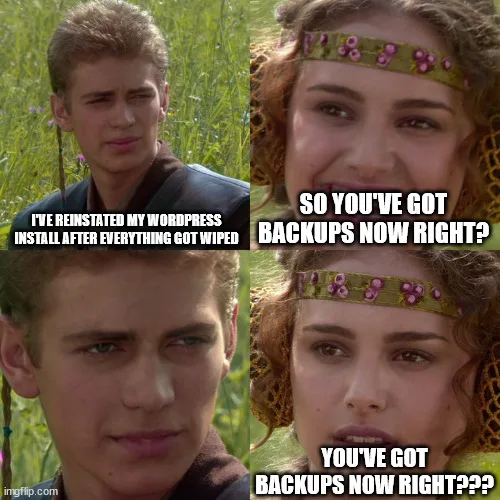
A meme featuring Anakin and Padme from the Star Wars films. Anakin is saying 'I've reinstated my WordPress install after everything got wiped' and Padme says 'so you've got backups now right?'

It’s a little while until World Backup Day on the 31st March, but I’ve set up UpdraftPlus to create automatic backups of my WordPress installation to my Dropbox account.

It’s a straightforward plugin to set up. You install it from the WordPress plugin directory, select your cloud storage provider, choose what you want to backup, and then run it. If it all goes well, you can then set a schedule for automated backups.

The free version offers Dropbox, Google Drive, Amazon S3 and some others, and you can also upload your backups to any FTP server, albeit over a non-secure connection. If you want to use WebDAV, SFTP, SCP, Microsoft OneDrive or UpdraftPlus’ own service, then you’ll need a premium account. At present, it’s £54 per year for up to two personal sites, which is pretty reasonable – the equivalent of a little over £4 per month.

Your backups can include everything if you want, but I’ve excluded plugins and themes from my backups. I haven’t modified the theme that I am using, and I’m not using any custom plugins – everything is from the WordPress plugin directory.

Backing up my files to Dropbox makes the most sense to me. I pay for Dropbox Pro and so have 2 terabytes of storage, of which I’m using less than 7%. Whilst VaultPress is the officially-supported solution for backups for WordPress, it’s not a free service and I’m already paying for Dropbox Pro.

The best time to set up backups is now

There isn’t a ‘best time’ to set up backups for any system apart from, well, now. So, if you haven’t got a backup solution in place, this is your reminder to sort something out. I lost all my blog posts in 2018 because I didn’t have adequate backups in place when doing a server upgrade. I would say I learned my lesson, but I’ve been blogging again for 18 months now and only set up UpdraftPlus last week.

There are many other WordPress plugins that offer backups – some free and some paid. I chose UpdraftPlus as it seemed to be the one which offered the features that I wanted, but you may find another suits you better. Just make sure that you have something in place.