Six port car charger review

A photo of a six port car charger in my car

With us having guests in the car for a long journey, I’ve recently bought a new USB car charger to go in the back of our car. Unlike others that I’ve bought in the past, which offer 2 or 3 USB ports, this offers six.

It’s currently on sale on Amazon for £13 (sponsored link), but I picked mine up cheaper elsewhere. There are two USB-C ports with Power Delivery, and then four USB-A ports. Of these four, there are two standard ports which offer 3 amps, and then a green one and an orange one, which support various proprietary quick charge specifications. I’m already using one of the USB-C ports for my CarPlay unit in the front, on a long cable.

Above the ports is a three digit display, which shows the current voltage coming in to the charger. This should nominally be 12 volts, but as you can see in my photo it’s higher at 14.4 volts. Should it go higher than 14.8, or below 11.6, that would be a cause for concern. The whole thing also glows blue when the engine is on and it has power.

Apparently you can’t use all six ports at once – the maximum is five. However, it’s apparently capable of quite high wattages. Whilst I’ve always known it as a ‘cigarette lighter socket’, the official name is the Automobile auxiliary power outlet, and the maximum current can be as high as 10 Amps. As such, 120 Watts is possible, assuming a 12 volt supply (see, I remember what I learned in GCSE Science). In practice, the maximum power from any one port will be around 60 Watts, but that’s still enough to charge a laptop.

For what it’s worth, I haven’t found any chargers offering more than six ports, so this seems to be the maximum. In the front of our car, we have a much smaller two port USB car charger, with one USB-A and one USB-C port. The location of the auxiliary power outlet, which is right next to the gear stick on the driver’s side, means that I prefer a smaller, low profile charger that doesn’t get in the way. Still, this means we have 3 USB-C and five USB-A ports available in the car.

Our car dates from 2012 and so it only came with one USB-A port built-in – I haven’t included it as it’s a 0.5A port and therefore a bit useless for charging. Also, if I plug my iPhone into it, the car stereo instantly starts playing the first song in my iTunes library, which is ‘Nothing’ by A. More modern cars presumably have many more USB ports, and I can see the cigarette lighter sockets becoming less common. Not least because it’s illegal to smoke cigarettes in a car with children in it in the UK, and barely anyone smokes nowadays anyway.

Steetek USB/HDMI KVM Switch review

A photo of the Steetek KVM switch, with a USB cable plugged in the front and various USB and HDMI cables plugged into the back. It's a grey, rectangular metal box.

If you’ve been reading this blog for a few months, you may notice that I’ll review gadgets that I’ve bought from Amazon from time to time. This includes headphones, a USB solid state drive, a Bluetooth label printer, a Bluetooth thermometer, energy monitoring smart plugs, a Zigbee dongle and a multi-device wireless mouse. And today, I’m reviewing a Steetek KVM switch (sponsored link).

KVM switches have been around for many years – KVM standing for Keyboard, Video and Mouse. They allow you to have one keyboard, mouse and screen connected to two or more computers, which you can switch between. Older models had to include all manner of ports – RS232 serial ports, parallel ports, PS/2 ports for keyboards and mice, and VGA or DVI ports for screens. Nowadays, thanks to standardisation on USB, modern KVM switches are much more simple.

This Steetek model is designed to switch between two computers. It comes with two USB-A to USB-B cables to connect to each computer, but you need to provide your own HDMI cables. On the front are four USB 2.0 ports, so it also doubles as a USB hub. Note that the picture on Amazon’s web site suggests that there are two USB 1.1 and two USB 2.0 ports, but they’re all labelled as USB 2.0 on the KVM switch that was delivered to me.

Once set up, there’s a single button at the front, which you press to toggle between the two computers, and two LEDs, which illuminate depending on which computer is in use. It can support 4K Ultra HD screens (3840 × 216 resolution) and audio over HDMI, so you can use it for (for example) games consoles as well as computers. The KVM switch does not need any external power, and there are no drivers to install. That being said, the lack of external power means that the USB ports will only be really useful for connecting keyboards and mice, and not any high-power devices like phones.

It’s also nice and compact, measuring just 11 cm (4 1/2 inches) wide, 6 cm (2 1/2 inches) deep and only an inch (2.5 cm) high, so it doesn’t take up much space on my desk. I’m using it to switch between our home Windows laptop, and the Raspberry Pi which runs Home Assistant. As mentioned, there’s no need to install drivers and so it works fine, even when the two computers are very different. It costs about £20 at the time of writing.

There are lots of other KVM switches available, offering external power and connections to more than two computers. There are also some Thunderbolt KVM switches, such as this one (sponsored link), which are even simpler to set up. Because Thunderbolt uses USB-C connectors for data and video, you only need one USB-C connection to each device rather than separate USB and HDMI connections. However, you’ll pay a premium for these, as they cost several times more than this more basic one. And neither of my computers support Thunderbolt.

Mounting a USB hard drive on startup on Ubuntu Core

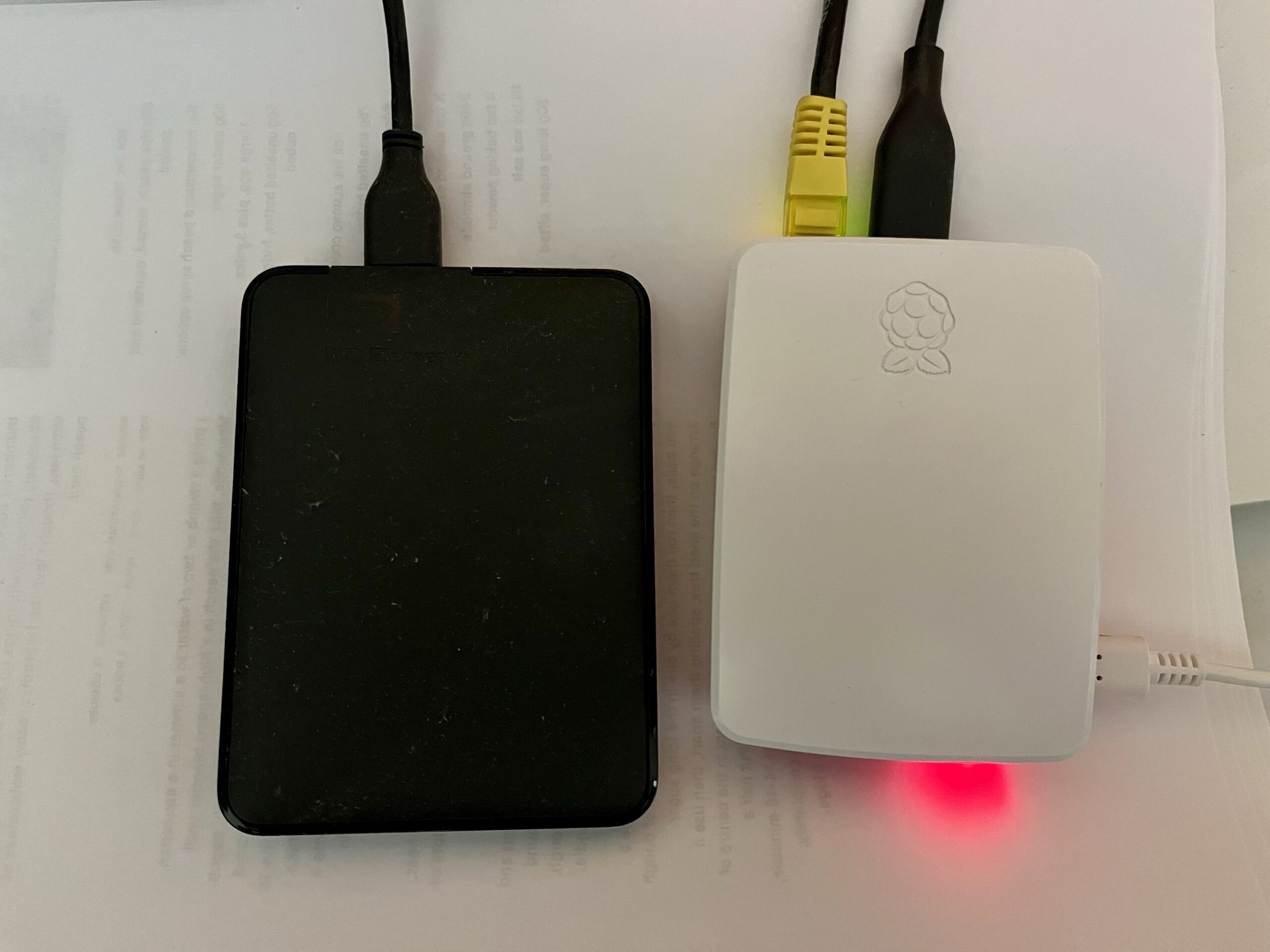
A photo of a Raspberry Pi 4 connected to a USB external hard drive

As you’ll be aware from my regular posts about it, I have a Raspberry Pi 4 running Ubuntu Core, which acts as a server for Home Assistant, Plex and Calibre-Web. Here’s how I’ve set it up to mount an external USB hard drive on boot up.

As it’s a Raspberry Pi, the operating system and binaries set on a microSD card, which in this case is a mere 16 GB. Whilst the me of 20 years ago would have been astounded at the concept of something so tiny holding so much data, 16 GB isn’t much nowadays. So, I have a 1 TB external USB hard drive for storing the media files for Plex and Calibre-Web.

Ubuntu Core doesn’t automatically mount USB storage devices on startup unless you tell it to, and the instructions for doing so are different when compared with a regular Linux distro.

There’s no fstab

Most Linux distros, including regular Ubuntu, include fstab for managing file systems and mounting devices. But Ubuntu Core is designed to be a lightweight distro to act as firmware for Internet of Things devices, and so it doesn’t include many tools that are common in other Linux distros. fstab is one such tool which is missing.

You can, of course, just mount a USB drive manually with the following:

sudo mkdir /media/data
sudo mount /dev/sda1 /media/data

But this won’t persist when the computer restarts. After a bit of searching, I found a solution on StackExchange; it’s for Ubuntu Core 16, but works on 22 as well.

How to tell systemd to mount your USB hard drive

It should go without saying that you should back up your system before doing any of this. If you make a mistake and systemd stops working, your device could become unbootable.

Firstly, you’ll need to run sudo blkid to list all of the file systems that Ubuntu Core can see. Find the one that starts with ‘/dev/sda1’ and make a note of the long hexadecimal string that comes after UUID – it’ll probably look something like ‘2435ba65-f000-234244ac’. Copy and save this, as this identifies your USB hard drive.

Next, you’ll need to create a text file. Ubuntu Core only seems to offer the Vi text editor, which I haven’t bothered to learn to use properly. My favoured text editor is nano, but it’s not available on Ubuntu Core. Therefore, my recommendation is to create a file on another device and FTP it across. The file should be called media-data.mount; it’s really important the file name matches the intended mount point. For example, if you’re instead planning to mount the USB hard drive to /mnt/files, this text file would need to be called mnt-files.mount.

Here’s the template for the file:

[Unit]
Description=Mount unit for data

[Mount]
What=/dev/disk/by-uuid/[Your UUID]
Where=/media/data
Type=ext4

[Install]
WantedBy=multi-user.target

You’ll need to paste in the UUID for your USB hard drive where it says ‘[Your UUID]’. You’ll also need to match the file system type; I have my external USB hard drive formatted as ext4 for maximum compatibility with Linux, but yours may use ExFAT or NTFS.

This file needs to be saved to /etc/systemd/system/media-data.mount . You can either use vi to create and save this file directly or FTP it across and copy it over.

There are three further commands to run in turn:

sudo systemctl daemon-reload
sudo systemctl start media-data.mount
sudo systemctl enable media-data.mount

If you’ve done this correctly, then the next time you restart your device, your USB hard drive should mount automatically. If not, then you should receive some surprisingly helpful error messages explaining what you’ve done wrong.

There’s another guide at Wimpy’s World which has some additional detail and helped me get this working.

More on the upgrade

As promised, here is more about the upgrade I did to my parents’ computer last weekend.

The computer will be 4 years old in October and I wanted to sort out its current shortcomings while also making it capable of running for at least another 2-3 years. The agreed budget was £100, about 6 times less than the original cost of the computer.

In the end, we went for the following internal components:

  • 2 GB of Corsair Value Select PC3200 RAM
  • 256MB XFX nVidia GeForce 6200A AGP 4x/8x graphics card
  • A no-brand USB and FireWire PCI card

The memory was the most important part of the upgrade. Originally, the machine only had 512 MB of RAM, and as such was struggling. As a matter of principle I only buy Corsair or Crucial RAM as I know it’s good quality, and on this instance I went for Corsair as it was slightly cheaper and could be shipped as part of the same order from Scan. It was still the most costly aspect of the upgrade at £39.32 (ex VAT), taking the majority of the £100 budget.

Next was the graphics card. Right now the machine has onboard VIA graphics, which can do some basic 3D but not much more (it will just about handle the original World of Warcraft with all of the effects turned off, but it’s not pretty), and it leeches system RAM rather than having its own. Furthermore, the manufacturer has not produced any new drivers for Windows Vista. So, as part of my plan to keep the machine running for a few years, allowing for a potential Vista upgrade is important. I doubt nVidia are due to disappear any time soon, so hopefully this new card will be a safe bet. It also adds DVI and S-Video output, allowing connection to a TV or a more modern TFT screen.

Finally, I added a USB and FireWire PCI card. The machine had 2 USB ports at the front and 2 at the back, but both of those at the back were full and my parents were already having to use a hub. The machine is due to be moved to a room where there is no wired socket for Ethernet, so we’ve opted to go for a USB wireless dongle (the Netgear WG111 previously mentioned), so that would be another USB port used up. As an extra PCI card was only around £5, it made sense to add 4 more ports. It also adds 2 FireWire 400 (IEEE 1394a) ports, which the computer previously lacked; whether my parents will ever use them is perhaps questionable but at least they are there, and it may add resale value to the machine.

These 3 items, plus the Netgear dongle, packing and VAT, came to £100.19, so only a bit over budget 🙂 . The difference is very noticeable – startup times are improved and general performance is much better. The machine is now almost ready for Windows Vista – the only device lacking a Vista-compatible driver is the internal modem, which isn’t in use anyway and could be removed if necessary (it’s made by SmartLink who sold their assets to Connexant in 2006, and then disappeared off the face of the earth. Their latest drivers don’t even work correctly with Windows XP SP2).